Tired of lag spikes in Bed Wars? Discover the best Blockman Go FPS settings on Android to stop thermal throttling and stabilize 60 FPS across every match.
Nothing ruins a Bed Wars bridge fight faster than a sudden frame drop. You line up a strike, jump across the void, and your screen freezes. By the time the display catches up, you are falling into the abyss.
Blockman Go uses a lightweight voxel engine built to support hardware as old as Android 6.0. Even so, aggressive thermal limits and unoptimized visual sliders quickly wreck frame pacing. Below are the exact settings needed to balance target visibility with a locked frame rate.
Why Blockman Go Drops Frames on Android Devices
Mobile stutter in voxel engines comes down to two bottlenecks: hardware saturation and heat.
At launch, your phone runs at peak clock speeds and movement feels snappy. After 10 to 15 minutes of continuous play, internal temperatures climb. Android steps in with automatic thermal throttling, forcing the CPU and GPU to downclock and slashing rendering throughput to protect the battery.
Memory saturation creates a second roadblock. On phones with 3 to 4 GB of RAM—or internal storage over 90% full—the operating system struggles to stream textures and player models on the fly. Whip your camera around in a crowded lobby, and the GPU stalls while swapping assets. Frames drop instantly from 60 down to 15–20 FPS.
Many Android titles also default to a 30 FPS engine cap to conserve power. Unless you explicitly configure both your system and the in-game display settings to target higher refresh rates, touch inputs will feel heavy and delayed.

60 GCubes
 60 GCubesUSD 0.87Buy Now
300 GCubes
300 GCubesUSD 4.19Buy NowPremium Monthly Card
Premium Monthly CardUSD 4.19Buy NowPremium Pass
Premium PassUSD 5.87Buy Now600 GCubes
600 GCubesUSD 8.38Buy NowLuxury Monthly Card
Luxury Monthly CardUSD 8.38Buy NowSubscription LV.2
Subscription LV.2USD 8.38Buy NowDeluxe Pass
Deluxe PassUSD 10.90Buy Now1650 GCubes
1650 GCubesUSD 20.96Buy NowSubscription LV.3
Subscription LV.3USD 20.96Buy Now3600 GCubes
3600 GCubesUSD 41.90Buy Now8400 GCubes
8400 GCubesUSD 83.82Buy Now
The Baseline Graphics Configuration for Max FPS
Blindly lowering every slider makes the game blurry without addressing the real bottlenecks. You only need to cut the features that punish mobile GPUs: dynamic shadows, multi-layer particles, and anti-aliasing passes.
The profile below balances visual clarity with stable frame pacing on Android hardware.
| Graphics Setting | Recommended Configuration | Performance Impact & Competitive Role |
|---|---|---|
| Frame Rate / FPS Target | 60 FPS (90 FPS on supported 90/120 Hz displays) | Provides smooth combat feedback while preventing rapid thermal throttling. |
| Render / View Distance | Low to Medium (6 - 8 chunks equivalent) | Keeps opposing bases visible in Bed Wars without overloading the geometry pipeline. |
| Shadows & Lighting Effects | Low / Off | Cuts GPU load by eliminating dynamic shadow maps and complex lighting passes. |
| Particle & Special Effects | Low | Eliminates stutter during multi-player sword fights and explosive projectile impacts. |
| Anti-Aliasing | Off | Frees up mobile GPU fill rate with minimal visual difference on high-density phone screens. |
Shadows consume the most GPU cycles in mobile voxel games. Disabling them removes real-time light projection calculations across hundreds of individual blocks.
Anti-aliasing should be turned off next. High-density mobile screens mask jagged edges naturally, so running smoothing passes simply burns GPU fill rate for no visible return.
Fine-Tuning Render Distance and Particle Effects
View distance and simulation distance do two different jobs. View distance controls how many block chunks render into memory. Simulation distance determines how far out the engine updates physics, mob AI, and block states each tick.
Dropping view distance to the lowest slider value puts you at a severe tactical disadvantage in Bed Wars or Egg Wars. You cannot spot enemies bridging from outer islands until they are already attacking your base.
Keep render distance locked at Medium (6 to 8 chunks). This maintains full line-of-sight across competitive arenas without forcing the CPU to render decorative background geometry.
Particles are the other silent performance killer. Explosives and enchanted weapon swings spawn hundreds of 2D sprites. On entry-level GPUs, overlapping alpha transparencies cause immediate frame dips. Lowering particle quality to Low preserves hit feedback while keeping frame delivery smooth.
Before queuing for a match or using a Blockman Go instant top up for gear, verify your settings match your hardware's thermal limits.

Step-by-Step Fix Guide for Android Lag and Stutter
If you experience persistent stutter or sudden hitching, follow this troubleshooting routine to clear system bottlenecks.
Purge Background Apps and Clear Memory Caches
Close background social apps, video players, and browsers before opening the game. Freeing up system RAM prevents aggressive operating system memory management from interrupting the game loop.Align In-Game Frame Targets With Native Refresh Rates
Open the game settings and set your frame rate target to 60 FPS. If you have a dedicated 90 Hz or 120 Hz panel, test 90 FPS only if your device stays cool under load.Disable Real-Time Shadows and Dynamic Lighting
Switch shadows to Off or Low. This single change eliminates the primary source of GPU thermal generation during sustained matches.Dial Render Distance to Medium
Adjust your view distance slider to roughly 6 to 8 chunks. Verify that you can see opposing team islands from the center of Bed Wars maps without seeing distant chunk pop-in.Turn Off Anti-Aliasing and Post-Processing
Deactivate edge smoothing and motion blur toggles. This maximizes raw pixel fill rates on compact smartphone displays.Remove Insulating Phone Cases During Long Sessions
Heavy rubber and plastic cases trap heat against the phone chassis. Removing the case allows your device to dissipate heat naturally, delaying thermal throttling past the standard 10 to 15 minute window.
Managing Android Game Mode and Battery Saver Caps
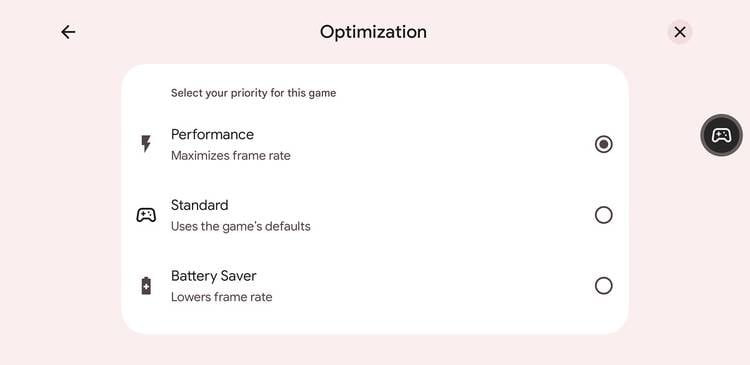
Android includes built-in OS tools that dictate game performance. Starting in Android 13, native Game Mode includes dynamic frame-rate interventions. These caps reduce GPU power draw by up to 50% and total system power by 20% by locking output to integer refresh divisors: 30, 40, 45, 60, 90, or 120 FPS.
Android 15 added the developer flag persist.graphics.game_default_frame_rate.enabled to bypass standard 60 FPS limits on high-refresh screens. Still, manufacturer game boosters and in-engine settings override this property.
+-------------------------------------------------------------------+
|               Android Display Pipeline & Frame Pacing             |
+-------------------------------------------------------------------+
|  [High-Refresh Display: 120 Hz]                                   |
|       │                                                           |
|       ├── Android 15 Developer Override (Target: 120 FPS)          |
|       │       │                                                   |
|       │       ▼ (High Heat / Power Draw)                          |
|       │   Thermal Throttling Triggered after 10-15 min            |
|       │       │                                                   |
|       │       ▼                                                   |
|       │   Sudden Drop to 30-45 FPS (Severe Stutter)               |
|       │                                                           |
|       └── Android Game Mode Intervention (Locked Divisor: 60 FPS) |
|               │                                                   |
|               ▼ (Stable 50% GPU Power Reduction)                  |
|           Sustained 60 FPS / Low Heat / Zero Dropouts             |
+-------------------------------------------------------------------+
Uncapping to 120 FPS is usually a mistake on mobile hardware. Running at 120 FPS doubles the GPU workload relative to 60 FPS, triggering aggressive thermal throttling within minutes unless you use an external cooler.
A locked 60 FPS delivers consistent frame times. An unstable 120 FPS output that collapses to 30 FPS mid-fight will cost you the match.
Platform Performance: Mobile Hardware vs Alternative Environments
Hardware tiers determine how much visual load your phone can handle before performance degrades.
| Hardware Tier / Platform | Typical RAM & Spec | Target Frame Rate | Expected Performance Profile |
|---|---|---|---|
| Entry-Level Android | 3 - 4 GB RAM, Android 6.0+ | 30 - 60 FPS | Requires Low render distance and disabled shadows to avoid hitching below 25 FPS. |
| Mid-Range to Flagship Android | 8+ GB RAM, 90/120 Hz Display | 60 - 90 FPS | Sustains smooth 60 or 90 FPS with Medium render distance; requires thermal monitoring. |
| Cloud Streaming Environment | 3 - 4 GB Local RAM (5 GHz Wi-Fi) | 60 FPS Locked | Offloads rendering to remote servers; maintains under 55 ms latency without local heat. |
Phones with 3 to 4 GB of RAM need aggressive setting reductions—specifically low particles and disabled shadows—to prevent VRAM exhaustion. When local hardware falls short, cloud streaming offers another option. Streaming offloads geometry and lighting passes to remote servers, maintaining 60 FPS at under 55 ms latency over a solid 5 GHz Wi-Fi connection.
Network Jitter vs Graphical Stutter: Identifying the Real Bottleneck
Network lag and graphics stutter feel frustrating, but their causes are entirely separate.
GPU lag shows up as choppy frame rates, delayed touch response, and stuttering camera motion. Connection lag produces rubber-banding, teleporting players, and late hit registration while camera movement stays completely fluid.
| Diagnostic Metric | Normal Operating Range | Problem / Lag Threshold | Primary Cause & Fix |
|---|---|---|---|
| Frame Rate (FPS) | 60 - 90 FPS | Drops below 30 FPS | GPU overload or thermal throttling; lower shadows and render distance. |
| Network Latency (Ping) | 70 - 90 ms | Spikes above 1000 ms | Wi-Fi congestion or packet loss; switch to stable 5 GHz Wi-Fi or mobile data. |
| Frame Pacing Variance | Under 5 ms deviation | Spikes above 25 ms | Memory swapping/VRAM saturation; clear RAM and close background applications. |
If ping spikes above 1000 ms, the server is dropping your packets. No graphics tweak will solve packet loss; you need a cleaner Wi-Fi channel or mobile data connection. But if ping sits at a clean 40 ms while combat feels sluggish, the GPU is choked on render passes.
Before you top up Blockman Go currency for competitive gear, ensure your local frame pacing is locked down so your inputs register accurately.
Customizing Avatars and Game Modes Without Tanking FPS
User-generated cosmetics and animated wings add style, but they also multiply draw calls. In crowded lobbies or 8-player battles in Sky Block and Egg Wars, loading dozens of complex custom textures strains available memory bandwidth.
+-------------------------------------------------------------------+
|             Optimizing Mini-Game Visual Overhead                  |
+-------------------------------------------------------------------+
|                                                                   |
|  [Bed Wars / Egg Wars]                                            |
|  - Set Render Distance: Medium (6-8 Chunks)                       |
|  - Turn Shadows: OFF (Prioritize Base & Bridge Clarity)           |
|  - Target: Solid 60 FPS for Low Input Latency                     |
|                                                                   |
|  [Sky Block / Building Modes]                                     |
|  - Set Render Distance: Low (Reduce Entity AI Tick Load)          |
|  - Turn Particle Effects: Low (Prevents Forge & Fire Lag)         |
|                                                                   |
|  [Crowded Main Lobbies]                                           |
|  - Limit Background App Activity (Frees RAM for Skin Streaming)   |
|  - Disable Anti-Aliasing (Smooth 3D Character Inspection)         |
+-------------------------------------------------------------------+
When spending Blockman Go Gcubes for custom skins, maintaining conservative graphics settings ensures all those animations render without dragging down your frame rate.
The Optimal Performance Blueprint for Android
Stable frame rates in Blockman Go do not require flagship hardware. The voxel engine runs well across budget chipsets once you strip away decorative effects that generate heat without offering competitive value.
Turn shadows off. Disable anti-aliasing. Drop particle quality to Low, and set render distance to Medium (6 to 8 chunks). Cap your frame rate at a stable 60 FPS instead of pushing for 120 FPS bursts that trigger thermal throttles.
This configuration cuts battery drain, prevents sudden frame drops, and keeps your controls responsive through long play sessions.
FAQ
What is the best FPS setting for Blockman Go on Android?
Targeting 60 FPS with shadows and anti-aliasing disabled provides the best balance of low input latency and thermal control. On phones with 90 Hz or 120 Hz displays and solid cooling, 90 FPS offers slightly smoother motion without triggering sudden thermal throttles.
Why does Blockman Go start lagging after 10 to 15 minutes of play?
Extended sessions heat up mobile processors, triggering Android's thermal throttling to protect hardware components. Lowering graphics settings and removing thick protective cases helps dissipate heat and delays downclocking.
Does lowering render distance hurt gameplay in Bed Wars?
Setting render distance to Medium (6 to 8 chunks) maintains full visibility across diamond islands and bases without overloading the GPU. Dropping it to the absolute minimum hides bridging opponents until they are already on your island.
Can I unlock 120 FPS in Blockman Go on any Android phone?
No. Reaching 120 FPS requires a physical 120 Hz panel and a GPU capable of rendering double the standard 60 FPS workload. Standard 60 Hz screens cannot display higher refresh rates regardless of developer settings.
How do I tell if lag is caused by low FPS or high ping?
Low FPS produces visual stutter, jittery camera pans, and delayed touch response. Network lag causes other players to rubber-band and delays hit registration while your camera rotation remains fluid.
Does closing background apps actually improve Blockman Go performance?
Yes. Closing background apps frees RAM and prevents the OS from diverting CPU cycles away from physics and entity rendering. This stops sudden hitching during intense PvP matches.






Comments