Stuck on a blank screen? Fix the Honor of Kings black screen after update Android bug using our tested step-by-step cache, storage, and shader repair guide.
You tap the launcher icon after downloading a 2GB patch, see the developer logo flicker for half a second, and then get hit with complete darkness. No audio. No loading bar. Just an unresponsive black display that drains your battery while cooking your chipset.
A sudden blank display looks catastrophic, but it rarely signals hardware failure. Panic posts flood community boards after every seasonal patch, yet the root cause is almost always software: corrupted temporary files, an interrupted shader compilation sequence, or revoked storage permissions.
Honor of Kings is a 5v5 MOBA where quick match entries matter, and missing daily logins or ranked queues because of a broken patch is infuriating. You do not need to wipe your entire phone or trash your account progress to get back on the battlefield. Follow this sequential troubleshooting plan to isolate and repair the failure.
Why Honor of Kings Freezes on a Blank Display Post-Patch
When Honor of Kings updates, it does not just drop raw textures onto your flash storage. It rebuilds the runtime environment. If any link in that chain snaps, the game client hangs before it renders the start screen.
Game Launcher Triggered
         │
         ▼
Verify Android OS (Android 5.1+)
         │
         ▼
Check Internal Storage Headroom (≥ 20% Free)
         │
         ▼
Load Core OBB & Asset Packages
         │
         ▼
Compile Shaders on CPU (5–10 min first run) ──[Interrupted?]──► BLACK SCREEN
         │
         ▼
Establish Server Handshake & Asset Sync
         │
         ▼
Render Main Lobby
Shader Pre-Caching Interruptions
Graphics processors rely on compiled shaders to draw lighting, ability visuals, and model textures. Following major overhauls, the game client compiles these graphics shaders directly on your CPU during the very first boot. This heavy background compilation takes 5 to 10 minutes depending on CPU core counts and sustained clock speeds.
If you assume the game is frozen after thirty seconds and swipe it away, you corrupt the asset cache. On the subsequent boot, the engine tries to read a half-compiled shader binary, fails silently, and halts rendering. That leaves you looking at a dark screen.
Storage Allocation and Memory Starvation
Android needs breathing room to decompress game packages. If internal flash storage sits near capacity, the OS cannot allocate swap space to unpack patch archives. Maintain at least 20% free storage so the client can allocate runtime memory and build temp files without crashing.
When internal memory drops below that threshold, the Android OS kernel steps in. It will terminate hung child processes or prevent graphics buffers from initializing entirely, producing an instant crash to desktop or a frozen black screen.
Thermal Throttling Protections
Unpacking massive patch archives pushes mobile CPUs to peak frequencies for minutes at a time. The sustained workload produces intense thermal spikes. If internal chassis temperatures cross hardware thresholds, thermal protection failsafes can turn off the display rendering pipeline or throttle chip clocks down to a crawl. The game appears completely hung when the hardware is simply trying to keep itself from melting.
Minimum Android OS Version Conflicts
Honor of Kings requires Android 5.1 or higher to initialize runtime assets and invoke proper graphics APIs. If you are sideloading or running the client on an unsupported, legacy Android fork, the graphics driver will panic when parsing modern rendering instructions, failing instantly on startup.

80 Tokens
 80 TokensUSD 0.74Buy Now
240 Tokens
240 TokensUSD 2.25Buy Now400 Tokens
400 TokensUSD 3.75Buy Now560 Tokens
560 TokensUSD 5.25Buy Now800 + 30 Bonus Tokens
800 + 30 Bonus TokensUSD 7.51Buy Now1200 + 45 Bonus Tokens
1200 + 45 Bonus TokensUSD 11.26Buy Now2400 + 108 Bonus Tokens
2400 + 108 Bonus TokensUSD 22.54Buy Now4000 + 180 Bonus Tokens
4000 + 180 Bonus TokensUSD 37.57Buy Now8000 + 360 Bonus Tokens
8000 + 360 Bonus TokensUSD 75.14Buy Now
Diagnostic Checklist Before Resetting Your Client
Before you start deleting gigabytes of data or attempting full reinstalls, evaluate your device state against baseline operational requirements. Skipping these checks usually results in wasted hours re-downloading files you did not need to touch.
The mid-2026 Honor of Kings Plus 2.0 framework update reduced download package sizes to prevent resource issues on low-end hardware, but client initialization still demands specific system minimums.
| Diagnostic Check | Recommended Threshold | What Happens If Failed |
|---|---|---|
| Operating System | Android 5.1 or higher | Graphics API failure; instant crash to black screen on boot |
| Free Storage Headroom | At least 20% internal space | Asset decompression deadlocks; client terminates during loading |
| RAM Headroom | 3GB+ available (close 8GB pools) | Out-of-memory OS process termination during shader build |
| App Permissions | Storage and Notification enabled | Client hangs infinitely waiting for disk read authorization |
| Thermal Status | Cool chassis (< 38°C) | GPU throttling shuts down screen rendering pipeline |
Reviewing your device against these parameters isolates whether the crash stems from operating limits or corrupted local files before you touch your storage settings.
If your device clears every baseline check, proceed directly to sequential troubleshooting. Always start with non-destructive fixes before considering a full re-download.
Step-by-Step Fixes: From Zero Data Loss to Clean Install
Follow these steps in order. Starting with low-impact fixes prevents you from needlessly resetting custom HUD layouts or re-downloading multi-gigabyte voice packs.
Step 1: Execute a Hardware Force Restart
When an app hangs hard, it frequently locks the GPU framebuffer. Swiping up on your navigation bar often does nothing. Do not just press the power button to turn off the screen; you must clear the memory deadlocks.
- Press and hold both the Power and Volume Down buttons simultaneously.
- Maintain pressure for 10 to 20 seconds.
- Release both buttons only when the phone manufacturer boot logo appears on the screen.
This forces the power management IC to reboot the device, dumping cached display buffers and killing frozen engine threads.
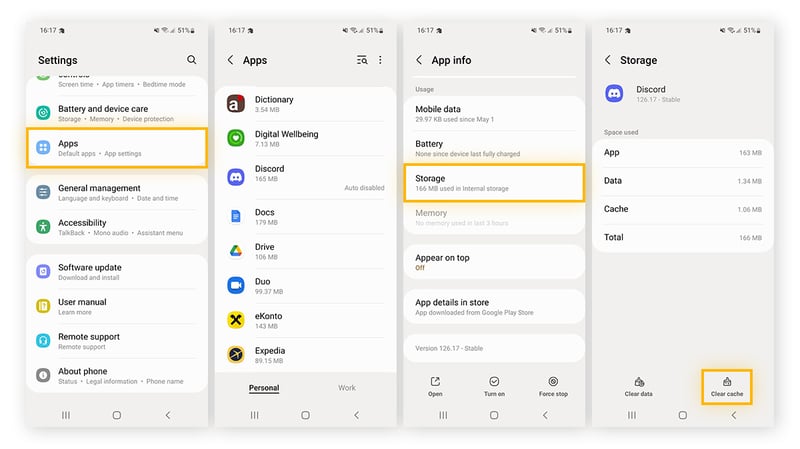
Step 2: Clear the App Cache (Do Not Touch Data Yet)
Clearing the game cache removes temporary update files and corrupted shader caches without wiping your login credentials or local settings.
- Open your phone's Settings.
- Navigate to Apps (or Apps & Notifications) and select Honor of Kings.
- Tap Force Stop to halt any lingering background threads.
- Select Storage & Cache.
- Tap Clear Cache.
Launch the game client again. Allow it to sit undisturbed for at least 5 minutes to rebuild its initial caches.
Step 3: Verify and Restore Revoked Permissions
Major Android security patches and patch updates frequently reset app permissions. If the game engine cannot read storage directories, it freezes on launch.
- Go to Settings > Apps > Honor of Kings.
- Tap Permissions.
- Ensure Storage (or Files and Media) and Notifications are set to Allowed.
- Toggle background data usage on under Mobile Data & Wi-Fi.
If you use custom battery savers, exclude the game so the operating system does not kill the process during initial asset verification.
Step 4: Toggle Network Connections to Clear Handshake Freezes
A black screen can also occur during server authentication. If the game client hangs while verifying your local files against the remote patch manifest, network packet loss creates an infinite loop.
- Swipe down your notification shade and turn off Wi-Fi.
- Enable Mobile Data.
- Open the game. If it connects and begins downloading assets, switch back to your preferred Wi-Fi network once the loading bar moves.
This simple swap forces your network stack to assign a new IP socket, bypassing stale routing tables or hung connections.
Once your client is stable and you are back in the lobby, pick up extra vouchers or passes safely. You can grab an Honor of Kings Tokens top up to unlock the latest seasonal heroes and skins without risking third-party authentication bugs.
Step 5: Boot into Android Safe Mode
Third-party utilities—especially game boosters, custom screen recorders, and floating overlays—can hook into the rendering pipeline and crash it post-update.
- Press and hold your phone's physical Power button until the power menu appears.
- Long-press the Power Off or Restart icon on the screen until the Reboot to Safe Mode prompt appears.
- Tap OK and let the phone boot.
- Attempt to launch Honor of Kings.
Safe Mode temporarily disables all non-system third-party background applications. If the game launches properly here, an overlay app or booster is triggering your black screen. Uninstall those tools before booting back into normal mode.
Step 6: Perform a Clean Reinstallation
If incremental patch packages suffer write failures, internal game archives become corrupted. At that point, simple cache purges will not repair the damaged binaries.
- Go to Settings > Apps > Honor of Kings.
- Tap Clear Storage (or Clear Data) to purge all local remnants.
- Tap Uninstall.
- Restart your phone to clear temporary directory entries.
- Open your official storefront and download the client fresh.
Make sure your phone remains plugged into a charger and connected to a reliable network during the entire setup process. Do not minimize the installer.
Clearing App Cache Versus Wiping Game Data
Confusing app cache with app data will cost you hours. One purges scratch files; the other wipes local credentials, custom controls, and downloaded hero assets. Know what each action touches before tapping either option.
| Troubleshooting Action | Direct Settings Path | Files Removed | Account Impact | | :--- | :--- | :--- | :--- | :--- | :--- | | Force Stop | Settings > Apps > Honor of Kings > Force Stop | Zero files; terminates active background processes | Zero risk; cleanly halts hung engine threads | | Clear App Cache | Settings > Apps > Honor of Kings > Storage > Clear Cache | Temporary patch archives, compiled shaders, scratch files | Low risk; preserves login tokens, controls, and downloads | | Clear App Data | Settings > Apps > Honor of Kings > Storage > Clear Data | Configuration files, login databases, resource packs | High risk; client resets to zero; requires account re-login | | Wipe Cache Partition | Recovery Mode > Wipe Cache Partition | Android OS system temp files, stale OTA update fragments | Low risk; clears system-level conflicts without touching game data | | Full Client Reinstall | Settings > Apps > Honor of Kings > Uninstall | Complete installation, local OBB binaries, core engine | Moderate risk; repairs corrupted files but requires full re-download |
Comparing these actions shows why clearing the cache should always precede clearing data, as it fixes corrupted shaders without forcing you to re-enter your credentials.
Never hit Clear Data unless you have already bound your game profile to a social or publisher login. If you play on a guest profile and wipe data, you lose access until player support manually recovers it. Clear Cache first, always.
Resolving OBB Integrity and Network Handshake Freezes
In mobile architecture, the main executable (.apk) relies on expansion archives (.obb) stored in your internal storage directories. During major updates, the patcher updates the base application and then streams updated asset packs. If your connection flickers, an OBB archive can get stuck in a broken, half-written state.
The game opens, sees that an OBB file exists, tries to read the header data, and stalls indefinitely when the checksum does not match. Because no crash dialogue is generated by the engine, the screen remains pitch black.
Patch Download Starts
        │
        ├── Network Dropout? ──► Broken File Size ──► Launch Hangs (Black Screen)
        │
        └── Complete Download ──► Checksum Matches ──► Shader Compilation ──► Game Starts
If you notice your download progress bar stuttering or jumping backwards during the update process, that points directly to network packet loss. To fix this:
- Force stop the application.
- Disconnect from your local network and restart your wireless router.
- If your router uses strict firewall configurations, test the launch on cellular data.
- Avoid running third-party VPNs or custom DNS services during the initial patch boot, as they often block the CDN servers responsible for asset integrity handshakes.
After clearing up your connection and jumping back into the arena, secure your battle pass progression early. You can complete an Honor of Kings recharge to pick up limited-run skins and event tokens before the current seasonal window wraps up.
System Partition Cache and Thermal Throttling Workarounds
Sometimes the issue is not the game client at all, but the Android operating system holding onto bad system states after an OS update. If you recently updated your phone's Android firmware and Honor of Kings immediately began showing a black screen, the system partition cache likely holds broken references.
Wiping the Android System Cache Partition
This process does not delete your personal photos, messages, or apps. It cleans out low-level system junk left behind by the OS installer.
- Power off your Android device completely.
- Press and hold the Power and Volume Up buttons simultaneously (some phone models use Power + Volume Down).
- When the manufacturer recovery screen loads, navigate using the volume keys.
- Highlight Wipe Cache Partition and press the Power button to confirm.
- Select Reboot System Now.
This removes stale OS-level update artifacts, allowing the graphics drivers to interact cleanly with the game's rendering engine.

Managing Asset Decompression Heat
When the game unpacks assets, your device heats up rapidly. If your phone feels hot to the touch:
- Remove thick phone cases before launching the game post-update.
- Do not charge your phone while it decompresses patch data.
- Let the phone sit idle on a flat, hard surface for 10 minutes to cool down before opening the client.
Keeping thermal headroom prevents your chipset from shutting down graphics operations mid-boot.
Cross-Platform Stability Comparison
Different operating systems handle post-patch extraction through distinct architectures. Comparing these pipelines explains why Android devices experience shader-related launch hangs that bypass other platforms.
| Platform | Update Architecture | Primary Cause of Post-Patch Black Screen | Recovery Time |
|---|---|---|---|
| Android Mobile | Split APKs + OBB + CPU Shader Pre-compilation | Interrupted shader compilation; cache corruption; low storage (< 20%) | 2 to 10 minutes (Cache clear) |
| iOS Mobile | Single unified sandbox IPA package | Thermal protection shutdown during extraction; background task killed | 5 to 15 minutes (Reboot device) |
| PC Emulation | Virtualized Android container + host GPU passthrough | Graphics driver incompatibility; DirectX/Vulkan translation freeze | 10 to 30 minutes (Driver update) |
Platform differences reveal that while iOS handles assets in a unified container, Android relies on runtime shader compiling, making cache issues much more common on mobile chipsets.
On Android, you have direct control over clearing the cache or managing storage partitions. That flexibility allows you to fix post-update startup crashes quickly without resorting to scorched-earth uninstalls.
Before heading back into competitive matches with a stable frame rate, make sure your account is stocked for the season. You can easily top up Honor of Kings to grab competitive heroes, arcana chests, and premium skins without missing a beat.
FAQ
Why does Honor of Kings show a black screen immediately after an update on Android?
A black screen is usually caused by corrupted patch cache files, interrupted shader pre-compilation, or insufficient free RAM during startup. Clearing the game cache or performing a force restart generally resolves it.
Will clearing the Honor of Kings app cache delete my account or game progress?
No, clearing the cache only deletes temporary assets, rebuildable files, and shader data. Your linked account credentials, ranks, and purchased skins remain safely stored on the game servers.
What is the difference between Clear Cache and Clear Data for fixing black screens?
Clear Cache removes only temporary scratch files without logging you out of your account. In contrast, Clear Data performs a full app reset, deleting local configuration files, downloaded resource packs, and saved logins.
How do I force restart an Android phone that is frozen on a black screen?
Press and hold both the Power and Volume Down buttons simultaneously for 10 to 20 seconds. Release the buttons once the manufacturer boot logo appears on the screen.
How much free storage space should I maintain on Android to prevent game launch crashes?
You should ensure at least 20% of your internal device storage remains free. Insufficient storage prevents the game client from decompressing update assets and building required runtime caches.
Can missing permissions cause Honor of Kings to freeze on launch?
Yes, if the update reset essential storage or notification permissions, the game engine may fail to initialize and stay on a black screen. Check your app permissions under system settings to confirm access remains granted.
What should I do if Honor of Kings remains stuck on a black screen after clearing cache?
Ensure your phone's Android OS is fully updated, verify your network connection, and if necessary, uninstall and cleanly reinstall the app from your official app store. Reinstalling repairs corrupted core binaries that incremental patchers cannot fix.
Real Fixes Beat Panic Reinstalls
A black display post-patch does not indicate a dead GPU. Instead, the engine has stalled on an interrupted shader compilation sequence or run out of temporary storage headroom during decompression.
Skip the panic reinstall. Force a hard reboot, confirm 20% free storage, clear the app cache, and let the first launch run undisturbed for ten minutes while shaders compile.
Once the shaders finish caching and the main menu loads, your client will boot reliably. Clear the junk, give your processor time to build its runtime environment, and get back into your lane.






Comments