Tired of constant stamina pings waking your phone? Learn how to disable push notifications in Neverness to Everness across mobile settings and OS menus fast.
Constant stamina alerts disrupt your day. In Neverness to Everness (NTE), Hotta Studio drops you into the supernatural city of Hethereau to hunt anomalies, buy real estate, and modify cars. Behind the open-world gameplay, however, is an aggressive notification system tuned to bring you back to the game around the clock.
Daily resets, stamina cap warnings, and dispatch timers frequently clutter lock screens. If you want to explore the world on your own schedule without constant vibrations, you need to configure your alert permissions. Here is how to disable push notifications in Neverness to Everness across client toggles, Android channels, and iOS permissions.
Why Neverness to Everness Pings Your Phone Constantly
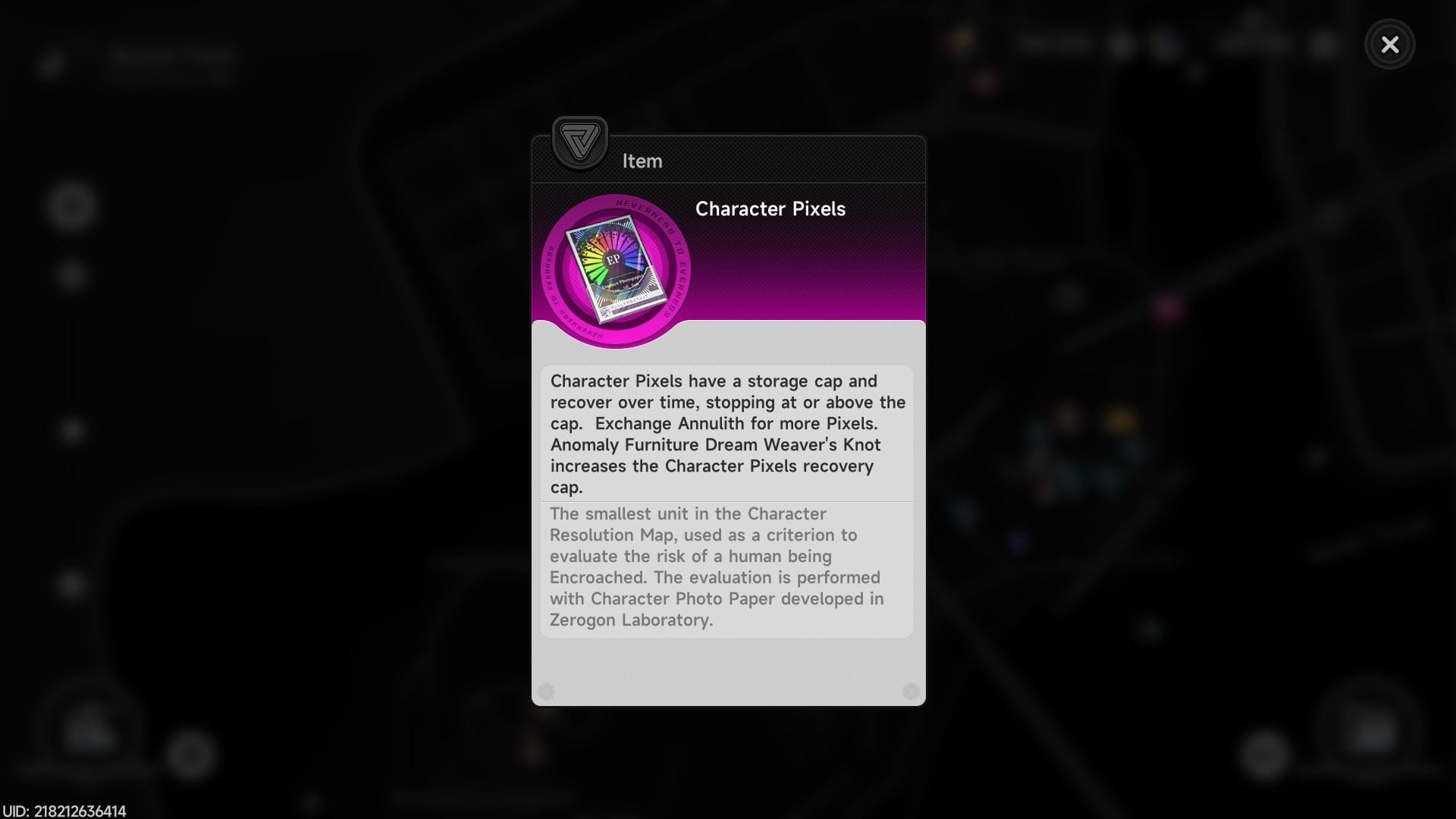
Notification frequency in NTE traces directly to its dual-resource loop. Core combat energy runs on Character Pixels, regenerating by one point every six minutes. That produces 10 Character Pixels per hour, reaching the 240-point cap every 24 hours. The moment that pool fills, the client fires a high-priority push alert.
City Stamina controls your weekly Hethereau Hobbies commissions. While City Stamina refills during the Monday 05:00 AM server reset, the game still dispatches mid-week reminders so you do not leave commissions idle. Reaching City Tycoon Level 16 doubles stamina consumption and rewards by 100% while generating 1,000 Fons per stamina point spent, but the push alerts continue regardless of your tycoon rank.
Daily server rollovers trigger a third alert wave. Regional server clusters (America, Europe, Asia, and Southeast Asia) reset at 05:00 AM server time. Any uncollected daily quest rewards, daily fortunes, or timed exploration tasks prompt an automated reminder banner once that reset passes.

All in One(60+300+980+1980+3280+6480)Riftcrystal
 All in One(60+300+980+1980+3280+6480)RiftcrystalUSD 132.00Buy Now
Riftcrystal Mining Permit
 Riftcrystal Mining PermitUSD 3.28Buy Now
6480Riftcrystal (First Top Up Get Double)
6480Riftcrystal (First Top Up Get Double)USD 65.69Buy Now3280Riftcrystal (First Top Up Get Double)
3280Riftcrystal (First Top Up Get Double)USD 32.84Buy Now1980Riftcrystal (First Top Up Get Double)
1980Riftcrystal (First Top Up Get Double)USD 19.70Buy Now980Riftcrystal (First Top Up Get Double)
980Riftcrystal (First Top Up Get Double)USD 9.85Buy Now300Riftcrystal (First Top Up Get Double)
300Riftcrystal (First Top Up Get Double)USD 3.28Buy Now60Riftcrystal (First Top Up Get Double)
60Riftcrystal (First Top Up Get Double)USD 0.65Buy Now
In-Game Notification Settings vs System Level Controls
You can manage alerts through two paths: inside the game client or through your mobile operating system. In-game toggles allow selective filtering, while system-level permissions act as an absolute shutoff.
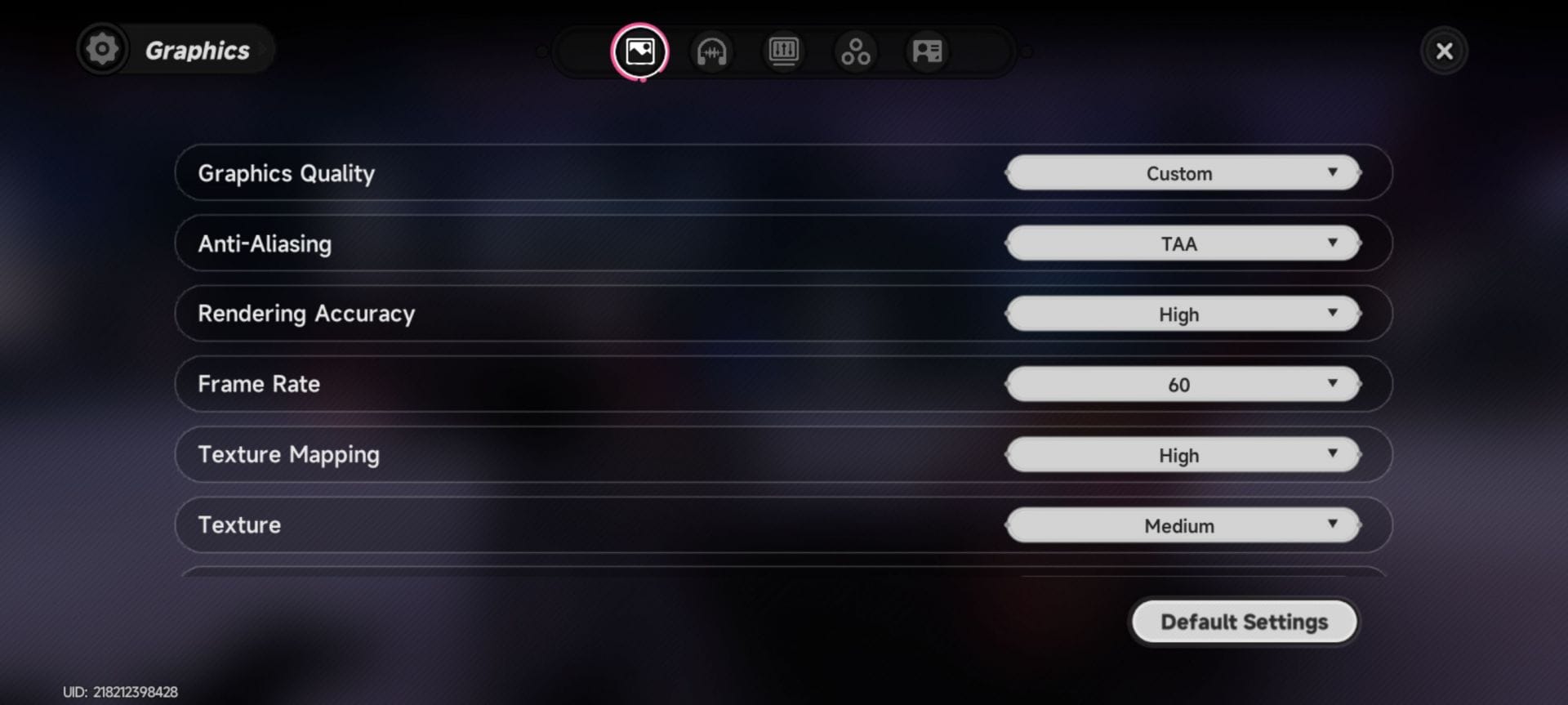
The NTE client settings interface includes toggles for sound, combat effects, and alert categories. Adjusting internal settings works well if you want direct messages from friends without stamina warnings. However, major game patches can occasionally reset client preferences to default.
For guaranteed silence, OS-level blocks are the most dependable choice. Revoking system permissions prevents the client from posting anything to your notification tray. If you want to spend your sessions clearing commissions rather than troubleshooting alert pop-ups, you can also secure your Annulith and resources at arctopup to streamline your progression cycles.
Silencing Alerts on Android Devices
Android separates app notifications into distinct channels, giving you the choice between total blocks and silent shade delivery.
The Complete App Notification Block
To eliminate every icon, banner, and vibration from the game:
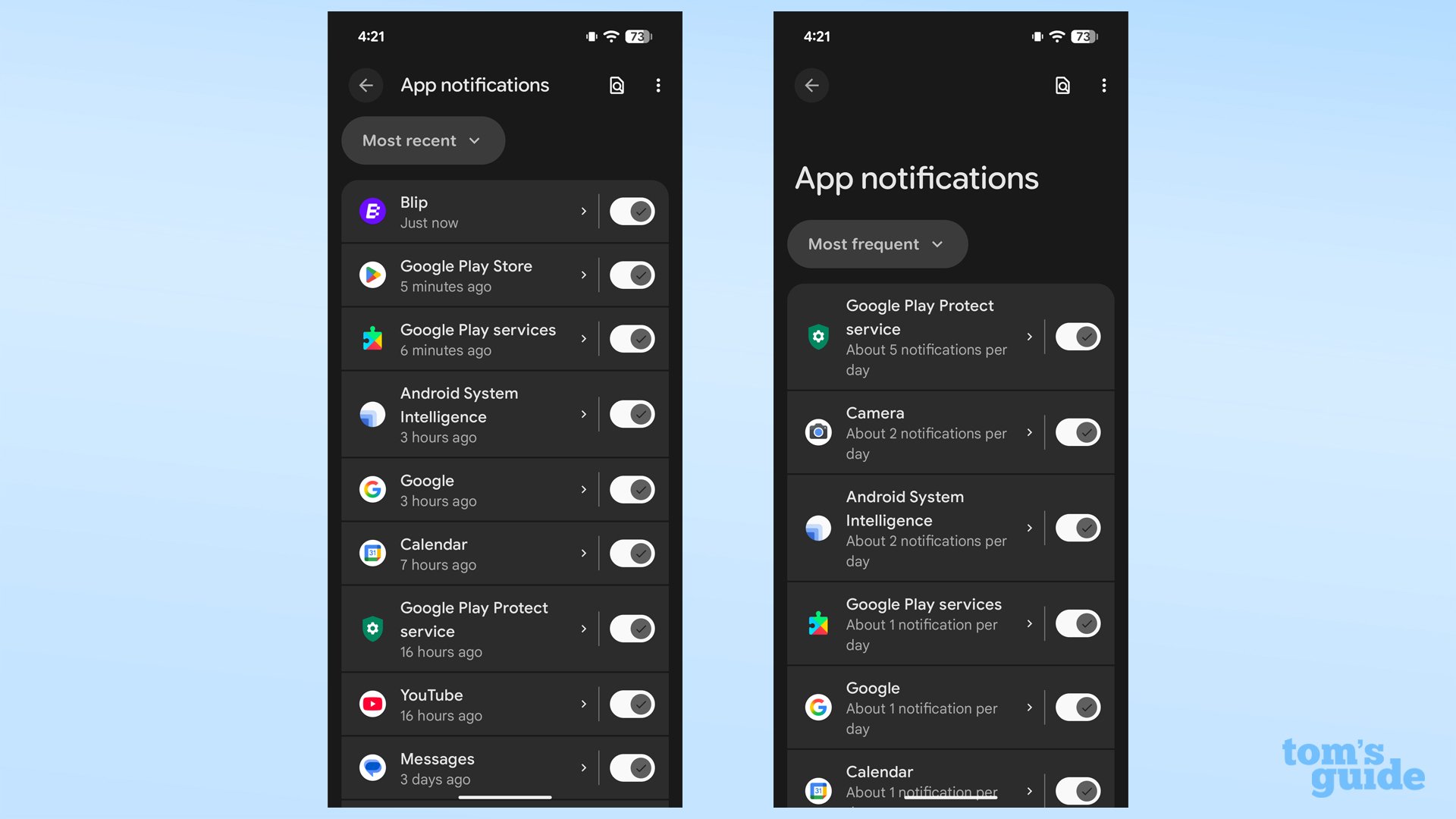
- Open device Settings.
- Tap Notifications (or Apps & notifications depending on your OS build).
- Select App notifications and scroll down to Neverness to Everness.
- Toggle the master switch to Off.
This prevents the game from placing icons in your status bar or generating lock screen cards.
Setting Up Silent Shade Notifications
To track energy without audio or haptic interruptions:
- Navigate to Settings > Notifications > App notifications > Neverness to Everness.
- Tap the specific category to modify (such as Stamina or General Reminders).
- Switch the alert mode from Alerting to Silent.
- Toggle off Pop on screen.
Silent alerts route directly to your pull-down drawer without waking your display, vibrating, or displaying heads-up banners over active apps.
Fast Action from Incoming Alert Banners
You can mute channels directly when an alert arrives. Pull down the notification shade, press and hold the Neverness to Everness banner, and tap the settings gear icon. Toggle off alerts for that specific category to silence it without navigating device menus.
To prevent background triggers from waking your screen, go to Settings > Notifications > Notifications on lock screen and select Don't show notifications.
Disabling Push Alerts on iOS
Apple devices manage NTE alerts through system-wide permissions, Scheduled Summaries, and dedicated Focus profiles.
Full Notification Deactivation
To shut down all banners, badges, and sounds on your iPhone:
- Open Settings on your iOS device.
- Scroll down the app list and tap Neverness to Everness.
- Tap Notifications.
- Toggle off Allow Notifications.
This strips all visual banners, sound alerts, badge counts, and lock screen widgets immediately.
Grouping Alerts with Scheduled Summary
On iOS 15.0 or newer, you can bundle stamina and event reminders into timed digests:
- Open Settings and tap Notifications.
- Select Scheduled Summary and turn it on.
- Under Apps in Summary, toggle on Neverness to Everness.
- Choose delivery times (such as 08:00 AM and 07:00 PM) for your digest.
iOS holds NTE notifications in the background until your designated summary hour, delivering them as a single digest.
Automating Peace with Gaming Focus
A custom Focus profile suppresses banners during active gameplay. Open Settings > Focus, create a Gaming Focus, and set it to silence incoming app notifications automatically whenever a full-screen game runs.
The following table outlines the exact menu paths and results for managing NTE push notifications across both major mobile operating systems.
| Platform & Method | Exact Menu Path | Resulting Alert Behavior |
|---|---|---|
| iOS Complete Block | Settings > Neverness to Everness > Notifications > Turn off "Allow Notifications" | Completely blocks banners, sounds, badge icons, and lock screen alerts. |
| iOS Scheduled Summary | Settings > Notifications > Scheduled Summary > Add NTE | Bundles all stamina and event alerts into a timed digest delivered at set hours. |
| Android Complete Block | Settings > Apps & notifications > NTE > Notifications > Toggle Off | Stops all alerts from appearing in the shade, status bar, or lock screen. |
| Android Silent Mode | Settings > Apps > NTE > Notifications > Category > Select "Silent" | Delivers alerts directly to the pull-down shade without sound, vibration, or pop-ups. |
| Android Quick Action | Long-press incoming NTE banner > Tap gear > Turn off alerts | Disables the active alert channel immediately from the pull-down notification shade. |
Takeaway: Both operating systems allow complete notification mutes, but Android offers category-specific silent delivery while iOS excels at batched digests through Scheduled Summary.
Recommended Notification Profiles for Players
Alert setups should match how often you log into Hethereau. An account logging in twice a week to customize cars needs a different configuration than one tracking daily energy caps.
                    [Choose Your Alert Profile]
                                 |
        +------------------------+------------------------+
        |                                                 |
 [Strict Focus]                                    [Balanced Daily]
   - Turn off all OS alerts                          - iOS: Scheduled Summary
   - Check Pixels manually                           - Android: Silent shade delivery
   - Zero phone interruptions                        - Retains 05:00 AM reset data
The "Zero Interruption" Profile (Recommended)
Apply this configuration to keep your phone quiet during work and sleep: 1. Disable OS-level notifications entirely via system settings. 2. Open the NTE client and turn off non-essential reminder prompts. 3. Check your Character Pixels manually during your morning or evening login window. 4. Monitor weekly City Stamina manually before the Monday 05:00 AM reset.
The "Active Resource Tracker" Profile
Use this setup to ensure your Character Pixels never sit capped at 240/240: 1. On Android, enable Silent alerts for stamina categories so notifications log without vibration or sound. 2. On iOS, add Neverness to Everness to your Scheduled Summary at midday and evening. 3. Keep lock screen banners disabled to avoid display clutter. 4. To stay ahead on character tuning and building materials, manage your account upgrades through arctopup during your planned sessions.
Hardware Demands, Battery Throttle, and Storage Factors
Background alert delivery connects directly to system resources and power profiles. The mobile client requires at least 20GB of free internal storage on Android (Android 10.0+) and iOS (iOS 15.0+).
Target hardware includes Snapdragon 8 Gen 2 or Dimensity 9200 chipsets on Android, and an iPhone 14 Pro or newer on Apple hardware. When internal storage drops below 20GB, the OS aggressively clears background caches, which can delay or drop pending push tokens.
Battery saver modes also disrupt background sync. Once device charge drops into the 10% to 15% range, mobile power managers restrict background data polling. Aggressive OEM skins (notably EMUI on Huawei devices) terminate background processes outright unless you designate the game client as an unrestricted or protected application in battery settings.
If stamina alerts stop arriving on low battery, the phone's power management profile has killed the NTE background listener.
The following table illustrates how hardware specifications, storage, and system power thresholds interact with notification delivery.
| System Metric | Minimum Spec / Threshold | Recommended Hardware | Impact on Background Alerts | | :--- | :--- | :--- | | Free Storage | 20GB free space | 30GB+ free space | Low storage triggers OS cache wiping and drops pending push tokens. | | Operating System | Android 10.0+ / iOS 15.0+ | Android 14+ / iOS 17+ | Enables advanced notification channels and Scheduled Summary support. | | Battery Power Saver | 10% - 15% battery level | Above 20% battery | Restricts background data sync, delaying stamina cap notifications. | | SoC / Processor | Entry gaming chipsets | Snapdragon 8 Gen 2 / Dimensity 9200 / A16 Bionic | Prevents OS task-killing due to high memory consumption during standby. | | OEM Power Limits | Aggressive background kill | Unrestricted battery setting | Prevents Android OEM skins from terminating background alert listeners. |
Takeaway: Ensuring your device maintains at least 20GB of free space and running the game on unrestricted battery settings prevents erratic notification delivery.
Mobile Privacy and Background Permissions
Blocking push alerts also reduces background data polling. Neverness to Everness interacts with device identifiers such as UUIDs, Apple's IDFA, and the Google Advertising ID to manage authentication.
Active push notifications repeatedly wake device network modems to communicate with push gateways and verify registration tokens. Revoking notification access and disabling cross-app tracking in your device privacy menus prevents these background polling cycles.
To acquire materials without running continuous background client sessions, grab your premium bundles at arctopup directly through their web interface.
Server Reset Mechanics and Push Timing
Tracking regional server clocks lets you anticipate automated push alerts. Neverness to Everness operates across four regional server clusters: America, Europe, Asia, and Southeast Asia.
The daily reset occurs at 05:00 AM server time, recalculating: - Daily quest availability - Daily fortune draws - Exploration instance limits - Limited-time daily event milestones
Weekly resets run every Monday at 05:00 AM server time, replenishing City Stamina pools for Hethereau Hobbies.
If notifications remain enabled, regional servers dispatch a cluster of automated push alerts between 05:00 AM and 05:15 AM local server time as refreshed systems go live.
The table below outlines the core progression and reset timings that drive the game's automated alert system.
| Mechanic / System | Refresh Rate | Reset Clock / Cap | Push Notification Trigger Condition | | :--- | :--- | :--- | | Character Pixels | +1 point every 6 minutes | 240 points daily max (10/hr) | Triggers an immediate push alert the moment the 240 cap is reached. | | City Stamina | Full weekly refill | Monday 05:00 AM server time | Sends reminders early in the week and before Sunday night expiration. | | Daily Quests & Fortunes | Daily rollover | 05:00 AM server time daily | Fires reminder alerts after reset if daily login rewards are uncollected. | | City Tycoon (Lvl 16) | Instant progression perk | 100% cost/reward multiplier | Generates 1,000 Fons per point; accelerates weekly task completion. | | Regional Servers | America, Europe, Asia, SEA | Fixed 05:00 AM regional clock | Alerts queue up at local server morning reset intervals. |
Takeaway: Because Character Pixels regenerate fully in 24 hours, unconfigured alert systems will ping your device daily at the exact hour your energy caps out.
FAQ
How do I disable Neverness to Everness push notifications on Android?
Open your phone's Settings app, tap Apps & Notifications, select Neverness to Everness, and toggle off Notifications. This completely cuts off all incoming push alerts from the game.
How do I turn off push alerts for Neverness to Everness on iPhone?
Go to your iPhone Settings, scroll down the installed app list, tap Neverness to Everness, open Notifications, and switch off Allow Notifications. You can also route them into a Scheduled Summary if you prefer batched alerts.
Can I receive NTE notifications silently without pop-ups on Android?
Yes, open the app's notification category in Android Settings and choose "Silent" instead of "Alerting". This routes all incoming stamina updates straight into your pull-down shade without ringing or vibrating.
How can I schedule NTE notifications instead of blocking them on iOS?
Enable Scheduled Summary under iOS Settings > Notifications and assign Neverness to Everness to your summary group. Your alerts will arrive only at your chosen digest hours rather than interrupting your day.
Will turning off push notifications affect my in-game mail or stamina recovery?
No, disabling push notifications only stops alerts from displaying on your mobile hardware. Your in-game Character Pixels, City Stamina, and mailbox rewards will continue to regenerate and accumulate normally on the server.
Can I turn off notifications directly from an incoming alert banner?
Yes, touch and hold the active notification banner when it appears in your shade, then tap the settings gear icon. From there, you can toggle off alerts for that specific category immediately.
The Verdict on Mobile Alert Hygiene
Mobile alert systems prioritize retention over personal focus. In an open-world RPG like Neverness to Everness, allowing unconstrained pings for energy caps and daily resets turns active play into an intrusive routine.
System-level blocks on Android and iOS offer the cleanest solution. Character Pixels still accumulate at 10 points per hour up to the 240 cap, and City Stamina resets every Monday at 05:00 AM regardless of alert status. Shutting off notifications in your operating system settings lets you explore Hethereau on your own terms.






Comments