
To control the Kwai Android app on PC using keyboard shortcuts, open your emulator's Controls Editor—either by right-clicking the Game Control keyboard icon on the side toolbar or by clicking Game Controls and selecting Controls Editor—then drag and drop Swipe and Tap spot elements onto the screen to bind physical keys to vertical video scrolling, pausing, and liking (Alphr).
Kwai functions as a global mobile video and live streaming service where users discover entertaining clips, interact in chats, and support broadcasters with gifts funded via Kwai Coins. Because Kwai is built around touchscreens, desktop emulators like BlueStacks rely on virtual input overlays to map desktop keystrokes directly to simulated mobile gestures.
Configuring Feed Navigation and Action Keybinds
Custom controls eliminate repetitive mouse dragging by mapping keyboard keys directly to screen coordinates in BlueStacks.
To access the mapping interface: 1. Launch the Kwai app inside the emulator. 2. Right-click the Game Control keyboard icon located on the side toolbar, or left-click Game Controls and select Controls Editor (Alphr). 3. Drag functional elements from the editor overlay directly onto specific regions of the video feed. 4. Assign your preferred physical keyboard keys to each element, then save the configuration.
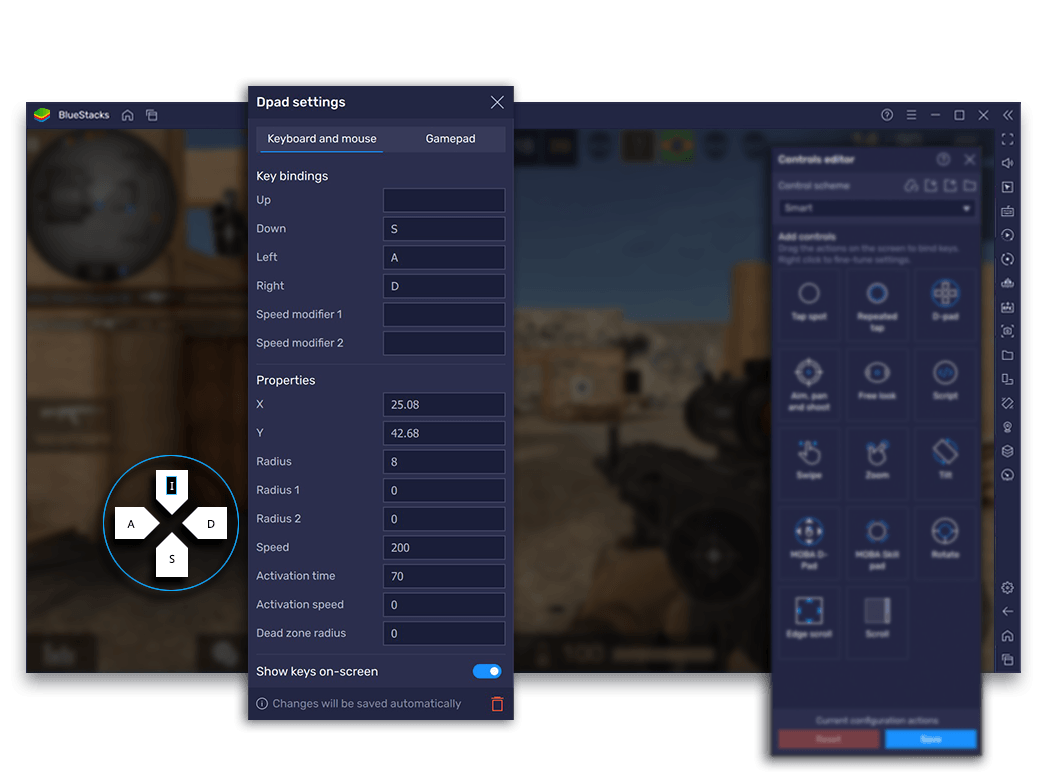
Different interactions inside the Kwai interface require distinct emulator touch elements:
| Control Element | Simulated Action | Feed Function | Visual Reference | Source |
|---|---|---|---|---|
| Swipe | Directional Drag (Up / Down) | Scrolls up or down to switch between consecutive video clips | 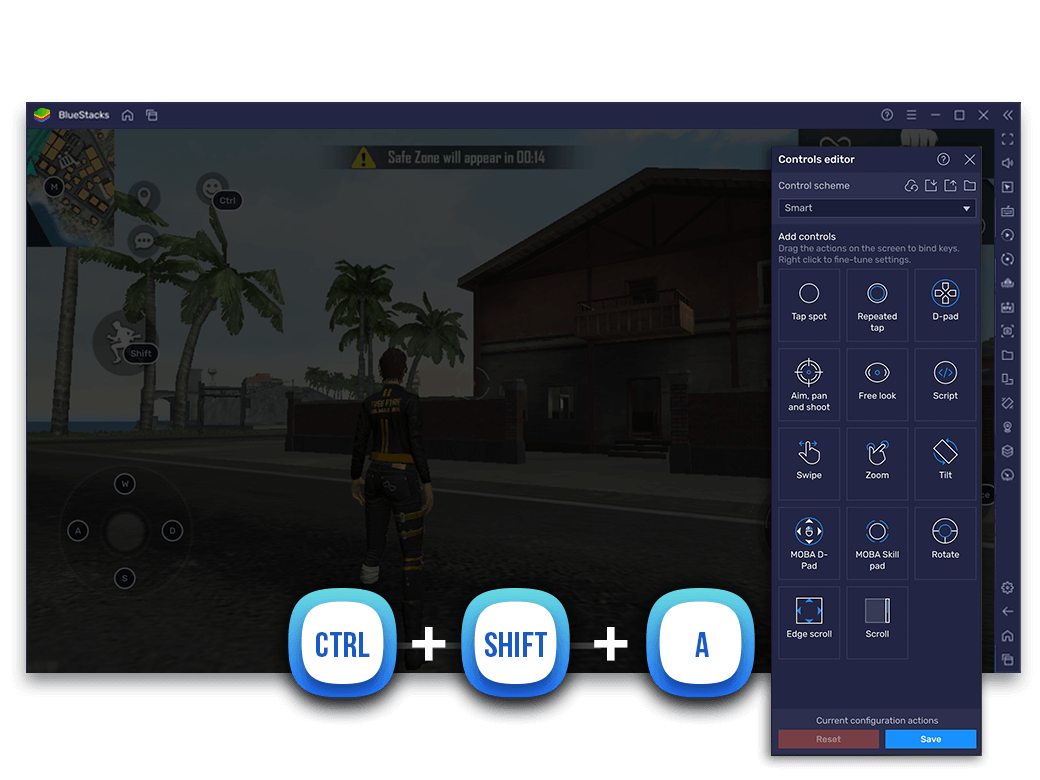 | Alphr |
| Tap spot | Single Tap / Click | Pauses playback, opens comments, or taps the like heart icon | 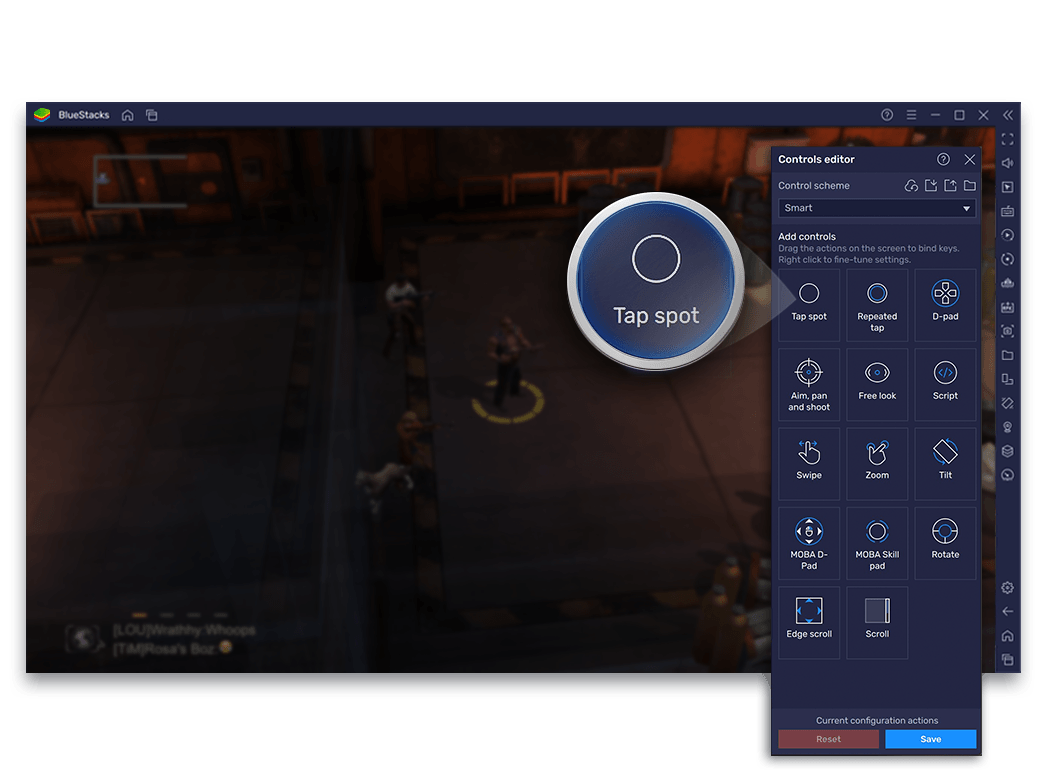 | Alphr |
| Scroll | Continuous Scroll | Provides an alternative method for continuous feed movement | 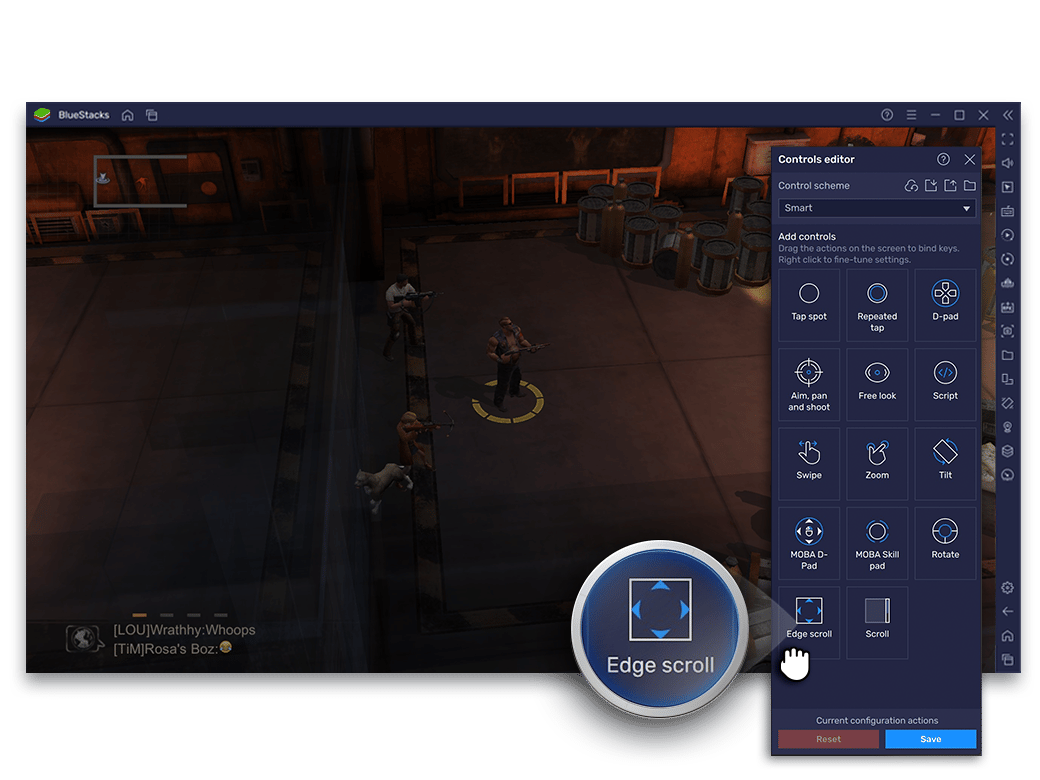 | Alphr |
| Repeated tap | Rapid Consecutive Taps | Sends fast stream likes during interactive live broadcasts | 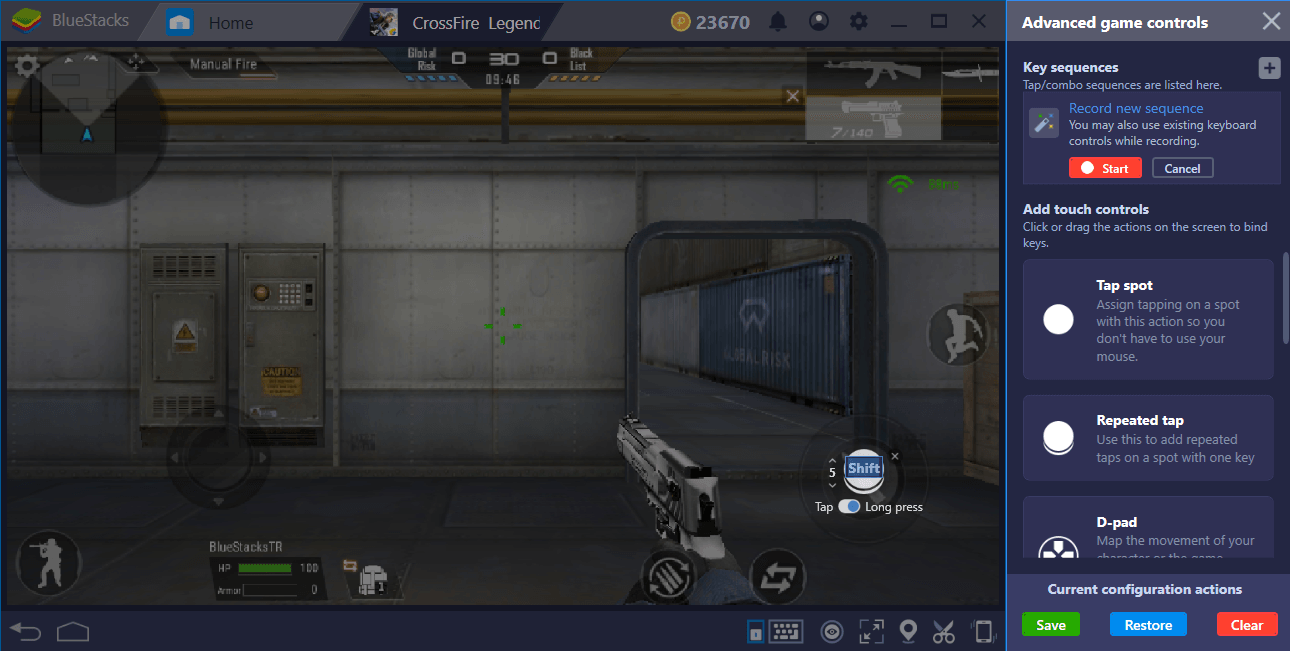 | Alphr |
For vertical feed transitions, dragging a Swipe element to the middle of the screen and assigning the Down Arrow (swipe up gesture) displays the next video. Setting the Up Arrow (swipe down gesture) returns to the previous video.

Kwai - Kwai*100
 Kwai - Kwai*100USD 0.95Buy Now
Kwai - Kwai*500
Kwai - Kwai*500USD 4.78Buy NowKwai - Kwai*1000
Kwai - Kwai*1000USD 9.55Buy NowKwai - Kwai*2000
Kwai - Kwai*2000USD 19.10Buy NowKwai - Kwai*5000
Kwai - Kwai*5000USD 47.76Buy NowKwai - Kwai*10000
Kwai - Kwai*10000USD 95.51Buy NowKwai - Kwai*15000
Kwai - Kwai*15000USD 143.27Buy NowKwai - Kwai*20000
Kwai - Kwai*20000USD 191.02Buy NowKwai - Kwai*25000
Kwai - Kwai*25000USD 238.78Buy Now
Managing Key Overlays and Full-Screen Visibility
On-screen key badges show where actions trigger, but they obstruct video playback once you memorize the layout.
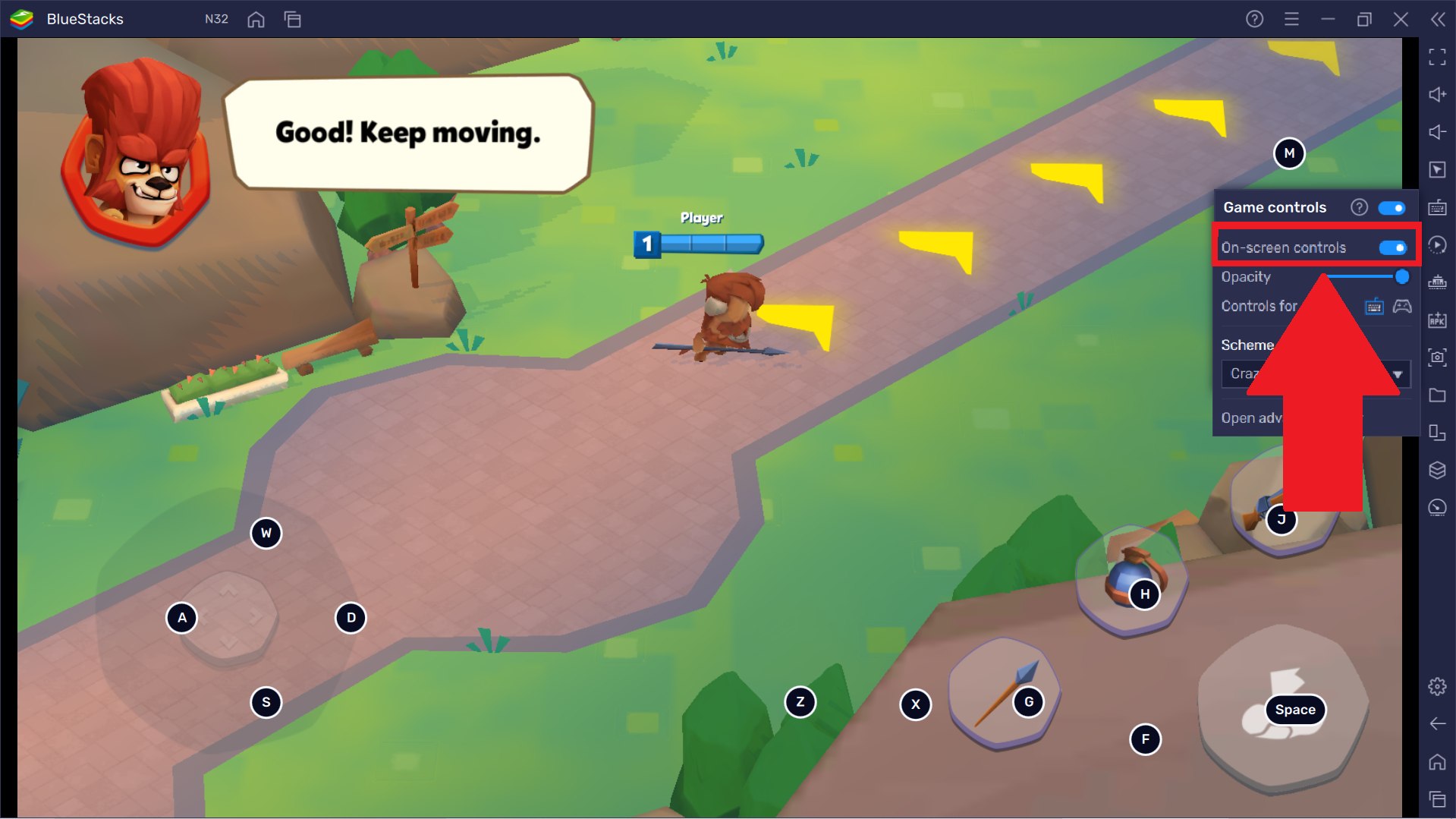
Adjust overlay opacity or turn off the markers completely from the side toolbar:
| Setting Option | Menu Path | Result on Video Playback | Source |
|---|---|---|---|
| Toggle Controls Off | Keyboard Icon > Game Controls > On-screen controls toggle | Hides all on-screen key letter badges completely while keeping keybind functionality active | Alphr |
| Opacity Slider | Keyboard Icon > Game Controls > Opacity Slider | Fades marker visibility to semi-transparent levels without hiding them entirely | Alphr |
| Persistence Rule | Automatic on recent BlueStacks builds | Once disabled, on-screen overlays remain disabled across subsequent launches | Alphr |
To maximize the viewing area on your monitor once overlays are adjusted, use standard Windows keyboard shortcuts to expand the display window:
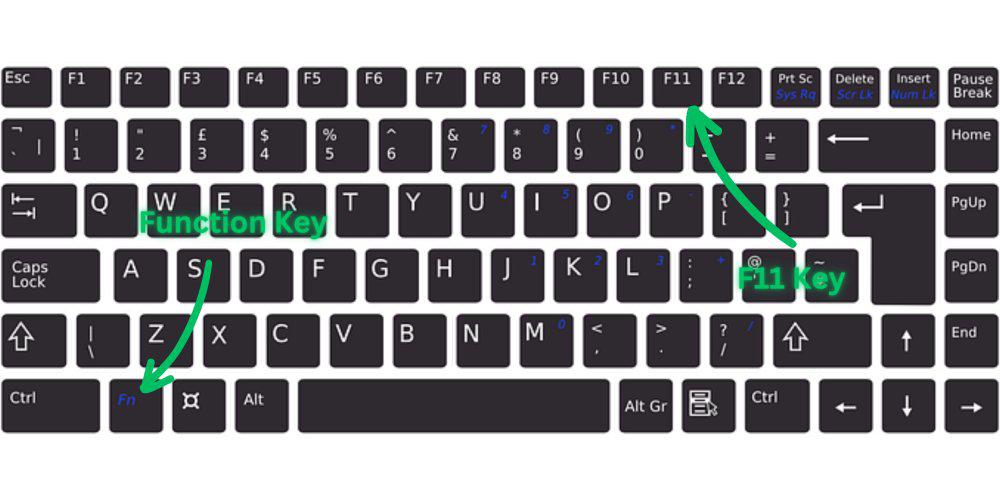
- F1: Toggles full-screen display mode in supported desktop applications (WikiHow).
- Alt + Enter: Toggles between windowed mode and full screen (WikiHow).
- Windows key + Up arrow: Maximizes the emulator window to fit desktop borders (WikiHow).
- Windows key + Shift + Enter: Alternative full-screen shortcut for specific Windows display environments (WikiHow).
Troubleshooting Unresponsive Controls After Updates
System or app updates can break coordinate mapping when an interface redesign shifts UI buttons or an emulator patch disrupts input hooks.
General Windows remapping tools like Microsoft PowerToys or SharpKeys cannot fix this problem because they only alter system-level keystrokes or Windows processes. Emulators translate keystrokes directly into virtual touchscreen coordinates inside an isolated Android container. If your controls stop responding, troubleshoot through the emulator's internal recovery settings:
- Launch Kwai inside BlueStacks.
- Click the Game Controls keyboard icon located on the side toolbar.
- Choose Controls editor from the drop-down menu.
- Locate the Reset button positioned in the bottom right corner.
- Click Reset, then confirm by clicking Reset a second time to restore all game controls to default values (Alphr).
- Re-open the editor to reposition your custom Swipe and Tap spot overlays if the default profile lacks feed-specific swipes.
| Problem Symptom | Primary Cause | Recommended Fix Action | Source |
|---|---|---|---|
| Key presses do not scroll Kwai feed | Corrupted control schema post-update | Open Controls Editor and click Reset in the bottom right corner twice | Alphr |
| On-screen letters obscure stream video | Overlay opacity set to default visible level | Open Game Controls menu, toggle On-screen controls to OFF, or lower opacity slider | Alphr |
| Small viewport restricts interaction | Window opened in standard floating dimensions | Press F1 or Alt + Enter to expand the window to full screen | WikiHow |
Frequently Asked Questions
How can I hide the on-screen keybind overlay while watching Kwai in BlueStacks?
Click the keyboard icon on the side toolbar to open the Game Controls menu, then toggle On-screen controls to OFF or adjust the opacity slider to make the overlays transparent (Alphr).
What should I do if my emulator keybinds stop working after an update?
Open the Game Controls menu from the side toolbar, select Controls editor, and click Reset in the bottom right corner twice to restore control settings to default values (Alphr).
What shortcut keys toggle full screen for emulator windows on Windows?
You can toggle full screen or maximize windows on PC by pressing F1, Alt + Enter, Windows key + Shift + Enter, or Windows key + Up arrow (WikiHow).






Comments