Stop dropping combos on glass. Dial your touch sensitivity, fix your dodge button placement, and master parry timings with this tested mobile layout.
Default touch layouts on mobile action RPGs are notoriously hostile to high-tier boss encounters. When you fight hollows and high-difficulty captains, missing a flash step or misclicking an ultimate because your right thumb drifted three millimeters off-target means taking a lethal combo straight to the face.
Bleach: Soul Resonance demands precise inputs. You juggle five distinct combat commands—normal attack, dodge, character technique, ultimate, and counter—while monitoring energy gauges and executing rapid swaps across a three-man squad. If your screen is cluttered or your camera sensitivity drags behind boss dashes, you spend more time wrestling the interface than staggering enemies. Here is how to rebuild your control scheme from the ground up.
The Real Combat Input Problem on Touchscreens
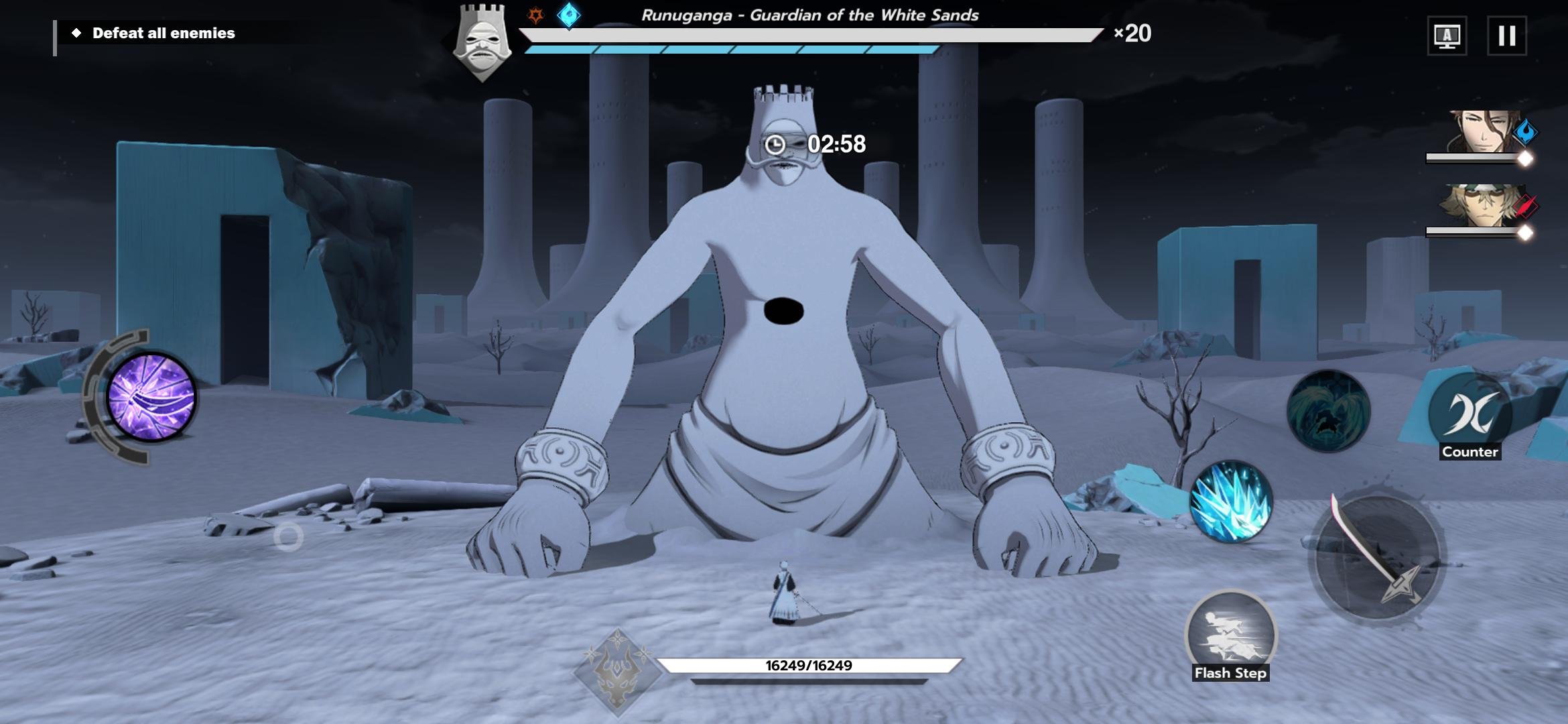
Most players drop combos not because their hands are slow, but because the default interface packs inputs too tightly together. The default configuration places dodge, counter, and character technique in a compressed crescent around the basic attack button. When an aggressive boss charges an unblockable red strike, your thumb flinches toward dodge and often clips basic attack or skill instead.
[ DEFAULT HUD COMPRESSION ]
       (Technique)
   (Dodge)    (Attack)   <-- Overlapping hitboxes cause mis-inputs
       (Counter)

[ OPTIMIZED SPREAD HUD ]
             (Technique)
  (Counter)              (Attack)
             (Dodge)
Touchscreens offer zero physical resistance. If two virtual buttons share a border, your swipe registers whichever edge your skin touches first.
Timing charged strikes brings another layer of friction. Landing normal hits fills the secondary energy bar right beside your health gauge; holding the attack button then unleashes the charged hit. If that button sits flush against the screen bezel, holding it while adjusting your camera angle is an exercise in frustration.
Then there is the issue of auto-battle. While automated combat sweeps trivial daily resource farming, endgame challenge tiers actively restrict or penalize auto-battle logic. The artificial intelligence cannot consistently react to visual telegraphs, trigger slow-motion dodge frames, or time counter parries to shred poise gauges. You are forced into full manual control, making a tailored HUD layout mandatory for serious progression.
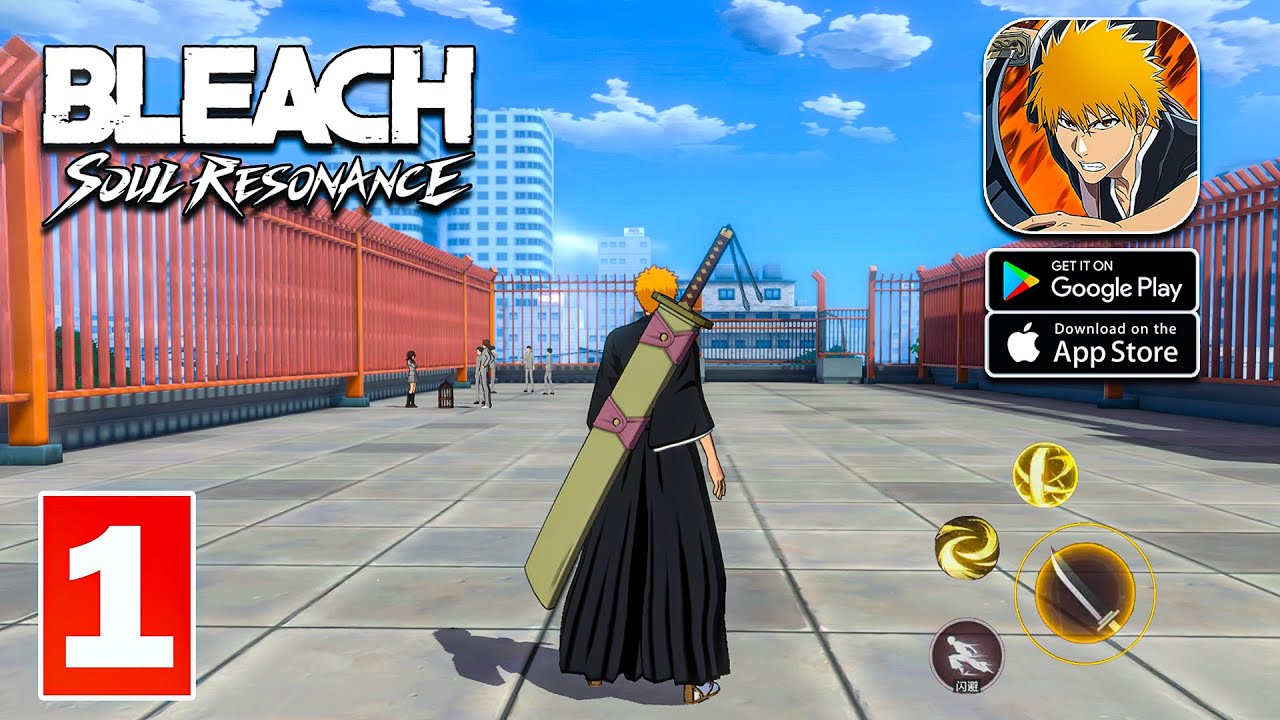
Recommended Camera Sensitivity Settings
Bosses dash across arenas in milliseconds. Your camera needs to keep up without spinning wildly off-target during precision parries. High vertical sensitivity throws your view into the floor during knock-ups, while low horizontal sensitivity leaves you blind when a boss teleports behind you.
Use these exact slider values in your combat settings menu to establish a responsive, jitter-free view:
- Set Horizontal Camera Sensitivity to 68%. This provides enough rotation speed to perform a 180-degree turn in a single thumb flick across the empty screen space without drifting past the target lock.
- Adjust Vertical Camera Sensitivity down to 42%. Lowering vertical movement prevents erratic camera tilting when swiping aggressively near the right-hand skill cluster.
- Turn Combat Auto-Tracking to "Semi-Locked" or 50% tracking assist. Pure free-cam causes missed skill directions on mobile, while fully locked cameras disorient you when swarming mobs push past your frame.
- Disable Dynamic Combat Zoom. Camera zooms during skill activations disorient your sense of distance right before a boss strikes back.
- Calibrate Virtual Joystick Sensitivity to 75% with a "Fixed Anchor" point. A floating joystick creates erratic movement inputs during split-second repositioning.
If you play on a large tablet or an iPad mini, deviate from these values by dropping the horizontal sensitivity slider to 55%. The larger physical surface area means your thumb naturally travels across a wider sweep, which artificially accelerates the camera at higher percentages.
Custom HUD Layout: The Refined Thumb-Hybrid Setup
A three-finger claw or thumb-hybrid grip changes how quickly you access defensive tools. In this layout, your left thumb handles character movement, your right index finger manages squad tags from the upper right display, and your right thumb focuses exclusively on offensive and defensive execution.
To ensure your active roster has the raw stats to back up your execution, you can secure summoning currencies and upgrades via Bleach: Soul Resonance top up packs before tackling high-tier leaderboards.
Critical Dodge Button Placement
Make your flash step dodge button your primary panic input. In the custom layout editor, increase dodge scale to 125% and drag it inward away from the extreme bottom-right bezel. Modern display edges frequently drop taps or register them as home-bar navigation gestures. Anchoring dodge roughly 1.5 centimeters inside the right edge, slightly below the attack hub, fits your thumb's natural resting arc.
Separating the Counter Button
Counters demand strict timing. Tapping counter right as an incoming strike lands completely negates damage, drains the enemy's poise gauge, and triggers temporary paralysis. If your counter icon sits flush against the standard attack button, you will trigger accidental strikes when trying to parry.
Move the counter button directly above the dodge input, scaled to 110%. This creates a dedicated "defensive corridor" on the left side of your right thumb's resting area. Moving your thumb left deflects or dodges; swinging your thumb right unleashes basic attacks and charge releases.
Character Technique and Ultimate Isolation
Place your character technique slightly north-northeast of the basic attack button at 100% scale. Keep the ultimate button isolated further upward, closer to the mid-right vertical screen boundary, scaled to 90%. Isolating the ultimate prevents heartbreaking misclicks where you waste an entire energy pool on trash mobs instead of saving the cinematic burst for the boss's staggered vulnerability phase.
=========================================================
                OPTIMIZED MOBILE HUD MAP
=========================================================
[Tag Unit 2] [Tag Unit 3]               [Pause / Settings]

                                            (Ultimate 90%)
                                    (Technique 100%)
   [Fixed Joystick]         (Counter 110%)
        (Left)                              (Attack 120%)
                            (Dodge 125%)
=========================================================
Perfecting Flash Steps and Counter Mechanics
Executing combat at a high level comes down to understanding the visual rhythm of opponent animations. Timing a flash step dodge against visual cues triggers a slow-motion counterattack window, giving you several frames of safety to reposition and strike back without threat.
A perfect dodge requires patience on the wind-up. Panicked players double-tap dodge the instant an enemy flashes red, exhausting stamina before the hit lands. Wait until the boss swing visibly starts descending before hitting your expanded dodge button.
[ Enemy Telegraph ] ---> [ Boss Downswing ] ---> [ Hit Confirmation ]
       |                        |
 (Do NOT panic tap)       (TAP DODGE HERE)
                                |
                     [ Slow-Motion Trigger ]
For counters, positioning is just as critical as timing. Because a successful counter breaks poise and immobilizes bosses, pairing counter specialists with high-damage burst units creates massive damage windows. Once the poise gauge shatters, immediately initiate your squad rotation.
Managing Squad Rotations and Attribute Advantages
Combat relies on a three-character squad operating in real time. Leaving a single carry on the field without tagging allies stalls your DPS. Sustaining team energy requires weaving basic attacks between cooldowns to feed the shared meter, followed by tagging in your offensive specialists.
Understanding character attributes prevents costly damage penalties during boss clears. The standard dynamic functions on an elemental triangle, while special attributes carry unique rules:
| Attacking Attribute | Strong Against (Bonus Damage) | Weak Against (Reduced Damage) | Combat Role & Interaction |
|---|---|---|---|
| Slash | Thrust | Spirit | Core melee physical burst; counters rapid thrust specialists. |
| Thrust | Spirit | Slash | Piercing high-mobility strikes; disrupts casting wind-ups. |
| Spirit | Slash | Thrust | Ranged kido and spiritual abilities; out-ranges slow slash arcs. |
| Strike | Neutral | Neutral | Balanced physical impact; does not gain or suffer attribute swings. |
| Finesse | Special Classification | Standard System | Introduced in August 2026 with Bambietta Basterbine; independent scaling. |
Table 1: Attribute relationships and damage classifications governing squad team-building in Bleach: Soul Resonance.
Matching the correct attribute against boss weaknesses is essential, as attacking into a disadvantage cuts your damage output significantly while slowing your energy accumulation rates.
When cycling characters, your team composition should balance your offensive momentum. A standard party structure features one Assault unit for main damage, one Tactic unit to provide debuffs or combo extensions, and one Support unit for health sustain and passive energy gain.
Building out a versatile squad requires strategic banner investments. Players can top up on Spiritual Jades through arctopup to build the summons needed for limited banners.
Keep track of the recruitment pity mechanics across different banner types to manage your resources responsibly:
| Recruitment Category | Pull Guarantee (Pity) | Currency / Ticket Required | Notes & Conditions |
|---|---|---|---|
| Beginner Recruitment | 50 pulls | Standard Summon Tickets | One-time beginner safety net guaranteeing a standard SSR character. |
| Limited Character Banner | 80 pulls | Limited Gacha Tickets | Guarantees featured limited SSR character (e.g., Bambietta). |
| Limited Weapon Stamp | 40 pulls | Stamp Gacha Tickets | Guarantees featured SSR weapon stamp (e.g., Total Ruin). |
Table 2: Summoning milestones and pity guarantees across standard and limited event banners.
Always track your pull counts before rolling on limited banners. Spreading your tickets thinly across multiple banners without hitting the hard pity thresholds can stall your account's roster development.
To access these summoning banners and jump into ongoing events, remember that you must clear story stages up through stage 1-6 and complete the rooftop parakeet sequence. Once you clear that checkpoint, the full event dashboard and gacha interface unlock permanently.
Equipment Progression: The Stamp System
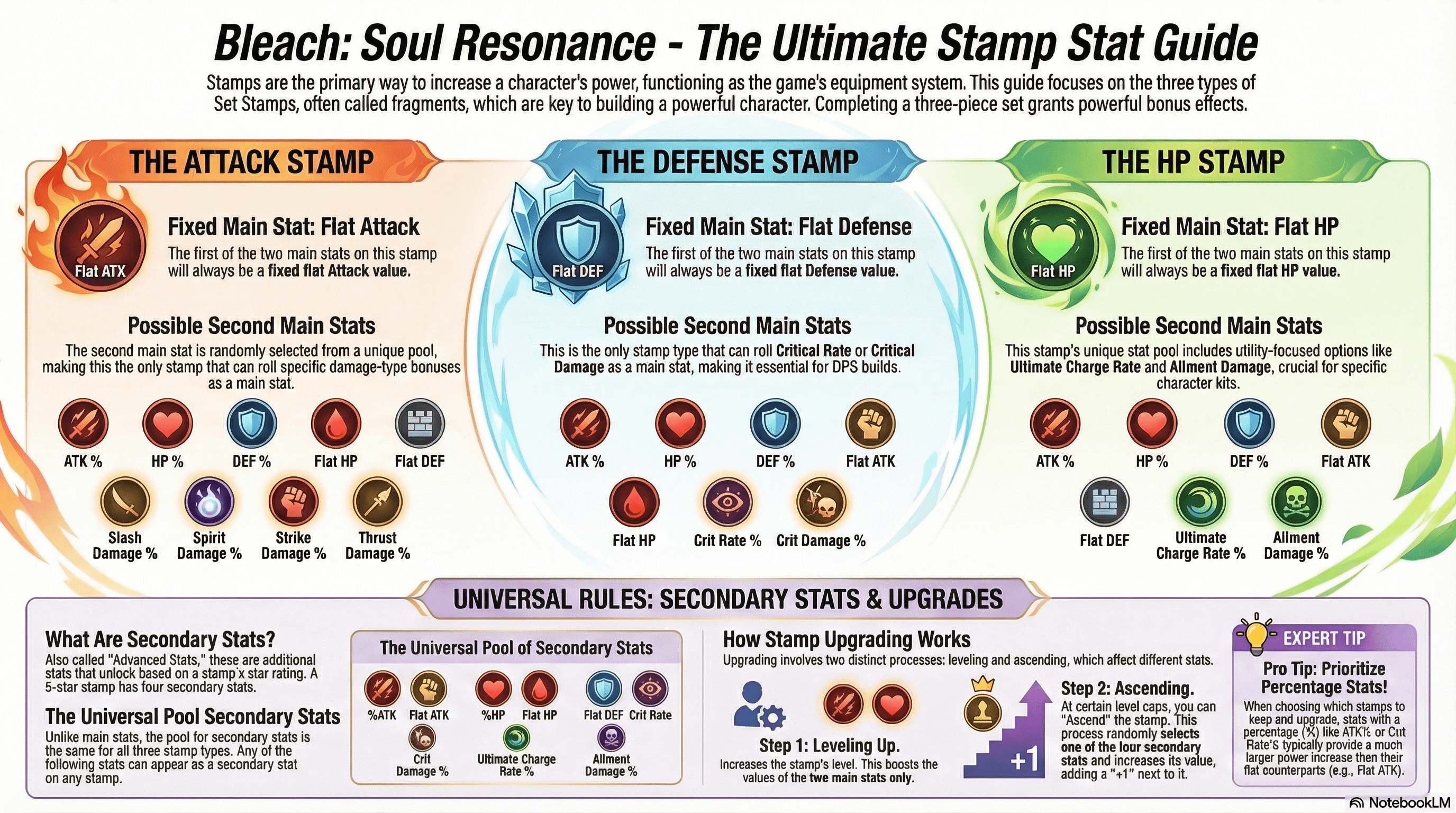
Flawless controls cannot overcome a raw DPS deficit. Once your account reaches level 22, the Stamp equipment system unlocks. Stamps provide flat stat bonuses and unique set effects that amplify character techniques and normal attacks.
Each character carries up to six equippable stamp slots. Early on, focus on equipping stamps that boost energy recharge and attack percentages. A faster energy accumulation rate allows you to access charge attacks more frequently, keeping bosses locked in hit-stun while your defensive counter cooldowns refresh.
Mobile Touch vs. Emulator Keymapping
Soul Resonance was built natively for mobile touchscreens on Android and iOS, with no official standalone PC client. However, high-level players seeking relief from hand cramps or touchscreen misclicks often migrate to Android emulators like BlueStacks or LDPlayer, or use screen-mirroring setups.
Here is how direct touch performance compares against external configurations:
| Feature / Condition | Native Mobile Touch | Android PC Emulator | Mirrored Mobile Setup |
|---|---|---|---|
| Input Precision | High (with custom HUD spacing) | Maximum (tactile physical keys) | Moderate (susceptible to cord quality) |
| Latency / Response | 0ms added display lag | Minimal engine overhead | Severe input delay on sub-USB 3.0 cables |
| Camera Movement | Swipe swipe-friction variance | Mouse look / smooth pan | Mouse or mapped virtual overlay |
| Portability | Full mobile freedom | Stationary desktop only | Tethered to PC hardware |
| Multi-Button Comfort | Demands 3-finger hybrid grip | Effortless keyboard shortcuts | Controller or keyboard mapping |
Table 3: Input execution and setup tradeoffs across mobile, emulator, and screen-mirrored environments.
If you decide to mirror your mobile phone to a PC display rather than running an emulator directly, be warned: using cheap charging cables or sub-USB 3.0 ports creates noticeable input delay. In high-speed action combat where counter windows last only a fraction of a second, even 50 milliseconds of cable lag will turn a perfect parry into a direct hit.
To keep your characters equipped with the latest limited SSR weapon stamps and character duplicates, you can grab Spiritual Jade bundles at arctopup to keep your summons rolling.
Troubleshooting Common Control Drops
If your character suddenly drops a combo or fails to trigger a charge attack despite holding down the button, check these common physical friction points:
- Screen Moisture and Oil: Intense play builds finger friction. Clean your screen with a microfiber cloth or use mobile gaming finger sleeves to maintain a consistent glide.
- Gesture Navigation Conflicts: Turn on your phone's "Game Space" or "Guided Access" mode. Swiping near the bottom edge of modern smartphones can trigger the home bar, instantly minimizing your game in the middle of a boss phase.
- Thermal Throttling: Prolonged sessions cause phones to heat up, throttling the processor and dropping frame rates from 60 FPS down to 30 FPS. Dropped frames eat input registrations, making counter timings feel inconsistent.
FAQ
Why am I misclicking flash steps and dropping combos on mobile touch controls?
Default touch layouts place the dodge, attack, and technique buttons too close together, leading to accidental inputs during intense combat. Spacing your controls out and expanding the dodge button size eliminates overlapping touch hitboxes.
How do you trigger a perfect counter in Bleach: Soul Resonance?
Tap the counter button right as an incoming enemy attack strikes your character. Successful timing parries the attack, depletes the boss's poise bar, and temporarily paralyzes them for a follow-up combo.
How do you execute a Charge Attack on mobile controls?
Land basic attacks to build up your secondary energy gauge next to your character's health bar. Once filled, press and hold the normal attack button, then release it to execute the heavy strike.
Can I rely on Auto Battle for endgame boss fights?
No, auto-battle cannot reliably handle telegraph dodges, slow-motion triggers, or precise counter timings. Advanced content forces you to take full manual control to survive boss attack rotations.
Can you play Bleach: Soul Resonance on PC with a controller or keyboard?
Yes, you can run the game using Android emulators like LDPlayer or BlueStacks with mapped keys. Alternatively, you can mirror your mobile device via a USB 3.0 connection to prevent control latency.
When does the Stamp equipment system unlock to boost combat stats?
The Stamp system unlocks when your account reaches level 22 after progressing through the main campaign. Each character can equip up to six stamps to significantly increase offensive and defensive attributes.
What is the recommended team structure for smooth combat tag rotations?
Field a balanced party consisting of one Assault damage dealer, one Tactic support or debuffer, and one Support unit. This balance ensures high sustained energy generation and smooth character tag transitions.
Final Verdict on Mobile Touch Optimization
You do not need an emulator or an external gamepad to dominate leaderboards. Native touch controls offer rapid, direct access to all five core combat actions once you abandon the default clustered HUD.
Separate your dodge and counter into a dedicated defensive corridor on the right side of your display, drop your vertical camera sensitivity to stabilize your field of view, and set your joystick to a fixed anchor. With clean inputs and zero overlapping buttons, your reaction time will translate directly into flawless parries and broken boss poise meters.






Comments