Master the best MICO Live host layout in 2026. Clear your mobile party room HUD, prevent misclicks, and instantly catch high-value gifts during live streams.
Broadcasting on MICO Live demands immediate reflexes. In a packed party room or high-stakes PK battle, your screen turns into a wall of animations, rapid chat messages, seat requests, and sound triggers. A cluttered layout leads directly to missed gifts, mispronounced supporter handles, or accidental exits mid-sentence.
Virtual gifts sent via Mico Coins convert directly into beans for cashouts. Missing a five-second gift train or failing to shout out a top patron during an agency event drops your revenue. Streamlining screen configurations, hardware setups, and touch zones prevents clutter and lets you acknowledge gifts instantly.
Core Screen Clutter: Why Standard Broadcast HUDs Fail
The default mobile interface drops incoming events directly over your camera feed. In solo broadcasts, gift banners consume the top third of the display while text feeds run along the bottom left. Expanding into an eight-guest party room or split-screen PK battle compresses your video box while adding multiple layers of interactive buttons.
This default setup creates three operational bottlenecks:
- Touch Target Collision: The microphone mute button, guest seat manager, and filter menus sit next to the chat stream. Tapping quickly to scroll text can accidentally kick a co-host or cut your own microphone.
- Gift Banner Blindspots: Large animated gifts cover the text feed completely. When several supporters send gifts at once, the animation stack hides their usernames.
- Interface Fatigue: Monitoring a 6.5-inch phone screen during a 1-to-3-hour broadcast strains your eyes, making it easy to miss chat surges and delay callouts.
When community members send gifts using a direct Mico Coins top up, they expect an immediate reaction. Shouting out a supporter within two seconds maintains momentum. Waiting fifteen seconds because an animation obscured their username kills the room's energy.

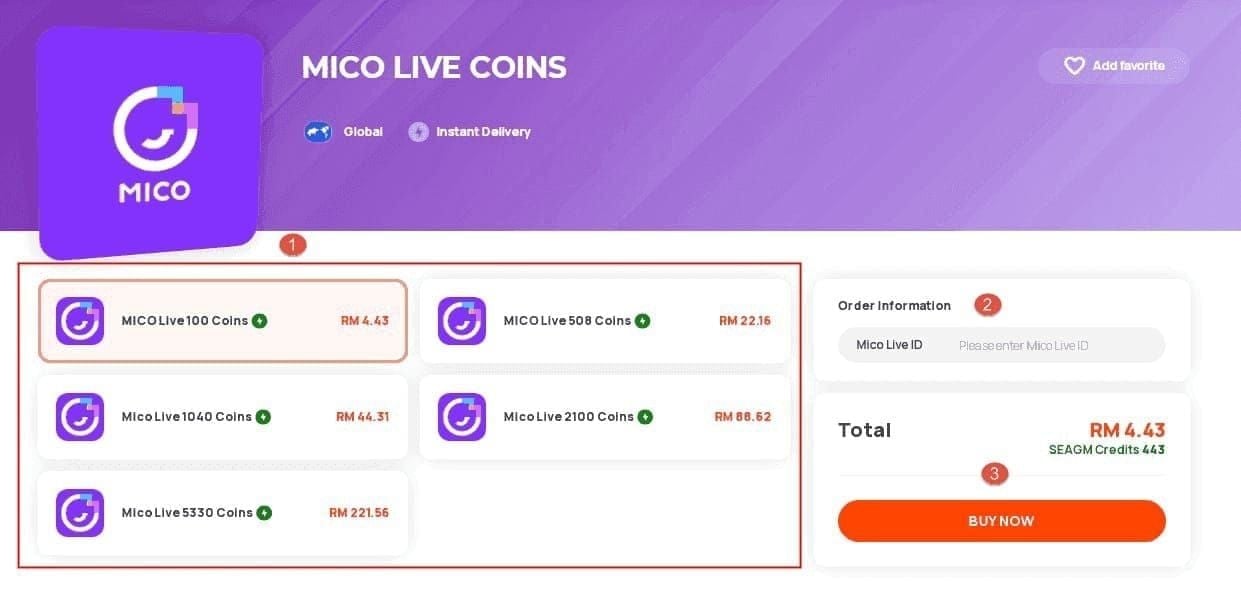
445 Mico Coins
 445 Mico CoinsUSD 3.57Buy Now
500 Mico Coins
500 Mico CoinsUSD 4.01Buy Now900 Mico Coins
900 Mico CoinsUSD 7.21Buy Now1,100 Mico Coins
1,100 Mico CoinsUSD 8.81Buy Now2,200 Mico Coins
2,200 Mico CoinsUSD 17.62Buy Now2,730 Mico Coins
2,730 Mico CoinsUSD 21.86Buy Now3,300 Mico Coins
3,300 Mico CoinsUSD 26.43Buy Now4,400 Mico Coins
4,400 Mico CoinsUSD 35.23Buy Now5,500 Mico Coins
5,500 Mico CoinsUSD 44.05Buy Now5,700 Mico Coins
5,700 Mico CoinsUSD 45.65Buy Now6,600 Mico Coins
6,600 Mico CoinsUSD 52.86Buy Now7,700 Mico Coins
7,700 Mico CoinsUSD 61.69Buy Now8,550 Mico Coins
8,550 Mico CoinsUSD 68.48Buy Now8,800 Mico Coins
8,800 Mico CoinsUSD 70.48Buy Now11,000 Mico Coins
11,000 Mico CoinsUSD 88.09Buy Now22,000 Mico Coins
22,000 Mico CoinsUSD 176.19Buy Now33,000 Mico Coins
33,000 Mico CoinsUSD 264.28Buy Now55,000 Mico Coins
55,000 Mico CoinsUSD 440.47Buy Now
The Recommended Host HUD Settings Profile
Lock in your broadcast parameters before opening a room to clear visual space and protect processor performance.
Step-by-Step Configuration Steps
- Set Camera Focus Peaking Sensitivity to 0.60: If you broadcast through an external capture card or mobile manual camera tool, keep focus peaking sensitivity calibrated between 0.35 and 2.00 (targeting 0.60). This keeps your facial expressions sharp without generating visual edge noise on your preview monitor.
- Lock Video Output to 1080p at 30 fps: Do not push 60 fps unless you run a dedicated dual-PC setup. A 30 fps stream halves encoder pressure and prevents the interface micro-stutters that cause missed taps.
- Set Keyframe Interval to 2 Seconds: Setting your keyframe interval to exactly 2 seconds guarantees fast synchronization between your real-time camera movements and viewer chat reactions.
- Configure Constant Bitrate (CBR) between 3,000 and 6,000 kbps: CBR keeps your stream bandwidth stable. Variable bitrates cause sudden latency spikes when complex gift animations trigger on screen.
- Adjust Chat Box Opacity to 40%: Drop the background fill opacity on your text overlay. This keeps the chat legible against bright backdrops while letting you see guest reactions underneath.
When to Deviate from the Standard Profile
When switching from a solo broadcast to a 9-seat party room, adjust camera preview scaling from full screen to a 9:16 vertical cropped canvas. This prevents the platform interface from stretching your feed across guest panels. In locations with weak cellular coverage, drop encoder resolution to 720p and lock bitrate to 2,500 kbps to protect the audio stream.
Hardware and Production Tier Layout Breakdown
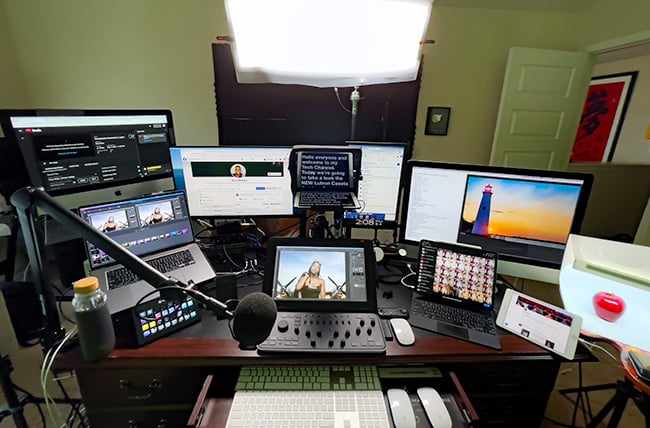
Your physical desk arrangement directly determines how quickly you process on-screen data. A handheld smartphone works for casual broadcasts, but consistent monetization requires separating video controls from interaction feeds.
The following table outlines estimated hardware investment levels and core components across three broadcaster tiers:
| Setup Tier | Estimated Investment | Core Equipment Included | Primary Benefit for Hosts |
|---|---|---|---|
| Beginner Desk Setup | $320–$400 | 1080p/4K webcam, USB microphone, ring light, free software encoder | Low cost, clean mobile-to-desktop capture |
| Intermediate Creator Setup | $1,200–$1,800 | 1–2 mirrorless cameras, XLR mic & interface, 2-light softbox kit, hardware switcher | Dedicated hardware switching, zero CPU lag |
| Professional Production Setup | $4,000–$12,000+ | 3–8 studio cameras, digital audio mixer, 3-point lighting, multi-input 4K switcher | Multi-angle production, isolated audio mixes |
Production costs reflect standard creator hardware configurations across mobile and desktop streaming suites.
An intermediate setup offers the best return on interaction speed. A dedicated hardware switcher or macro controller removes the need to swipe across your phone screen to trigger animations or switch camera angles.
Touch Zones and Gesture Shortcuts for Solo vs Party Rooms
Divide your screen strictly by physical reach. Thumb rest positions fall naturally across the lower third of a mobile screen, making button placement critical for avoiding accidental taps.
Structure your primary streaming display into three dedicated zones:
- Top Zone (Viewer Stats & Room Admin): Reserve the top 20% of your screen for the room title, active viewer count, and total bean counters. Never place interactive floating widgets here. Keep this area read-only.
- Middle Zone (Visual Stage & Guest Seats): In solo mode, this area displays your face and active PK battle meters. In party rooms, this area holds the 2-to-8 guest audio/video boxes. Configure floating window settings so guest profile pop-ups open with a single tap rather than a long press.
- Bottom Zone (Chat Feed & Action Bar): The lower 35% of the screen handles text scrolling and gift acknowledgments. Move your microphone mute and camera flip toggles to the far bottom-right corner to separate them from the rapid-scrolling chat box on the left.
If you use a desktop macro controller (such as a 15-key physical deck), map quick-access macros to physical keys. Triggering a sound effect or visual alert via a physical key takes under half a second, compared to four seconds digging through submenus on a mobile display.
When supporters purchase Mico Coins safely online during an agency PK tournament, you cannot afford to waste time searching digital menus. Physical hotkeys let you acknowledge support instantly while keeping eye contact with the camera.
Audio Gain Staging and Mix-Minus Routing for Instant Callouts
Loud gift reactions quickly distort poorly calibrated audio. When a big gift triggers an on-screen animation, shouting into an unpadded microphone drives listeners out of your room.
To achieve clean audio staging:
- Maintain Digital Peak Headroom: Set your microphone gain so your voice peaks between -18dB and -6dB on the digital full scale (dBFS) meter during your loudest celebratory shoutouts. This gives you 6dB of safety headroom before harsh digital distortion occurs.
- Maintain Correct Distance: Keep your mouth 6 to 12 inches away from your microphone capsule. Using a dynamic microphone with a foam pop filter prevents plosives from blowing out the audio mix.
- Lock Encoding Frequencies: Set your audio encoder to 128 kbps at either 44.1 kHz or 48 kHz stereo. This standard ensures perfect synchronization across iOS and Android client devices.
- Implement Automatic Mix-Minus: If you bring co-hosts onto voice seats, use an audio routing setup that supports automatic mix-minus across 1.2 to 4 virtual communication channels. Mix-minus routes your voice and music to the audience while preventing your guests' voices from looping back into their own headphones as an echo.
Delegating Screen Controls with Cloud Moderator Dashboards
Managing moderation, sound cues, chat filtering, and gift tracking alone creates cognitive overload. Broadcasters running high-traffic rooms offload interface duties to trusted moderators using cloud overlay dashboards.
Cloud dashboards run via browser sources at 60 fps. This architecture allows a remote moderator to manage layouts, update custom bean goals, and fire graphic shoutouts across the stream in real time. Because these systems use browser-level permissions, moderators never touch your MICO Live login credentials.
During gifting runs, your moderator can pin the names of top contributors directly onto the screen overlay. This allows you to focus on entertaining the audience without constantly tapping your phone to inspect profile badges.
Host Workflow Matrix Across Streaming Platforms
Layout configurations must adapt to different broadcast styles, from high-pressure PK battles to casual audio lounges.
The following table compares host interface demands across major mobile broadcast environments:
| Platform / Mode | Interaction Style | Optimal Display Layout | Recommended Audio Routing |
|---|---|---|---|
| MICO Live Solo Video | Rapid PK battles, visual gift combos | 9:16 vertical canvas, lower-third chat, top-pinned goal meter | Single XLR/USB mic, -18dB to -6dB gain headroom |
| MICO Live Party Room | Multi-guest interaction (up to 8 seats) | Stacked grid or 9-box floating layout, clear bottom touch zones | Mix-minus multi-channel routing to prevent seat echo |
| MICO PC Studio Setup | Desktop-driven dual-screen broadcast | Dual-monitor (Primary: canvas, Secondary: chat/moderation) | Hardware mixer with physical macro controllers |
| Voice-First Lounge (e.g., SUGO) | Audio-centric seating, structured voice turns | Minimalist avatar HUD, centralized seat management controls | Standard headset mic with noise suppression |
Interface demands vary based on the number of active video feeds, chat velocity, and guest participation rules.
When visual fatigue sets in from managing dense overlays, scheduling 2 to 5 recurring weekly voice sessions gives your eyes a break. Voice-first rooms replace complex HUDs with clean seating charts while keeping your community active.
Stream Stability and Encoding Benchmarks
No interface optimization will compensate for frame drops. Video stutter desynchronizes the touch interface, causing missed taps and delayed chat updates.
The table below outlines the necessary network throughput and encoding configurations to ensure a responsive streaming experience:
| Output Resolution | Frame Rate | Video Bitrate Range (CBR) | Minimum Stable Upload Required | Connection Type |
|---|---|---|---|---|
| 720p HD | 30 fps | 2,000 – 3,500 kbps | 3.5 Mbps | Wi-Fi (5 GHz) or 4G LTE |
| 1080p Full HD (Standard) | 30 fps | 3,000 – 6,000 kbps | 5.0 Mbps | Wired Ethernet / POE |
| 1080p Full HD (High Motion) | 60 fps | 4,500 – 8,000 kbps | 10.0 Mbps | Wired Ethernet (1 Gbps LAN) |
| 4K Ultra HD (Studio) | 60 fps | 12,000 – 20,000 kbps | 25.0 Mbps+ | Dedicated Fiber (2.5 Gbps LAN) |
Encoder metrics assume H.264 / AVC encoding with a 2-second keyframe interval and 128 kbps AAC audio.
Maintain a dedicated upload speed of at least 5 Mbps. For desk setups, avoid standard Wi-Fi in favor of a Cat6 wired Ethernet cable with Power over Ethernet (POE) adapters across runs of 65 to 85 feet. A direct wired line eliminates packet loss, keeping your chat feed synchronized to the millisecond.
When your room enters a competitive event, top gifters rely on an instant Mico recharge to keep gifting sequences active. A solid wired connection ensures you never miss acknowledging those decisive contributions as they hit the screen.
Frequently Asked Questions
What is the primary way hosts make money on MICO Live?
Hosts earn income when viewers send virtual gifts purchased with Mico Coins. These virtual gifts automatically convert into beans, which broadcasters can withdraw as cash once payout thresholds are met.
How can a live host optimize microphone gain to avoid distortion during big gift reactions?
Calibrate your input audio peaks to sit between -18dB and -6dB on your digital dBFS meter while speaking at peak volume. This 6dB headroom buffer prevents loud celebrations from clipping and distorting your audio output.
Why is a dual-monitor or secondary screen setup recommended for live streaming?
A secondary display allows you to isolate chat feeds, moderation dashboards, and gift alerts from your main broadcast canvas. Separating these tools clears your main screen, ensuring you never miss a viewer comment or donation.
What minimum internet upload bandwidth is required for a stable interactive stream?
Broadcasters must maintain at least a stable 5 Mbps dedicated upload speed for reliable 1080p streaming. Connecting via a wired ethernet cable rather than Wi-Fi prevents latency desynchronization and dropped frames during live interactions.
How can hosts delegate overlay and graphic alerts to moderators safely?
Utilize dedicated cloud overlay dashboards that grant moderators scoped, browser-based control over stream graphics. This enables remote moderators to trigger banners and alerts at 60 fps without needing access to your MICO account credentials.
What video encoder bitrate settings provide the best stability for 1080p streams?
Set your encoder to a Constant Bitrate (CBR) between 3,000 and 6,000 kbps at 30 fps with a 2-second keyframe interval. This configuration delivers sharp visuals while maintaining a reliable data stream for mobile viewers on variable cellular connections.
Final Setup Verdict: Streamline Before You Go Live
Optimizing your broadcast layout is not about adding flashy widgets—it is about removing friction. A cluttered screen slows your reaction time, frustrates supporters, and leads to costly accidental taps.
Lock your stream to 1080p at 30 fps, set your microphone headroom to peak between -18dB and -6dB, and establish clear touch zones on your primary device. If you run complex party rooms, offload your overlay management to a remote moderator via a cloud dashboard. Keep your screen clean, stay focused on your community, and you will never miss another gift acknowledgment.






Comments