Struggling with stutter in Blood Strike? Master the optimal blood strike graphics settings 2026 on Android to lock max frame rates and keep your device cool.
A sudden micro-stutter when an enemy slides around a corner kills you instantly. You line up your crosshair, initiate a slide, swipe to track, and the screen freezes for a quarter-second. By the time the display catches up, you are staring at the respawn timer.
Testing across budget and flagship chipsets reveals a consistent pattern: Blood Strike punishes visual flair over frame pacing. Unoptimized presets turn your phone into a hand warmer. Once internal silicon hits 80–90°C, thermal throttling kicks in, and smooth matches quickly degrade into slide shows.
Fixing this requires configuring Android's rendering pipeline properly. With dialed-in visual settings, supported displays hold a flat 120 FPS, while budget chips stay pinned at a rock-solid 60 FPS through chaotic fights.
The Frame Pacing Trap: Why High Settings Ruin Gunfights
Mobile shooters live and die by frame pacing—the consistency of frame delivery. Delivering sixty frames across a single second means nothing if thirty of those frames bunch up in the first quarter-second. The result is jittery motion and erratic touch polling.
Erratic delivery ruins muscle memory. When frame times spike, touch swipe registration falls out of sync. A rapid swipe meant for a 180-degree turn registers as a 90-degree hop because the GPU choked on dynamic lighting assets mid-flick. You miss not from poor aim, but because the display missed the input window.
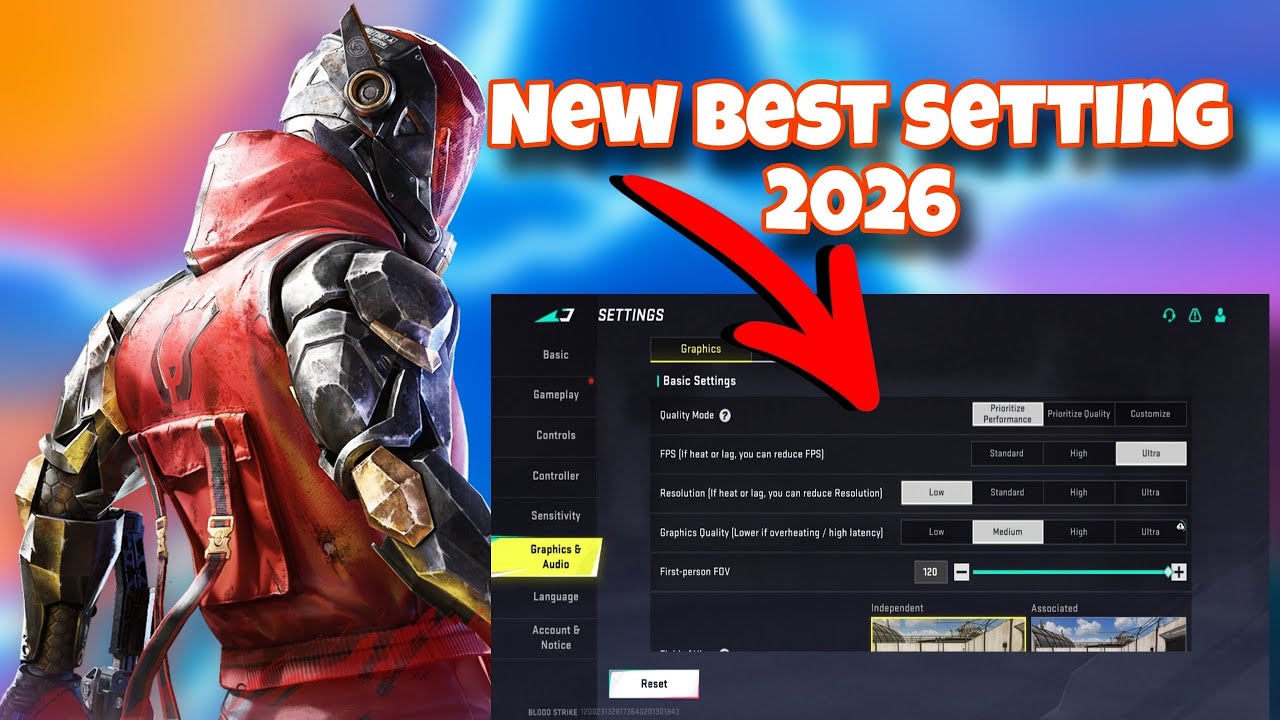
NetEase attached an explicit warning to the Ultra graphics preset, cautioning that higher graphical fidelity directly degrades hardware stability. Ultra looks crisp in static screenshots. In actual ranked matches, dynamic shadows, planar reflections, and bloom filters overtax memory bandwidth until frame intervals collapse. Lowering your visual profile is not a compromise; it is an immediate competitive advantage.

Season Pass
 Season PassUSD 0.73Buy Now
Enable Burning Eternal Valor Pre order
Enable Burning Eternal Valor Pre orderUSD 1.49Buy Now50 Golds
50 GoldsUSD 0.39Buy NowUltra Skin Lucky Chest
Ultra Skin Lucky ChestUSD 0.37Buy NowLevel Up Pass
Level Up PassUSD 1.46Buy NowStrike Pass Elite
Strike Pass EliteUSD 2.91Buy NowStrike Pass Premium
Strike Pass PremiumUSD 6.33Buy Now300 + 20 Gold
300 + 20 GoldUSD 1.94Buy Now500 + 40 Gold
500 + 40 GoldUSD 3.23Buy Now1000 + 100 Gold
1000 + 100 GoldUSD 6.44Buy Now2000 + 260 Gold
2000 + 260 GoldUSD 12.79Buy Now5000 + 800 Gold
5000 + 800 GoldUSD 31.88Buy NowLevelUp Pass
LevelUp PassUSD 1.58Buy NowStrike Pass Elite
Strike Pass EliteUSD 3.14Buy NowStrike Pass Premium
Strike Pass PremiumUSD 6.97Buy NowUltra Skin Lucky Chest
Ultra Skin Lucky ChestUSD 0.39Buy Now100 + 5 Golds
100 + 5 GoldsUSD 0.77Buy Now300 + 20 Golds
300 + 20 GoldsUSD 2.35Buy Now500 + 40 Golds
500 + 40 GoldsUSD 3.92Buy Now1000 + 100 Golds
1000 + 100 GoldsUSD 7.84Buy Now2000 + 260 Golds
2000 + 260 GoldsUSD 15.67Buy Now5000 + 800 Golds
5000 + 800 GoldsUSD 39.16Buy Now100 + 5 Gold
100 + 5 GoldUSD 0.67Buy NowLucky Bag Week
Lucky Bag WeekUSD 0.77Buy NowLevelUp Pass
LevelUp PassUSD 1.56Buy Now
Best Graphics Settings for Blood Strike Mobile
Every non-essential rendering layer eats cycles that belong to frame delivery and touch polling. Blood Strike allows detailed control over its rendering pipeline, letting you strip out heavy post-processing completely.
Configure the game so your hardware directs its entire compute budget toward rendering frames and reading finger input.
| Setting Option | Recommended Target | Competitive & Technical Impact |
|---|---|---|
| Graphics Quality | Smooth / Low | Strips heavy shaders, lightens rasterization, and halts thermal buildup. |
| Frame Rate | Ultra / Max (Highest) | Maximizes touch polling intervals and prevents bursty input lag. |
| Shadows & Reflections | Off / Low | Eliminates compute spikes during close-quarters ability deployment. |
| Motion Blur & Bloom | Off | Removes camera smearing and sharpens character outlines at range. |
Apply these core values inside the Blood Strike Graphics menu to establish a stable rendering baseline.
The primary takeaway here is simple: never sacrifice frame rate tiers to run higher graphics quality presets.
Setting Graphics Quality to Smooth strips complex environment textures, minimizes specular reflections on weapon skins, and disables dynamic ground illumination. Character models stay sharp, keeping target acquisition instant while lowering GPU temperatures.
If you want to dress up your operator with seasonal weapon blueprints and strike passes without running sluggish browser overlays in the background, pick up your essentials directly through Blood Strike Gold & Passes so your device stays focused entirely on game rendering.
Set Frame Rate to the highest option your phone displays—whether High, Ultra, or Max. Blood Strike ties its touch input polling rate directly to this cap. Running Max frame rates allows your display to register adjustments twice as fast as standard presets. Even on a 60 Hz display, picking the highest option ensures internal game ticks process without delay.
Shut off Motion Blur, Depth of Field, and Bloom immediately. Bloom glares over windows where snipers camp. Motion blur smears enemy outlines during fast flicks. Depth of field artificially blurs periphery targets while aiming down sights. Cutting all three provides pure visual clarity.
Developer Options and System Tweaks on Android
In-game sliders only solve half the equation. The underlying operating system frequently throttles hardware or steals rendering cycles for background tasks.
To access hidden system controls, open Settings > About Phone, then tap "Build Number" seven times until developer mode unlocks. Return to Settings and open Developer Options.
| Android System Setting | Default State | Recommended Tweak | Real-World Impact on Blood Strike |
|---|---|---|---|
| Window / Transition Animation | 1.0x | 0.5x | Frees system RAM and speeds up UI rendering transitions. |
| Force 4x MSAA | Off | Keep OFF | Prevents extreme GPU overheating and severe thermal throttling. |
| Free Internal Storage | Variable | Maintain 20% to 30% Free | Prevents Android swap-space bottlenecks and asset load stutter. |
| Android Battery Saver | Off / Auto | Strictly OFF | Halts CPU/GPU clock throttling during extended combat sessions. |
Adjust these specific system parameters inside your Android Settings to protect hardware bandwidth.
The key takeaway is that aggressive graphics flags like MSAA destroy performance, while free storage maintains swap speed.
Ignore guides advising you to enable "Force 4x MSAA". Forcing 4x Multi-Sample Anti-Aliasing quadruples GPU rasterization passes. Power draw spikes, surface temperatures race toward the 80–90°C thermal limit, and severe throttling sets in within three minutes of dropping into Shutter Island. Leave it turned off.
Lower Window Animation Scale, Transition Animation Scale, and Animator Duration Scale from 1.0x down to 0.5x. This tweak speeds up UI rendering transitions and frees immediate memory overhead for foreground applications.
Storage headroom matters just as much as RAM. Android relies on free internal flash memory as an emergency buffer for virtual swap space when game textures cycle out of active RAM. Pack your internal storage full, and swap writes stall. Maintain 20% to 30% free space to avoid asset hitching during heavy combat.
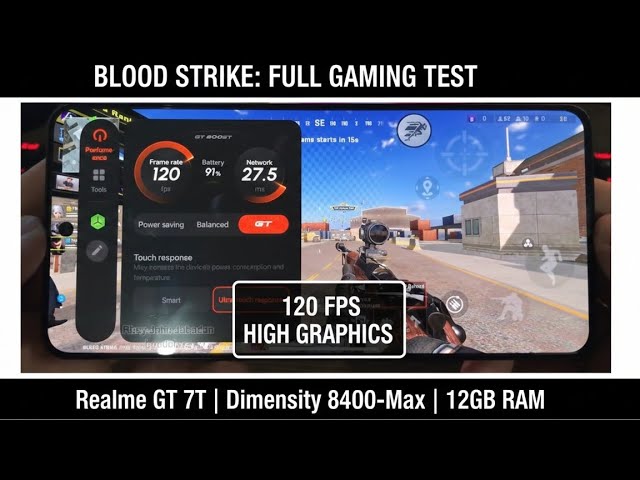
Never run Android Battery Saver while playing. The profile intentionally underclocks CPU and GPU clusters to stretch battery life, causing catastrophic frame drops the second a gunfight breaks out.
Check your manufacturer's built-in "Game Turbo" or "Game Space" utility. While these tools prioritize CPU scheduling, several brands quietly enforce a 60 FPS display cap behind the scenes to contain thermals. Verify that your game assistant profile does not cap refresh rates.
Engine Patches and NetEase Optimizations
Recent updates from NetEase modified core engine assets specifically to address micro-stutters reported by the player base. Knowing how these assets changed helps separate hardware bottlenecks from baseline engine behavior.
Nova's signature toxic gas grenade was previously one of the worst performance offenders. Early builds rendered complex cylindrical volumetric particles; a single canister in an enclosed corridor tanked frame rates on midrange chips. NetEase replaced that effect with an optimized spherical smoke volume, trimming the visual radius from 5 meters down to 3.5 meters while locking damage ticks at 10 to 15 per tick. The change cut particle overdraw drastically and eliminated the frame stalls associated with the cylinder asset.
A companion patch overhauled environment geometry and ground loot timers. Discarded weapon crates no longer persist indefinitely across terrain, significantly reducing active polygon counts in memory.
With ground clutter minimized, client bottlenecks now stem from local resource caching rather than polygon throughput. If hitches persist on modern patches, the cause lies locally: saturated RAM, full storage, or thermal throttling depressing clock speeds.
Step-by-Step Fix Sequence for Sudden Frame Drops
When frame rates crater mid-match, run through this troubleshooting sequence in order rather than changing settings at random.
Drop In-Game Visual Presets to Smooth and Max Frame Rate
Open Blood Strike Settings > Graphics. Switch Graphics Quality to Smooth. Set Frame Rate to Ultra or Max. Turn Shadows, Reflections, and Ambient Occlusion completely off. Turn off Motion Blur, Bloom, and Depth of Field. Save and restart the game.Strip Physical Phone Cases and Stop Charging During Play
If you play with a thick silicone or plastic protective case, you are insulating your phone and trapping heat. Pop the case off. Never play ranked matches while fast-charging your device. Charging pumps intense heat directly into the battery, and that thermal bleed forces your mobile chipset to hit its 80–90°C throttle ceiling twice as fast.Clear Blood Strike Cache and Audit App Storage
Go to Android Settings > Apps > Blood Strike > Storage. Tap "Clear Cache" (do not tap Clear Data unless you want to re-download all user assets). This flushes corrupt shader caches that cause rendering hitches after major game updates.Prune Modular Resources in the Download Center
Boot the game and click the gear icon to open the Resource Download Center. Look at what you have installed. You do not need every single cosmetic high-res pack installed on a budget device. Delete unused map files and high-res player skin packs to free up active memory.Configure Android Developer Options
Navigate to Developer Options in your phone's system settings. Confirm that Force 4x MSAA is turned off. Set your Window, Transition, and Animator scales to 0.5x. Check your running processes and kill background apps like social media feeds or video streamers.Verify Storage Headroom
Open your Android Storage menu. Ensure you have at least 20% to 30% free space remaining on your internal drive. If your storage is full, uninstall neglected apps or offload video files. Your operating system requires that free buffer to manage dynamic swap operations during intense gunfights.
Memory Saturation, Resource Packs, and Storage Management
Modular asset downloads keep the core client lean, but tapping "Download All" at the start of a season swarms low-memory phones with unneeded files.
When physical RAM and GPU VRAM saturate, Android offloads inactive assets to virtual swap memory on internal flash storage. Flash storage operates at a fraction of RAM speeds. If an enemy slides into view wielding a mythic weapon skin stored in swap space, the device stutters while retrieving the textures. That split-second freeze is VRAM saturation in action.

Manage this through the in-game Resource Download Center. Utilize the cleanup tool to purge stale temporary packages. Always keep EVO Skill assets downloaded so tactical ability hitboxes render accurately, but skip non-essential high-resolution skin libraries if your device has 4 GB or 6 GB of RAM.
A trimmed installation prevents erratic memory spikes. With overhead secured, grab seasonal blueprints and passes directly via top up Blood Strike Gold without bogging down local performance.
Platform Differences: Android, iOS, and PC
Hardware architecture dictates performance quirks across operating systems. Android offers granular system-level toggles but deals with heavy hardware fragmentation and variable cooling designs. Apple and PC environments operate under completely different hardware limits.
| Platform | Primary Stutter Trigger | Strengths | Weaknesses |
|---|---|---|---|
| Android | Thermal throttling (80–90°C), background memory bloat, aggressive battery saver profiles. | Open system options, adjustable animation scales, granular frame rate targets up to 120 FPS. | Huge hardware fragmentation; varied cooling solutions across brands. |
| iOS | Aggressive display dimming and sudden frame drops to 60 FPS when SoC heats up. | Predictable unified memory architecture and highly optimized Metal API rendering. | No access to developer scales; system automatically dims display when warm. |
| PC (Official Client) | VSync frame pacing mismatch, background OS tasks, shader compilation stutters. | Raw hardware power bypasses memory bottlenecks; uncapped frame rates. | High polygon loads on Ultra settings can cause micro-stutters on low-end GPUs. |
Review these cross-platform variations to identify what limits your device during competitive play.
The takeaway: Android players must manage heat and memory actively, whereas iOS players fight display dimming.
Android grants deep control over animation scales, developer flags, and background processes. The tradeoff is aggressive thermal throttling: an uncooled SoC can plunge from 120 FPS down to 45 FPS after five minutes of heat soak.
iPhones leverage unified memory and Apple's Metal API for consistent frame pacing, but iOS enforces rigid thermal limits. As heat builds, the system cuts screen brightness by 50% and forces a 60 FPS lock without notification.
The PC client avoids memory saturation entirely through raw compute, yet Ultra settings can still trigger frame-pacing hitches during sudden shader loads. On any platform, stripping non-essential visual overhead ensures clean target tracking.
Network Jitter vs Hardware Stutter: Route Optimization
A sudden screen hitch does not always point to a failing GPU. When packets drop or latency spikes, the server struggles to reconcile player positions. Rubberbanding snaps characters across coordinates, mimicking a hardware frame drop.
To isolate the cause, turn on the in-game latency and FPS overlay in Blood Strike's interface settings. Watch the counters when a stutter occurs:
- If your FPS counter drops from 120 down to 40 while latency remains flat at 30 ms, your hardware is choking. Look at thermals, storage, and graphics settings.
- If your FPS stays locked at 60 or 120, but your latency counter spikes from 35 ms to 200 ms with a yellow or red packet loss icon, your connection is causing the issue.
Packet drops commonly stem from Wi-Fi interference or suboptimal routing to NetEase servers. On cellular data or congested home networks, routing tools like LagoFast Mobile Booster reroute packets through stable relay nodes to curb ping spikes.
Locking down connectivity and frame stability sets the foundation for competitive climbing. Once your latency is flat and frame pacing is secured, pick up your seasonal passes via Blood Strike Gold recharges to keep your loadouts fully upgraded.
Frequently Asked Questions
What are the best graphics settings to stop stuttering in Blood Strike on Android?
Set Graphics Quality to Smooth and select the highest available Frame Rate (Ultra or Max). Turn off Shadows, Reflections, Motion Blur, and Bloom. This configuration limits GPU thermal load and minimizes touch control input lag.
Does lowering graphics settings hurt enemy visibility in Blood Strike?
No. Lowering graphics settings improves visibility by stripping visual clutter. Removing bloom, lens flare, and heavy shadow filters makes enemy silhouettes stand out cleanly against terrain and architecture.
Should I turn on Force 4x MSAA in Android Developer Options for Blood Strike?
No. Keep Force 4x MSAA disabled. Enabling it forces quadrupled rasterization passes that overheat the GPU and trigger thermal throttling within minutes.
Why does Blood Strike drop frames during close-range gunfights?
Point-blank engagements trigger simultaneous particle effects—muzzle flashes, blood splatters, and tactical abilities—that overload GPU fill rates and memory bandwidth. Running the Smooth preset eliminates high-cost particle layers to maintain stable frame rates.
How does Android battery saver mode affect Blood Strike performance?
Battery Saver downclocks CPU and GPU cores to preserve battery charge. This reduced compute frequency directly causes frame pacing breakdowns and micro-stuttering. Disable Battery Saver before launching the game.
Can clearing internal storage reduce lag in Blood Strike?
Yes. Keeping 20% to 30% of internal storage free provides Android with the buffer needed for virtual memory swap operations. Full storage causes asset-streaming hitches when new textures load during a match.
Does playing Blood Strike while charging cause micro-stutters?
Yes. Fast charging generates intense heat in the battery, adding to processor thermals. As internal temperatures approach 80–90°C, the chipset throttles clock frequencies to prevent hardware damage, causing severe frame drops.
Competitive Clarity Wins Every Gunfight
Millisecond reaction times decide high-tier ranked matches. Running Ultra presets introduces thermal throttling, battery drain, and input delays right as a duel starts.
Switching Graphics Quality to Smooth, setting Frame Rate to Max, and eliminating post-processing creates a consistent rendering pipeline. You trade away ambient lighting and lens flare in exchange for flat frame delivery, instantaneous touch response, and total target visibility.






Comments