Learn how to change controller button layout in COD Mobile, fix unmapped inputs, adjust stick deadzones, and switch to the competitive tactical layout.
Setting up a physical gamepad in Call of Duty: Mobile completely changes how you aim, slide, and take gunfights. Jumping into a match with the wrong button mapping leaves you fumbling with awkward thumb movements right when an enemy slides around the corner. If you cannot find the mapping menu, struggle with buttons that refuse to register, or want to replicate a console layout on your phone, this guide breaks down every menu pathway, preset configuration, and operating system override.
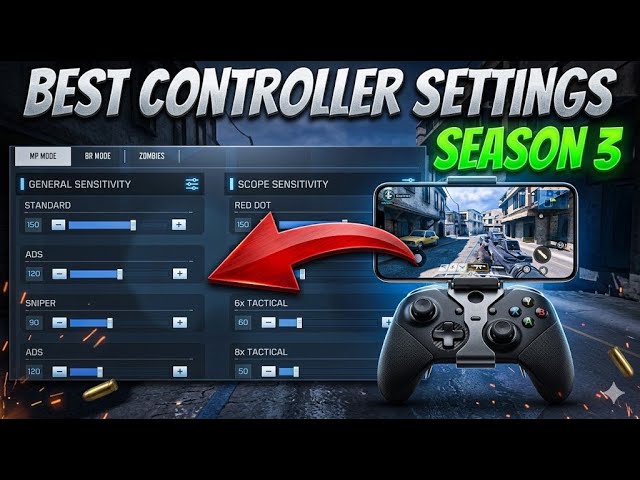
Accessing the COD Mobile Controller Settings Menu
The most common issue players face when connecting a gamepad is thinking their controller is broken because nothing happens on the main lobby screen. Call of Duty: Mobile does not support gamepad input on menu screens. You must use the touch screen to move through menus, customize weapons, and start matchmaking. The controller only takes over once your boots hit the ground in an active match or practice range.
To access your controller configuration, follow this exact pathway:
- Open the game and stay on the main lobby screen.
- Tap the Gear icon in the top-right corner to open the main Settings menu.
- Scroll down the right-hand menu tabs and tap Controller.
- Select the Settings sub-tab at the top of the screen.
- Verify that Enable Controller Support is set to ON.
- Tap Button Layout to view your available layout presets or adjust your control assignments.
If the Controller tab appears greyed out or does not show a connected device, your gamepad is either disconnected from your phone's Bluetooth or unsupported by the current game build. Check your device's primary system Bluetooth settings first before opening the game.
Default vs Tactical: Preset Controller Button Layouts Compared
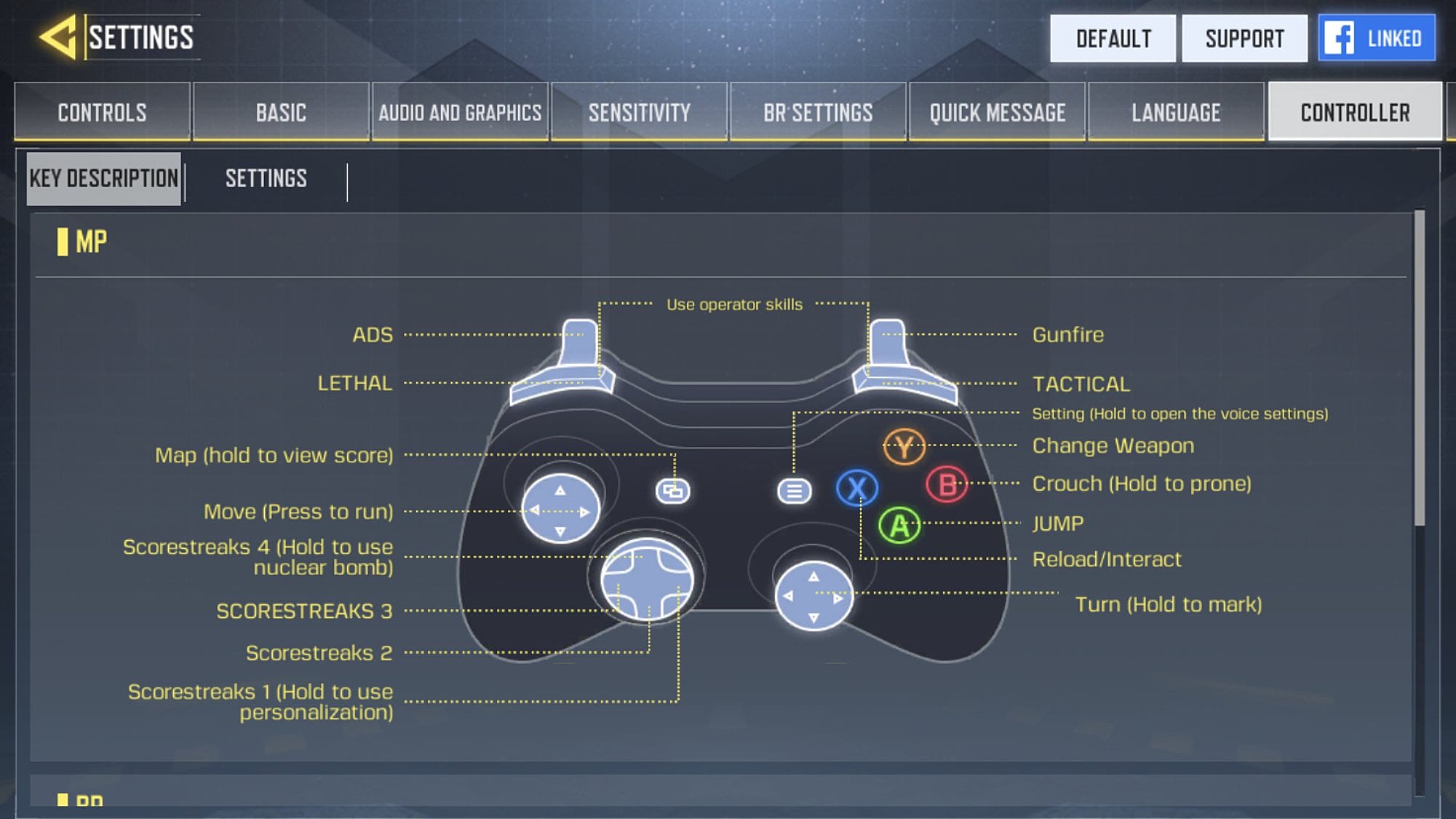
Call of Duty: Mobile provides pre-built layout profiles designed around standard console shooter archetypes: Default and Tactical.
In the Default preset, crouch, slide, and prone actions are assigned to the right face button (B on Xbox controllers, Circle on PlayStation gamepads). Melee attack is mapped to the right stick click (R3/RS). This scheme works fine for casual play, but it forces you to lift your right thumb off the aiming stick every time you want to slide or drop to the ground. In competitive lobbies, that split-second loss of aim control will cost you gunfights.
The Tactical preset swaps these two inputs. Crouch, slide, and prone move directly to the right stick click (R3/RS), while melee strike moves to the face button (B/Circle). With Tactical enabled, you can slide-cancel, drop-shot, and crouch behind cover while keeping your thumb glued to the right stick to track moving targets.
The table below outlines the core functional differences between available layout options.
| Control Action | Default Preset | Tactical Preset | Custom / OS Remapped Profile |
|---|---|---|---|
| Crouch / Slide / Prone | B (Xbox) / Circle (PS) | Right Stick Click (RS / R3) | User-defined (Paddles / Triggers) |
| Melee Attack | Right Stick Click (RS / R3) | B (Xbox) / Circle (PS) | Face Button or D-Pad |
| Jump / Mantle | A (Xbox) / Cross (PS) | A (Xbox) / Cross (PS) | Left Bumper (LB / L1) or Rear Paddle |
| Aim Down Sights (ADS) | Left Trigger (LT / L2) | Left Trigger (LT / L2) | Left Trigger (LT / L2) |
| Fire Weapon | Right Trigger (RT / R2) | Right Trigger (RT / R2) | Right Trigger (RT / R2) |
| Sprint | Left Stick Click (LS / L3) | Left Stick Click (LS / L3) | Auto-Sprint / Left Stick Click |
Switching from Default to Tactical gives you instant mobility advantages without requiring expensive paddle attachments or complex third-party tools.
If you want to gear up your loadouts with premium weapon blueprints while testing new layouts, grab Call of Duty: Mobile CP top-ups to unlock the latest Battle Pass tiers directly.
System-Level Button Remapping on iOS and Android
A notable split exists across community sources regarding button customization in Call of Duty: Mobile. Some players claim full custom keybinding is available directly inside the app, while others note that the in-game controller menu only permits switching between preset profiles. The reality depends on your hardware and platform: native in-game customization allows layout preset selection, but bespoke button-by-button remapping requires system-level OS profiles or external companion tools.
How to Remap Controller Buttons on iOS
Apple devices running iOS 13 or later feature built-in, OS-level controller remapping that overrides game settings. You can build a dedicated profile exclusively for Call of Duty: Mobile:
- Pair your controller to your iPhone or iPad via Bluetooth.
- Open your device's Settings app.
- Navigate to General > Game Controller.
- Tap Customizations and turn the toggle on.
- Select Add App and choose Call of Duty: Mobile from your installed applications list.
- Remap any physical input to your preferred command (for example, mapping Jump to L1/LB or assigning rear paddles).
Remapping Options on Android
Native Android does not include a global, system-wide controller button remapping menu. If you play on Android and want custom assignments beyond the in-game Default and Tactical presets, two main routes exist:
- Manufacturer Companion Software: Brands like 8BitDo or mobile controller makers provide dedicated configuration apps (such as the ABXY Game app) to rebind buttons at the controller firmware level.
- Third-Party Keymappers: Applications like Mantis Gamepad allow Android users to map inputs and build custom profiles without modifying core game files.
For players who combine touch controls with an external controller, the in-game Custom Layout menu under the Controls tab allows full scaling, repositioning, and opacity adjustments for all on-screen HUD elements.
Platform Compatibility and Latency Differences
Built natively for mobile platforms, Call of Duty: Mobile runs across Android and iOS. PC players run the title through official emulators like Tencent GameLoop, which places them into segregated emulator matchmaking pools.
Hardware connection types also influence input response. Bluetooth connections offer convenience, but direct physical connections via USB-C or Lightning bypass wireless polling constraints and eliminate latency.
The following table compares supported controller types, platform requirements, and hardware characteristics.
| Controller Hardware | Operating System Compatibility | Connection Method | Polling Latency Profile |
|---|---|---|---|
| Sony DualSense (PS5) | iOS 14.5+ / Android 10+ | Bluetooth 5.1 / Direct Cable | Low latency; adaptive triggers inactive on mobile |
| Sony DualShock 4 (PS4) | iOS 13+ / Android 10+ | Bluetooth / Micro-USB | Low latency; requires 2nd-gen DS4 model |
| Xbox One / Series X|S | iOS 13+ / Android 10+ | Bluetooth / Direct USB-C | Low latency; native firmware profile integration |
| Backbone One | iOS / Android (USB-C & Lightning) | Direct Port (Hardware pass-through) | Near-zero latency; bypasses wireless Bluetooth polling |
| Nintendo Switch Pro | iOS 16+ / Limited Android | Bluetooth | Moderate latency; may require third-party mapping on Android |
| PC Emulation (GameLoop) | Windows PC | USB / 2.4GHz Wireless Dongle | Hardware-dependent; isolated emulator matchmaking queue |
Direct plug-in mobile controllers like the Backbone One offer the cleanest response times for competitive matches because they eliminate wireless interference entirely.
If you are optimizing your competitive loadout alongside your hardware setup, visit the COD Mobile CP store to secure weapon vaults and tactical character skins for your roster.
Optimal Controller Sensitivity, Deadzones, and Aim Curves
Changing your button layout solves half the equation; calibrating your stick dynamics solves the rest. An uncalibrated controller feels sluggish or wildly inaccurate during high-speed gunfights.
Stick Deadzone Tuning
Deadzone represents the physical distance your analog stick must move from its center resting point before the game registers an in-game movement.
- Recommended Deadzone: Set your stick deadzone between 5% and 10%.
- Setting deadzones below 5% can cause phantom stick drift if your controller has minor mechanical wear.
- Setting deadzones above 10% introduces noticeable input delay, making micro-aim adjustments feel unresponsive.
- Controllers equipped with magnetic Hall Effect analog sticks eliminate mechanical wear drift entirely, allowing you to run resting deadzones closer to the 5% minimum safely.
Sensitivity and Aim Response Curves
Sensitivity controls rotational turn speed, while Aim Response Curves determine how physical stick tilt maps to crosshair velocity.
- Standard Look Sensitivity: Start between 50 and 65 for baseline rotational control.
- ADS (Aim Down Sight) Sensitivity: Set between 80 and 90 to ensure rapid target tracking while scoped.
- Standard Curve: Provides a gradual acceleration ramp as the stick reaches outer bounds.
- Linear Curve: Produces direct 1:1 deflection. Raw stick movement translates directly to aiming speed.
- Dynamic Curve: Applies an S-curve that offers micro-precision at slight deflections for sniping alongside fast turning speeds at maximum stick tilt.
The table below summarizes the recommended configuration for competitive play.
| Calibration Setting | Beginner / Baseline | Competitive / Advanced | Impact on Gunplay |
|---|---|---|---|
| Look Sensitivity | 50 – 60 | 65 – 80 | Balances target scanning with camera stability |
| ADS Sensitivity | 80 – 85 | 85 – 95 | Determines tracking speed during mid-range gunfights |
| Inner Deadzone | 8% – 10% | 5% – 7% | Minimizes response delay while preventing phantom drift |
| Outer Deadzone | 95% – 100% | 90% – 95% | Determines when maximum turn acceleration engages |
| Aim Response Curve | Standard | Dynamic | Grants micro-aim centering combined with fast turning |
Setting an ADS sensitivity of 80 to 90 with a 5% to 10% deadzone delivers the sharpest balance of target tracking and stability in ranked multiplayer.
Step-by-Step Fixes for Unmapped Buttons and Controller Glitches
When your gamepad pairs over Bluetooth but buttons fail to respond in a match, run through these troubleshooting steps in sequence:
- Verify the In-Game Controller Switch: Open Settings > Controller > Settings and confirm that Enable Controller Support is set to ON. If the toggle was off during pairing, the game ignores all inputs.
- Remember That Menus Are Touch-Only: Do not attempt to use the D-pad or thumbsticks to select menu buttons. Enter the Practice Range or a Private Match to verify in-game button inputs.
- Reset Bluetooth Pairing: Unpair your controller from your device's Bluetooth settings, restart your phone, and pair the controller again before launching the game.
- Disconnect Competing Bluetooth Devices: Secondary Bluetooth connections like wireless headphones or smartwatches can create polling conflicts or input lag. Disconnect background accessories and retest.
- Disable Accessibility Screen Overlays: Third-party screen recorders, overlay widgets, or accessibility gesture tools on Android can intercept touch and gamepad input layers, causing unmapped button states.
Frequently Asked Questions
Can you get banned for using a controller in COD Mobile?
No. Official Bluetooth gamepads from Xbox and PlayStation, as well as licensed mobile controllers like the Backbone One, are officially supported. However, using unauthorized hardware injectors or script macros can trigger account suspensions.
Do controller players play against touch screen players in COD Mobile?
No. Call of Duty: Mobile uses segregated matchmaking queues. When you enter matchmaking with a connected controller, the game matches you exclusively against other gamepad and emulator users to maintain competitive balance.
Why does my controller work during matches but not in the lobby?
Call of Duty: Mobile only accepts controller inputs during active gameplay and in the Practice Range. All lobby navigation, loadout customization, and menu options require standard touch controls.
Can you remap individual buttons natively inside COD Mobile?
No. The native in-game settings menu only permits switching between preset layout profiles like Default and Tactical. For custom single-button assignments, use iOS Game Controller settings or hardware-specific companion software on Android.






Comments