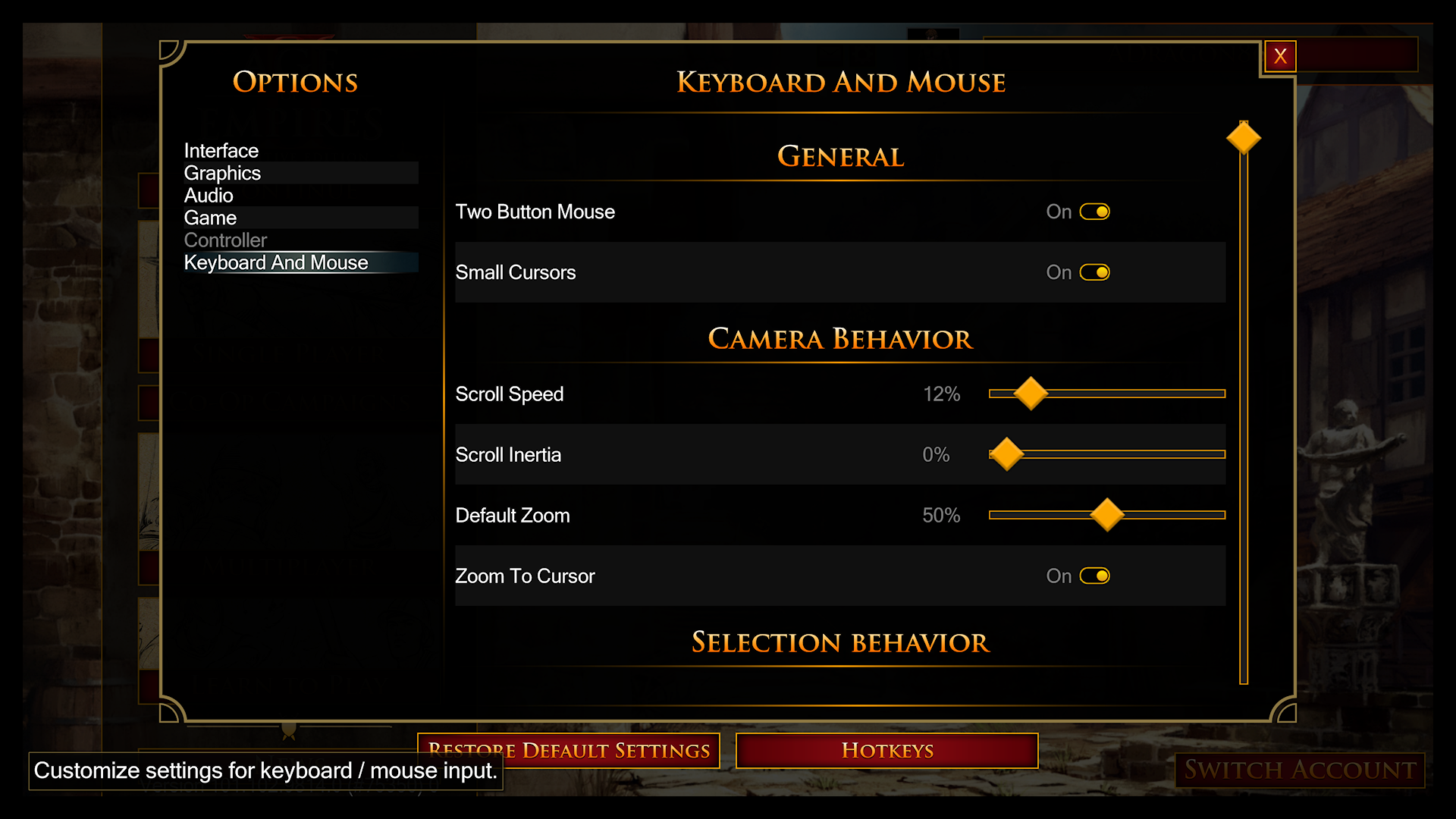
To change controls in Age of Empires Mobile on the official PC Edition, open the in-game Settings menu to adjust mouse sensitivity, swap left- and right-click functions, or change cursor size; to remap actions for deploying units and firing hero abilities, head to Settings > Shortcuts (Age of Empires Mobile PC Edition). Players running the mobile build on macOS through emulators like BlueStacks Air must configure their custom keybinds and cursor taps through the emulator's control overlay menu (BlueStacks Mac Guide).
Adjusting Mouse Sensitivity and Cursor Visibility on PC
Sluggish camera panning and inaccurate target clicks usually come down to default mouse parameters. You can calibrate both directly from the primary settings screen in the PC Edition.
Open Settings from the main menu bar. Within this pane, you can tweak three core pointer behaviors:
- Mouse Sensitivity: Move the slider to increase or reduce the cursor's tracking speed across the screen and tactical map.
- Pointer Size: Scale up the cursor size. In large multiplayer clashes with dozens of active unit banners and spell effects, expanding the pointer prevents losing sight of your target marker.
- Mouse Button Swap: Toggle the primary functions of your left and right mouse buttons if you prefer classic RTS movement styles, such as right-clicking to move armies and left-clicking to select.
You can also configure these input settings during your very first account login through the initial Accessibility Settings prompt (Age of Empires Mobile PC Edition).

400 Empire Coins
 400 Empire CoinsUSD 0.80Buy Now
99 Empire Coins
99 Empire CoinsUSD 0.90Buy Now2,100 Empire Coins
2,100 Empire CoinsUSD 3.89Buy Now499 Empire Coins
499 Empire CoinsUSD 3.89Buy Now999 Empire Coins
999 Empire CoinsUSD 8.24Buy Now4,400 Empire Coins
4,400 Empire CoinsUSD 8.24Buy Now9,200 Empire Coins
9,200 Empire CoinsUSD 16.11Buy Now1,999 Empire Coins
1,999 Empire CoinsUSD 16.11Buy Now24,000 Empire Coins
24,000 Empire CoinsUSD 41.35Buy Now4,999 Empire Coins
4,999 Empire CoinsUSD 41.75Buy Now50,000 Empire Coins
50,000 Empire CoinsUSD 82.74Buy Now9,999 Empire Coins
9,999 Empire CoinsUSD 82.74Buy Now
Rebinding Battle Hotkeys and Troop Deployment
Clicking through menus during real-time combat creates input lag that can cost you an entire march. Assigning dedicated keyboard shortcuts allows you to trigger commander skills and field reinforcements instantly.
To remap tactical commands:
- Click the gear icon to open Settings.
- Select the Shortcuts tab from the left-hand navigation column.
- Click on the command binding you wish to change—such as troop deployment hotkeys or hero skill triggers.
- Press your preferred key to bind it, then confirm the changes.
Custom hotkeys let you trigger commander abilities without moving the cursor away from your focus targets. For players handling multiple active marches simultaneously, keeping unit queues full is critical; many turn to Empire Coins to speed up training and rush military research.
Built-in Keyboard Navigation
Beyond customized battle hotkeys, the PC client incorporates default interface hotkeys designed to minimize mouse travel:
- [Esc]: Instantly closes the active window, sub-menu, or dialog box.
- [Tab]: Calls up an active selection box when viewing the Chat, Friends, or Settings interfaces, allowing full menu navigation via the keyboard alone (Age of Empires Mobile PC Edition).
Mode-Specific Control Schemes
Age of Empires Mobile includes distinct sub-modes that alter combat and gathering mechanics. Rather than forcing standard map controls into divergent mini-games, developers built dedicated PC control profiles for specific formats:
- World Battles: Configured for broader strategic troop movement and coordinated alliance warfare.
- Battlefield Survivor: Tailored keyboard and mouse bindings to handle active survival-mode movement.
- Fishing: Specific directional and interaction inputs designed for gathering minigame mechanics (Age of Empires Mobile PC Edition).
These mode profiles activate when entering their respective game segments on PC.
| Setting / Control Option | Menu Location | Practical Tactical Function |
|---|---|---|
| Mouse Sensitivity | Settings | Speeds up or slows cursor travel and map drag response (PC Edition Guide). |
| Pointer Size | Settings | Enlarges cursor to maintain visual tracking in congested battles (PC Edition Guide). |
| Mouse Button Swap | Settings | Swaps left/right click commands for traditional RTS move-order styles (PC Edition Guide). |
| Battle & Skill Hotkeys | Settings > Shortcuts | Enables rapid troop deployment and commander skill activation (PC Edition Guide). |
| Quick Menu Close | Built-in ([Esc]) | Exits overlay screens immediately to return focus to the field (PC Edition Guide). |
| Menu Focus Toggle | Built-in ([Tab]) | Brings up the selection box in Chat, Friends, and Settings (PC Edition Guide). |
Setting Up Keybinds on Mac Emulators
Because the native PC Edition client is built for Windows, macOS users typically access the game through Android emulation tools like BlueStacks Air.
When running the game on a Mac:
- Launch Age of Empires Mobile inside BlueStacks Air.
- Open the emulator's Controls Editor (usually located on the side panel overlay).
- Replace default touchscreen drag points by assigning custom keys to tap zones, such as ability slots and troop portrait shortcuts.
- Map screen edge panning or map movement to your mouse or directional keys to simulate native desktop controls (BlueStacks Mac Guide).
Save your profile once configured so key positions persist across updates, providing responsive desktop controls on macOS comparable to the native Windows release.
Troubleshooting Unresponsive Controls
If camera drags feel sluggish or hotkeys fail to respond during encounters, work through these checks in order:
- Check for Chat Window Focus: If you recently pressed
[Tab]or opened the Chat panel, keyboard hotkeys may route straight into text input. Press[Esc]to clear selection focus back to the battlefield. - Reset Pointer Size: If cursor clicks fail to register directly on small enemy units, verify that your pointer size in Settings is not obscuring target hitboxes.
- Inspect Active Mode Schemes: When shifting from open-world marches to Battlefield Survivor or Fishing, ensure your key inputs correspond with the dedicated mode controls rather than standard army deployment hotkeys.
- Re-verify Shortcut Profiles: Following major game updates, inspect Settings > Shortcuts to confirm custom bindings remain assigned to your intended keys.






Comments