
To change controls in Chamet on PC, open your emulator's Game Controls editor (or press Shift + Tab in fullscreen mode), select Edit, and place virtual Tap controls over the app's static on-screen buttons. You can assign keyboard hotkeys like Space or letter keys to interactive elements, test the placement, and confirm the changes with the checkmark according to Google Play Help. Because Chamet relies on a mobile layout, mapping keybinds allows streamers and hosts to trigger calls, manage gifts, and control live features without manually clicking every button.
Why PC Emulators Are Required for Chamet Live Streaming
Chamet offers official desktop shortcuts and web versions, but these clients come with heavy functional restrictions. On the native PC client, you can make standard video calls and enter existing chat rooms, but you cannot broadcast your own live stream or browse dynamic user content, as documented by Kingshiper. Broadcasters who want to host streams from a desktop setup must run the Android version through an emulator or a USB screen-mirroring tool.
Setting up the app inside an emulator requires manual sideloading. Google removed Chamet from the Google Play Store in 2023 following user-generated content policy issues, as reported by Joytify. As a result, emulators cannot install Chamet directly through built-in Play Store searches. You must obtain an official APK file from Chamet's direct web distribution channels and drag the file into your emulator interface to install it.
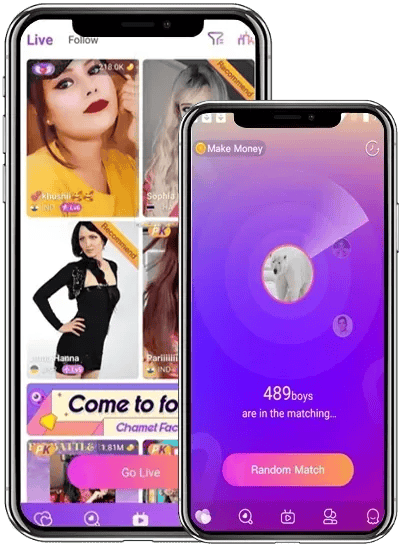

Step-by-Step Chamet PC Keybinds Setup
Mobile applications feature fixed UI elements that remain stationary during calls and livestreams. Using the BlueStacks Keymapping Tool or standard emulator control editors allows you to overlay physical keyboard keys directly onto these touch points, freeing your mouse hand from repetitive navigation, as noted by BlueStacks.
To map keybinds over the Chamet interface:
- Launch your emulator, open the sideloaded Chamet app, and enter a live room or test call interface.
- Open the control overlay menu by clicking the Game Controls icon on the emulator sidebar, or press Shift + Tab if running in fullscreen, as detailed by Google Play Help.
- Select Edit to open the mapping canvas.
- Click Tap Control, then click on the screen where a Chamet button sits (such as the gift tray, call accept, or mute button).
- Type the keyboard key or mouse button you want to assign to that position.
- Drag and resize the tap target so it aligns squarely over the on-screen target.
- Click the checkmark to save your layout.
- Press F12 to toggle the visibility of the on-screen keybind badges on or off during your broadcast, per Google Play Help.
Recommended Key Mapping Layout for Streamers
A streamlined layout separates stream administration from viewer interactions. The table below outlines practical mappings for primary Chamet live actions:
| Interface Action | Recommended Keybind | Functional Purpose |
|---|---|---|
| Gift Menu Toggle | G | Opens the virtual gift selection menu instantly |
| Quick Gift Send | Space | Dispatches the selected gift without dragging |
| Mic Mute / Unmute | M | Toggles host audio during live sessions |
| Camera Flip / Switch | C | Swaps between front and rear virtual video feeds |
| End / Decline Call | Escape | Dismisses incoming private requests or closes menus |
| Accept Call | Enter | Confirms incoming 1-on-1 private video calls |
Streamers using Chamet Diamonds to initiate private video calls, send animated gifts to other broadcasters, or unlock interactive room perks benefit from mapping the gift menu and call confirmation buttons to easily reachable keys. This keeps interactive spending tools accessible while managing desktop video windows.
Configuring Microphone and Virtual Camera Settings
Android emulators isolate audio and video hardware from the host system, requiring explicit routing before Chamet can capture desktop inputs.
By default, microphone audio input is disabled in Android emulators for privacy and system performance reasons. To feed your desktop microphone into Chamet calls, open the emulator's Extended Controls window, navigate to the Microphone tab, and turn on the toggle labeled "Virtual microphone uses host audio input," as outlined by Android Developers. If this toggle is off, Chamet will broadcast silence even if Windows shows active microphone levels.
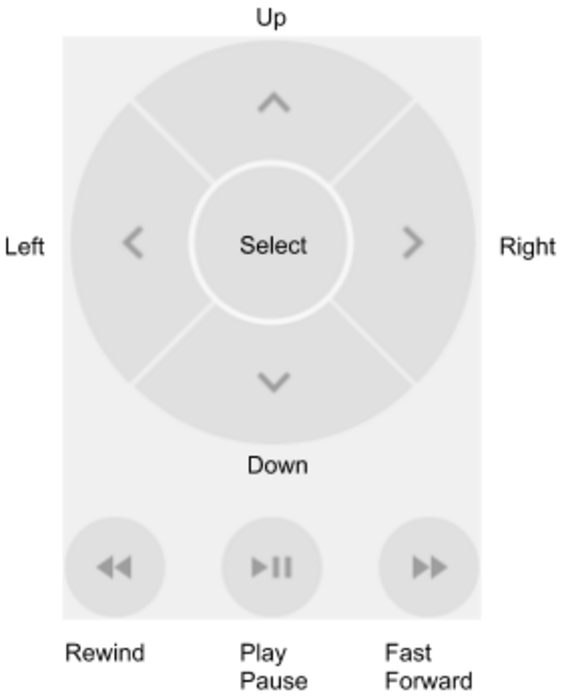
For camera feeds, configure your emulator's settings to recognize either a physical USB webcam or a software virtual camera (such as OBS Virtual Camera). Set the front-facing camera input in the emulator's device settings to match your desired video source before opening Chamet. If the camera appears inverted, use your streaming software's transform settings to flip the image horizontally before sending it to the virtual feed.
Troubleshooting Control and Input Failures
When controls fail to respond in Chamet, the issue usually stems from emulator window resizing or input focus:
- Misaligned Tap Targets: Changing the emulator resolution or switching between windowed and fullscreen mode can shift the coordinates of on-screen elements. If pressing a key clicks the wrong button, reopen the Controls Editor, drag the tap points back over the mobile UI elements, and confirm with the checkmark.
- Unresponsive Keypresses: If keybinds stop working entirely, click once inside the emulator window to return operating system focus to the Android environment. If background key interception is blocked, verify that game control shortcuts are enabled in the emulator sidebar.
- Cluttered Stream View: If keybind badges block your view of the chat or incoming video, press F12 to hide the overlay labels while keeping the underlying keys active, according to Google Play Help.
- Silent Outgoing Audio: If callers cannot hear you, recheck the Extended Controls menu and verify that "Virtual microphone uses host audio input" remains toggled on, as emulators may reset this toggle after a restart, as noted by Android Developers.






Comments