
To link your Heartopia guest account on Android, tap your in-game gear icon to open Settings, select the Account tab, and choose either an email registration or an existing social media login to bind your profile. Binding immediately syncs your character level, island builds, items, friend lists, and quest milestones across devices so you can switch hardware without losing save data.
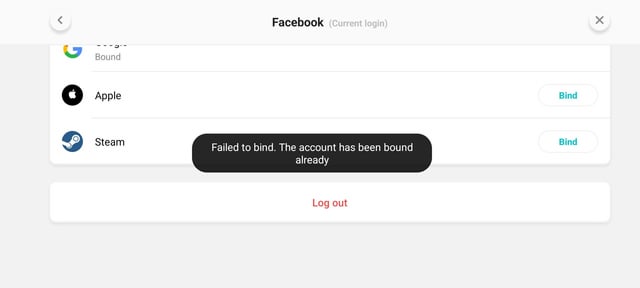
Step-by-Step: How to Bind a Guest Account on Android
Playing on a guest profile keeps your save files tied to local storage. If your device breaks or you clear application data, that progress disappears permanently. Securing your save takes less than two minutes inside the client.
- Launch the Heartopia application on your Android phone or tablet and enter your active game session.
- Tap the gear icon located on the main interface to open the Settings menu.
- Tap the Account section from the menu list.
- Select your preferred binding credential: enter a valid email address to create a login, or link an existing social media account (Heartopia Download Guide).
- Follow the on-screen verification prompts to authenticate the credential and confirm the bind.
Once the connection completes, your local profile converts to a permanent cloud-backed account. The binding status will reflect your attached email or platform tag directly inside the Account menu.

60 Heart Diamonds
 60 Heart DiamondsUSD 0.98Buy Now
300 + 20 Heart Diamonds
300 + 20 Heart DiamondsUSD 4.98Buy Now680 + 50 Heart Diamonds
680 + 50 Heart DiamondsUSD 11.21Buy Now1280 + 90 Heart Diamonds
1280 + 90 Heart DiamondsUSD 20.49Buy Now1980 + 150 Heart Diamonds
1980 + 150 Heart DiamondsUSD 31.19Buy Now3280 + 270 Heart Diamonds
3280 + 270 Heart DiamondsUSD 50.80Buy Now6480 + 570 Heart Diamonds
6480 + 570 Heart DiamondsUSD 99.85Buy Now
Assets Synchronized After Account Binding
A linked profile transfers progress cleanly across Android phones, tablets, and other supported platforms. According to Heartopia Tips, logging into your bound account automatically restores your character and island data:
| Setting / Asset Category | Sync Status & Details | Source Link |
|---|---|---|
| Character Progress & Level | Synchronizes automatically across all linked devices | Heartopia Tips |
| Home Builds & Decorations | Preserved exactly as placed on your private lot | Heartopia Tips |
| Inventory & Resources | Currency, craftables, and materials sync intact | Heartopia Tips |
| Friend Lists & Relationships | Social connections and player links remain tied to your ID | Heartopia Tips |
| Story & Quest Progression | Completed and active objectives carry over seamlessly | Heartopia Tips |
| Regional Server Assignment | Permanently locked to the initial server cluster assigned at creation | Heartopia Download Guide |
Record Your Account ID and User ID First
Before running any binding or login processes, make a manual record of your unique profile strings. Having these numbers stored outside the game protects you if an authentication error occurs.
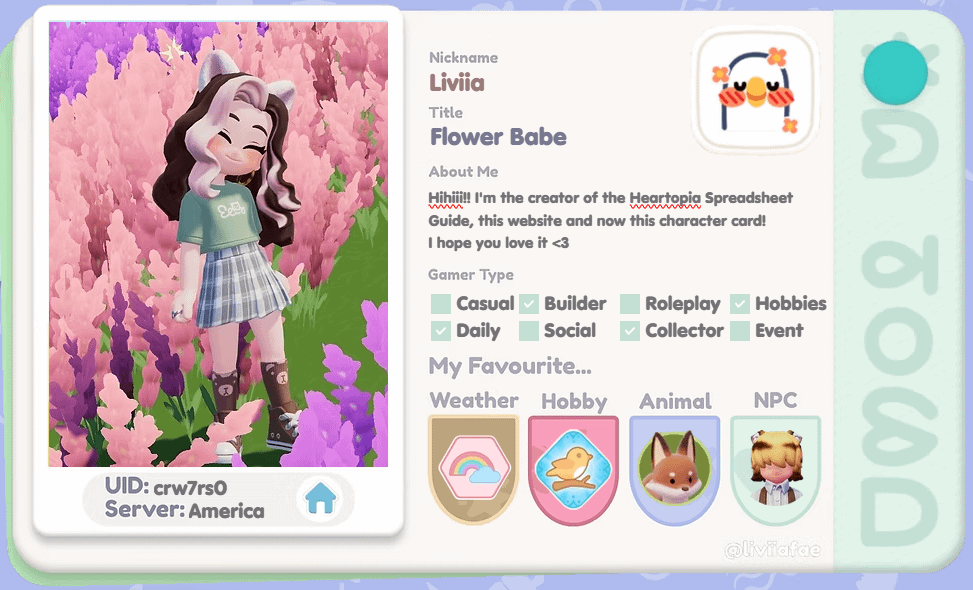
- Open your active character in Heartopia.
- Tap your Avatar / Profile Icon located in the top-left corner of the display.
- Open the Personal Info or Settings tab.
- Locate your Account ID and User ID printed directly below your character name (ArcTopup Heartopia ID Guide).
Take a screenshot or write down both alphanumeric strings. If your game fails to associate your credentials, official support will need these numbers to find your disconnected save files.
Avoiding the Overwrite Conflict on Android
A critical risk during account linking is an accidental overwrite. Under standard Android gaming architecture, such as Google Play Games Services, attempting to bind a local guest session to an identity that already has a cloud profile can trigger a conflict (Android Developers Saved Games Guide).
If you previously logged into an email or social account during an earlier play session or beta, that credential might hold an old Level 1 character. Attaching your current guest progress to that used account can replace your active work with the old cloud save.
Always link your guest progress to a clean, fresh credential that has never been used for Heartopia. If the client warns you that an existing profile is detected on the login method, cancel the process immediately and choose a different email or platform account.
Android Client Maintenance: Cache vs. Data Clearing
Do not uninstall the application if it freezes during account binding. An unlinked guest account keeps character data strictly within local device storage.
- Clearing Cache: Completely safe. According to Heartopia Troubleshooting, clearing only the cache removes corrupted temporary files without deleting your local guest save data.
- Clearing Data or Uninstalling: Extremely dangerous. Wiping full application storage or reinstalling the app before completing the bind erases the local guest token, making the profile unrecoverable on that device.
If an error occurs while attempting to bind your profile, close the app, clear only the Android app cache via your phone's application manager, restart your device, and try the binding sequence again.
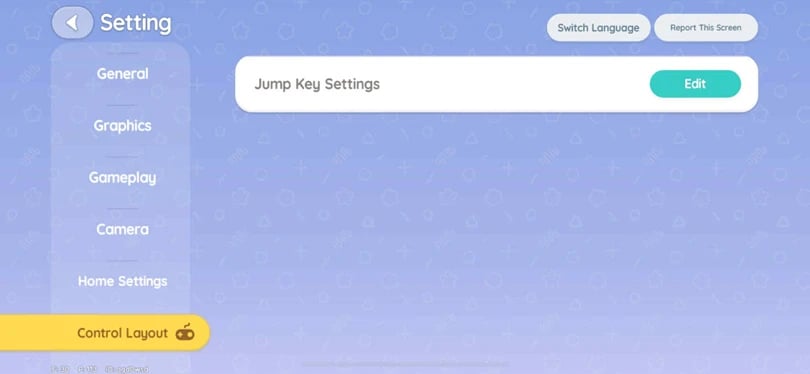
How to Resolve Binding Failures via Support
When a network dropout or duplicate credential error causes a binding failure that you cannot bypass manually, submit a ticket to the customer service team from within the game.
- Open Settings from the main screen.
- Tap General.
- Select Support Center (Heartopia Contact Guide).
- Submit a ticket describing the binding glitch, attaching your User ID and Account ID.
If you cannot access the in-game interface, use the official developer support contact email listed on the Heartopia Google Play Store app listing page.
Frequently Asked Questions
Will uninstalling Heartopia delete an unlinked guest account?
Yes. Reinstalling or clearing full app data deletes local guest progress. Only clear the app cache if troubleshooting client bugs, and bind your account in settings before removing the app (Heartopia Troubleshooting).
Can I transfer my linked Heartopia character to a different server?
No. Server selection is automatically assigned during initial character creation. That assignment is permanent and cannot be modified or transferred, even after linking your account to a social login or email (Heartopia Download Guide).
Can I switch which account my Heartopia profile is linked to?
Switching primary linked accounts requires unlinking or re-authenticating credentials inside Settings > Account. If an account is already tied to external credentials, changing it may require manual assistance through the in-game Support Center (Heartopia Contact Guide).






Comments