Learn how to mute commentary in FC Mobile without losing pitch sound effects, crowd noise, or referee whistles by adjusting the in-game audio sliders.
Few things derail a tight Head-to-Head match like a canned voice line mocking a missed strike. When you are pushing division tiers, broadcast chatter actively masks crucial audio cues like defensive footwork, tackle timing, and offside calls.
Flipping your phone's silent switch is the wrong fix. Muting the hardware silences everything—ball contact, referee whistles, and crowd momentum. You need to adjust the audio sliders built directly into the client.
The Audio Architecture: Isolating Voice from On-Pitch Action
Match audio in EA Sports FC Mobile runs across three isolated software channels rather than a single flattened track. Play-by-play speech sits on its own dedicated speech track, fully independent of physics-driven gameplay sounds and stadium ambiance.
Mechanical sound effects fire directly from physics triggers. Ball-striking audio sounds instantly when you charge a Power Shot. The goal net ripples audibly on impact when an attacker hits the top corner. Defending relies heavily on these mechanical sounds: the sharp crack of a clean sliding tackle, the thud of a ball striking the woodwork, or the referee's whistle stopping play.
Ambiance runs on a third layer. Supporter chants shift dynamically with match momentum, and stadium public address announcers call out added time and substitutions. When you silence commentary properly, every one of these atmospheric details remains active.

Your phone's physical volume rocker cannot separate these channels. Lowering device volume drops the entire mix to zero. The separation must be handled in the client menus.
Step-by-Step: Silencing Broadcast Commentary via In-Game Settings
You can silence commentator speech in under thirty seconds from the main menu:
- Launch EA Sports FC Mobile and wait for the main home dashboard to load.
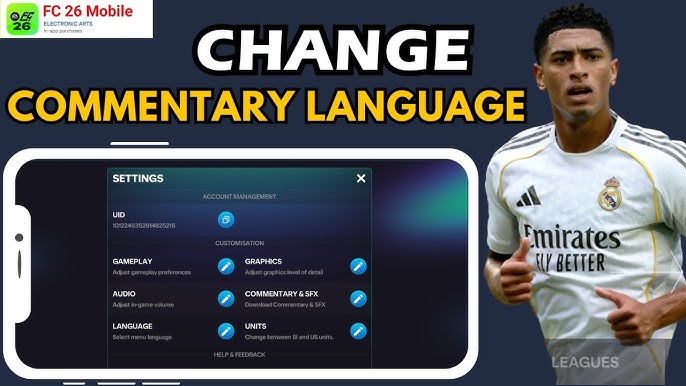
- Tap the Gear icon in the upper right corner to enter the system settings.
- Scroll down the left navigation panel and tap Audio Settings.
- Locate the Commentary Volume slider.
- Drag the Commentary Volume slider all the way to the left until it shows 0% or toggles off.
- Confirm that the Sound Effects (SFX) and Stadium Audio sliders remain at 100%.
- Exit the settings screen. Your preferences save immediately across all competitive and offline game modes.
Do not confuse Audio Settings with Preferences. Preferences houses mechanical toggles—virtual stick size, gesture passing, and auto-switching. Audio Settings handles volume sliders and language file downloads exclusively.
If you want to stock up on in-game currencies while refining your competitive layout, explore FC Mobile top-ups to secure FC Points and Silver directly to your linked profile.
Optimal Audio Profile: Competitive Balance vs. Pure Atmosphere
Audio cues dictate your reaction window during competitive play. Crisp pitch audio alerts you to slide tackles approaching from off-screen and confirms referee whistles the instant the advantage rule ends.
The following configuration provides the ideal balance for competitive Head-to-Head and Manager modes.
| Setting Slider | Recommended Value | Gameplay Function |
|---|---|---|
| Commentary Volume | Muted / 0% | Silences play-by-play speech and co-commentator dialogue entirely. |
| Sound Effects (SFX) | 100% / Active | Preserves ball kicks, referee whistles, goal net impacts, and tackle sounds. |
| Stadium & Crowd Audio | 100% / Active | Keeps authentic team chants, crowd reactions, and PA announcements audible. |
This balance removes vocal clutter while preserving tactical audio feedback and matchday realism.
Keep Stadium Audio at 100% alongside SFX. Muting crowd sound turns matches into sterile practice drills. Crowd noise provides genuine competitive pressure without talking over your passes.
If your specific phone speakers make crowd cheers overpower ball-striking cues, dial Stadium Audio back to 70%. Leave Sound Effects pinned at 100%.
Deleting Commentary Audio Packs to Reclaim Storage Space
Commentary assets in FC Mobile are completely modular. The base installation from the app store excludes voice files by default to keep initial download sizes lean.
The client supports 11 broadcast languages worldwide without territorial restrictions. Each language file downloads as an optional local add-on.
To purge an installed commentary pack and reclaim device storage:
- Open the Gear icon on the main menu to access Settings.
- Tap Audio Settings and find the Commentary language manager.
- Identify the downloaded commentary pack currently marked as active.
- Tap the trash can or delete icon beside that specific language track.
- Confirm the deletion prompt.
Deleting language files removes the audio assets from local storage. Even if a seasonal patch resets your volume sliders to default, the app cannot output voices that are no longer installed. It defaults straight to pitch SFX and stadium audio.
Purging commentary files also resolves audio stutter. If a connection dropout corrupts an audio file during a patch, deleting the pack fixes playback issues without requiring a full reinstall.
Mobile vs. Console Audio Controls: Key Differences and Missing Features
Console releases of EA Sports FC feature audio sub-menus that mobile players will not find in their client.
The comparison below highlights the technical audio distinctions between the mobile client and the console releases.
| Feature | EA Sports FC Mobile | Console EA Sports FC Editions |
|---|---|---|
| Available Broadcast Languages | 11 Languages (Universal) | 15 Languages (Region-Locked) |
| Regional Download Access | All languages available worldwide | Distribution locked by purchase territory |
| Disable Critical Commentary | Not Available (Slider adjustment only) | Dedicated toggle available |
| Voice Production Scope | Modular download packs | Over 20,000 licensed player callouts |
| Storage Management | User can delete individual packs | Baked into base game storage install |
Console releases lock languages by region but offer granular commentary filtering, whereas mobile provides global language downloads with volume-only control.
Console editions feature a "Disable Critical Commentary" switch. This option mutes snide remarks from Derek Rae or Stewart Robson after an errant pass while preserving standard play-by-play. FC Mobile lacks selective muting; your only choice is turning Commentary Volume down or off.
Console releases also region-lock commentary options. A North American console disc typically restricts voice tracks to English, French, and Spanish. FC Mobile makes all 11 commentary tracks freely downloadable for any account worldwide.
Audio Channel Breakdown and Game Mechanics
Knowing where each in-game sound originates prevents you from accidentally disabling critical match feedback.
The breakdown below details which matchday elements belong to each audio channel inside the mobile client.
| Audio Channel | Sound Assets Included | Competitive Importance |
|---|---|---|
| Commentary Channel | Play-by-play speech, tactical critique, pundit analysis | Low (Often repetitive and distracting) |
| Sound Effects (SFX) | Ball strikes, Power Shot triggers, goal net impacts, referee whistles | Critical (Provides immediate physical play feedback) |
| Stadium Audio Channel | Dynamic crowd chanting, momentum roars, stadium PA announcements | Medium (Adds immersion and match atmosphere) |
Isolating sound effects guarantees that crucial timing cues remain clear during intense offensive and defensive sequences.
Whistles and ball contacts feed straight through Sound Effects. When an opponent threads a ground through ball into the box, hearing the strike instant lets you trigger your keeper's rush a split second ahead of visual animations.
Stadium Audio retains PA announcements. Even with commentary muted, the stadium announcer still reads out injury time, substitutions, and safety notices over the stadium speakers, keeping the venue alive.
Matchday Optimization: Visuals, Controls, and Account Integrity
Audio tweaks produce the best competitive results when combined with optimized graphics.
Setting Crowd detail to Low in the graphics menu substantially lowers processor load. Handheld devices throttle clock speeds when thermal limits are hit during long sessions. Running Low crowd graphics alongside muted commentary stabilizes frame rates and cuts battery drain. Smooth frame delivery prevents input stutter when timing shots inside the penalty box.
If you want to upgrade your squad alongside these technical tweaks, pick up your resources securely through an EA Sports FC Mobile top up to claim points and currencies without hassle.
Account management is equally vital for competitive stability:
- Transfer Market Tax: Every transaction on the in-game market goes through the EA Bot and incurs a mandatory 10% seller fee. Always factor that 10% deduction into your coin math before selling players to fund team adjustments.
- Web Code Redemptions: Redeeming promotional codes through the official web portal requires linking your active mobile game profile to an EA Account. Unlinked guest accounts cannot claim items via the web browser.
- Redemption Quotas: Keep in mind that certain promotional reward codes feature global redemption limits capped at the first 100,000 players. Once that quota fills, the portal marks the code as expired.
- Account Modification Cooldowns: Changing your registered email address or your EA ID triggers a strict 30-day security cooldown. You cannot modify those credentials again until the 30 days clear.
- Age Restrictions: Accounts registered for players under the age of 18 are designated as child profiles. These accounts cannot alter birth dates independently; adjustments require verified parental authorization.
Keeping your credentials current prevents lockouts before weekend tournament windows.
To keep your squad competitive across every division match, buy your FC Mobile Silver and Points from verified storefronts with direct account delivery.
FAQ
How do I turn off commentary in FC Mobile without muting pitch sound effects?
Open Settings by tapping the gear icon on the home screen, select Audio Settings, and drag the Commentary Volume slider down to 0%. Leave the Sound Effects (SFX) and Stadium Audio sliders set to 100%. This removes broadcast voices while keeping referee whistles, ball strikes, and net sounds fully active.
Can I delete downloaded commentary audio packs to free up device space?
Yes, you can remove installed commentary language packs directly from the Audio Settings menu. Tap the delete icon next to the downloaded language file to clear it from your device storage.
Will turning down commentary mute the stadium announcer reading player substitutions?
No, public address announcements are tied directly to the Stadium Audio channel. Lowering Commentary Volume only silences the broadcast play-by-play commentary team.
Is there a Disable Critical Commentary option in FC Mobile like on console?
No, FC Mobile does not feature the dedicated negative commentary filter found on console versions. You must adjust or mute the general Commentary Volume slider to silence critical remarks.
Why can't I hear crowd noise after muting the commentary?
Check that your Stadium Audio slider remains turned up inside Audio Settings and verify your phone is not in physical silent mode. Hardware mute switches silence all game channels regardless of your in-game slider levels.
Do commentary language packs download automatically when installing FC Mobile?
No, commentary language packs are optional modular downloads that you must choose to install within Audio Settings. If you never download a language pack, matches play with ambient stadium sound effects only.
The Matchday Audio Verdict
Muting commentary in EA Sports FC Mobile is one of the easiest competitive improvements you can make. The broadcast booth dialogue offers zero tactical value, distracts your attention, and repeats the same lines match after match. Drag that Commentary slider to zero, keep Sound Effects at maximum for clean mechanical audio cues, leave Stadium Audio enabled for real match atmosphere, and delete unneeded voice packs to reclaim local device storage.






Comments