
Optimizing your Mico Live control settings requires unlocking screen rotation before starting the broadcast, calibrating physical microphone distance to 6–12 inches, and organizing on-screen toggles for filters, translations, and multi-user room modes.
Broadcasting on MICO Live demands quick reaction time. If your heads-up display (HUD) is cluttered, you will mis-tap interactive widgets, miss chat messages, or trigger visual filters accidentally. Streamers need clean sightlines while keeping moderation, camera controls, and translation tools ready.
Unlocking Broadcast Controls: The Level 4 Requirement
Official promotional listings frequently advertise "one-touch to go live." In practice, new broadcasters run into a hard gate immediately after account creation.
Independent reviews documented by Unstar's MICO analysis show that newly registered accounts cannot start a live stream right away. Broadcasters must reach Level 4 to unlock the live streaming controls. Progression to Level 4 involves completing baseline platform tasks—such as receiving messages from strangers—or purchasing and spending platform coins to accelerate account leveling.
If the broadcast button remains unresponsive or hidden on your profile, your account level is the cause. Verify your profile rank before arranging your workspace.

445 Mico Coins
 445 Mico CoinsUSD 3.57Buy Now
500 Mico Coins
500 Mico CoinsUSD 4.01Buy Now900 Mico Coins
900 Mico CoinsUSD 7.21Buy Now1,100 Mico Coins
1,100 Mico CoinsUSD 8.81Buy Now2,200 Mico Coins
2,200 Mico CoinsUSD 17.62Buy Now2,730 Mico Coins
2,730 Mico CoinsUSD 21.86Buy Now3,300 Mico Coins
3,300 Mico CoinsUSD 26.43Buy Now4,400 Mico Coins
4,400 Mico CoinsUSD 35.23Buy Now5,500 Mico Coins
5,500 Mico CoinsUSD 44.05Buy Now5,700 Mico Coins
5,700 Mico CoinsUSD 45.65Buy Now6,600 Mico Coins
6,600 Mico CoinsUSD 52.86Buy Now7,700 Mico Coins
7,700 Mico CoinsUSD 61.69Buy Now8,550 Mico Coins
8,550 Mico CoinsUSD 68.48Buy Now8,800 Mico Coins
8,800 Mico CoinsUSD 70.48Buy Now11,000 Mico Coins
11,000 Mico CoinsUSD 88.09Buy Now22,000 Mico Coins
22,000 Mico CoinsUSD 176.19Buy Now33,000 Mico Coins
33,000 Mico CoinsUSD 264.28Buy Now55,000 Mico Coins
55,000 Mico CoinsUSD 440.47Buy Now
Pre-Stream Layout Setup: Screen Orientation
Before touching any in-app tools, you must address your mobile device's orientation lock. This setting cannot be fixed mid-stream.
Operating system locks will force mobile live streams into portrait orientation even if you mount your phone horizontally. Industry broadcast documentation from PRISM Live Studio confirms that native screen orientation locks at the exact second a session launches. You cannot rotate the interface once the stream is running.
If you plan to broadcast in landscape mode, disable your device's auto-rotate lock in system settings and pivot the device before pressing the button to go live. Failing to unlock rotation beforehand leaves you stuck in portrait view until you end the broadcast.
| Interface Layout / Mode | Primary Visual Structure | Control Overlay Management | Supported Engagement & Currency Effects | Example Reference |
|---|---|---|---|---|
| Single Host Mode | Full-screen vertical camera feed | Bottom chat bar, sticker & beauty filter buttons, translation toggle | Direct viewer tips, entry gifts, basic messaging | 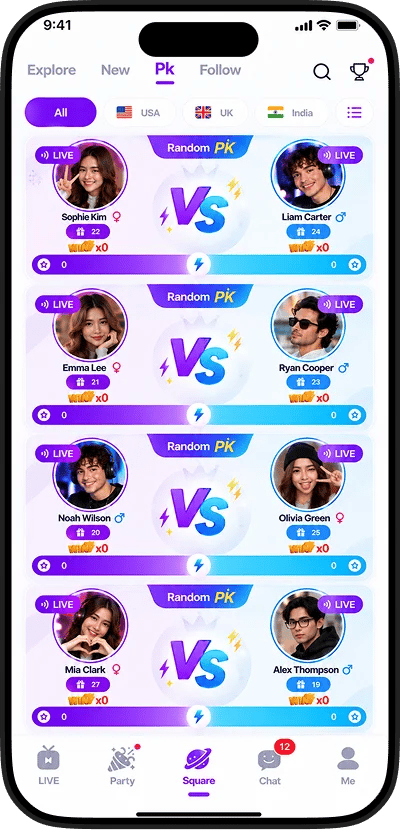 |
| 2v2 Live PK Battle | Split-screen dual competition grid | Dedicated team scorebars, challenge countdown timers, punishment gauges | Interactive audience point pushes, event gifting | 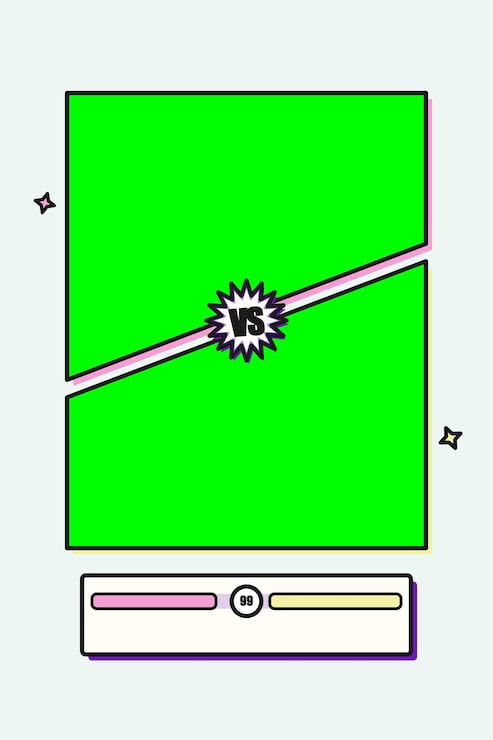 |
| Multi-Guest Party Room | Grid accommodating up to 9 simultaneous video feeds | Host moderation seat icons, individual participant mute/kick menus | Group room games, multi-guest visual effects, entrance animations | 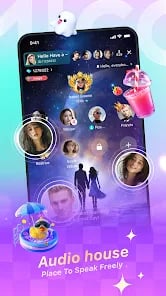 |
Layout specifications sourced from Soft112 MICO Live Overview. Currency mechanics documented via ArcTopup MICO Recharge.
Broadcaster HUD: Managing Stickers, Beauty Filters, and Translation
MICO Live positions its active streaming controls along the screen borders, keeping the center clear for camera framing and chat visibility. Knowing exact button placement prevents mis-taps during high-traffic moments.
According to platform documentation on Soft112, MICO Live bundles built-in facial stickers, real-time beauty filters, and an on-screen translation button directly into the broadcast screen.
- Beauty Filters & Facial Stickers: Accessible via the lower camera options panel. Select your preferred skin tone, smoothing, and contouring values prior to opening your room to visitors. Changing sticker assets mid-stream requires tapping directly near the edge of the chat viewport, which can cause mis-taps if chat velocity is high.
- Real-Time Chat Translation: The on-screen translation button sits adjacent to incoming chat messages. Tapping this translates foreign-language comments instantly. Keep this control unblocked by keeping your lower screen area clear of physical phone grips or third-party clip-on lights.
Customizing Split Modes: 2v2 Live PK and Multi-Guest Party Grids
Solo broadcast feeds compress significantly once collaborative room features activate. The layout re-centers camera feeds dynamically to fit competing hosts or guests.
The 2v2 Live PK Battle Interface
Data from Soft112 notes that MICO Live includes a dedicated 2v2 Live PK mode. Rather than competing alone, a broadcaster can invite a partner to challenge another duo.
When a 2v2 PK begins, the layout splits into split-pane competition quadrants. Your personal camera feed contracts into a smaller sub-window. The HUD injects point-tracking meters across the top and punishment mechanics over the center. You must clear center-screen taps during a PK battle to avoid interacting with incoming gift alert banners instead of battle controls.
Multi-Guest 9-Person Party Layout
For communal streams, MICO supports party rooms that host up to 9 participants simultaneously in a shared video layout (Soft112).
Managing 9 video feeds on a single smartphone screen creates visual compression. The chat window shrinks to the bottom third of the display, and participant frames occupy the middle grid. Broadcasters running party rooms need to use the moderation seat controls to mute audio or rearrange guests without obscuring the text stream.
Microphone Input Sensitivity and Gain Optimization
Distorted stream audio and volume drops usually trace back to background auto-gain layers rather than speaking volume. Calibrating hardware and OS levels before going live prevents erratic gain fluctuations.
A frequent audio complaint during live broadcasts involves microphone volume auto-adjusting without host intervention. Audio engineering analysis from Hollyland reveals that Windows, mobile communications subsystems, and microphone hardware each run independent automatic gain control (AGC) layers. When active, software AGC will radically lower or boost your sensitivity whenever background sounds occur.
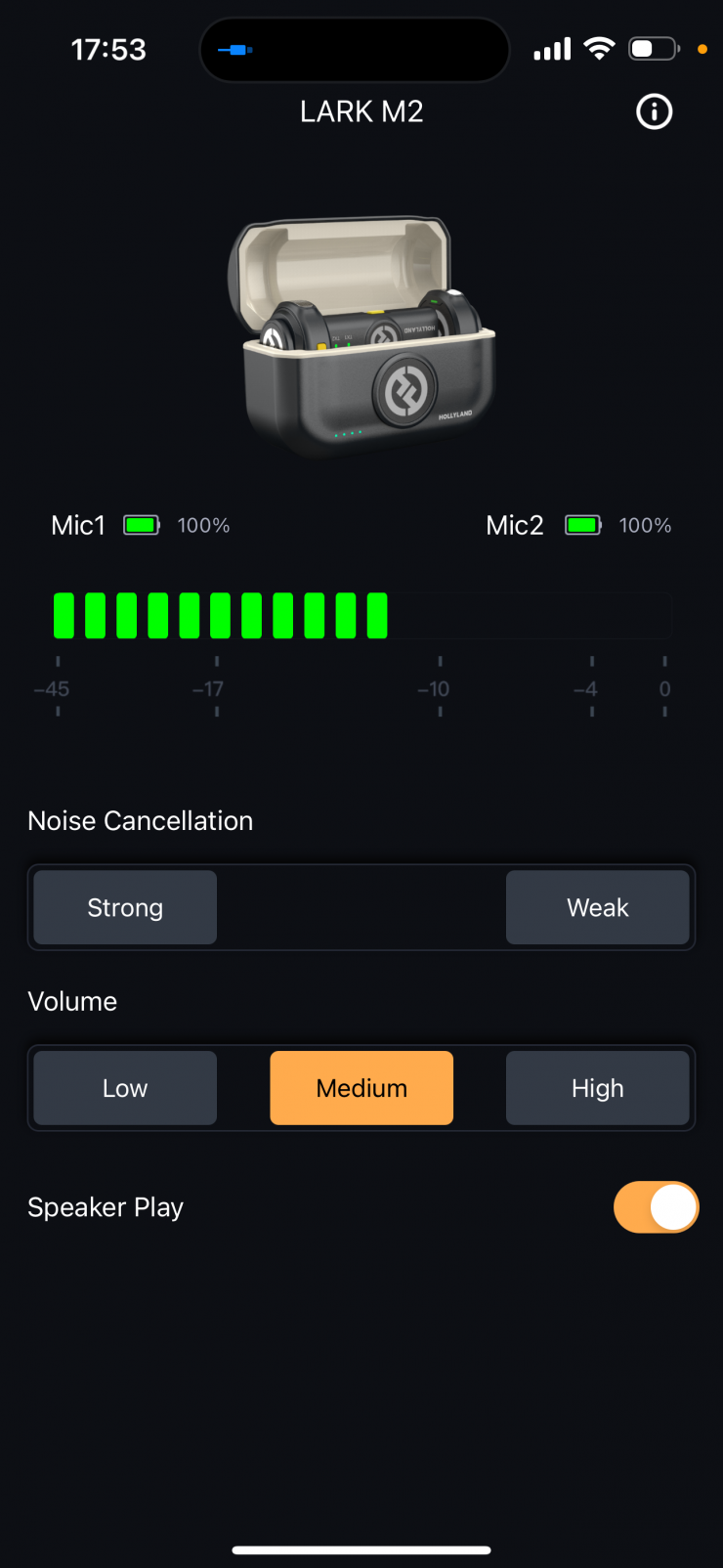
To lock your microphone input sensitivity and prevent fluctuating levels, apply these adjustments across your capture chain:
- Disable Operating System VoIP Auto-Adjustment: When streaming through PC-tethered setups or mobile link applications, navigate to your OS sound communications settings and instruct the system to "Do nothing" when communications activity is detected.
- Disable Driver AGC: Turn off software automatic gain control in your external audio driver or broadcast capture suite.
- Lock Hardware Transmitter Gain: If using wireless mic equipment such as the Hollyland LARK MAX 2, manually set your transmitter gain to a fixed level rather than leaving it on dynamic mode (Hollyland).
- Set Capsule Distance to 6–12 Inches: To isolate your voice from room echo and fan noise physically, place your cardioid microphone 6 to 12 inches away from your mouth (Hollyland Guide).
- Lower Input Gain: With the capsule placed 6 to 12 inches away, your voice reaches the diaphragm with high acoustic energy. Lower the input gain slider to reduce ambient noise pickup while keeping your voice clear.
Avoiding the 'Mico Control Center' Soundboard Confusion
Broadcasters searching for MICO control tutorials often encounter videos demonstrating custom soundboard buttons and audio triggers linked to an on-screen control center.
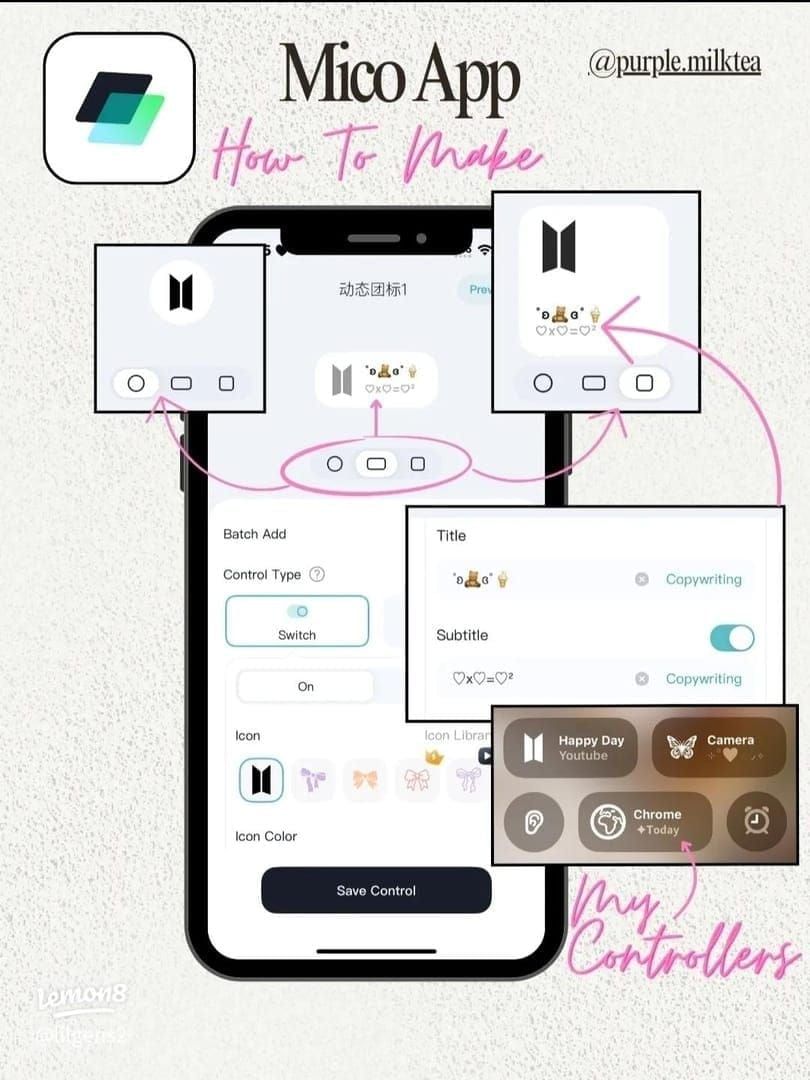
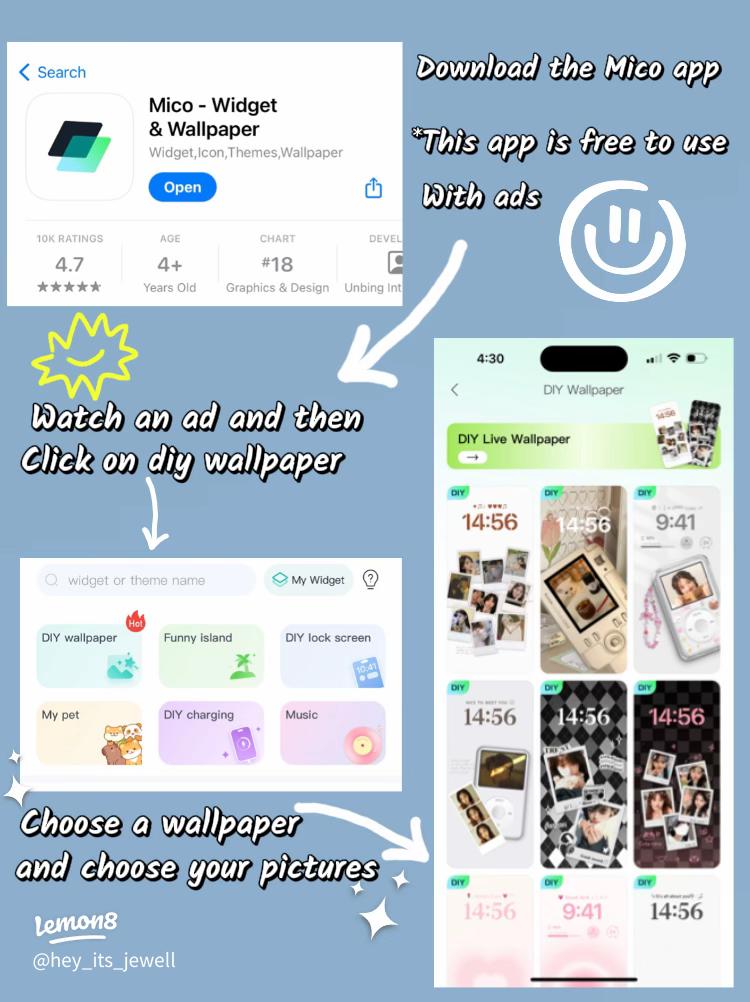
This is a case of platform identity confusion. The application shown in those guides is not MICO Live. A case report published on Lemon8 highlights tutorials configuring "Mico - Widget & Live Wallpaper," an aesthetic utility that links video audio clips to the iOS 18 Control Center system menu.
That widget tool does not integrate with MICO Live streaming. It cannot trigger sound effects, stingers, or audio clips inside a live MICO broadcast. MICO Live host controls remain strictly contained inside the official streaming app.
Room Economy, Gifts, and Profile Visibility
Virtual currency mechanics directly dictate MICO Live's overlay animations. Viewers and co-hosts spend coins to trigger visual effects, boost room ranking, and enter VIP queues.
MICO Coins serve as the primary currency within MICO Live, used to send gifts, trigger visual room animations, acquire VIP status, and reward broadcasters (whose received gifts convert into Diamonds or Beans). Broadcasters looking to test gifting overlays or manage their room balances can review packages via ArcTopup's MICO recharge catalog.
| Coin Package SKU | Nominal Coins | Primary Interactive Use Case | Stream Interface Impact |
|---|---|---|---|
| Starter Pack | 560 Coins | Entry-level room tips, direct messaging verification | Chat text highlight, low-tier gift badge |
| Popular Pack | 2,800 Coins | Animated gifts, joining mid-tier fan clubs | Small animated sticker over chat stream |
| Gamer Pack | 5,600 Coins | Room mini-games, multi-guest party interactions | Mid-screen interactive game prompt |
| Supporter Pack | 11,200 Coins | Custom profile frames, entrance animations | Dynamic room entrance banner on arrival |
| VIP Pack | 28,000 Coins | Elite leaderboard push, high-tier 3D gifts | Full-screen 3D graphic covering active video |
| Master Pack | 56,000+ Coins | 2v2 Live PK event pushes, sponsor status | Persistent room leaderboard banner and alerts |
Package options and room application tiers documented via ArcTopup.
When high-tier gifts like the VIP Pack or Master Pack are triggered, the associated animations temporarily obscure the central broadcast feed. Position your vital chat moderation controls toward the lower third of the display so full-screen 3D overlays do not interrupt your stream management.
Frequently Asked Questions
Can a newly created account start live streaming immediately on MICO?
No. Verified user reports documented by Unstar state that MICO enforces a Level 4 account requirement before live broadcast features unlock. New users must complete basic platform tasks or spend coins to reach Level 4.
How many video feeds fit on the screen in a MICO Live party room?
MICO Live party rooms support up to 9 participant video feeds simultaneously on screen in a shared grid layout (Soft112).
Does MICO Live include an in-app Control Center soundboard for sound effects?
No. Soundboard tutorials referencing "Mico Control Center" utilize an unrelated customization app named "Mico - Widget & Live Wallpaper" on iOS 18 (Lemon8). The MICO Live streaming client does not feature an OS Control Center soundboard integration.






Comments