
To manage alerts without missing campaign progression, configure your mobile legends adventure notification settings around the hard 12-hour idle reward cap. Because idle accumulation of Adventurer EXP, Hero Experience, Battle Points, and Advance Essence stops entirely after 12 hours, isolating idle chest alerts from promotional spam ensures your progression never stalls while keeping non-essential audio and banner pop-ups silent.
The 12-Hour Idle Cap: Which Alerts Actually Matter?
In Mobile Legends: Adventure, campaign chests do not gather loot indefinitely. According to documentation on AppGamer Idle Rewards, offline resource accumulation halts at exactly 12 hours. Missing this collection window means forfeiting Hero Experience, Adventurer EXP, and Advance Essence that directly power character progression.
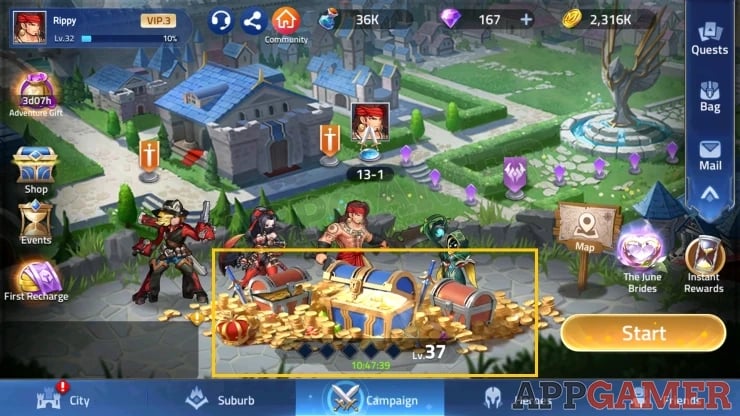
Players who turn off all device alerts to avoid marketing pings risk capping their resource gains. The recommended approach separates high-priority progression reminders—such as the 12-hour idle chest alert—from daily tavern resets, arena notices, and promotional sales banners.
If you buy monthly passes or summon bundles through Mobile Legends: Adventure M-Cash, store confirmation pings and event start notifications can also clutter your notification tray unless organized at the system level.


Android Notification Channel Configurations
Devices running Android 8.0 (API level 26) or higher handle notifications using system-level channels. Developers register categories within the application, but users hold permanent configuration authority. As confirmed by MoEngage Push Notification Documentation, user modifications to notification channels permanently override default in-game settings. The game cannot reactivate silenced categories once modified on your device.
System settings allow you to assign specific alert behaviors according to channel importance levels documented by Android Developer Guidelines.
| Alert Tier | System Importance Level | Visual & Sound Behavior | Recommended MLA Channel Assignment | Visual Reference | Sourced Reference |
|---|---|---|---|---|---|
| Urgent | IMPORTANCE_HIGH (Level 4) | Plays sound and displays a heads-up banner across the active screen | Idle Reward Cap (12-hour limit alerts) | 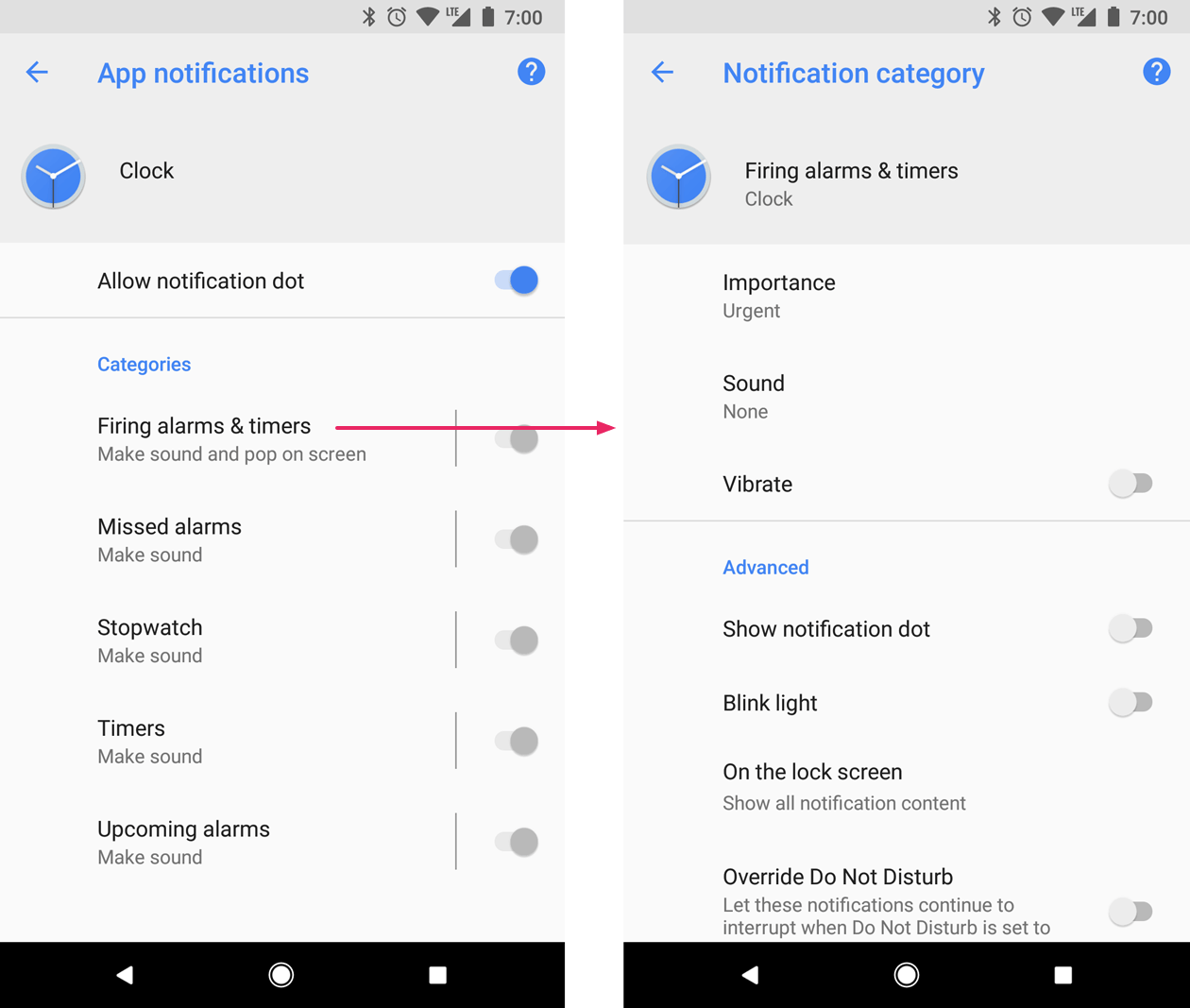 | Android Developer Guide |
| High | IMPORTANCE_DEFAULT (Level 3) | Plays notification sound; drops into tray without screen interruption | Tavern Quests & Limited-Time Event Resets | 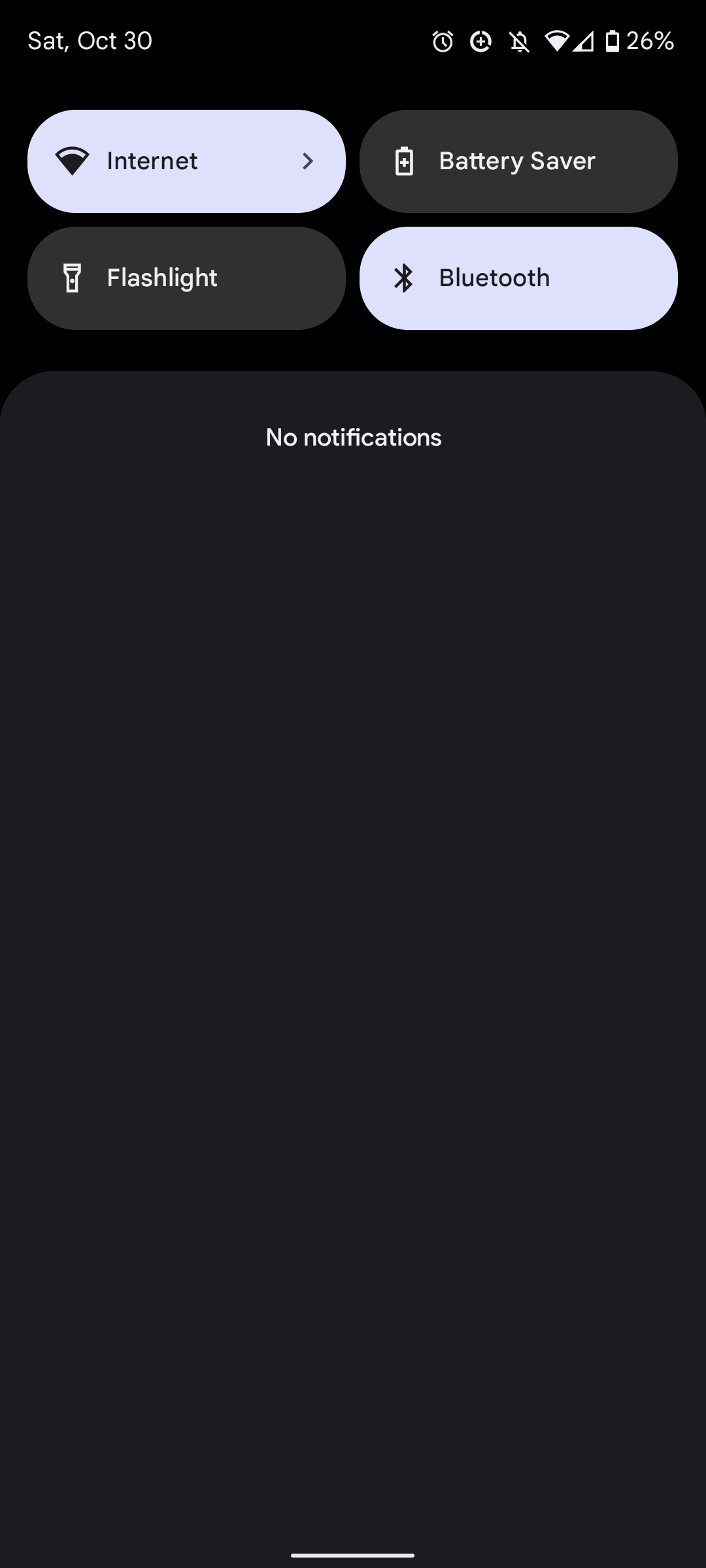 | Android Developer Guide |
| Medium | IMPORTANCE_LOW (Level 2) | Completely silent delivery; lists inside notification shade | Energy Refills & Arena Defense Logs | 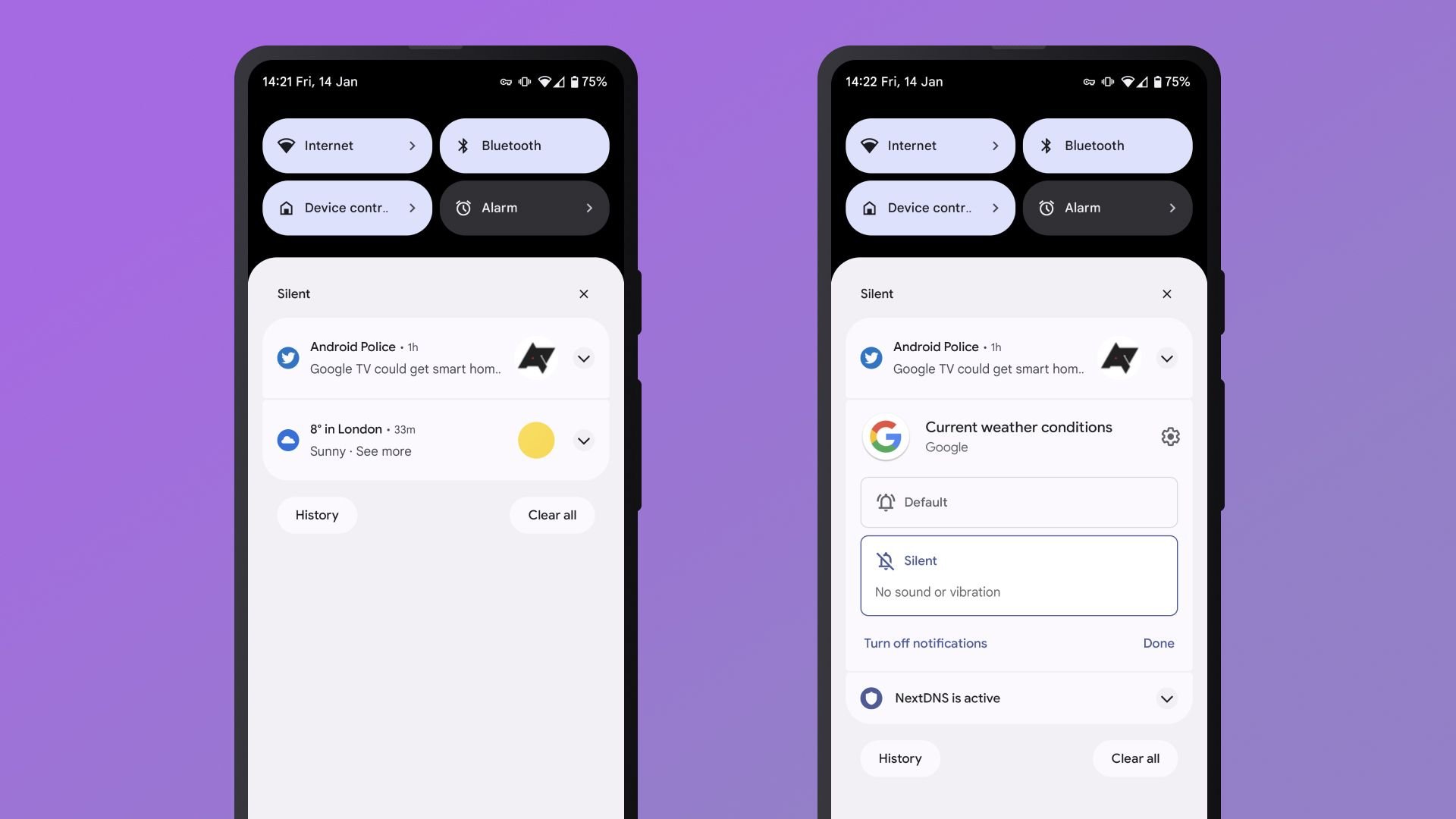 | Android Developer Guide |
| Low / None | IMPORTANCE_MIN (1) / IMPORTANCE_NONE (0) | Completely blocked; does not show in status bar or pull-down shade | Promotional Banners & Store Announcements | 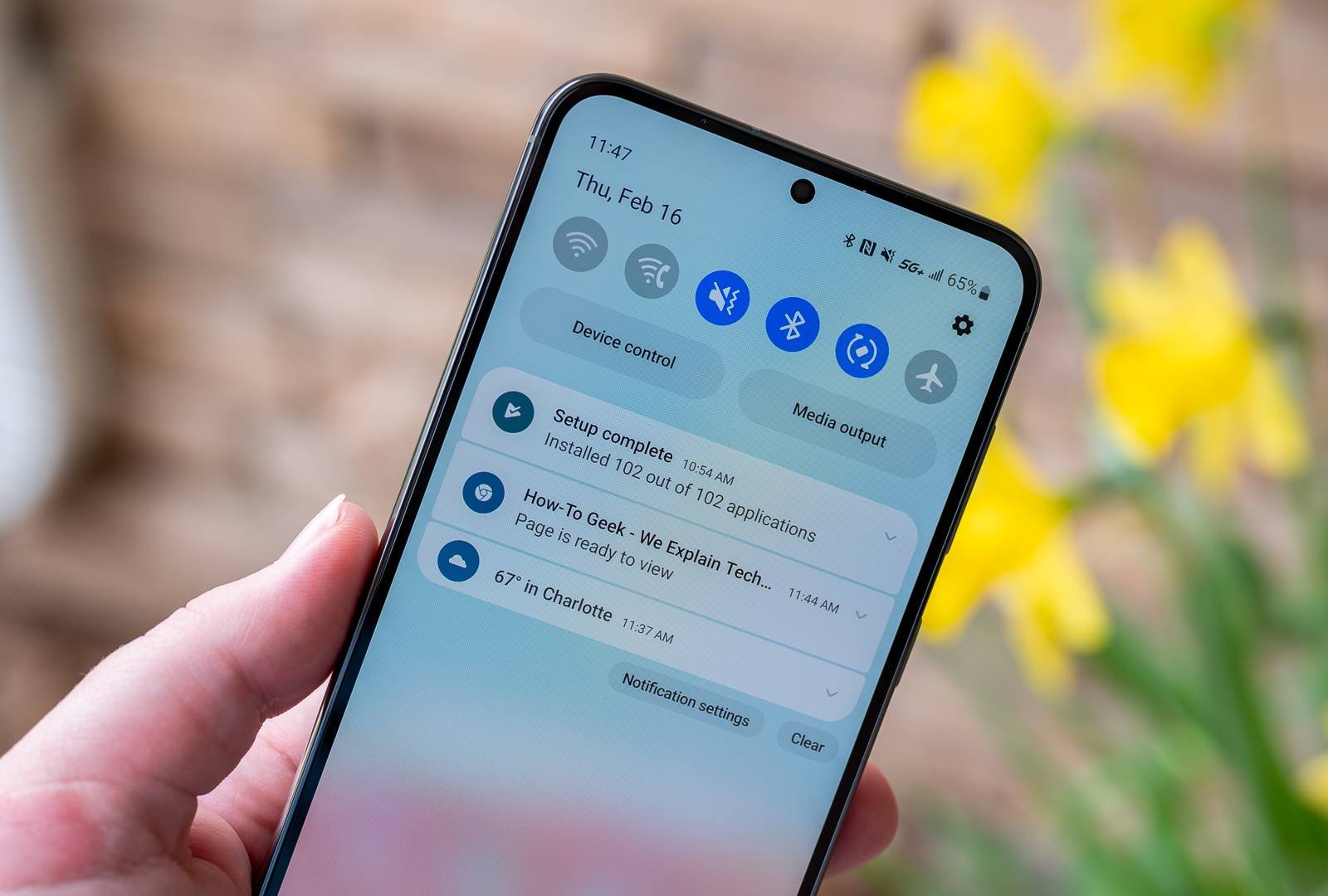 | Android Developer Guide |
Customizing Categories on Samsung Galaxy Devices
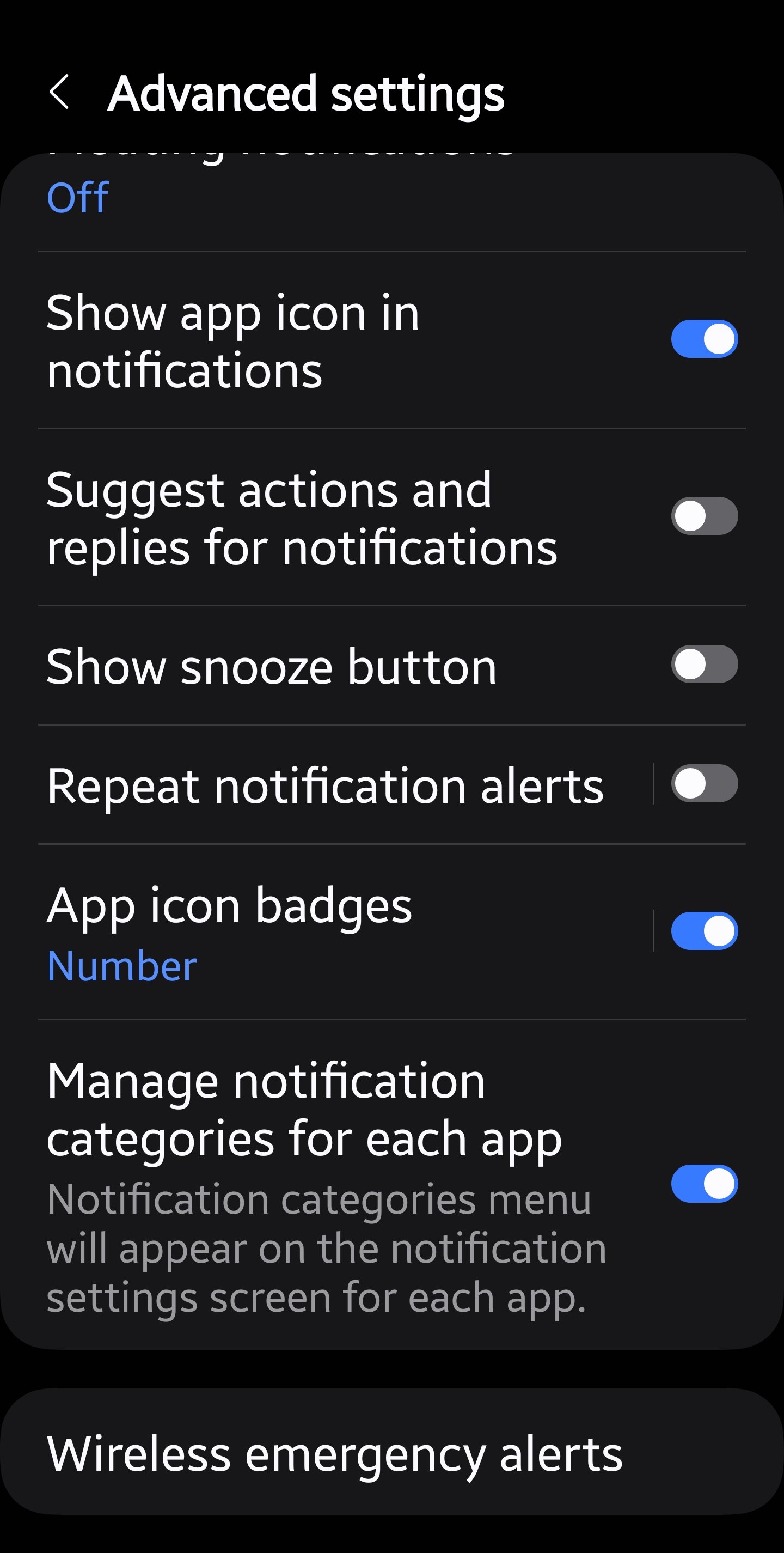
Samsung One UI devices conceal granular category toggles behind an advanced menu switch. Following steps verified by Samsung Support Category Management:
- Open device Settings, select Notifications, and tap Advanced settings.
- Turn on the toggle beside Manage notification categories for each app.
- Return to the main notification screen and tap App notifications.
- Select Mobile Legends: Adventure from the application list.
- Tap Notification categories at the base of the menu.
- Select individual categories (such as campaign or event alerts) to change audio assignments, toggle lock-screen visibility, or switch unwanted channels to silent.
Suppressing Notification Barrages During Gameplay
Few things disrupt boss battles or manual skill casts like a cascade of pop-up banners. Multiple platform-level features prevent intrusive interruptions while keeping the game running smoothly.
Managing Rapid Fire Pings with Android Notification Cooldown
When multiple alerts trigger at once—such as reconnecting after a network drop—your phone may chime repeatedly. Under Settings > Notifications > General, enabling Notification Cooldown prevents audio fatigue. According to Google Android Help, this feature dynamically lowers the volume of consecutive alerts and suppresses repetitive on-screen popups over short intervals, while preserving critical device alarms.
Samsung Gaming Tools: Block During Game
If you play on a Samsung device, you do not need to silence notifications globally. As detailed by Samsung Support Gaming Tools, opening the gaming dashboard and enabling Block during game suppresses notification overlays across your entire gameplay session. Device clock alarms remain functional, but banners will not cover your UI during active play.
| Interruption Management Tool | Supported Operating Environment | Impact on MLA Gameplay & Banners | Impact on Device Clock Alarms | Source Reference |
|---|---|---|---|---|
| Notification Cooldown | Android System (General Settings) | Lowers alert volume and blocks repetitive pop-up banners during alert spikes | Unaffected; critical alerts ring normally | Google Android Help |
| Block during game | Samsung One UI Gaming Tools | Suppresses all notification overlays and banner visual interruptions while playing | Unaffected; alarms ring through | Samsung Support |
| Notification Channel Muting | Android 8.0+ Application Settings | Permanently disables audio and vibration for selected categories | Unaffected; separate from system ringers | MoEngage Channel Docs |
iOS Push Scheduling and Filter Controls
iPhone and iPad users manage Mobile Legends: Adventure alerts through iOS system settings. Rather than disabling alerts entirely, Apple devices let you separate time-sensitive idle warnings from routine updates.
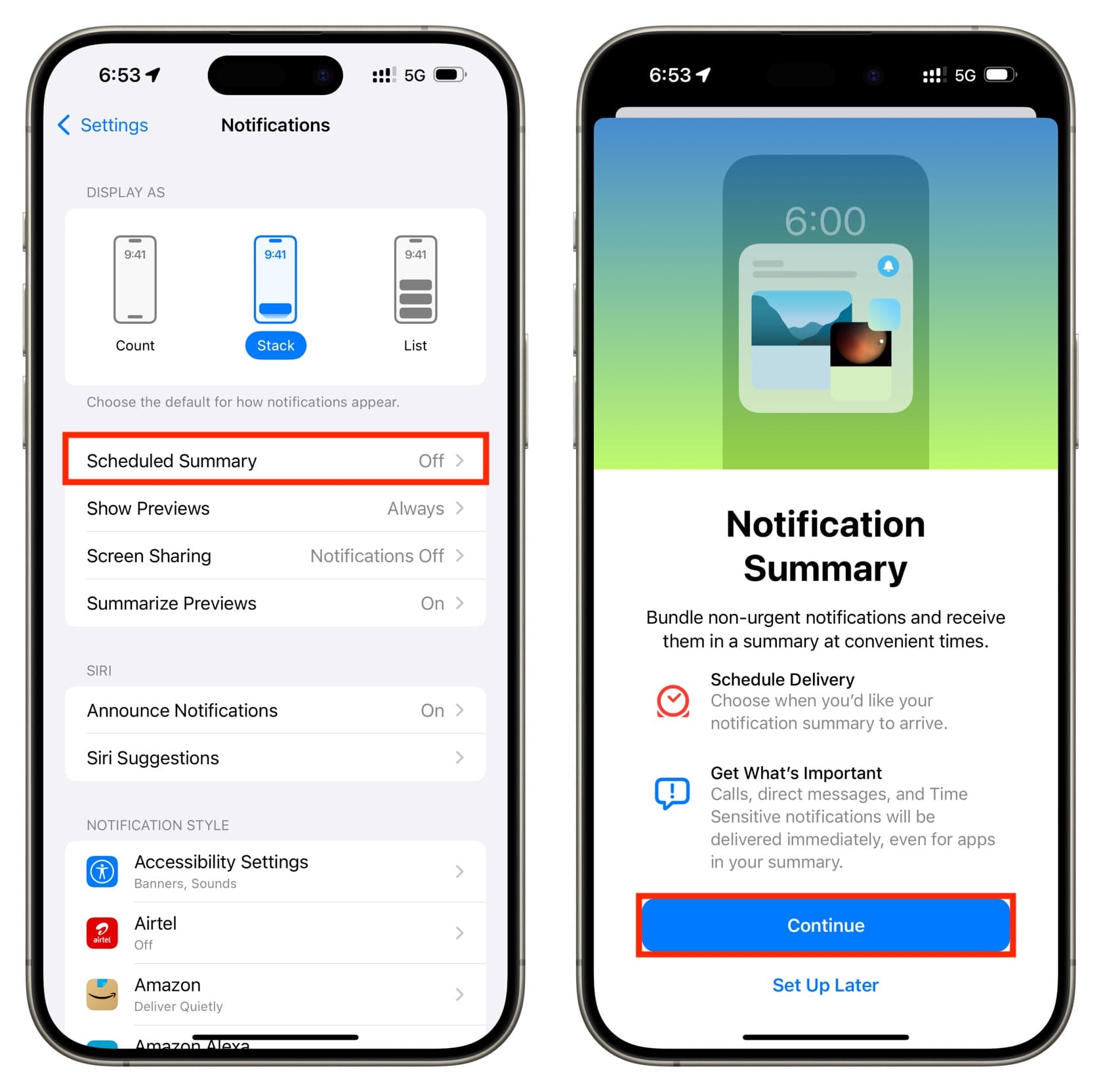
As documented by Trendlife iOS Notification Support, open Settings > Notifications, select the game under Notification Style, and choose your delivery schedule:
- Select Immediate Delivery if you rely on the 12-hour idle cap reminder to log in on time.
- Select Scheduled Summary to bundle daily store reminders, tavern completions, and friend point alerts into a single morning or evening update.
- Adjust the display layout between Count, Stack, or List to prevent alert cards from cluttering your Lock Screen.
Why Push Alerts Stop Arriving on Power Saver
If you notice that your 12-hour idle chest notifications only arrive after you unlock your screen or launch the game, the culprit is almost always aggressive battery management.
According to research from Whizz Experts Battery Optimization Analysis, Android Battery Saver and iOS Low Power Mode restrict background network polling, background syncing, and scheduled app wake-ups. The alert is not lost, but the operating system delays delivery until the screen activates, the phone connects to power, or the user opens the application.
| Setting Condition | Battery Consumption Impact | Notification Delivery Reliability | Campaign Idle Cap Risk | Source Reference |
|---|---|---|---|---|
| Android Battery Saver / iOS Low Power Mode Active | Lowest system power draw | Delayed; batched until screen wake or game launch | High; 12-hour limit may expire before alert displays | Whizz Experts Analysis |
| Device Optimization Excluded (Unrestricted Background) | Standard power draw | Immediate delivery upon event trigger | Low; alerts ping exactly at the 12-hour cap | Whizz Experts Analysis |
| Android Channel Set to Low / Silent | Standard power draw | Enters notification shade instantly without sound or banner | Moderate; requires manual status bar checks | Android Developer Guide |
To ensure timely idle notifications on Android, open your device's battery settings, find the game's entry under App Battery Usage, and change the profile from Optimized to Unrestricted.
Mobile Legends: Adventure Audio Controls vs Bang Bang
Settings for Mobile Legends: Adventure (MLA) must not be confused with Mobile Legends: Bang Bang (MLBB). MLBB is a 5v5 competitive MOBA title requiring camera panning, targeting priority wheels, and hero skill voice lines tied to Diamonds. MLA is an idle RPG where premium progression ties to M-Cash and summon rates.
In MLA, sound customization options focus on managing repetitive audio cues during automated battles:
- Open MLA and tap your player avatar in the top-left corner to access the profile settings.
- Tap the System Settings tab.
- Locate the independent sliders for BGM (Background Music), SFX (Sound Effects), and Voice.
- Set Voice to zero if hero ultimate voice lines feel repetitive during 4x speed campaign farming.
- Keep SFX at moderate volume if you rely on audio cues to know when an automated battle finishes.
Adjusting these audio sliders inside MLA keeps your game quiet without turning down media volume for music or podcasts on your device.
Frequently Asked Questions
Why do my Mobile Legends: Adventure idle cap notifications only appear when I unlock my phone?
System-level Battery Saver or Low Power Mode restricts background syncing and network polling, batching notifications until the screen wakes or the app opens. To resolve this, exclude the game from aggressive battery optimization in your device battery settings, as documented by Whizz Experts.
How can I silence promo banners while keeping critical MLA alerts on Android?
Navigate to device Settings > Notifications > App notifications, select the game, and adjust individual notification categories. You can set promotional categories to Silent or Off while keeping critical progression channels set to Alerting, according to Google Android Help.
How do I prevent game notifications from blocking the screen while playing on Samsung Galaxy?
Use Samsung's 'Block during game' feature located within your gaming tools, and toggle Notifications on. This suppresses pop-up alert overlays during gameplay sessions while leaving alarms active, per Samsung Support.






Comments