Racing Master gems missing after payment went through? Here is how to diagnose pending billing, clear cache blocks, and claim your items immediately.
Your card balance dropped, your bank sent an alert, and your garage currency counter remains at zero. Tapping the store icon or refreshing the screen changes nothing.
Transactions halt when platform gateways fail to sync with NetEase's server cluster. Here is how to isolate the breakdown across Android and iOS, unstick local cache holds, and prepare the records support agents need.
Immediate Checks Before Filing a Ticket
Do not hit the purchase button a second time. Rushing to re-order triggers duplicate charges that lock payment methods or trip account fraud flags.
Give the connection a moment to resolve.
Racing Master runs on Unreal Engine 4 and constantly streams assets for over 100 licensed cars from Ferrari, Porsche, Aston Martin, and Lamborghini. If your device throttles or drops packets during the handshake between the billing gateway and NetEase, delivery pauses in transit.
Force-close Racing Master from your device app switcher. Do not just minimize it. Swipe the app away, wait 60 seconds, check your connection stability, and relaunch. Check your in-game mailbox directly from the garage menu; certain platform bundles, bonus gems, and promotional car packs route to the inbox rather than updating the top-right currency counter automatically.
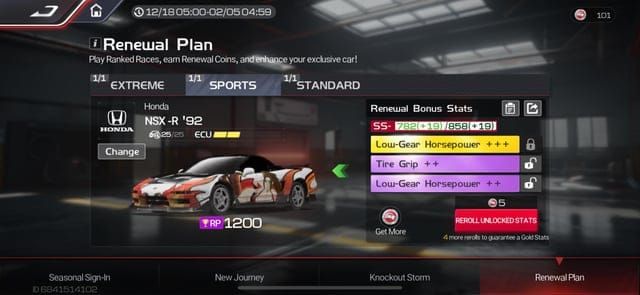
Check your email for the store's official invoice. A bank notification only proves an authorization or debit occurred—it does not confirm the platform finished processing the order. Without an official platform receipt containing an order ID, the transaction remains in a processing queue.

-Weekly Card
 -Weekly CardUSD 0.69Buy Now
-Value Outfit Pack
-Value Outfit PackUSD 0.69Buy Now-Monthly Card
-Monthly CardUSD 1.61Buy Now-Deluxe MP
-Deluxe MPUSD 3.56Buy Now-Premium MP
-Premium MPUSD 6.58Buy Now-Upgrade to the Premium MP
-Upgrade to the Premium MPUSD 3.07Buy Now-MP Combo
-MP ComboUSD 16.61Buy Now-Upgrade MP
-Upgrade MPUSD 13.15Buy Now-Legendary Car Pack
-Legendary Car PackUSD 9.96Buy Now-Novice Pack
-Novice PackUSD 0.14Buy Now-Growth Fund
-Growth FundUSD 4.53Buy Now-70 + 4 Gems
-70 + 4 GemsUSD 0.65Buy Now-140 + 7 Gems
-140 + 7 GemsUSD 1.31Buy Now-210 + 11 Gems
-210 + 11 GemsUSD 1.95Buy Now-350 + 18 Gems
-350 + 18 GemsUSD 3.31Buy Now-700 + 35 Gems
-700 + 35 GemsUSD 6.58Buy Now-1000 + 50 Gems
-1000 + 50 GemsUSD 9.29Buy Now-1400 + 70 Gems
-1400 + 70 GemsUSD 13.02Buy Now-2100 + 105 Gems
-2100 + 105 GemsUSD 19.59Buy Now-3400 + 170 Gems
-3400 + 170 GemsUSD 31.58Buy Now-6600 + 330 Gems
-6600 + 330 GemsUSD 61.21Buy NowGlobal-70 +4 Gems
Global-70 +4 GemsUSD 0.86Buy NowGlobal-350 +18 Gems
Global-350 +18 GemsUSD 4.32Buy NowGlobal-700 +35 Gems
Global-700 +35 GemsUSD 8.65Buy NowGlobal-1050 +53 Gems
Global-1050 +53 GemsUSD 12.98Buy NowGlobal-1400 +70 Gems
Global-1400 +70 GemsUSD 17.31Buy NowGlobal-2100 +105 Gems
Global-2100 +105 GemsUSD 25.97Buy NowGlobal-3500 +175 Gems
Global-3500 +175 GemsUSD 43.27Buy NowGlobal-7000 +350 Gems
Global-7000 +350 GemsUSD 86.55Buy NowGlobal-DELUXE MP
Global-DELUXE MPUSD 4.32Buy NowGlobal-PREMIUM MP
Global-PREMIUM MPUSD 8.23Buy NowGlobal-MP Combo Pack
Global-MP Combo PackUSD 20.77Buy NowGlobal-Premium MP Upgrade
Global-Premium MP UpgradeUSD 3.90Buy NowGlobal-Legendary Car Pack
Global-Legendary Car PackUSD 12.55Buy NowGlobal-MP Combo Pack Upgrade
Global-MP Combo Pack UpgradeUSD 16.44Buy NowGlobal-Value Outfit Pack
Global-Value Outfit PackUSD 0.86Buy NowGlobal-Growth Fund
Global-Growth FundUSD 11.25Buy NowGlobal-Monthly Card
Global-Monthly CardUSD 4.32Buy NowGlobal-Novice Pack
Global-Novice PackUSD 0.86Buy NowGlobal-Ruby Key Fund
Global-Ruby Key FundUSD 12.98Buy NowGlobal-Expo Pack (350 Gems + 3 Ruby Key)
Global-Expo Pack (350 Gems + 3 Ruby Key)USD 4.32Buy NowGlobal-Expo Pack (700Gems + 5 Ruby Key)
Global-Expo Pack (700Gems + 5 Ruby Key)USD 8.65Buy NowGlobal-Expo Pack (1400 Gems + 8 Ruby Key)
Global-Expo Pack (1400 Gems + 8 Ruby Key)USD 17.31Buy NowGlobal-Expo Pack (2100 Gems + 10
Global-Expo Pack (2100 Gems + 10 USD 25.97Buy NowGlobal-Expo Pack (3500 Gems + 12 Ruby Key)
Global-Expo Pack (3500 Gems + 12 Ruby Key)USD 43.27Buy NowGlobal-Expo Pack (7000 Gems + 20 Ruby Key)
Global-Expo Pack (7000 Gems + 20 Ruby Key)USD 86.55Buy Now
Why Google Play Freezes In-Game Deliveries
Google Play billing relies on asynchronous transaction states. Purchases do not always shift immediately from initiated to completed.
Google flags successful orders as state 1 (Purchased). Once tagged, the store notifies the game server and your gems drop. If an order encounters deferred settlement, Google marks it with purchaseState 4 (Deferred). While marked deferred, the platform will not instruct the game servers to release currency until that flag switches to 1.
Deferred states occur under specific circumstances: - Cash or local retail settlements: Google allows up to 3 days to settle payment before canceling the order. - Ask someone else to pay: The checkout link stays active for exactly 24 hours. If unpaid within that window, the transaction expires. - Google Family Link: Orders stall indefinitely until the family manager reviews and confirms the purchase on their designated device.
The breakdown below details core Google Play transaction states and their effects on your balance:
| Purchase State Code / Trigger | Billing Status | What Happens to Your Gems | Next Action Required |
|---|---|---|---|
| State 1 (Purchased) | Completed | Currency delivered to garage balance or in-game mail | Restart client; verify connection; check mailbox |
| State 4 (Deferred) | Pending physical settlement | Blocked; game server awaits platform clearance | Complete cash payment within 3 days or wait for bank clear |
| Ask Someone Else to Pay | Awaiting third-party checkout | Blocked until payer completes checkout | Ensure payer approves purchase before 24-hour link expiry |
| Family Link Approval | Awaiting manager permission | Frozen until family manager authenticates request | Family manager must approve via app or device prompt |
| Profile Mismatch | Signed into wrong Gamer ID | Purchase associated with alternate profile | Relog to original Google Play Games profile used at checkout |
Takeaway: The game server cannot credit your gems while Google Play marks your order as pending or deferred; items only unlock once the status switches to completed.
If the charge settled on your payment method but the Play Store displays the order as pending, your local store cache is likely stuck. Google Play Store requires 1 to 2 GB of free storage headroom to execute internal sync routines. Storing data up to device limits freezes these background checks.
To clear the Play Store transaction buffer: 1. Exit Racing Master completely. 2. Open device Settings > Apps > Google Play Store. 3. Tap Storage & cache. 4. Select Clear cache, then tap Clear storage (or Clear Data). 5. Reopen Google Play Store, confirm sign-in prompts, and launch Racing Master.
Verify your active Google Play Games identity. If your device handles multiple accounts, switching to an alternate Google Play Games profile prevents the client from identifying purchases completed under a different email address.
Resolving Apple App Store Billing Verification Blocks
Apple's closed ecosystem encounters similar billing roadblocks, most commonly through account-level verification holds.
An unpaid balance or expired card detail halts all pending digital deliveries. You may see "Billing problem with a previous purchase" or "Verification Required" when opening the App Store. While these flags remain active, new in-app orders will not finalize. The bank registers a pending authorization, but Apple refuses to transmit the purchase payload to NetEase until the issue clears.
To resolve this block: 1. Open Settings on your iOS device. 2. Tap your Apple ID name at the top. 3. Select Payment & Shipping and confirm no payment method displays red warning text. 4. Tap Media & Purchases > View Account > Purchase History. 5. Review the list for orders marked "Pending" or flagged with payment errors.
If an order remains marked as pending in your Apple Purchase History, wait for Apple's batch billing process to finish. When Apple approves a refund for a disputed charge, funds take up to 10 business days to return to your account, and any delivered content is revoked.
Storage Headroom and Client Sync Failures
Device storage constraints cause failures that look like billing bugs.
Racing Master requires at least 10 GB of free device memory for core operations. When available capacity drops below this mark, the engine fails to unpack temporary receipt caches received from the app store. The store records a completed purchase, but the game client cannot write the receipt payload into memory, stalling delivery.
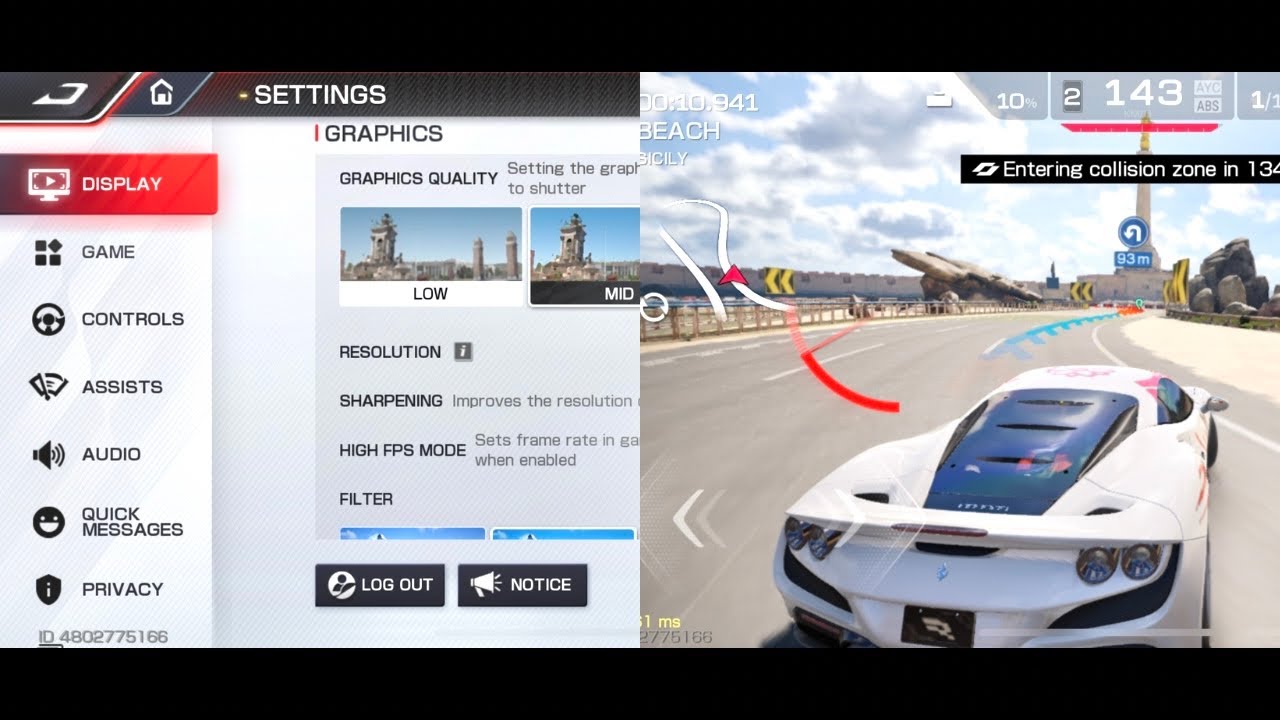
The table below outlines hardware thresholds that interfere with item processing.
| Technical Component | Minimum Requirement | Consequence of Falling Below | Recommended Fix |
|---|---|---|---|
| Device Free Storage | > 10 GB free space | Inability to download asset patches or write purchase receipt | Delete unused apps, cache, and media files |
| Play Store Buffer | 1 to 2 GB free space | Background billing checks stall indefinitely on "Pending" | Free internal drive space; clear Play Store data |
| Device RAM / Graphics | Stable frame allocation | Client crash during transaction callback from payment window | Lower graphic settings in-game to reduce memory load |
| Network Link | Low packet loss connection | Timeout during receipt validation between store and server | Switch from unstable public Wi-Fi to a stable direct network |
Takeaway: Ensuring adequate device storage and a clean cache is essential for the client to register payment receipts and communicate with game servers.
Reclaim space above the 10 GB threshold before making purchases. Lower in-game visual settings to ease memory consumption. Reducing device strain stops the client from crashing when toggling between external payment screens and the game engine.
Where Did Third-Party Recharges Go Wrong?
External web platforms deliver items using entirely different mechanisms than app stores.
Some sites use automated API integration: you provide your User ID (UID), pick a bundle, and the system routes currency straight to your garage through server requests. Other services run peer-to-peer marketplaces requiring manual communication with individual sellers via chat tools before items ship.
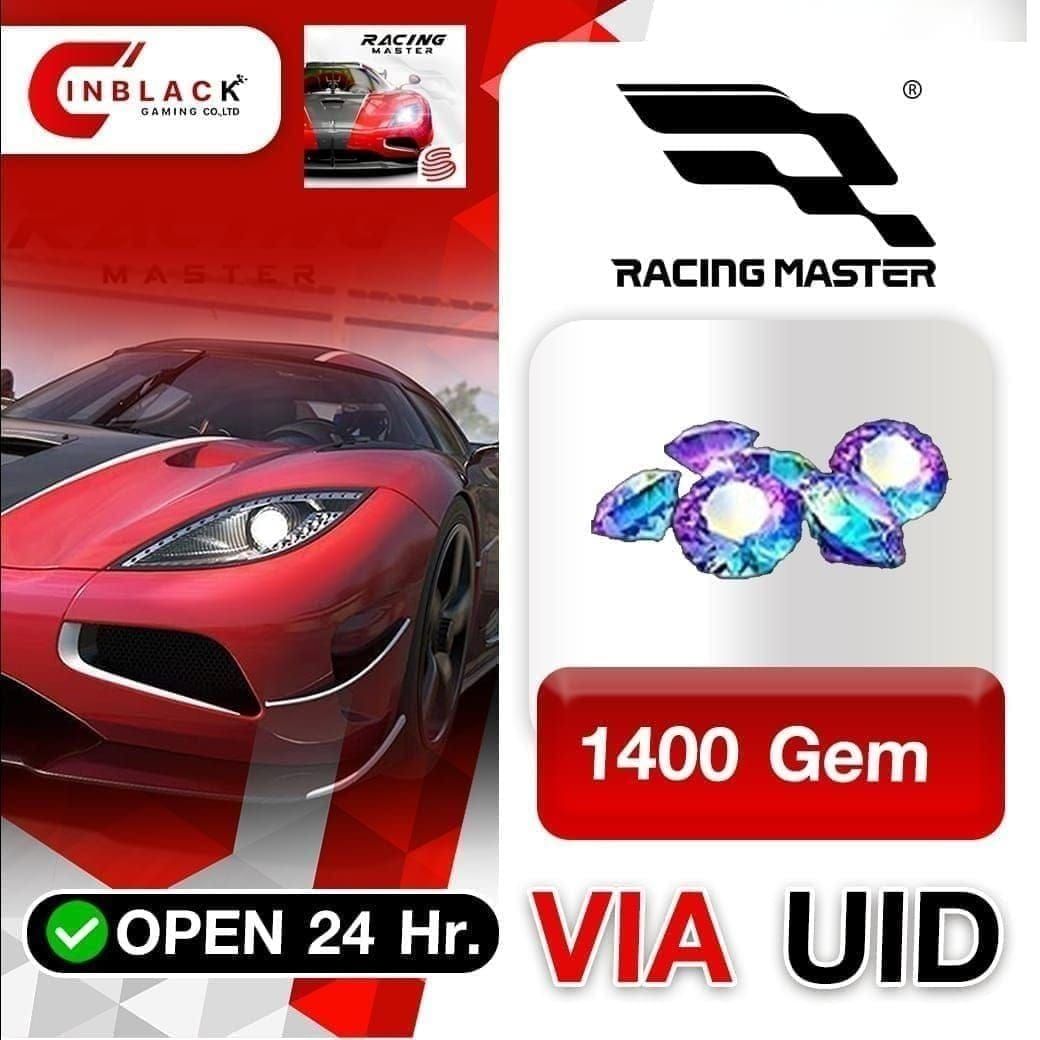
To skip marketplace seller queues, purchasing via direct Racing Master Gems & Packs top-up storefronts routes currency straight to your account UID.
When external orders fail to show up, a typo in the User ID during checkout is the primary cause. Because web orders route across server partitions, entering the wrong digit delivers the gems to an inactive profile or another driver. Check your UID in your player profile before completing external payment.
Step-by-Step: Submitting an In-Game Support Ticket
Contact customer support once you have waited past the pending window, verified network stability, cleared the app cache, and confirmed the charge settled.
Public community threads cannot fix missing orders; support personnel require private account logs and transaction invoices to credit items.
Follow these in-game steps to open a ticket: 1. Launch Racing Master to the garage lobby. 2. Tap the Settings gear icon in the top corner. 3. Tap the Essential tab on the left. 4. Select Support to load the service window. 5. Tap Bug Report to open the ticket form.
[Main Garage Lobby]
        │
        ▼
   [Settings]
        │
        ▼
   [Essential]
        │
        ▼
    [Support]
        │
        ▼
   [Bug Report] ──► Fill out UID, Server, and attach Transaction Receipt
Include these exact details in the ticket form:
- In-Game User ID (UID): Tap your avatar on the main screen to copy your numeric UID.
- Character Name & Server Region: Specify your region (such as SEA).
- Transaction ID / Order Number: For Google Play, provide the GPA. code (e.g., GPA.1234-5678-9012-34567). For Apple, copy the Order ID from your email invoice.
- Exact Date and Time: The precise timestamp of the transaction.
- Screenshot of Digital Receipt: Attach the official invoice showing the order number, product name, price, and completed status. Bank alerts or card statements are rejected because they do not list the specific bundle purchased.
State the problem directly: "I purchased [Pack Name] on [Date/Time]. The payment cleared under transaction ID [Insert GPA/Apple ID], but currency was not added to my garage balance or mailbox. My UID is [Insert UID]. Receipt attached."
Spender Strategies for Handling Missing Currency
Spending tiers dictate how you should manage transaction delays and preserve proof of payment.
Free-to-Play and Micro-Spenders
Low-cost packs such as monthly passes or 99-cent crates frequently face deferred verification holds when charged to carrier billing or mobile wallets. Avoid attempting duplicate purchases if a pack fails to show immediately. Allow the 24-hour verification window to finish before logging a dispute.
Mid-Tier Spenders
Players picking up battle passes and multi-pull banners should organize their digital invoices. When ordering a Racing Master top-up via UID, leave your profile card open on a secondary display to copy your ID directly. Archiving gaming receipts in an email subfolder saves time if an app store cache error stalls delivery.
High-End Collectors and Whales
If you purchase high-tier packs for legendary car drops, buy before banner drops rather than during peak launch windows. Hundreds of players hitting payment gateways at the same minute triggers billing server congestion and receipt validation delays.
Safety Protocol: Account Credentials vs User ID
Protecting your credentials is critical when troubleshooting missing currency or using external recharge methods. Fraudulent accounts target players reporting billing issues on public social channels.
Authorized top-up platforms only request your public User ID (UID) and server region. Your UID is visible to anyone checking your garage profile. Legitimate platforms credit your account through server API connections using that ID alone.
Never share login details. Any individual or site asking for your Google, Apple, or Facebook credentials to "recover" gems or deliver discounted packs is running an account theft scheme. Disclosing account details leads to compromise or permanent bans for unauthorized account sharing.
Compare genuine support requirements against scam behaviors:
| Verification Element | Legitimate Top-Up / Official Support | Fraudulent / Scam Scheme |
|---|---|---|
| Player Identifier | Asks only for public User ID (UID) and Server | Demands login email, username, and password |
| Access Method | Direct server API credit via player UID | Requests direct login access to your account |
| Two-Factor Codes | Never requests 2FA, OTP, or SMS verification codes | Asks you to share a 2FA prompt sent to your phone |
| Customer Support Channel | In-game Settings > Essential > Support menu | Unofficial Discord, Telegram, or private WhatsApp chats |
| Billing Documentation | Asks for official platform receipt (GPA/Apple ID) | Demands bank PINs or payment card security CVV numbers |
Takeaway: Legitimate support and safe web stores never ask for account passwords or two-factor codes; providing your public UID is all that is required for direct crediting.
When purchasing Racing Master gems, paste only your numeric UID into the checkout form to maintain account security.
Frequently Asked Questions
Why haven't my Racing Master gems arrived after payment?
Transactions frequently get stuck in a pending authorization state or face server sync delays between your app store and the game engine. Restart the app, inspect your in-game mailbox, and check your app store order history to verify whether the charge is marked completed or pending.
What does a pending transaction status mean on Google Play?
A pending status means Google Play has logged the order but has not settled the funds, such as during deferred billing (state 4) or family approval holds. Your game server will not deliver gems until the purchase state officially switches to state 1 (Purchased).
How do I report missing gems directly within Racing Master?
Open the game client, tap the settings gear, navigate to Settings > Essential > Support, and tap Bug Report to submit a ticket. Attach your official digital receipt displaying the order ID and transaction date alongside your in-game User ID.
Can clearing the Google Play Store cache fix missing in-app purchases?
Yes, clearing the cache removes corrupted temporary files that prevent Google Play billing from acknowledging completed transactions. Go to device Settings > Apps > Google Play Store > Storage and tap Clear Cache.
What should I check if an Apple App Store purchase does not credit?
Check your Apple ID purchase history to ensure your payment method doesn't have an unpaid balance or verification block. If an outstanding balance exists, Apple will suspend product delivery until billing details are resolved.
What information is required when contacting customer support for missing gems?
Provide your exact in-game User ID, server region, and the full receipt from your app store showing the transaction ID, date, and amount. This proof allows support agents to locate the transaction and credit your garage balance manually.
How long does a Google Play refund take if my items never arrive?
If an order fails permanently and Google approves a refund, the funds typically return to your payment method within 10 business days. Note that any digital items granted during the transaction will be removed from your account once refunded.
Final Verdict: When to Wait and When to Dispute
Patience versus documentation determines whether your gems show up. If your app store invoice displays "Pending" or indicates a deferred charge, filing a ticket with NetEase will not resolve the issue because their server has not received payment clearance.
Wait 24 hours if you paid through third-party billing or family sharing. If the receipt confirms completion, the app has been restarted, your device maintains 10 GB of storage headroom, and the mailbox is empty, open Settings > Essential > Support > Bug Report. Submit your GPA or Apple order invoice to receive manual credit from support.






Comments