Struggling with lag in War of Emperium? Discover the ragnarok m eternal love best settings to hit steady 60 FPS, save battery, and stop thermal throttling.
Running through Prontera during peak hours or defending a castle gate during War of Emperium (WoE) often turns Ragnarok M: Eternal Love into a slideshow. Phones heat up within twenty minutes. Frame rates sink into the low teens. Battery levels drop long before you finish daily farming.
Achieving a steady 60 FPS does not require buying a flagship phone or an expensive GPU. It requires knowing which toggles actually strain the client engine and disabling them before heat builds up.
Why Frame Rates Collapse During Farming and War of Emperium
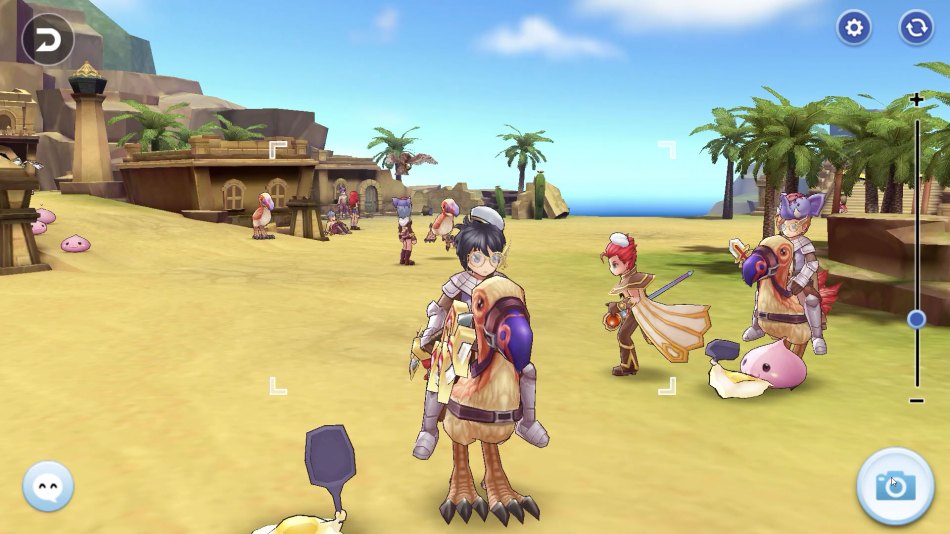
Ragnarok M relies on an engine that struggles with entity saturation. When forty players gather on a single screen, your hardware is not just rendering polygonal models and headgear. It calculates real-time lighting passes, visual aura effects, floating combat text, skill animations, and network positioning ticks for every single target.
In mob-dense farming maps like Payon Forest or Toy Factory, hundreds of monsters spawn and die every minute. Leaving cosmetic passes active forces your processor to draw every weapon glow, costume trail, and sound sample. On mobile devices, this sustained load triggers rapid thermal buildup. Once your SoC hits its thermal ceiling, it downclocks processing cores to shed heat. That thermal throttling is why your game runs smoothly for fifteen minutes before degenerating into a choppy, stuttering mess.
The official PC Windows Client handles raw polygon counts better than phones, but it still chokes on redundant visual calculations during massive guild fights. Particle overdraw from overlapping AoE skills will crush rendering pipelines regardless of your machine's raw power.

18 + 3 Big Cat Coins
 18 + 3 Big Cat CoinsUSD 2.23Buy Now
24 + 4 Big Cat Coins
24 + 4 Big Cat CoinsUSD 3.01Buy Now30 + 6 Big Cat Coins
30 + 6 Big Cat CoinsUSD 3.71Buy NowLimited Special Gift
Limited Special GiftUSD 5.89Buy Now60 + 12 Big Cat Coins
60 + 12 Big Cat CoinsUSD 7.28Buy Now120 + 25 Big Cat Coins
120 + 25 Big Cat CoinsUSD 14.32Buy Now298 + 75 Big Cat Coins
298 + 75 Big Cat CoinsUSD 35.56Buy Now598 + 150 Big Cat Coins
598 + 150 Big Cat CoinsUSD 71.07Buy Now1196 + 300 Big Cat Coins
1196 + 300 Big Cat CoinsUSD 143.02Buy Now2990 + 750 Big Cat Coins
2990 + 750 Big Cat CoinsUSD 356.36Buy Now
The Definitive 60 FPS Settings Profile
To lock down a flat 60 frames per second, strip away vanity cosmetics and isolate gameplay-critical indicators. The client spreads visual controls across several menu tabs, but your primary focus belongs in the Game Settings visual sliders.
Follow these steps inside the client to apply the optimized profile:
- Tap More in the upper right corner of your screen and select the gear icon for Settings.
- Open Game Settings and locate the graphics toggle panel.
- Set the baseline graphics quality slider to Low or Medium depending on your platform.
- Uncheck display character to replace non-party player models with lightweight circular shadows.
- Uncheck display name to eliminate overhead typography rasterization for distant entities.
- Toggle Peak Effects off for other players while keeping it optional for yourself.
- Uncheck Toon Lighting and disable figure change transformations.
- Drop the Screen Resolution slider to Medium on mobile screens or native 1080p on desktop monitors.
- Turn on the in-game Screen Saver to activate passive power-reduction during long auto-grinds.
Apply the Low-End configuration whenever stepping into congested territory. For tailored configurations across different activities, use the matrix below.
| Configuration Preset | Resolution Setting | Character Models & Names | Peak Effects & Lighting | Primary Intended Scenario |
|---|---|---|---|---|
| Low-End / Heavy Farming | Low | Disabled (Circular Shadows) | Peak: Off / Lighting: Off | Long overnight grinds, congested maps, budget mobile devices. |
| Balanced / Siege & Instances | Medium | Party Models Only / Names On | Self: On / Others: Off | War of Emperium, Thanatos Tower, competitive team raids. |
| High Fidelity / Showcase | High | All Entities Enabled | Self: On / Others: On | Solo story questing, city screenshots, dedicated high-spec PC client. |
Takeaway: Cutting external character models and auxiliary lighting passes eliminates roughly 70% of peak-load frame drops without obscuring hostile telegraphs.
Deviate from this setup only for instanced guild content where recognizing an enemy guild leader's physical model matters. Even then, keep secondary player spell effects turned off so you can spot incoming ground traps.
Crucial Visual Toggles That Rescue Your Battery
Auto-combat represents the bulk of active game time. If your device burns through 30% of its battery capacity per hour while sitting on a desk hitting monsters, your settings are wrong.
Character Shadows vs. Full Meshes
Unchecking "display character" and "display name" provides the single largest performance jump in the entire game. Instead of rendering high-poly models, custom armors, fluttering wings, and back cosmetics, the client replaces players with flat, circular floor shadows. The engine no longer updates skeletal rigging or running animations for bystanders. You retain full visibility over who is occupying your farming spot without rendering their gear.
Peak Effects and Toon Lighting
Peak Effects project flashy dynamic auras around characters who have unlocked their job breakthroughs. In towns or castle defense lines, dozens of overlapping Peak auras force the GPU to process continuous alpha-blending calculations. Turn off Peak Effects for "Others" without hesitation. While you are there, uncheck Toon Lighting. Toon lighting attempts to draw dark cartoon-style outlines around character meshes. It looks stylistic, but the edge-detection pass wastes precious mobile GPU cycles.
Audio Processing Overhead
Background audio is an overlooked source of thermal throttle. Decoding compressed music tracks and playing dozens of simultaneous sound effects (such as chain attacks from five nearby auto-attackers) occupies valuable CPU cycles. Lowering or completely muting the SFX and BGM volume sliders relieves that decoding burden. Your CPU runs cooler, extending the time your phone can sustain peak clock speeds before throttling begins.
The Native Screen Saver
Ragnarok M features a dedicated in-game Screen Saver function located inside the graphics options. When enabled, your screen dims to black with a simple clock and resource display whenever you leave auto-battle untouched for several minutes. The game continues running combat loops in the background, but your screen backlight and display processor consume minimal wattage. It prevents OLED display burn-in and keeps your device cool through hours of auto-combat.
If you grind on mobile during the day and transfer to PC at night, make sure to check reliable Ragnarok M Eternal Love recharge options to ensure smooth progression across both systems without running into platform-specific transaction errors.
Channel Population and Map Instancing Tactics
Frame drops do not always stem from hardware limitations. Often, the game server itself struggles to push coordinate packets to hundreds of clients in the same instance, causing rubber-banding that mimics client stutter.
By default, new and returning players get dumped into low-numbered channels such as World Channel 1 or Channel 2. Prontera and popular grinding zones on these channels suffer from permanent congestion. Stuttering in these zones occurs because your client is constantly loading and unloading assets as players teleport across the map.
To resolve this, visit the Channel Teleporter NPC in Prontera. Swap away from overcrowded hubs to high-numbered instances like CH 15, CH 20, or higher. These channels feature identical monster spawns and field bosses but hold a fraction of the casual population. Your frame delivery will immediately stabilize because the game no longer has to parse hundreds of nearby player updates.
Keep in mind that channel switching is strictly restricted while you are inside dungeons, guild bases, or instanced combat areas. You must walk into a public open-world zone—such as Prontera, Morroc, or Payon—before the channel selector icon becomes active. Changing channels also applies a temporary penalty to boss hunting, so plan your switches around your daily grinding schedule.
Standalone Windows Client Configuration
For PC players, the official Ragnarok M Windows Client offers vastly superior responsiveness compared to old mobile emulation methods. However, setting it up correctly requires finding a slightly counterintuitive layout.
Game Window -> More -> Settings -> Game Settings -> Effect Tab (2nd from right) -> Visual Settings
Unlike traditional PC ports with dedicated video menus on startup, resolution scaling lives in the Effect tab (the second tab from the right) under Game Settings. If your desktop monitors run at 1080p or 1440p, match the resolution slider precisely to your display's native resolution. Running mismatched aspect ratios or off-scale resolutions introduces micro-blurring and forces the game to perform bilinearly filtered scaling on every frame.
If your client displays pink Porings instead of real monsters, NPCs, or character models, your client is missing required game assets. This visual glitch happens when players launch the game before finishing background resource updates. Open your launcher or game login prompt and select "Download the full resource pack" to pull down the complete asset library.
Occasionally, the standalone PC client fails to launch or crashes with a Visual C++ Runtime Library error. If this happens, open an elevated command prompt with administrator privileges, navigate to %windir%\system32, and register the core XML component using:
Regsvr32 Msxml3.dll
This simple command resolves library linkage issues and allows the direct DirectX 11 backend to initialize without throwing memory access exceptions.
| Specification Component | Minimum Requirement (PC Client) | Recommended Spec (Smooth 60 FPS) | BlueStacks Android Target |
|---|---|---|---|
| Operating System | Windows 7 SP1 64-bit | Windows 10 / 11 64-bit | Windows 10 / 11 64-bit |
| Processor (CPU) | Dual-Core Intel / AMD | Intel Core i5 or higher | 2 to 4 Virtual Cores Allocated |
| System RAM | 4 GB | 8 GB System Memory | 4000 MB Allocated Memory |
| Graphics Card (GPU) | Integrated Graphics | NVIDIA GeForce GT 1030+ | Dedicated GPU with Direct3D |
| Available Storage | 7 GB Free Space | 10 GB+ on Solid State Drive | 5 GB Free Disk Space |
| Graphics API | DirectX 11 Compatible | DirectX 11 Native | OpenGL / DirectX Mode |
Takeaway: The official PC client runs far lighter than emulators, requiring only an entry-level GT 1030 to deliver 60 FPS at native resolutions.
Because the standalone desktop build disables direct in-game purchases, you can manage your Ragnarok M Eternal Love top-up requirements online before jumping into your next farming session. That saves you from swapping back to your phone just to grab daily transaction bundles.
Emulator Tuning for Smooth Frame Delivery
If you prefer running third-party Android emulators like BlueStacks for macros, multi-instance farming, or keybinding preference, the default engine configuration will deliver awful frame pacing unless modified.
Emulators require significant host hardware because they translate ARM mobile instructions into x86 desktop instructions on the fly. To hit consistent 60 FPS:
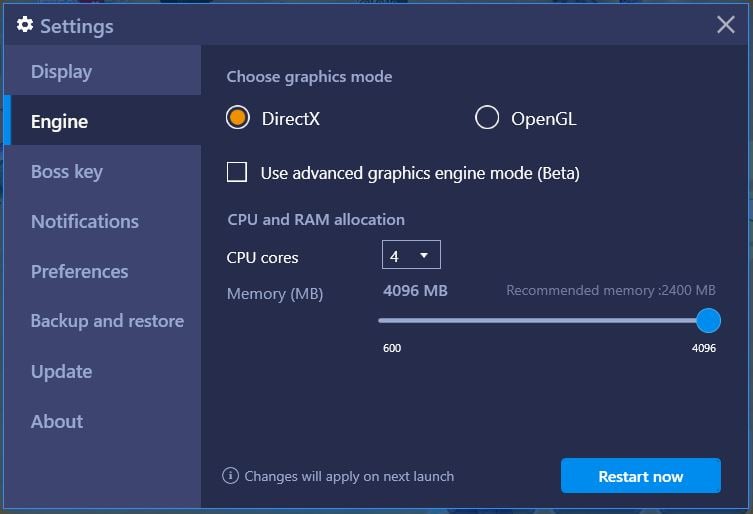
- Allocate Resources Aggressively: Give the emulator instance at least 4000 MB of RAM and assign 2 to 4 CPU cores. Anything less than 4000 MB causes intense garbage-collection freezes when the game clears cached textures from memory.
- Storage Overhead: Make sure your host drive has at least 5 GB of free space dedicated to the emulator partition to prevent pagefile thrashing.
- Resolution Matching: Configure the internal emulator display resolution to match your physical monitor (such as 1920x1080). Running the emulator internally at 720p and expanding the window to a 1080p screen introduces jagged edge scaling and increases input latency.
- High Frame Rate Mode: Toggle the "Enable high frame rate" switch in your emulator settings and lock the target slider at 60. Do not push for 120 or 240 FPS; the Ragnarok M engine does not benefit from unlocked refresh rates and will simply run your CPU hotter for zero visual gain.
Platform Comparison: Windows Client Versus Android Emulation
Choosing between the official PC port, an Android emulator, and native mobile hardware depends on your daily playstyle. Each platform handles rendering passes and system resources differently.
| Feature / Metric | Official Windows Client | Android Emulator (e.g., BlueStacks) | Modern Mobile Device |
|---|---|---|---|
| Direct Hardware Access | Native DirectX 11 execution | Virtualized Android wrapper (ARM translation) | Native Vulkan / OpenGL ES |
| CPU & RAM Efficiency | Low overhead; runs fine on 8 GB RAM | Heavy overhead; demands 4000 MB RAM allocation | Memory-constrained; prone to thermal throttle |
| Direct In-Game Store | Disabled (must use web portal or mobile) | Fully functional mobile store interface | Fully functional mobile store interface |
| Account Region Locks | Strict regional launchers (SEA / NA / EU) | Region depends on installed APK file | Region depends on app store account |
| Input Response | Instant mouse-click pathfinding | Configurable keymapping with slight input lag | Direct touch controls |
Takeaway: The official Windows client delivers the most stable 60 FPS performance, but lacks an in-game billing portal and requires matching your regional account client.
Be careful when installing the standalone Windows client: save files are strictly region-locked between SEA, NA, and EU. If your mobile character lives on the SEA server and you download the Global Windows installer, your character select screen will appear completely empty. Download the specific launcher corresponding to your account's regional home.
Before gearing up for weekend castle sieges, grabbing your BCC and monthly passes via arctopup keeps your character fully stocked with battle supplies without wrestling with emulator billing glitches.
Daily Stamina and AFK Auto-Combat Efficiency
Optimizing your visual settings serves one primary goal: maximizing your daily grinding returns without melting your hardware. Managing stamina is the core loop of Ragnarok M progression.
Sources highlight two different mechanics across game versions: standard modern servers rely on a stamina timer, whereas classic variants feature a combat attempt system capped at 3,500 monster kills daily. For modern servers, characters naturally recover 300 minutes of combat stamina daily. This pool accumulates up to 600 minutes naturally, and can hit a ceiling of 900 minutes when stacked with quest rewards and bonuses. Once your stamina runs out, severe fatigue penalties apply, slashing drop rates and experience gains down to near zero.
To cut the real-world time your device spends grinding:
- Activate Lightning Chains: A Lightning Chain lasts for 60 minutes and doubles your stamina consumption rate while doubling both experience and loot drops.
- Weekly Limits: You can burn up to 7 Lightning Chains per week under standard limits. This compresses two hours of grinding heat into a single one-hour window.
- Screen Saver Engagement: Whenever your Lightning Chain is running, confirm your auto-battle target list, drop your resolution to Low, and let the Screen Saver activate. This reduces total thermal exposure while your character farms at full efficiency.
FAQ
How do I switch resolution on the Ragnarok M Windows Client?
Open your menu by clicking More in the top right corner, select Settings, and enter Game Settings. Navigate to the Effect tab, which is the second tab from the right side of the panel, and pick your target screen resolution under the Visual Settings section.
Why are character and monster models appearing as pink Porings?
Pink Porings indicate missing texture and model files resulting from an incomplete installation. Launch the game, wait at the title or login screen, and select the option to download the full resource pack to resolve the issue.
How can I prevent frame drops during crowded farming or War of Emperium?
Open your graphics settings and uncheck both "display character" and "display name" to turn other players into flat floor shadows. Turn off Peak Effects for other players as well, preventing their skill breakthrough auras from bogging down your GPU.
What should I allocate in an Android emulator for smooth 60 FPS?
Assign at least 4000 MB of system RAM and allocate 2 to 4 virtual CPU cores within your emulator's engine settings. Ensure the emulator's internal resolution matches your monitor's native display to avoid scaling lag.
Why can't I see my mobile characters on the PC client?
The official Windows client is strictly region-locked between SEA, NA, and EU distributions. You must verify that you downloaded the specific PC launcher that matches the server region where your mobile account was created.
Can I buy recharge packs or premium items directly inside the PC client?
No, direct in-game store purchases are completely disabled on the standalone Windows desktop client. You must complete your account recharges on the mobile app or through an authorized online recharge portal.
How does switching channels help with framerate stutter?
Moving from crowded channels like CH 1 to higher-numbered instances such as CH 15 reduces local player density. Fewer on-screen characters drastically lowers memory usage and eliminates network tick latency caused by packed map instances.
The Real Trade-Off: Visuals vs Performance
Ragnarok M: Eternal Love is a marathon progression game, not a cinematic visual showcase. Insisting on high-resolution character models, cartoon edge lighting, and flashy skill auras while grinding 300 minutes of daily stamina does nothing except cook your device and degrade your battery.
Locking in a rock-solid 60 FPS requires accepting one simple reality: circular shadows are better than player models. The moment you disable character rendering and peak auras for bystanders, the game transforms. Stuttering disappears, phone thermals normalize, and large-scale PvP becomes manageable. Run the native Windows client on your desktop for serious dungeon content, drop your mobile settings to the bare minimum for auto-combat, and keep your framerate locked where it belongs.






Comments