Tired of frame drops during camp events? Learn how to reduce LifeAfter lag in 2026 on Android with our proven graphics, thermals, and network tweaks.
Nothing ruins a high-stakes camp defense faster than your display turning into a slideshow the moment twenty infected breach the barricades. NetEase built an expansive world with detailed weather simulations, massive multiplayer hubs, and intense combat encounters. That visual ambition punishes mobile hardware. When touch controls stutter, phone rails burn your hands, and framerates tank in crowded zones, your default device settings are working against you.
Holding steady frametimes does not require an unreleased flagship processor. You need a targeted setup that eliminates rendering bottlenecks, halts thermal throttling before it triggers, and prioritizes responsive touch inputs over eye candy.
Identifying the Bottleneck: Network Latency vs Hardware Stutter
Diagnose the exact source of your slowdown before lowering graphics settings to absolute minimum. Players frequently mistake packet routing delays for hardware strain, applying visual fixes to what is actually a network issue.
Hardware stutter manifests as physical hitching. Your screen freezes for fractions of a second, aiming turns sluggish, and the chassis gets noticeably warm to the touch. This indicates a CPU or GPU bottleneck where your processor cannot render frames quickly enough to match your display refresh rate.
Network latency behaves differently. Frame pacing remains smooth, but if your ping indicator spikes above 40ms or turns red, enemies teleport, hit markers register late, and your character rubber-bands across the map. Visual frame delivery continues, but your actions fail to register with the game server in real time.
Local Wi-Fi congestion causes most ping spikes. The 2.4GHz Wi-Fi band suffers constant interference from household electronics, smart appliances, and neighboring networks. Switching your phone to an uncrowded 5GHz band cuts local packet loss immediately. If you share a home connection with active video streaming or file downloads, configure Quality of Service (QoS) rules in your router firmware to prioritize traffic to your mobile device.
In-Game Graphics Optimization for Maximum Stability
The April 17, 2026 Wasteland Rebirth visual overhaul updated lighting models, monster textures, and weather simulations across the map. While these enhancements make the world look striking, they place severe demands on mobile graphics silicon. Stabilizing Android performance requires stripping calculation-heavy effects that offer minimal tactical benefit.
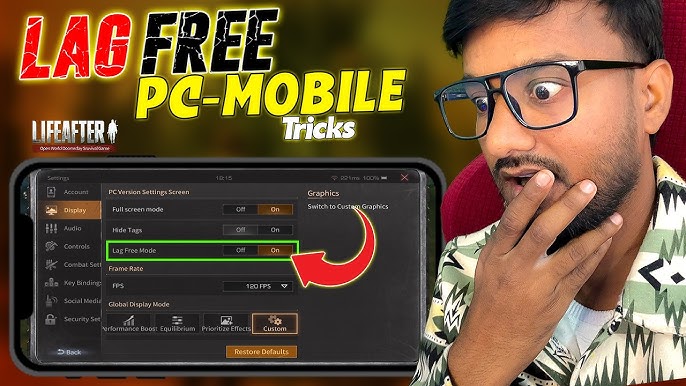
Render resolution dictates GPU workload more than any other variable. When running at native panel resolution, your GPU calculates every shader, reflection, and light source across millions of pixels. Lowering render scaling to Medium (roughly 0.8x, or 70% to 80%) drops the raw pixel fill-rate, cutting GPU load by 30% to 40%. The visual soft-focus trade-off is minor, but the frame stability gain is immediate.
Shadows and environmental geometry demand attention next. Calculating dynamic shadows forces your phone to draw every shadow caster twice per frame. Setting shadows to Low or Off drops core temperatures fast. Combining that with Low Environment Detail to shorten mesh draw distance frees up significant processor overhead.
The following table outlines foundational graphics settings designed to eliminate rendering hitches across standard Android devices:
| Setting | Target Value | Performance Impact |
|---|---|---|
| Render Resolution | Low to Medium (0.8x) | Cuts pixel fill-rate 30%–40%, stabilizing frametimes and reducing GPU heat. |
| Shadow Quality | Lowest / Off | Completely removes real-time shadow passes from the rendering queue. |
| Environment Detail | Low | Shortens geometry draw distance and reduces polygon count in wilderness zones. |
| Anti-Aliasing | Off | Removes edge-smoothing passes to prevent micro-stutter during quick camera pans. |
| Post-Processing Effects | Off / Minimal | Disables bloom, motion blur, and depth of field that obscure visibility in combat. |
Applying these values keeps GPU utilization within a steady operating window that preserves battery life.
Taming Camp Invasion Lag and Multiplayer CPU Draw Calls
Draw-call saturation—not raw polygon count—is what paralyzes mobile processors during Camp Invasions and open-world boss fights. A draw call is an instruction sent from the CPU to the GPU telling it what object to render. In solitary gathering areas, draw calls remain light. The moment thirty campmates and fifty infected occupy the same courtyard, instruction queues explode.
Android SoCs utilize asymmetrical CPU architectures, pairing powerful prime cores with smaller efficiency cores. When massive crowds trigger a burst of draw calls, thread queues back up. A frame that normally renders in 16.6 ms (a clean 60 FPS target) can stall for 29 ms or 33.3 ms, cutting perceived frame rates down to 30 FPS or lower. That sudden frametime spike causes the dreaded Camp Invasion stutter.
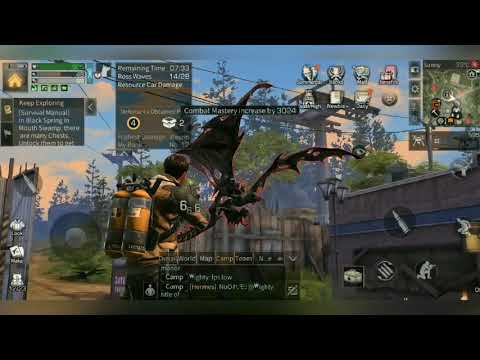
To fix Camp Invasion frame drops, lower Crowd Density or on-screen player limits to Low. This instructs the game engine to cull character models past a strict threshold, replacing distant detailed player meshes with basic placeholders or hiding non-essential models entirely. Your CPU stops choking on draw calls, allowing combat commands to process without delay.
High concurrency events generate extreme loads. The End of Summer: Firefly Lightseeker event concentrated heavy player activity in shared zones through September 30, 2026. Official patch notes contained conflicting launch dates—some banners cited September 3 while main event logs marked September 4, 2026—leading to sudden surges of concurrent players piling into hubs at once. When grouping up for seasonal activities or preparing to recharge LifeAfter packs, dialing back player density keeps large group encounters playable.
Interface Streamlining: 2D Team Displays and Layout Tweaks
Interface elements burn rendering cycles just like 3D geometry. Following recent updates, the client offers a 2D team-up interface alongside consolidated combat UI options specifically designed to lighten screen overhead.
The default team interface renders dynamic 3D player models inside your squad menu. Switching this display mode to a lightweight 2D background removes those character renders entirely, saving vital memory bandwidth. Enabling consolidated quest bars and simplified chat feeds limits real-time UI text redraws. You can also tone down damage number animations so automatic weapons do not flood your display with hundreds of floating sprites during heavy firefights.
Control layout affects responsiveness directly. While the client lacks a one-click legacy interface rollback, the Settings menu permits individual control reversions. Reverting the weapon-switching bar and chat window to classic layouts improves button spacing and reduces accidental inputs. You can also adjust button scaling and transparency, giving fingers reliable landing zones while opening up clear visual lines to track incoming infected.
Platform Architecture: Android Mobile Client vs PC Client
Why does Android require strict storage maintenance while PC clients run unhindered? The PC client operates with dedicated desktop hardware, active cooling fans, and ample storage overhead. Mobile devices operate under strict thermal envelopes and shared memory architectures.
Storage speed plays a direct role in micro-stutter. The LifeAfter mobile client requires approximately 18GB of internal storage space, compared to the 60GB footprint of the full PC build. When Android storage runs near maximum capacity, flash memory controller performance degrades sharply. Read and write queues stall when streaming high-resolution monster textures and terrain assets, creating noticeable hitches as you sprint through open territories.
The following table illustrates the operational differences between the Android mobile client and the dedicated PC client:
| Operational Factor | Android Mobile Client | PC Client |
|---|---|---|
| Storage Installation Footprint | ~18GB required space | ~60GB required space |
| Recommended Storage Overhead | 15% to 20% free internal capacity | 10% to 15% free drive space |
| Thermal Throttling Threshold | SoC throttles heavily near 95°C | Hardware fans sustain 60°C–75°C |
| Memory Architecture | Unified LPDDR RAM shared with OS | Dedicated VRAM on discrete GPU |
| Draw-Call Processing | Asymmetrical big.LITTLE core scheduling | High-clock desktop CPU execution |
Maintaining at least 15% to 20% free internal storage on your Android device prevents flash memory write delays, ensuring that resource-heavy territory zones load smoothly into active memory.
Thermal Throttling Defense: Bypass Charging and Heat Dissipation
Heat degrades performance faster than any visual toggle. Modern mobile chipsets throttle clock speeds drastically when internal temperatures climb near 95°C. For uncooled devices, this thermal wall typically hits between 15 to 20 minutes into an active play session. Your phone becomes blazing hot, and your framerate collapses from 60 FPS down to a choppy 20 FPS.
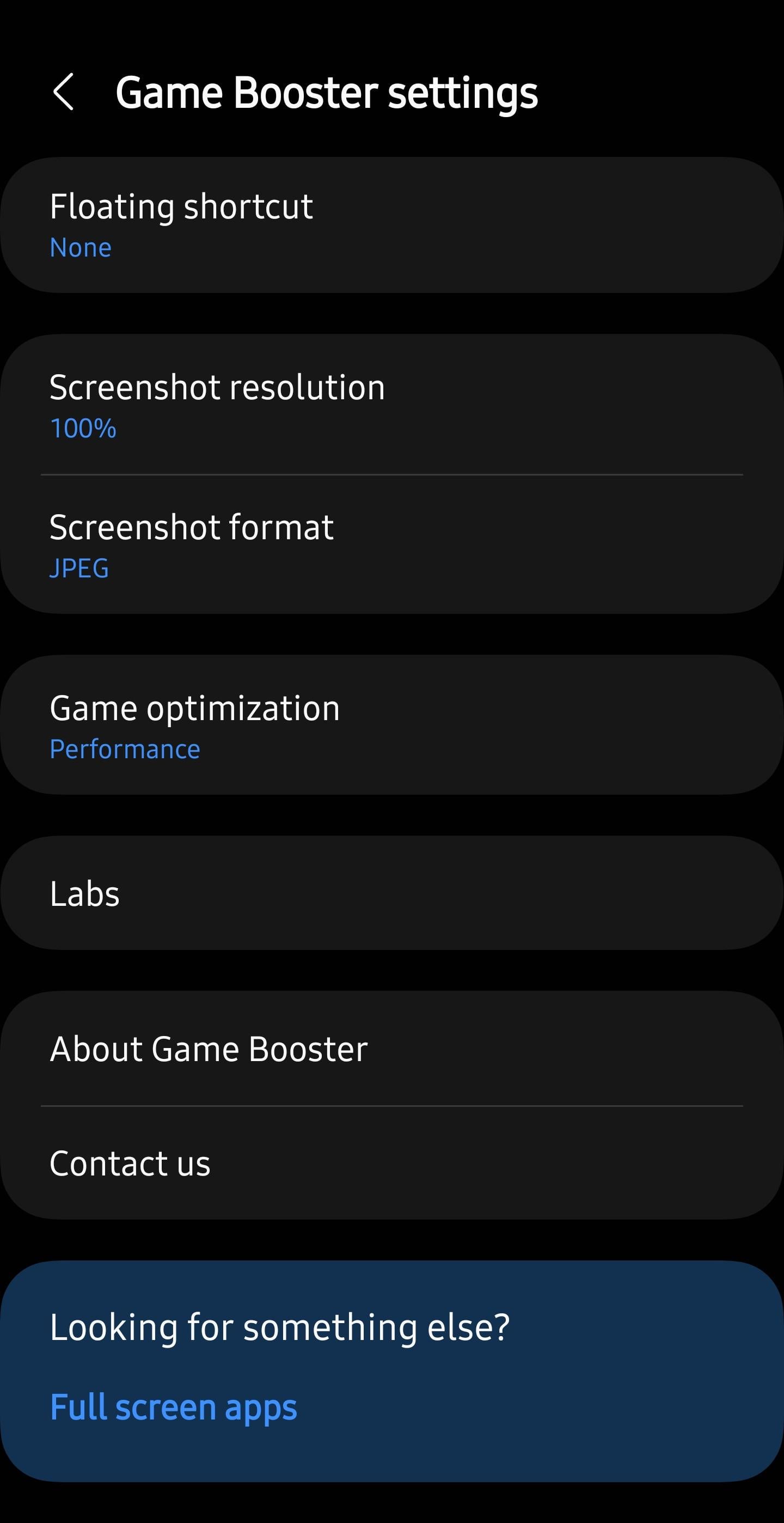
Gaming while fast-charging cooks the battery. Standard fast-charging feeds high current directly into the lithium cell, generating severe heat alongside the GPU workload. To stop overheating, use bypass charging. Features like Samsung's "Pause USB PD charging when gaming" or equivalent bypass toggles in OxygenOS, ROG UI, and Xiaomi Game Turbo route incoming electrical current directly to the SoC without charging the battery.
To run bypass charging properly, connect a USB-PD PPS charger rated at 25W or higher and confirm your battery charge level sits above 20%. The phone draws just enough power to operate the processor, cutting battery-induced heat out of the equation. Extended camp patrols stay stable.
Physical cooling habits matter just as much. Thick protective cases act as thermal insulators, trapping heat directly against the phone's back glass. Strip your phone case off during long sessions. Avoid propping the device on soft bedding or cloth surfaces that block natural airflow, and step away for a two-minute cooldown between contested matches.
Android OS Optimization: Network Routing and Memory Myths
Third-party RAM boosters and strict Developer Options background limits do not improve gaming performance. In practice, they undermine system stability.
The Android Linux kernel relies on its native Low Memory Killer (LMK) daemon to manage memory pages. When LifeAfter launches, LMK automatically caches background tasks and reallocates system memory to the foreground application. Installing aggressive task killer apps forces background system services into repeated kill-and-restart cycles. These cold starts spike CPU utilization, drain battery life, and trigger sudden frame drops mid-combat. Leave background processes alone and let the operating system handle memory allocation natively.
System networking, however, does benefit from manual intervention. Under your Android Location settings, disable Wi-Fi Scanning and Bluetooth Scanning. When left active, the operating system continuously polls local frequencies for positioning beacons, interrupting active network traffic and causing ping spikes. In Developer Options, setting your Window, Transition, and Animator animation scales to 0.5x makes menu switching snappier.
The table below details how native Android operating system toggles impact gaming performance:
| System Setting | Recommended State | Operational Benefit |
|---|---|---|
| Wi-Fi & Bluetooth Scanning | Disabled (Location Settings) | Eliminates background radio polling that triggers packet loss. |
| Battery Optimization for LifeAfter | Unrestricted / Don't Optimize | Prevents OS power daemons from throttling active threads. |
| Third-Party RAM Cleaners | Uninstalled / Disabled | Stops CPU-heavy app cold starts, letting LMK handle memory. |
| Animator Duration Scale | 0.5x (Developer Options) | Speeds up system UI transitions and general responsiveness. |
| OS Performance Mode | Off / Standard (unless cooled) | Prevents premature thermal saturation and subsequent deep throttling. |
Configuring the operating system cleanly ensures that your phone dedicates its full processing power to survival combat rather than background housekeeping.
Dialed-In Profile: Step-by-Step Configuration Steps
Locking in steady frametimes requires setting your values in a specific order. Follow this configuration sequence to balance clear combat visibility with sustained frame pacing:
- Launch LifeAfter, open Settings, and select the Display tab.
- Set Frame Rate to High or Ultra (targeting 60 FPS). Avoid leaving frame rates uncapped if your device cannot maintain display sync.
- Lower Resolution Scaling to Medium (0.8x) or Low (0.6x) on older chipsets to ease GPU fill-rate demands.
- Drop Shadow Quality to Lowest or Off, and toggle Anti-Aliasing completely off.
- Reduce Crowd Density and Environment Detail to Low to eliminate CPU draw-call spikes during invasions.
- Navigate to the Interface tab, enable the 2D Team-Up Display, and switch your Weapon Bar to the Classic layout.
When to Deviate from This Baseline
Active-cooled gaming phones or semiconductor cooler attachments change the equation. With external cooling dissipating heat before the SoC hits 95°C, you can raise Resolution Scaling to High while targeting 60 FPS or 90 FPS without triggering hardware clock drops.
Conversely, if you game on an entry-level processor or notice heavy battery drain, dial the Frame Rate slider down to a solid 30 FPS. While 30 FPS offers less visual fluidity than 60 FPS, a locked, consistent 33.3 ms frametime feels vastly superior to a phone fluctuating wildly between 58 FPS and 20 FPS. When preparing for territorial matches or purchasing supplies via secure LifeAfter credits, a steady frame pace guarantees your client will not freeze at critical moments.
Frequently Asked Questions
Why does LifeAfter stutter during crowded camp events and boss fights?
High player concurrency creates a massive CPU draw-call bottleneck that overwhelms mobile processors. Lowering crowd density and environmental detail immediately reduces the number of models your phone must process simultaneously.
What is the single most effective graphics setting to reduce lag in LifeAfter?
Lowering render resolution provides the biggest performance improvement. It scales down internal pixel count, cutting GPU workload by 30% to 40% and stabilizing frametimes.
How do I stop my Android phone from overheating while playing LifeAfter?
Enable bypass charging through your phone's Game Booster settings and remove your protective case. Playing while normal fast charging generates intense battery heat that triggers thermal throttling within 15 to 20 minutes.
Should I use task killer apps or Developer Options RAM limits to free up memory?
No, third-party RAM cleaners and background process limits harm Android gaming performance. Android's native memory manager automatically reallocates RAM for games, whereas killing processes forces CPU-heavy cold starts that cause stutter.
How do I tell if my LifeAfter lag is network delay or hardware FPS drops?
Check your in-game ping indicator and physical symptoms. Teleporting enemies and delayed shot registration with red ping indicate network latency or packet loss, whereas screen stuttering, freezing, and heat indicate GPU/CPU overload.
How much free storage should I keep on Android for LifeAfter?
Keep at least 15% to 20% of your device's internal storage free. The LifeAfter client alone takes roughly 18GB on mobile, and low storage impairs flash memory read speeds and asset caching.
Can I revert the LifeAfter interface to the classic layout to reduce clutter?
Yes, you can individually switch high-traffic elements like the weapon swap bar and chat window to classic styles in Settings. You can also customize button scaling and toggle the team interface to 2D view to free up screen real estate and reduce render load.
Final Verdict: Stable Frames Over Unchecked Eye Candy
Forcing ultra-high graphics on an uncooled Android phone is a losing strategy. While the Wasteland Rebirth visual overhaul brought striking lighting and textures, mobile processors cannot sustain maximum settings across extended gaming sessions. Trying to force peak visual fidelity inevitably leads to 95°C thermal ceilings, aggressive throttling, and ruined camp defenses.
Frametime consistency beats raw graphic quality every single time. By dropping render scaling down to 0.8x, stripping dynamic shadows, and capping crowd density, you give your processor the breathing room it needs to maintain steady 60 FPS inputs. Combine those client settings with 5GHz Wi-Fi routing and bypass charging to eliminate battery heat entirely. When holding manor gates or grabbing supply packs through the LifeAfter web shop, a calibrated performance profile ensures your survival is decided by your aim, not hardware stutters.






Comments