Master the best delta force sensitivity 2026 settings. Eliminate input smoothing, fix vertical recoil, and lock in 1:1 ADS tracking across every fight.
Automatic fire in Team Jade's tactical shooter combines sharp initial muzzle climb with sudden horizontal dispersion. If your sensitivity profile is slightly off, your crosshair either jumps above the enemy's helmet or jerks past their shoulder during recoil compensation.
Endlessly swapping hardware DPI or copying values from other games will not fix your aim. Delta Force uses unique engine yaw values and an unconventional settings layout. Calibrating them correctly turns erratic sprays into tight groupings across extraction raids and Warfare mode.
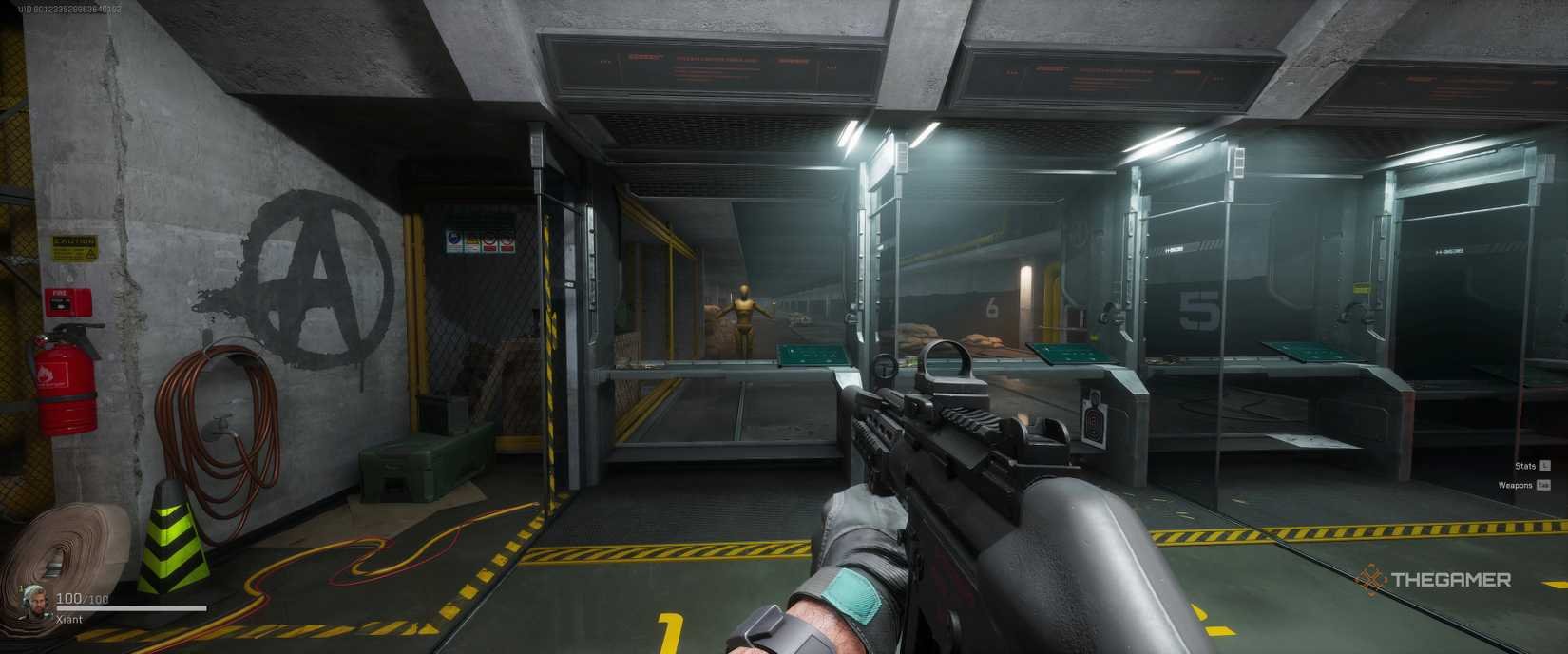
The Math Behind Delta Force Aim Mechanics
Rotational calculations in Delta Force rely on a fixed base engine yaw: m_yaw = 0.022. This matches the legacy standard found across classic Source-engine shooters, eliminating guesswork when translating your physical pad displacement to a new profile.
Calculate your exact physical rotation distance using the standard formula:
cm/360 = 12.954 / (Sensitivity * DPI / 1000)
For example, running 0.40 in-game sensitivity at 800 DPI yields:
12.954 / (0.40 * 0.8) = 40.48 cm/360
Sweeping your mouse roughly 40.5 centimeters completes one full 360-degree rotation in hip-fire mode.
Avoid guides suggesting in-game sensitivity values of 5 or higher. Pushing in-game sensitivity to 5 at 800 DPI creates an effective DPI (eDPI) of 4,000, compressing an entire 360-degree turn into 3.2 centimeters of pad space. Micro-adjustments vanish, and minor finger twitches throw your sights completely off target. Any calibrated delta force mouse sensitivity converter confirms that competitive consistency demands a far lower rotational speed.

60 Delta Coins
 60 Delta CoinsUSD 0.67Buy Now
300 Delta Coins
300 Delta CoinsUSD 3.39Buy Now420 Delta Coins
420 Delta CoinsUSD 4.93Buy Now680 Delta Coins
680 Delta CoinsUSD 6.79Buy Now1280 Delta Coins
1280 Delta CoinsUSD 13.57Buy Now1680 Delta Coins
1680 Delta CoinsUSD 16.96Buy Now3280 Delta Coins
3280 Delta CoinsUSD 33.92Buy Now6480 Delta Coins
6480 Delta CoinsUSD 67.85Buy Now
Three eDPI Archetypes: Choose Your Target Bracket
Effective DPI (eDPI) is hardware DPI multiplied by your in-game sensitivity slider. In Delta Force, competitive setups fall into three performance tiers based on weapon role and engagement range.
Top-tier tactical players rely on three distinct operational brackets:
| Archetype | eDPI Range | Primary Weapon Class | Tactical Advantage |
|---|---|---|---|
| Static Marksman Synergy | 200 - 280 eDPI | DMRs, Precision Sniper Rifles | Damps micro-tremors for pixel-perfect headshots at 150+ meters |
| Medium Versatile Focus | 280 - 360 eDPI | Assault Rifles, Battle Rifles | Balances spray drag with reactive 90-degree corner clearance |
| Pure CQC Control | 360 - 440 eDPI | Submachine Guns, Shotguns | Maximizes snap speed during frantic room clearing and 180-degree resets |
Selecting an eDPI outside the 200 to 440 window severely degrades either long-range micro-aim or close-range target tracking.
Holding long sightlines on 32v32 Warfare maps favors the Static Marksman bracket to stabilize high-magnification scopes. Extraction raids demand the Medium Versatile tier, where building-to-building sweeps shift instantly into open-field ambushes.
If you gear up for high-tier raids with Delta Force Delta Coins to fund custom builds, a balanced sensitivity baseline ensures that investment translates to won gunfights rather than whiffed sprays.
Fixing Vertical Drag and the Translation Glitch
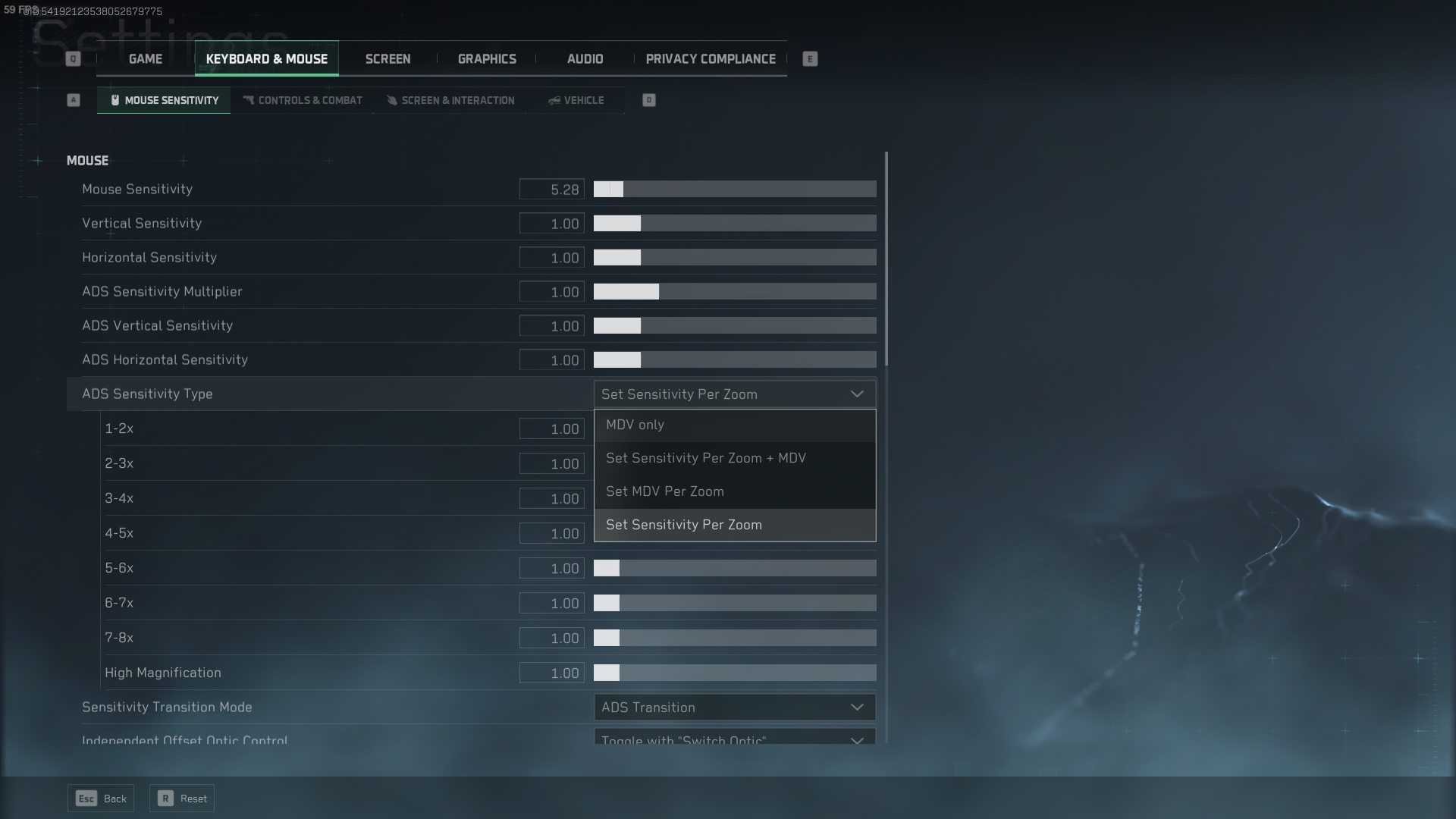
A translation error in the PC client settings menu causes constant confusion: the slider labeled "Hipfire Vertical Sensitivity" actually controls Aim Down Sights (ADS) vertical sensitivity.
Leaving this slider at the default 1.0 baseline forces your arm into excessive downward travel during long automatic bursts. High-fire-rate assault rifles climb fast, quickly exhausting available mouse pad space.
While some purists insist on a strict 1.0 vertical multiplier to preserve 1:1 muscle memory, high-recoil automatic fire exposes the flaw in that logic. Raising your vertical multiplier to 1.1–1.2 reduces downward arm strain without altering horizontal tracking precision.
Set your vertical slider to 1.15. This 15 percent reduction in physical pull keeps your wrist in a neutral, relaxed posture during sustained bursts, while your horizontal tracking across running targets remains completely linear.
Monitor Distance Vertical Setup for Optics
Flick consistency breaks down when unmagnified sights and magnified optics feel disconnected. If crosshair velocity shifts radically between a 1x holographic and a 4x combat scope, muscle memory cannot take hold.
Delta Force provides multiple ADS sensitivity scaling methods, but Monitor Distance Vertical (MDV) at a 1.33 coefficient remains the definitive choice for competitive play. This matches standard 16:9 display geometry.
Under MDV 1.33, moving your crosshair across a set percentage of screen space requires the exact same physical mouse travel on every magnification level. A target three inches across your screen requires identical physical effort whether framed in a reflex sight or high-magnification glass.
Optical transition timing matters just as much. Set your scope magnification transition setting to "adjust during aiming" with automatic adaptation enabled. Avoid "instant" or "after zoom". Instant transitions drag crosshair speed down before the optic finishes rendering. Transitions set to apply after zoom trigger a disorienting acceleration spike right as you align the shot. Adjusting during aiming creates a smooth, continuous transition as your weapon shoulders.
Eliminating Input Lag and System Smoothing
Raw physical input must reach the game engine without operating system interference. Clean tracking starts with configuring delta force zero smoothing settings at the OS and driver level.
Open Windows pointer settings and uncheck "Enhance Pointer Precision". This setting applies mouse acceleration, turning a slow three-inch swipe into a 45-degree turn and a fast three-inch swipe into a 180-degree fling. Disabling it locks in true 1:1 physical input.
For your hardware sensor, 800 DPI remains the competitive standard in 2026 tactical shooters. Sensitivities above 1600 DPI amplify micro-tremors and hand twitches on long-distance angles, while 400 DPI introduces visible pixel stepping on 1440p and 4K panels.
Pairing an 800 DPI sensor with a 4000Hz or 8000Hz polling rate mouse minimizes report intervals while ignoring human hand jitter.
Driver latency settings also require correction. Contrary to bad advice telling players to disable NVIDIA Reflex, Reflex should always be set to "On" or "On + Boost". Reflex empties the GPU render queue, eliminating micro-stutters when automatic fire kicks hardest.
While tuning hardware performance, you can pick up cosmetics and battle passes through cheap Delta Coins top up options without interrupting your competitive grind, keeping your operator looking sharp in every lobby.
Pro Keybinds That Prevent Crosshair Shake
Grip stability impacts spray control as heavily as any sensitivity value. Delta Force pro player keybinds isolate the aiming hand entirely from secondary utility inputs.
Default bindings place weapon swaps on the mouse wheel and tactical pings on middle click. Rolling or depressing the wheel shifts your physical grip pressure on the mouse shell, causing your downward recoil pull to waver and spray horizontally.
Unbind the scroll wheel. Map primary weapons to keyboard number keys and relocate tactical pings to a thumb key like V. Your mouse hand should handle only primary fire, aiming down sights, and pure crosshair tracking.
Stance controls need similar isolation. Default binds use Q and E for leaning, C for crouch toggle, Ctrl for crouch hold, and Z for prone. Leaning while counter-strafing with A and D quickly knots fingers.
Bind your delta force tactical sprint keybind to Left Shift and keep Crouch Hold on Left Ctrl. This layout lets your pinky manage stance transitions smoothly while your index, middle, and ring fingers maintain full command of WASD movement.
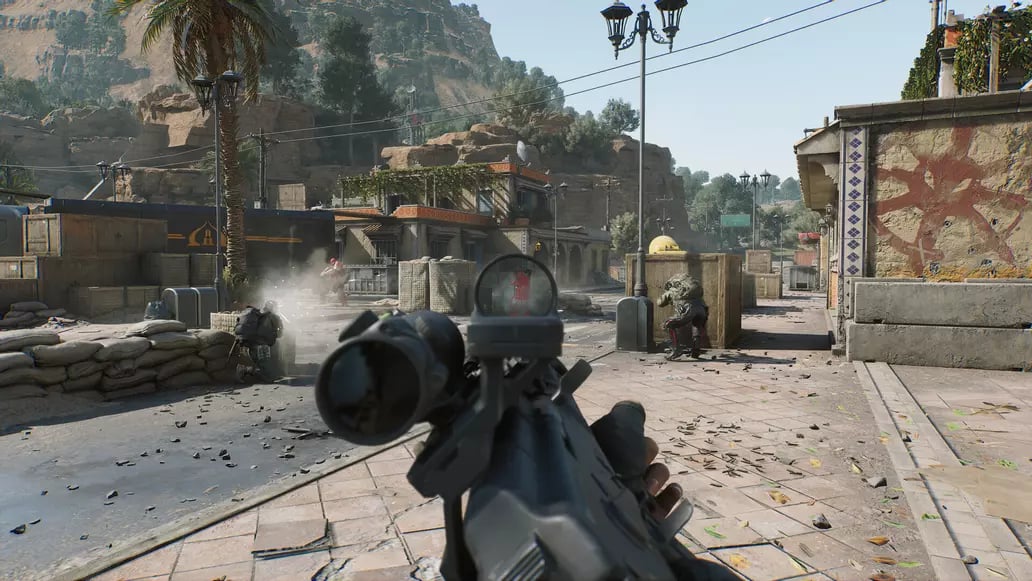
Graphics Settings That Dampen Visual Kick
Camera shake deceives your brain into over-compensating for recoil. When the screen jolts violently, players instinctively pull down harder than the ballistics require. Tuning your render settings strips away this false visual feedback.
Delta Force defaults to a narrow Field of View (FOV) that exaggerates barrel rise. Expanding FOV to 110–120 widens peripheral perspective and dramatically dampens perceived camera shake during full-auto fire.
Strip out all post-processing clutter:
- Motion Blur: Set to Off to eliminate tracking smearing during fast corner sweeps.
- Depth of Field: Set to Off to keep peripheral targets sharp while aiming down sights.
- Scope Zoom Magnification Effect: Set to Off to remove intensive rendering layers that drag frame pacing down.
- Display Mode: Lock to Exclusive Fullscreen to bypass desktop composition delays.
- V-Sync: Set to Off to eliminate buffered frame lag.
Keeping frame rates consistently above 120 FPS guarantees responsive input processing and clean optic alignment.
Definitive 800 DPI Sensitivity Calibration Profile
This baseline calibration combines our ballistic testing into a single, reliable profile for automatic weapons and close-range responsiveness in 2026:
| Setting Parameter | Recommended Value | Mechanical Purpose |
|---|---|---|
| Hardware Mouse DPI | 800 DPI | Suppresses hand micro-jitter while preventing display pixel skipping |
| Mouse Polling Rate | 4000Hz / 8000Hz | Delivers sub-millisecond input response directly to the engine |
| General In-Game Sensitivity | 0.38 - 0.42 | Produces a balanced ~320 eDPI for versatile tracking across all ranges |
| ADS Vertical Multiplier (Hipfire) | 1.15 | Eases downward mouse drag on high-recoil weapons by roughly 15% |
| ADS Sensitivity Multiplier | 1.00 | Preserves 1:1 physical tracking parity with hip-fire tracking |
| ADS Calculation Model | Monitor Distance Vertical | Enforces geometric consistency across every optic magnification |
| MDV Coefficient | 1.33 | Perfectly matches standard 16:9 monitor aspect ratios |
| Optical Transition Timing | Adjust During Aiming | Smoothly blends sensitivity curves as the optic draws to eye level |
Locking in this calibrated profile establishes a uniform 1:1 mechanical baseline across all primary weapon classes.
Follow these sequential steps to apply and test this profile correctly:
- Set your physical mouse hardware to 800 DPI in your mouse software, uncheck Enhance Pointer Precision in Windows, and set your polling rate to at least 1000Hz (ideally 4000Hz or 8000Hz).
- Launch Delta Force, open the Settings menu, select Mouse Controls, and adjust your General Sensitivity slider to 0.40.
- Locate the mistranslated "Hipfire Vertical Sensitivity" slider and raise it to 1.15 to secure proper ADS vertical compensation.
- Change your ADS Sensitivity Type to Monitor Distance Vertical and set the Coefficient value to 1.33.
- Set the ADS Sensitivity Multiplier to 1.00 and set Scope Transition to Adjust During Aiming.
- Enter the in-game firing range. Grab an assault rifle without attachments, aim at a distant target wall, and fire continuous 30-round bursts.
If the crosshair consistently drifts below target, lower vertical sensitivity to 1.10. If the muzzle climbs off target before the magazine empties, raise it to 1.20. Adjust in fine steps of 0.02 until the burst holds flat.
Platform Boundaries Across PC, Handheld, and Console
Input rules and competitive matchmaking diverge sharply across hardware platforms:
| Platform Environment | Input Method | Matchmaking Queue | Technical Requirements & Limitations |
|---|---|---|---|
| Windows 11 PC | Native Mouse & Keyboard | PC Matchmaking Pool | Full access to raw input, high polling rates, and exclusive fullscreen |
| SteamOS / Linux | Mouse & Keyboard / Gamepad | Restricted / Blocked | Anti-cheat blocks native Proton execution; requires Windows 11 dual-boot |
| Console (PlayStation / Xbox) | Native Keyboard & Mouse | PC Crossplay Pool | Automatically routed into PC lobbies to preserve matchmaking integrity |
Playing with a mouse on console platforms automatically places you in the PC matchmaking pool regardless of party composition.
Steam Deck and Linux users face strict anti-cheat restrictions. Team Jade's driver refuses to initialize under Proton, requiring handheld players to partition their storage and boot into Windows 11.
Console players have native mouse and keyboard support, but connecting them immediately routes your lobby into PC crossplay. You face PC opponents with high refresh rates and minimal latency, making proper sensitivity tuning vital.
Review your loadout choices before grabbing your operational supplies via Delta Force coin recharges for upcoming seasonal warfare, ensuring your operational budget matches your tactical ambition.
FAQ
What is the best mouse DPI setting for Delta Force in 2026?
800 DPI is the ideal baseline for competitive play. It prevents sensor micro-jitter on desktop and targets while keeping in-game menu navigation smooth and responsive.
How does the vertical sensitivity setting affect recoil control in Delta Force?
Raising vertical sensitivity to 1.1–1.2 reduces the physical downward distance your mouse must travel during full-auto spray patterns. This adjustment counteracts steep weapon recoil without disrupting horizontal crosshair tracking.
What is the mistranslated sensitivity setting in the Delta Force PC menu?
The option listed as "Hipfire Vertical Sensitivity" actually adjusts ADS vertical sensitivity. Tweaking this setting specifically alters your vertical aim speed when scoped or aiming down sights.
Should I use Monitor Distance Vertical (MDV) or standard scaling?
You should use MDV set to a coefficient of 1.33. This matches standard 16:9 monitor geometry and maintains identical muscle memory across all scope magnification levels.
Why should I unbind weapon switching from the mouse scroll wheel?
Rolling the mouse wheel introduces physical hand destabilization during intense gunfights. Moving weapon selection to keyboard keys eliminates accidental weapon swaps and keeps your grip firm for spray control.
Does mouse acceleration hurt recoil tracking in Delta Force?
Yes, mouse acceleration alters your aim distance depending on hand speed, which disrupts consistent muscle memory. Disabling Windows Enhance Pointer Precision ensures linear 1:1 crosshair responsiveness.
What Field of View (FOV) provides the cleanest recoil feel in Delta Force?
A FOV between 110 and 120 is optimal for competitive PC play. A wider FOV diminishes perceived visual weapon kick and gives you superior peripheral vision during tactical fights.
The Verdict on Recoil Control in 2026
Laser-flat recoil in Delta Force comes down to eliminating configuration friction rather than brute-force arm pulling. Correcting the mistranslated vertical slider with a 1.15 multiplier, locking in MDV 1.33 optical scaling, and unbinding the scroll wheel directly solves erratic spray dispersion.
Anchor your profile to the Medium Versatile bracket near 320 eDPI, disable Windows pointer acceleration, and let the 0.022 engine yaw establish your muscle memory. When your settings work with your biomechanics, full-auto fire stays on target.






Comments