Eliminate micro-stutters and frame drops on your handheld. Here is the exact Steam Deck stutter fix 2026 guide to lock in clean frame times and save battery.
Handheld PC gaming on SteamOS offers incredible freedom, but sudden frame pacing spikes ruin the immersion faster than anything else. You line up a shot or pan the camera in an open-world title, and your frame rate freezes for a fraction of a second.
The hardware inside Valve's portable machine runs an AMD APU packing a 4-core, 8-thread Zen 2 CPU clocked at 2.4 to 3.5GHz alongside an RDNA 2 graphics processor. When both CPU and GPU compete for memory bandwidth and a shared power budget on a 40Whr battery, uncalibrated games choke. Fixing this requires taking manual control of frame rates, memory buffers, and shader behavior.
Why Handheld PC Games Hitch and Stutter on SteamOS
Micro-stutters do not always stem from low average frames per second. You can run a title at an average of 55 FPS and still endure an unplayable experience if individual frames arrive erratically. The primary culprit behind these sharp hiccups is on-the-fly shader compilation.
When a graphics engine encounters an unfamiliar visual effect, particle cloud, or lighting pass, the CPU must compile high-level shader code into binary machine code for the GPU. Compiling an individual shader takes between 10ms and 100ms on the Zen 2 CPU cores. When a busy scene suddenly calls hundreds of new shaders at once, the processor stalls. Rendering halts while the engine waits on the CPU, producing an unmistakable micro-freeze.
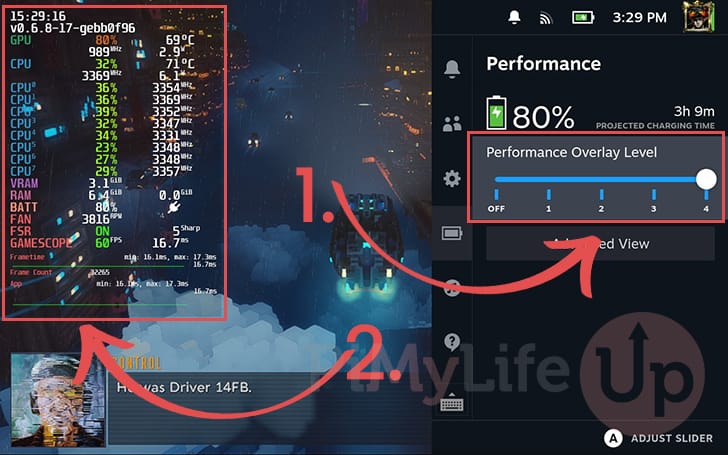
Thermal throttling compounds this issue. Because the CPU and GPU share a single physical die and power budget, thermal spikes force the hardware to downclock frequencies mid-action. When clock rates collapse, your frame delivery graph turns into a jagged sawtooth.
Frame Pacing Math: Why 40 FPS Beats 60 FPS Every Time
Chasing 60 FPS on demanding modern titles often degrades your gameplay experience. The Steam Deck display runs at an 800p resolution (1280 x 800px). Trying to force heavy games to hit 60 frames per second overtaxes the APU, draining the 40Whr battery and generating heat that triggers thermal throttling.
Matching a 40 FPS cap to a 40 Hz display refresh rate is the single most effective baseline tweak for this hardware.
| Target Frame Rate | Frame Time Delivery | Thermal & Battery Impact | Input Latency Profile |
|---|---|---|---|
| 60 FPS Cap | 16.7 ms | Highest thermal strain; severe battery drain on heavy titles | Lowest latency, but difficult to sustain without pacing drops |
| 40 FPS Cap | 25.0 ms | Balanced APU load; prevents aggressive thermal throttling | Midpoint between 30 and 60 FPS; feels remarkably responsive |
| 30 FPS Cap | 33.3 ms | Lowest power draw; maximum operating longevity | Noticeably sluggish control response; sluggish stick panning |
Locking your display refresh rate and frame limiter to 40 gives you half the input latency improvement of 60 FPS while requiring drastically less APU compute overhead.
At 60 FPS, the APU must calculate and push an entire frame every 16.7 milliseconds. Drop that requirement to 40 FPS, and the frame window expands to 25 milliseconds. That extra 8.3 milliseconds gives the Zen 2 CPU and RDNA 2 GPU breathing room to finish pipeline tasks without missing display cycles. The resulting frame delivery line remains flat, eliminating the jarring judder of fluctuating 60-to-45 FPS drops.
Calibrating the SteamOS Quick Access Performance Menu
Valve makes system-level tuning accessible directly through the Quick Access Menu (the physical ... button on the right side of the unit). Instead of letting games run wild, create per-game performance profiles.
Follow these sequential calibration steps inside the Performance menu for any game suffering from frame drops:
- Press the Quick Access (
...) button and navigate to the battery icon menu. - Enable Use per-game profile so your adjustments do not disrupt other titles.
- Adjust the Refresh Rate slider to 40 Hz.
- Set the Framerate Limit slider to match at 40 FPS.
- Scroll down and toggle Thermal Power (TDP) Limit on.
- Adjust the TDP slider between 8W and 12W for mid-tier titles, or keep it at the 15W maximum only for heavy 3D releases.
- Leave Half Rate Shading toggled OFF.
- Set Manual GPU Clock Control to OFF for general gaming, or pin it to 1000MHz when running emulators.
Be cautious with Half Rate Shading. While variable rate shading cuts GPU compute by rendering shading passes at half resolution, it ruins visual presentation. Subtitles, mini-maps, and user interface text become jagged, pixelated, and unreadable. Leave this setting off unless running older titles where text clarity is not a factor.
If you find yourself building out a library of lighter titles that don't push the APU hard, using a digital Steam balance top up makes it straightforward to grab indie games that sit comfortably within low 5W to 7W power envelopes.
The UEFI BIOS Tweak: 4GB UMA Frame Buffer Allocation
Out of the box, SteamOS reserves only 1GB of the 16GB unified LPDDR5 memory pool specifically as VRAM for the graphics processor framebuffer, leaving 15GB assigned to system memory for the CPU. While the operating system dynamically allocates extra RAM to the GPU when needed, that handoff process can cause micro-stutters during heavy texture streaming.
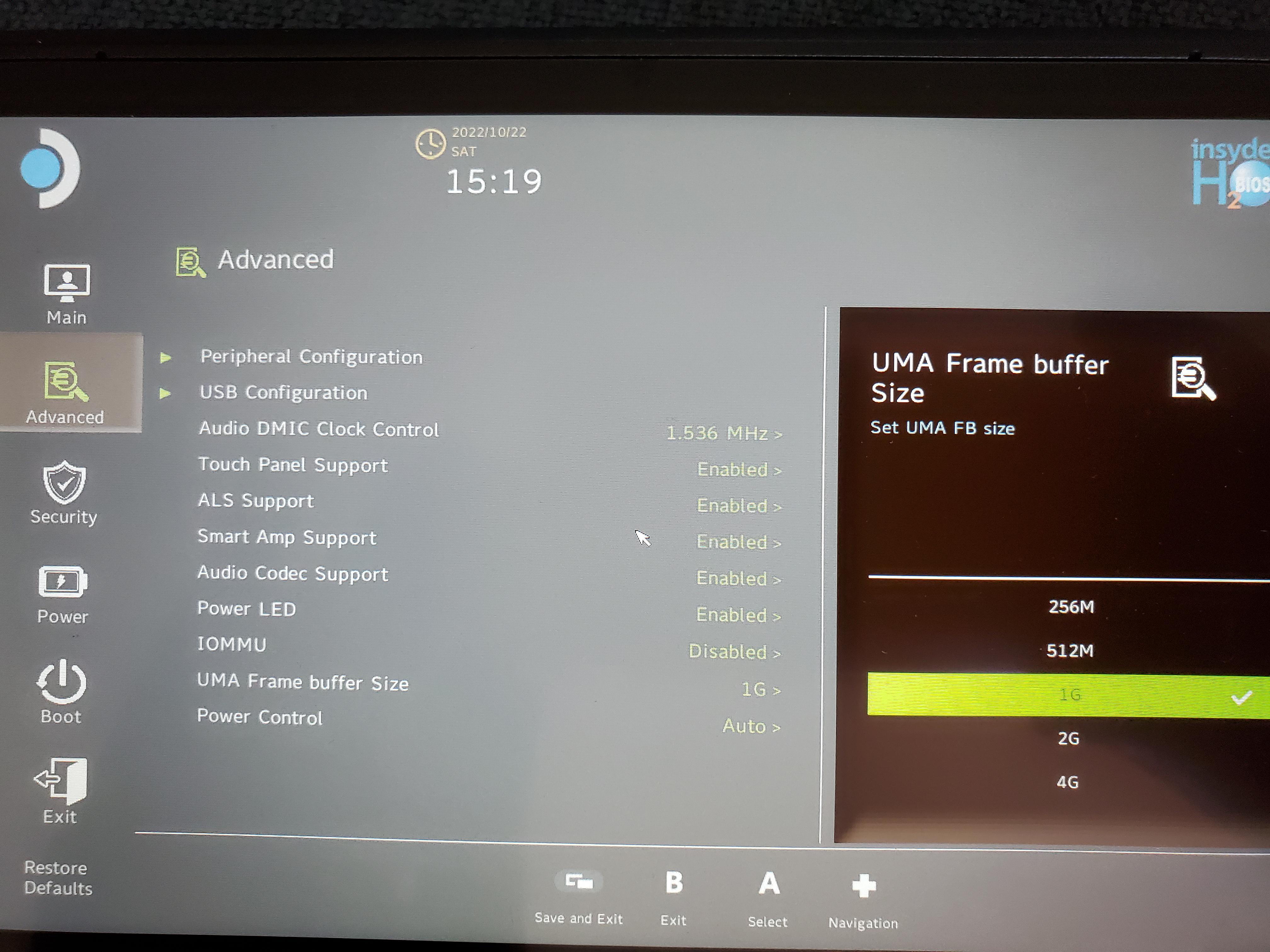
You can raise the reserved VRAM baseline to 4GB directly in the hardware BIOS. To access this menu, shut down your Steam Deck completely. Hold down the Volume Up button and press the Power button once. When you hear the chime, release Volume Up. Select Setup Utility, navigate to the Advanced tab, find UMA Frame Buffer Size, and switch it from 1G to 4G. Press the View button (the two overlapping squares) to save and exit.
| Setting | Default Allocation | Advantages | Documented Disadvantages |
|---|---|---|---|
| Default BIOS (1GB UMA) | 1GB VRAM / 15GB System RAM | Maximizes system RAM for background OS tasks and memory-heavy emulation | Stutters during abrupt high-resolution asset and texture loads |
| Adjusted BIOS (4GB UMA) | 4GB VRAM / 12GB System RAM | Eliminates texture streaming hitches; smoother pacing in high-spec titles | Incompatible with Red Dead Redemption 2; breaks game execution |
Raising the frame buffer establishes a solid foundation for modern games, though specific titles suffer severe compatibility regressions.
One critical exception applies: Red Dead Redemption 2 breaks when UMA Frame Buffer Size is set to 4GB. The game engine mismanages the reallocated memory addresses on the Steam Deck and crashes on launch. If Red Dead Redemption 2 sits permanently in your rotation, stick with the 1GB default. Otherwise, 4GB remains the better baseline for smoothing out frame time spikes.
Engine Glitches and Launch Options That Restore Lost Frames
Proton translation layers and proprietary game engines introduce distinct bottlenecks independent of raw APU throughput.
One persistent conflict involves the SteamOS built-in frame limiter and the Unity engine. In several Unity titles, turning on the Steam Deck system frame limiter causes the engine's internal synchronization to bug out, crashing frame rates down to 40 FPS or lower even when targeting 60. Checking Disable Frame Limit in the Quick Access Performance menu immediately fixes this engine sync bug, restoring performance back up to 54-56 FPS. When this happens, enforce your frame limits through the in-game display settings instead of the SteamOS overlay.
Direct3D 12 titles running via Proton present another frequent hitch. Graphics pipeline translation updates in the VKD3D layer can cause descriptor heap misbehavior, resulting in freezing on launch screens or severe hitching during initial area loads. You can resolve this by adding a targeted launch argument:
- Select the problematic game in your Steam Library and click the Gear icon (Settings).
- Select Properties from the drop-down.
- In the General tab, scroll to the Launch Options field.
- Input the following string:
PROTON_VKD3D_HEAP=1 %command%
This argument forces proper heap behavior, resolving black screens and pipeline hangs in modern Direct3D 12 environments.
Analog stick calibration also changes how smooth a game feels. The default analog stick deadzone on the Steam Deck ships from the factory set to 8,000. This wide deadzone creates an impression of sluggish control latency when panning the camera. Go to Settings > Controller > Calibration & Advanced Settings, and manually lower the deadzone to a range between 2,000 and 3,000. Stick response will immediately feel crisper without causing drift.
Memory Tuning, Swap Files, and the Boot Loop Danger
Linux manages physical memory aggressively, but when memory pools fill up, the kernel shifts data into swap storage on your internal drive. On default SteamOS installations, the swap file is relatively small, which can cause severe frame drops when system memory and VRAM demands peak simultaneously.
Community utilities like CryoUtilities address this by fine-tuning Linux kernel parameters, configuring swappiness, enabling Transparent HugePages, and expanding the swap file up to 16GB. These adjustments keep the OS from choking when RAM reaches its limits.
Exercise caution when resizing the file. Resizing the SteamOS swap file requires sufficient free space on your internal SSD. If you attempt to resize the swap file while your drive is nearly full, a known SteamOS bug triggers a destructive boot loop. The operating system will fail to load, requiring you to boot from an external recovery drive to manually delete files or reinstall SteamOS from scratch. Always verify at least 15GB to 20GB of free internal SSD space before altering swap configurations.
If you want to pick up well-optimized titles that do not place heavy demands on swap storage, redeeming a Steam Gift Card voucher gives you easy access to thousands of verified handheld experiences on the storefront.
Taming the Shader Cache and Proton Prefixes
Steam Shader Pre-Caching is the platform's primary defense against micro-stutters. Using Fossilize, Steam downloads precompiled shader pipelines from Valve servers that were generated during other players' sessions. Because your handheld receives the compiled pipeline data beforehand, the Zen 2 CPU does not have to assemble those shaders on the fly during gameplay.
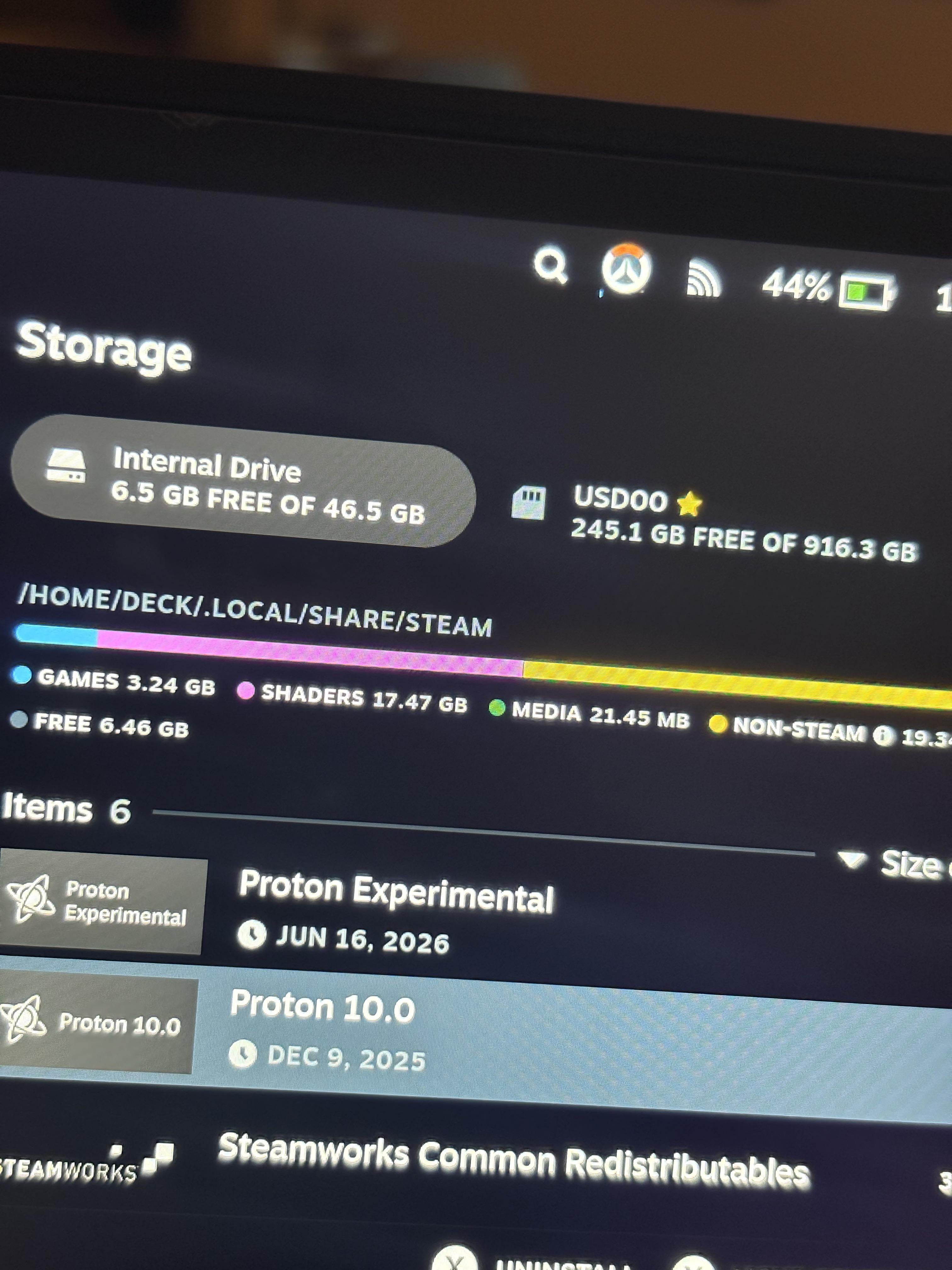
The trade-off is drive bloat, particularly on the base 64GB eMMC model. Shader caches and Proton compatibility prefix folders reside in internal storage under "Other". Over months of installing and removing games, orphan shader collections remain behind, consuming tens of gigabytes of disk space. Purging orphaned cache data using maintenance scripts can instantly recover 7GB to 9.2GB of wasted internal storage, preventing the SSD from filling up and degrading drive write performance.
System modifications like Decky Loader warrant an extra note of caution. While plugins offer convenient tools for cache management, major SteamOS system updates routinely break Decky Loader's hook into the Quick Access Menu. If your plugins disappear after an update, enter Desktop Mode and run the official installer script again, or re-enable CEF remote debugging in Developer Settings.
Handheld Architecture vs Traditional Desktop PC Performance
Optimizing performance on a mobile APU requires a different mindset than configuring a desktop gaming rig. On a desktop PC, components draw unconstrained power from the wall, and parts operate on dedicated channels. On the Steam Deck, every setting you change shifts resources between CPU and GPU workloads.
| Hardware Attribute | Valve Steam Deck Handheld | Standard Mid-Range Desktop PC |
|---|---|---|
| Processing Architecture | Unified AMD APU (4c/8t Zen 2 + RDNA 2) | Discrete CPU and dedicated graphics card |
| Thermal & Power Ceiling | 3W to 15W TDP shared power envelope | 250W to 500W+ independent power supply |
| Memory Structure | 16GB unified LPDDR5 shared dynamically | 16GB-32GB DDR4/DDR5 + 8GB-16GB GDDR VRAM |
| Shader Compilation Behavior | Fossilize pre-cached pipelines via Steam | Local compilation on launch or mid-game |
| Display Constraints | 800p native resolution, 40Whr battery | 1080p / 1440p / 4K native, unlimited wall power |
The shared power and thermal constraints of a handheld APU mean that setting caps and managing power draw directly stabilizes frame pacing, unlike desktop systems that brute-force performance.
On a desktop, running an uncapped frame rate simply means higher power draw and extra heat. On the Steam Deck, leaving frame rates uncapped pushes the APU to its 15W ceiling immediately. The cooling fan ramps up, heat builds across the unified die, and the system throttles frequencies. This forces CPU speeds to collapse right when a demanding scene loads, triggering noticeable stutter. Capping performance preserves the power budget for unexpected asset spikes.
Hardware tweaks extend beyond processors. Lowering your display screen brightness from maximum down to roughly one-third reduces total system power consumption by over 1.5W (dropping baseline 2D game draws from 8.2W down to 6.5W). That saved wattage stays available for the APU, preventing throttling while adding significant battery life.
If you plan to experiment with different genres to see how they behave on low-wattage profiles, adding store credit via a discounted Steam key balance is a simple way to expand your testing library without paying full retail prices.
FAQ
Why does the Steam Deck stutter during the first playthrough of a game?
Stutter occurs when the CPU compiles newly encountered graphics shaders into machine code on demand. Compiling each shader takes 10ms to 100ms, stalling the game engine when hundreds execute simultaneously. Once shaders are compiled and written to your cache, repeated actions run smoothly.
What is the recommended frame rate cap for smooth pacing on Steam Deck?
Locking the system to a 40 FPS cap paired with a 40 Hz refresh rate delivers the best results. This profile yields a consistent 25ms frame pacing delivery, cutting input lag significantly compared to 30 FPS while using far less APU power than 60 FPS.
Should I increase the UMA Frame Buffer Size to 4GB in the BIOS?
Raising the buffer size from 1GB to 4GB helps titles with heavy texture streaming avoid memory allocation stutters. However, games like Red Dead Redemption 2 suffer game-breaking compatibility bugs with 4GB selected, so you must keep the 1GB default if you play that specific title.
What does Half Rate Shading do on the Steam Deck?
Half Rate Shading cuts GPU power draw by rendering pixel shaders at half their native resolution. While it saves battery, it degrades visual clarity and turns in-game text and UI elements blurry and illegible. It is best left turned off.
How does Steam Shader Pre-Caching reduce micro-stutters?
Valve's servers collect and precompile shader pipelines from across the Steam user base using Fossilize. Steam automatically downloads these files before you launch the game, allowing the hardware to load shaders directly from your SSD rather than compiling them during play.
Can third-party utilities like CryoUtilities break my Steam Deck?
CryoUtilities safely adjusts swap files and Linux kernel memory parameters, but resizing the swap file without adequate free storage can trigger a destructive boot loop. Always verify you have at least 15GB to 20GB of free SSD storage before altering system swap configurations.
The Final Verdict on Handheld Fluidity
Chasing maximum frame rates on the Steam Deck is the wrong approach. The fastest path to a stable, stutter-free handheld experience is consistency over raw numbers.
Lock your display refresh rate to 40 Hz, clamp your frame limit to 40 FPS, and set your UMA Frame Buffer Size to 4GB unless you regularly boot up Red Dead Redemption 2. Cap your per-game TDP within the 9W to 12W sweet spot whenever possible to prevent the APU from hitting its thermal ceiling, and always let Steam's shader pre-caching do the heavy lifting before jumping into a session. Dial these settings in, and you will spend far less time watching the performance overlay and far more time enjoying your games.






Comments