Master the arena breakout infinite best settings to push past 120 FPS, strip dark shadows, and spot enemies instantly in every tactical raid.
Winning a firefight in Arena Breakout: Infinite rarely comes down to raw luck. On Armory or Valley, spotting a sniper a split second earlier decides whether you extract with millions in loot or return to the lobby with an empty container. High visual presets might look cinematic, but heavy shadows, dense grass, and post-processing blur create lethal blind spots.
Competitive tuning requires one goal: eliminate input lag and visual noise while keeping maximum character draw distances. Here is how to configure your system for crisp silhouettes, stable framerates, and responsive mouse input.
Display Settings and Resolution Baseline
Dial in your core display setup before adjusting in-game sliders.
Exclusive Fullscreen provides the lowest hardware input latency. If you use Windows 11 and switch monitors often, Windowed Full-Screen offers stable frame delivery without alt-tab crashing.
Always run your monitor's native display resolution. Downscaling blurs distant pixels, making enemy heads impossible to distinguish from background terrain.
On variable refresh rate (VRR) displays using G-Sync or FreeSync, cap your framerate 2 to 5 FPS below your maximum panel refresh rate (141 FPS on 144Hz, or 237 FPS on 240Hz). This prevents standard V-Sync buffers from engaging, eliminating screen tearing without introducing latency spikes.
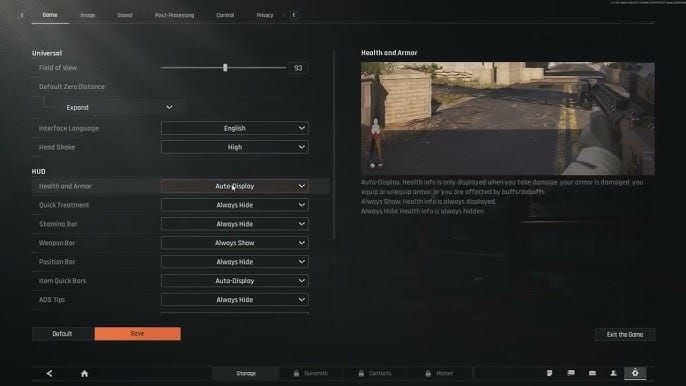


The Competitive Graphics Preset: Slider by Slider
Apply this custom preset to maximize contrast and maintain high refresh rates.
- Screen Mode: Exclusive Fullscreen (or Windowed Full-Screen on Windows 11).
- Resolution: Native monitor resolution.
- Field of View (FOV): 90 to 100.
- Graphics Quality: Custom.
- Shadow Quality: Low or Off.
- Foliage Quality: Low.
- View Distance: High or Quality.
- Anti-Aliasing: Off or FXAA.
- Texture Quality: High (Medium for cards with 8GB VRAM or less).
- Post-Processing: Low or Off.
- Super Sampling / Upscaling: DLSS or FSR set to Quality.
- Frame Generation: Off.
- NVIDIA Reflex / Low Latency: On + Boost.
- Motion Blur & Film Grain: Off.
- In-Game Sharpening: 0.4 to 0.6.
- Brightness: 1.3 to 1.5.
The table below breaks down the tactical impact of each competitive setting.
| Setting | Recommended Value | Tactical Impact & Performance Note |
|---|---|---|
| Shadow Quality | Low or Off | Cuts GPU occlusion draw by 20% to 30%; illuminates dark corners. |
| View Distance | High / Quality | Ensures enemy models render at maximum range; costs 5-8 FPS. |
| Foliage Quality | Low | Strips grass draw distance, revealing prone targets in open fields. |
| Anti-Aliasing | Off or FXAA | Eliminates temporal motion ghosting caused by TAA passes. |
| Post Processing | Low or Off | Disables screen-space bloom and lens flares that obscure sightlines. |
| Super Sampling | DLSS / FSR Quality | Provides high framerate lift while keeping reticle edges crisp. |
| Frame Generation | Disabled | Prevents 10ms to 30ms of added input delay during gunfights. |
| NVIDIA Reflex | On + Boost | Synchronizes CPU and GPU queues to reduce latency by up to 50%. |
| Motion Blur & Grain | Off | Removes camera smearing and visual noise across all light levels. |
Takeaway: Applying these baseline graphics options removes artificial visual clutter while keeping character rendering distances maximized for long-range engagements.
Visibility Tuning: Eliminating Foliage and Shadow Concealment
Dense brush and heavy ambient occlusion conceal stationary targets. On ultra settings, a prone player in tall grass stays invisible until firing. Dropping Foliage Quality to Low cuts grass render distances at medium and long ranges. The ground textures remain intact, but the tall blades disappear, exposing enemy silhouettes in open fields.
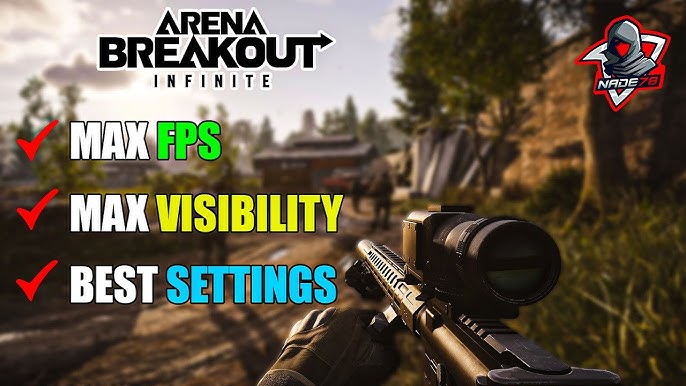
Shadow Quality is equally critical. Setting Shadows to Low or Off boosts framerates by 20% to 30% and lifts deep shadow crush from indoor stairwells, shipping containers, and corridors in Armory and TV Station.
Raise in-game Brightness to 1.3–1.5 (0.2 to 0.4 above default). This illuminates dim corners without washing out outdoor areas. Set Sharpening between 0.4 and 0.6. Values above 0.6 add noisy artifacts around fences and foliage, whereas 0.5 highlights target outlines cleanly.
Field of View (FOV) requires balance. An FOV of 70 makes a 50-meter target look roughly 15% larger on screen than an FOV of 90, but narrow FOVs cause severe tunnel vision. An FOV between 90 and 100 preserves essential peripheral vision for clearing tight angles while keeping center targets easy to track.
To make enemy uniforms stand out further, adjust GPU driver color settings. Setting Digital Vibrance to 65–70% and Gamma to 1.10–1.15 in the NVIDIA Control Panel separates dark clothing from brown and green foliage.
Acquiring elite loadouts and tactical rigs lets you capitalize on these spotting advantages, and stocking up through Arena Breakout: Infinite Bonds gives you the funds needed to build suppressed, high-magnification weapon builds.
System Latency Optimization: NVIDIA Reflex and Frame Pacing
High FPS means little if your setup suffers from frame-time jitter or mouse lag. When a GPU reaches 99% utilization, render frames queue up, generating noticeable input delay.
Enabling NVIDIA Reflex Low Latency (On + Boost) synchronizes CPU execution with the GPU render queue, lowering system latency by up to 50%. In the NVIDIA Control Panel, setting Low Latency Mode to Ultra caps the pre-rendered queue to one frame, shedding approximately 20ms of overall latency.
[Standard Render Pipeline: 3-Frame Queue (~45ms latency)]
CPU Frame 1 -> CPU Frame 2 -> GPU Render -> Display Output

[NVIDIA Reflex / Low Latency Ultra: 1-Frame Immediate (~25ms latency)]
CPU Frame 1 -> Instant GPU Render -> Display Output (Up to 50% Latency Drop)
Frame Generation (DLSS 3 or FSR 3) is a trap in competitive extraction shooters. It generates interpolated frames to pad the FPS counter, but adds 10ms to 30ms of input delay and creates visual smearing around your reticle during rapid flicks. Keep Frame Generation disabled.
Third-party overlays also trigger micro-stuttering. Overlays from Discord, Steam, GeForce Experience, and AMD Radeon hook into the DirectX pipeline. Turning them off prevents frame hitching during sudden gunfights or sector transitions.
Texture Scaling and VRAM Management
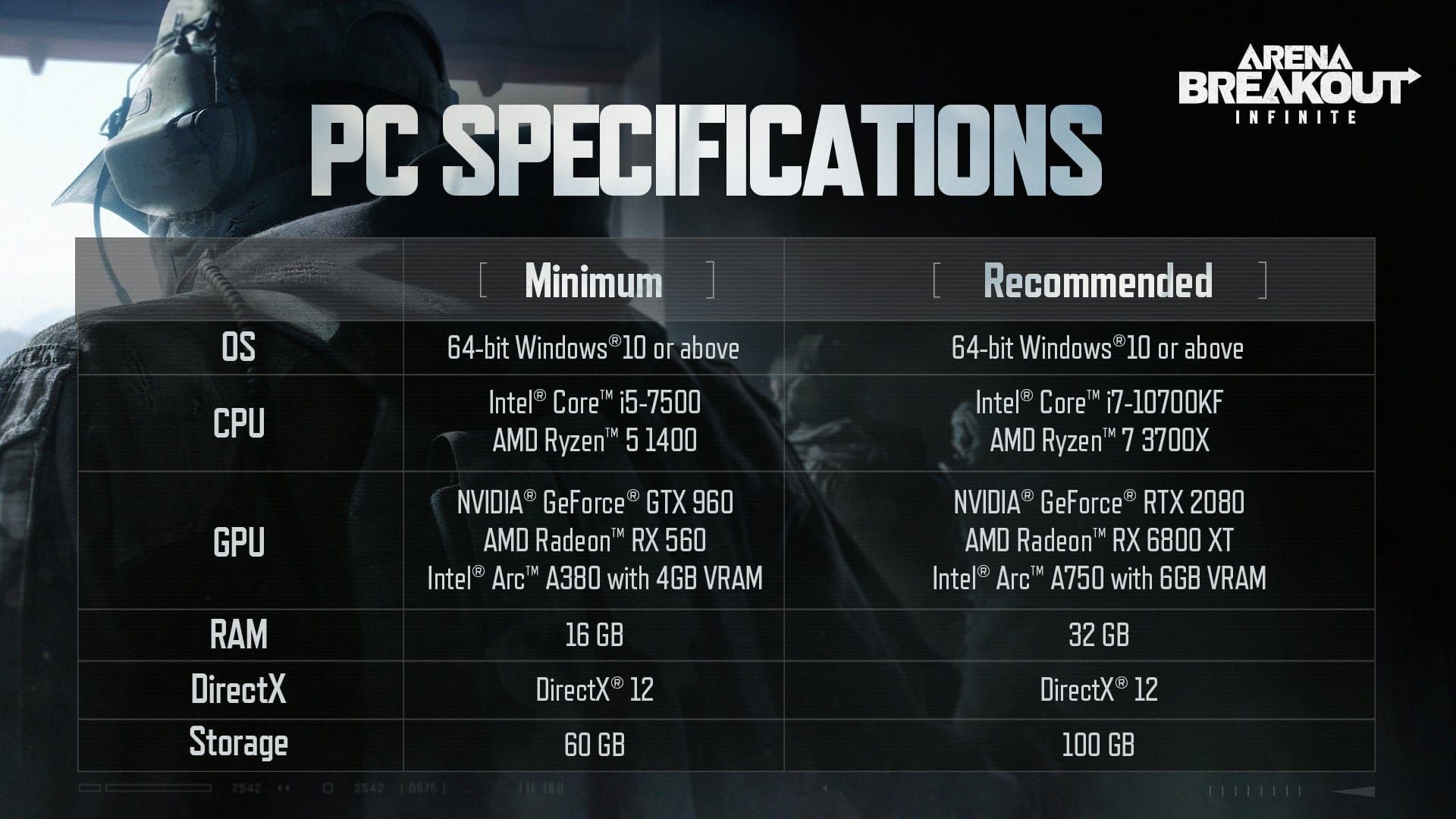
High-resolution texture assets quickly saturate video memory. Exceeding your GPU's physical VRAM forces assets into system RAM, causing harsh frame drops.
Graphics cards with 8GB or less of VRAM must use Low or Medium Texture Quality. Running High textures on an 8GB card causes stutter whenever new character models or equipment render nearby. Systems with 12GB to 16GB of VRAM can safely handle High or Maximum textures.
The table below shows recommended texture configurations based on dedicated VRAM.
| Hardware VRAM Tier | Recommended Texture Setting | Pool Size Configuration | Expected Frame Pacing |
|---|---|---|---|
| 6GB – 8GB VRAM | Basic / Low / Medium | Conservative VRAM allocation | Stable pacing; prevents memory overflow drops. |
| 10GB – 12GB VRAM | High | Standard dynamic streaming | Zero texture thrashing; crisp weapon models. |
| 16GB+ VRAM | Maximum | Uncapped asset cache | Pristine asset rendering at native 1440p / 4K. |
Takeaway: Match texture resolution directly to your physical VRAM capacity to avoid sudden frame drops during intense combat encounters.
Protecting high-tier armor and heavily modded rifles acquired in raid requires tactical preparation, and securing equipment via secure top-ups for Arena Breakout: Infinite ensures your stash remains stocked with key containers and high-penetration ammunition.
Audio Configuration for Footstep and Spatial Clarity
Sound cues reveal flanking routes, weapon reloads, and surface materials well before an opponent enters your sightline. Default audio profiles bury these subtle footsteps under loud music and ambient background noise.
Set Master Music Volume to 20% or lower (or mute it completely) and keep Sound Effects at 100%. Enable 3D Audio or Spatial Audio in the sound menu. This enables binaural directional processing, making it possible to pinpoint footstep height and angle across multi-story buildings.
Audio Mix Setup:
- Master Volume: 100%
- Sound Effects (Footsteps/Gunfire): 100%
- Ambient Sound: 40% - 50%
- UI Volume: 50%
- Music Volume: 0% - 20%
- Spatial / 3D Audio: Enabled
Hardware Scaling and Driver-Level Profiling
Tune your settings to match your graphics card generation. Budget systems should prioritize raw framerate over texture density, while high-tier hardware can maintain high view distances at native resolutions.
The table below outlines target profiles across different hardware brackets.
| Hardware Tier | Target Resolution | Super Sampling Mode | View Distance Setting | Target Framerate |
|---|---|---|---|---|
| Entry-Level (GTX 1660 / RTX 3050) | 1080p | FSR / DLSS Balanced | High | 60 – 80 FPS |
| Mid-Range (RTX 3070 / RX 6700 XT) | 1080p / 1440p | DLSS / FSR Quality | High | 100 – 130 FPS |
| High-End (RTX 4070+ / RX 7800 XT+) | 1440p | DLSS Quality / Native | Quality / Ultra | 140 – 180+ FPS |
Takeaway: Mid-range and high-end rigs should prioritize DLSS or FSR Quality mode to maintain consistent frame delivery without sacrificing long-range spotting clarity.
Running high-tier runs consistently requires ample storage space for valuable extraction loot, and getting Bonds for Arena Breakout: Infinite lets you expand storage cases and secure gear containers effortlessly.
Advanced Unreal Engine Config and Cache Optimization
If micro-stutters persist after adjusting in-game menus, shader compilation or asset streaming is the likely bottleneck.
Unreal Engine compiles shaders on the fly as new visual assets appear. These compilation hitches fade after running each map roughly three times, once weapon models, explosions, and environment shaders are cached. If stutters continue, clear the DirectX Shader Cache in Windows Disk Cleanup to rebuild clean cache files.
For systems with limited RAM, editing Engine.ini improves streaming stability. Adding r.Streaming.PoolSize=0 removes the artificial streaming pool limit, letting the engine allocate VRAM dynamically. Disabling lens flares, screen bloom, and camera motion blur in the config file removes lingering visual smearing during fast mouse turns.
FAQ
What are the best graphics settings for spotting enemies in Arena Breakout Infinite?
Set Foliage and Shadows to Low, View Distance to High, and disable Post-Processing effects like bloom and motion blur. Raise in-game brightness to 1.3-1.5 and sharpness to around 0.4-0.6 for maximum silhouette clarity.
Should I enable Frame Generation for competitive play?
No, Frame Generation should be disabled in competitive raids. It introduces 10-30ms of input latency and visual motion artifacts that hinder responsive aiming.
Why does my game micro-stutter even when my average FPS is high?
Micro-stutter is typically caused by uneven frame pacing, shader compilation, or background overlay interference. Fix it by capping your FPS 2-3 frames below your refresh rate, clearing DirectX shader cache, and disabling third-party overlays.
Does lowering FOV make enemies easier to shoot?
Yes, lower FOV values like 75-80 make center-screen targets appear roughly 15% larger than at 90 FOV. However, an FOV between 90 and 100 remains the competitive sweet spot for balanced peripheral vision.
Which anti-aliasing setting provides the cleanest image in motion?
FXAA or turning Anti-Aliasing completely off provides the sharpest image in motion. TAA smooths jagged edges but introduces smearing and ghosting when tracking moving targets.
Does DLSS or FSR improve visibility in Arena Breakout Infinite?
Quality presets for DLSS or FSR boost frame rates with minimal detail loss when paired with mild sharpening. Avoid Performance or Ultra Performance modes during gunfights because they degrade distant edge clarity.
Why should Foliage Quality always be set to Low?
Low Foliage shortens grass render distances and strips excess vegetation clutter. This causes players attempting to hide prone in fields to stand out clearly on your screen.
Final Tactical Verdict
Treating Arena Breakout: Infinite like a visual showcase costs you gear. Lowering Shadow Quality to Low or Off yields an immediate 20% to 30% FPS gain while illuminating dark interior corners. Dropping Foliage to Low strips away grass concealment, exposing prone targets.
Lock View Distance to High so long-range character models render reliably, keep Frame Generation disabled to prevent input lag, and enable NVIDIA Reflex with a slight brightness boost. With these settings applied, framerates remain stable, sightlines stay clear, and extraction odds improve.






Comments