Tackle combat hitching with this Tarisland PC stutter fix 2026 guide. Tweak engine sliders, driver cache, and CPU loads to hold stable 60+ FPS in big raids.
Ten-player encounters test your mechanical execution and hardware stability simultaneously. Nothing ruins a wipe-recovery pull faster than a three-second freeze right as the boss casts a lethal floor mechanic. Your graphics card is powerful and your connection is solid, yet the moment eight party members trigger burst cooldowns, your frame rate collapses.
This drop is rarely a raw GPU bottleneck. The native PC client calculates dozens of overlapping spell indicators, positional coordinates, and combat states inside dense instances. When those calculations pile up, the engine chokes CPU threads, stalls draw calls, and triggers severe frame time spikes.
Fixing these hitches requires balancing in-game render options, tuning background process priorities, and expanding driver cache storage. Use this blueprint to stabilize frame pacing and eliminate raid stutters in 2026.
Why 10-Player Raids Destroy Your Frame Times
Open-world zones run smoothly on modest hardware, but entering a 10-player raid changes the workload entirely. The game engine must track ten player rotations, complex boss scripts, overlapping ground telegraphs, and continuous damage events in real time.
These combat calculations funnel directly into your processor's primary render thread. During heavy phases, single-core CPU saturation occurs. Your graphics card idles at 40-50% GPU usage while your frame rate drops from 120 FPS down to 35 FPS. The GPU is simply waiting for draw instructions from an overloaded CPU pipeline.
The resulting frame pacing irregularity causes micro-stutters: 50-to-200 millisecond pauses where the screen freezes before jumping forward. In high-tier raiding, that momentary freeze means missing an active dodge window or failing an interrupt check.

60 Crystals
 60 CrystalsUSD 0.70Buy Now
Weekly Ticket
Weekly TicketUSD 0.86Buy NowMonthly Ticket
Monthly TicketUSD 2.54Buy Now330 Crystals
330 CrystalsUSD 3.40Buy Now700 Crystals
700 CrystalsUSD 6.93Buy NowSemiannual Ticket
Semiannual TicketUSD 14.30Buy Now1800 Crystals
1800 CrystalsUSD 16.34Buy Now3600 Crystals
3600 CrystalsUSD 32.73Buy Now7250 Crystals
7250 CrystalsUSD 69.59Buy Now
Tarisland PC Graphics Settings for High FPS and Visual Clarity
Dropping every slider down to Low makes the game muddy and gets your character killed. If you disable spell projections, incoming hazard rings vanish. The goal is removing non-essential geometric calculations while locking combat clarity at maximum visibility.
Preset modes waste performance. The Ultra preset imposes roughly a 40% performance penalty over High settings without delivering a noticeable visual difference during combat. Conversely, dropping environmental clutter and volumetric fog frees compute cycles for spell rendering.
The table below outlines the measured performance impact and combat safety rating for primary graphics options in 10-player raid scenarios.
| Graphic Setting | Recommended Value | FPS Impact | Raid Visibility Impact |
|---|---|---|---|
| Display Mode | Exclusive Fullscreen | High Gain (5-10%) | Essential for frame pacing |
| Shadow Quality | Low / Medium | Very High Gain (15-20%) | Negligible visual loss |
| Particle Density | High / Ultra | Moderate Cost (5-8%) | Critical for boss telegraphs |
| Projected Textures | Enabled | Minor Cost (2-4%) | Mandatory for floor hazards |
| Ground Clutter | Low | High Gain (10-15%) | Cleans up arena floor |
| Dynamic Target FPS | Disabled | Prevents visual judder | Keeps resolution stable |
Lowering geometry complexity while preserving particle density yields the highest stability gain during burst combat phases.
Never enable dynamic target FPS throttling. When combat intensifies, dynamic resolution systems frantically downscale and upscale your internal render target, creating visual blur and erratic frame pacing. Keep render scale at a fixed 100% and let tuned settings carry the load.
DirectX 12 Versus DirectX 11: Tarisland DirectX Frame Drop Settings
API selection determines how Tarisland distributes draw calls across your CPU cores. The choice between DirectX 11 and DirectX 12 hinges on single-thread overhead versus asset compilation consistency.
DirectX 11 funnels rendering commands through a single CPU pipeline, creating severe bottlenecks in crowded instances. DirectX 12 fixes this by spreading draw calls across multi-core processors, achieving an 18% to 50% reduction in CPU overhead. On modern multi-threaded systems, DX12 provides higher peak frame rates.
DX12 has one major drawback: dynamic runtime shader compilation. If the engine fails to compile spell effects before an encounter starts, your client stutters the moment a boss triggers an uncompiled ability. DirectX 11 processes shader pipelines with fewer runtime spikes, but caps out at lower average frame rates.
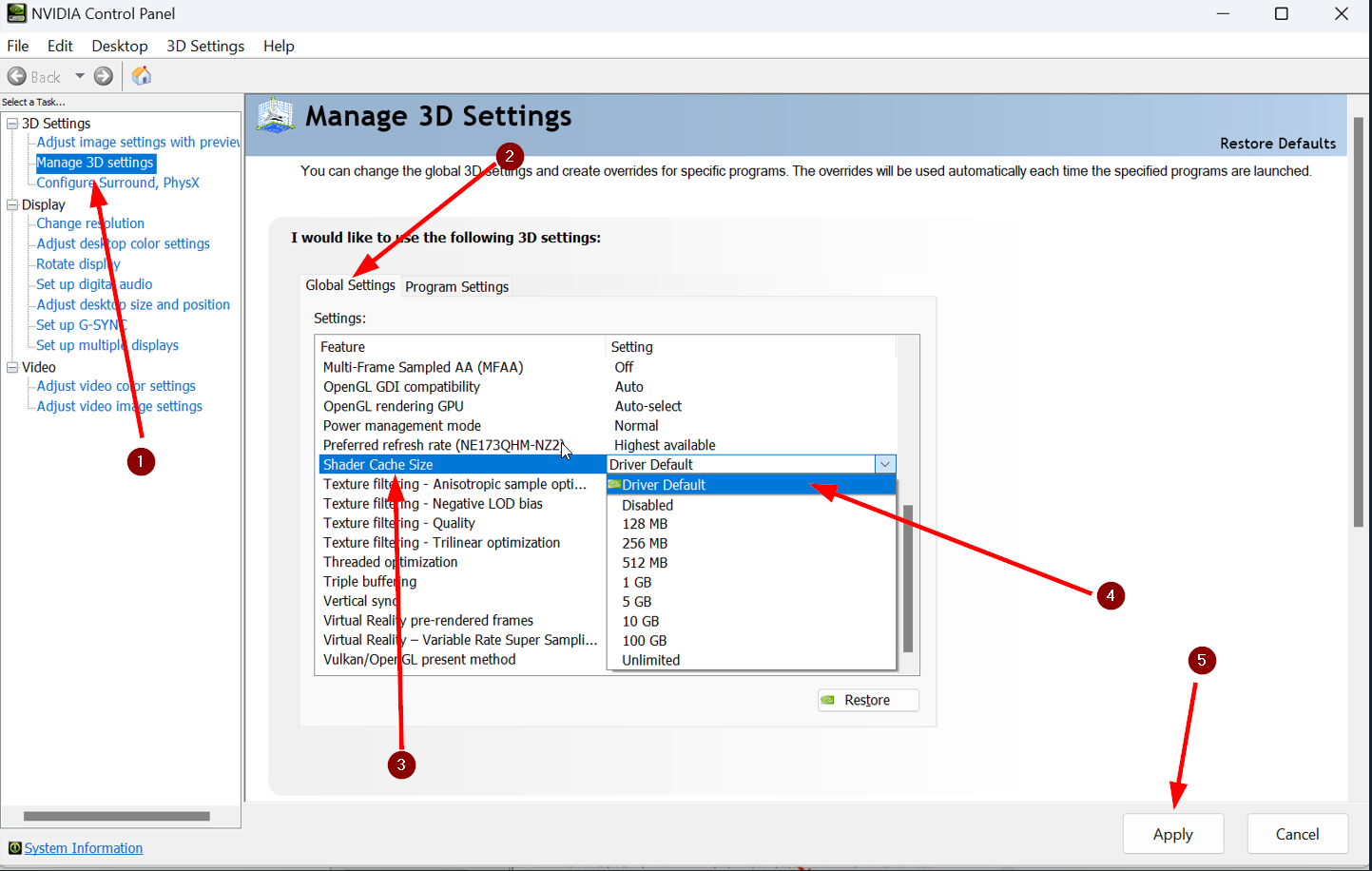
To run DX12 without micro-stutters, expand your driver's shader cache storage:
- Open your GPU control software (NVIDIA Control Panel or AMD Software).
- Navigate to 3D Settings management.
- Locate Shader Cache Size.
- Change the value from "Driver Default" to 10GB or 100GB.
- Apply changes and restart your PC.
Allocating 10GB to 100GB of disk space ensures compiled encounter shaders stay cached on your storage drive permanently, preventing shader-related hitching on subsequent raid pulls.
Tarisland Background CPU Usage Fix and Task Prioritization
Even an optimized client stutters if background desktop tasks steal CPU cycles from the main render thread. Modern communication apps and web browsers consume substantial system memory and processing threads.
Voice apps like Discord running alongside open browser tabs can consume 1 to 5 GB of RAM and 5-10% of active CPU headroom. During a raid burst phase when your processor approaches full thread saturation, a background notification or hardware-accelerated browser animation will trigger an immediate frame drop.
Close all desktop browsers before raiding. Inside Discord or voice software settings, disable Hardware Acceleration so third-party apps stop competing with the game client for GPU queues.
Peripheral software can also introduce stutter. Mouse polling rates set to 4000 Hz or 8000 Hz flood the Windows kernel with thousands of positional interrupts per second. Tarisland's engine struggles with this input volume during camera pans. Set your mouse polling rate to 1000 Hz or lower in your peripheral software to eliminate camera-turn hitches.
If you plan to power up your roster before progressing into higher raid difficulties, securing resources through a trusted Tarisland top-up helps you grab character packs and passes without missing a raid reset.
Windows Tuning, Storage Swapping, and Thermal Management
Operating system settings directly influence how Tarisland streams instance assets and maintains boost clocks. Poor memory management by Windows causes abrupt hitches whenever data swaps between RAM and storage drives.
NVMe Pagefile Configuration
MMORPGs stream character models, textures, and sound files dynamically. If physical RAM fills up, Windows moves data to the virtual paging file. If this pagefile sits on a mechanical drive or a congested partition, asset streaming freezes your game client.
Set your Windows paging file to "System Managed" strictly on your fastest NVMe solid-state drive with at least 20+ GB of free space. This removes streaming stalls when teleporting into raid lobbies or loading phase transitions.
Display Window Manager and HAGS
Always run the native client in Exclusive Fullscreen mode. Borderless Windowed mode forces game frames through the Windows Desktop Window Manager (DWM), which introduces composition latency and pacing variance. Exclusive Fullscreen gives the game direct control over the GPU display pipeline.
Enable Hardware-accelerated GPU scheduling (HAGS) inside Windows Graphics Settings. HAGS delegates VRAM scheduling directly to your graphics card's dedicated processor, trimming driver overhead during dense spell rotations.
Thermal Throttling Thresholds
Stutters that surface 15 minutes into a raid session frequently trace back to thermal limits. Modern processors aggressively throttle clock speeds when core temperatures reach 85°C to 100°C.
Once hardware hits thermal limits, clocks drop by 300-800 MHz to protect components, cutting your frame rate in half for several seconds. Clean heatsinks, verify case airflow, and set custom fan curves to keep CPU temperatures below 80°C during extended sessions.
Network Optimization: Lower Tarisland Ping on PC
Graphical stutter and network desync are distinct issues, though both disrupt raid execution. Network lag spikes cause boss models to rubberband, spell casts to register late, and ground indicators to display after damage registers.
To lower Tarisland ping on PC, switch to a wired connection. Packet loss on Wi-Fi creates input delays that mimic hardware hitching. A direct Cat6 Ethernet cable ensures steady packet delivery without queue drops.
Inside your GPU driver settings, enable Low Latency Mode (set to "Ultra" for NVIDIA or "Radeon Anti-Lag" for AMD). This reduces the pre-rendered frame queue by 10 to 30 ms, minimizing the delay between pressing an ability key and seeing the animation execute.
When organizing progression groups, stock up on necessary supply crates via quick Tarisland recharges on arctopup so your character remains raid-ready for scheduled guild clears.
Native Client Hardware Baseline Versus Android Emulation
If your PC struggles to maintain smooth frame rates after full optimization, verify that your hardware meets the native client's operational demands. The PC build offers high fidelity, but it requires substantial processing power.
For low-spec rigs, running the mobile client via an Android emulator like BlueStacks serves as a lightweight alternative. You lose high-resolution texture assets and native UI scaling, but the emulator demands far fewer system resources.
The table below contrasts the system footprints of the native PC build against the emulator workaround.
| Specification Component | Native PC Client Requirement | Android Emulator Baseline |
|---|---|---|
| Operating System | Windows 10 / 11 64-bit | Windows 10 / 11 64-bit |
| Minimum Processor | Intel Core i7-9th Gen / AMD Ryzen 3700 | Basic Dual-Core / Quad-Core CPU |
| Dedicated Graphics | NVIDIA RTX 2060 / AMD RX 5700 XT | Integrated Graphics / Entry GPU |
| System Memory (RAM) | 16 GB | 4 GB |
| Storage Footprint | 30 GB SSD Space | 5 GB Disk Space |
| Primary Performance Bottleneck | CPU Single-Thread & Shader Compilation | Virtualization Overhead & Frame Pacing |
Running native PC provides the best visual fidelity, while emulator setups bypass high hardware requirements on entry-level machines.
If your machine meets or exceeds an RTX 2060, Ryzen 3700, and 16GB of RAM, stick to the native PC client. The native build ensures better mouse response, proper keybindings, and crisp UI rendering that emulators lack.
Step-by-Step Configuration Routine Before Raid Night
Apply these exact slider configurations in the in-game settings menu to lock down a stable 60+ FPS profile for 10-player raids:
- Set Display Mode to Exclusive Fullscreen at your monitor's native resolution.
- Set Frame Rate Limit to match your monitor refresh rate (60, 120, or 144 FPS) to prevent erratic frame spikes.
- Turn Shadow Quality down to Low or Medium.
- Set Particle Effects to High (ensures mechanic circles remain crisp).
- Keep Projected TexturesEnabled.
- Drop Ground Clutter / Foliage to Low.
- Set View Distance to Medium (raid arenas are enclosed; extreme view distance wastes draw calls).
- Set Anti-Aliasing to TAA or SMAA (avoid heavy supersampling modes).
- Turn Motion Blur and Depth of FieldOff (improves target tracking and saves GPU cycles).
- Disable Dynamic Target FPS / Auto Resolution.
The table below summarizes this balanced configuration profile for raiding.
| In-Game Setting Slider | Recommended Value | Deviation Rule |
|---|---|---|
| Resolution Scaling | 100% Native | Drop to 90% only on extreme low-end GPUs |
| Shadow Quality | Low | Bump to Medium if lighting looks too flat |
| Particle Density | High | Never set to Low (hides enemy mechanics) |
| Special Effects Quality | Medium | Set to High on high-end graphics cards |
| Environmental Detail | Medium | Drop to Low if CPU usage exceeds 90% |
| Post-Processing | Low / Off | Keep off to maximize visual sharpness |
This profile preserves 100% of combat-critical visual data while eliminating decorative rendering waste.
If you want to unlock cosmetic weapon appearances or premium raid passes before pulling the next tier boss, check the arctopup Tarisland deals to top up your account balance quickly.
FAQ
Why does my PC stutter during 10-player raids even with a high-end graphics card?
Raids place heavy computational load on your CPU to calculate combat state and spell positions, leaving the GPU underutilized. Optimizing CPU-bound settings and closing background tasks resolves this bottleneck.
Which graphics settings give the biggest FPS boost without hiding raid mechanics?
Lowering shadow quality, environmental detail, and ground clutter yields the highest performance gains. Always keep particle density and spell telegraphs high so danger zones remain visible.
How does increasing the GPU shader cache size fix stuttering?
Expanding the shader cache to 10GB or higher allows your driver to store precompiled shaders locally. This eliminates the runtime compilation freezes that occur when new boss abilities trigger.
Should I run the game in Fullscreen or Borderless Windowed mode?
Use exclusive Fullscreen mode whenever possible to eliminate Desktop Window Manager overhead. This provides the most consistent frame pacing and lowest input latency in heavy combat.
Can a high mouse polling rate cause in-game stuttering?
Yes, polling rates above 1000 Hz can flood the CPU with input interrupts that game engines struggle to process. Lowering your mouse software polling rate to 1000 Hz or 500 Hz stops camera-rotation hitching.
What should I do if my PC cannot meet the native PC client system requirements?
You can run the mobile version of the game on PC through an Android emulator like BlueStacks. This drastically reduces hardware requirements down to 4GB of RAM and basic integrated graphics.
Final Raid Performance Verdict
Eliminating raid stutter in Tarisland requires removing CPU draw call bottlenecks so your graphics card operates without pipeline stalls.
Lock display output to Exclusive Fullscreen, dial back shadows and ground clutter to Low, and expand your GPU shader cache to at least 10GB. Keep particle density and projected textures on High to track encounter mechanics reliably. With background software trimmed and mouse polling capped at 1000 Hz, your frame times will flatten into a consistent baseline for smooth clears in 2026.






Comments