Compare Clash Royale 120 FPS vs 60 to stop battery drain, cut input lag, and dial in the best graphics settings for high-stakes competitive ladder matches.
In high-stakes Clash Royale matches, a single Goblin Barrel placement or a split-second Zap timing decides whether your crown tower stands or falls. Input responsiveness matters. Yet pushing uncapped frame rates generates chassis heat, drains the battery rapidly, and risks triggering thermal throttling in double overtime.
Choosing between 120 FPS and 60 FPS is a direct trade between raw frame responsiveness and hardware stability.
The Core Tradeoff: Frame Latency vs Thermal Load
Running Clash Royale at 120 FPS cuts frame render intervals in half. At standard 60 FPS, the phone generates a new visual frame every 16.7 milliseconds; at 120 FPS, that window drops to 8.3 milliseconds.
This reduction directly lowers touch input latency from 9–11ms at 60 FPS down to 4–6ms at 120 FPS. That ~5ms delta will not alter server-side network ticks, but card dragging and deployment snaps feel instantaneous. Eye-tracking motion blur also drops by 50%, cutting visual smear on fast-moving units from roughly 16 pixels down to 8 pixels during rapid camera shifts.
The penalty is continuous GPU load. While Clash Royale does not drain 10% to 35% battery in 30 to 45 minutes like unoptimized 3D titles, rendering twice as many frames keeps GPU clocks elevated, converting extra power into heat.
| Performance Metric | 60 FPS Baseline | 120 FPS High Refresh Rate |
|---|---|---|
| Frame Render Time | 16.7 ms per frame | 8.3 ms per frame |
| Typical Input Latency | 9–11 ms | 4–6 ms (~5 ms faster) |
| Motion Smear (960 px/s) | ~16 px visual smear | ~8 px visual smear (50% reduction) |
| GPU Render Load | Baseline profile | 2× render workload |
| Thermal Impact | Minimal heat buildup | Noticeable warmth over long sessions |
Takeaway: 120 FPS delivers genuine input and visual clarity improvements, but it doubles GPU workload and generates significantly more heat during long sessions.

6000 Grumpy Medals
 6000 Grumpy MedalsUSD 16.19Buy Now
2600 Grumpy Medals
2600 Grumpy MedalsUSD 8.09Buy Now750 Grumpy Medals
750 Grumpy MedalsUSD 2.42Buy Now14000Gems
14000GemsUSD 80.97Buy Now6500Gems
6500GemsUSD 40.48Buy Now2500Gems
2500GemsUSD 16.19Buy Now1200Gems
1200GemsUSD 8.09Buy Now500Gems
500GemsUSD 4.04Buy Now80Gems
80GemsUSD 0.80Buy NowGold Pass
Gold PassUSD 5.66Buy NowEvent Pass
Event PassUSD 4.04Buy Now
How Refresh Rate and Rendering Impact Battery Drain
The display panel and GPU draw the most power during gameplay. Running 120 FPS on a 120Hz screen keeps both at peak draw. Capping the display refresh rate to 60Hz and locking the frame rate extends battery runtime by 20% to 35%.
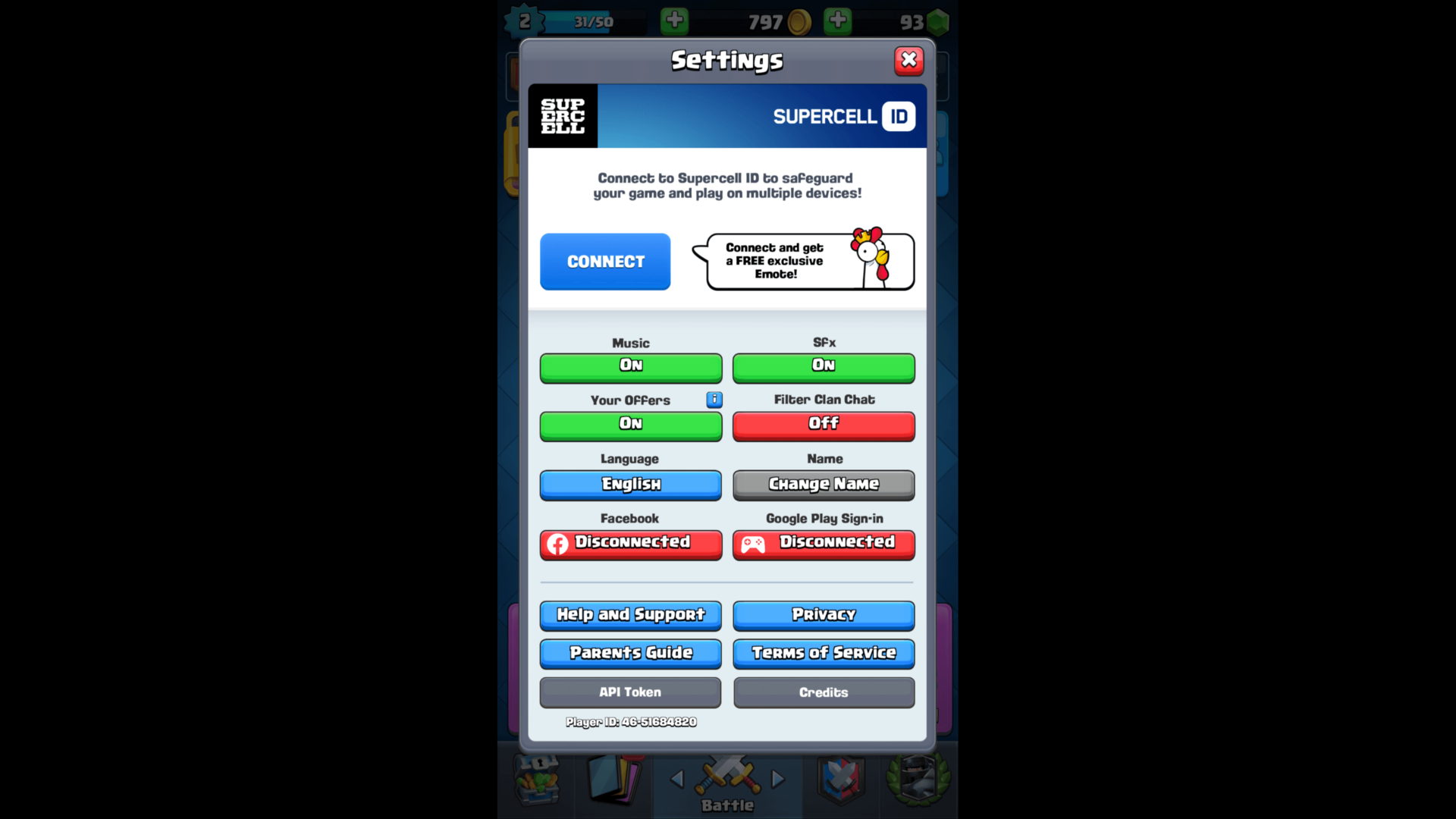
Android Game Mode power profiling shows that halving frame targets—stepping down from 120 FPS to 60 FPS or 40 FPS—cuts GPU power draw by up to 50% and reduces total system power by 20%. That difference keeps the phone below the critical 35°C (95°F) internal thermal threshold.
Operating past 35°C accelerates chemical battery degradation and triggers hardware throttling. When the thermal governor steps in, CPU and GPU clock speeds drop instantly, causing mid-match frame drops. Players pushing trophies often buy Clash Royale gems to level up their card evolutions, but an unexpected stutter during sudden death costs trophies no matter your card levels.
Display Mechanics: Refresh Rate (Hz) vs Render Output (FPS)
Display refresh rate and GPU frame rate operate independently:
- Refresh Rate (Hz): The number of times per second the physical screen panel redraws its image.
- Frame Rate (FPS): The number of completed game frames the graphics processor renders per second.
When a 120Hz screen runs Clash Royale at 60 FPS, it shows every frame twice. This avoids extra GPU strain, but provides no input latency improvement. Rendering 120 FPS onto a 60Hz screen does the reverse: it burns battery calculating frames the panel cannot physically display.
Mobile game engines, including Unity builds, typically default frame targets to 60 FPS or 30 FPS unless developers explicitly enable high-refresh properties and remove vSync limits. Android 15 includes system-level toggles to disable default frame rate caps for games, though engines declaring hardcoded rates via the setFrameRate API will override those system toggles.
Platform Performance Differences: iOS, Android, and PC
Hardware behavior varies significantly across mobile and desktop operating systems.
On iOS devices with ProMotion displays, the operating system dynamically scales the panel between 10Hz and 120Hz. However, activating iOS Low Power Mode immediately locks the screen to 60Hz and cuts processor clock speeds. This introduces micro-stutters when multiple swarm units clash at the bridge.
On Android, OEM skins dictate whether the game runs at 120Hz natively or drops to 60Hz. Some users rely on display configuration tools to force 90 FPS or 120 FPS modes. On PC via Google Play Games, baseline standards require at least 60 FPS or uncapped frame rates alongside 4K resolution output and a 2GB dedicated graphics buffer.
| Feature / Condition | iOS (ProMotion) | Android 10+ | Google Play Games (PC) |
|---|---|---|---|
| Max Native Refresh | Up to 120Hz | Up to 120Hz / 144Hz | Uncapped (Monitor dependent) |
| Low Power Mode Impact | Forces 60Hz cap & throttles clocks | Drops frame rate via Game Mode | Not applicable (Desktop power) |
| Frame Rate Control | Managed by iOS / in-game engine | System overrides / Game Space | Windows display & driver settings |
| Thermal Throttling Risk | Moderate during long sessions | High if uncapped past 35°C | Negligible with active cooling |
| Resolution Scalability | Fixed Retina target | Native / Dynamic resolution | 1080p, 1440p, up to 4K support |
Takeaway: Desktop and high-end mobile platforms handle high frame rates smoothly, but mobile operating systems will throttle graphics if power-saving modes are active.
How to Enable 120 FPS and Fix Locked Frame Rates
To get native high refresh rates when Clash Royale appears stuck at 60 FPS, check these system configurations:
- Verify Display Refresh Settings: Open system settings, go to Display, and set refresh rate to High, Dynamic, or 120Hz instead of Standard (60Hz).
- Disable Battery Saver Modes: Turn off iOS Low Power Mode or Android Battery Saver before launching the app. Power saving locks rendering to 60Hz.
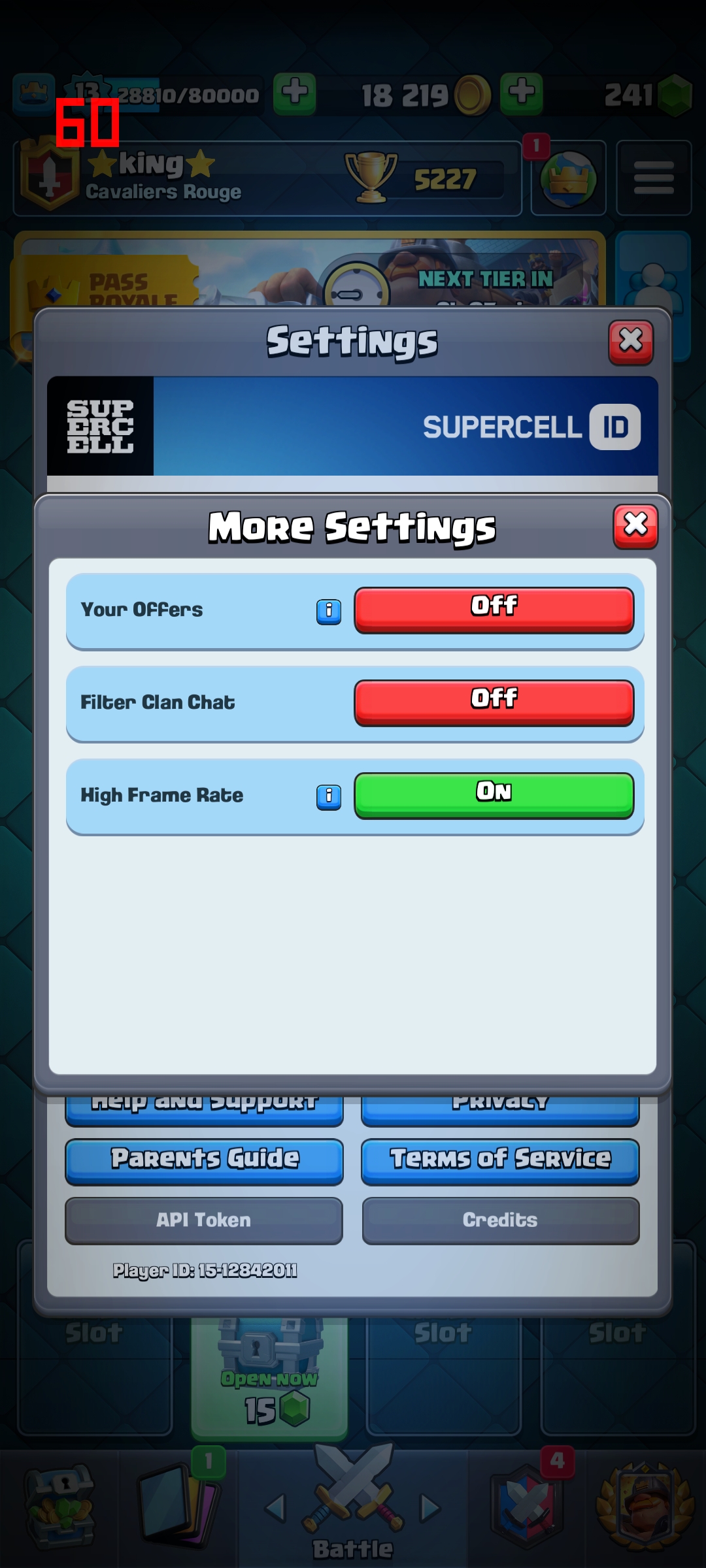
- Configure In-Game Graphics: In Clash Royale, open Settings, select Graphics, and set the frame rate toggle to High or Max.
- Adjust Game Booster Profiles: On Android, open your device Game Booster software, set the profile to Performance, and manually assign 120 FPS to Clash Royale.
- Check Android 15 Developer Settings: If using Android 15, open Developer Options to inspect frame rate override settings if your device supports system property switching.
- Clear App Cache on Thermal Lock: If the phone has overheated, allow it to cool below 35°C, clear the game cache, and reboot to reset thermal governor limits.
Visual Clarity Settings: Screen Shake and Effect Toggles
High frame rates sharpen unit motion, but visual clutter can negate those benefits. Game engines frequently trigger directional screen shake and 100ms hit-stop pauses when towers sustain heavy damage or spells land.
A 3px screen shake provides tactile impact, but it creates momentary visual disruption. During complex multi-lane defenses—such as defending a Graveyard while answering an opposite-lane Lumberjack push—screen shake impairs precise card targeting.
Lowering graphics quality to Low or Medium and disabling non-essential screen effects reduces GPU strain and removes visual noise. Removing heavy spell animations lets you read troop paths, deployment rings, and tile counts cleanly during long tournament runs.
Players climbing ladder often top up gems for Clash Royale upgrades to keep card stats aligned with high-level mechanics. Pairing high card levels with clean visual settings gives you consistent ladder execution.
Recommended Graphics Profiles for Ladder and Extended Grinds
Target settings should reflect your session type: quick ladder pushes demand maximum precision, while two-hour mastery grinds need battery longevity.
Setting graphics to Low or Medium while keeping high frame rates active offers quick touch response without excessive heat buildup. Disabling background location services, turning off auto-sync, and fixing screen brightness prevents battery drain during extended play.
| Setting Option | Competitive Ladder Profile | Battery Saver / Endurance Grinding |
|---|---|---|
| Target Frame Rate | 120 FPS (High / Max) | 60 FPS (Standard Cap) |
| Graphics Quality | Medium | Low |
| Screen Shake / Effects | Disabled (Off) | Disabled (Off) |
| System Power Mode | High Performance (Saver Off) | Standard Mode (Avoid severe throttle) |
| Screen Brightness | Fixed comfortable level (50–60%) | Auto-brightness or lower fixed setting |
| Expected GPU Power Drain | Full workload | Up to 50% lower GPU power draw |
Takeaway: Use 120 FPS with disabled screen effects for short competitive ladder pushes; switch to 60 FPS on Medium/Low graphics for extended play sessions.
Common Optimization Traps and Power Myths
Several common battery-saving tips circulating on mobile forums degrade gameplay performance.
The most counterproductive habit is playing with Low Power Mode turned on. While intended to keep the device cool, Low Power Mode aggressively down-clocks processor cores. When double or triple elixir begins and both lanes fill with troops, the throttled processor drops inputs and stutters.
Third-party FPS unlockers also cause issues. Tools modifying background system configurations promise universal 120 FPS rendering. If the game engine has hardcoded frame caps, these apps keep the screen panel running at 120Hz while the game renders at 60 FPS—wasting battery without reducing input latency.
Before starting a challenge run, picking up a Clash Royale gem top-up covers Grand Challenge entries, but stable native device settings ensure the hardware performs under pressure.
Frequently Asked Questions
Does running Clash Royale at 120 FPS give a competitive advantage over 60 FPS?
Yes, 120 FPS cuts frame latency from 16.7ms down to 8.3ms, making card dragging and spell placement feel noticeably snappier. However, it does not alter server-side tick rates or troop placement mechanics.
How much more battery does 120 FPS consume compared to 60 FPS?
Running at 120 FPS roughly doubles the GPU rendering workload, increasing power draw and heat output during long sessions. Capping your frame rate at 60 FPS can save up to 50% GPU power on mobile hardware.
Should I keep Low Power Mode on while playing ladder matches?
No, you should disable Low Power Mode before starting competitive matches. Low Power Mode throttles CPU and GPU clock speeds, which forces high-refresh screens down to 60Hz and can trigger frame drops during heavy elixir pushes.
What are the best in-game graphic settings to save battery in Clash Royale?
Set Graphics Quality to Low or Medium and turn off extra screen effects to minimize GPU load. Keeping your frame rate capped at 60 FPS gives you the best balance between fluid response and battery life.
Why does my phone overheat during long gaming sessions?
Rendering high frame rates pushes your phone's processor to work continuously, causing internal temperatures to climb past 35°C (95°F). When this happens, the operating system throttles hardware performance to protect the battery, causing lag spikes.
Can third-party FPS unlocker apps force 120 FPS if my device is locked?
Some system configuration tools can unlock higher frame rates on certain devices, but they cannot override hardcoded internal engine caps. Modifying system files can also create game instability, so using native display settings is always safer.
Does disabling screen shake improve gameplay clarity?
Yes, turning off screen shake eliminates camera jarring during heavy spell impacts and tower hits. This gives you a stable view of the arena, making it easier to track swarms and time placements accurately.
Final Verdict: When to Run 120 FPS on Ladder
For competitive ladder pushes, Clan Wars, or 12-win Grand Challenge attempts, turn 120 FPS on. The 5ms input latency drop and halved frame time provide the sharpest card response available on mobile hardware. Turn off screen shake and extra effects to keep the arena visually clear.
For mastery farming, casual 2v2 matches, or extended chest unlocks, cap frame rates at 60 FPS. The minor latency gain does not justify rapid battery discharge or pushing phone temps past 35°C where thermal throttling occurs. Match your settings to your session, keep the device cool, and maintain consistent timing on ladder.






Comments