Learn where to find Mobile Legends user ID and zone ID on your profile screen in seconds. Avoid top-up errors by reading your account numbers correctly.
Step-by-Step Guide to MLBB Zone ID Location and User ID
Finding your identification numbers takes under 30 seconds once you know where the interface displays them. The main lobby puts your profile access directly in the upper-left corner.
Follow these steps from the main game menu:
- Launch Mobile Legends: Bang Bang and load into the main lobby.
- Tap your profile avatar in the upper-left corner of the home screen.
- Stay on the default Basic Info tab.
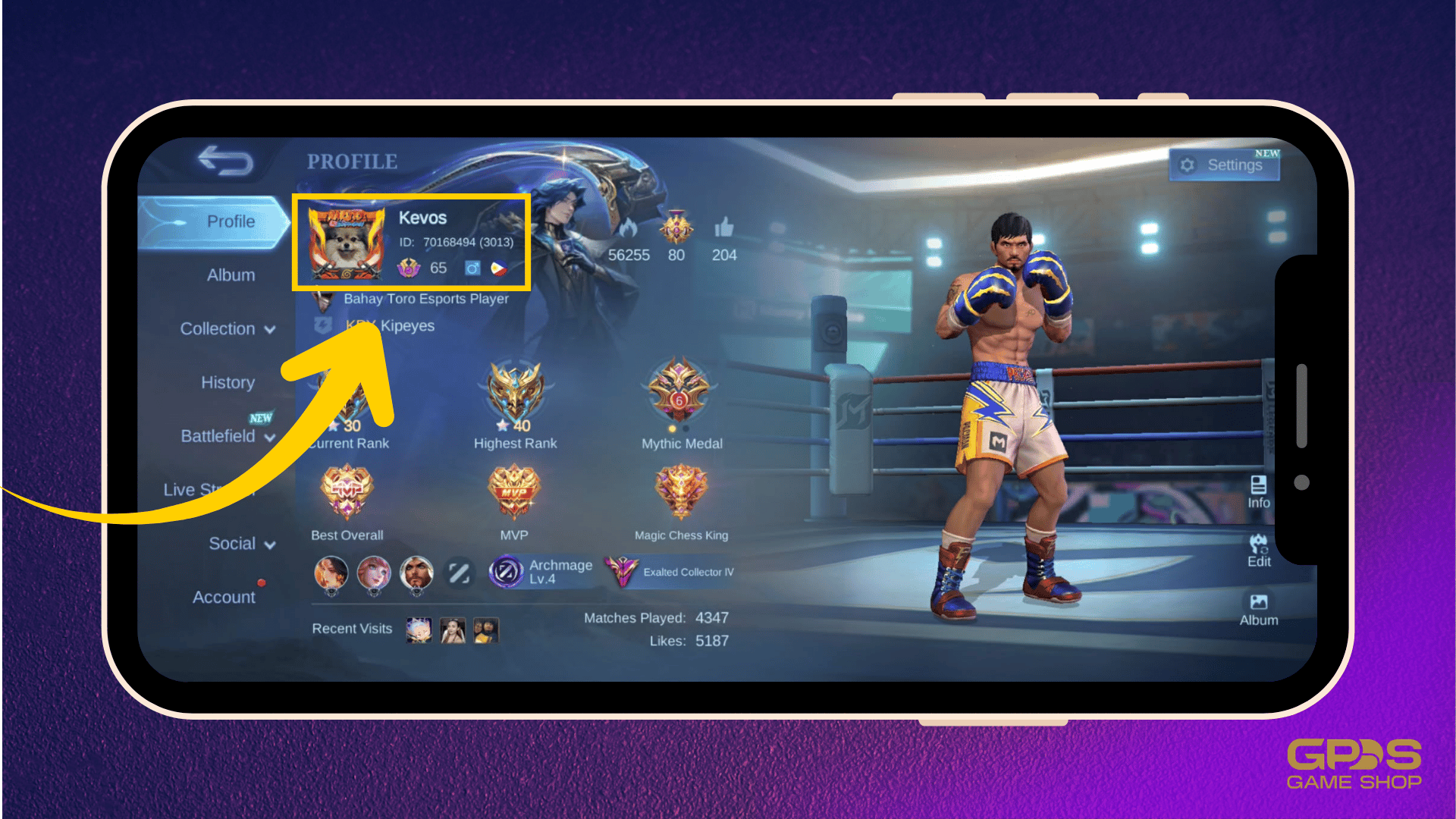
- Look at the upper-right section of your profile card, directly underneath your in-game nickname (IGN).
- Locate the numeric string formatted as
User ID (Zone ID)—for example,123456789 (1234).
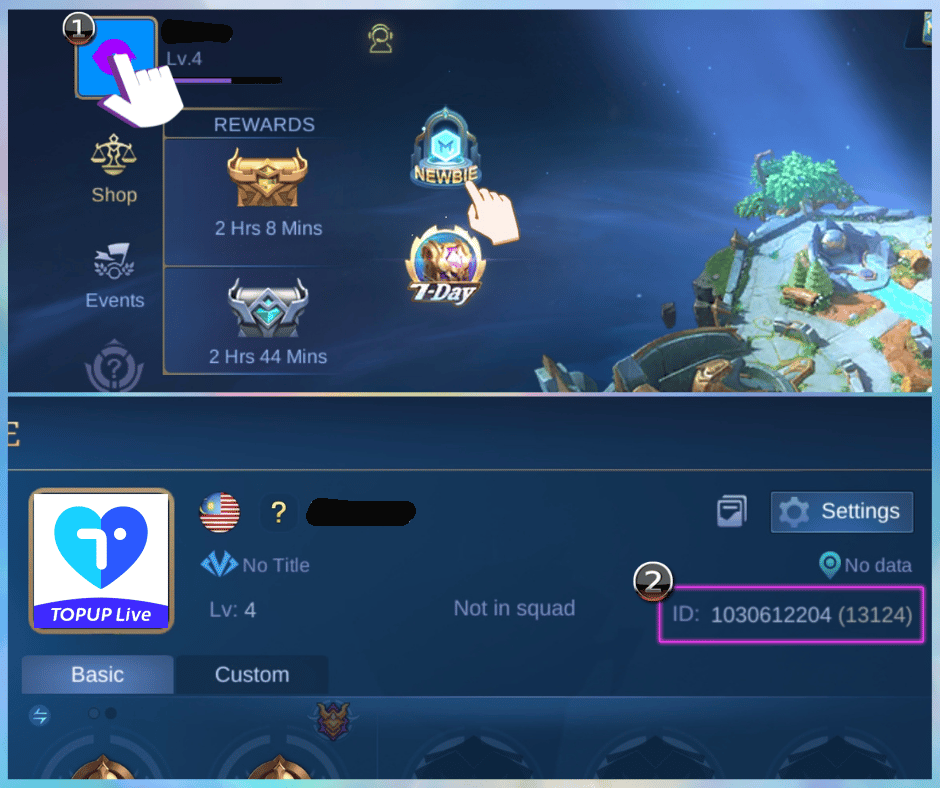
That string contains two distinct account parameters. The longer sequence standing outside the brackets is your primary User ID. The smaller sequence enclosed inside the parentheses is your Zone ID (often labeled as Server ID). You need both numbers to verify account ownership, submit customer assistance tickets, or buy in-game currency.

42 Diamonds
 42 DiamondsUSD 0.68Buy Now
70 Diamonds
70 DiamondsUSD 1.12Buy NowWeekly DiamondPass (Event Topup+100)
Weekly DiamondPass (Event Topup+100)USD 1.91Buy Now284 Diamonds
284 DiamondsUSD 4.48Buy Now569 Diamonds
569 DiamondsUSD 8.94Buy Now716 Diamonds
716 DiamondsUSD 11.21Buy Now1446 Diamonds
1446 DiamondsUSD 22.36Buy Now1730 Diamonds
1730 DiamondsUSD 26.84Buy Now2976 Diamonds
2976 DiamondsUSD 44.73Buy Now4422Diamonds
4422DiamondsUSD 67.20Buy Now6668 Diamonds
6668 DiamondsUSD 100.89Buy Now7502 Diamonds
7502 DiamondsUSD 111.89Buy Now86 Diamonds
86 Diamonds USD 0.92Buy NowWeekly Diamond Pass (Brazil)
Weekly Diamond Pass (Brazil)USD 1.19Buy Now172 Diamonds
172 DiamondsUSD 1.85Buy NowWeekly Diamond Pass 2x
Weekly Diamond Pass 2xUSD 2.37Buy Now257 Diamonds
257 Diamonds USD 2.77Buy NowWeekly Diamond Pass 3x
Weekly Diamond Pass 3xUSD 3.55Buy Now344 Diamonds
344 DiamondsUSD 3.71Buy Now429 Diamonds
429 DiamondsUSD 4.62Buy NowWeekly Diamond Pass 4x
Weekly Diamond Pass 4xUSD 4.73Buy Now516 Diamonds
516 DiamondsUSD 5.55Buy Now600 Diamonds
600 Diamonds USD 6.47Buy Now706 Diamonds
706 DiamondsUSD 7.40Buy Now792 Diamonds
792 Diamonds USD 8.33Buy Now878 Diamonds
878 Diamonds USD 9.24Buy Now963 Diamonds
963 Diamonds USD 10.17Buy Now1050 Diamonds
1050 DiamondsUSD 11.10Buy Now1135 Diamonds
1135 DiamondsUSD 12.02Buy Now1220 Diamonds
1220 Diamonds USD 12.97Buy Now1346 Diamonds
1346 Diamonds USD 13.87Buy Now1412 Diamonds
1412 DiamondsUSD 14.80Buy Now1669 Diamonds
1669 Diamonds USD 17.56Buy Now1.825 Diamonds
1.825 Diamonds USD 18.49Buy Now1.926 Diamonds
1.926 DiamondsUSD 20.34Buy Now2014 Diamonds
2014 Diamonds USD 21.26Buy Now2195 Diamonds
2195 Diamonds USD 22.19Buy Now2901 Diamonds
2901 DiamondsUSD 29.57Buy Now3.688 Diamonds
3.688 DiamondsUSD 36.96Buy Now5.532 Diamonds
5.532 DiamondsUSD 55.43Buy Now9.288 Diamonds
9.288 DiamondsUSD 92.39Buy NowGlobal-86 Diamonds (78 + 8 Bonus)
Global-86 Diamonds (78 + 8 Bonus)USD 1.04Buy NowGlobal-70 Diamonds ( 64 + 6 Bonus )
Global-70 Diamonds ( 64 + 6 Bonus )USD 1.04Buy NowGlobal-Weekly Pass
Global-Weekly Pass USD 1.29Buy NowGlobal-112 Diamonds ( 102 + 10 Bonus )
Global-112 Diamonds ( 102 + 10 Bonus )USD 1.76Buy NowGlobal-150+150 Diamonds
Global-150+150 DiamondsUSD 1.96Buy NowGlobal-140 Diamonds
Global-140 DiamondsUSD 2.16Buy NowGlobal-172 Diamonds (156 + 16 Bonus)
Global-172 Diamonds (156 + 16 Bonus)USD 2.04Buy NowGlobal-Weekly Pass x2
Global-Weekly Pass x2USD 2.58Buy NowGlobal-223 Diamonds ( 203 + 20 Bonus )
Global-223 Diamonds ( 203 + 20 Bonus )USD 3.49Buy NowGlobal-257 Diamonds (234 + 23 Bonus)
Global-257 Diamonds (234 + 23 Bonus)USD 2.98Buy NowGlobal-250+250 Diamonds
Global-250+250 DiamondsUSD 3.14Buy NowGlobal-Monthly Epic Bundle (Available Once a Month)
Global-Monthly Epic Bundle (Available Once a Month)USD 3.29Buy NowGlobal-Weekly Pass x3
Global-Weekly Pass x3USD 3.87Buy NowGlobal-284 Diamonds
Global-284 DiamondsUSD 4.16Buy NowGlobal-336 Diamonds ( 303 + 33 Bonus )
Global-336 Diamonds ( 303 + 33 Bonus )USD 5.31Buy NowGlobal-344 Diamonds (312 + 32 Bonus)
Global-344 Diamonds (312 + 32 Bonus)USD 4.09Buy NowGlobal-355 Diamonds
Global-355 DiamondsUSD 5.22Buy NowGlobal-429 Diamonds ( 390 + 40 Bonus )
Global-429 Diamonds ( 390 + 40 Bonus )USD 5.12Buy NowGlobal-Weekly Pass x4
Global-Weekly Pass x4USD 5.16Buy NowGlobal-514 Diamonds(468 + 46 Bonus)
Global-514 Diamonds(468 + 46 Bonus)USD 5.96Buy NowGlobal-Weekly Pass x5
Global-Weekly Pass x5USD 6.44Buy NowGlobal-500+500 Diamonds
Global-500+500 DiamondsUSD 6.45Buy NowGlobal-570 Diamonds ( 504 + 66 Bonus )
Global-570 Diamonds ( 504 + 66 Bonus )USD 7.84Buy NowGlobal-Twilight Pass
Global-Twilight PassUSD 6.75Buy NowGlobal-Weekly Pass x6
Global-Weekly Pass x6USD 7.73Buy NowGlobal-706 Diamonds (625 + 81 Bonus)
Global-706 Diamonds (625 + 81 Bonus)USD 8.05Buy NowGlobal-716 Diamonds
Global-716 Diamonds USD 10.26Buy NowGlobal-963 Diamonds(859 + 104 Bonus)
Global-963 Diamonds(859 + 104 Bonus)USD 11.03Buy NowGlobal-1050 Diamonds(937 + 113 Bonus)
Global-1050 Diamonds(937 + 113 Bonus)USD 12.13Buy NowGlobal-1163 Diamonds ( 1007 + 156 Bonus )
Global-1163 Diamonds ( 1007 + 156 Bonus )USD 18.25Buy NowGlobal-1084 Diamonds
Global-1084 DiamondsUSD 15.20Buy NowGlobal-1446 Diamonds ( 1296 + 150 Bonus )
Global-1446 Diamonds ( 1296 + 150 Bonus )USD 16.98Buy NowGlobal-1770 Diamonds (1589 + 181 Bonus)
Global-1770 Diamonds (1589 + 181 Bonus)USD 21.00Buy NowGlobal-2195 Diamonds (1860 + 335 Bonus)
Global-2195 Diamonds (1860 + 335 Bonus)USD 24.36Buy NowGlobal-2398 Diamonds ( 2015 + 383 Bonus )
Global-2398 Diamonds ( 2015 + 383 Bonus )USD 36.49Buy NowGlobal-2539 Diamonds(2172 + 367 Bonus)
Global-2539 Diamonds(2172 + 367 Bonus)USD 28.45Buy NowGlobal-2901 Diamonds(2485 + 416 Bonus)
Global-2901 Diamonds(2485 + 416 Bonus)USD 32.41Buy NowGlobal-2976 Diamonds (2655 + 321 Bonus)
Global-2976 Diamonds (2655 + 321 Bonus)USD 34.18Buy NowGlobal-3688 Diamonds (3099 + 589 Bonus)
Global-3688 Diamonds (3099 + 589 Bonus)USD 40.64Buy NowGlobal-4165 Diamonds(3527 + 635 Bonus)
Global-4165 Diamonds(3527 + 635 Bonus)USD 46.60Buy NowGlobal-4394 Diamonds(3724 + 670 Bonus)
Global-4394 Diamonds(3724 + 670 Bonus)USD 48.69Buy NowGlobal-5532 Diamonds (4649 + 883 Bonus)
Global-5532 Diamonds (4649 + 883 Bonus)USD 61.37Buy NowGlobal-6046 Diamonds(5117 + 929 Bonus)
Global-6046 Diamonds(5117 + 929 Bonus)USD 67.33Buy NowGlobal-6238 Diamonds(5274 + 964 Bonus)
Global-6238 Diamonds(5274 + 964 Bonus)USD 69.42Buy NowGlobal-7182 Diamonds(6132 + 1050 Bonus)
Global-7182 Diamonds(6132 + 1050 Bonus)USD 80.50Buy NowGlobal-7502 Diamonds (6429 + 1073 Bonus)
Global-7502 Diamonds (6429 + 1073 Bonus)USD 84.16Buy NowGlobal-7727 Diamonds(6509 + 1218 Bonus)
Global-7727 Diamonds(6509 + 1218 Bonus)USD 85.73Buy NowGlobal-9288 Diamonds (7740 + 1548 Bonus)
Global-9288 Diamonds (7740 + 1548 Bonus)USD 101.93Buy NowGlobal-12189 Diamonds(10225 + 1964 Bonus)
Global-12189 Diamonds(10225 + 1964 Bonus)USD 134.33Buy NowGlobal-12976 Diamonds(10839 + 2137 Bonus)
Global-12976 Diamonds(10839 + 2137 Bonus)USD 142.57Buy NowGlobal-14820 Diamonds(12389 + 2431 Bonus)
Global-14820 Diamonds(12389 + 2431 Bonus)USD 163.30Buy NowGlobal-18576 Diamonds(15483 + 3096 Bonus)
Global-18576 Diamonds(15483 + 3096 Bonus)USD 203.85Buy Now71 Diamonds (64 + 7 Bonus)
71 Diamonds (64 + 7 Bonus)USD 1.07Buy Now74 Diamonds (67 + 7 Bonus)
74 Diamonds (67 + 7 Bonus)USD 1.20Buy Now85 Diamonds (77 + 8 Bonus)
85 Diamonds (77 + 8 Bonus)USD 1.24Buy NowWeekly Diamond Pass
Weekly Diamond PassUSD 1.55Buy Now110 Diamonds (100 + 10 Bonus)
110 Diamonds (100 + 10 Bonus)USD 1.49Buy Now113 Diamonds (102 + 11 Bonus)
113 Diamonds (102 + 11 Bonus)USD 1.67Buy Now132 Diamonds (120 + 12 Bonus)
132 Diamonds (120 + 12 Bonus)USD 1.95Buy Now144 Diamonds (130 + 14 Bonus)
144 Diamonds (130 + 14 Bonus)USD 2.12Buy Now148 Diamonds (134 + 14 Bonus)
148 Diamonds (134 + 14 Bonus)USD 2.18Buy Now170 Diamonds (154 + 16 Bonus)
170 Diamonds (154 + 16 Bonus)USD 2.48Buy Now300 Diamonds (150 + 150 Bonus) Frist Topup
300 Diamonds (150 + 150 Bonus) Frist TopupUSD 2.43Buy NowWeekly Diamond Pass 2x
Weekly Diamond Pass 2xUSD 3.10Buy Now2x Weekly Diamond Pass
2x Weekly Diamond PassUSD 3.10Buy Now229 Diamonds (207 + 22 Bonus)
229 Diamonds (207 + 22 Bonus)USD 3.36Buy Now240 Diamonds (217 + 23 Bonus)
240 Diamonds (217 + 23 Bonus)USD 3.50Buy Now255 Diamonds (231 + 24 Bonus)
255 Diamonds (231 + 24 Bonus)USD 3.73Buy Now277 Diamonds (250 + 27 Bonus)
277 Diamonds (250 + 27 Bonus)USD 4.07Buy Now284 Diamonds (254 + 30 Bonus)
284 Diamonds (254 + 30 Bonus)USD 4.16Buy NowMonthly Elite Bundle
Monthly Elite BundleUSD 4.13Buy Now296 Diamonds (256 + 40 Bonus)
296 Diamonds (256 + 40 Bonus)USD 4.31Buy Now301 Diamonds
301 DiamondsUSD 4.39Buy NowWeekly Diamond Pass 3x
Weekly Diamond Pass 3xUSD 4.64Buy Now3x Weekly Diamond Pass
3x Weekly Diamond PassUSD 4.64Buy Now340 Diamonds (308 + 32 Bonus)
340 Diamonds (308 + 32 Bonus)USD 4.96Buy Now370 Diamonds (333 + 37 Bonus)
370 Diamonds (333 + 37 Bonus)USD 5.50Buy Now408 Diamonds (367 + 41 Bonus)
408 Diamonds (367 + 41 Bonus)USD 5.93Buy Now436 Diamonds (392 + 44 Bonus)
436 Diamonds (392 + 44 Bonus)USD 6.35Buy Now4x Weekly Diamond Pass
4x Weekly Diamond PassUSD 6.18Buy Now466 Diamonds (410 + 56 Bonus)
466 Diamonds (410 + 56 Bonus)USD 6.80Buy Now493 Diamonds (444 + 49 Bonus)
493 Diamonds (444 + 49 Bonus)USD 7.16Buy Now510 Diamonds (462 + 48 Bonus)
510 Diamonds (462 + 48 Bonus)USD 7.44Buy Now536 Diamonds (473 + 63 Bonus)
536 Diamonds (473 + 63 Bonus)USD 7.82Buy Now5x Weekly Diamond Pass
5x Weekly Diamond PassUSD 7.72Buy Now568 Diamonds (503 + 65 Bonus)
568 Diamonds (503 + 65 Bonus)USD 8.06Buy NowTwilight Pass
Twilight PassUSD 8.37Buy Now1000 Diamonds (500 + 500 Bonus) Frist Topup
1000 Diamonds (500 + 500 Bonus) Frist TopupUSD 8.14Buy Now648 Diamonds (584 + 64 Bonus)
648 Diamonds (584 + 64 Bonus)USD 9.43Buy Now704 Diamonds (623 + 81 Bonus)
704 Diamonds (623 + 81 Bonus)USD 10.24Buy Now720 Diamonds (651 + 69 Bonus)
720 Diamonds (651 + 69 Bonus)USD 10.50Buy Now789 Diamonds (700 + 89 Bonus)
789 Diamonds (700 + 89 Bonus)USD 11.48Buy Now816 Diamonds (734 + 82 Bonus)
816 Diamonds (734 + 82 Bonus)USD 11.85Buy Now875 Diamonds (774 + 101 Bonus)
875 Diamonds (774 + 101 Bonus)USD 12.35Buy Now903 Diamonds (799 + 104 Bonus)
903 Diamonds (799 + 104 Bonus)USD 12.77Buy Now934 Diamonds (827 + 107 Bonus)
934 Diamonds (827 + 107 Bonus)USD 13.22Buy Now960 Diamonds (851 + 109 Bonus)
960 Diamonds (851 + 109 Bonus)USD 13.58Buy Now1000 Diamonds (879 + 121 Bonus)
1000 Diamonds (879 + 121 Bonus)USD 14.55Buy Now1045 Diamonds (928 + 117 Bonus)
1045 Diamonds (928 + 117 Bonus)USD 14.83Buy Now1115 Diamonds (991 + 124 Bonus)
1115 Diamonds (991 + 124 Bonus)USD 15.85Buy Now1136 Diamonds (1006 + 130 Bonus)
1136 Diamonds (1006 + 130 Bonus)USD 16.11Buy Now1171 Diamonds (1030 + 141 Bonus)
1171 Diamonds (1030 + 141 Bonus)USD 16.66Buy Now1283 Diamonds (1141 + 142 Bonus)
1283 Diamonds (1141 + 142 Bonus)USD 18.27Buy Now1368 Diamonds (1218 + 150 Bonus)
1368 Diamonds (1218 + 150 Bonus)USD 19.51Buy Now1453 Diamonds (1295 + 158 Bonus)
1453 Diamonds (1295 + 158 Bonus)USD 20.75Buy Now1523 Diamonds (1358 + 165 Bonus)
1523 Diamonds (1358 + 165 Bonus) USD 21.78Buy Now1691 Diamonds (1508 + 183 Bonus)
1691 Diamonds (1508 + 183 Bonus) USD 24.20Buy Now1704 Diamonds (1509 + 195 Bonus)
1704 Diamonds (1509 + 195 Bonus)USD 24.16Buy Now1750 Diamonds (1548 + 202 Bonus)
1750 Diamonds (1548 + 202 Bonus)USD 24.69Buy Now1835 Diamonds (1625 + 210 Bonus)
1835 Diamonds (1625 + 210 Bonus)USD 25.93Buy Now2010 Diamonds (1708 + 302 Bonus)
2010 Diamonds (1708 + 302 Bonus)USD 26.96Buy Now2625 Diamonds (2322 + 303 Bonus)
2625 Diamonds (2322 + 303 Bonus)USD 32.18Buy Now4020 Diamonds (3416 + 604 Bonus)
4020 Diamonds (3416 + 604 Bonus)USD 53.91Buy Now4830 Diamonds (4003 + 827 Bonus)
4830 Diamonds (4003 + 827 Bonus)USD 64.69Buy Now6030 Diamonds (5124 + 906 Bonus)
6030 Diamonds (5124 + 906 Bonus)USD 80.86Buy Now8040 Diamonds (6832 + 1208 Bonus)
8040 Diamonds (6832 + 1208 Bonus)USD 107.81Buy Now9660 Diamonds (8006 + 1654 Bonus)
9660 Diamonds (8006 + 1654 Bonus)USD 129.38Buy Now14490 Diamonds (12009 + 2481 Bonus)
14490 Diamonds (12009 + 2481 Bonus)USD 194.07Buy Now20100 Diamond
20100 DiamondUSD 240.51Buy Now20130 Diamond
20130 DiamondUSD 241.56Buy Now21330 Diamond
21330 DiamondUSD 254.53Buy Now27864 Diamond
27864 DiamondUSD 334.25Buy Now30990 Diamonds
30990 DiamondsUSD 361.44Buy Now70 Diamonds
70 DiamondsUSD 1.09Buy Now112 Diamond ( 102 + 10 Bonus )
112 Diamond ( 102 + 10 Bonus )USD 1.60Buy NowWeekly Diamond Pass
Weekly Diamond PassUSD 1.67Buy Now140 Diamonds
140 Diamonds USD 2.17Buy Now168 Diamonds
168 DiamondsUSD 2.58Buy NowWeekly Diamond Pass x2
Weekly Diamond Pass x2USD 3.35Buy NowMonthly Epic Bundle
Monthly Epic BundleUSD 4.04Buy Now284 Diamonds
284 DiamondsUSD 4.16Buy NowMalaysia-278 Diamonds ( 254 + 26 Bonus )
Malaysia-278 Diamonds ( 254 + 26 Bonus )USD 3.93Buy Now278 Diamonds
278 DiamondsUSD 4.23Buy Now355 Diamonds
355 DiamondsUSD 5.22Buy NowWeekly Diamond Pass x3
Weekly Diamond Pass x3USD 5.01Buy Now429 Diamonds
429 DiamondsUSD 6.29Buy NowWeekly Diamond Pass x4
Weekly Diamond Pass x4USD 6.69Buy Now569 Diamonds
569 DiamondsUSD 7.84Buy Now571 Diamonds ( 521 + 53 Bonus )
571 Diamonds ( 521 + 53 Bonus )USD 7.84Buy NowWeekly Diamond Pass x5
Weekly Diamond Pass x5USD 8.35Buy NowTwilight Pass
Twilight PassUSD 9.09Buy Now716 Diamonds
716 DiamondsUSD 10.26Buy Now1192 Diamonds
1192 Diamonds USD 15.70Buy Now1048 Diamonds (940 + 108 Bonus)
1048 Diamonds (940 + 108 Bonus)USD 16.31Buy Now1085 Diamonds
1085 DiamondsUSD 15.40Buy Now1136 Diamonds (1016 + 120 Bonus)
1136 Diamonds (1016 + 120 Bonus)USD 17.17Buy Now1220 Diamonds (1092 + 128 Bonus)
1220 Diamonds (1092 + 128 Bonus)USD 18.59Buy Now1358 Diamonds (1221 + 137 Bonus)
1358 Diamonds (1221 + 137 Bonus)USD 20.75Buy Now1412 Diamonds (1270 + 142 Bonus)
1412 Diamonds (1270 + 142 Bonus)USD 21.60Buy Now1446 Diamonds
1446 DiamondsUSD 19.30Buy Now1506 Diamonds (1348 + 158 Bonus)
1506 Diamonds (1348 + 158 Bonus)USD 22.91Buy Now1788 Diamonds
1788 Diamonds USD 23.61Buy Now1584 Diamonds (1409 + 175 Bonus)
1584 Diamonds (1409 + 175 Bonus)USD 24.01Buy Now1669 Diamonds (1493 + 176 Bonus)
1669 Diamonds (1493 + 176 Bonus)USD 25.29Buy Now1704 Diamonds (1522 + 182 Bonus)
1704 Diamonds (1522 + 182 Bonus)USD 25.95Buy Now1730 Diamonds
1730 DiamondsUSD 23.84Buy Now1841 Diamonds (1649 + 192 Bonus)
1841 Diamonds (1649 + 192 Bonus)USD 28.08Buy Now1875 Diamonds (1635 + 240 Bonus)
1875 Diamonds (1635 + 240 Bonus)USD 28.70Buy Now1926 Diamonds (1720 + 206 Bonus)
1926 Diamonds (1720 + 206 Bonus)USD 29.19Buy Now2010 Diamonds (1760 + 250 Bonus)
2010 Diamonds (1760 + 250 Bonus)USD 30.19Buy Now2380 Diamonds (2089 + 291 Bonus)
2380 Diamonds (2089 + 291 Bonus)USD 35.83Buy Now3005 Diamonds
3005 DiamondsUSD 39.23Buy Now2976 Diamonds
2976 Diamonds USD 40.05Buy Now3606 Diamonds
3606 Diamonds USD 46.79Buy Now3692 Diamonds ( 3134 + 558 Bonus )
3692 Diamonds ( 3134 + 558 Bonus )USD 54.05Buy Now4810 Diamonds
4810 Diamonds USD 62.77Buy Now4422 Diamonds ( 3753 + 669 Bonus )
4422 Diamonds ( 3753 + 669 Bonus )USD 64.80Buy Now4416 Diamonds ( 3781 + 635 Bonus )
4416 Diamonds ( 3781 + 635 Bonus )USD 64.60Buy Now4851 Diamonds ( 4136 + 715 Bonus )
4851 Diamonds ( 4136 + 715 Bonus )USD 71.29Buy Now5952 Diamonds ( 5002 + 950 Bonus )
5952 Diamonds ( 5002 + 950 Bonus )USD 79.69Buy Now6012 Diamonds ( 5066 + 956 Bonus )
6012 Diamonds ( 5066 + 956 Bonus )USD 78.46Buy Now6668 Diamonds (5635 + 1033 Bonus)
6668 Diamonds (5635 + 1033 Bonus)USD 97.29Buy Now7502 Diamonds
7502 DiamondsUSD 99.04Buy NowWeekly Diamond Pass
Weekly Diamond PassUSD 1.56Buy Now112 Diamonds ( 102 + 10 Bonus )
112 Diamonds ( 102 + 10 Bonus )USD 1.53Buy Now168 Diamonds ( 153 + 15 Bonus )
168 Diamonds ( 153 + 15 Bonus )USD 2.30Buy Now150 + 150 Bonus
150 + 150 BonusUSD 2.30Buy NowWeekly Diamond Pass x2
Weekly Diamond Pass x2USD 3.04Buy Now223 Diamonds ( 203 + 20 Bonus )
223 Diamonds ( 203 + 20 Bonus )USD 3.08Buy NowMonthly Elite Bundle
Monthly Elite BundleUSD 3.80Buy Now279 Diamonds ( 254 + 25 Bonus )
279 Diamonds ( 254 + 25 Bonus )USD 3.95Buy Now250 + 250 Bonus
250 + 250 BonusUSD 3.83Buy Now301 Diamonds ( 274 + 27 Bonus )
301 Diamonds ( 274 + 27 Bonus )USD 4.28Buy NowWeekly Diamond Pass x3
Weekly Diamond Pass x3USD 4.56Buy Now336 Diamonds ( 303 + 33 Bonus )
336 Diamonds ( 303 + 33 Bonus )USD 4.46Buy NowWeekly Diamond Pass x4
Weekly Diamond Pass x4USD 6.08Buy NowWeekly Diamond Pass x5
Weekly Diamond Pass x5USD 7.60Buy Now570 Diamonds ( 504 + 66 Bonus )
570 Diamonds ( 504 + 66 Bonus )USD 7.44Buy NowTwilight Pass
Twilight Pass USD 7.56Buy Now500 + 500 Bonus
500 + 500 BonusUSD 7.72Buy Now626 Diamonds ( 555 + 71 Bonus )
626 Diamonds ( 555 + 71 Bonus )USD 8.45Buy Now669 Diamonds ( 609 + 60 Bonus )
669 Diamonds ( 609 + 60 Bonus )USD 9.23Buy Now682 Diamonds ( 606 + 76 Bonus )
682 Diamonds ( 606 + 76 Bonus )USD 9.23Buy Now738 Diamonds ( 657 + 81 Bonus )
738 Diamonds ( 657 + 81 Bonus )USD 9.98Buy Now849 Diamonds ( 758 + 91 Bonus )
849 Diamonds ( 758 + 91 Bonus )USD 11.52Buy Now906 Diamonds ( 807 + 99 Bonus )
906 Diamonds ( 807 + 99 Bonus )USD 12.29Buy Now1018 Diamonds ( 909 + 109 Bonus )
1018 Diamonds ( 909 + 109 Bonus )USD 13.83Buy Now1163 Diamonds ( 1007 + 156 Bonus )
1163 Diamonds ( 1007 + 156 Bonus )USD 14.87Buy Now1733 Diamonds ( 1511 + 222 Bonus )
1733 Diamonds ( 1511 + 222 Bonus )USD 23.05Buy Now2398 Diamonds ( 2015 + 383 Bonus )
2398 Diamonds ( 2015 + 383 Bonus )USD 29.72Buy Now3561 Diamonds ( 3022 + 539 Bonus )
3561 Diamonds ( 3022 + 539 Bonus )USD 46.08Buy Now4131 Diamonds ( 3526 + 605 Bonus )
4131 Diamonds ( 3526 + 605 Bonus )USD 53.77Buy Now5132 Diamonds ( 4333 + 799 Bonus )
5132 Diamonds ( 4333 + 799 Bonus )USD 66.05Buy Now6042 Diamonds ( 5035 + 1007 Bonus )
6042 Diamonds ( 5035 + 1007 Bonus )USD 74.28Buy Now7205 Diamonds ( 6042 + 1163 Bonus )
7205 Diamonds ( 6042 + 1163 Bonus )USD 92.17Buy Now8440 Diamonds ( 7050 + 1390 Bonus )
8440 Diamonds ( 7050 + 1390 Bonus )USD 107.53Buy Now9010 Diamonds ( 7554 + 1456 Bonus )
9010 Diamonds ( 7554 + 1456 Bonus )USD 115.20Buy Now10173 Diamonds ( 8561 + 1612 Bonus )
10173 Diamonds ( 8561 + 1612 Bonus )USD 130.56Buy Now12084 Diamonds ( 10070 + 2014 Bonus )
12084 Diamonds ( 10070 + 2014 Bonus )USD 153.60Buy Now15052 Diamonds ( 12589 + 2463 Bonus )
15052 Diamonds ( 12589 + 2463 Bonus )USD 192.01Buy Now20524 Diamonds ( 17120 + 3404 Bonus )
20524 Diamonds ( 17120 + 3404 Bonus )USD 261.14Buy Now50 + 5 Diamonds
50 + 5 Diamonds USD 0.86Buy NowWeekly Pass
Weekly PassUSD 1.72Buy Now150 + 15 Diamonds
150 + 15 Diamonds USD 2.53Buy Now250 + 25 Diamonds
250 + 25 Diamonds USD 4.22Buy Now500 + 65 Diamonds
500 + 65 Diamonds USD 8.48Buy Now1000 + 155 Diamonds
1000 + 155 Diamonds USD 16.99Buy Now1500 + 265 Diamonds
1500 + 265 Diamonds USD 25.41Buy Now2500 + 475 Diamonds
2500 + 475 Diamonds USD 42.38Buy Now5000 + 1000 Diamonds
5000 + 1000 Diamonds USD 84.66Buy Now70 Diamonds
70 DiamondsUSD 1.09Buy NowWeekly Diamond Pass
Weekly Diamond PassUSD 1.67Buy Now140 Diamonds
140 Diamonds USD 2.03Buy Now168 Diamonds
168 DiamondsUSD 2.58Buy Now182 Diamond (165 + 17 Bonus)
182 Diamond (165 + 17 Bonus)USD 2.62Buy NowWeekly Diamond Pass x2
Weekly Diamond Pass x2USD 3.35Buy NowMonthly Epic Bundle
Monthly Epic BundleUSD 4.04Buy Now284 Diamonds
284 DiamondsUSD 4.16Buy Now278 Diamonds ( 254 + 26 Bonus )
278 Diamonds ( 254 + 26 Bonus )USD 3.93Buy Now355 Diamonds
355 DiamondsUSD 5.22Buy NowWeekly Diamond Pass x3
Weekly Diamond Pass x3USD 5.01Buy Now429 Diamonds
429 DiamondsUSD 6.29Buy NowWeekly Diamond Pass x4
Weekly Diamond Pass x4USD 6.69Buy Now569 Diamonds
569 DiamondsUSD 7.84Buy Now571 Diamonds ( 521 + 53 Bonus )
571 Diamonds ( 521 + 53 Bonus )USD 7.84Buy Now716 Diamonds
716 DiamondsUSD 10.26Buy Now1085 Diamonds
1085 DiamondsUSD 15.20Buy Now1446 Diamonds
1446 DiamondsUSD 21.46Buy Now1730 Diamonds
1730 DiamondsUSD 23.84Buy Now1788 Diamonds (1599 + 189 Bonus)
1788 Diamonds (1599 + 189 Bonus)USD 23.61Buy Now2976 (2501+475) Diamonds
2976 (2501+475) DiamondsUSD 40.05Buy Now3005 Diamonds (2648 + 357 Bonus)
3005 Diamonds (2648 + 357 Bonus)USD 39.23Buy Now3606 Diamonds (3073+ 533 Bonus)
3606 Diamonds (3073+ 533 Bonus)USD 46.79Buy Now6012 Diamonds ( 5066 + 956 Bonus )
6012 Diamonds ( 5066 + 956 Bonus )USD 78.46Buy Now7502 Diamonds
7502 DiamondsUSD 99.04Buy NowTurkey-55 Diamonds ( 50 + 5 Bonus )
Turkey-55 Diamonds ( 50 + 5 Bonus )USD 0.84Buy NowTurkey-88 Diamonds ( 80 + 8 Bonus )
Turkey-88 Diamonds ( 80 + 8 Bonus )USD 1.15Buy NowTurkey-Weekly Diamond Pass
Turkey-Weekly Diamond PassUSD 1.65Buy NowTurkey-133 Diamonds ( 121 + 12 Bonus )
Turkey-133 Diamonds ( 121 + 12 Bonus )USD 1.73Buy NowTurkey-165 Diamonds ( 150 + 15 Bonus )
Turkey-165 Diamonds ( 150 + 15 Bonus )USD 2.48Buy NowTurkey-221 Diamonds ( 201 + 20 Bonus )
Turkey-221 Diamonds ( 201 + 20 Bonus )USD 2.87Buy NowTurkey-275 Diamonds ( 250 + 25 Bonus )
Turkey-275 Diamonds ( 250 + 25 Bonus )USD 4.13Buy NowTurkey-494 Diamonds ( 449 + 45 Bonus )
Turkey-494 Diamonds ( 449 + 45 Bonus )USD 6.36Buy NowTurkey-565 Diamonds ( 500 + 65 Bonus )
Turkey-565 Diamonds ( 500 + 65 Bonus )USD 8.41Buy NowTurkey-1041 Diamonds ( 897 + 144 Bonus )
Turkey-1041 Diamonds ( 897 + 144 Bonus )USD 12.75Buy NowTurkey-2645 Diamonds ( 2242 + 403 Bonus )
Turkey-2645 Diamonds ( 2242 + 403 Bonus )USD 31.83Buy NowTurkey-6146 Diamonds ( 5122 + 1024 Bonus )
Turkey-6146 Diamonds ( 5122 + 1024 Bonus )USD 72.64Buy NowWeekly Diamond Pass
Weekly Diamond PassUSD 1.55Buy Now
Mobile Legends Profile User ID Format Explained
The profile card packs your nickname, level, rank badge, User ID, and Zone ID into a single graphic. Separating these elements prevents transaction errors.
Your User ID is a permanent 9 to 10-digit number assigned at account creation. This identifier acts as your core database key. Renaming your character, changing your country flag, or binding a new social login never alters this sequence.
Your Zone ID (or Server ID) is the 3 to 5-digit number printed inside brackets to the right of your User ID. This code routes your profile to the regional server cluster holding your hero inventory, battle records, and rank stats. A player named "Shadow" on Server 1234 has a completely different account profile from a player named "Shadow" on Server 5678.
Match IDs and Room IDs shown in custom lobbies or post-game scoreboards expire quickly and hold zero value for account administration.
| Profile Field | Format & Digit Count | Primary Role | Permanent? |
|---|---|---|---|
| User ID (UID / Account ID) | 9 to 10 digits (e.g., 123456789) | Core database identifier for all account activity | Yes (Never changes) |
| Zone ID (Server ID) | 3 to 5 digits in brackets (e.g., (1234)) | Routes traffic to your regional server cluster | Yes (Fixed to profile) |
| In-Game Name (IGN) | Custom text & symbols | Cosmetic visual display name for other players | No (Changeable) |
| Match / Room ID | 10+ digits in post-match screens | Tracks temporary match instances and replays | No (Expires rapidly) |
Always reference the static numeric string below your nickname rather than cosmetic display names or temporary session tags when handling account administration.
Alternative Ways to Check Server and Account IDs
Opening your profile avatar is standard, but the shop interface provides an alternative path. If you are already browsing store menus, you do not need to back out to the main lobby.
The In-Game Recharge Screen Method
Pull up your account parameters directly from the diamond purchase window:
- Tap the Diamond icon near the top of the main lobby screen.
- Tap the Recharge tab on the left navigation bar.
- Look at the upper banner of the store interface.
- Read your User ID and Server ID printed side-by-side above the diamond denomination cards.
This secondary screen shows the exact same numbers as your profile card.
Checking IDs via Google Play Games Without Opening the Client
If you lack the storage to launch the client or do not have your gaming device on hand, check your credentials through Google Play Games on Android:
- Open the standalone Google Play Games application.
- Search for Mobile Legends: Bang Bang in your library.
- Navigate to the Achievements sub-menu.
- Locate the MVP achievement tab.
- Read your linked User ID inside the achievement tracking data.
This method only reveals your 9 to 10-digit User ID; it does not display your bracketed Zone ID. If you need both identifiers, use the in-game profile screen or have a friend inspect your account.
| Verification Method | Navigation Steps | Access Without App Launch | Displays Both User ID & Zone ID |
|---|---|---|---|
| Profile Header | Avatar > Basic Info | No | Yes (Full string) |
| Recharge Tab | Diamond Icon > Store Header | No | Yes (Split format) |
| Google Play Games | Play Games > Achievements > MVP | Yes | No (User ID only) |
| Friend Search | Friends > Add Friends > Search IGN | No (Friend checks) | Yes (Full string) |
External achievement menus verify only the primary User ID, while in-game screens show both numbers.
Mobile Legends Zone ID 4 Digits and Server Ranges
Zone IDs range from 3 to 5 digits depending on account creation dates and server cluster expansion.
Moonton assigns Zone IDs chronologically as infrastructure expands. Early server clusters used 3-digit and lower 4-digit numbers. As the player base grew across Southeast Asia, Latin America, Europe, and North America, server IDs scaled upward into higher numeric brackets.
Server ID brackets correspond to account eras:
- Server IDs 1000 to 5000: Accounts created during the early lifecycle (roughly 2016 to 2017).
- Server IDs 5001 to 9999: Mid-era account creation across global expansion.
- Server IDs 10000 to 50000: Accounts created from 2021 through recent seasons on 5-digit server clusters.
If your Zone ID is 2048, your account lives on an older server bracket. If your Zone ID is 12048, you are on a 5-digit server cluster. Both formats are valid. Never alter the number of digits shown inside your parentheses.
How to Input User ID and Server ID for Diamond Purchases
Mobile Legends: Bang Bang uses Diamonds to unlock skins, battle passes, hero gifts, and event bundles. Crediting these items to your account requires sending diamonds directly to your UID and Zone ID pair.
Direct UID delivery credits resources instantly to the specified account. Because UID diamond deliveries are irreversible once processed, entering an incorrect digit routes your purchased currency permanently to another account. Support teams cannot extract diamonds from another player's inventory to fix a typo.
When buying diamonds through arctopup Mobile Legends top-up, entering your exact User ID and Zone ID ensures your currency credits immediately to your character.
Formatting Rules for Web Forms
Top-up entry forms split the numbers into two distinct boxes:
- Box 1 (User ID / Account ID): Type only the 9 to 10 digits that appear outside the parentheses (e.g.,
123456789). - Box 2 (Zone ID / Server ID): Type only the 3 to 5 digits found inside the parentheses (e.g.,
1234). - Never type the brackets: Do not enter
(1234). Web forms expect raw integers. Parentheses trigger input validation errors. - Never paste the whole string into one box: Entering
123456789(1234)in the User ID box causes payment processors to reject the transaction as invalid.
Public verification tools query the game API to confirm the linked nickname and server region before finalizing a balance transfer. If the name returned does not match your in-game nickname, re-check your profile screen before paying.
| Input Attempt | What the User Entered | Why It Fails | Correct Format |
|---|---|---|---|
| Combined String | 123456789 (1234) in Box 1 | Form reads brackets as illegal characters | Box 1: 123456789Box 2: 1234 |
| Punctuation in Zone | (1234) in Box 2 | System rejects non-numeric symbols | Box 1: 123456789Box 2: 1234 |
| Transposed IDs | Box 1: 1234Box 2: 123456789 | Server cannot match 4-digit UID with 9-digit Zone | Box 1: 123456789Box 2: 1234 |
| Using Match ID | 987654321012345 in Box 1 | Session IDs do not register as active player accounts | Use permanent 9-10 digit UID from profile |
Stripping brackets and separating both fields prevents irreversible delivery errors.
How to Find MLBB Account ID in Brackets When Locked Out
If you lose device access, suffer account theft, or hit login glitches, you can still retrieve your User ID and Zone ID without logging in.
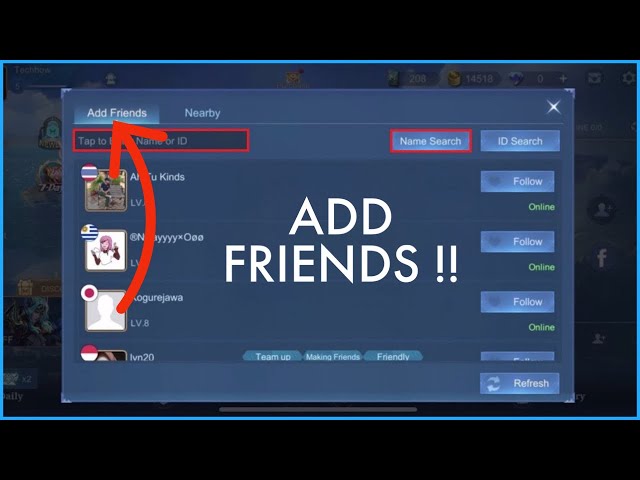
The In-Game Friend Lookup Method
Because your User ID and Zone ID are public information on your profile card, another player can retrieve your numbers:
- Contact an in-game friend or squad mate.
- Have them launch Mobile Legends and open their Friends list.
- Have them tap the Add Friends icon and search for your exact in-game nickname (IGN).
- When your profile card appears, have them tap your avatar to view your public profile.
- Your friend can read the numeric string beneath your nickname or send you an uncropped screenshot.
An uncropped screenshot of your profile card also makes it easy to replenish diamonds via secure Mobile Legends top-up without launching the client.
Moonton Official Account Recovery Submission
Moonton Customer Service requires specific data on account recovery forms:
- Your exact Account ID and Server ID.
- The original device model used to create the account.
- Approximate account creation date.
- Your first purchase receipt (transaction invoice from Google Play, Apple App Store, or authorized payment platform).
Customer service reviews generally take 24 to 48 hours. Submitting the exact User ID and Zone ID prevents automatic ticket rejection during preliminary sorting.
Troubleshooting Profile UI Glitches and Missing ID Numbers
Occasionally, players open their profile tab and find a blank space where the User ID and Zone ID usually sit.
Resolving Missing ID Rows on the Profile Screen
An outdated client or corrupted asset patch causes the numeric ID row to disappear beneath your nickname.
To resolve this:
- Force close the Mobile Legends app in your device task manager.
- Open the Google Play Store (Android) or Apple App Store (iOS).
- Search for Mobile Legends: Bang Bang and install any available update.
- Launch the game and wait for in-game resource verification to hit 100% in the lobby.
Once assets finish verifying, open your profile card to view the restored ID row.
Nickname Changes vs. Account Identifiers
Using a Name Change Card or updating your avatar does not alter your numeric IDs. Your display name is simply a cosmetic label on the server. You can change your name, update your squad tag, or use custom Unicode symbols without altering your 9 to 10-digit User ID and 3 to 5-digit Zone ID.
Account Security: What Is Safe to Share
Knowing account security boundaries protects you from scams. Many players hesitate to share their User ID and Zone ID out of security concerns.
Your User ID and Zone ID are public data visible to anyone who views your profile in-game. Knowing your UID and Server ID only permits someone to:
- Send an in-game friend request.
- Send diamonds, skins, or gifts directly to your account.
Third parties cannot log into your account, modify your password, spend battle points, or unbind your email using only your User ID and Zone ID. Legitimate services only ask for your public numeric IDs, which is why ordering from arctopup MLBB recharge requires no sensitive login credentials.
Identifying Phishing and Scams
Any service asking for credentials beyond public profile numbers is unsafe. Never share:
- Your Moonton account password.
- Social media passwords linked to your profile (Google, Apple, Facebook, VK, TikTok).
- One-Time Passwords (OTPs) sent to your registered email.
- Verification codes sent by SMS or in-game mail.
If a site promises free diamonds or skin codes in exchange for your password or OTP, leave the page. Public numeric IDs are the only parameters needed for legitimate transfers.
Best Practices for Managing Your MLBB Account Identifiers
Managing your game credentials cleanly avoids lost purchases and recovery delays:
- Save a screenshot: Take an uncropped screenshot of your Basic Info tab and save it to cloud storage. This provides a permanent visual record of your nickname, level, rank, User ID, and Zone ID if your device breaks.
- Check the outer digits: Verify the first two and last two digits before submitting a top-up order. If your UID is
123456789, confirming12...89catches transposition errors. - Always submit both numbers: While some legacy guides claim Zone ID is optional, modern server routing requires both parameters to credit items accurately.
Frequently Asked Questions
Where can I find my Mobile Legends User ID and Zone ID?
Tap your profile avatar in the top-left corner of the main lobby to open the Basic Info card. Your User ID is the 9 to 10-digit number displayed below your nickname, and your Zone ID is the 3 to 5-digit number printed right next to it in parentheses.
What is the difference between User ID and Zone ID in MLBB?
Your User ID is your permanent, unique player identification number that stays the same even if you rename your character. Your Zone ID identifies the regional server cluster where your game data and hero inventory are hosted.
Do I need to enter the parentheses when submitting my Zone ID on top-up forms?
No, enter only the raw numbers without any brackets or parentheses. Top-up forms feature dedicated input boxes for each identifier, and typing punctuation marks will cause form submission errors.
Is it safe to share my User ID and Zone ID with third parties?
Yes, sharing your User ID and Zone ID is completely safe because both numbers are public profile information. However, you must never share private account credentials, such as your Moonton account password or email OTPs.
What should I do if my profile does not show the ID number under my nickname?
Update your Mobile Legends application to the latest version through the Google Play Store or Apple App Store. Missing ID text on the profile card is a known asset display glitch caused by outdated game clients.
How can I find my User ID if I am locked out of my MLBB account?
Ask a friend on your in-game friends list to search your nickname via the Add Friends menu and read the numbers from your profile card. Alternatively, check your linked Google Play Games achievements under the MVP category or inspect old purchase receipts.
Can my User ID or Zone ID change if I transfer to a new phone?
No, your User ID and Zone ID are permanently tied to your profile on Moonton's servers. Logging into your account on an iPhone, Android device, or tablet preserves the exact same numeric ID pair.






Comments