Tweak the best Onmyoji graphics settings mobile to lock 60 FPS, slash battery drain, and stop device overheating during long Shikigami farming sessions.
Turn-based combat and Soul runs in Onmyoji should feel crisp and responsive. Instead, many players watch their phones turn into pocket heaters after fifteen minutes of auto-battling. Frame rates drop, animations stutter, and the battery drains rapidly.
NetEase built this RPG with detailed 3D Shikigami models, multi-layered spell effects, and animated battle arenas. Unoptimized settings push your mobile processor straight into thermal throttling. Balancing visual clarity with hardware efficiency takes just a few targeted adjustments.
The Hidden Cost of Default Visuals in Onmyoji
Fresh installations cap the game engine at 30 FPS out of the box to conserve power on budget chipsets. However, 30 FPS introduces noticeable input lag during menu navigation and makes spell animations feel sluggish.
To access system settings, tap your player avatar in the top-left corner of the Courtyard hub. This opens your profile menu with direct access to graphics preferences.
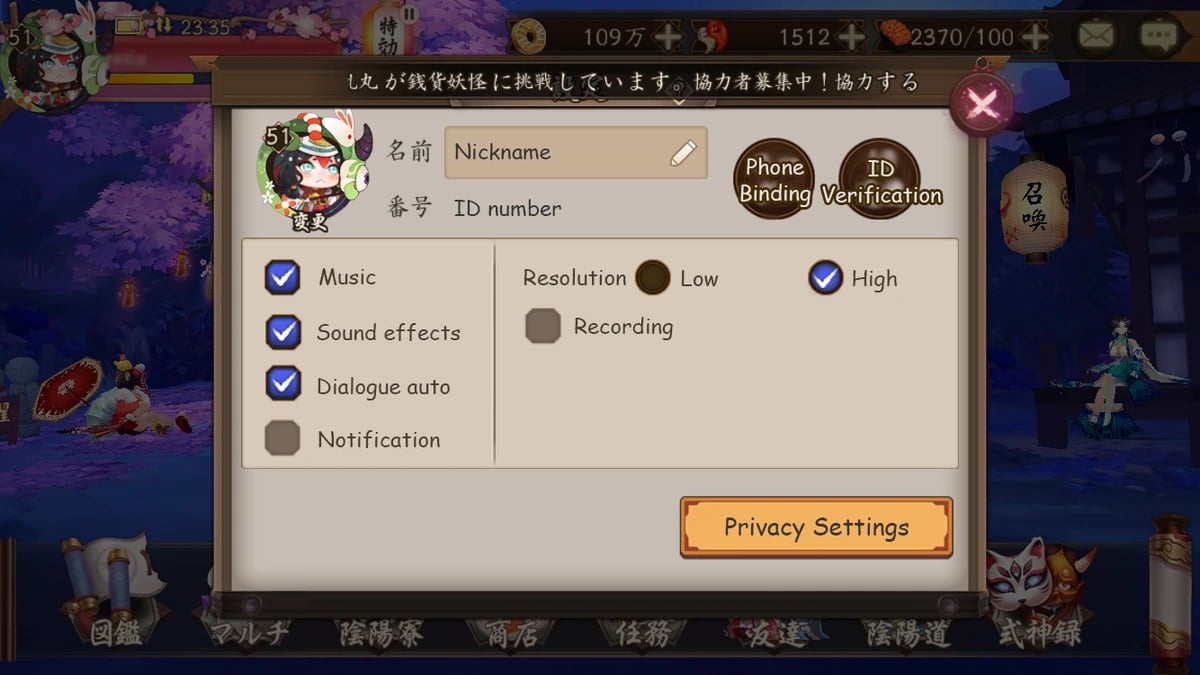
Maxing out dynamic shadows, anti-aliasing, and particle density is a common mistake. Pushing mobile GPUs to sustained peak clock speeds triggers thermal limits within ten minutes. The operating system downclocks the processor to protect hardware, resulting in worse frame drops than running medium settings from the start.


Recommended Onmyoji Mobile Configuration
Achieving a locked 60 FPS without overheating requires cutting invisible GPU overhead like post-processing passes and dynamic shadow maps.
The following table outlines the recommended in-game and OS-level settings.
| Setting Category | Recommended Value | Performance & Battery Impact |
|---|---|---|
| Framerate Target | 60 FPS (In-game Picture Setting) | Essential for smooth skillshots and animation timing; overrides the 30 FPS default. |
| In-Game Graphic Quality | Medium / Balanced | Lowers shadow and particle overhead to reduce GPU heat buildup during extended farming. |
| Anti-Aliasing (MSAA) | Disabled (Force 4x MSAA Off) | Prevents severe GPU thermal load and battery drainage during multi-character combat. |
| System Animation Scale | 0.5x in Developer Options | Increases responsiveness and cuts visual transition delays across mobile menus. |
| Device Power Mode | Optimized / Game Mode Enabled | Prevents OS CPU throttling while avoiding the battery drain of unconstrained high performance. |
Applying these parameters prevents wasted rendering cycles on background geometry during automated farming.
If you plan to stockpile resources for an upcoming summon event, grabbing an Onmyoji Jades Top Up ensures you have the fuel ready without pausing your automated runs.
Frame Rate: Why 60 FPS Is Non-Negotiable
Toggling the frame rate to 60 FPS delivers the single biggest gameplay improvement. Animations resolve instantly, Courtyard navigation stays fluid, and command inputs register without delay. Dropping background shadows ensures 60 FPS runs reliably on modern chipsets without thermal spikes.
Graphic Quality: Medium Beats High for Grinding
High settings render dynamic shadows and ambient occlusion beneath all six team units and enemy waves. During multi-target spell casts, these math passes overwhelm mobile GPUs. Setting visual quality to Medium or Balanced keeps Shikigami models sharp while simplifying background geometry and soft shadow rendering.
Display Refresh Rate and Resolution Trade-Offs
High refresh rate screens (90Hz, 120Hz, or 144Hz) look slick in system menus, but they silently drain battery during gaming.
Running displays at 120Hz consumes up to 25% more power than a 60Hz baseline. Because Onmyoji caps rendering output at 60 FPS, a 120Hz screen simply duplicates frames while drawing extra wattage.
Locking display refresh to 60Hz extends runtime by 15% to 20%. If your phone OS features per-app display controls, force Onmyoji to native 60Hz to eliminate refresh rate mismatches and micro-stutters.

Android System Optimizations for Sustained 60 FPS
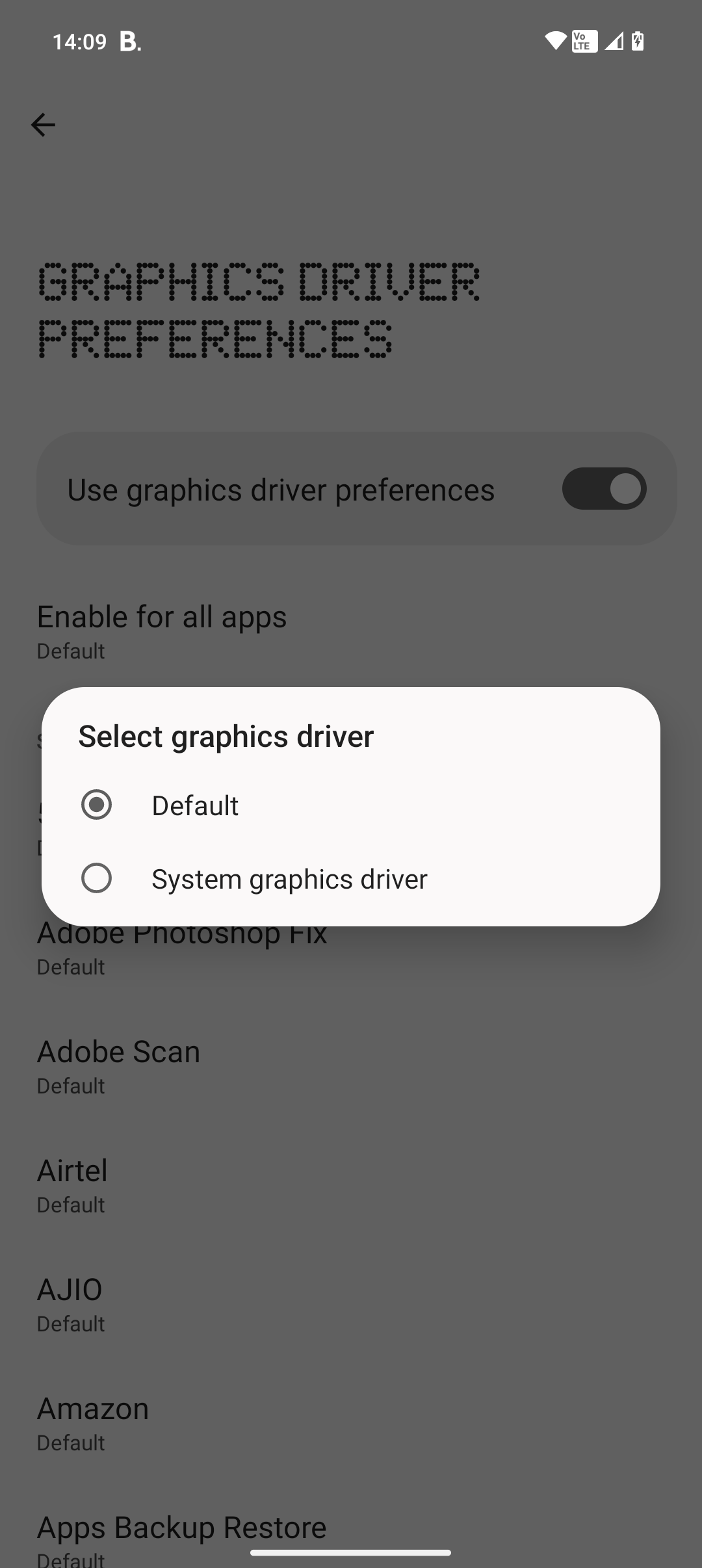
In-game menus only handle part of the workload. Android OS toggles govern how hardware handles 3D rendering buffers and system animations. Onmyoji requires Android 6.0 or higher as a baseline, ensuring native support for modern driver pipelines.
Developer Options Configuration
To enable Developer Options, go to Settings > About Phone, and tap "Build Number" seven times. Once active, open Developer Options and make these adjustments:
- Disable Force 4x MSAA: Never enable Force 4x MSAA. It forces multi-sample anti-aliasing across all 3D buffers, causing immediate thermal buildup and battery drain for imperceptible gains on high-DPI screens.
- Adjust Animation Scales to 0.5x: Lower Window Animation Scale, Transition Animation Scale, and Animator Duration Scale to 0.5x. This speeds up UI transitions across Android and cuts menu rendering lag.
Android Dynamic Performance Framework (ADPF)
Modern Android versions include the Android Dynamic Performance Framework (ADPF). ADPF dynamically balances workloads across CPU and GPU cores to hold target frame rates without triggering harsh thermal throttling. Balanced in-game settings let ADPF sustain efficient clock speeds without overheating the chassis.
Platform Breakdown: Android vs. iOS vs. Steam PC Options
Onmyoji runs across phones, tablets, and desktop clients, each presenting distinct thermal and power limits.
The table below compares graphical performance across different operating environments.
| Platform | Best Rendering Target | Key Advantage | Primary Limitation |
|---|---|---|---|
| Android (Mid/High End) | 60 FPS / Balanced Graphics | Deep OS-level customization (ADPF, refresh rate locks) | Aggressive thermal throttling on unoptimized chipsets |
| iOS (iPhone / iPad) | 60 FPS / Default Shadows | Excellent metal API optimization and sustained clocks | Aggressive background task termination during farming |
| Steam PC Client | 60 FPS / Maximum Settings | Zero battery constraints, full resolution rendering | Limited mobile portability for daily stamina burns |
Picking the right platform for specific tasks protects your phone battery from premature wear.
Long farming sessions burn through stamina quickly, so players who secure a reliable Onmyoji Jade recharge can keep their auto-battles rolling without missing limited event rewards.
Android allows granular control over background tasks and refresh rates. iOS delivers rock-solid frame pacing but locks down manual resolution adjustments. The Steam PC client removes battery and thermal limits completely, making it the superior option for all-day farming runs at home.
Preventing Battery Degradation and Thermal Throttling
Excessive heat degrades lithium-ion cells permanently and causes frame throttling. Managing heat thresholds is vital for multi-hour farming runs.
The 35°C Thermal Wall
Running mobile hardware past 35°C (95°F) accelerates battery degradation and triggers hardware downclocking. Operating systems immediately throttle CPU and GPU frequencies once sensors cross 35°C, causing sudden in-game stutter.
Playing while fast-charging or in direct sunlight generates compounding heat that pushes temperatures over the threshold within minutes.
The 20% to 80% Charging Rule
Keep battery levels between 20% and 80% to minimize chemical voltage strain. Lithium cells degrade fastest when fully discharged or kept at 100% under high operational temperatures. Unplug once your battery reaches 80% during active gaming.
Managing Background Apps and Game Modes
Dedicated Game Modes prioritize CPU and GPU allocation, sharpen touch sampling, and block background notifications that cause frame dips.
Put idle apps (social media, sync clients, mail) into Deep Sleep so background processes do not wake the CPU during combat.
Avoid standard OS Power Saving modes. Standard battery savers throttle processor clocks, creating input latency and stutter during busy battles.
Step-by-Step Troubleshooting for Sudden Frame Drops
If you experience frame drops despite correct in-game toggles, isolate the bottleneck step by step.
The table below covers common performance triggers and their direct fixes.
| Symptom / Cause | Diagnostic Trigger | Direct Resolution |
|---|---|---|
| Asset Stutter | Internal storage below 20% | Free up storage space to allow smooth 3D asset caching. |
| Thermal Throttling | Phone temperature exceeds 35°C | Remove phone case, pause charging, and lower shadows. |
| Network Lag Spike | Distant 5GHz Wi-Fi connection | Switch to 2.4GHz Wi-Fi band for stable signal penetration. |
| UI Jitter | Aggressive Power Saver active | Disable system power saving; rely on native Game Mode. |
Work through these troubleshooting steps in sequential order:
- Verify In-Game Picture Settings: Tap your avatar in the Courtyard, open Settings, and ensure Frame Rate is set to 60 FPS rather than the 30 FPS default.
- Free Up Device Storage: Keep at least 20% to 30% free internal storage. Onmyoji requires roughly 3.7 GB of local storage. When free storage falls below 20%, asset caching slows down and causes hitching during skill animations.
- Switch to 2.4GHz Wi-Fi: If you see reconnect icons during matches, switch to 2.4GHz Wi-Fi. While 5GHz provides higher bandwidth, 2.4GHz offers superior wall penetration and eliminates packet drops.
- Turn Off System Power Saving: Disable standard OS battery saver in quick settings to prevent processor clock capping.
- Confirm Force 4x MSAA is Disabled: Ensure Developer Options has Force 4x MSAA turned off to avoid GPU overload.
- Set Display Refresh Rate to 60Hz: Lock your screen refresh rate to 60Hz to match the game engine rendering cap and save up to 20% battery.
Sustaining Extended Auto-Battle Grinds
Farming Evolution materials and high-grade Souls takes hours of automated runs. Running unoptimized settings quickly drains the battery and heats up the chassis.
Remove protective cases during long auto-battle sessions. Heavy plastic and rubber cases trap heat against the chassis, blocking passive cooling. Exposing the back glass to airflow helps keep temperatures below the 35°C throttle mark.
Whenever you need extra summons for rate-up banners, acquiring discounted Onmyoji packs on arctopup lets you boost your Shikigami roster without interrupting your optimized grind.
Frequently Asked Questions
How do I unlock 60 FPS in Onmyoji on mobile?
Open the in-game Settings menu by tapping your avatar in the Courtyard and navigate to Picture Settings to toggle the Frame Rate option to 60. Make sure your device system battery saver is turned off so the processor is not throttled.
Why is Onmyoji causing my phone to overheat during long grinding sessions?
High graphic settings combined with intensive particle effects push mobile GPUs beyond thermal thresholds, especially in extended auto-battles. Playing while plugged in or using thick cases can trap heat and trigger thermal throttling.
Should I keep Force 4x MSAA enabled for better graphics?
No, Force 4x MSAA should remain disabled in Android Developer Options. It dramatically increases GPU workload and battery consumption while offering minimal visual benefit on mobile screens.
Does enabling Game Mode improve frame rate stability?
Yes, native Game Modes prioritize CPU and GPU allocation for the active title. They also restrict background syncing to minimize mid-match stutter and input delays.
Will capping my screen refresh rate at 60Hz save battery life?
Yes, locking your display refresh rate to 60Hz can reduce power draw by 15% to 25% compared to 120Hz or higher. This matches the game 60 FPS ceiling perfectly without wasting excess power.
Can playing Onmyoji while charging damage my battery health?
Yes, gaming while fast charging generates significant excess heat that can push temperatures above 35°C (95°F). This accelerates permanent battery capacity degradation and causes immediate frame throttling.
Final Verdict: The Optimal Balance for Onmyoji Mobile
Maxing visual settings in Onmyoji leads to thermal throttling and rapid battery depletion. The optimal configuration locks the frame rate to 60 FPS while keeping graphics quality at Medium. Combine that with a native 60Hz display refresh rate, disabled Force 4x MSAA, and at least 20% free storage. This setup guarantees fluid combat animations and protects battery longevity across hours of auto-battling.






Comments