
If your Brawl Stars Supercell ID verification code is not received, the delay is usually caused by spam filters, active VPN connections, or rapid multiple code requests that immediately expire older messages. Because Supercell ID relies on a passwordless authentication model where a numeric code is emailed directly to your inbox for every login attempt (Supercell Parents Guide), entering an older code or triggering IP blocks will lock you out of your account until the request loop clears.
Why Verification Codes Fail to Arrive
Instead of static passwords, Supercell ID uses single-use security codes dispatched to your registered email. Three common network and mailbox bottlenecks disrupt this delivery:
- Aggressive Spam Filters: Email providers frequently route automated system emails into Junk, Spam, or Promotional folders.
- Network Routing Flags: Supercell's security filters actively monitor incoming login traffic. If an IP address is associated with data centers or masking tools, authentication requests are blocked.
- Rapid Request Invalidation: Generating multiple codes in quick succession renders earlier emails useless. According to Google Account Recovery Documentation, requesting multiple verification codes immediately invalidates earlier ones, leaving only the newest code functional.

Starter Pack! Brawl like a pro!
 Starter Pack! Brawl like a pro!USD 2.41Buy Now
Ultimate Collector's Pack
Ultimate Collector's PackUSD 21.76Buy NowCollector's Pack
Collector's PackUSD 22.57Buy NowPro Pass Plus
Pro Pass PlusUSD 20.14Buy Now2000Gems
2000GemsUSD 80.63Buy Now950Gems
950GemsUSD 40.31Buy Now360Gems
360GemsUSD 16.12Buy Now170Gems
170GemsUSD 8.06Buy Now80Gems
80GemsUSD 4.02Buy Now30Gems
30GemsUSD 1.60Buy NowBrawl Pass Plus Upgrade
Brawl Pass Plus UpgradeUSD 4.02Buy NowBrawl Pass Plus
Brawl Pass PlusUSD 10.48Buy NowBrawl Pass
Brawl PassUSD 7.25Buy Now
Step-by-Step Troubleshooting Checklist
Work through these steps in order to clear request backlogs and restore normal authentication:
- Check Spam, Junk, and Promotion Folders: Search your email provider for messages originating from Supercell. Automated server dispatches often bypass the primary inbox.
- Halt New Code Requests for 15 Minutes: Submitting repeated attempts creates a backlog. Because each new submission cancels all previous codes, entering a delayed code results in an invalid entry error. Wait for the delivery queue to clear completely.
- Disable Active VPNs and Proxies: If the game displays the error message, "Oops! We blocked your request due to unusual activity. Please try again. If the issue persists, please restart the game or disable VPNs and proxies," disconnect your tunneling tools (GrapheneOS Discussion Forum). Restart Brawl Stars on a standard home Wi-Fi or cellular network before requesting a fresh code.
- Restart the Game Client: Force-close the app from your device's multitasking menu to clear temporary session blocks.
- Enter Only the Most Recent Code: When the email arrives, verify the timestamp. Only the latest numeric code sent to your inbox will authenticate the login.
Platform Differences: iOS vs. Android Login Fixes
Local storage corruption can cause persistent Brawl Stars login loop errors where the verification screen fails to load or continuously refreshes. Resolving this depends on your mobile operating system.
| Platform | Cache Clearing Method | Progress Loss Risk | OS-Level Setting |
|---|---|---|---|
| Android | Settings > Apps > Brawl Stars > Storage > Clear Cache | Low (keeps account link intact) | Supported directly in OS settings |
| iOS | Delete and Reinstall the Application | High if account is unlinked | Not supported; requires full app deletion (Playbite iOS Cache Guide) |
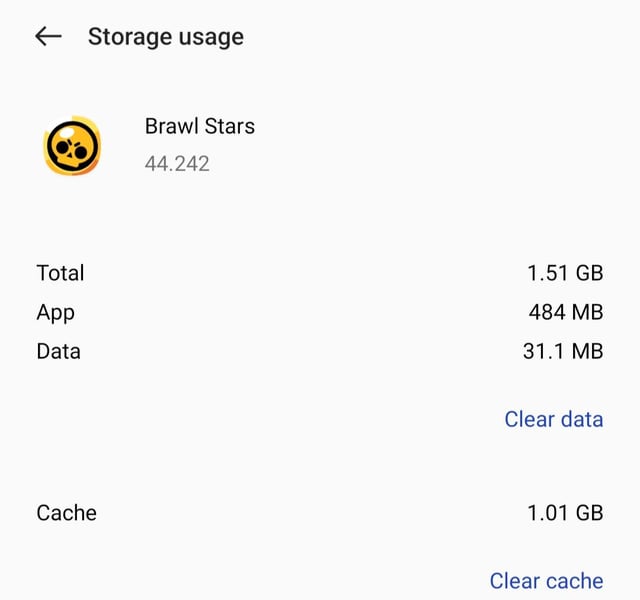
On Android, clearing the app cache removes stale authentication tokens without wiping saved local profiles.
Apple devices lack an OS-level cache wipe toggle. As outlined by Playbite's iOS Cache Guide, clearing corrupted login data on an iPhone or iPad requires uninstalling and reinstalling Brawl Stars entirely. Confirm your account is already linked to a verified Supercell ID before uninstalling, or local guest progress will be permanently lost.
How to Switch Supercell ID Accounts Safely
Supercell ID allows players to manage and toggle between multiple game accounts on a single mobile device without overwriting or losing active save data (Supercell ID Overview).
To switch profiles without running into session conflicts:
- Open Brawl Stars and tap the three-line menu icon in the upper-right corner of the lobby.
- Select Settings and tap the connected status next to Supercell ID.
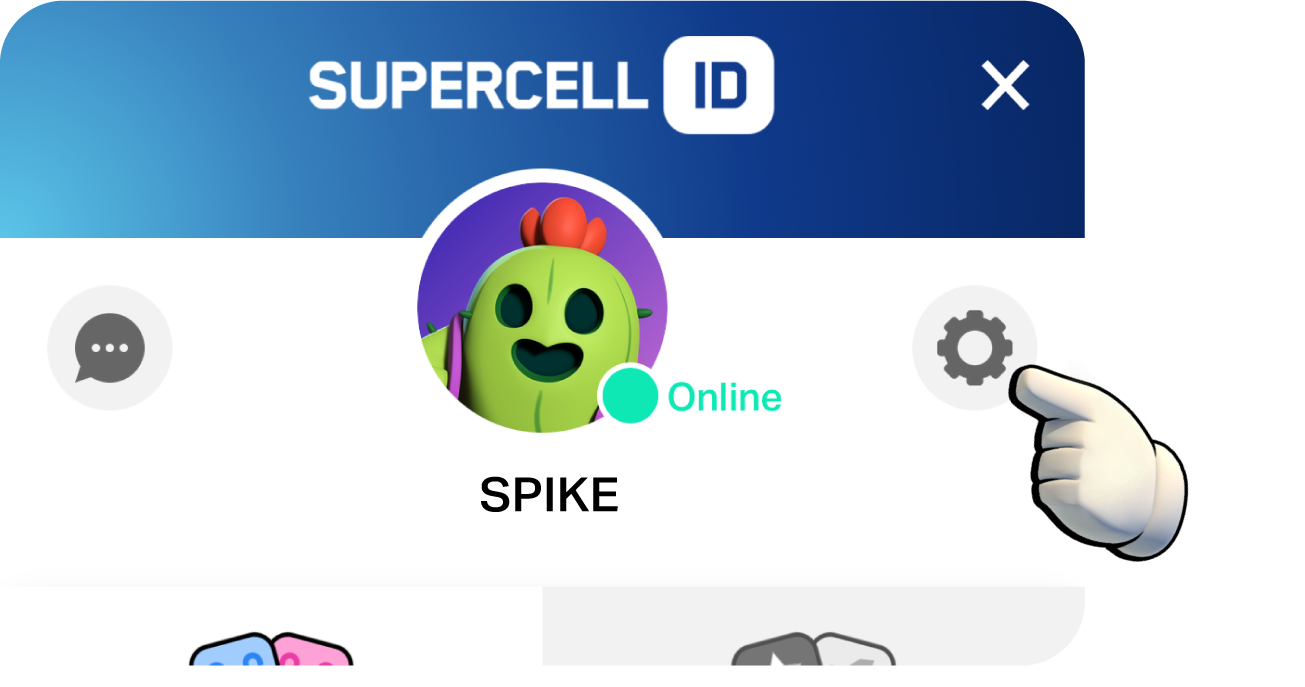
- Tap the gear icon within the Supercell ID interface to open account settings.
- Select Log Out and confirm your choice.
- From the title screen, choose Play Without Supercell ID to access an alternate local profile, or select Log in to Supercell ID to choose another saved profile.
- Check the "Remember me on this device" box on every profile to avoid requesting fresh email verification codes on future switches.
Ecosystem Limits: Moving Between iOS and Android
Supercell documentation notes that connecting a profile syncs progress across devices, but third-party transfer guides report platform restrictions on purchased balances. Gems in Brawl Stars serve as the primary currency used to unlock Brawlers, grab exclusive skins, purchase Star Drops, or activate seasonal progression through the Brawl Pass.
According to IGItems' Account Transfer Guide, app store policies prohibit transferring purchased Gems between iOS and Android. If you buy Gems on an iPhone, those purchased balances do not appear when logging into the same Supercell ID on an Android tablet or phone. The currency is not deleted; it remains stored on your Apple account ecosystem and reappears whenever you log back in on an iOS device.
Recovering an Account Without Email Access
If you permanently lose access to the email address tied to your Supercell ID, automated verification codes cannot help you. You must submit a manual recovery ticket through Supercell Player Support.
As documented by IGItems, support agents require specific verification evidence before updating an account's registered email address:
- Your exact Player Tag (found on your in-game profile banner).
- The approximate date and year of your last successful login session.
- Official purchase receipts from the App Store or Google Play Store for any transactions completed on the account.
Gather these transaction records from your platform account history before contacting support to verify that you are the legitimate account owner.






Comments