
To eliminate lag and stutter in Party Star on Android, clear corrupt temporary files via the application storage menu, adjust Developer Options animation scales to 0.5x, and offload UI compositing from the CPU by disabling hardware overlays. These steps address silent thermal throttling, which cuts in-game frame rates from 60 FPS down to 30 FPS when internal temperatures approach 45°C to 50°C during extended sessions.
Why Party Star overheats and drops frames on Android
Many players believe sudden slowdowns in interactive rooms stem from server glitches. The primary culprit is often hardware protection.
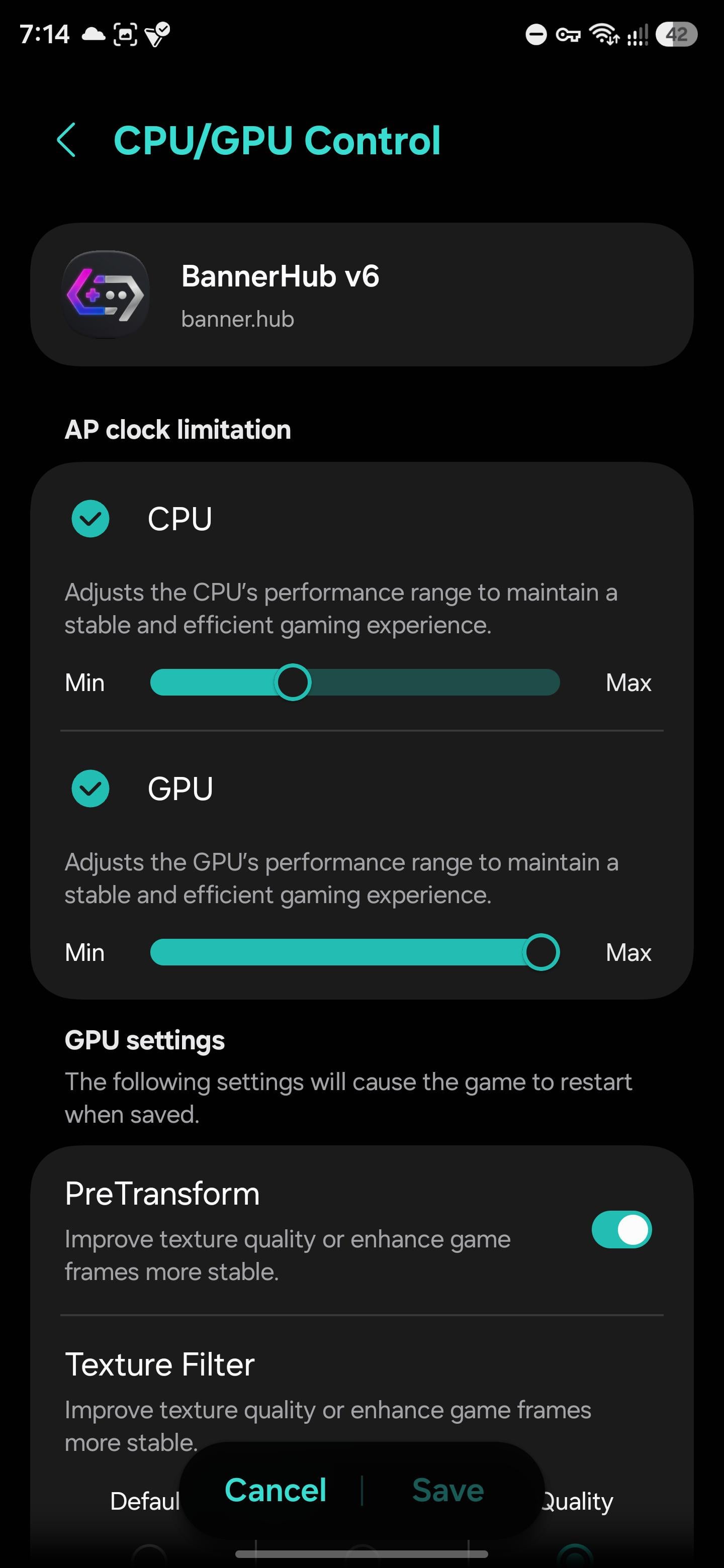
Android features an internal thermal management system that lowers CPU clock speeds, GPU performance, and display brightness in incremental stages before reaching critical emergency thresholds around 50°C (Kryozon). A session running at a stable 60 FPS can drop to 30 FPS without an alert appearing on the screen. Because the device might only feel warm to the touch rather than scorching, this silent throttling creates the illusion of network lag or bad game code.
Operating system requirements play a role as well. Party Star: Live, Chat & Games (package sg.partying.lcb.android) requires Android 7.0 or higher, with typical installation packages weighing around 183.12 MB (Uptodown). Older devices running close to this baseline lack the thermal headroom needed to sustain interactive voice rooms and casual mini-games simultaneously.

3,500 Diamonds
 3,500 DiamondsUSD 3.40Buy Now
7,520 Diamonds
7,520 DiamondsUSD 7.31Buy Now11,750 Diamonds
11,750 DiamondsUSD 11.43Buy Now23,500 Diamonds
23,500 DiamondsUSD 22.85Buy Now47,000 Diamonds
47,000 DiamondsUSD 45.70Buy Now70,500 Diamonds
70,500 DiamondsUSD 68.56Buy Now94,000 Diamonds
94,000 DiamondsUSD 91.41Buy Now117,500 Diamonds
117,500 DiamondsUSD 114.26Buy Now200,000 Diamonds
200,000 DiamondsUSD 194.49Buy Now500,000 Diamonds
500,000 DiamondsUSD 486.22Buy Now
Step-by-step Android settings optimization
Tuning system-level options reduces processor overhead before Party Star begins rendering frames, preventing background processes from competing for CPU cycles.
1. Enable Developer Options and cut animation scales
By default, Android uses full-length transition animations when rendering pop-ups, menus, and application windows. Lowering these durations accelerates responsiveness immediately (NokiaPowerUser).
- Open your device Settings and tap About phone.
- Tap Build number seven times until the screen confirms Developer Options are enabled.
- Return to Settings > System > Developer options.
- Scroll down to the Drawing category.
- Change Window animation scale to 0.5x.
- Change Transition animation scale to 0.5x.
- Change Animator duration scale to 0.5x.
These adjustments double visual transition speeds across the interface, cutting latency when toggling in-game overlays or switching chat boxes.
2. Disable hardware overlays to reduce CPU strain
Android normally delegates the composition of certain 2D screen elements—such as notifications and system bars—to the CPU. Forcing the GPU to composite everything avoids CPU bottlenecks.
- Open Developer options.
- Locate the Hardware-accelerated rendering section.
- Toggle Disable HW overlays to On (or Enabled).
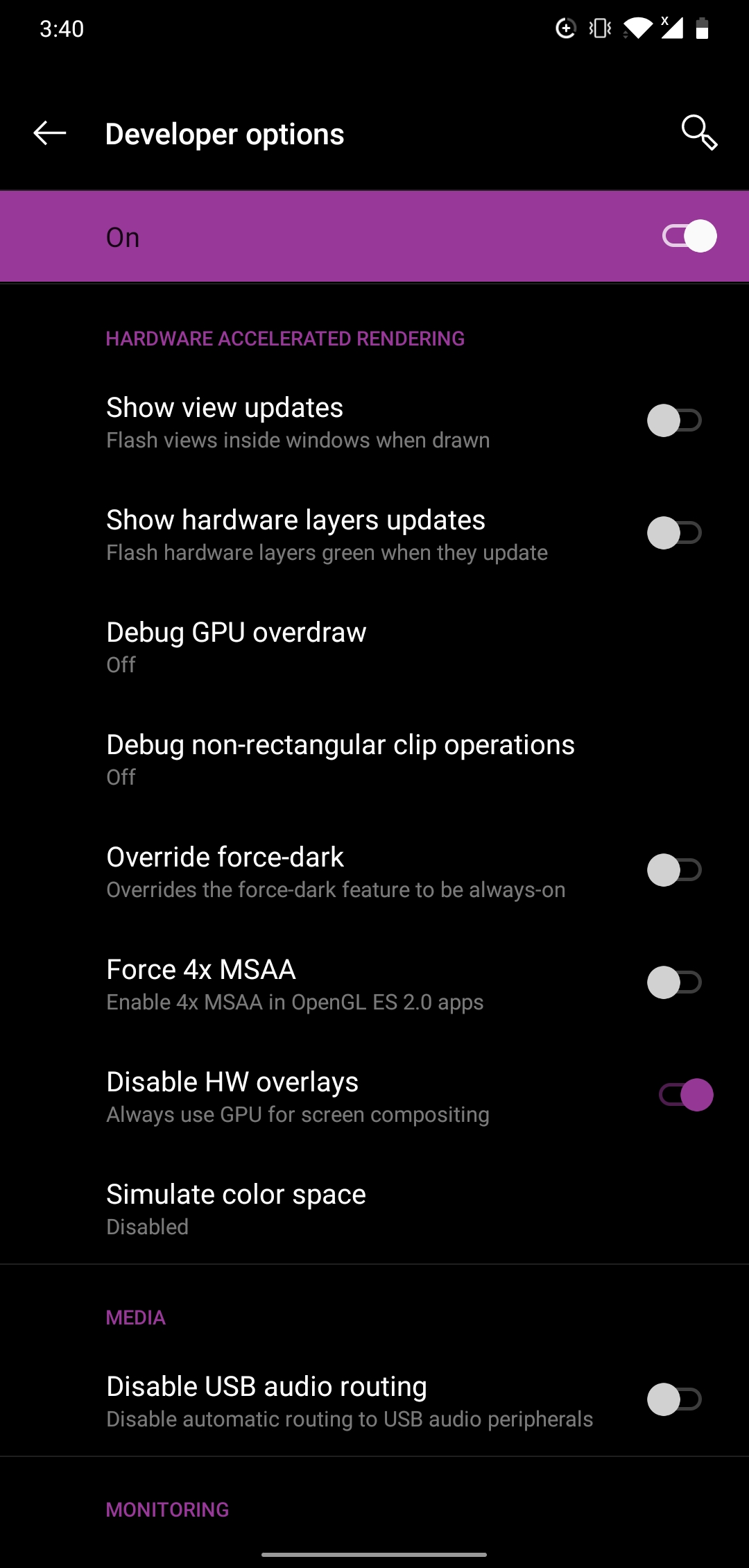
This setting forces the system to use the GPU for screen compositing (GitHub G0246 Documentation). While this relieves CPU strain and cuts interface micro-stutter, it can draw slightly more battery power. If your device exhibits visual glitches after toggling this on, turn it back off.
3. Clear the Party Star cache
Corrupted temporary files accumulate over time, leading to slow loading speeds and unexpected application shutdowns.
- Open Android Settings.
- Tap Apps (or Apps & notifications).
- Select Party Star from the list.
- Tap Storage & cache.
- Tap Clear cache.
Purging the cache frees up device storage and resolves app sluggishness without erasing user account credentials, login tokens, or saved preferences (Android Official Support). Do not tap "Clear storage" or "Clear data" unless you are prepared to log back in.
| Setting / Tweak | Recommended Value | Direct System Impact |
|---|---|---|
| Animation Scales | Set to 0.5x in Developer Options | Halves window and transition delays (NokiaPowerUser). |
| Disable HW Overlays | Toggle to Enabled | Offloads 2D compositing from CPU to GPU (GitHub). |
| App Cache Clearance | Clear via Apps > Party Star > Storage | Removes corrupted cached assets without deleting logins (Android Support). |
Fixing network spikes and audio-action desync
When live voice streams fall out of sync with on-screen gifts or mini-game actions, local network instability is almost always the cause.
Live interactive sessions suffer when secondary applications share local bandwidth (Microsoft Community). Background file syncing, active cloud backups, and VoIP services introduce latency fluctuations. To stabilize ping:
- Close high-bandwidth background apps before opening Party Star.
- Minimize the number of active streaming devices sharing your local Wi-Fi router.
- Reduce physical obstacles between your phone and the wireless access point, as walls degrade signal quality and trigger packet retransmissions.
If you spend Party Star Diamonds during live broadcaster events, a stable connection ensures gifts register promptly without dropped animations.
Samsung Galaxy performance: Dealing with GOS
Samsung Galaxy users face an extra layer of thermal management known as Game Optimizing Service (GOS). Samsung designed GOS to regulate device surface temperatures and power draw during active sessions (The Verge).
While Samsung stated that GOS targets gaming applications to balance thermals, industry testing reported that the service can restrict thousands of apps across different categories. If your Galaxy device aggressively throttles Party Star down to low frame rates, look inside the Samsung Game Booster settings to verify whether alternate performance management options are available on your specific device build.
Frequently asked questions
Why does Party Star drop frames after 10 to 15 minutes of use?
Android's thermal management cuts CPU and GPU clock speeds incrementally when internal temperatures rise, often well before hitting safety limits between 45°C and 50°C. This silent throttling drops frame rates from 60 FPS to 30 FPS without an alert (Kryozon).
Does clearing the Party Star app cache delete account logins?
No. Clearing the app cache only wipes temporary files to fix sluggishness and crashes. Your account data, login status, and virtual items remain stored safely on the server (Android Official Support).






Comments