Cannot log into StarMaker with phone number credentials? Fix missing SMS verification codes, clear gateway blocks, and restore your karaoke profile quickly.
Getting locked out of StarMaker right before a scheduled room party is maddening. You type in your mobile digits, wait for the one-time passcode, and get dead silence. Or worse, the application spits out a generic network failure or creates a blank profile that makes your original account look deleted.
StarMaker is a mobile karaoke and music community application operated by Skywork AI Pte. Ltd. where users sing, record, and interact in audio party rooms using in-app coins. When authentication breaks down, you lose access to your stage, recordings, and gifted coin balances.
Why StarMaker Phone Logins Fail
Mobile logins rarely fail because of server-wide crashes. Carrier-level SMS filters, regional formatting mistakes, and security rate limits cause almost all failed entries.
| Failure Symptom | Primary Root Cause | Immediate Action |
|---|---|---|
| Missing SMS / OTP Not Arriving | Carrier short-code filter, incorrect country code, or VoIP use | Verify country calling code, check spam/unknown sender filters, and disable VPN. |
| Login Creates New Blank Profile | Original profile bound to a different social method (Google/Facebook/Apple) | Log out immediately; switch to the exact authentication method used during registration. |
| Rate-Limited / Request Block | Too many consecutive verification code requests sent in a short window | Pause attempts and wait 8 to 24 hours before requesting another SMS code. |
| Multiple Account / Device Block | Exceeded concurrent device limits or system security flag triggered | Clear app data/cache, log out of unused devices, or contact [email protected]. |
Match your error symptom to the table above before requesting another code to avoid automated lockouts.

60 + 5 Bonus Coins
 60 + 5 Bonus CoinsUSD 0.63Buy Now
300 + 25 Bonus Coins
300 + 25 Bonus CoinsUSD 3.15Buy Now1,000 + 110 Bonus Coins
1,000 + 110 Bonus CoinsUSD 10.74Buy Now1,200 + 150 Bonus Coins
1,200 + 150 Bonus CoinsUSD 13.06Buy Now1,600 + 200 Bonus Coins
1,600 + 200 Bonus CoinsUSD 17.42Buy Now2,100 + 300 Bonus Coins
2,100 + 300 Bonus CoinsUSD 23.23Buy Now2,700 + 400 Bonus Coins
2,700 + 400 Bonus CoinsUSD 30.00Buy Now3,000 + 450 Bonus Coins
3,000 + 450 Bonus CoinsUSD 33.39Buy Now3,400 + 550 Bonus Coins
3,400 + 550 Bonus CoinsUSD 38.22Buy Now5,000 + 850 Bonus Coins
5,000 + 850 Bonus CoinsUSD 56.61Buy Now6,000 + 1,100 Bonus Coins
6,000 + 1,100 Bonus CoinsUSD 68.71Buy Now6,500 + 1,200 Bonus Coins
6,500 + 1,200 Bonus CoinsUSD 74.51Buy Now7,000 + 1,300 Bonus Coins
7,000 + 1,300 Bonus CoinsUSD 80.32Buy Now10,000 + 1,900 Bonus Coins
10,000 + 1,900 Bonus CoinsUSD 115.16Buy Now14,000 + 2,800 Bonus Coins
14,000 + 2,800 Bonus CoinsUSD 162.58Buy Now
Correcting Regional Codes and Number Formatting
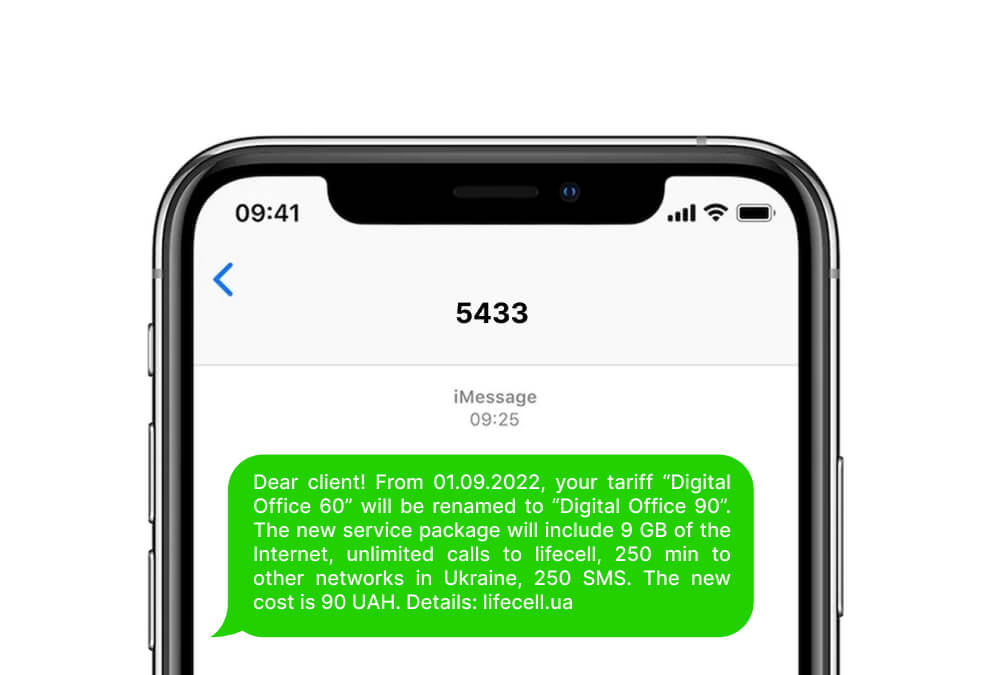
A silent country code mismatch accounts for most phone login failures on StarMaker. Tapping the phone number field causes the app to guess your prefix based on network or device settings. VPNs, roaming SIMs, and international travel scramble that default.
- Open the StarMaker login screen and tap the calling code box beside the phone input.
- Search for and select your country code (+1 for the United States, +44 for the United Kingdom, etc.).
- Enter your mobile number without leading zeroes, hyphens, spaces, or international exit prefixes (+ or 00).
- Verify the number belongs to a direct cellular line. Authentication gateways drop virtual VoIP services and landlines.
- Tap the request code button once and watch your cellular signal bars.
StarMaker quietly drops verification dispatches sent to VoIP services or burner apps. Always use a genuine cellular carrier SIM card.
Resolving SMS Gateway Blocks and Device Filters
Even with accurate number formatting, carrier routing rules or local device filters can block the six-digit verification SMS. These passcodes expire within 60 seconds to 5 minutes, so carrier latency breaks the login.
Many wireless carriers block automated short-code messages by default to shield lines from marketing spam. Check your device settings before attempting another request:
- Spam & Blocked Folders: Check your messaging app's spam or junk tab. Aggressive spam detection frequently silences automated two-factor texts.
- Unknown Senders: On iOS, open Settings > Messages to verify that unknown senders are not routed into a silent inbox.
- SMS Storage Limits: Delete old promotional threads. A full SMS database rejects incoming messages immediately.
- Network Handshake: Toggle Airplane Mode on for ten seconds to force a cellular tower handshake reset.
Stop tapping the request button if the code fails to arrive. Submitting repeated requests triggers security rate limits that freeze authentication for 8 to 24 hours (or up to a week for flagged numbers). Wait out the cooldown timer.
The Accidental New Account Trap
Type your phone number, submit the code, and you might land on a level-1 account with zero songs, zero followers, and an empty coin balance. Your original profile was not deleted.
StarMaker never links phone numbers to third-party logins automatically. If you initially registered through Facebook, Google, or Apple ID, submitting an unlinked phone number creates a fresh account instead.
- Tap your profile icon on the bottom right of the blank account.
- Tap Settings (the gear icon) and select Log Out.
- Return to the main login screen.
- Sign in with your original registration method (such as Google or Apple ID).
- Open Settings > Account Security and bind your mobile number to link both credentials.
Binding multiple credentials prevents lockouts during SIM swaps, device changes, or third-party outages.
Handling Multiple Account and Device Security Flags
StarMaker flags devices that cycle through multiple accounts, trigger rapid room re-entries, or register multiple handles on a single hardware ID. Family tablets and shared phones frequently trigger these anti-abuse systems.
Clearing local device storage removes corrupted token caches that trigger false security flags.
| Platform | Local Storage Fix | System Cache Reset | Alternate Testing Method |
|---|---|---|---|
| Android | Settings > Apps > StarMaker > Storage > Clear Storage & Cache | Force Stop app, restart handset | Test via Chrome mobile browser or PC emulator |
| iOS | Settings > General > iPhone Storage > StarMaker > Offload App | Delete app completely, restart, reinstall from App Store | Test via Safari at starmakerstudios.com/en/web-login |
| PC / Web | Clear browser cookies and local site data | Incognito / Private browsing session | Log in at starmakerstudios.com to verify profile state |
Wiping the local app cache forces StarMaker to request a fresh authentication token directly from the server.
While sorting out mobile access, room hosts can maintain gifting balances and room rankings through StarMaker Coins Recharge using their public numeric SID without opening the mobile client.
Testing Web Login to Confirm Account Status
Test your credentials on a desktop or mobile web browser before assuming your number is permanently blacklisted. Web authentication bypasses the mobile app cache and device ID checks:
- Open an updated browser and go to starmakerstudios.com/en/web-login.
- Sign in with your registered credentials.
- Check your profile status. A successful login confirms the issue sits in your phone's app cache, device ID flag, or local carrier routing.
- Check for suspension banners. An explicit account violation notice means automated moderation flagged your profile for terms violations or multi-account abuse.
Testing through a secondary browser isolates client-side device bugs from server-side profile restrictions.
Escalating to StarMaker Customer Support
Persistent network errors, account suspension banners, or unresolved carrier blocks require manual database assistance from customer support.
Historical records associate StarMaker with StarMaker Interactive Inc. and Everyone Happy Entertainment Ltd (Beijing Kunlun Tech), while active operations run under Skywork AI Pte. Ltd. Support requests route through [email protected]; no public customer support phone line exists.
Send a concise, technical dossier so support agents can locate your profile immediately:
- StarMaker ID (SID): Your numeric profile identifier (ask a room partner or family member to copy this from your public card if you cannot access it).
- Registered Phone Number: Include the full international country calling code.
- Device Model: State the exact hardware and OS version (for example, iPhone 15 Pro on iOS 18 or Samsung Galaxy S24 on Android 14).
- Previous Hardware: Note any recently replaced phone models used on the account.
- Visual Evidence: Attach uncropped screenshots of the exact error dialogue (such as "Network Error" or "Account Suspended").
Do not create new accounts on the same device while waiting for a ticket response. Extra registrations trigger automated multi-account flags and delay review.
Room hosts who need to fund events during support ticket reviews can purchase StarMaker Coins using only their numeric SID.
Step-by-Step Profile Recovery Strategy
Work through these diagnostic steps sequentially to avoid triggering automated bans:
- Verify Number Composition: Select your country code manually and remove extra zeroes, hyphens, or spaces.
- Inspect Spam Filters: Check device junk folders and unblock commercial short-code numbers.
- Reset Cellular Connection: Toggle Airplane Mode or switch off Wi-Fi to force a clean carrier handshake.
- Wipe Application Data: Clear app cache on Android or reinstall the application on iOS.
- Halt Code Requests: Stop after two failed attempts. Wait 8 to 24 hours to clear security rate limits.
- Test Social Login Fallbacks: Sign in through Google, Apple ID, or Facebook to rule out an unlinked profile.
- Check Web Portal: Access starmakerstudios.com to verify whether your account remains in good standing.
- Email Support: Submit your SID, hardware specs, and error screenshots to [email protected].
After restoring access, bind an email address and a secondary social login in your security settings. Multiple login methods ensure that carrier routing errors or lost SIM cards never lock you out again.
If you run family rooms or enter gifting battles, keeping your account funded via recharge coins on StarMaker ensures your profile remains active for community events.
FAQ
Why is my StarMaker SMS verification code not arriving?
Verification codes fail to arrive if your phone number lacks the correct country code, if short-code messages are blocked by your carrier, or if your phone filters unknown senders. Authentication systems also reject virtual VoIP numbers, so ensure you are using a standard mobile line.
Why did StarMaker create a new account when I entered my phone number?
A new account is created because your original profile was registered using a different method like Google, Apple ID, or Facebook. Log out of the blank profile immediately and sign in using your original third-party credential to restore your data.
How long does a StarMaker verification code stay valid?
Most mobile verification codes expire within 60 seconds to 5 minutes from initial transmission. Enter the numeric code immediately upon arrival to prevent timeout errors.
What should I do if I am rate-limited after tapping "Resend Code"?
Stop submitting new requests immediately and wait between 8 to 24 hours for security rate limits to clear. Continually requesting codes resets the restriction timer and can extend your lockout for up to a week.
Can I log into StarMaker using my computer if my phone number fails?
Yes, you can go to starmakerstudios.com or use an Android emulator on PC to test logging in. Accessing the web interface helps determine whether the lockout is device-specific or an account-level restriction.
How do I contact StarMaker support if I am permanently locked out?
Send an email to [email protected] with your numeric StarMaker ID (SID), old/new device models, and screenshots of the login failure. Avoid creating multiple new accounts on the same phone while awaiting support to prevent multi-account security flags.
Final Verification Advice
Losing access to your StarMaker account is frustrating, but rushing the login screen makes the problem worse. The fastest path back to your singing profile is methodical: verify your country code, stop requesting codes before triggering an 8-to-24-hour rate limit, and confirm whether your profile was registered under a social account. Once you regain access, bind a secondary login method immediately so you avoid future lockouts.






Comments