Clash Royale 120Hz vs 60Hz tested. Discover how high frame rates impact touch delay, battery drain, and thermal throttling during intense ladder matches.
In Supercell's Clash Royale, a delayed defensive spell or a misplaced troop can forfeit an entire Crown Tower. Matches turn on split-second placements, prompting competitive players to look past deck composition and scrutinize device latency.
The community remains split between locking displays at standard 60Hz and enabling the in-game 120Hz toggle. One camp prizes instant touch response; the other dreads thermal throttling and dead batteries midway through a Classic Challenge. Measured latency figures and power benchmarks settle the argument.
The Reality of High Refresh Rates on the Arena Board
Enabling high frame rate doubles the arena's redraw speed. Where standard 60Hz pushes a new frame every 16.7 milliseconds, 120Hz cuts that window down to 8.3 milliseconds. Troop pathing, spell indicator rings, and deployment animations sharpen immediately.
The sensory advantage has a clear physiological basis. Steady-state motion visual evoked potential (SSMVEP) testing demonstrates that human motion tracking requires at least a 120Hz refresh rate to optimize response times when visual stimuli cycle between 7Hz and 28Hz. In double-elixir phases packed with bridge spam and swarms, a 120Hz screen cuts sample-and-hold motion blur by approximately 50%, letting your eyes track fast targets across the river with far less smear.
Touch registration improves alongside visual clarity. Displays running at 90Hz to 120Hz poll and render finger inputs with lower latency than 60Hz screens, reducing visual drag trail as you slide cards from your hand onto the arena grid.
In 2026 competitive play and the C.H.A.O.S league, tournament rules normalize cards to Level 11. With levels equalized, micro-timings dictate match outcomes. Supercell balances troops around tiny fractions of a second: the August 2026 update shifted Ronin's first-hit delay from 0.3s to 0.4s and tightened the Little Prince speed conservation window by 0.3s. When interactions turn on a 100-millisecond threshold, shaving milliseconds off touch polling and visual delivery grants a measurable edge.

6000 Grumpy Medals
 6000 Grumpy MedalsUSD 16.16Buy Now
2600 Grumpy Medals
2600 Grumpy MedalsUSD 8.07Buy Now750 Grumpy Medals
750 Grumpy MedalsUSD 2.42Buy Now14000Gems
14000GemsUSD 80.81Buy Now6500Gems
6500GemsUSD 40.40Buy Now2500Gems
2500GemsUSD 16.16Buy Now1200Gems
1200GemsUSD 8.07Buy Now500Gems
500GemsUSD 4.03Buy Now80Gems
80GemsUSD 0.80Buy NowGold Pass
Gold PassUSD 5.65Buy NowEvent Pass
Event PassUSD 4.03Buy Now
Input Lag and Frame Times: What the Benchmarks Reveal
Animation fluidity is only half the equation; 120Hz fundamentally restructures the input pipeline between glass contact and card deployment.
Sample-and-hold display persistence drops from 16.7ms at 60Hz down to 8.3ms at 120Hz. Because frames render twice as frequently, visual updates arrive up to 8.3ms earlier. A Goblin Barrel launched across the river or a Bandit dropped at the bridge registers on your screen several milliseconds before a 60Hz user sees the first frame.
Click-to-photon benchmarks confirm the hardware reduction. Standard 60Hz mobile panels measure between 9ms and 11ms of click-to-photon delay. Upgrading to 120Hz cuts that latency to 4ms–6ms, eliminating roughly 5ms of total lag while dropping theoretical minimum display lag from 8.3ms to 4.2ms.
Going higher brings sharp diminishing returns. Moving from 60Hz to 120Hz reclaims 8.4ms per frame, but leaping from 120Hz to 144Hz claws back only 1.4ms (yielding a 6.9ms frame time with ~4ms input latency).
The following table outlines the exact frame time, latency, and operational characteristics across standard refresh targets.
| Refresh Rate Mode | Frame Persistence Time | Click-to-Photon Input Lag | Theoretical Minimum Display Lag | Frame Time Reduction Over Prior Tier |
|---|---|---|---|---|
| 60Hz Standard Mode | 16.7 ms | 9–11 ms | 8.3 ms | Baseline (0 ms) |
| 120Hz High Frame Rate | 8.3 ms | 4–6 ms | 4.2 ms | 8.4 ms saved |
| 144Hz Ultra Mode | 6.9 ms | ~4 ms | 3.5 ms | 1.4 ms saved |
Takeaway: Upgrading from 60Hz to 120Hz cuts your input delay and persistence in half, whereas pushing past 120Hz yields tiny 1.4ms gains that are imperceptible during live gameplay.
The Battery Penalty: 120 FPS Power Draw and Heat Build-up
That 5ms responsiveness carries severe thermal and power costs. Pushing 120 discrete frames every second forces the system-on-chip to execute its rendering pipeline twice as often, placing heavy sustained strain on the CPU and GPU.
Mobile benchmarks show that holding 120 FPS draws up to 50% more GPU power than rendering at 60 FPS. During dense battles filled with split pushes and spell effects, battery endurance drops by roughly half. A phone that lasts six continuous hours at 60Hz frequently dies in three at 120Hz.
During marathon ladder pushes or Grand Challenge runs funded by a top-up of Clash Royale Gems, battery conservation rules kick in. Android 13 and newer releases use aggressive Game Mode throttling: once battery reserves dip below safety thresholds, the OS clamps the frame rate to an integer display divisor, cutting GPU power by up to 50% and total system draw by 20%.
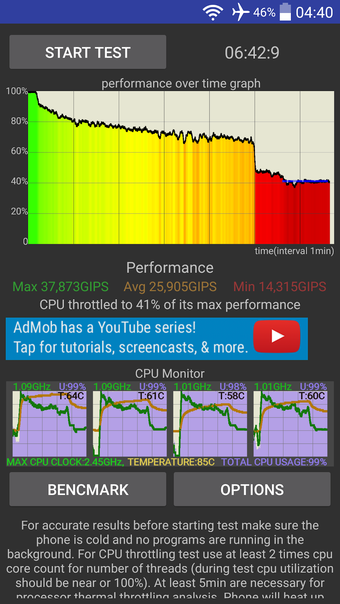
Passive heat dissipation compounds the problem. Because phones lack internal cooling fans, sustained wattage rapidly saturates the chassis. Once internal temperatures breach hardware limits, the OS steps in and forcibly drops the refresh rate mid-match.
Contradictions in Display Tech: Mobile Reality vs Desktop Benchmarks
Desktop monitor benchmarks frequently mislead mobile players. On a PC, leaving a monitor at 120Hz or 144Hz increases power draw by a negligible 5% to 10% during routine tasks because power is delivered from a wall outlet and a discrete GPU barely idles to render the UI.
Smartphones face an entirely different thermal envelope. The battery, processor, and display share a sealed, fanless chassis. Pushing 120Hz consumes up to 50% more GPU power, cuts battery life in half, and traps heat that accelerates battery resistance.
Operating system design widens the gap. Desktop platforms like Windows 11 exempt full-screen games from dynamic refresh rate throttling, maintaining a locked high frame rate indefinitely.
Mobile operating systems enforce dynamic throttles. Both Android and iOS continuously monitor battery state and core temperatures. Regardless of your in-game toggle, the OS will unilaterally demote your display to 60Hz or lower the moment thermals spike, causing jarring frame-pacing stutters during critical defense phases.
Mobile Platform Comparison: Android 15 Against iOS ProMotion
Frame pacing rules diverge sharply between Android 15 and iOS ProMotion.
Android 15 defaults games to 60Hz. Unlocking 120 FPS requires Clash Royale to call the setFrameRate() API or Google's Swappy frame-pacing library. If those hooks fail, the OS holds the display at 60Hz regardless of panel capabilities. Players can override this behavior by toggling "Force peak refresh rate" inside Android Developer Options.
Apple relies on ProMotion heuristics. Compatible iPhone screens scale between low idle frequencies and 120Hz depending on touch contact and on-screen velocity. Restricting ProMotion to 60Hz through Accessibility settings doubles gaming battery life, whereas that same 60Hz cap saves only ~5% during web browsing where static pages idle at low frequencies anyway.
When purchasing Clash Royale Gems online to enter back-to-back Grand Challenges, knowing these platform constraints keeps unexpected frame drops from spoiling a run.
The table below details how Android and iOS approach high refresh rate gaming.
| Operating System Feature | Android 15 Ecosystem | Apple iOS (ProMotion Devices) |
|---|---|---|
| Default Gaming Refresh Rate | Defaults to 60Hz unless setFrameRate() or Swappy is called | Dynamically scales up to 120Hz on compatible hardware |
| Manual 60Hz Battery Lock | Power Saving Mode / Game Mode Interventions | Settings > Accessibility > Motion > Limit Frame Rate |
| Forced Peak Override | Supported via Developer Options ("Force peak refresh rate") | Not supported; handled entirely by internal OS heuristics |
| Gaming Battery Impact (120Hz vs 60Hz) | Up to 50% GPU power increase; cuts playtime roughly in half | Cuts battery endurance roughly in half (60Hz lock doubles battery life) |
| Thermal Throttling Action | Forcibly steps display back down to 60Hz | Drops refresh rate and dims panel brightness automatically |
Takeaway: Android gives you developer-level toggles to lock peak refresh rates, while iOS handles ProMotion automatically unless you restrict the display entirely using accessibility controls.
Step-by-Step Fixes for Refresh Rate Throttling and Lockups
Sudden stuttering or frame lockups during overtime signal that the mobile OS has stepped down display output. Use this troubleshooting sequence to restore high refresh rate stability.
- Verify In-Game High Frame Rate Toggle: Open Clash Royale, tap the three horizontal lines on the top right, open Settings, and confirm that the High Frame Rate setting is toggled on.
- Enable Android Developer Options: If you play on Android and the game remains stuck at 60Hz, open your phone's Settings, go to About Phone, and tap "Build Number" seven times until developer mode unlocks.
- Force Peak Refresh Rate: Inside Android Developer Options, locate the display section and toggle on "Force peak refresh rate". This overrides standard battery-conservation algorithms that default gaming down to 60Hz.
- Disable Battery Saver Modes: Ensure that low-power modes are completely disabled on your device. Android Game Mode throttling and iOS Low Power Mode immediately shut down 120Hz support to reduce GPU load by up to 50%.
- Check iOS Motion Settings: On iPhone, verify that you have not accidentally capped your screen. Navigate to Settings > Accessibility > Motion, and verify that "Limit Frame Rate" is turned OFF if you want full 120Hz ProMotion.
- Manage Thermal Dissipation: If your phone downclocks to 60Hz after three or four matches, thermal throttling has triggered. Remove bulky protective phone cases during ladder grinds, avoid charging while playing, and let the device rest between tournament brackets.
Optimal Clash Royale Graphics and In-Game Settings
Frame pacing relies on integer divisors of a panel's refresh rate. A 120Hz mobile display paces evenly at 120 FPS, 60 FPS, 40 FPS, and 30 FPS. A 60Hz display cleanly supports only 60 FPS and 30 FPS.
When a device fails to hold 120 FPS under thermal strain, it cannot drop smoothly to 110 FPS. It drops frame intervals and stumbles down to the next clean divisor (60 FPS). This stutter feels far more disruptive than playing on an unwavering 60 FPS baseline.
Turn off screen shake in the game settings. Tower collapses and heavy spell detonations trigger viewport shudder that interferes with visual tracking. Keeping the camera locked maintains steady visual recognition during chaotic bridge exchanges.
Whether pushing ladder milestones or investing gems for Clash Royale chests into card upgrades, dialling in your display settings prevents costly placement errors.
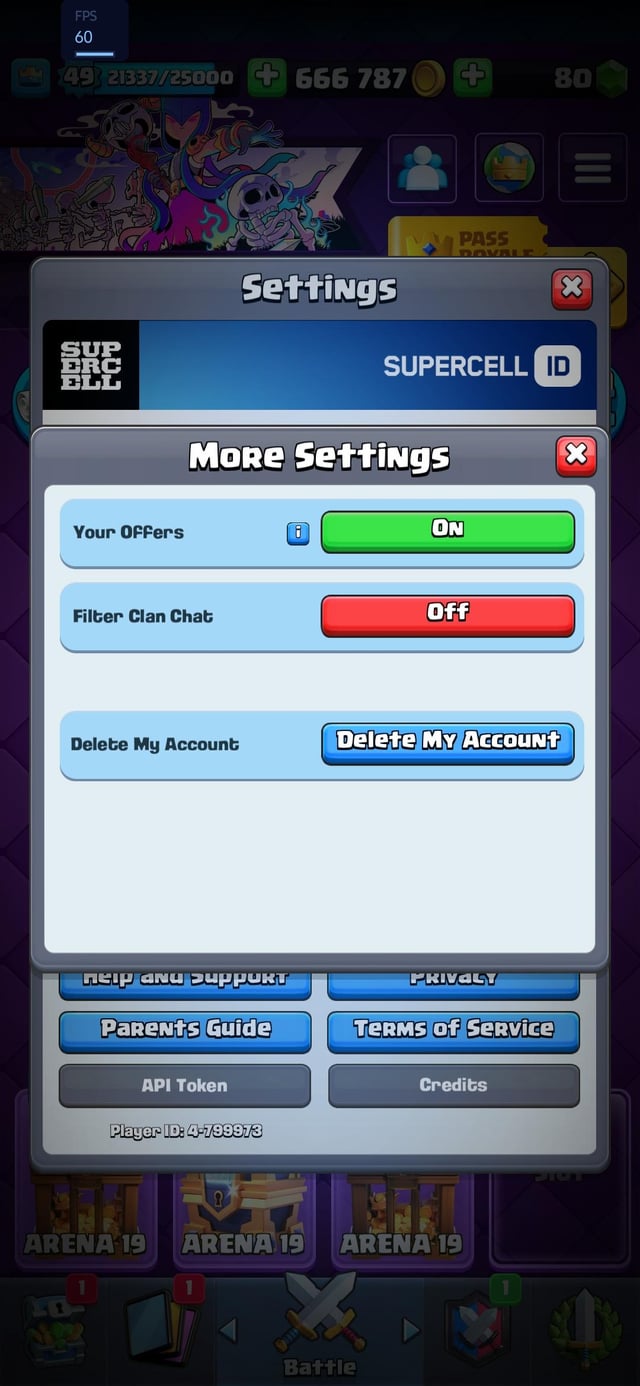
The table below outlines the optimal configurations depending on your hardware profile and play style.
| Configuration Preset | In-Game Refresh Setting | Screen Shake | Best Suited Scenario | Expected Tradeoff |
|---|---|---|---|---|
| Competitive Ladder Peak | High Frame Rate (120Hz) | Disabled | Tournament finals, C.H.A.O.S league, short pushing sessions | Maximum battery drain; phone heats up within 30–45 minutes |
| Endurance Grinding | Standard Mode (60Hz) | Disabled | Multi-hour trophy pushes, traveling without a charger | 5ms higher input latency; smooth, stable thermals and 2x battery life |
| Thermal Safe Profile | High Frame Rate (Forced 60Hz via OS) | Enabled/Disabled | Warm climates, older flagship devices prone to throttling | Bypasses sudden mid-match refresh drops by enforcing steady pacing |
Takeaway: For competitive play, pair High Frame Rate with screen shake disabled. For extended ladder sessions, standard 60Hz eliminates thermal drop-offs entirely.
Hardware Longevity: Panel Myths vs Battery Health
Running a screen at 120Hz will not burn out pixels or damage display hardware.
Modern OLED and LCD mobile panels are built for high cycling speeds. Pushing 120Hz or 144Hz does not accelerate burn-in or degrade display crystals under standard operating conditions.
The real casualty is battery health. Because sustained 120 FPS demands up to 50% more GPU power, the battery discharges twice as fast and operates at elevated temperatures. Lithium-ion chemistry degrades under heat and deep discharge cycles. Playing at 120Hz forces frequent recharging, accelerating cycle accumulation. Playing at 120Hz while tethered to a high-wattage charger compounds thermal stress even further. The glass panel survives unscathed; the chemical battery takes the hit.
FAQ
Does 120Hz reduce input delay in Clash Royale?
Yes, running at 120Hz cuts display input latency from 9–11ms down to 4–6ms while reducing frame persistence to 8.3ms. This gives you roughly 5ms faster visual feedback on card drops and enemy troop deployments. The reduced latency makes micro-placements and spell timing feel noticeably more responsive.
How much faster does 120Hz drain phone battery compared to 60Hz?
Gaming at 120Hz can drain your device's battery up to twice as fast compared to locking it at 60Hz. Sustaining 120 FPS doubles the render load on your mobile processor and demands up to 50% more GPU power. During extended ladder sessions, your battery life drops substantially faster than during standard mobile tasks.
Why does Clash Royale stutter and drop to 60Hz during ladder sessions?
Mobile operating systems automatically throttle refresh rates back to 60Hz when high frame rates cause your phone to overheat. As internal temperatures rise toward thermal limits, the operating system overrides your game settings to protect components. This sudden drop causes visible stutter as the display switches frame-pacing divisors.
How can iPhone users limit Clash Royale to 60Hz to save battery?
Open your iPhone Settings, navigate to Accessibility, select Motion, and toggle on Limit Frame Rate. This locks your ProMotion display to a maximum of 60 frames per second during gameplay. Doing so cuts mobile gaming battery drain in half compared to running unconstrained at 120Hz.
How do you force 120Hz on Android if Clash Royale remains stuck at 60Hz?
Unlock Android Developer Options by tapping your Build Number seven times in system settings, then toggle on "Force peak refresh rate". This overrides default Android 15 policies that automatically cap gaming frame rates to 60Hz. Make sure battery saver modes are switched off, as power-saving features force the panel back to 60Hz.
Does 120Hz give a tangible competitive advantage in Clash Royale?
Yes, it provides smoother motion tracking and roughly 5ms lower input delay, which helps during tight defensive reactions. In tournament modes where card levels are normalized to Level 11, fractional timing differences matter. However, the advantage vanishes if thermal throttling causes your phone to drop frames mid-battle.
Can running 120Hz permanently damage a smartphone display?
No, running at 120Hz does not degrade the display crystals or damage your mobile panel. The only genuine hardware concerns are thermal buildup and accelerated battery cycle degradation from frequent recharging. The display panel itself operates completely within its intended engineering specifications.
Final Match Verdict: 60Hz Stamina or 120Hz Precision?
Turn High Frame Rate on for tournament brackets, Grand Challenges, and level-equalized competitive events. The 5ms input lag reduction, 8.3ms persistence window, and responsive touch polling deliver a real edge when countering bridge rushes or timing spells against fast cards like Ronin.
Leaving 120Hz active during hours of casual ladder grinding away from a charger is counterproductive. Doubled render loads chew through battery reserves, and passive thermal saturation inevitably forces a jarring drop down to 60Hz mid-match.
The verdict: engage 120Hz and disable screen shake for short, high-stakes tournament sets. Lock the display at 60Hz for routine ladder pushes, commute sessions, and Clan Wars to preserve battery health and prevent thermal drops.






Comments