Eliminate Love and Deepspace lag Android issues, stop combat stutter, and balance thermals with our direct settings profile and system tuning guide.
Watching your phone drop from a smooth frame rate straight into a slideshow during a high-stakes Wanderer battle ruins the encounter. Love and Deepspace pairs high-fidelity 3D story sequences with real-time action combat. That visual fidelity comes at a steep cost for Android hardware. When your device heats up, internal thermal safeguards aggressively downclock your processor, turning fluid dodges into choppy inputs.
Cranking every graphical slider to ultra turns your phone into a pocket heater within ten minutes. Sustained performance does not require setting everything to minimum either. The key is identifying which graphics options drain your GPU without visible payoff, then tuning your Android OS to manage memory bandwidth and heat build-up.
Hardware Baselines: What Infold Games Demands from Your Phone
Software tweaks cannot fix an underpowered phone. Infold Games built this title on modern rendering pipelines that punish aging chipsets. If your device sits below the hardware baseline, stutter is inevitable.
The table below compares the official Android specifications with actual operational demands for continuous 3D rendering and asset decompression.
| Hardware Component | Official Minimum Requirement | Real-World Operational Impact |
|---|---|---|
| Operating System | Android 7.0 or higher | Android 13+ recommended for native Game Mode throttling controls |
| System Memory (RAM) | 6GB RAM | 6GB minimum; 200-500MB must be kept free to avoid OS paging stutters |
| Processor (SoC) | Snapdragon 8 Gen 1 / Dimensity 9000 | Requires sustained thermal headroom to avoid downclocking to 20-30 FPS |
| Free Storage Space | 33 GB internal storage | Required for running assets, 5.3 GB pre-downloads, and patch decompression |
| Supplementary Patches | 500 MB to 2.5 GB downloads | Frequent live updates require temporary staging storage to unpack smoothly |
Meeting these base specifications gives your device the throughput needed for complex 3D scenes without sudden thermal downclocking.
Storage space requires close attention. Older builds ran on roughly 28 GB, but current updates demand at least 33 GB of free internal space. Crowded storage sharply reduces read/write I/O performance. The game streams 5.3 GB pre-download packages alongside regular patches between 500 MB and 2.5 GB. Without adequate free space, expect heavy hitching whenever new assets stream into memory.

60 Crystals
 60 CrystalsUSD 0.73Buy Now
300 + 30 Bonus Crystals
300 + 30 Bonus CrystalsUSD 3.66Buy NowAurum Pass
Aurum PassUSD 3.66Buy Now450 + 90 Bonus Crystals
450 + 90 Bonus CrystalsUSD 5.12Buy Now980 + 150 Bonus Crystals
980 + 150 Bonus CrystalsUSD 11.41Buy NowCompanionship Pack
Companionship PackUSD 13.70Buy Now1980 + 360 Bonus Crystals
1980 + 360 Bonus CrystalsUSD 22.86Buy Now3280 + 720 Bonus Crystals
3280 + 720 Bonus CrystalsUSD 36.61Buy Now6480 + 1600 Bonus Crystals
6480 + 1600 Bonus CrystalsUSD 73.27Buy NowAll-In-One Bundle
All-In-One BundleUSD 153.65Buy Now
In-Game Graphics Settings for Smooth Combat and Cooler Thermals
Default display presets prioritize heavy visual post-processing that overwhelms mobile GPUs. Wanderer battles rely on precise dodge timings and synergy skills, making micro-stutters fatal to stage clears. When your framerate fluctuates wildly, landing perfect evasions becomes pure guesswork.
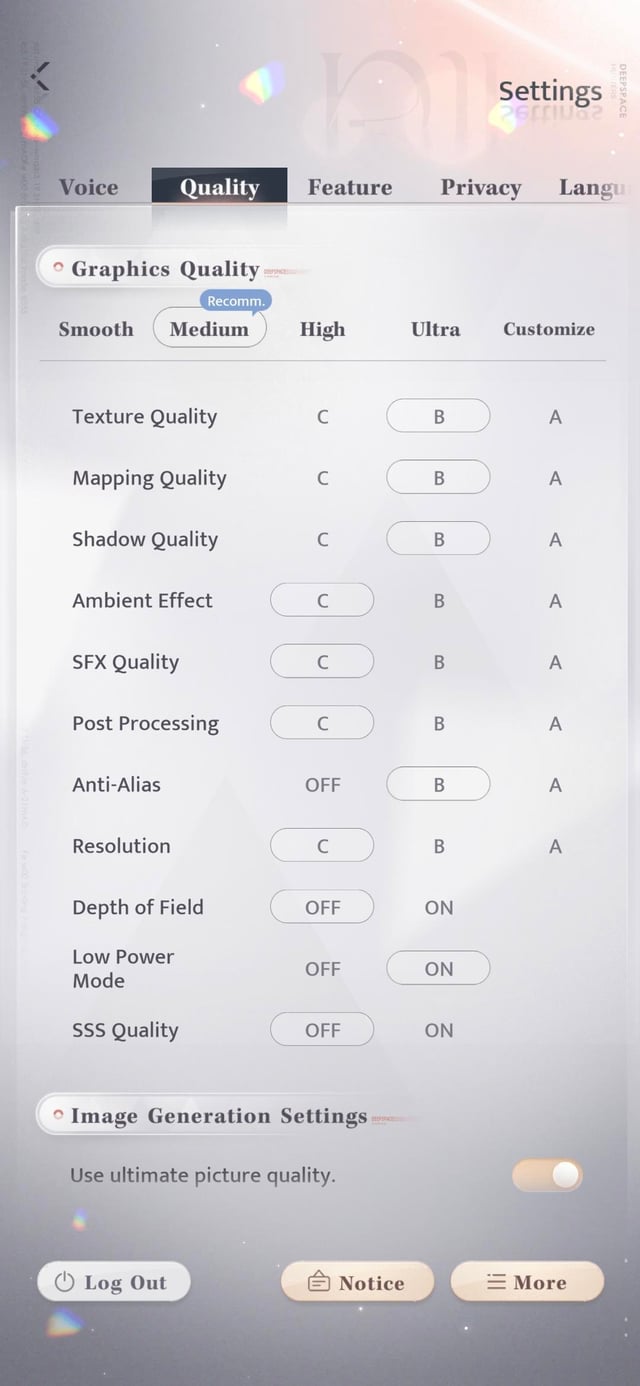
Adjust each setting intentionally to secure a stable framerate without muddying character models. Apply these settings in the in-game display menu:
- Open your in-game Settings and go to the Display tab.
- Set Resolution to Medium / Standard. This lowers internal rendering pixel counts enough to relieve GPU fill-rate pressure while keeping character faces sharp.
- Switch Target Frame Rate to 60 FPS. Never settle for 30 FPS if your hardware can manage 60 FPS on Medium; higher frame rates reduce input latency during combat.
- Lower Depth of Field to Low or Off. High-quality Depth of Field requires intensive multi-sampling per frame, which collapses mobile graphics chipsets.
- Turn Post-Processing Quality down to Medium or Low to strip out unneeded render passes that generate excess heat.
- Keep Special Effects Quality at Medium so enemy attack telegraphs remain visible without overwhelming the screen with particle overdraw.
The table below outlines the optimal profile for combat clarity and thermal control.
| Setting Option | Recommended Value | Performance and Visual Justification |
|---|---|---|
| Resolution / Graphics Quality | Medium / Standard | Prevents GPU saturation during intensive Wanderer combat encounters. |
| Frame Rate Target | 60 FPS | Ensures tight dodge timings; pairing with Medium graphics prevents heat spikes. |
| Depth of Field | Low / Off | Eliminates expensive multi-sample blur passes that eat mobile GPU fill-rate. |
| Post-Processing | Medium / Low | Reduces rendering pipeline load without muddying primary character models. |
| Recommended Downloads | Disabled (Off) | Halts background downloading of 2.2 GB+ assets during active gameplay sessions. |
This configuration balances crisp 3D rendering with sustainable combat frame pacing.
Dialing back post-processing creates the thermal runway your processor needs to hold 60 FPS indefinitely. If you want to expand your hunter roster without missing limited-time memory banners while testing your combat builds, you can buy Love and Deepspace Crystals and Aurum Pass to keep your account progression moving forward.
Killing Background Resource Hogging and Auto-Downloads
Background asset streaming causes sudden, severe combat hitching. Love and Deepspace includes a setting called Recommended Download, which automatically pulls large game modules like Home resources (roughly 2.2 GB) over Wi-Fi during gameplay. When this background task fires up mid-battle, storage bandwidth and CPU throughput saturate immediately.
To stop this, head into Settings > Functions and disable the Recommended Download feature entirely. Always download resource packs manually from the main menu before heading into battle.
Manage local storage bloat directly through the game client. Unused dates, old cutscene caches, and foreign voice packs accumulate over time, eating valuable internal storage. Purge unused data with these steps:
- Go to your in-game Profile and open the Quick Cleanup utility.
- Select Recommended Cleanup or Deep Cleanup to remove obsolete temporary assets and cache files.
- Go to Settings > Language > Game Resources to delete voice-over packages you do not actively use.
Freeing this space keeps the game footprint lean and ensures the Android storage controller can decompress 3D assets rapidly during combat encounters.
System-Level Android Tweaks: Game Modes and Thermal Control
In-game settings solve only half the problem. Your Android operating system determines how much power and memory bandwidth your hardware allocates before thermal limits kick in. Proper OS settings prevent your phone from wasting energy on background tasks.
Android 13 and newer operating systems feature native Game Mode FPS throttling interventions. When properly configured, platform interventions and system game dashboards can achieve up to a 50% GPU power reduction and a 20% system power reduction. This drop in power draw smooths frame variance and keeps internal temperatures below critical throttling thresholds.
Avoid third-party booster utilities from app stores. They run persistent background services, display advertisements, and consume active RAM. Instead, stick strictly to your manufacturer's built-in tools, such as Xiaomi Game Turbo or Samsung Game Launcher.
Built-in OEM utilities hook directly into kernel-level parameters. They free between 200-500MB of RAM and suppress rogue background tasks without adding overhead, delivering 15% to 30% better FPS stability compared to third-party apps.
On Samsung Galaxy devices running One UI, check your Processing Speed setting under device care. Set this option to Optimized. While High or Maximum might sound appealing, both force your processor to run at maximum clock speeds constantly, leading to rapid thermal saturation and severe throttling within minutes. The Optimized profile provides the thermal headroom needed for sustained sessions.
Place heavy social media apps and background sync tools into Deep Sleep or Restricted battery profiles within Android settings. This stops unoptimized background processes from stealing CPU cycles while you dodge Wanderer attacks. When you need to top up your account balance between play sessions, accessing Love and Deepspace top-up options on arctopup lets you recharge smoothly without cluttering your device with external bloat.
Mitigating Combat Micro-Stutters and Shader Compilation Freezes
Loading into a fresh boss arena or firing a partner special attack for the first time often causes a split-second screen lock. That hitch is shader compilation stutter.
When your device encounters a new 3D visual effect, particle burst, or lighting shader that has not been rendered before, your CPU must compile that shader on the fly. This compilation step introduces transient freezes lasting between 50 to 200 milliseconds. In high-difficulty Wanderer encounters where dodging requires precise timing, a 200ms freeze ruins your run.
[Game Requests New Shader]
         │
         ▼
[CPU On-the-Fly Compilation] ──► Transient 50-200ms Micro-Freeze
         │
         ▼
[Stored in Local Storage Cache] ──► Smooth Subsequent 60 FPS Rendering
Once a shader compiles, the game stores it in your local cache, rendering subsequent encounters with that same attack smoothly. Minimize compilation stutters using these strategies:
- Let cutscenes and character intros play out completely when entering new content instead of skipping, giving the engine time to compile and cache assets.
- Ensure your device utilizes modern rendering APIs like Vulkan where supported. Vulkan improves multi-threading efficiency and lowers memory overhead for draw calls compared to legacy rendering engines.
- Keep at least 15% to 20% of your total device storage free so the operating system can read and write compiled shader caches without delay.
Physical Heat Management and Battery Protection
No amount of software optimization helps if your phone cannot radiate heat away from its chassis. Mobile processors sit tightly packed beneath glass and metal. When heat builds up, thermal protection mechanisms kick in automatically to protect hardware components from permanent damage.
Hardware thermal controllers start throttling performance when CPU temperatures hit 90°C or higher, or when GPU temperatures reach the 80°C to 90°C range. Once your device crosses these limits, clock speeds plunge, dragging your framerate down from a steady 60 FPS into a 20 to 30 FPS crawl.
To manage physical thermals effectively during extended gameplay, apply these rules:
- Strip off heavy protective phone cases. Thick silicone, rubber, and leather cases act as thermal insulators. They trap heat against the back panel, driving core temperatures up and triggering emergency downclocking much faster.
- Never play while connected to a high-wattage fast charger. Fast charging dumps substantial heat into the battery, while the motherboard simultaneously generates heat from 3D rendering. This compound heating forces your phone into severe thermal throttling.
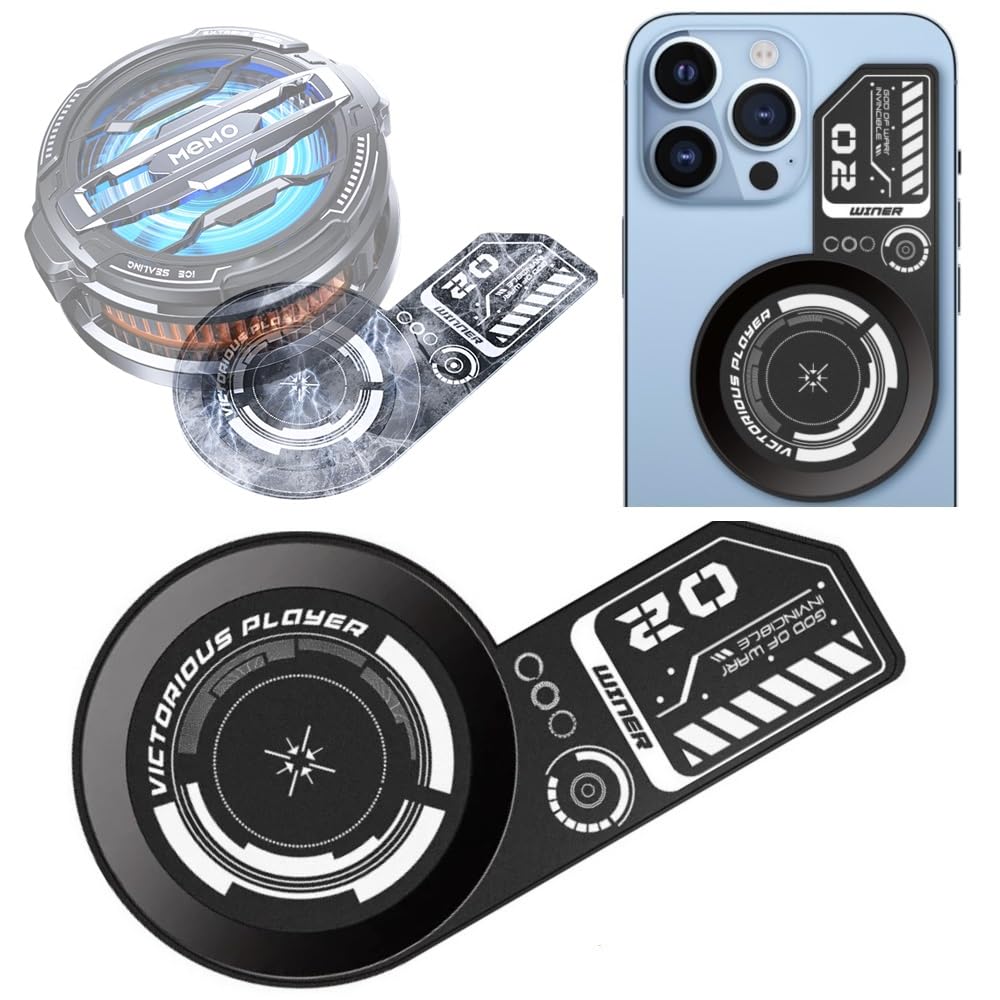
- Do not put an overheated phone into a refrigerator or freezer. Exposing a hot phone to extreme cold air creates internal condensation, causing short circuits and hardware failure. Cool your phone using passive resting, ambient room airflow, or an external clip-on semiconductor cooling fan.
Hardware Architecture and Performance Differences
Different Android chipsets handle sustained 3D loads in distinct ways. Flagship processors pack massive compute power but run hot, while upper mid-range chips sacrifice maximum burst speed for cooler, more stable sustained performance.
Understanding how your specific hardware tier behaves helps you pick the right trade-offs. The table below compares how different Android hardware classes handle Love and Deepspace over extended sessions.
| Hardware Class | Typical SoC & RAM Profile | Common Performance Pitfall | Recommended Tuning Strategy |
|---|---|---|---|
| Premium Flagship | Snapdragon 8 Gen 1+ / 12GB+ RAM | Aggressive thermal spikes; fast throttling from 60 to 30 FPS. | Medium Graphics, 60 FPS target, remove phone case, avoid fast charging. |
| Upper Mid-Range | Dimensity 9000 tier / 8GB RAM | Memory bandwidth limits during complex combat particle bursts. | Standard resolution, Low Depth of Field, enable native OEM Game Mode. |
| Baseline Entry | Baseline 6GB RAM / Older Octa-core | Storage I/O paging hitching and shader compilation freezes. | Standard graphics, 30-45 FPS cap, clear cache via Quick Cleanup, free 33 GB storage. |
Selecting a performance profile tailored to your chipset prevents unnecessary hardware strain and keeps frame pacing consistent.
Matching your graphical expectations to your hardware tier eliminates the sudden framerate cliffs that ruin combat encounters. Once your device runs cool and your dodge timings feel responsive, you can visit the Love and Deepspace recharge store to top up your Aurum Pass and secure extra summons for your account.
FAQ
Why does Love and Deepspace lag and drop frames on Android?
Framerate drops are primarily caused by hardware thermal throttling when the GPU exceeds safe operating temperatures, forcing clock speeds down. Heavy post-processing effects like high-quality Depth of Field and background asset downloads also consume critical memory bandwidth and storage I/O during combat.
What are the minimum Android hardware specs for Love and Deepspace?
Infold Games specifies Android OS 7.0 or above, a minimum of 6GB of RAM, and a Qualcomm Snapdragon 8 Gen 1 or MediaTek Dimensity 9000 processor. Devices meeting these specifications can run the game smoothly when display settings are properly configured.
How much free storage is required to run Love and Deepspace smoothly?
You should maintain at least 33 GB of free internal storage space to handle game data, resource decompresion, and ongoing updates. Major pre-download packages require roughly 5.3 GB, while periodic patches add another 500 MB to 2.5 GB of data.
How can I prevent thermal throttling while playing Love and Deepspace?
Lower your in-game Depth of Field and post-processing quality, and remove thick rubber or silicone phone cases during long sessions. Avoid playing while fast charging your device as well, since simultaneous charging and 3D rendering creates severe localized heat.
Should I use third-party game booster apps on Android?
No, you should avoid third-party booster apps because they consume background RAM and system resources. Instead, use your device's built-in OEM tools like Samsung Game Launcher or Xiaomi Game Turbo, which access system parameters directly to free 200-500MB of memory without bloat.
How do I clear unused data in Love and Deepspace to fix lag?
Open your in-game profile and run the Quick Cleanup feature using either Recommended Cleanup or Deep Cleanup to remove old cached files. You can also go to Settings > Language > Game Resources to delete unneeded foreign voice-over packs.
Can I put my hot Android phone in the fridge to cool it down quickly?
Never put an overheated smartphone into a refrigerator or freezer. The rapid temperature shift creates internal moisture and condensation, leading to permanent hardware damage; use ambient airflow or external cooling fans instead.
Sustained 60 FPS Android Strategy
Achieving consistent performance in Love and Deepspace on Android is about managing heat and memory rather than chasing maximum visual presets. Leaving unoptimized post-processing settings enabled will overheat even flagship chipsets, sending your framerate tumbling right in the middle of crucial combat encounters.
Keep your Resolution on Medium, turn Depth of Field off, lock your target to 60 FPS, and purge unneeded voice packs regularly. Combine those in-game settings with your phone's native OEM game booster and keep your device free of thick insulating cases while playing. With your thermals stabilized and background bloat eliminated, you can enjoy fluid combat, precise dodges, and clean cutscenes on your Android device.






Comments