Lock 60 FPS in Devil May Cry: Peak of Combat with our optimized graphics, sensitivity, and frame rate settings to stop stutter and thermal throttling.
Stuttering during an aerial combo ruins everything. You launch an enemy with Dante, queue a mid-air weapon switch, and a micro-stutter eats the input. The enemy drops. Your SSS style rank shatters. Your combo counter resets to zero.
Devil May Cry: Peak of Combat demands frame-perfect execution. Developed by NebulaJoy under Capcom supervision and released globally in January 2024, this mobile action title brings multi-character combat directly to touchscreens and PC virtualization software. Maxing every visual toggle will cook your phone's processor and trigger aggressive thermal throttling within five minutes.
I tested the sliders, calibrated camera response curves, and dialed in the balance between visual clarity and stable frame pacing. Here is the exact setup you need to lock 60 FPS and eliminate combat input latency.
Why 60 FPS Dictates Combat Timing in Peak of Combat
Combat revolves around three-person tag-team synergy. You swap between Dante, Vergil, Nero, and Lady during active attack animations to extend aerial juggles. A dropped frame interrupts your attack chain and exposes your hunter to counterattacks.
The jump-counter mechanic functions similarly to Witch Time. When an enemy flashes red, jumping at the instant of impact triggers a slow-motion counter window. If your frame rate fluctuates between 35 and 55 FPS, visual cues for these counters become erratic, spiking input latency just as particle effects crowd the screen.
A locked 60 FPS delivers a consistent 16.6-millisecond frame time. That stability builds dependable muscle memory for jump counters, delayed sword strikes, and instant tag-ins. Dropping visual settings to hold 60 FPS is far more practical than chasing maxed-out shadows.
Before spending resources on weapon banners, managing your economy is just as vital as tuning hardware. Picking up a Devil May Cry Peak of Combat top up ensures you have Devil Gems ready for your next character draw without disrupting your gameplay rhythm.

60 Devil Gems
 60 Devil GemsUSD 0.49Buy Now
Daily Value Gem Pack I
Daily Value Gem Pack IUSD 1.40Buy NowDaily Mega Gem Pack II
Daily Mega Gem Pack IIUSD 2.11Buy Now300 Devil Gems
300 Devil GemsUSD 2.33Buy NowCard EXP Pack
Card EXP PackUSD 3.52Buy NowDaily Gem Luxury Pack III
Daily Gem Luxury Pack IIIUSD 3.52Buy NowEpic Weapon Selection
Epic Weapon SelectionUSD 3.52Buy NowHunter EXP Pack
Hunter EXP PackUSD 3.52Buy NowRandom Fragment Pack
Random Fragment PackUSD 3.52Buy NowRed Orb Pack
Red Orb PackUSD 3.52Buy NowWeapon EXP Pack
Weapon EXP PackUSD 3.52Buy Now680 Devil Gems
680 Devil GemsUSD 4.89Buy NowCrimson Scale Pack
Crimson Scale PackUSD 7.16Buy NowEpic Hunter Selection
Epic Hunter SelectionUSD 7.16Buy NowEye of Destruction Pack
Eye of Destruction PackUSD 7.16Buy NowEye of the Abyss Pack
Eye of the Abyss PackUSD 7.16Buy NowSkill Manual Pack
Skill Manual PackUSD 7.16Buy NowWeekly Gem Luxury Pack
Weekly Gem Luxury PackUSD 7.16Buy NowAdvanced Rune Selection
Advanced Rune SelectionUSD 10.73Buy Now1280 Devil Gems
1280 Devil GemsUSD 9.61Buy Now3280 Devil Gems
3280 Devil GemsUSD 24.79Buy NowHunter Premium Pack
Hunter Premium PackUSD 35.76Buy NowHunter Supreme Pack
Hunter Supreme PackUSD 35.76Buy NowWeapon Supreme Pack
Weapon Supreme PackUSD 35.76Buy Now6480 Devil Gems
6480 Devil GemsUSD 48.05Buy Now
Recommended In-Game Graphic Preset Configuration
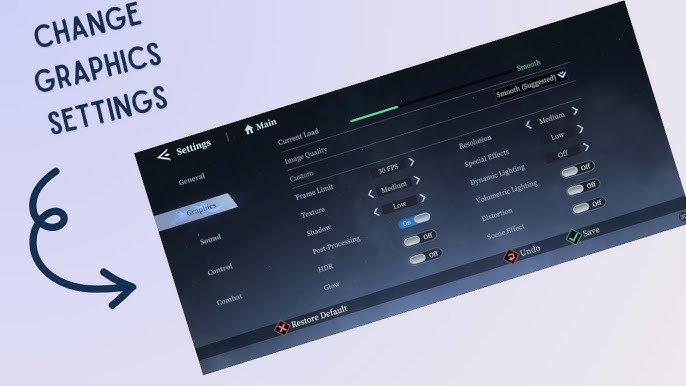
Skip the default presets. The built-in "Ultra" profile applies aggressive post-processing passes that offer minimal visible gain on mobile displays while driving GPU temperatures straight up.
Apply these slider adjustments inside the display menu:
- Graphics Quality: Set to Custom. Never leave this on automated default profiles.
- Frame Rate: Set to 60 FPS (or uncapped on desktop virtualization clients).
- Resolution: Set to 100% (Native). Lowering below 100% blurs character models, while supersampling strains mobile GPUs for negligible visual return.
- Shadow Quality: Set to Medium. Dynamic shadows generate the heaviest GPU load during tag-swaps.
- Special Effects (VFX): Set to Medium or High. Medium retains full boss telegraph cues without dropping frames during explosions.
- Post-Processing: Set to Low or Off.
- Motion Blur: Set to Off. Motion blur smears fast camera turns and obscures enemy telegraphs.
- Depth of Field: Set to Off. Background blurring adds unnecessary GPU overhead during fast combat.
- Bloom: Set to Off. Disabling bloom removes glare and keeps demon silhouettes sharp.
- Anti-Aliasing: Set to Low or FXAA. This smooths weapon edges without choking the render pipeline.
+-------------------------------------------------------------+
| OPTIMAL GRAPHICS CONFIGURATION SUMMARY                      |
+-------------------------------------------------------------+
| Frame Rate Target     : 60 FPS (Locked)                     |
| Render Resolution     : 100% (Native)                       |
| Visual Presets        : Medium / Custom                     |
| Post-Processing (FX)  : Disabled (Blur, Bloom, DoF Off)     |
| Shadow Detail         : Medium                              |
| Combat Sensitivity    : 70% - 80%                           |
| Camera Sensitivity    : 60% - 70%                           |
+-------------------------------------------------------------+
Hardware Profile Benchmark Breakdown
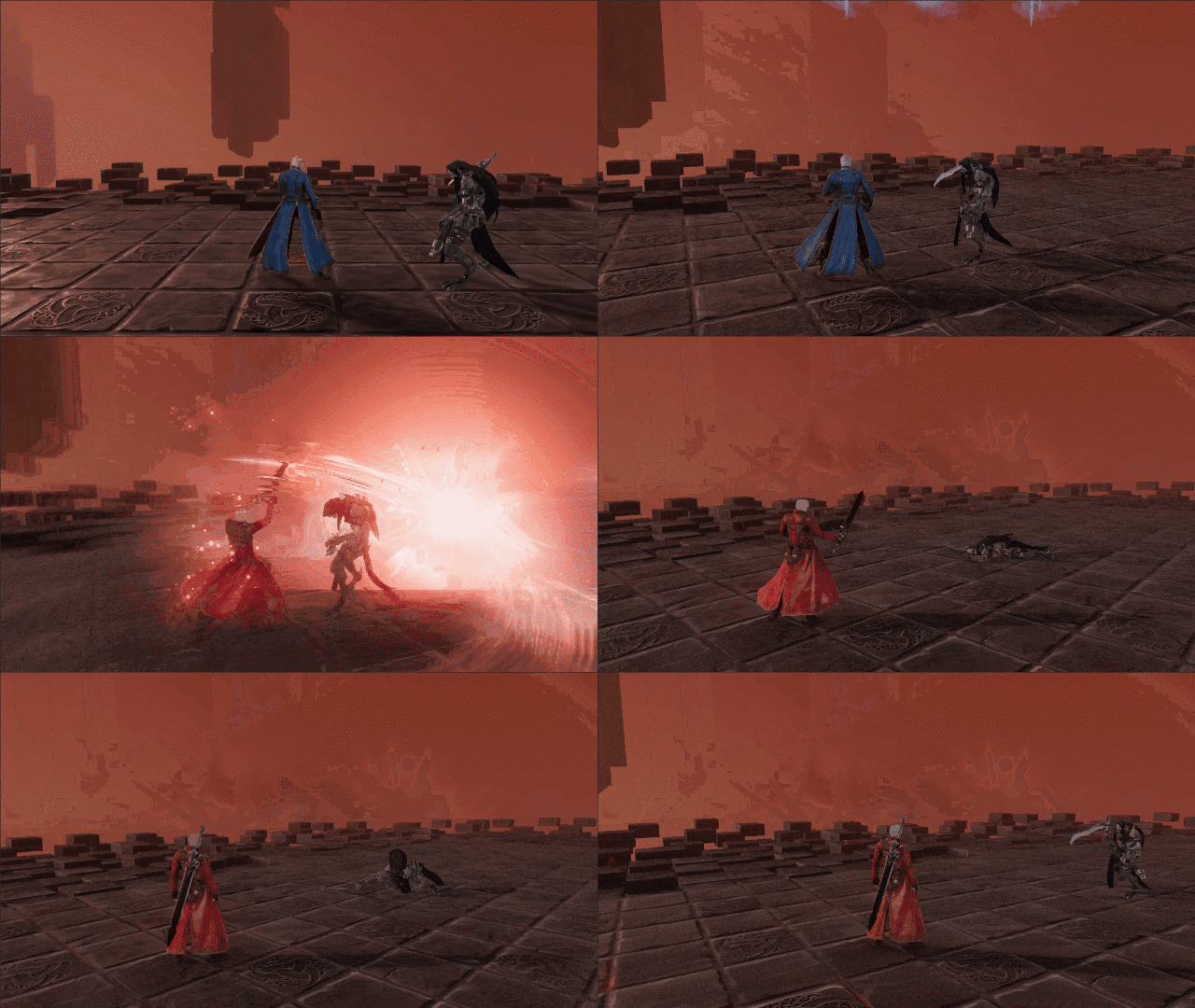
Flagship gaming phones with active cooling, such as the Redmagic 7S Pro, sustain maximum graphical settings at 60 FPS without issue. Standard mid-range devices require setting cuts to prevent throttling during longer sessions.
The table below outlines target frame rates and graphic presets across device tiers and desktop emulator configurations.
| Hardware Tier / Platform | Target Frame Rate | Recommended Graphic Preset | Key System Allocation / Setting |
|---|---|---|---|
| Mobile Flagship (e.g. Redmagic 7S Pro) | 60 FPS Sustained | Max / High In-Game Settings | Native 100% Resolution, Post-Processing Medium |
| Mid-Range Mobile Device | 60 FPS Locked | Medium In-Game Settings | Motion Blur Off, Shadows Medium, Bloom Off |
| Budget Mobile Device | 60 FPS (Combat Priority) | Low / Performance Settings | Low Shadows, FXAA Off, 100% Resolution |
| PC Desktop Virtualization (Balanced) | 120 FPS Uncapped | High In-Game Settings | 4 CPU Cores, 4 GB RAM, DirectX / Vulkan |
| PC Desktop Virtualization (Extreme) | Up to 240 FPS Target | High Settings, Post-FX Off | 4+ Cores, 4 GB+ RAM, Hardware Virtualization Enabled |
Targeting Medium to High presets rather than Ultra guarantees consistent 60 FPS without pushing modern chipsets into thermal throttling.
Mid-tier phones should never run Ultra shadows. Dynamic shadows recalculate continuously for multiple combatants. When three enemies and two tag allies share the screen, rendering high-resolution shadow maps triggers immediate frame pacing spikes.
Calibrating Sensitivity for Aerial Juggles and Target Locking
Visual smoothness means little if your camera turns too slowly to track off-screen threats. Peak of Combat uses dynamic camera tracking that feels sluggish on stock settings.
Adjust sensitivities in the controls menu to these values:
- Camera Sensitivity: 60% to 70%
- Combat Sensitivity: 70% to 80%
Camera sensitivity governs stage navigation. Setting it above 70% on a touchscreen risks overshooting target angles during platforming. Combat sensitivity controls how fast your lock-on snaps to new targets when swiping or tilting the stick mid-combo.
At 75% Combat Sensitivity, Dante can strike a vanguard demon with Rebellion, flick directions, and instantly fire a projectile at a ranged archer behind him. It delivers the fast, arcade responsiveness typical of Capcom action titles.
Once your graphics profile is locked in, you can buy Devil Gems for Peak of Combat to pull top-tier characters like Vergil and Dante to test your newfound combo consistency.
Controller Mapping and Input Latency Adjustments
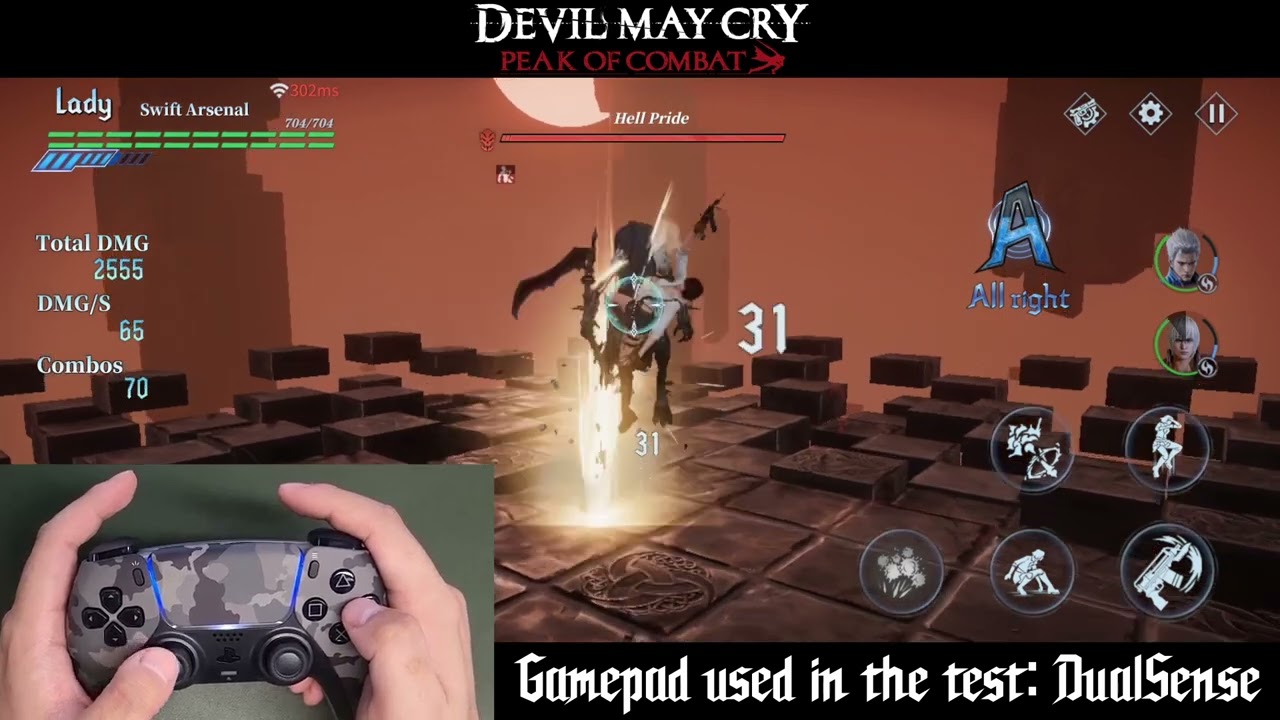
Peak of Combat supports physical gamepads natively on iOS and Android. Touch controls work for basic daily tasks, but triple-switch aerial combos feel far more reliable on tactile buttons.
Default gamepad layouts assign core combat actions to standard console inputs:
- Attack (Normal Strike): A (Xbox) / Cross (PlayStation)
- Dodge / Evade: B (Xbox) / Circle (PlayStation)
- Item / Secondary Action: X (Xbox) / Square (PlayStation)
- Special Move / Style Action: Y (Xbox) / Triangle (PlayStation)
Supported controllers include the Xbox Wireless Controller, PS5 DualSense, Backbone One, and Serafim S3. Connect over Bluetooth or direct USB-C before starting the app. Direct USB-C connections provide lower input latency than wireless Bluetooth, saving crucial milliseconds during tight jump counters.
Gamepad support covers combat and movement reliably, but certain menu prompts, dialogue sequences, and mini-game puzzles still require touchscreen taps. Keep your screen accessible.
Note that native mobile builds on Android and iOS do not support direct mouse and keyboard peripherals without a desktop virtualization environment.
PC Desktop Virtualization Settings for High Frame Rates
Running Peak of Combat through desktop virtualization unlocks frame rate targets impossible on mobile chips. Where phones cap at 60 FPS, desktop setups can run at 120 FPS or 240 FPS on high-refresh monitors.
Configure your virtualization software with these settings:
- CPU Allocation: 4 Cores (prevents CPU thread starvation during tag-team particle bursts)
- Memory Allocation: 4 GB RAM minimum
- Performance Mode: High Performance
- Graphics Rendering Engine: Vulkan or DirectX (Vulkan offers the smoothest frame times on modern GPUs)
- Hardware Virtualization (VT): Enabled in your PC's BIOS settings
Assigning 4 cores and 4 GB of RAM prevents memory bottlenecks and stabilizes rendering during particle-heavy fights. Uncapping the frame rate beyond 60 FPS makes Vergil's rapid slashes and Dante's sword-formation strikes look remarkably fluid.
The table below contrasts playing natively on mobile against using a PC virtualization setup.
| Feature / Metric | Native Mobile Client | PC Desktop Virtualization |
|---|---|---|
| Maximum Frame Rate | 60 FPS (Hardware Locked) | 120 FPS to 240 FPS (Uncapped) |
| Native Mouse & Keyboard Support | No (Touch / Gamepad Only) | Yes (Customizable Keymapping) |
| Dedicated RAM Allocation | Shared OS Memory | 4 GB Dedicated Minimum |
| CPU Core Allocation | Dynamic OS Scheduling | 4 Cores Assigned |
| Thermal Throttling Risk | Moderate to High on Prolonged Sessions | None (Active PC Cooling) |
| Primary Graphics Backend | Vulkan / Metal | Vulkan / DirectX / OpenGL |
Desktop emulation allows higher frame rate ceilings up to 120 or 240 FPS when assigning 4 cores and 4 GB RAM, while mobile hardware excels at portable low-latency touch and gamepad controls.
If frame drops persist on a capable PC, verify that Hardware Virtualization (VT-x / AMD-V) is enabled in your BIOS. Without hardware VT, software emulation causes persistent micro-stutters.
Thermal Throttling vs Visual Fidelity Comparison
When mobile hardware overheats, the operating system throttles CPU and GPU clock speeds to protect internal components. That thermal drop causes the stuttering that kicks in after 10 to 15 minutes of play.
Heavy post-processing generates excessive heat without adding meaningful clarity to smaller screens. Turning off those effects leaves thermal headroom for the processor to hold a steady 60 FPS.
This breakdown shows the performance and thermal cost of each primary graphics setting.
| Graphics Option | Visual Impact on Mobile | Thermal & GPU Load | Frame Pacing Risk | Recommendation |
|---|---|---|---|---|
| Render Resolution (100%) | Extreme (Sharpness) | Medium | High if Supersampled | Keep at Native 100% |
| Shadow Quality (Ultra) | Minor Detail Gain | High | High (Stutter on Tag) | Drop to Medium |
| Motion Blur | Blurs Combat Motion | Medium | Low | Turn Completely Off |
| Depth of Field | Blurs Backgrounds | Medium | Moderate | Turn Completely Off |
| Bloom Effects | Bright Glow Artifacts | Medium | Low | Turn Completely Off |
| Special Effects (VFX) | Essential Cue Clarity | Moderate | High if Ultra | Keep at Medium/High |
Disabling post-processing effects and holding native resolution yields the cleanest visual response during rapid three-character tag switches.
Disabling motion blur and bloom makes boss telegraphs far clearer. In high-difficulty encounters, spotting the startup frame of an enemy swipe matters much more than post-processed lighting.
Character Roster, Devil Gems, and Gameplay Optimization
Hardware stability lets you execute complex team synergies cleanly. Swapping Vergil in for a Judgement Cut while Dante suspends an enemy in mid-air requires exact input timing.
NebulaJoy built these character rotations around narrow juggle windows. At a locked 60 FPS, chaining these combos becomes consistent and predictable, removing hardware latency from the equation.
If you want to expand your Hunter roster quickly, check out the Devil May Cry Peak of Combat recharge options to grab premium packs at checkout. Having the right team synergy makes clearing high-tier bloody palace floors significantly smoother.
Frequently Asked Questions
What in-game settings are best to achieve a smooth 60 FPS in Devil May Cry: Peak of Combat?
Set your graphics quality to Custom, select the 60 FPS target, and keep resolution at 100% native. Lower Shadow Quality to Medium and turn off Motion Blur, Bloom, and Depth of Field to maintain steady frame times.
Why is Devil May Cry: Peak of Combat stuttering or dropping frames during combos?
Sudden frame drops during tag-swaps and aerial juggles are usually caused by thermal throttling or high shadow rendering passes. Lowering post-processing effects and reducing shadow quality stabilizes the rendering pipeline during heavy particle effects.
What system settings are recommended for PC virtualization play?
Allocate at least 4 CPU cores and 4 GB of RAM within your virtualization software settings. Set your graphics backend to DirectX or Vulkan and ensure hardware virtualization (VT) is enabled in your PC BIOS.
Can you play Devil May Cry: Peak of Combat at 120 FPS or higher?
Yes, running the game within a PC virtualization environment allows you to uncap performance up to 120 FPS or 240 FPS. Make sure your desktop monitor refresh rate matches your target frame rate in display settings.
Does Devil May Cry: Peak of Combat support physical controllers?
Yes, the mobile client natively supports gamepads including Xbox Wireless Controllers, PS5 DualSense, Backbone One, and Serafim S3. However, certain touchscreen menus and mini-game interactions still require manual screen taps.
What camera and combat sensitivity should be used?
Set Camera Sensitivity between 60% and 70% for smooth navigation, and Combat Sensitivity between 70% and 80% for rapid target switching. This balance allows you to snap between demonic targets instantly without losing spatial orientation.
Final Verdict on Balancing Performance and Visuals
Chasing Ultra presets in Devil May Cry: Peak of Combat is counterproductive on phones. Visual improvements are negligible in combat, but the resulting thermal throttle degrades frame pacing within minutes.
Lock render resolution at 100%, set shadows and effects to Medium, and disable motion blur, bloom, and depth of field. Your device runs cooler, battery drain slows down, and your aerial juggles stay at a steady 60 FPS.






Comments