Low-end Farlight 84 settings that hold a steady 60 FPS on 2-4GB RAM phones: every slider to drop, what to keep, and fixes for lag and crashes after updates.
Your phone is under-spec, and that explains everything
Start with the hard specs. Farlight 84's PC listing asks for 6GB of RAM minimum, a GeForce GT 640 or Radeon HD 7730 with 1GB of VRAM, and 10GB of storage space, with 8GB RAM and a GTX 970 or R9 290 recommended. If you play on a 2-4GB phone, you are running below what the developers consider the baseline for a full computer.
That is a hardware diagnosis, not an insult. Frame drops rarely hit in the lobby; they hit when 60 players load into three-player squads alongside jetpacks, vehicles, and simultaneous active abilities. A barren landing zone is cheap to render. An endgame circle with three pushing squads is heavy.
No settings menu can turn a 2GB handset into a flagship. What the right configuration does is strip out visual noise you cannot use in combat. On memory-constrained devices, the lowest settings are mandatory.

80 Diamonds
 80 DiamondsUSD 0.66Buy Now
100 Diamonds
100 DiamondsUSD 0.80Buy Now165 Diamonds
165 DiamondsUSD 1.22Buy Now220 Diamonds
220 DiamondsUSD 1.83Buy Now330 Diamonds
330 DiamondsUSD 2.38Buy Now880 Diamonds
880 DiamondsUSD 6.31Buy Now2,240 Diamonds
2,240 DiamondsUSD 16.38Buy Now4,700 Diamonds
4,700 DiamondsUSD 32.79Buy Now
The one rule: keep frame rate high, drop graphics step by step
Set your frame rate option as high as it goes, then lower graphics quality, smoothness, and anti-aliasing one notch at a time until you maintain 60 FPS. Copying settings from a flagship like the Galaxy S24 will only overheat a budget Redmi.
Chasing average FPS is misleading. Perceived stutter comes from sharp frame drops — dips below 25-30 FPS ruin gunfights, and anything under 20 feels unplayable. Tune for combat, not for wandering empty houses.
Farlight 84 low end settings, slider by slider
Target this configuration on any device with 4GB of RAM or less. Farlight 84 distributes these options across its Weapon, Battle, HUD, Looting, and Custom tabs.
| Setting | Low-end value | Why it matters |
|---|---|---|
| Frame rate | Highest available, target 60 | Keep this high; it's the whole point |
| Graphics quality | Lowest / Smooth | First and biggest lever |
| Textures | Lowest, drop these first | Texture data is the main driver of stutter on low-memory devices |
| Anti-aliasing | Off | Costs frames for edge smoothing you won't notice in a fight |
| Shadows | Off or lowest | Expensive, and mostly tells you where you're already dead |
| Effects | Low | Explosions and abilities are where fights dip |
| Vibration | Off | The physical shake moves your aim and causes missed shots, and it sips battery |
| Motion blur, depth of field, bloom | Off | Hurt both clarity and frames — pure loss on low-end hardware |
Drop textures first. On 2-4GB devices, system memory bottlenecks everything, and lowering texture quality frees up vital VRAM and RAM. Shadows and visual effects come second. Anti-aliasing ranks last because its visual impact during combat is minimal.
The General tabs worth touching
Inside the Weapon tab, toggle Aim Assist on, set Auto Fire to off, and put Aim Mode on Hold. Some players prefer Tap to free up thumb movement, which is a valid comfort choice rather than a performance fix. Pick whichever matches your grip.
Leave Auto Fire off permanently. It wastes ammunition and reveals your location before you line up a clean shot.
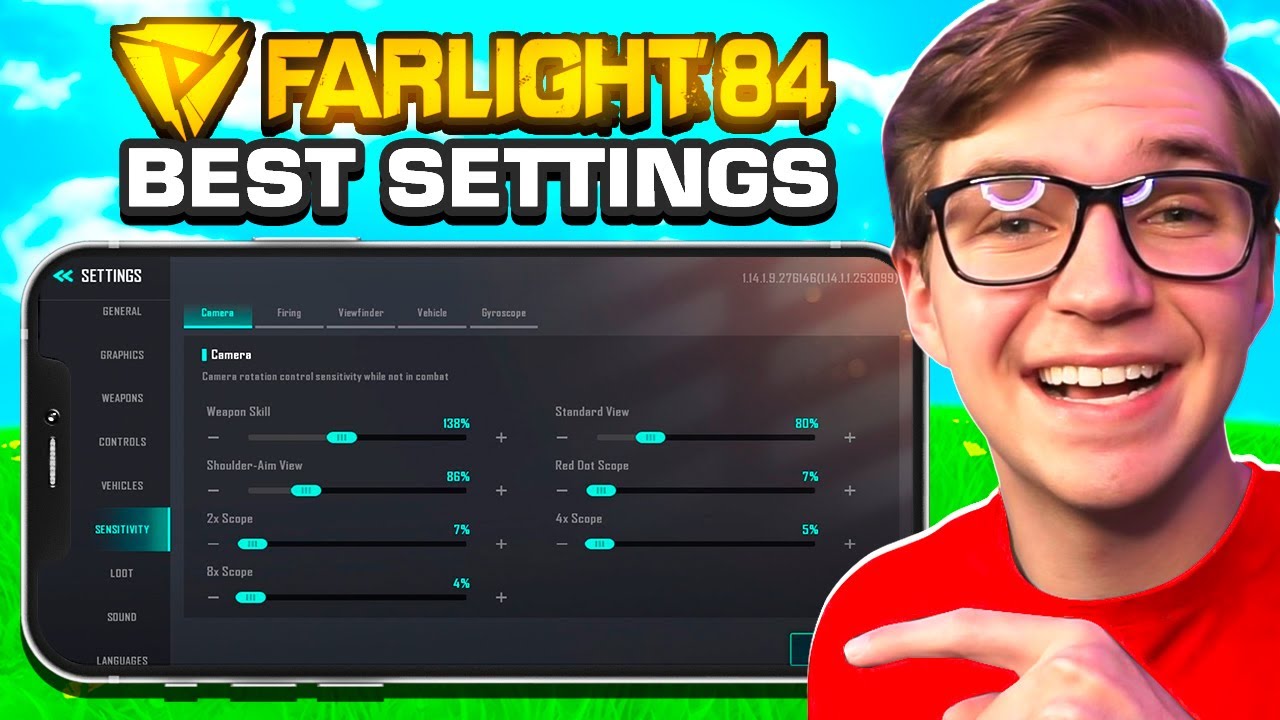
Farlight 84 smooth graphics vs HD: pick Smooth and don't look back
Choose Smooth over HD every time on low-end hardware.
Competitive shooters punish high visual presets. Ultra-class settings consume massive performance for minor visual polish. On a 2-4GB phone, HD textures trigger severe hitching whenever RAM fills up. Smooth clears memory headroom and preserves frame rate in shootouts.
The graphics look simpler, but your shots register cleanly. Prioritize responsiveness over fidelity.
If the display looks overly blurry on lowest settings, dynamic resolution scaling is dropping pixels to sustain frames. You can either accept slightly softer edges or drop background processes. While high-end guides suggest 4x anti-aliasing to smooth pixel crawling, low-end devices must run anti-aliasing off to protect frame pacing.
FPS caps and battery: match your screen, not your ego
Capping your frame rate to match your display refresh rate prevents thermal throttling. On Android 13 and newer, Game Mode frame throttling cuts GPU power consumption by up to 50% and overall system draw by up to 20% when capped cleanly:
| Screen | Valid FPS caps | My note |
|---|---|---|
| 60 Hz | 60 or 30 | 60 is the performance target; 30 is the battery-friendly cap |
| 90 Hz | 90, 45 or 30 | 45 is the middle option; 30 saves the most battery |
| 120 Hz | 120, 60, 40 or 30 | 60 is the realistic low-end target; 30 maximizes savings |
A 60 FPS cap on a 120Hz panel provides smooth tracking while stopping your phone from overheating during extended sessions. Locking a consistent 60 FPS is far more playable than swinging erratically between 45 and 75 FPS.
PC vs Android vs iOS: what actually changes
Platform optimization varies across systems. Keep these platform differences in mind before copying PC guides onto mobile:
| PC | Android | iOS | |
|---|---|---|---|
| Matchmaking | Dedicated servers, PC-only pool | Mobile pool | Mobile pool |
| Official minimum | 6GB RAM, GT 640 / HD 7730, 10GB free | Not published; 2-4GB phones sit below the PC floor | Not published |
| FPS verification | In-game or overlay counters | Game Dashboard FPS counter (Android 13+) | Fewer system-level tools |
| System throttling | Manual | Game Mode FPS caps by refresh rate | Limited user control |
| V-Sync debate | Live one (see below) | Not applicable | Not applicable |
On PC, keep vertical sync disabled to avoid input latency, enabling it only if screen tearing becomes unplayable. On mobile, matches pair you strictly with other mobile lobbies, ensuring equal hardware constraints across your lobby.
Farlight 84 lag fix after update: try these in order
Major patches, including update V2.0, frequently reset graphics profiles or introduce temporary performance regressions. When stutter appears after a patch, work through these steps sequentially:
- Close every background application before launching the game to release RAM.
- Verify that textures, shadows, and post-processing effects remained on lowest values following the update.
- Lock your frame rate to an integer divisor of your refresh rate (e.g., 60 or 30 on 60Hz; 45 or 30 on 90Hz).
- Disable haptic vibration to conserve battery and steady your crosshair.
- Monitor real performance using Android 13+'s Game Dashboard FPS counter during live firefights rather than the lobby.
- Maintain at least 10GB of free internal storage for shader caches and swap space.
- Switch to a 30 FPS cap on 2GB devices if frame pacing remains uneven.
Differentiate between rendering lag and memory hitching. Frame drops during explosions indicate heavy shader loads, requiring lower visual effects. Stuttering when panning the camera points to memory bottlenecks, requiring lower texture resolution and background RAM cleanup.
Do FPS booster apps actually work? Usually no
Third-party utilities like "120 FPS Booster - FPS Unlocker" claim to unlock 60, 90, or 120 FPS via Shizuku on Android 10+. These claims originate from the utility developers without independent confirmation.
Android's system-level frame-rate override only affects apps that do not declare their own frame rate. Because Farlight 84 explicitly defines its display rate, OEM Game Mode parameters override third-party unlockers. Tweaking developer settings rarely changes internal rendering targets.
Skip booster apps. They demand broad device permissions without improving frame pacing. Adjust internal game sliders instead.
FAQ
What are the best low-end settings for Farlight 84?
Set graphics quality to Smooth, set the frame rate setting to the highest available bracket, and disable anti-aliasing. Lower visual effects and shadows until you maintain a stable 60 FPS on your specific device.
Why does Farlight 84 lag on a 2-4GB RAM phone?
Budget phones operate below the 6GB baseline specified even for PC minimums. Low RAM causes asset hitching during combat. Lower texture quality, cap frame rates, and close background apps to free system memory.
Does capping FPS save battery in Farlight 84?
Yes. Android's native Game Mode throttling cuts GPU power by up to 50% and system draw by up to 20% when locked to supported refresh rate divisors like 30 or 60 FPS.
Do FPS unlocker or booster apps work on Farlight 84?
Generally no. Farlight 84 manages its own frame rate via internal APIs, causing OEM game modes to override third-party utilities and Shizuku scripts.
Why did Farlight 84 start stuttering after an update?
Patches like V2.0 often reset in-game graphic configurations back to default presets. Re-apply the Smooth preset, turn off shadows, and verify your texture sliders after every patch.
How do I check my actual FPS while playing?
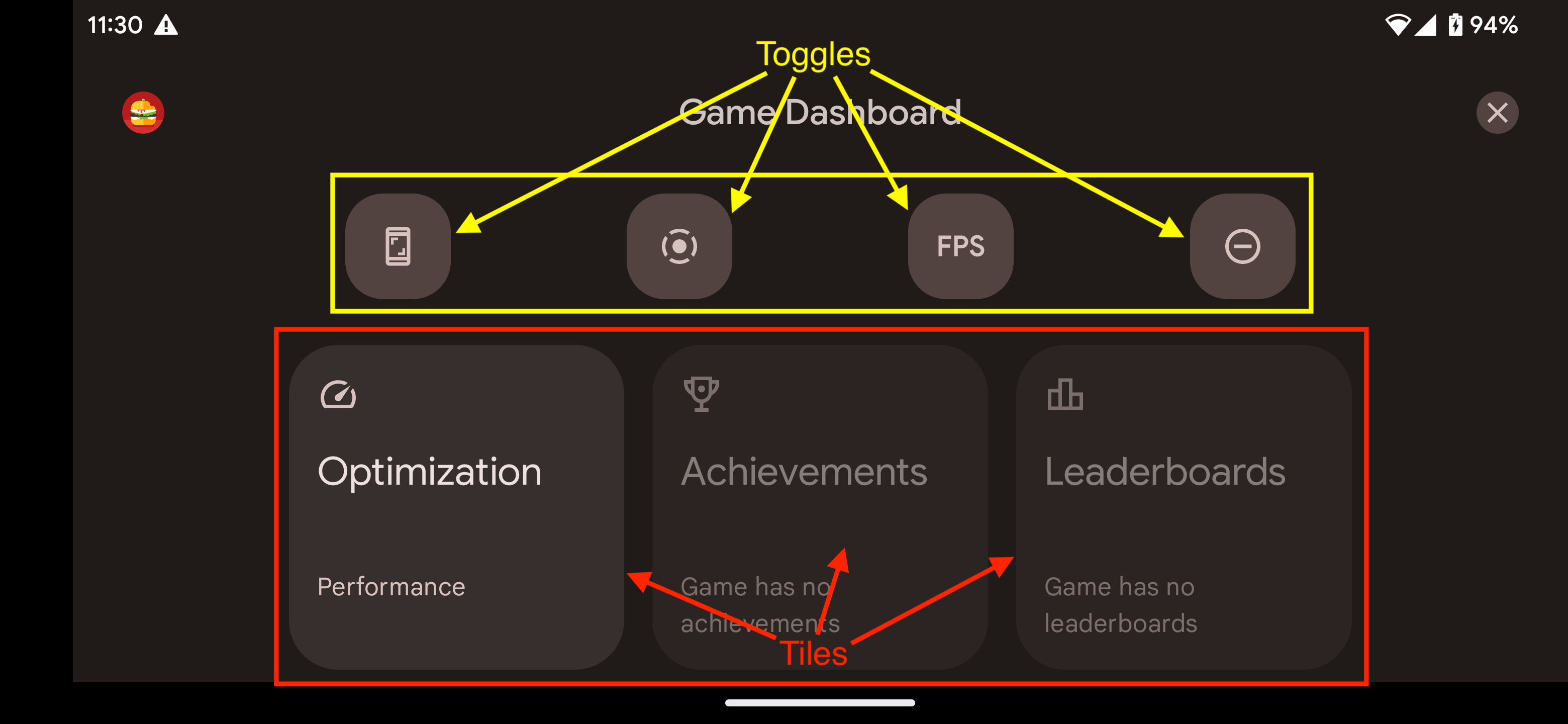
On Android 13 or newer, swipe down during a match, tap the Game Dashboard tile, enable the FPS toggle, and view real-time frame rates during active combat.
My verdict for low-end phones in 2026
Prioritize texture reduction, set visual quality to Smooth, cap frames at 60 FPS, and turn off shadows, anti-aliasing, and vibration. Monitor real-time performance through Game Dashboard during combat rather than idle lobby screens. Avoid unverified booster tools.
A stable 60 FPS in gunfights provides a massive advantage over an unstable 75 FPS in quiet areas.
If you plan on getting cosmetics or characters via a Farlight 84 Diamonds top-up, tune your performance first so your game runs smoothly. The Diamonds page for Farlight 84 provides direct pack pricing without relying on outdated screenshots. When helping friends on older devices, share your settings setup rather than a Diamond top-up link — software optimization costs nothing.
Lower those texture sliders, lock your frame rate, and take fights with confidence.






Comments