Fix the Devil May Cry Peak of Combat login failed error fast with this walkthrough covering infinite countdown loops, broken server gateways, and token bugs.
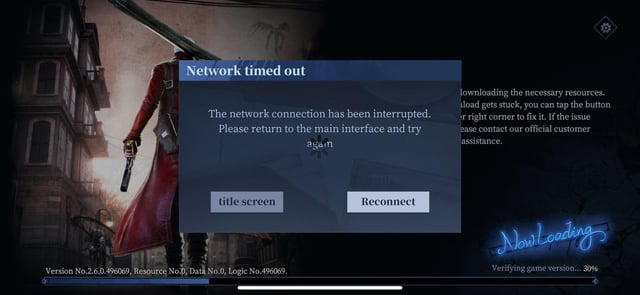
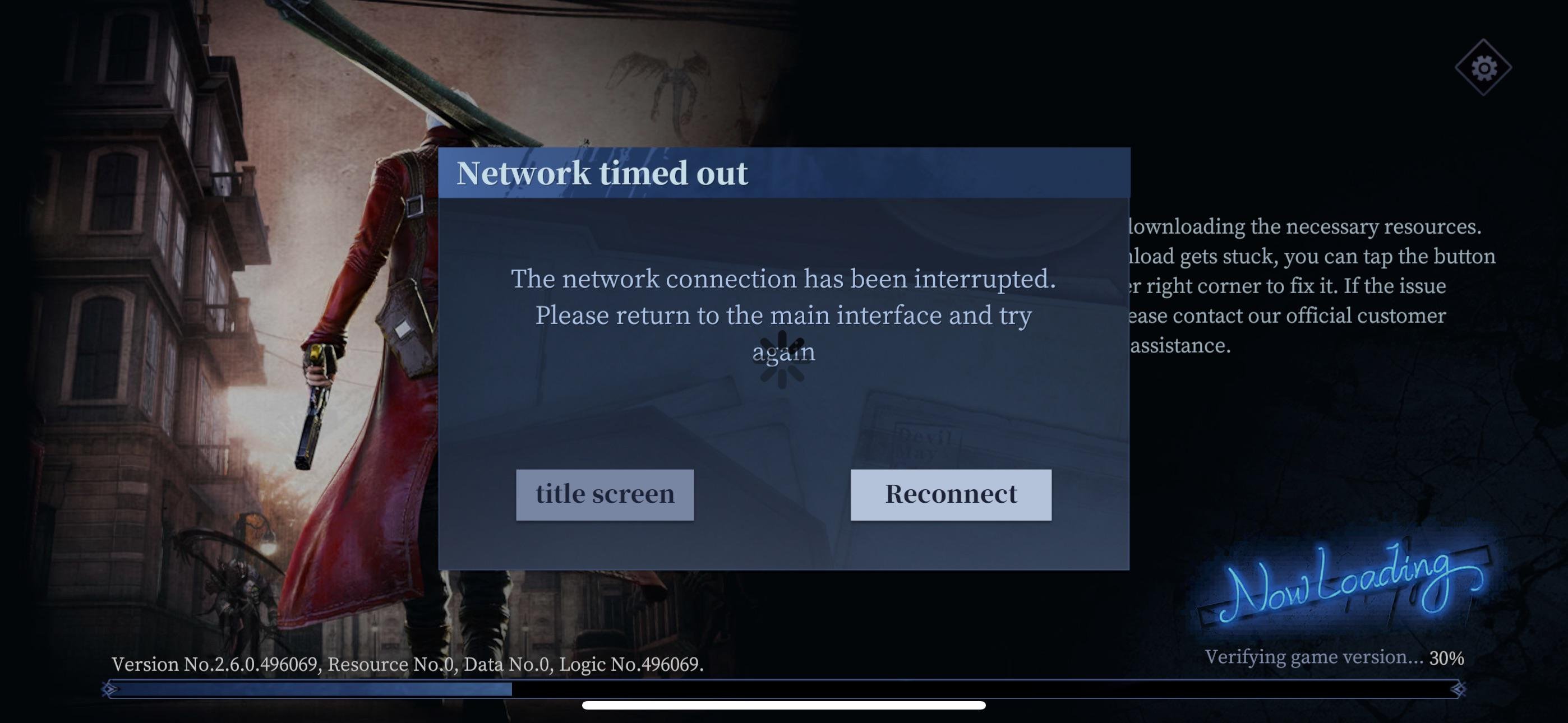
Few things kill your gaming mood faster than firing up an action RPG, seeing Dante or Vergil ready for combat, and getting smacked with an authentication drop. The devil may cry peak of combat login failed error has locked thousands of demon hunters out of their accounts right at the start screen. Sometimes the game throws a sudden gateway error. Other times, it traps you in a brutal countdown loop that resets every single time the clock hits zero.
I have run into almost every login bug NebulaJoy’s engine can dish out. The good news is that most gateway failures stem from three specific problems: localized cache desynchronization, third-party authentication handshake drops, or sudden server congestion.
Work through the diagnostic checks below to locate the bottleneck and restore account access.
Why Devil May Cry Mobile Fails to Authenticate
When your device contacts the game infrastructure, several verification handshakes happen within a few seconds. If any packet drops during this exchange, the title screen locks up.
First, massive traffic spikes overload the login cluster. When a major patch lands or an event banner goes live, thousands of players hammer the login servers at the exact same moment. The infrastructure rejects incoming connections to prevent database corruption, kicking back a generic connection error. In these situations, the login countdown timer can restart over and over each time your client tries to launch.
Second, network instability ruins the verification handshake. NebulaJoy explicitly highlights unstable local networks as a primary culprit for client disconnections at the title screen. Even a brief ping spike while the server confirms your security token will break the handshake.
Third, expired authorization tokens from external identity providers cause persistent blocks. If you bound your profile through an external social account, the platform periodically invalidates cached credentials. Your phone thinks you are verified, but the server sees a stale session and refuses access.
Finally, hardware bottlenecks can choke the asset loader. Devil May Cry: Peak of Combat demands substantial mobile resources. When a phone runs out of physical memory before the main hub loads, the client silently drops the connection and claims the login timed out.

60 Devil Gems
 60 Devil GemsUSD 0.49Buy Now
Daily Value Gem Pack I
Daily Value Gem Pack IUSD 1.40Buy NowDaily Mega Gem Pack II
Daily Mega Gem Pack IIUSD 2.11Buy Now300 Devil Gems
300 Devil GemsUSD 2.33Buy NowCard EXP Pack
Card EXP PackUSD 3.52Buy NowDaily Gem Luxury Pack III
Daily Gem Luxury Pack IIIUSD 3.52Buy NowEpic Weapon Selection
Epic Weapon SelectionUSD 3.52Buy NowHunter EXP Pack
Hunter EXP PackUSD 3.52Buy NowRandom Fragment Pack
Random Fragment PackUSD 3.52Buy NowRed Orb Pack
Red Orb PackUSD 3.52Buy NowWeapon EXP Pack
Weapon EXP PackUSD 3.52Buy Now680 Devil Gems
680 Devil GemsUSD 4.89Buy NowCrimson Scale Pack
Crimson Scale PackUSD 7.16Buy NowEpic Hunter Selection
Epic Hunter SelectionUSD 7.16Buy NowEye of Destruction Pack
Eye of Destruction PackUSD 7.16Buy NowEye of the Abyss Pack
Eye of the Abyss PackUSD 7.16Buy NowSkill Manual Pack
Skill Manual PackUSD 7.16Buy NowWeekly Gem Luxury Pack
Weekly Gem Luxury PackUSD 7.16Buy NowAdvanced Rune Selection
Advanced Rune SelectionUSD 10.73Buy Now1280 Devil Gems
1280 Devil GemsUSD 9.61Buy Now3280 Devil Gems
3280 Devil GemsUSD 24.79Buy NowHunter Premium Pack
Hunter Premium PackUSD 35.76Buy NowHunter Supreme Pack
Hunter Supreme PackUSD 35.76Buy NowWeapon Supreme Pack
Weapon Supreme PackUSD 35.76Buy Now6480 Devil Gems
6480 Devil GemsUSD 48.05Buy Now
Mobile Hardware and System Requirements
Running high-octane 3D combat requires actual processing power. If your hardware falls below the official baseline, the app will struggle to establish memory pools during authentication, triggering false network timeouts.
NebulaJoy enforces strict minimum device specifications for Android. You need a device carrying at least 3GB of RAM and 8GB of free internal storage space. Devices running outdated chipsets—anything slower than a Qualcomm Snapdragon 660 or a HiSilicon Kirin 960—will struggle to launch asset bundles. Running operating systems prior to Android 6.0 also breaks modern security protocol handshakes.
Compare your device against the hardware baselines below before troubleshooting network configurations.
| Hardware Component | Absolute Minimum Spec | Practical Recommended Baseline | Common Failure Symptom |
|---|---|---|---|
| Processor (SoC) | Snapdragon 660 / Kirin 960 | Snapdragon 870 / Dimensity 1200+ | Title screen freezes during 3D asset initialization |
| System RAM | 3GB RAM | 6GB to 8GB RAM | Out-of-memory crash during gateway verification |
| Free Storage Space | 8GB available storage | 16GB+ available storage | Patch extraction fails, causing corrupted resource check |
| Operating System | Android 6.0 | Android 12.0 or higher | Security certificate negotiation timeout with auth server |
Meeting these specs does not guarantee a flawless connection, but falling below them almost guarantees regular crashes and gateway timeouts at the start menu.
Step-by-Step Fixes for Login Failures and Countdown Loops
Work through these troubleshooting steps sequentially. I ordered them from the fastest zero-risk adjustments to more invasive system-level resets.
1. Toggle Your Data Route and Flush DNS
Unstable network handshakes cause the dreaded dmc peak of combat login timeout error. Do not simply restart your Wi-Fi router; change the entire route. 1. Force-close the game application completely from your recent apps switcher. 2. Turn off Wi-Fi on your device and switch strictly to mobile cellular data (or vice versa). 3. Toggle Airplane Mode on for ten seconds, then turn it off to flush local network caching. 4. Relaunch the game. If switching connections breaks the countdown loop, your home broadband was dropping validation packets to the auth cluster.
2. Run the Built-In Title Screen Scan and Repair Tool
Corrupted asset fragments can prevent the game from reaching the character select state. Thankfully, you do not have to reinstall the entire client just to fix a single broken patch file. 1. Open the game and stop at the initial title screen. 2. Look to the right-side utility menu. 3. Tap the Scan and Repair icon. 4. Confirm the prompt. The client will hash-check your local resource files against server manifests and redownload any broken or missing assets. 5. Wait for the integrity scan to hit 100%, then restart the client.
3. Clear Local Application Cache
Cached login tokens can become desynchronized after backend server restarts. Wiping them forces the application to request a completely fresh gateway handshake. - On Android: Open Settings -> Apps -> DMC: Peak of Combat -> Storage -> Tap Clear Cache. Do not tap "Clear Data" unless you have already bound your account, as clearing data will wipe guest access keys. - On iOS: Apple does not provide a direct cache wipe button for individual games. You will need to perform an offload via Settings -> General -> iPhone Storage -> DMC: Peak of Combat -> Offload App, then reinstall it.
4. Switch Server Gateway Regions
A server gateway can buckle under local peak hours while adjacent regions run completely fine. If you run into the dmc peak of combat switch server stuck loading bug, manually verify your target gateway: 1. Tap the server selection bar on the main splash screen. 2. Verify that your primary server shows an active, reachable status rather than a greyed-out maintenance icon. 3. If your primary server is stuck processing, temporarily select an alternate region to test if the client connects. 4. Switch back to your home server once the gateway ping refreshes.
Fixing Account Linking and Expired Token Errors
Social platform authorization tokens expire regularly. When a platform revokes or cycles a security key in the background, the game client tries to validate an old credential. The server immediately rejects the session, causing a devil may cry peak of combat account linking error.
To break this loop, you need to strip away the stale authorization and force both platforms to generate a new security token.
- Open your device's default web browser or external social media app.
- Head to your account security menu and open the connected apps list.
- Locate Devil May Cry: Peak of Combat and remove or revoke app permissions.
- Return to your phone's application settings and clear the cache of both the social app and the game client.
- Launch DMC: Peak of Combat, tap the Switch Account button on the right side of the title screen, and re-enter your credentials.
- Grant all requested profile verification permissions when prompted.
If you have been playing without securing your credentials, dmc peak of combat guest account recovery becomes significantly harder once local app data is wiped. If your guest session fails to log in, do not clear storage data. Instead, tap User Center directly from the start screen and use your local device identifier to bind an email before attempting aggressive network resets.
Once your profile is safely restored and linked, you can secure your Hunter rosters and summon banners through the Peak of Combat balance center to keep your Devil Gems ready for new character drops without relying on unstable mobile payment gateways.
Server Downtime Windows and Maintenance Schedules
Sometimes the problem has nothing to do with your phone, your internet provider, or your account credentials. The servers might simply be turned off. When NebulaJoy deploys infrastructure fixes or database maintenance, the login cluster shuts down entirely, returning a connection failed warning.
Server downtime generally falls into three operational tiers. Understanding which maintenance window is active saves you from reinstalling an app that simply cannot connect until the backend opens up.
| Maintenance Category | Typical Expected Duration | Primary Backend Operations Performed | Player Impact at Login |
|---|---|---|---|
| Short Routine Maintenance | 5 to 30 minutes | Micro-patches, configuration tweaks, single service reboots | Brief gateway disconnect; login countdown loops briefly |
| Standard Planned Maintenance | 1 to 4 hours | Game client updates, database maintenance, OS security patching | Server selection menu lists offline state; auth rejected |
| Major or Emergency Downtime | 4 to 8+ hours | Critical hardware repairs, vulnerability fixes, data migrations | Full connection drops; title screen throws gateway timeout |
Routine maintenance rarely lasts longer than half an hour, but unexpected hardware failures or database migrations can push emergency maintenance beyond eight hours. Always check official channels before troubleshooting your local device.
To check live server status during an outage:
- Check the official Twitter handle at @dmc_poc for real-time downtime declarations and queue overload warnings.
- Join the official community Discord server where community managers publish emergency maintenance alerts.
- Look for the built-in system announcement banner on the title screen before pressing start.
Cross-Platform Troubleshooting: Android, iOS, and PC Emulators
Login issues present differently depending on what device you use. While mobile users battle thermal constraints and cellular handshakes, desktop emulator players run into virtualization bugs and network bridging errors.
Many competitive players run DMC: Peak of Combat on PC emulators like LDPlayer to hit 120 FPS high-refresh configurations. Emulators bypass mobile thermal throttling, but they introduce custom networking layers that can miscommunicate with NebulaJoy's authentication services.
Each platform introduces distinct failure points during the login sequence:
| Platform / Client | Common Login Bottlenecks | Primary Troubleshooting Action | Specific Configuration Settings |
|---|---|---|---|
| Android Mobile | Low RAM allocation; aggressive OS battery savers sleeping network tasks | Clear app cache; disable battery optimization for the game | Grant unrestricted background data access |
| Apple iOS | Sandboxed cache conflicts; network permissions revoked after iOS updates | Offload app via General Storage menu; reset local network access | Enable "Local Network" in iOS app settings |
| PC Emulators (e.g., LDPlayer) | Virtual network bridge dropouts; corrupted graphic engine profile | Switch emulator network mode between NAT and Bridged; run repair | Set emulator display to 120 FPS profile; assign 4+ CPU cores |
Keeping your login credentials verified protects your roster across both phones and emulators. Devil May Cry: Peak of Combat ties all character summons, weapon upgrades, and Devil Gems directly to your authenticated user ID.
Whenever you plan to expand your armory, grabbing an account Devil Gem top-up outside the mobile client lets you bypass local device checkout glitches while keeping your resources tied safely to your permanent user ID.
Escalating to NebulaJoy Customer Support
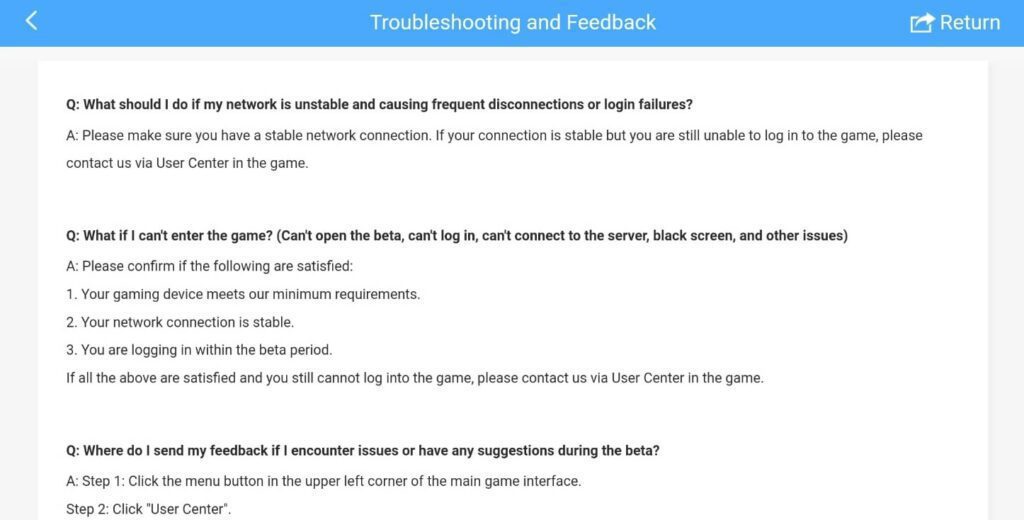
If you have verified that servers are live, your network is stable, and your cache is clear, but you still face a devil may cry mobile failed to login error, your profile is likely flagged or locked in a backend database state. You need official intervention.
Official documentation splits developer credits between NebulaJoy and Capcom, while Game2Sky manages the support infrastructure domains. Regardless of the storefront imprint, support operations run through the same customer service team.
Submitting a Ticket via the Title Screen User Center
If you can reach the title screen, use the built-in customer service pipeline: 1. Tap the User Center button on the right-hand panel. 2. Select the customer service ticket option. 3. Fill out every required profile parameter: - Player ID (UID) (if remembered or noted from previous screenshots) - Character Name - Server Region - Exact Device Model (e.g., Samsung Galaxy S23, Xiaomi 13) - System OS Version - Contact Email and Phone Number - Detailed screenshots showing the exact error prompt or countdown loop.
Contacting Developer Email Support Directly
If the client crashes instantly or freezes before the User Center loads, bypass the app completely. Send an email to the official developer support address: [email protected].
Keep your message concise. Include your server, in-game name, UID, device hardware specs, internet provider, and a timestamped recording or screenshot of the login failure. The support desk processes tickets systematically, so providing complete technical specs upfront prevents days of back-and-forth emails.
If you need to restock supplies right after getting your access restored, you can pick up a DMC Peak of Combat pack recharge to claim any limited summon banners you missed during your downtime.
FAQ
Why does Devil May Cry: Peak of Combat show a Login Failed Connection Error?
This error pops up when game servers are overloaded by traffic or undergoing maintenance, or when your local network suffers packet loss. It also occurs if your third-party account authorization token has expired in your device settings.
How can I fix the infinite login countdown loop?
Restart the game app completely and switch your internet connection from Wi-Fi to cellular data. If the problem persists, the gateway is likely overcrowded, meaning you will need to wait a few minutes for traffic to subside.
How do I use the Scan and Repair tool on the title screen?
Launch the game and tap the Scan and Repair icon on the right side of the main title screen. The client will automatically scan for missing or corrupted game files and download fresh replacements.
What are the minimum Android device requirements for DMC Peak of Combat?
You need at least a Snapdragon 660 or Kirin 960 processor, Android 6.0 or higher, 3GB of RAM, and 8GB of free storage. Running hardware below these thresholds causes memory exhaustion and title screen crashes.
How long does scheduled DMC Peak of Combat server maintenance usually last?
Planned maintenance windows typically run between 1 and 4 hours, while quick hotfix restarts take 5 to 30 minutes. Critical infrastructure issues or emergency patches can occasionally push downtime past 8 hours.
What should I do if my bound social account fails to log in?
Remove the game's permissions inside your social platform's security settings, log out, and clear your browser cache. Relaunching DMC: Peak of Combat will force a fresh authentication token request.
How do I contact NebulaJoy customer support if I cannot log in?
Tap the User Center button on the game's title screen to submit a detailed help ticket. If the game crashes before the start menu appears, email your logs and device specs directly to [email protected].
The Real Fix for Stubborn Connection Drops
Most login failures in Devil May Cry: Peak of Combat are not terminal account deaths. In nine out of ten cases, you are dealing with a routine maintenance window, a clogged gateway during peak hours, or a stale local cache file.
My personal rule of thumb: never reinstall the game client first. Re-downloading massive asset packs wastes time and risks wiping guest account identifiers.
Check the @dmc_poc Twitter handle first. If the servers are operational, switch from Wi-Fi to cellular data, run the Scan and Repair tool on the title screen, and clear your app cache. If an authorization token desynced, resetting platform permissions or reconnecting through the User Center will push your client past the start screen.






Comments