Need your numeric account number for a quick recharge? Here is where to find Party Star User ID on Android screens without mixing it up with your nickname.
Where to Find Party Star User ID on Android in Under a Minute
Finding your numeric account identifier in Party Star takes roughly fifteen seconds once you know where the developers placed it. Too many players waste time digging through deep system submenus or privacy disclaimers because the app homepage highlights voice rooms and board games rather than your credentials.
Follow this direct sequence on your Android device:
- Open the Party Star app from your app drawer. Allow the main feed to load past any active splash screens or game lobby prompts.
- Tap your personal avatar icon or the profile tab labeled with your current picture. You can spot this at the corner of your interface.
- Look directly beneath your display nickname on the user dashboard. You will see a distinct line of numbers labeled as your ID.
- Tap the clipboard icon sitting immediately adjacent to that number sequence. A brief toast notification will confirm that your account string has copied to your Android clipboard.
That clipboard string is the exact code required when ordering virtual gifts, adding contacts across voice servers, or grabbing extra currency. If you are preparing for a room event or need items immediately, you can use that copied number directly on the party star diamonds top-up page to ensure your purchases credit the right account without manual entry errors.
Never memorize this string. Transposing two digits credits an inactive account or leaves an order stuck in manual verification. Hit the copy button every time.

3,500 Diamonds
 3,500 DiamondsUSD 3.40Buy Now
7,520 Diamonds
7,520 DiamondsUSD 7.31Buy Now11,750 Diamonds
11,750 DiamondsUSD 11.43Buy Now23,500 Diamonds
23,500 DiamondsUSD 22.85Buy Now47,000 Diamonds
47,000 DiamondsUSD 45.70Buy Now70,500 Diamonds
70,500 DiamondsUSD 68.56Buy Now94,000 Diamonds
94,000 DiamondsUSD 91.41Buy Now117,500 Diamonds
117,500 DiamondsUSD 114.26Buy Now200,000 Diamonds
200,000 DiamondsUSD 194.49Buy Now500,000 Diamonds
500,000 DiamondsUSD 486.22Buy Now
Numeric UID vs Display Nickname: Why Recharges Fail Without It
When registering an account on Party Star, the system asks for your mobile phone number and prompts you to enter a display nickname. Setting an avatar photo, picking your birthday, and writing a profile bio are entirely optional steps during setup. Because your nickname is what shows up across public group chats, entry animations, and game tables, most players assume that nickname is their platform identity. It is not.
Your display nickname is cosmetic. Party Star permits custom characters, emojis, and frequent name adjustments. Two distinct players can share identical or deceptively similar display names. If a platform attempted to route items or social requests using display nicknames, database collisions would happen constantly.
Your User ID (UID) is a permanent, immutable numeric sequence generated at the instant of account creation. It anchors your wallet balance, inventory items, chat privileges, and friendship records on the backend server.
Here is how Party Star separates in-game identities from phone-level user accounts:
| Identifier Type | Value Format | Mutability | Primary Function |
|---|---|---|---|
| Party Star User ID (UID) | Fixed numeric string | Permanent (Cannot be edited) | Recharges, platform verification, adding friends |
| Party Star Display Nickname | Alphanumeric text & emojis | Editable via profile settings | Visual social identification in rooms and games |
| Android System User ID | Local integer (e.g., 0, 10, 11) | System-assigned per user space | OS-level sandbox isolation on the physical phone |
Takeaway: Only the permanent numeric Party Star User ID validates your account identity for transactional and administrative operations; nicknames and OS IDs cannot route in-game deliveries.
Using a nickname when an automated system asks for a User ID is the single most common cause of failed account lookups. If an external service or friend asks for your ID, never paste your cosmetic handle. Return to your profile screen and grab the raw numbers.
Troubleshooting UI Display Glitches and Truncated Numbers on Android
Sometimes you follow the right steps on your Android device, open your profile dashboard, and the numeric ID is partially cut off or completely hidden behind another user interface element. This is not a profile ban. It is almost always an Android system rendering conflict.
Modern Android visual guidelines suggest maintaining a minimum body font size of 16sp along with a 1.5x line height to prevent visual crowding. However, many Android users adjust their system-wide display scaling or select oversized bold fonts in accessibility settings to improve general readability. When an app features fixed-dimension profile cards—like Party Star does—those expanded OS system fonts break the card boundaries.
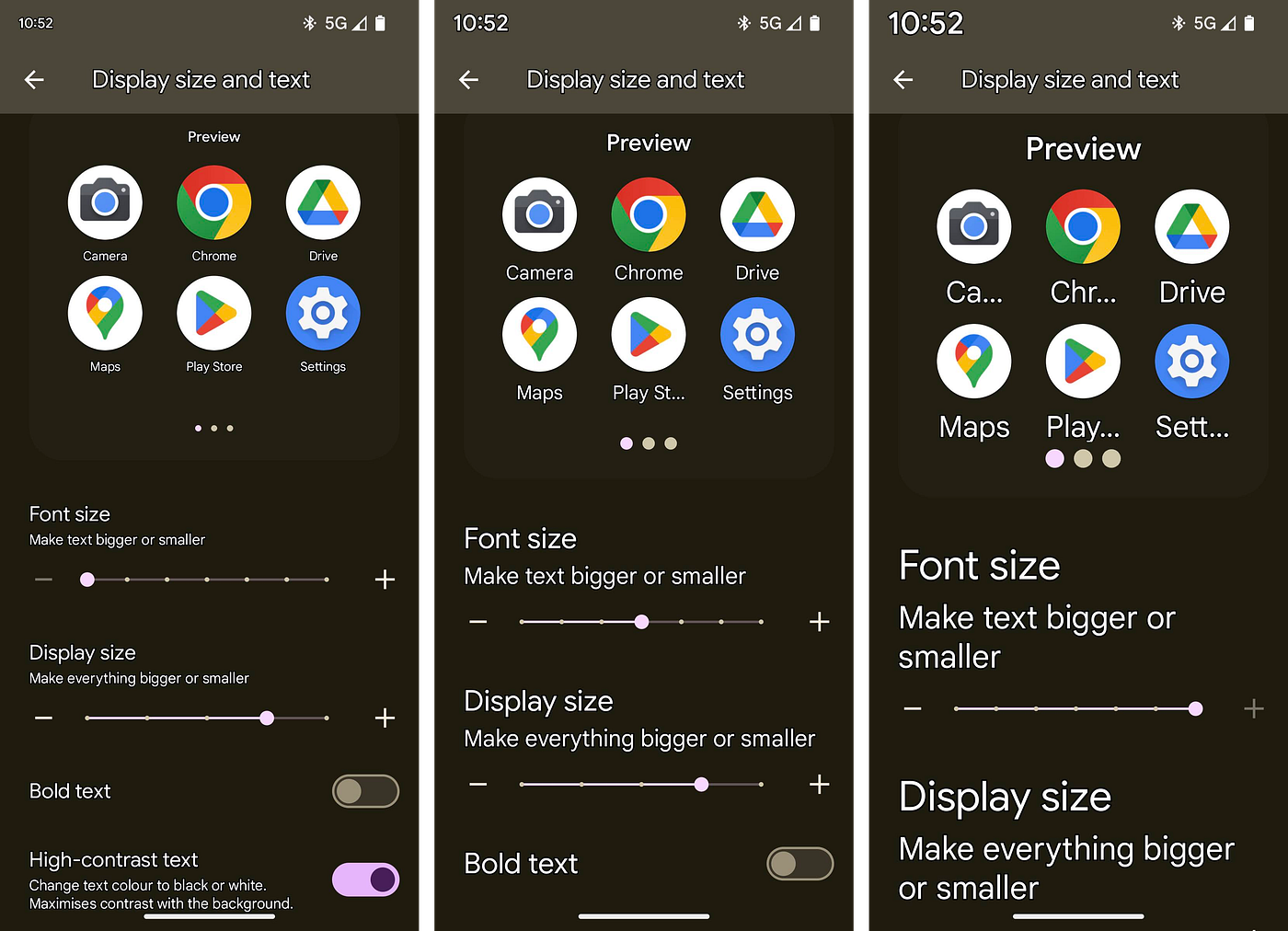
Here is how to resolve display truncation on your Android hardware:
- Lower System Font Scale: Open your phone's native Settings, navigate to Display, tap Font Size and Style, and pull the slider down to standard or default.
- Adjust Display Resolution / Screen Zoom: In that same Display settings menu, check Screen Zoom. If set to maximum magnification, reduce it by one step. This gives the Party Star profile card enough horizontal pixel space to print the entire numeric sequence.
- Clear App Cache: If the ID string appears blank or shows a broken placeholder, go to Android Settings > Apps > Party Star > Storage, and tap Clear Cache. Do not tap Clear Data unless you have your phone login credentials ready, as clearing data resets your local session.
- Restart the App Instance: Swipe Party Star out of your Android Recents app switcher to terminate the process, then relaunch it. This forces the layout engine to redraw text elements cleanly.
Once the card fits your screen correctly, you will see every digit clearly next to the clipboard icon. Having your full sequence visible avoids guessing clipped end-digits before recharging your party star balance.
Hardware Identifiers vs App Account IDs on Android Devices
When troubleshooting account recovery with technical support, players often confuse their Party Star User ID with their device's underlying hardware identifiers. Party Star collects persistent hardware and network telemetry whenever you run the client. These parameters identify physical smartphones on the developer's network, but they do not substitute for your profile UID.
Party Star's network services log deep hardware metrics from your Android device, including your International Mobile Equipment Identity (IMEI), Mobile Equipment Identifier (MEID), standard Android ID, Media Access Control (MAC) address, International Mobile Subscriber Identity (IMSI), Integrated Circuit Card Identifier (ICCID), Unique Device Identifier (UDID), and Globally Unique Identifier (GUID).
How device-level diagnostics compare to your actual game account:
| Identifier Category | Examples | Collected By | Purpose |
|---|---|---|---|
| Platform Game UID | 7 to 10-digit account string | Party Star Core Database | Account routing, profile identification, wallet crediting |
| Hardware Radio IDs | IMEI, MEID, IMSI, ICCID | Baseband & Telephony Stack | Carrier routing, network lock tracking, telecom fraud prevention |
| Device OS Identifiers | Android ID, UDID, GUID | Android Operating System | Hardware-level analytics, crash reporting, anti-abuse flagging |
| Network Interface IDs | Hardware MAC Address | Wi-Fi & Bluetooth Adapters | Local hardware network socket identification |
Takeaway: Hardware metrics track your physical phone for security and fraud policies, but third-party tools and platform databases communicate solely through your in-app Party Star UID.
Sending support your IMEI or Android ID will get you nowhere. Those strings track the physical handset, not your voice room profile. Stick to the numeric UID on your user card.
Multi-User Spaces and Work Profile Sandboxes on Android
Android handles app data through strict permission sandboxing. If you use enterprise work profiles, guest accounts, or secure folders, locating the right User ID requires checking which container you have open.
Android assigns internal numeric identifiers to local device spaces. The primary owner of an Android smartphone operates under UserInfo 0. When you establish secondary device profiles or guest profiles, Android assigns them subsequent integers, such as UserInfo 10 or UserInfo 11. These numbers live strictly inside the operating system kernel. They have zero relationship with your Party Star UID, yet they drastically affect which account you see when launching the app.

Watch out for these three workspace scenarios:
- Work Profile Badges: If your company manages your device via Mobile Device Management, you may have two instances of Party Star installed. The work instance will display a tiny briefcase badge on the app icon. Data between these two installations does not cross over. If you log in under the work profile, you will generate or view an entirely different User ID than the one on your personal space.
- Multi-User Guest Spaces: If someone else logged into Party Star under UserInfo 10 on your tablet or phone, switching back to UserInfo 0 loads your own separate application container. Each sandbox holds its own cache, authentication tokens, and profile UID.
- App Cloner Tools: Many Android power users employ OEM app duplication tools to manage dual social profiles. An original instance and a cloned instance pull separate profile IDs. Make certain you are pulling the numeric UID from the exact profile you intend to manage.
Always double-check your current Android workspace before copying a UID. Launching an unlinked clone will display a newly minted UID rather than your established primary account.
Account Governance, Age Rules, and Company Ownership Quirks
Documentation across app stores and privacy policies reveals conflicting corporate details and age rules that affect account governance.
Legal ownership listings differ depending on which document you open:
- Gumdrop Entertainment Pte. Ltd.: Listed as the operator and data controller in the official Party Star Privacy Policy and across emulation catalogs like BlueStacks.
- OLA PARTY PTE. LTD.: Listed as the primary contractual operator entity within the platform's standard User Agreement.
- Ola Chat Pte. Ltd.: Frequently referenced across alternate Android APK distribution repositories.
Regardless of which legal entity controls the specific regional build you downloaded, both operators enforce a strict prohibition against unauthorized account transfers. Because your Party Star account binds directly to personal transaction records, credit data, and individual phone verifications, trading, selling, or transferring account credentials without direct administrative approval can trigger permanent termination.
Age restrictions also conflict between policies:
- The Privacy Policy Rule: States unambiguously that individuals under 14 years of age are not permitted to register or use the platform.
- The User Agreement Rule: Bars minors under 12 from accessing the service, while permitting users between 12 and 18 years old (extended to age 20 in Taiwan) to participate provided they obtain verifiable legal guardian consent.
Because of this clash in legal texts, parents managing Android family accounts should default to the stricter standard. If your dependent is under 14, they should not hold an independent Party Star UID. Guard your account credentials closely, as sharing account numbers alongside phone verification codes voids platform protections.
System Requirements and Playing Across Mobile or Emulators
Party Star skips heavy 3D rendering, but running real-time voice stages alongside interactive animations still demands stable baseline hardware.
Running voice rooms concurrently with Ludo, Carrom, Billiards, Pool, or Parcheesi ties up memory and requires consistent socket connections.
Hardware targets for mobile devices and PC emulators:
| Specification Parameter | Android Mobile Requirement | Desktop Emulator Requirement | | :--- | :--- | :--- | :--- | | Minimum Operating System | Android 7.0 (Nougat) or newer | Windows 10/11 or macOS running BlueStacks | | Supported Interactive Games | Ludo, Billiards, Carrom, Parcheesi, Pool | Ludo, Billiards, Carrom, Parcheesi, Pool | | Account Storage Binding | Phone Number & App Sandbox | Emulated Android Device Profile & Phone Login | | Input Optimization | Capacitive Touch / On-Screen Mic | Mouse Click Mapping / Desktop Audio Routing | | Visual Feature Support | Animated Room Entrance Effects | GPU Virtualization Enabled for Particle Effects |
Takeaway: Running Party Star requires at least Android 7.0, and your numeric UID remains constant whether you log in through an Android smartphone or an emulated desktop environment.
If you run Party Star through BlueStacks on a PC to play Billiards or manage voice stages on a bigger monitor, the interface navigation remains identical. Tap the profile avatar in the emulator window, locate the numeric sequence, and copy it. When you need to top up items for your room, browsing the Party Star recharge catalog from your desktop browser while your emulator stays open on another screen is often far more convenient than toggling apps on a single phone.
Keep your Android operating system updated above Android 7.0. Running obsolete versions invites socket connection timeouts, which frequently disconnect you mid-game or cause profile data sync delays.
Frequently Asked Questions
Where do I find my Party Star User ID on Android?
Tap your profile icon or avatar on the main application screen to open your user dashboard. Your unique numeric User ID displays right beneath your display nickname alongside a small clipboard icon.
Can I use my display nickname instead of my User ID for top-ups?
No, automated delivery systems require your exact numeric User ID to deliver items to your account. Nicknames can be edited at any time and are not unique across the platform database.
How can I copy my Party Star User ID quickly?
Tap the small copy icon sitting immediately next to your numeric User ID on your profile page. Your Android device will automatically save the entire sequence to your system clipboard.
What should I do if my Party Star User ID is truncated or not visible?
Open your Android system display settings and reduce your font size or screen zoom level. Oversized system text causes profile card elements to wrap or clip outside the visible screen.
Is my Party Star User ID the same as my Google Play account ID?
No, your Party Star User ID is an internal account number generated by the app platform. It operates completely independently of your Google Play email address or Android OS account.
What is the minimum Android version required to run Party Star?
Party Star requires Android 7.0 or higher to install and run properly. Devices running older operating systems cannot install the client from supported app repositories.
Can someone steal my account if I share my Party Star User ID?
No, your numeric User ID is a public identifier used for receiving top-ups and incoming friend requests. Your account remains safe as long as you never share your login password or phone verification codes.
Final Take: Keep the Digits Handy and Skip the Nickname Confusion
Stop pasting your display nickname into forms that explicitly demand your User ID. Your display handle is merely cosmetic paint for chat rooms and board game tables. It changes whenever you feel like editing your profile, and it does not guarantee identity verification anywhere on the backend.
Your actual Party Star User ID is that stubborn string of numbers sitting beneath your picture on the profile screen. Take three seconds to open the app, tap your avatar, and hit the clipboard icon. Store that number in a secure note on your Android phone so you never have to scramble for it right before a live party event begins.






Comments