Tweak your Dragonheir graphics settings for FPS and battery life. Fix thermal throttling and lock smooth 60 FPS across Android, iOS, and PC combat.
Dragonheir: Silent Gods pairs high-fantasy open-world exploration with tactical 5x8 chessboard combat. Watching a full squad unleash spell rotations on a crowded grid pushes mobile and desktop hardware hard. If your phone turns into a pocket heater after three Goblin Lair runs or your PC stutters when five heroes trigger their ultimate abilities simultaneously, your graphics setup needs tuning.
Good performance does not require dropping every slider to minimum. It comes down to cutting specific rendering options that hammer fill-rate without improving tactical clarity. Here is how to lock stable frametimes, eliminate thermal throttling, and preserve battery life across platforms.
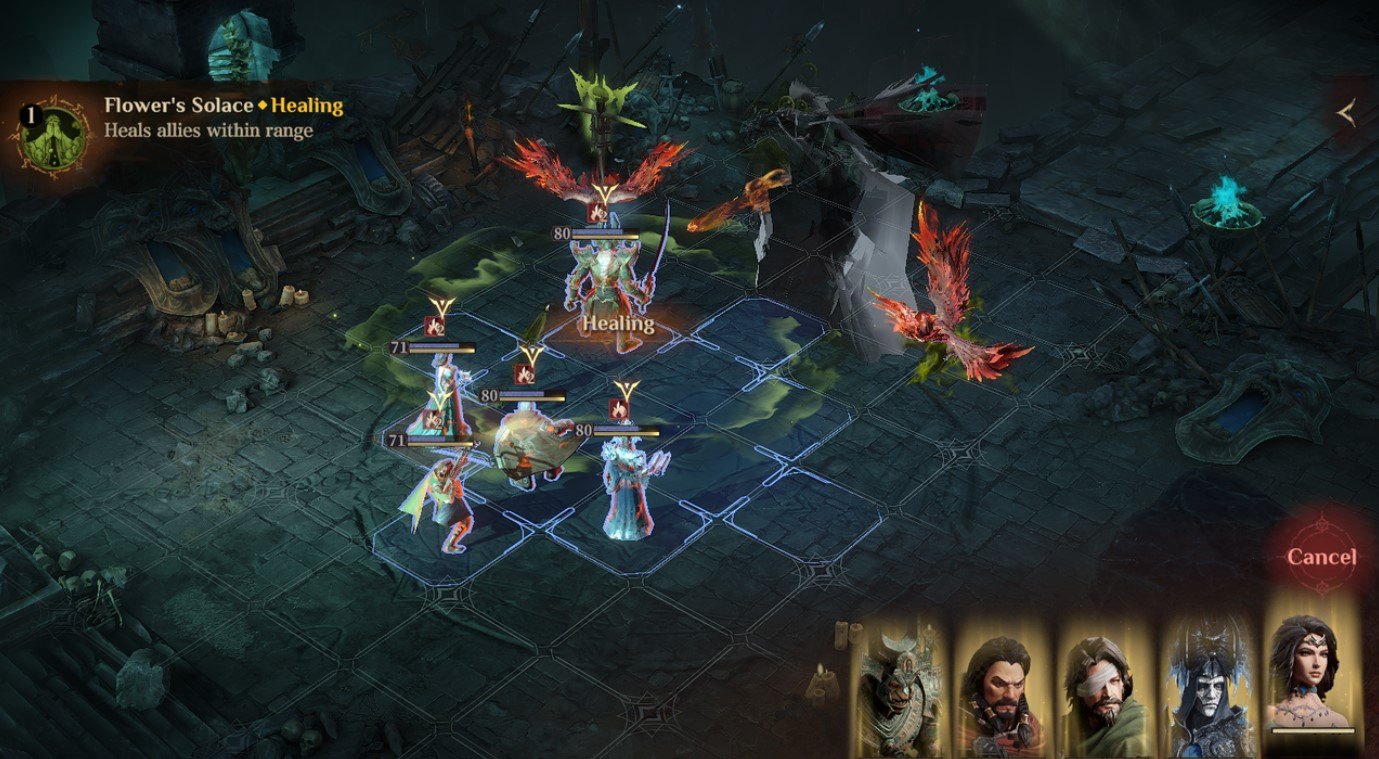
Why Dragonheir Drops Frames in Combat
Framerate drops rarely strike while walking through quiet open-world zones. The real bottlenecks land during active combat on the 5x8 grid, driven by two features: Auto Spellcasting and 2x Speed mode.
With Auto Spellcasting enabled, heroes cast their ultimate skills the instant their energy bars fill. In dense multi-wave fights, three or four champions frequently unleash particle-heavy animations at once. This floods the graphics pipeline with overlapping alpha layers, dynamic lighting passes, and screen-space shaders.
Toggling 2x Speed compresses those animations and status calculations into half the standard time window. Your hardware must process double the particle updates and render calls per second. Because Dragonheir relies on standard GPU rasterization rather than CPU-heavy physics or ray tracing, raw fill-rate and VRAM bandwidth determine whether framerates hold or tank.
If you plan extended auto-farming sessions while preparing resources, stock up on summoning currency and Dragonheir: Silent Gods Dragon Crystals so your roster is ready for late-game content.

70 Dragon Crystals
 70 Dragon CrystalsUSD 0.63Buy Now
Celebration Value Pack
Celebration Value PackUSD 0.62Buy NowSeason Summons Pack I
Season Summons Pack IUSD 0.63Buy NowLegendary Hero Special Pack (S1-S5)
Legendary Hero Special Pack (S1-S5)USD 3.81Buy Now350 Dragon Crystals
350 Dragon CrystalsUSD 3.86Buy NowApprentice's Secret Collection
Apprentice's Secret CollectionUSD 3.86Buy NowMonthly Apprentice Gift
Monthly Apprentice GiftUSD 3.86Buy NowSeason Summons Pack II
Season Summons Pack IIUSD 3.86Buy NowVow of Companionship
Vow of CompanionshipUSD 3.86Buy NowWyrmarrow Mining Warrant
Wyrmarrow Mining WarrantUSD 3.86Buy Now700 Dragon Crystals
700 Dragon CrystalsUSD 6.44Buy NowHero's Anthem
Hero's AnthemUSD 6.44Buy NowMonthly Master Gift
Monthly Master GiftUSD 6.44Buy NowMonthly Scholar Gift
Monthly Scholar GiftUSD 6.44Buy NowMonthly Summons Pack I
Monthly Summons Pack IUSD 6.44Buy NowWeekly Apprentice Gift
Weekly Apprentice GiftUSD 6.44Buy NowDaily Supply from Three Ears
Daily Supply from Three EarsUSD 6.44Buy Now7-Day Daily Value Pack
7-Day Daily Value PackUSD 6.44Buy NowSeason Summons Pack III
Season Summons Pack IIIUSD 6.44Buy NowWalker's Selection
Walker's SelectionUSD 6.44Buy NowCrucial Horn
Crucial HornUSD 10.24Buy NowInferno Shadows
Inferno ShadowsUSD 10.18Buy NowCrystal Echoes
Crystal EchoesUSD 10.18Buy NowScholar's Secret Collection
Scholar's Secret CollectionUSD 10.24Buy NowSnowland Lament
Snowland LamentUSD 10.16Buy Now1,400 Dragon Crystals
1,400 Dragon CrystalsUSD 12.93Buy NowSynarell Exclusive Skin Pack
Synarell Exclusive Skin PackUSD 12.72Buy NowWhirling Shadows
Whirling ShadowsUSD 13.12Buy NowMonthly Summons Pack II
Monthly Summons Pack IIUSD 12.93Buy NowWeekly Scholar Gift
Weekly Scholar GiftUSD 12.89Buy NowWeekly Summons Pack I
Weekly Summons Pack IUSD 12.89Buy NowFey's Gift
Fey's GiftUSD 12.89Buy NowFrostlands Whisper
Frostlands WhisperUSD 12.72Buy NowImperial Shadow
Imperial ShadowUSD 12.89Buy NowLunar Halo Radiance
Lunar Halo RadianceUSD 12.72Buy NowSeason Summons Pack IV
Season Summons Pack IVUSD 12.89Buy NowWeekly Master Gift I
Weekly Master Gift IUSD 12.89Buy Now3,500 Dragon Crystals
3,500 Dragon CrystalsUSD 32.14Buy NowCelebration Luxury Secret Collection
Celebration Luxury Secret CollectionUSD 31.71Buy NowMaster's Secret Collection
Master's Secret CollectionUSD 32.14Buy NowMonthly Summons Pack III
Monthly Summons Pack IIIUSD 32.14Buy NowSeason Summons Pack V
Season Summons Pack VUSD 32.14Buy NowWeekly Master Gift II
Weekly Master Gift IIUSD 32.14Buy NowWeekly Summons Pack II
Weekly Summons Pack IIUSD 32.14Buy NowLegendary Damage Dealer Option Pack (S1-S5)
Legendary Damage Dealer Option Pack (S1-S5)USD 63.55Buy NowLegendary Support Option Pack (S1)
Legendary Support Option Pack (S1)USD 63.55Buy Now7,000 Dragon Crystals
7,000 Dragon CrystalsUSD 64.60Buy NowCelebration Premium Secret Collection
Celebration Premium Secret CollectionUSD 63.55Buy NowCelebration Premium Summons Pack
Celebration Premium Summons PackUSD 63.55Buy NowMonthly Summons Pack IV
Monthly Summons Pack IVUSD 64.60Buy NowWeekly Summons Pack III
Weekly Summons Pack IIIUSD 64.60Buy NowSeason Summons Pack VI
Season Summons Pack VIUSD 64.60Buy NowWeekly Master Gift III
Weekly Master Gift IIIUSD 64.60Buy Now14,000 Dragon Crystals
14,000 Dragon CrystalsUSD 129.32Buy Now
The Best Dragonheir PC Performance Settings
The PC client scales well, but default presets push unnecessary post-processing during continuous dungeon grinding. Official minimum specs list an Intel Core i3 7th gen, 8 GB RAM, 18 GB storage, and a 256 MB DirectX 10 GPU (like the GeForce 8600 GT or Radeon HD 2600 XT). While that baseline launches the client, it drops frames during dense ultimate rotations.
Recommended specs target an Intel Core i5 10th gen, 16 GB RAM, an NVIDIA GeForce RTX 2050 (4 GB VRAM), and 20 GB disk space. Pushing native 1440p or high refresh rates requires a dedicated desktop GPU with ample memory bandwidth.
The table below outlines PC hardware targets and expected performance profiles across display resolutions.
| Hardware Tier | Target Resolution & Framerate | Recommended Hardware Baseline | Target Experience |
|---|---|---|---|
| Budget | 1080p / 60 FPS | AMD Ryzen 5 7600, 8 GB Dedicated GPU, 16 GB RAM | Sustains smooth 60 FPS on high settings at standard full HD resolution |
| Mid-Tier | 1440p / 60 FPS | AMD Ryzen 7 7700, 16 GB Dedicated GPU, 32 GB RAM | Provides ample VRAM headroom for crisp 1440p rendering without stutter |
| High-End | 1440p / 144 FPS | AMD Ryzen 7 9800X3D, 16 GB GPU (RTX 5070 Ti class), 32 GB RAM | Built for high-refresh monitors and dense multi-unit battle scenes |
| Enthusiast | 4K / 60 FPS | AMD Ryzen 9 9950X3D, 32 GB Dedicated GPU, 64 GB RAM | Delivers maximum visual fidelity and native 4K output without compromise |
Running dedicated desktop hardware with at least 8 GB of VRAM prevents frame pacing spikes during multi-hero ability activations.
Fine-Tuning PC In-Game Sliders
To lock your PC client at a stable framerate, adjust your settings using this custom profile:
- Display Mode: Fullscreen Borderless (maintains stable desktop synchronisation)
- Framerate Cap: Match your monitor refresh rate (60 Hz or 144 Hz)
- Resolution Scale: 100% (avoid rendering above native display output)
- Shadow Quality: Medium (drastically lowers GPU rasterization passes without losing scene depth)
- Visual Effects / Particles: Medium (prevents massive frame drops when Auto Spellcasting triggers)
- Post-Processing: Low or Off (disables heavy motion blur and chromatic filters that muddy chessboard clarity)
- Anti-Aliasing: FXAA or TAA (smooths character edges without the performance cost of supersampling)
Dragonheir 60 FPS Mobile Config for Android and iOS
Mobile hardware faces immediate thermal limits in Dragonheir. The client renders complex 3D models and lighting passes in real time. Leaving every slider maxed out delivers 60 FPS for ten minutes before passive thermal limits kick in, cutting clocks and plunging gameplay into the unstable 20s.
The base Android installation requires roughly 1.93 GB of initial storage (build 0.316.184365 targeting arm64-v8a on Android 7.0+), with additional asset downloads expanding total footprint. Keeping your device cool and framerates stable requires building thermal headroom into your configuration.
The table below details how performance variables and constraints compare across PC, Android, and iOS environments.
| Platform | Rendering Bottleneck | Initial Storage Footprint | Recommended Framerate Cap | Primary Thermal Risk |
|---|---|---|---|---|
| PC Desktop | Dedicated GPU fill-rate | ~18 GB to 20 GB free disk space | 60 FPS or 144 FPS | Low (Managed by active chassis cooling) |
| Android | GPU shader load & thermal throttling | ~1.93 GB base installer + data packages | 30 FPS (Farming) / 60 FPS (Story) | High (Passive cooling triggers aggressive clock down) |
| iOS | Metal API thermal ceiling | Variable app payload + asset packs | 60 FPS (with reduced shadow presets) | Moderate to High (Screen dimming under prolonged heat) |
Balancing frame targets according to your platform avoids aggressive thermal throttling during long gaming sessions.
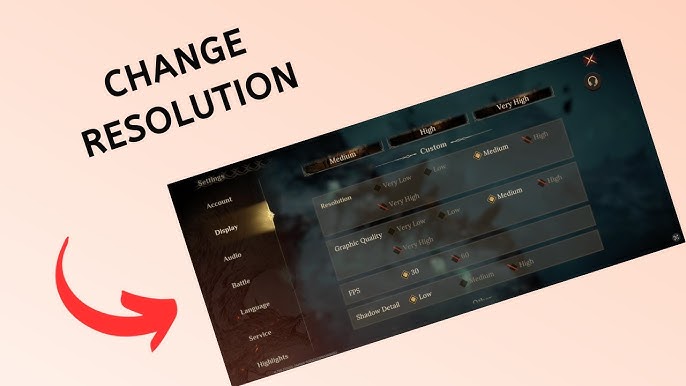
For balanced mobile gameplay, set Resolution to Medium, Framerate to 60 FPS, Shadow Quality to Low, and Special Effects to Medium. This keeps character models crisp while cutting volumetric lighting and complex shadow passes that drain battery life.
Dragonheir Silent Gods Lag Fix Android: Step-by-Step
If you run into micro-stutter, visual lag, or touch latency on Android devices, work through these steps:
- Lower the In-Game Resolution Scale: Open settings from the top corner menu. Change the resolution setting from High/Ultra to Medium. This immediately cuts pixel rendering count and eases GPU fill-rate load.
- Cap Farming Framerates at 30 FPS: When running 20 continuous dungeon runs on 2x Speed, lower the framerate target to 30 FPS. Automated background farming does not benefit from 60 FPS, and the 30 FPS cap cuts power draw drastically.
- Clear Corrupted Game Cache Data: Exit the game, open Android System Settings, navigate to Apps, select Dragonheir, tap Storage, and select Clear Cache. This removes stale shader cache files without deleting account credentials.
- Disable OS Battery Saver Modes for the App: OS-level battery saver modes throttle CPU clock speeds too low, creating micro-stutters. Set Dragonheir to "Unrestricted" or "Performance Mode" in your device's game booster software, then manage power consumption via in-game toggles instead.
- Shut Down Background Apps: Close background social apps, video streams, and cloud backup syncs before starting prolonged battle sessions to free RAM for asset streaming.
Dragonheir iOS Graphics Optimization and Overheating Fix
Apple devices running Dragonheir benefit from unified memory architectures, but sustained heat buildup triggers aggressive thermal throttling. When your iPhone or iPad overheats, iOS automatically dims the display by 30% to 50%, making dark dungeon battlegrounds difficult to read.
To prevent iOS thermal dimming:
- Disable In-Game Post-Processing: Turn off bloom, depth of field, and motion blur. These effects generate heat without adding clarity on smaller screens.
- Set Character Quality to High, but Shadows to Low: Character models remain detailed on modest hardware, but dynamic shadows consume the largest chunk of mobile GPU time. Setting shadows to Low eliminates thermal spikes while keeping models crisp.
- Avoid Playing While Fast-Charging: Fast charging generates high internal battery heat. Pairing high-wattage charging with intensive 2x Speed farming triggers thermal throttling within minutes.
- Remove Thick Protective Cases During Grinds: Heavy cases trap heat against the back glass. Removing your case allows passive thermal dissipation to work as designed.
When expanding your hero roster, you can refill your summoning supplies directly to secure essential summons without payment delays on mobile storefronts.

Graphics Settings Impact Matrix for Battery and FPS
Individual graphics toggles carry disproportionate rendering costs. Some cut framerates in half for minor visual gains, while others improve image clarity with negligible performance penalties.
The matrix below shows the measured impact of individual graphics options on framerate stability and battery consumption.
| Graphic Setting | Recommended Target Value | Impact on Framerate (FPS) | Impact on Battery Drain | Visual Quality Trade-off |
|---|---|---|---|---|
| Resolution Scale | Medium (Mobile) / Native (PC) | Very High (25% - 40% change) | Extreme | Medium preserves crispness on screens under 7 inches |
| Target Framerate | 60 FPS (Active) / 30 FPS (Auto) | High (Direct load multiplier) | Extreme | 30 FPS is choppy for manual control, perfect for auto runs |
| Shadow Quality | Low or Medium | High (15% - 25% change) | High | Low softens ground contact shadows; chessboard stays readable |
| Special Effects Quality | Medium | High during Ultimate Skill casts | High | Reduces particle density and alpha blending clutter in 5x8 combat |
| Anti-Aliasing | Low / TAA | Low to Moderate (5% - 8% change) | Low | Eliminates shimmering along armor edges and environment borders |
| Post-Processing | Off | Moderate (10% change) | Moderate | Removes muddy motion blur and artificial lens glare |
Focusing reductions on Resolution Scale and Shadow Quality yields the biggest improvements in battery life and framerate stability.
Dialing back shadows and particle density allows you to keep high-resolution textures enabled without triggering thermal throttling.
Optimizing Multi-Instance Farming and Extended Dungeon Runs
Late-game progression in Dragonheir demands heavy dungeon grinding. Updates have expanded multi-stage dungeons like the Goblin Lair and elemental domains up to Stage 12, alongside expanding Fey Meander to 200 stages. Running hundreds of continuous farming runs on a mobile phone accelerates battery wear.
Using PC emulators for prolonged sessions eliminates mobile battery degradation and heat constraints. However, multi-instance farming or rerolling splits physical CPU cores and VRAM across virtual instances.
To configure multi-instance farming smoothly:
- Allocate Resources Per Instance: Assign 2 dedicated CPU cores and 3 GB to 4 GB of RAM per emulator instance.
- Lower In-Game Presets Across All Instances: Drop rendering resolution to Low, cap framerates at 30 FPS, and turn off dynamic shadows. Secondary background windows will stutter if they render high-density particle effects.
- Link Accounts Before Switching Environments: Publisher attribution for Dragonheir varies across listings between SGRA Studio, Nuverse, Level Infinite, and Proxima Beta depending on platform and territory. Always link your guest account to a primary login inside settings before switching between mobile and desktop setups to avoid losing progress.
For players working through endgame challenges like Fey Meander Stage 200, steady resources make roster tuning easier. You can secure extra Dragon Crystals to strengthen your team compositions for high-difficulty stages.
FAQ
How can I improve FPS and reduce lag in Dragonheir: Silent Gods?
Lower your in-game resolution scale and reduce shadow quality to Low or Medium in the graphics menu. Closing background applications and turning off post-processing effects will also stabilize frametimes during combat.
How do I extend battery life while playing Dragonheir on mobile?
Cap your framerate at 30 FPS during repetitive auto-farming sessions and lower your screen brightness. Setting shadow quality to Low and turning off bloom effects will significantly reduce GPU power draw.
Is Dragonheir: Silent Gods primarily CPU or GPU demanding?
The game is primarily GPU-bound, meaning framerates scale most noticeably with graphics card performance and fill-rate capacity. A modest multi-core processor is sufficient as long as your GPU can handle the active display resolution.
Does Dragonheir require a ray tracing graphics card?
No, Dragonheir does not utilize hardware-accelerated ray tracing for its lighting or reflections. The rendering pipeline is built around standard rasterization, so standard modern graphics cards provide the full visual experience.
What are the minimum PC hardware requirements to run Dragonheir?
You need an Intel Core i3 7th generation CPU, 8 GB of RAM, a 256 MB DirectX 10 capable graphics card, and 18 GB of available storage space. A 64-bit Windows 10 installation is also required.
How much storage space does Dragonheir require on mobile?
The initial Android base installer package requires approximately 1.93 GB of storage. Additional in-game asset packages downloaded after initial setup will increase total storage requirements.
Does 2x Speed mode in combat impact gaming performance?
Yes, 2x Speed mode doubles the frequency of combat animations, particle effects, and status calculations on screen. This temporary spike in rendering workload can trigger frame drops on thermally constrained devices.
Final Verdict on Dragonheir Visual Optimization
Smooth gameplay in Dragonheir: Silent Gods comes down to controlling GPU fill-rate. Maxing out every slider provides negligible visual gain on mobile displays while accelerating battery drain and thermal throttling.
On mobile, configure Medium Resolution, Low Shadows, Medium Effects, and 60 FPS for active play, dropping to 30 FPS for auto-grinding. On PC, target a dedicated graphics card with at least 8 GB of VRAM for stable 1080p and 1440p frametimes. These settings keep framerates steady and hardware cool through extended farming sessions.






Comments