Learn how to link Blood Strike mobile account to PC step by step. Sync your Strike Gold, rank, and weapon skins without creating an orphaned guest ID profile.
The Step-by-Step Mobile to PC Account Linking Process
Player data, Strike Gold balances, and loadouts sit directly on NetEase servers, so you can switch between phone and desktop freely—as long as your account is bound on mobile first. Rushing the PC launch risks locking your desktop client to an empty guest profile.
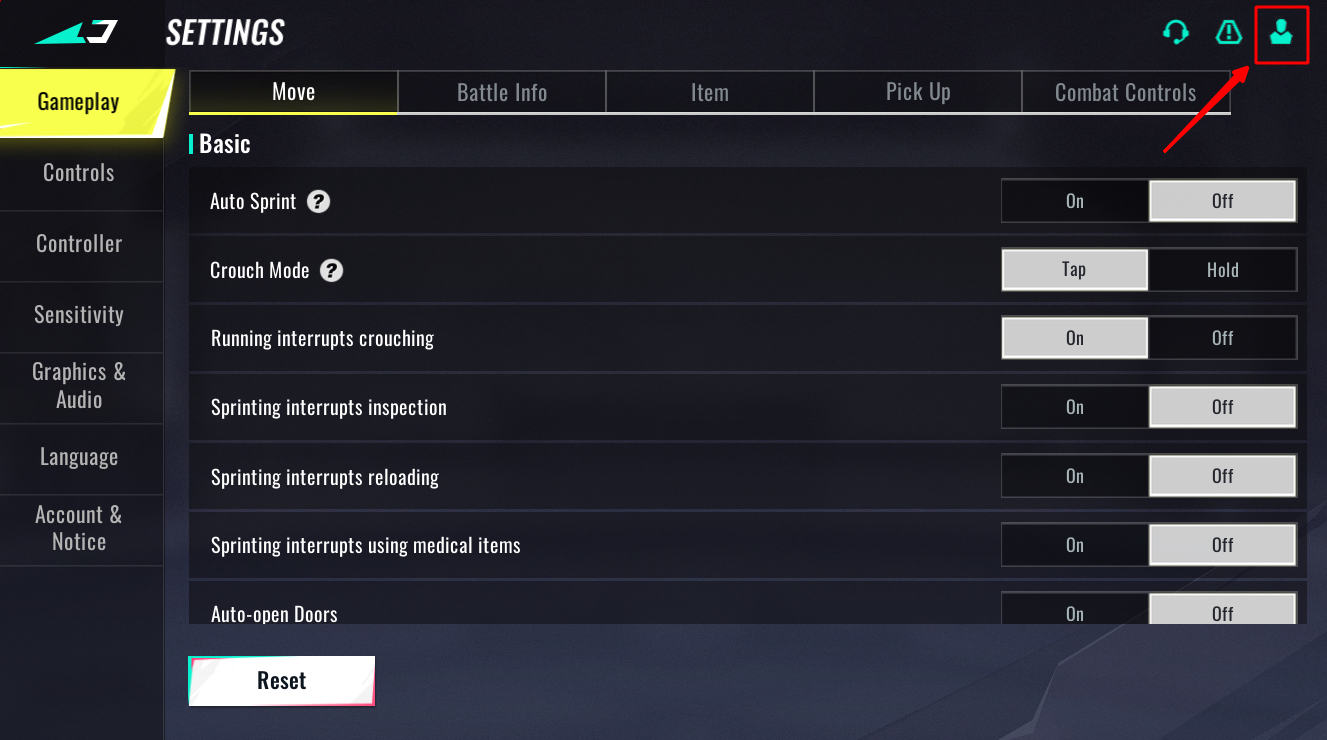
Follow these steps on your mobile device before opening the PC launcher:
- Open Blood Strike on your Android or iOS device and log into your primary profile with your existing ranks and skins.
- Tap the Settings gear icon on the main lobby screen.
- Select the Account tab in the top-right corner of the settings interface.
- Tap the "Bind Account" button to view third-party binding options.
- Choose your linking method. If you plan to play through Steam, select Steam and complete the browser authentication. For the standalone NetEase PC launcher, bind an email, Google account, Apple ID, or social login.
- Confirm the binding prompt. Ensure the interface confirms your platform ID is tied to your current user ID.
Once linked, open your PC client. On the standalone launcher, scan the on-screen QR code with your mobile Blood Strike app or enter your credentials directly. On Steam, launch the game from your library; it will detect your bound Steam ID and load your profile immediately.

Season Pass
 Season PassUSD 0.73Buy Now
Enable Burning Eternal Valor Pre order
Enable Burning Eternal Valor Pre orderUSD 1.49Buy Now50 Golds
50 GoldsUSD 0.39Buy NowUltra Skin Lucky Chest
Ultra Skin Lucky ChestUSD 0.37Buy NowLevel Up Pass
Level Up PassUSD 1.46Buy NowStrike Pass Elite
Strike Pass EliteUSD 2.91Buy NowStrike Pass Premium
Strike Pass PremiumUSD 6.33Buy Now300 + 20 Gold
300 + 20 GoldUSD 1.92Buy Now500 + 40 Gold
500 + 40 GoldUSD 3.19Buy Now1000 + 100 Gold
1000 + 100 GoldUSD 6.44Buy Now2000 + 260 Gold
2000 + 260 GoldUSD 12.79Buy Now5000 + 800 Gold
5000 + 800 GoldUSD 31.88Buy NowLevelUp Pass
LevelUp PassUSD 1.58Buy NowStrike Pass Elite
Strike Pass EliteUSD 3.14Buy NowStrike Pass Premium
Strike Pass PremiumUSD 6.97Buy NowUltra Skin Lucky Chest
Ultra Skin Lucky ChestUSD 0.39Buy Now100 + 5 Golds
100 + 5 GoldsUSD 0.77Buy Now300 + 20 Golds
300 + 20 GoldsUSD 2.35Buy Now500 + 40 Golds
500 + 40 GoldsUSD 3.92Buy Now1000 + 100 Golds
1000 + 100 GoldsUSD 7.84Buy Now2000 + 260 Golds
2000 + 260 GoldsUSD 15.67Buy Now5000 + 800 Golds
5000 + 800 GoldsUSD 39.16Buy Now100 + 5 Gold
100 + 5 GoldUSD 0.67Buy NowLucky Bag Week
Lucky Bag WeekUSD 0.77Buy NowLevelUp Pass
LevelUp PassUSD 1.56Buy Now
The Steam Orphan Trap and How to Avoid Account Lockout
Launching Blood Strike on Steam before binding your mobile profile creates an immediate collision. The game does not prompt you for existing login details on its first boot.
Instead, Steam registers your Steam ID as an entirely new level-one user. That new guest profile binds your Steam account instantly. Once claimed, any attempt to link your primary mobile profile to that Steam account triggers an error.
The launcher provides no self-serve unbind tool. Fixing this requires contacting NetEase in-game customer support, submitting your user IDs, and waiting for a manual reset. Keep Steam closed until your mobile app confirms your Steam account is bound.
Standalone Launcher vs Steam: Choosing Your PC Platform
NetEase distributes Blood Strike on Windows through a direct standalone client and through Steam. While in-match performance is identical, their login mechanics differ.
Here is how the login methods and setup requirements compare across platforms:
| Platform Version | Primary Login Method | Setup Requirement | Account Binding Constraint |
|---|---|---|---|
| Direct PC Client (NetEase) | Email, Social Login, or Mobile QR Scan | Download standalone installer | Log in directly using any bound credential without pre-locking platform IDs |
| Steam PC Client | Automatic Steam ID Authentication | Install via Steam Store | Must bind Steam ID inside mobile settings before first PC launch |
| Android / iOS Client | Google Play, Apple ID, Social, or Guest | Download via App Store / Play Store | Acts as the master hub where guest accounts must be bound to external IDs |
The standalone NetEase launcher bypasses third-party binding entirely by letting you scan a QR code from your phone screen.
Steam keeps your playtime and friends list inside Valve's ecosystem, but requires pre-binding on mobile to avoid the orphan trap.
Syncing Progress, Strike Gold, and Seasonal Ladders Across Devices
Player profiles live server-side, meaning ranks, balances, and cosmetics do not depend on local phone storage.
Your competitive rank transfers 1:1 between platforms across all eight tiers, from Unranked to Legend. Seasonal resets drop your ladder placement periodically, but your unlocked Ultra items, character Strikers, and collaborative weapon skins remain tied to your account across mobile and PC.
Strike Gold syncs across all linked clients. Any Gold earned through seasonal progression—such as the roughly 520 permanent Gold awarded per season through the free Strike Pass—or bought through top-ups remains available on any device. If you want to expand your loadout or pick up seasonal cosmetics without paying standard platform markups, you can pick up a Blood Strike Gold top-up to fund your account directly.
Here is a complete breakdown of how specific game data handles cross-platform synchronization:
| Account Asset / Feature | Cross-Progression Behavior | Retention Status |
|---|---|---|
| Strike Gold Balance | Shared across Android, iOS, and PC | Permanent server-side balance |
| Competitive Rank (Unranked to Legend) | Matches current seasonal tier across all devices | Resets periodically per season schedule |
| Ultra & Collab Cosmetics | Accessible on all linked platforms | Permanent account unlock |
| Strike Pass Free Gold (~520 Gold/Season) | Accrues to single shared wallet | Permanent currency retainment |
| Weapon Attachments & Loadouts (30+ Weapons) | Syncs custom setups, dual-wielding, and levels | Permanent profile unlock |
Progression, custom loadouts, and currency balances update across platforms instantly upon login.
Regional Server Locking and Matchmaking Constraints
Blood Strike divides its player base into four regional clusters: North America, South America, Europe, and Asia. Your account is permanently pinned to the region where it was created.
Cross-progression does not allow region switching. If you created your profile on the North American server, logging in on PC routes you straight back to the North American cluster. Attempting to force a region change on PC causes routing mismatches and severe latency because your inventory resides on a specific regional data center.
Matchmaking pools all mobile and PC players together. You can squad up with mobile teammates across 100-player Battle Royale, Hot Zone, Squad Fight, Weapon Master, and Training Mode.
Here is how regional locking impacts cross-play and account migration:
| Regional Server | Data Center Pool | Cross-Play Compatibility | Cross-Progression Status |
|---|---|---|---|
| North America (NA) | US East / US West | Full cross-play with mobile & PC in NA | Locked to NA account profile |
| South America (SA) | Brazil / Regional Hubs | Full cross-play with mobile & PC in SA | Locked to SA account profile |
| Europe (EU) | Central / Western Europe | Full cross-play with mobile & PC in EU | Locked to EU account profile |
| Asia (AS) | Southeast Asia / East Asia | Full cross-play with mobile & PC in AS | Locked to AS account profile |
Matchmaking across platforms remains open within each region, but profile data cannot migrate between regional databases.
Configuring PC Controls, Controller Support, and Loadouts
The native Windows client provides unlocked framerates, widescreen monitor support, and custom input mapping.
Open the PC Settings menu to configure your controls:
- Keybinds: Map tactical abilities, slide-cancels, and sprint toggles to your preferred keyboard layout.
- Mouse Sensitivity: Adjust ADS and hip-fire sensitivity independently to match your shooter profile.
- Controller Support: The PC client includes plug-and-play Xbox controller compatibility over USB or Bluetooth, updating UI prompts automatically.
- Graphics and FPS: Raise your framerate cap and adjust render resolution to maximize visual clarity during 100-player Battle Royale drops.
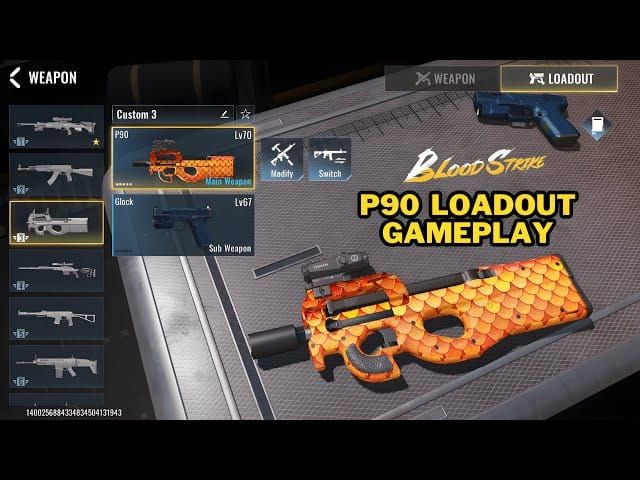
Your customized weapon builds—spanning more than 30 weapons, optical attachments, extended magazines, and dual-wield setups—carry over intact without requiring re-unlocks.
Managing Top-Ups, Pass Unlocks, and Redemption Codes
Strike Gold sits in a unified server wallet, meaning you can buy Blood Strike passes and Gold through external web top-ups to secure better rates. The currency appears on your account immediately regardless of whether you log in on mobile or PC.
NetEase periodically runs top-up promotions. During the official promotional campaign from March 6 to March 12, 2026, eligible currency tiers featured a 100% double bonus top-up event.
If you have promo redemption codes, note that brand-new profiles cannot access the redemption interface right away. You must complete the tutorial and finish one Battle Royale match first.
To redeem an active code on mobile or PC:
- Complete the tutorial and one Battle Royale match.
- Open the Event tab from the main lobby.
- Click the Loudspeaker icon (Announcements tab).
- Select the Redemption Code sub-page.
- Paste your code and hit confirm.
Milestone redemption codes often scale rewards based on account level, granting higher currency yields (such as 800 Gold milestone drops compared to 200 Gold baselines) at level 20. To top off your balance for seasonal weapon skins or crates, you can recharge your Strike Gold directly from any browser.
Troubleshooting Failed Logins and Disconnected Profiles
If your mobile profile does not appear on PC, work through these specific checks:
- Check the Logged-In Account: If the standalone PC client opens to the opening tutorial, log out. You selected a different login method than the one bound to your phone.
- Use the QR Code Login: If typing passwords causes errors, use the QR scan feature. Open Blood Strike on your phone, tap the scanner icon on the title screen, scan the PC monitor, and confirm.
- Verify Regional Selection: Confirm the PC launcher is set to the same server region (NA, SA, EU, or AS) as your mobile profile. Selecting another region forces the client to search an empty database.
- Resolving the Steam Account Lockout: If you opened Steam first and generated a level-one ghost profile, go to in-game Settings on Steam, click Customer Service, and request an account unbind for that Steam ID. Once NetEase clears it, bind Steam from your phone.
Final Verdict
Moving from mobile to PC in Blood Strike gives you higher framerates, wider view angles, and mouse or controller precision without losing existing unlocks. The key is establishing your mobile app as the master profile: bind your login credentials inside mobile Settings before launching the game on PC.
Once bound, your 30+ weapon loadouts, seasonal ranks up to Legend, Ultra cosmetics, and Strike Gold balances will be waiting when you drop into your first PC match.
Frequently Asked Questions
How do I link my Blood Strike mobile account to PC?
Open Blood Strike on your phone, go to Settings > Account > Bind Account, and link your preferred PC login platform such as Steam. Once bound, sign in using those same credentials on your PC client to load your full progress.
What happens if I open Blood Strike on Steam before binding my mobile account?
Steam will automatically generate a new, separate guest account that prevents linking your main mobile profile. If this happens, you must contact in-game customer support to resolve the conflict.
Will my Strike Gold and skins carry over from mobile to PC?
Yes, all Strike Gold, unlocked Strikers, weapon skins, and battle pass progression sync across mobile and PC. Because data is stored server-side, logging into your linked account loads your entire inventory.
Can I play Blood Strike with the same account across different servers?
No, your profile and matchmaking are tied to your specific regional server such as North America, Europe, or Asia. Logging in on PC connects to the same regional server assigned to your account.
Does Blood Strike on PC support keyboard, mouse, and controllers?
Yes, the native PC version includes full key customization, mouse sensitivity adjustments, and plug-and-play controller support. You can configure your control scheme directly inside the PC Settings menu.
Can I play with mobile friends while playing on PC?
Yes, Blood Strike features full cross-platform multiplayer across Android, iOS, and PC. You can invite friends and join squads regardless of the device they play on.






Comments