
The most responsive control configuration for Growtopia replaces mobile touch inputs with a dedicated keyboard and mouse setup on PC. Running the game through an emulator bypasses cramped touch buttons and phone lag, provided your system meets the baseline requirements of Windows 7 or newer, an AMD or Intel processor, 4GB of RAM, and 5GB of storage space. Pairing keyboard directional controls with quick mouse clicks for your 2 primary tools—the fist and wrench—delivers the cleanest timing for parkour jumps and manual block-breaking sessions.
Moving from touchscreen buttons to PC controls
Growtopia's mobile touch controls break down during precise maneuvers. Small on-screen directional buttons cause missed jumps in parkour worlds, while hours of continuous harvesting quickly strain fingers and thumbs.
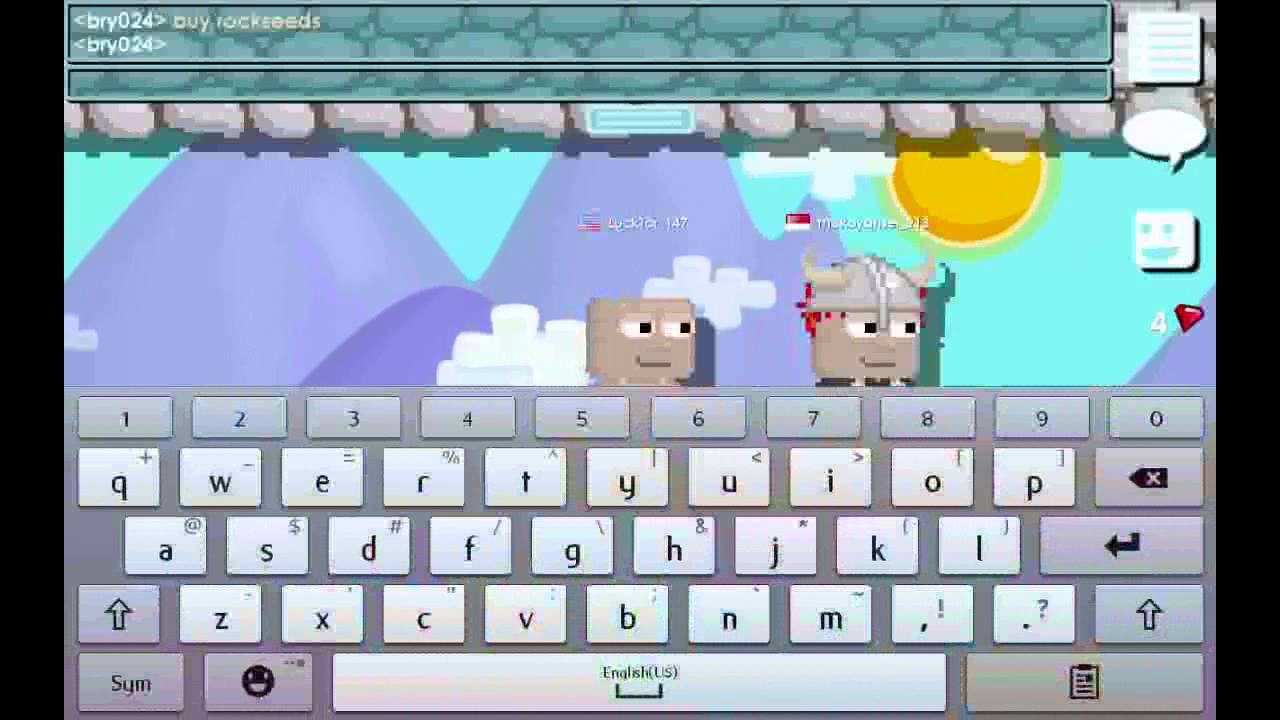
Running the game through an Android emulator like BlueStacks shifts navigation and block placement onto tactile PC peripherals (BlueStacks). Larger monitor displays also make judging platform edges and single-tile gaps far easier than peering at a phone screen.
To ensure responsive inputs without emulator stutter, verify that your computer meets the standard hardware baseline:
- Operating System: Windows 7 or newer
- Processor: Intel or AMD processor
- Memory: At least 4GB of RAM
- Storage: Minimum 5GB of free hard drive space
Physical keys eliminate the dead zones and tactile ambiguity of touchscreens, cutting down on missed leaps and accidental falls.

Chest O' Gems
 Chest O' GemsUSD 1.28Buy Now
Gem Fountain
Gem FountainUSD 3.37Buy NowIt's Rainin' Gems
It's Rainin' GemsUSD 6.74Buy NowRoyal Grow Pass
Royal Grow PassUSD 6.74Buy NowGem Bounty
Gem BountyUSD 20.22Buy Now1 Year Subscription Token
1 Year Subscription TokenUSD 33.71Buy NowGem Abundance
Gem AbundanceUSD 33.71Buy Now
Configuring custom keybind layouts with Windows PowerToys
Growtopia lacks native comprehensive key remapping. Windows users can work around this limitation with Microsoft PowerToys Keyboard Manager (Microsoft Learn). The utility remaps individual keys and shortcuts per application, meaning assignments only activate when the emulator window is focused.
| Setting / Parameter | Implementation Detail | Operational Requirement |
|---|---|---|
| Scope Target | Application-specific (Target process name) | Applies remaps only when the game emulator is focused |
| Key Reassignment | Individual keys (e.g., directional swaps) | Requires PowerToys running in background |
| Shortcut Mapping | Multi-key combinations | Preserves default Windows shortcuts outside the app |
| System Restrictions | Win+L, Ctrl+Alt+Del | Operating system reserved; cannot be remapped |
To set up a custom profile for Growtopia:
- Install and launch Microsoft PowerToys on your PC.
- Open the Keyboard Manager module from the PowerToys dashboard.
- Select Remap a key or Remap a shortcut.
- Choose the target application by specifying the process name of your emulator executable so standard typing remains unchanged elsewhere.
- Assign your preferred single-key inputs for directional movement and actions.
- Keep PowerToys running in the background while playing; closing the application immediately restores default key behavior.
Standard Windows security protections prevent remapping system-level shortcuts like Win + L and Ctrl + Alt + Del. Restrict custom key assignments to standard alphanumeric keys and basic modifiers.
Core tool management: Fist and wrench setups
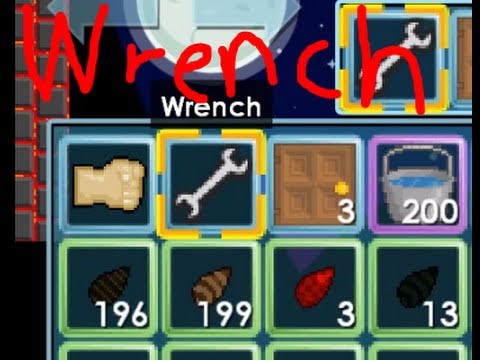
Growtopia anchors nearly every action to two core tools: the fist and the wrench (BlueStacks Beginner's Guide). Binding them to separate, deliberate inputs is critical so you do not accidentally break blocks or misfire actions during traversal.
- The Fist: Used for punching obstacles, breaking planted blocks, harvesting farm crops, and gathering seeds and gems. In parkour, rapid fist deployment clears breakable barriers or activates punch-triggered mechanisms.
- The Wrench: Used for accessing configuration menus, inspecting players, modifying machine behaviors, and adjusting lock permissions.
Pressing the wrench hotkey instead of punch while airborne opens an inspection menu, freezing horizontal momentum and dropping you straight into hazards. Map tool switching to distinct mouse side-buttons or well-spaced keyboard keys to eliminate accidental menu pop-ups during runs.
Optimizing mass farming and resource collection
Farming in Growtopia means breaking and replacing thousands of blocks in repetitive horizontal rows. Without an optimized setup, the volume of repeated keystrokes causes severe hand fatigue and slows output.
Manually walking back and forth across rubble doubles the time needed to clear a farm layer. Players cut down on redundant movement by deploying collection items like Gaia's Beacon (for seeds) and the Unstable Tesseract (for blocks) (Growtopia MultiClient Autofarmer Documentation). Because these items collect drops automatically across their operational range, you can hold down a single movement key and continuous punch without backtracking.
The resulting gems and seeds drive world expansion. Growtopia Gems buy World Locks, packs, and essential farm upgrades. Pairing automated drop collection with comfortable PC binds keeps these farming cycles fast and prevents repetitive strain.
Troubleshooting input latency and dropped actions
If jumps or block punches feel delayed, systematically isolate your hardware and software setup:
- Check Background System Load: Confirm your system maintains at least 4GB of accessible RAM and that background downloads are paused to prevent CPU throttling on older Intel or AMD chips.
- Verify Utility Status: If custom keybinds fail to register, verify that PowerToys is actively running in your system tray and that the targeted emulator process name matches the current active window.
- Separate Tool Hotkeys: If wrench menus interrupt block harvesting, rebind tool slots to separate ends of your input device or separate mouse buttons to eliminate overlap.






Comments