If Growtopia won't launch on PC, closes immediately after opening, or hangs on a black screen, the issue stems from temporary patch glitches, display initialization conflicts, missing Visual C++ runtime libraries, or outdated graphics drivers. You can resolve most startup failures without losing account progress by rebooting to clear local update states, disabling Windows fullscreen optimizations on the executable, and repairing your system's Visual C++ redistributable packages.
Follow these troubleshooting steps in sequence, moving from zero-data-loss configuration adjustments to system dependency repairs and full client reinstallation.
Step 1: Clear Temporary Glitches and Test Network Routing
A fresh patch can leave behind conflicting temporary cache files that cause the game client to terminate during initialization.
- Close any hanging Growtopia processes in Task Manager (
Ctrl+Shift+Esc). - Restart your computer to flush lingering background threads and temporary update buffers.
- Verify that your game client is fully updated through the official distribution source.
- Switch to an alternate network connection—such as a mobile hotspot—to confirm your local network or DNS is not abruptly terminating the handshake upon launch.
According to documented troubleshooting procedures on Sikayetvar, restarting the device and testing alternate networks eliminates localized network routing drops that mimic game client crashes.
Step 2: Disable Fullscreen Optimizations
Display initialization conflicts often trigger an immediate black screen or shut down the client within seconds of launch. Windows fullscreen optimizations frequently interfere with how the game sets up its primary rendering canvas.
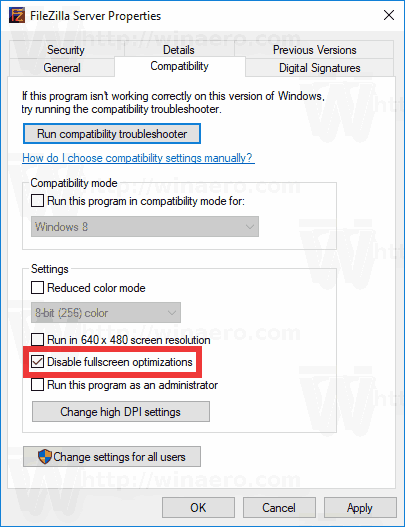
To bypass display initialization errors:
- Locate the Growtopia executable file or your desktop shortcut.
- Right-click the icon and choose Properties.
- Open the Compatibility tab.
- Check the box beside Disable fullscreen optimizations.
- Click Apply, then OK.
As noted in Microsoft's technical community answers, turning off fullscreen optimizations forces the operating system to respect native window scaling, resolving black screen startup hangs.
Step 3: Repair Microsoft Visual C++ Redistributable Packages
Missing or corrupted dynamic link libraries (.dll files) stop the client from booting, often killing the process without an error dialog. Growtopia depends on standard Visual C++ runtimes to process its core logic.
- Press
Windows Key+Rto open the Run dialogue. - Type
appwiz.cpland hit Enter to open Programs and Features. - Scroll down to the Microsoft Visual C++ Redistributable entries.
- Right-click an entry, select Change, and click Repair.
- Repeat this repair process for each installed version listed.
- Restart your computer.
Guidance documented on Microsoft Community Support states that if the built-in repair utility fails to correct the issue, downloading and installing the latest official x86 and x64 redistributable packages directly will overwrite corrupt files.
Step 4: Update Your Graphics Card Drivers
Outdated or corrupted display drivers struggle to initialize Growtopia's rendering window, leading to immediate desktop crashes.
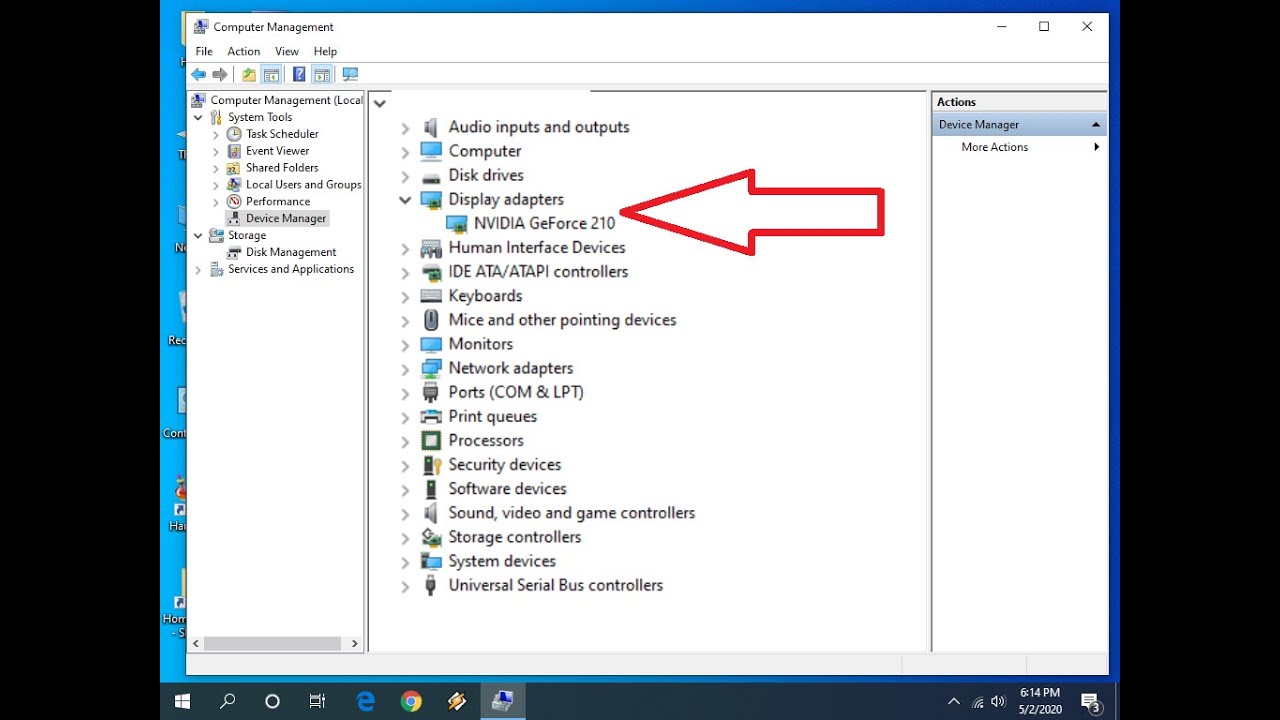
To update drivers through the operating system:
- Sign in to an account with administrative privileges.
- Open the Start menu, type Device Manager, and launch it.
- Expand the Display Adapters section.
- Right-click your dedicated or integrated graphics card and choose Properties.
- Open the Driver tab, click Update Driver, and select Search automatically for updated driver software.
- Complete the on-screen steps and reboot your PC.
Official Ubisoft Mobile Support highlights driver updates as a primary fix for persistent crashes. However, there is a divergence in technical guidance: while official game documentation points toward Device Manager's automatic search, general Windows system diagnostics advise downloading packages directly from hardware vendors (such as NVIDIA, AMD, or Intel). Vendor software installers frequently offer a clean installation mode that wipes corrupt legacy profiles Device Manager might leave behind.
Step 5: Perform a Clean Boot and Run System Scans
Third-party background programs, overlay software, or damaged Windows core dependencies can abort the launch process. Using system maintenance tools isolates these conflicts.
Run a Clean Boot
- Press
Windows Key+R, entermsconfig, and open System Configuration. - Navigate to the Services tab.
- Check Hide all Microsoft services at the bottom.
- Click Disable all.
- Press
Ctrl+Shift+Escto open Task Manager and switch to the Startup tab. - Right-click each enabled application and set it to Disabled.
- Restart your system and try starting Growtopia.
Run DISM and SFC Repair Scans
If third-party interference is ruled out, damaged Windows system files might be breaking client dependencies. Troubleshooting documentation from Help Desk Geek outlines two core command-line tools for restoring OS stability:
- Open the Start menu, type
cmd, right-click Command Prompt, and choose Run as administrator. - Execute this image service command:
cmd DISM.exe /Online /Cleanup-image /Restorehealth - Once that completes, execute the system file checker:
cmd sfc /scannow - Allow the scan to finish repairing missing or corrupt Windows components, then restart your PC.
Diagnostic Reference Table
| Failure Symptom | Most Likely Root Cause | First Diagnostic Step | Source Reference |
|---|---|---|---|
| Client crashes immediately after a patch | Stale cache or local routing drop | Reboot device and test an alternate network | Sikayetvar |
| Hangs on a black screen at launch | Windows display optimization conflict | Disable fullscreen optimizations in executable properties | Microsoft Answers |
| Silent crash or missing DLL runtime prompt | Damaged Visual C++ libraries | Run appwiz.cpl and choose Repair on all versions | Microsoft Answers |
| Crash during graphic initialization | Outdated or corrupt GPU driver | Update via Device Manager or run vendor clean install | Ubisoft Support |
| Launch blocked by background apps | Third-party software hooks | Disable non-Microsoft startup tasks via msconfig | Help Desk Geek |
Step 6: Clean Reinstall and Support Escalation
When standard configuration tweaks fail, local installation files may be damaged beyond manual repair.
Uninstall Growtopia via the Windows Settings menu, remove remaining game directory folders, and install the client anew using an administrative account. Since account profiles and inventories—including your balance of Growtopia Gems, World Locks, and item packs—are stored on game servers rather than local hardware, a clean installation will not erase your progress.
If the client continues to fail after a clean installation, take screenshots of any crash prompts, note your exact Windows build version, and submit a ticket through official support channels for individualized investigation.

Chest O' Gems
 Chest O' GemsUSD 1.28Buy Now
Gem Fountain
Gem FountainUSD 3.37Buy NowIt's Rainin' Gems
It's Rainin' GemsUSD 6.74Buy NowRoyal Grow Pass
Royal Grow PassUSD 6.74Buy NowGem Bounty
Gem BountyUSD 20.22Buy Now1 Year Subscription Token
1 Year Subscription TokenUSD 33.71Buy NowGem Abundance
Gem AbundanceUSD 33.71Buy Now






Comments