Learn how to fix Heartopia crashing on startup on Android with our step-by-step troubleshooting guide covering RAM limits, cache clearing, and network errors.
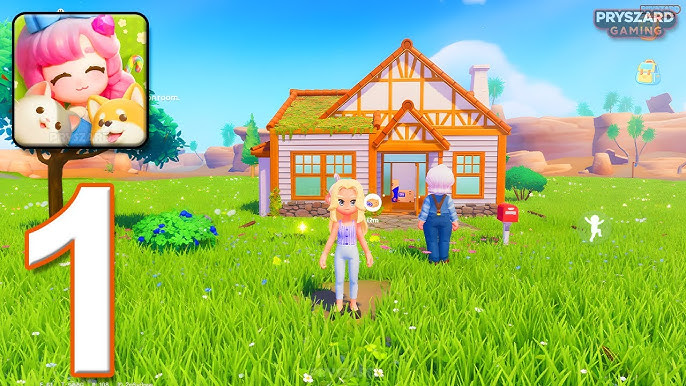
Heartopia is XD Entertainment's multiplayer cozy life sim featuring home building, gardening, and social towns across mobile and PC platforms. When the app flashes black and closes immediately on launch, the issue usually traces back to memory exhaustion, a corrupted hotfix cache, or blocked network handshakes.
Follow this sequential troubleshooting order to isolate the failure on your Android device and get your client booting properly.
Why Heartopia Fails to Boot on Android Devices
Heartopia loads 3D environmental assets, player models, and world state data immediately on boot. If your device cannot allocate the required runtime memory upfront, Android forcibly terminates the process.
At the OS level, startup crashes stem from three core triggers:
- Native signals (
SIGSEGV): Caused by invalid memory access or corrupted binary libraries during engine initialization. - Out of Memory (
OutOfMemoryError): ART or Dalvik runtime memory allocation fails during heavy 3D asset decompression. - Unhandled exceptions (
NullPointerException): Missing asset headers or damaged patch indexes break the boot sequence.
Background RAM pressure accelerates these crashes. Suspended browser tabs, navigation tools, and social apps eat into available RAM, prompting Android's Low Memory Killer (LMK) to terminate Heartopia during its initial asset spike. The client also streams 50 to 100 MB per hour, so packet loss during handshake verification will stall or abort the boot sequence.

60 Heart Diamonds
 60 Heart DiamondsUSD 0.99Buy Now
300 + 20 Heart Diamonds
300 + 20 Heart DiamondsUSD 5.00Buy Now680 + 50 Heart Diamonds
680 + 50 Heart DiamondsUSD 11.45Buy Now1280 + 90 Heart Diamonds
1280 + 90 Heart DiamondsUSD 19.86Buy Now1980 + 150 Heart Diamonds
1980 + 150 Heart DiamondsUSD 31.84Buy Now3280 + 270 Heart Diamonds
3280 + 270 Heart DiamondsUSD 49.87Buy Now6480 + 570 Heart Diamonds
6480 + 570 Heart DiamondsUSD 101.92Buy Now
Android Hardware Requirements and Compatibility Checks
Verify your hardware specifications before clearing system files or reinstalling packages.
Third-party APK mirrors often list Android 7.0 as the minimum OS, but official production builds mandate Android 8.0 (Oreo) or newer. Running current 2026 builds on Android 7.0 triggers package parsing errors and native execution crashes.
Below are the verified system specifications required to launch and run the client:
| Hardware Component | Minimum Requirement | Operational Impact on Launch |
|---|---|---|
| Operating System | Android 8.0 (Oreo) or higher | System API compatibility; builds fail on Android 7.0 and older. |
| System RAM | 6 GB RAM minimum | Prevents OutOfMemory runtime terminations during 3D scene boot. |
| Storage Space | 14 GB base installation | Required for base game files, asset maps, and system binaries. |
| Storage Buffer | 5 GB additional headroom | Mandatory for unpacking temporary patch archives and hotfixes. |
| Network Interface | Stable Wi-Fi or 4G/5G | Essential for always-online handshake and initial asset verification. |
Running the client on less than 6 GB of RAM or without a 5 GB storage buffer leads directly to startup termination and corrupted patch unpacks.
Phones with 4 GB of RAM fall below the playable baseline. Even if a 4 GB device bypasses the splash screen on rare boot cycles, it crashes during town matchmaking and multi-character rendering.
Sequential Troubleshooting: Step-by-Step Fix Guide
Follow these steps in order. Test each fix before moving to the next.
Step 1: Force Stop and Clear the Application Cache
A corrupted startup hotfix configuration file will trigger immediate startup failures. Clearing the local cache flushes broken configuration files without deleting your account binding or character progress.
- Open your phone's Settings menu.
- Tap Apps (or Apps & Notifications) and select Heartopia from the list.
- Tap Force Stop to kill any hung background processes.
- Select Storage & Cache (or Storage).
- Tap Clear Cache.
Avoid tapping "Clear Storage" or "Clear Data" at this stage unless your account is linked to an external login service. Clearing cache removes only temporary unpacked files and forces the client to query fresh configuration headers on the next launch.
Step 2: Free Storage Space and Establish a Headroom Buffer
Insufficient storage headroom creates startup loading hangs and crash loops. Heartopia requires 14 GB for its baseline installation, but the patching system requires substantial temporary disk space to unpack, verify, and overwrite game archives.
- Check your phone's internal storage in Settings > Storage.
- Ensure you have at least 5 GB of free space beyond the game's 14 GB install size (19 GB total free before a major update).
- Delete unused video files, cached app downloads, or unplayed games to clear space on the primary internal drive.
- Never install the game on a slow external MicroSD card, as read/write latencies during initialization cause timeout crashes.
Step 3: Disable VPNs, Proxies, and Private DNS
Heartopia is strictly an always-online game requiring constant server communication. Network route filtering like VPNs, proxies, and private ad-blocking DNS cause startup and login freezes by intercepting or blocking the game's initial verification servers.
- Open Settings > Network & Internet.
- Tap VPN and disconnect any active profile.
- Tap Private DNS and switch the mode from a custom provider (like AdGuard or NextDNS) to Off or Automatic.
- Switch your internet connection from a restricted Wi-Fi network to cellular mobile data (or vice versa) to rule out router firewall blocks.
Step 4: Reset System Display Scaling and Accessibility Text
Display scaling, accessibility text sizes, and UI scaling bugs disrupt client rendering. When your Android system font size is set to maximum or display scaling is forced past standard scaling targets (such as 125% scaling on custom Android skins), the client's internal UI rendering engine can fail during boot layout calculations.
- Go to Settings > Display > Display size and text.
- Reset both Font size and Display size to the default (100%) standard setting.
- Disable third-party screen overlays, floating bubble apps, and screen recorders that run on top of active 3D applications.
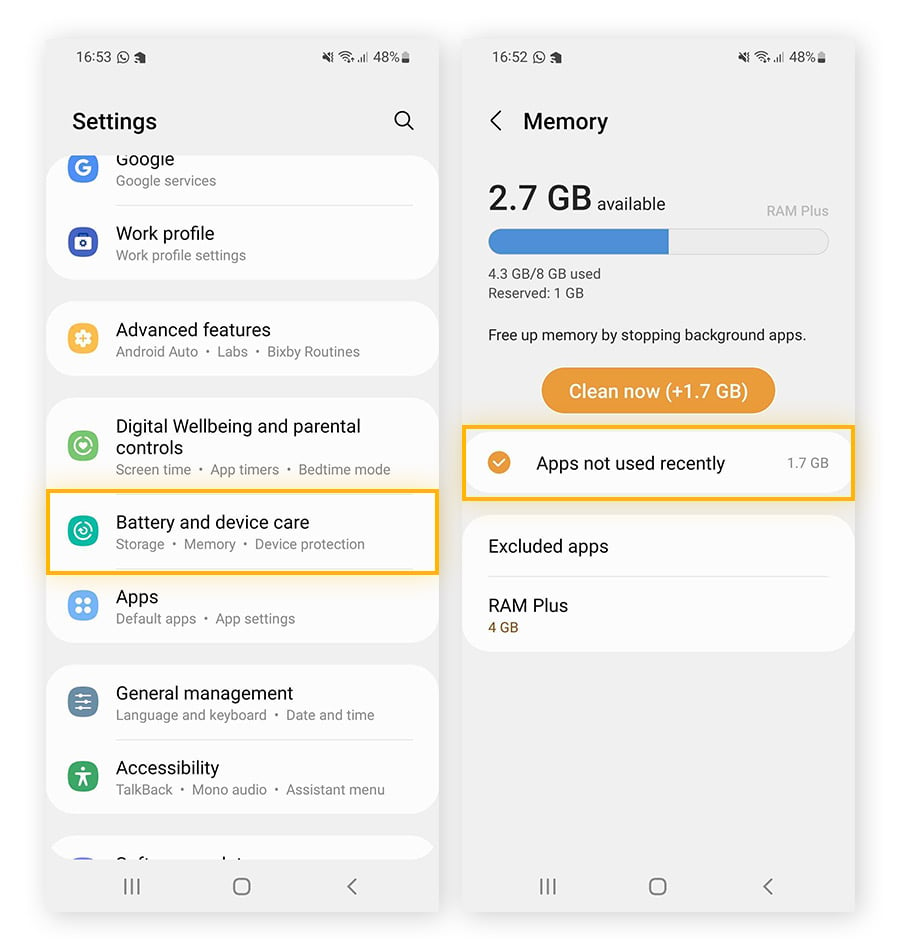
Step 5: Clean Up Background RAM Pressure
If your phone has exactly 6 GB of RAM, you have zero margin for background tasks.
- Swipe up to open your recent apps switcher and tap Clear All.
- If your phone features a built-in "RAM Boost" or "Virtual Memory" paging feature in settings, ensure it is enabled to give the OS extra paging headroom.
- Restart your phone completely to flush residual memory leaks from the system kernel.
Step 6: Complete Reinstallation via Verified Channels
Installing third-party or modified APK files introduces permission and integrity launch failures. If a core package file is corrupted or tampered with, the game's startup integrity check terminates execution immediately.
- Ensure your game account is linked to an account provider so you do not lose your save state.
- Uninstall the existing Heartopia application completely.
- Reboot your device to clear orphaned file paths.
- Download a fresh client build (version 0.4.5 or newer) from official app distribution channels.
- Launch the game over a high-speed Wi-Fi connection and keep the screen active while it downloads base asset packs.
Once your client is running smoothly and assets are fully synced, you can explore the game world and top up Heartopia through secure channels to customize your home and character.
Resolving Common Startup Error Codes and Black Screens
Startup errors indicate whether the bottleneck sits on your local device, the network route, or remote infrastructure.
Here is how to interpret and resolve the primary error signatures:
| Error Symptom / Code | Root Cause | Failure Stage | Immediate Action |
|---|---|---|---|
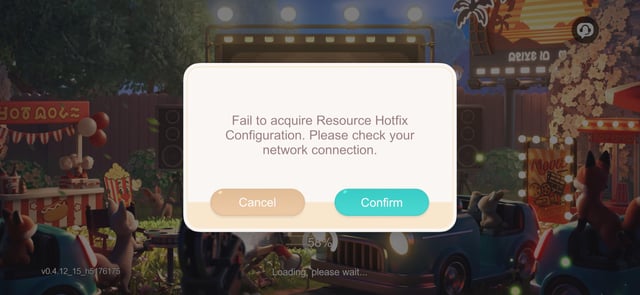
| "Fail to acquire resource hotfix configuration" | Network handshake blocked or corrupt patch index | Pre-login splash screen | Clear cache, disable VPN/Private DNS, and switch networks. |
| Immediate Black Screen to Home Launcher | Native SIGSEGV fault or OutOfMemory runtime crash | 0 to 2 seconds after launch | Free RAM, restart phone, verify Android 8.0+ OS compatibility. |
| App Freeze on 100% Loading Bar | Asset unpack stall or insufficient disk headroom | Final loading transition | Clear at least 5 GB extra storage space; verify disk write rights. |
| Overlapping UI / Unclickable Login Button | System accessibility font/display scaling conflict | Main title screen | Reset system display scaling and font size to default 100%. |
| Endless Spinning Wheel on Authentication | Server maintenance or network socket timeout | Account login step | Verify server status; switch from Wi-Fi to mobile data. |
Matching your exact visual symptom to the correct failure stage eliminates guesswork and prevents unnecessary full game reinstalls.
A "Fail to acquire resource hotfix configuration" notice means the client cannot download the patch manifest, not that your base files are corrupt. Toggling Airplane Mode for ten seconds or disabling local router firewalls resolves the handshake block.
Heartopia Platform Stability Comparison
Each supported platform handles memory management, background throttling, and asset streaming through separate pipelines:
| Platform | Typical Crash Trigger | Memory & Storage Demands | Recommended Primary Workaround |
|---|---|---|---|
| Android | OutOfMemory terminations; corrupt hotfix configs; APK integrity errors | 6 GB RAM min; 14 GB + 5 GB storage buffer | Clear app cache, enforce default display scaling, free background RAM. |
| iOS | Aggressive OS jetsam memory kills on older devices | Strict RAM limits; ~14 GB storage install | Close all background apps; update to latest iOS release. |
| PC | GPU shader compilation errors; firewall handshake blocks | High RAM allowance; larger disk storage footprint | Update graphics drivers; whitelist game executable in Windows Firewall. |
Android clients experience the highest variance in startup stability due to diverse hardware tiers and custom manufacturer OS overlays.
While PC systems use larger shared memory pools, Android builds demand active background task management. If you plan ahead with a Heartopia direct top up for seasonal events, verifying client stability keeps your daily login streak intact.
Server Maintenance and Login Glitch Distinctions
Scheduled maintenance mimics startup failures by halting the boot process at the login phase.
During maintenance windows, the client stops at authentication, returns a timeout popup, or closes after failing to reach cluster lists. Major patches shut down login gateways entirely. Developers regularly distribute server maintenance compensation—such as 8,000 Gold and 10 Wishing Stars—to in-game mailboxes once maintenance concludes.
Before clearing local data:
- Check official social announcement channels for active maintenance schedules.
- Wait for server status confirmation before attempting to log in.
- Relaunch the client once servers return online to download minor hotfix bundles (such as stability patches rolling out across 2026 builds).
Maintaining Stable Client Performance for Future Updates
Heartopia build 0.4.5 and newer versions regularly deploy patches to resolve rendering engine conflicts and memory leaks. Keep your installation stable by adopting three system habits:
- Keep Automatic Store Updates On: Ensure your client updates automatically to receive critical engine hotfixes on release.
- Avoid Modded APK Mirrors: Sideloaded packages often omit device-specific split config assets, causing instant boot crashes.
- Maintain Free Storage: Keep at least 10% of internal storage free. Flash storage performance degrades near capacity, triggering asset read timeouts.
These steps keep the client stable so you can focus on building, fishing, and applying your Heartopia currency top-up to seasonal decor.
FAQ
Why does Heartopia crash on startup on my Android phone?
Heartopia crashes on startup primarily due to insufficient RAM (under 6 GB), low internal storage space, corrupted patch cache files, or network filters blocking initial server handshakes. When the Android system runs out of memory while loading 3D assets, it forcefully kills the application to protect operating system stability.
How do I clear the Heartopia cache without losing my game progress?
Go to Android Settings > Apps > Heartopia > Storage, and tap "Clear Cache". Do not tap "Clear Data" or "Clear Storage" unless your account is linked to an external login service, as clearing data deletes local account credentials.
What Android hardware specifications are required to run Heartopia?
Heartopia officially requires Android 8.0 or higher, at least 6 GB of RAM, and 14 GB of free internal storage space. Devices with 4 GB of RAM or less will consistently struggle with out-of-memory crashes during the initial boot phase.
Does using a VPN or private DNS cause Heartopia launch errors?
Yes, active VPNs, custom proxies, and ad-filtering private DNS often block configuration download handshakes. Temporarily disable these network routing tools and test the game on a direct Wi-Fi or mobile network connection.
What should I do if Heartopia displays "Fail to acquire resource hotfix configuration"?
Force close the game, clear the client cache in your Android settings, and restart your device. Switching your internet connection from Wi-Fi to mobile data before relaunching usually bypasses the routing issue.
Can I play Heartopia offline if my connection fails at launch?
No, Heartopia is strictly an always-online multiplayer game that verifies account and world data on live servers. A stable internet connection is required every time the application launches.
Final Diagnostic Verdict
When Heartopia crashes on launch, the cause almost always traces to memory exhaustion or a stalled network handshake. If your phone meets the 6 GB RAM and Android 8.0 baseline, clearing the app cache and disabling network filters like VPNs or private DNS resolves most boot loops. Reserve a full reinstallation for cases where cache clearing and storage cleanup fail to restore damaged update files.






Comments