Stop frame drops during boss fights. Here is how to fix MLA stutter on Android, keep your device cool, and hold a smooth 60 FPS without high battery drain.
Why Mobile Legends Adventure Stutters on Android Hardware
You are halfway through a tough Guild Boss encounter or grinding through multi-team campaign stages. Suddenly, your animations grind down to a choppy crawl. Touch inputs feel sluggish, skill casts register late, and the back of your phone feels like a pocket heater.
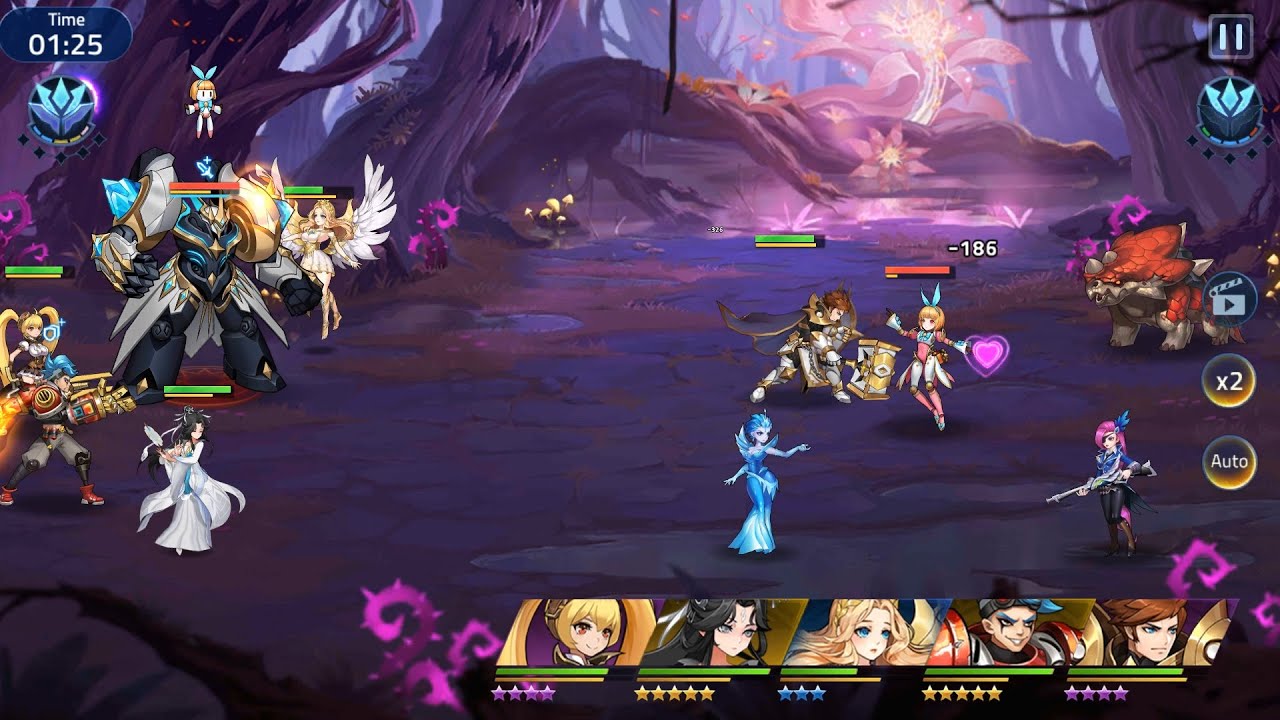
Most players blame their Wi-Fi. That is almost always the wrong diagnosis. Mobile Legends: Adventure pushes hundreds of visual procs, floating combat text numbers, and layered particle sprites onto the screen simultaneously. On mid-range hardware with 4 GB to 8 GB of RAM, unoptimized battle rendering forces frame rates to plummet from a clean 60 FPS down to 25 FPS—or even 10 to 20 FPS during heavy ultimate skill chains.
+-------------------------------------------------------------------------+
| THE THERMAL THROTTLING LOOP                                             |
|                                                                         |
| [High Visual Load] -> [GPU/CPU Temp Spikes] -> [Thermal Safety Limit]   |
|          ^                                                |             |
|          |                                                v             |
| [Severe Stutter / Input Delay] <------------------ [SoC Drops Clocks]   |
+-------------------------------------------------------------------------+
When your System on Chip (SoC) generates heat faster than the chassis can dissipate it, Android triggers aggressive thermal throttling. The processor deliberately cuts clock speeds to prevent hardware damage. This causes an immediate drop in frame pacing alongside delayed touch inputs. Because the throttled GPU struggles to push frames on time, local rendering lag mimics the symptoms of high server ping.


In-Game Graphics Settings for Peak Performance and Low Heat
Mobile Legends: Adventure offers several visual toggles that heavily impact GPU load during auto-battles. Maxing out every graphic option quickly traps mobile hardware in thermal throttling. Running uncapped frame targets dramatically increases power draw and thermal output compared to a fixed 60 FPS ceiling.
Prioritize frame pacing over superfluous visual effects. Clear combat readable in real time matters far more than particle blooms when five heroes and multiple summons cast skills at once. For players building late-game rosters, checking MLA top-up packages directly saves active screen-on time otherwise spent grinding on a hot phone.
To lock in the best performance profile, adjust these display toggles:
- Frame Rate Target: Set strictly to "High" (60 FPS) rather than uncapped or variable modes. Capping frames prevents the GPU from burning power on redundant frames.
- Visual Quality / Resolution: Set to "Medium" or "Smooth." This reduces internal rendering scale without destroying UI legibility.
- Battle Effects & Numbers: Toggle floating damage numbers to condensed or low. Stacked numbers are a primary cause of micro-stutter when multi-hit attacks trigger.
- Screen Shake and Blur: Disable both. These post-processing effects generate GPU overhead during ultimate animations.
Android System Tweaks: Game Mode, Display Refresh, and Resizing
Beyond in-game menus, Android OS settings let you control rendering before frames reach the panel.
Running displays at 120Hz refresh rates can double GPU utilization compared to standard 60Hz rendering, pushing GPU load from 35% up to 65% and spiking power draw by 12% to 20%. Adaptive display features dynamically ramp refresh rates to 90Hz or 120Hz, heating the chassis during extended sessions. Locking your display refresh rate to standard 60Hz slashes GPU load immediately.
+-------------------------------------------------------------------------+
| SYSTEM-LEVEL INTERVENTIONS (ANDROID GAME MODE)                          |
|                                                                         |
| * Standard 60Hz Display Lock   -> Drops GPU Load by ~30%                |
| * Backbuffer Downscaling (0.8) -> Reduces System Power Draw by up to 10%|
| * FPS Target Divisor (60 FPS)  -> Saves up to 50% GPU Power             |
+-------------------------------------------------------------------------+
Android Game Mode also supports backbuffer resizing. Scaling the backbuffer intervention factor down to 0.8 (80%) or 0.7 (70%) decreases GPU load by up to 30% while reducing total system power draw by up to 10%. Setting an FPS throttling divisor in system settings caps frame variance, saving up to 50% GPU power and 20% system power on high-refresh panels.
| Setting Configuration | GPU Utilization | System Power Impact | Thermal Throttling Risk | | :--- | :--- | :--- | :--- | :--- | :--- | :--- | | 120Hz Uncapped Display | 65% (High) | Baseline + 12% to 20% | Critical (Throttles within 15 mins) | | 90Hz Dynamic / Adaptive | 50–55% (Moderate) | Baseline + 8% to 12% | High during prolonged play | | Standard 60Hz Display | 35% (Balanced) | Baseline (Optimized) | Low (Stable sustained clocks) | | 60Hz + 0.8 Backbuffer Scale | 25–30% (Low) | -10% Total Power | Minimal (Cool chassis profile) |
Takeaway: Locking your device to standard 60Hz and applying moderate backbuffer downscaling cuts GPU load by more than half, eliminating thermal throttling entirely.
Manufacturer Native Boosters Versus Third-Party Tools
Third-party "booster" apps from the Play Store rarely fix frame drops. Most of them worsen performance. Bloated utility apps run persistent background services, eating between 200 MB and 400 MB of RAM while draining an extra 12% to 18% battery per hour.
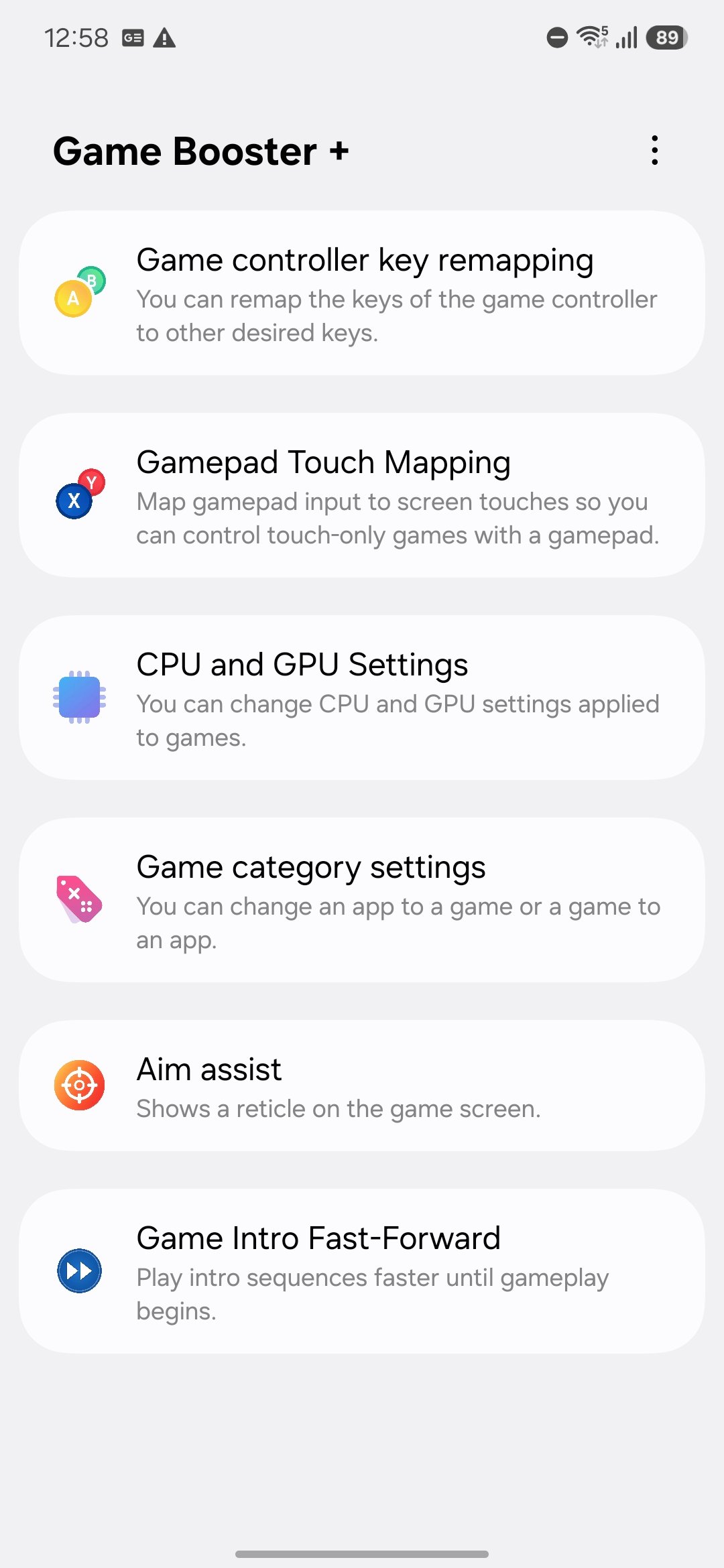
In contrast, built-in OEM tools like Xiaomi Game Turbo and Samsung Game Launcher communicate directly with hardware kernel drivers. These native utilities reallocate CPU/GPU priority and free 200 MB to 500 MB of active memory with minimal background drain. Native system optimizers provide a 15% to 30% jump in frame stability, turning a stuttering 28–38 FPS session into a reliable 55–58 FPS baseline.
| Utility Category | RAM Consumption | Background Battery Drain | Actual Performance Impact |
|---|---|---|---|
| Lightweight Utility Apps | 40–70 MB RAM | 2–4% Battery per Hour | Negligible background resource impact |
| Bloated Third-Party Boosters | 200–400 MB RAM | 12–18% Battery per Hour | Worsens stutter via memory congestion |
| Manufacturer Native Solutions | 60–100 MB RAM | 3–6% Battery per Hour | 15–30% FPS stability improvement |
Takeaway: Use your phone's native built-in gaming optimizer and uninstall third-party booster utilities that consume memory and accelerate battery drain.
Hardware Thermal Management and Battery Protection Habits
Software optimization only solves half the problem. If physical heat gets trapped inside the device chassis, your SoC will throttle regardless of your in-game settings.
Thick rubber, synthetic leather, and heavy shockproof cases act as thermal insulators. They trap heat against the back glass and aluminum frame, preventing passive dissipation into surrounding air. Pop off heavy cases during dungeon crawls or long auto-battle loops, or swap to a slim ventilated case.
+-------------------------------------------------------------------------+
| SAFE CHARGING & BATTERY THRESHOLDS                                      |
|                                                                         |
| [0% - 19%]   -> High Chemical Stress (Avoid heavy gaming load)          |
| [20% - 80%]  -> OPTIMAL OPERATING WINDOW (Lowest thermal generation)    |
| [81% - 100%] -> High Saturation Heat (Do not fast-charge while playing) |
+-------------------------------------------------------------------------+
Never fast-charge your phone while battling in MLA. Fast charging forces high wattage through the battery management IC, generating intense heat. Combined with gaming GPU workloads, your device hits thermal throttling cutoffs in 15 to 30 minutes. Keep your battery between 20% and 80%, and enable Android's built-in battery protection limit (capping charge at 80% or 85%) if playing while wired.
To manage account resources smoothly without keeping your screen cooking during multi-hour auto-grinds, check Mobile Legends: Adventure M-Cash directly.
Display brightness is another major heat driver. AMOLED panels running at full brightness pump heat straight into the underlying logic board. Drop manual brightness to 50% indoors or rely on auto-brightness to keep panel thermals low.
Diagnostic Breakdown: Frame Drops vs Network Ping
Local GPU stutter and network latency look similar, but their fixes are completely different. Resetting your router will not help a throttling GPU, and tweaking graphics sliders will not fix a dropped Wi-Fi packet.
Network ping measures round-trip time to the game server. Sub-50 ms ping delivers immediate input registration. Ping between 50 ms and 100 ms works smoothly for auto-battlers, 100 ms to 150 ms introduces noticeable skill delay, and anything above 150 ms triggers desynchronization.
+-------------------------------------------------------------------------+
| SYMPTOM IDENTIFICATION MATRIX                                           |
|                                                                         |
| Choppy Frame Rate + Stable Ping (30-45ms) -> Hardware Thermal Throttling|
| Smooth 60 FPS + Latency Spikes (150ms+)   -> Wi-Fi / Packet Loss Delay  |
+-------------------------------------------------------------------------+
Hardware throttling causes choppy animations and delayed tap response while in-game ping remains steady at 30–45 ms. In contrast, genuine network lag keeps background visual loops running smoothly while damage numbers, health bars, and skill casts hang.
Ignore guides suggesting custom DNS servers to reduce multiplayer latency. DNS resolves domain lookups upon initial connection; it does not alter live routing paths or combat packet latency.
| Issue Diagnostic | Ping Metric | Frame Rate Behavior | Primary Root Cause |
|---|---|---|---|
| Thermal Hardware Throttling | 30–50 ms (Normal) | Drops from 60 to 25 FPS | Overheated SoC reducing clock speeds |
| Local Display Stutter | Stable / Unaffected | Inconsistent frame pacing | 120Hz dynamic refresh or UI proc lag |
| Mild Network Delay | 100–150 ms | Smooth 60 FPS rendering | Congested 2.4GHz Wi-Fi band |
| Severe Packet Loss | >150 ms (Red Ping) | Visuals run, actions queue | Signal interference or server routing |
Takeaway: If your ping displays low numbers but combat animations stutter, focus entirely on thermal cooling and GPU settings rather than network troubleshooting.
Step-by-Step Configuration Profile for Extended Play
Apply this profile in order to eliminate stutter and stabilize device thermals during long sessions.
1. In-Game Settings Configuration
- Launch Mobile Legends: Adventure and open the in-game Settings gear icon.
- Locate the Graphics / Display tab and select the Smooth or Medium visual preset.
- Set the Frame Rate slider to High (60 FPS). Never select uncapped options.
- Turn off Damage Numbers Display or set to Condensed.
- Disable Screen Shake, Special Particle Overlays, and High Quality Audio Packs if running older hardware.
2. Device-Level OS Configuration
- Open your Android device Settings and navigate to Display.
- Select Motion Smoothness / Refresh Rate and set it to standard 60Hz.
- Navigate to Battery / Device Care > Background Usage Limits.
- Place non-essential communication and social apps into Deep Sleep (restricting passive background CPU activity preserves up to 80% idle capacity).
- Open your built-in gaming optimizer (e.g., Samsung Game Booster or Xiaomi Game Turbo) and set the performance profile to Balanced or FPS Stabilization mode.
Depart from this profile only if you game on an active cooler-equipped flagship tablet. On standard smartphones, running higher settings without active cooling guarantees thermal throttling after 20 minutes.
Device Platform Variance: Tuning Across Android Device Tiers
Hardware specs dictate how far you should push graphics settings. A setup suitable for an entry-level handset will underutilize a modern flagship.
Phones with 2 GB to 4 GB of RAM face persistent memory pressure. Android's Low Memory Killer (LMK) aggressively terminates background tasks, causing hitching as new battle assets load into RAM. Mid-range devices (6 GB to 8 GB RAM) handle memory caching easily but struggle to dissipate heat during sustained dungeon runs. Flagships (12 GB to 16 GB RAM) offer surplus compute power, but dynamic high refresh displays will drain battery rapidly if left unchecked.
Securing progression via trusted Mobile Legends Adventure top-ups keeps your hero lineup moving forward without forcing hours of battery-cooking auto-grinds.
| Hardware Tier | Recommended Resolution | Frame Rate Target | System Display Mode | Backbuffer Downscaling |
|---|---|---|---|---|
| Budget Tier (2–4 GB RAM) | Smooth / Low | 30–60 FPS (Strict Cap) | Fixed 60Hz | 0.7 (70% Scale) |
| Mid-Range Tier (6–8 GB RAM) | Medium | 60 FPS (Stable) | Fixed 60Hz | 0.8 (80% Scale) |
| Flagship Tier (12–16 GB RAM) | High | 60 FPS (Power Saver) | Standard 60Hz / FHD | 0.9–1.0 (Native) |
Takeaway: Match your visual target to your hardware tier; budget devices need aggressive backbuffer downscaling, while mid-range devices require fixed 60Hz locks to avoid heat build-up.
Frequently Asked Questions
Why does Mobile Legends: Adventure stutter during long battles?
Stuttering is typically caused by thermal throttling when your phone's processor heats up, or by memory congestion from background processes. Lowering visual effect quality and freeing RAM helps maintain stable frame rates.
How can I stop my Android phone from overheating while playing?
Remove thick protective phone cases, avoid playing while fast charging, and lock your screen refresh rate to standard 60Hz. Restricting background app activity also prevents unnecessary CPU strain.
What is the difference between FPS stutter and network lag?
FPS stutter results in choppy visuals and delayed frame pacing while ping remains steady, whereas network lag causes skill delay, rubberbanding, and latency spikes. Hardware throttling causes FPS stutter rather than connection issues.
Do game booster apps actually help fix performance stutter?
Manufacturer-provided tools like Samsung Game Launcher or Xiaomi Game Turbo can stabilize frame rates by 15% to 30% through direct resource allocation. In contrast, unoptimized third-party boosters may consume excessive memory and drain more battery.
Does capping frame rates save battery and reduce phone heat?
Yes, limiting target frame rates to 60 FPS can reduce GPU power draw by up to 50%. This prevents thermal buildup and keeps gameplay smooth across long gaming sessions.
Why should I avoid charging my Android phone while playing games?
Charging generates substantial heat that stacks on top of the processor's thermal load, triggering rapid thermal throttling. If you must game while connected, use bypass charging features if supported by your device.
Lock Your Frame Rate and Protect Your Hardware
Pushing mobile hardware past its thermal limits achieves nothing in an auto-battler. Mobile Legends: Adventure requires responsive tap accuracy and steady frame pacing, not battery-melting 120Hz rendering that causes your phone to throttle after two boss fights.
Lock your display to standard 60Hz, enable native Android Game Mode interventions, and set in-game visual effects to Medium. Remove thick cases during extended sessions and never play while fast charging. These quick adjustments eliminate combat micro-stutter, protect battery health, and keep your frame rate locked at a smooth 60 FPS.






Comments