
To adjust your controls in Age of Empires Mobile, tap your governor avatar or hit the in-game Settings gear icon to fine-tune graphics, performance, and account options, or move to the dedicated PC Edition for native mouse control and full keyboard navigation.
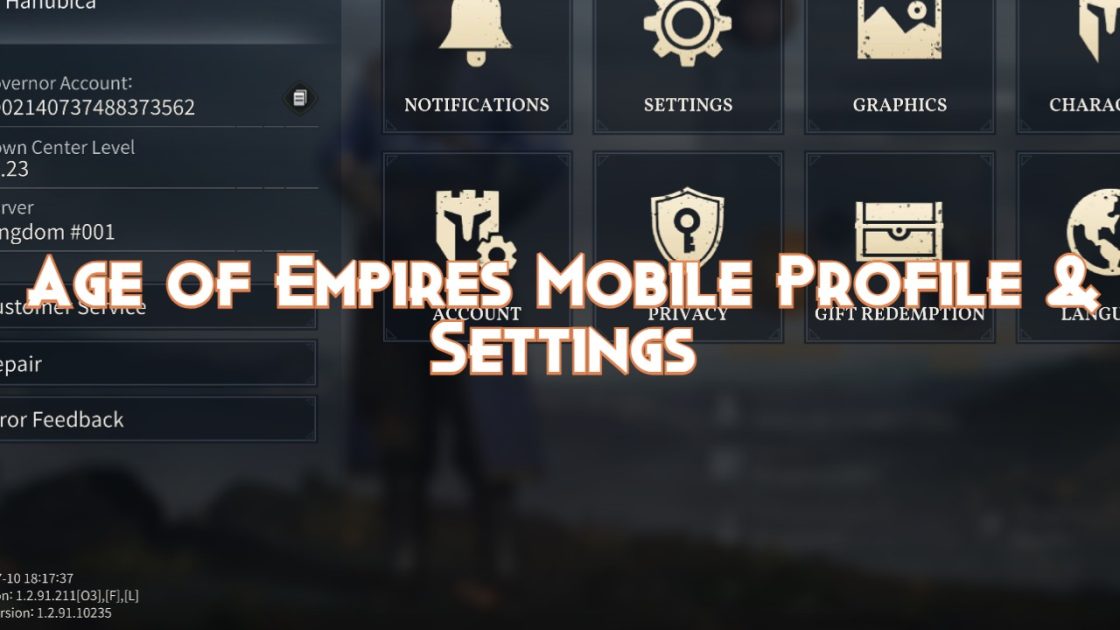
Accessing In-Game Preferences on Mobile and Tablet
Do not go looking for sprawling desktop RTS keybind menus on your phone. Age of Empires Mobile runs on touchscreen-first menus, meaning your interface adjustments live behind the primary profile overlay.
- From the main city map, look at the top-left corner of your display.
- Tap your governor avatar to open the profile screen, where you can check your numerical Player ID and server designation.
- Tap the Gear icon to open in-game Settings.
If dragging across the world map stutters or drops touch inputs, check your visual settings immediately. According to reporting from Czech tech outlet Infoek, the client often defaults to lower visual presets even on flagship silicon like the Xiaomi 14 Ultra. Dialing in visual fidelity and frame rate caps here stops frame drops during massive multi-troop clashes, ensuring your tap-to-move inputs actually register.

400 Empire Coins
 400 Empire CoinsUSD 0.80Buy Now
99 Empire Coins
99 Empire CoinsUSD 0.90Buy Now2,100 Empire Coins
2,100 Empire CoinsUSD 3.89Buy Now499 Empire Coins
499 Empire CoinsUSD 3.89Buy Now999 Empire Coins
999 Empire CoinsUSD 8.24Buy Now4,400 Empire Coins
4,400 Empire CoinsUSD 8.24Buy Now9,200 Empire Coins
9,200 Empire CoinsUSD 16.11Buy Now1,999 Empire Coins
1,999 Empire CoinsUSD 16.11Buy Now24,000 Empire Coins
24,000 Empire CoinsUSD 41.35Buy Now4,999 Empire Coins
4,999 Empire CoinsUSD 41.75Buy Now50,000 Empire Coins
50,000 Empire CoinsUSD 82.74Buy Now9,999 Empire Coins
9,999 Empire CoinsUSD 82.74Buy Now
Control Methods by Platform
Your input handling hinges on the hardware under your fingers: mobile glass, the desktop client, or an Android emulator.
| Platform | Control Style | Setup & Configuration Notes | Interface Preview |
|---|---|---|---|
| Touchscreen (iOS / iPadOS / Android) | Native Touch Controls | Uses gestures and direct taps; settings menu handles visual performance and account linking. Sourced from Infoek. | 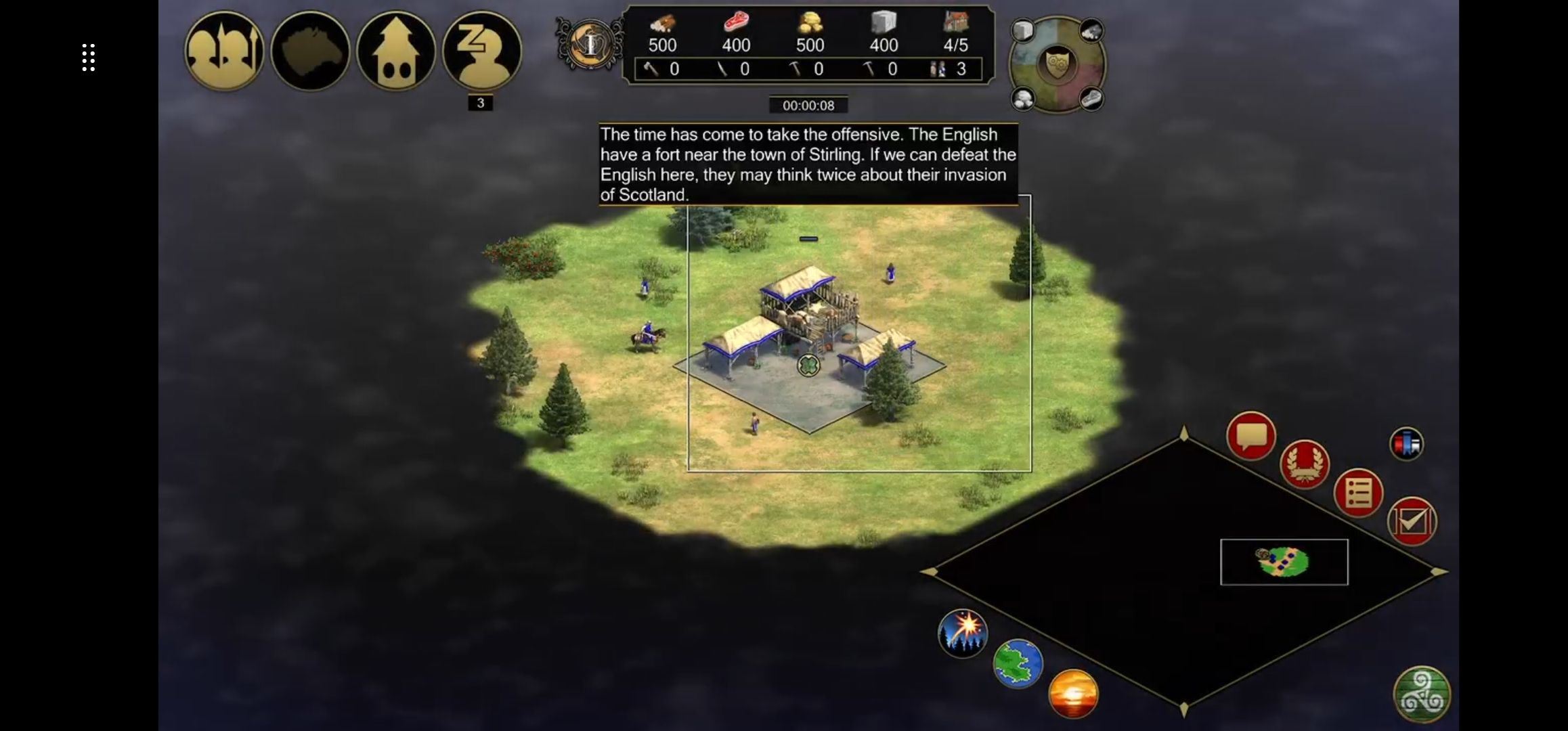 |
| Official PC Edition (Steam / Microsoft Store) | Native Mouse & Full Keyboard Navigation | Purpose-built desktop interface featuring 4K visuals, full keyboard navigation, and native mouse control. Sourced from Age of Empires Official News. | 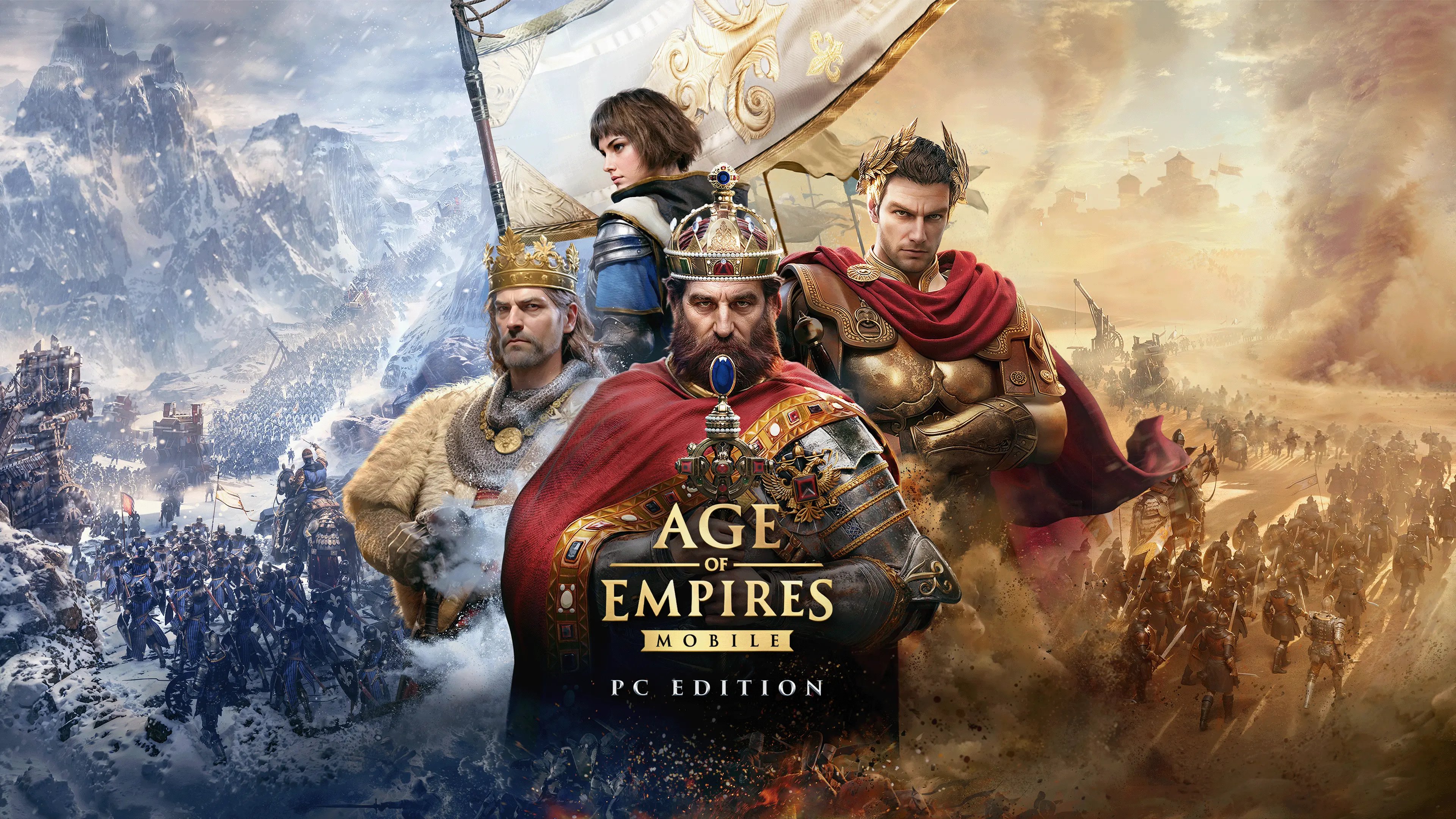 |
| Android Emulator (BlueStacks) | Emulated Keymapping & Mouse | Emulates touch coordinates with custom overlay keybinds, adjustable mouse sensitivity (default 1), and independent Y-axis ratios. Sourced from BlueStacks Features. |  |
Managing Battlefield Commands: Five-Troop Coordination
When open-field brawls break out, imprecise marching gets your armies wiped.
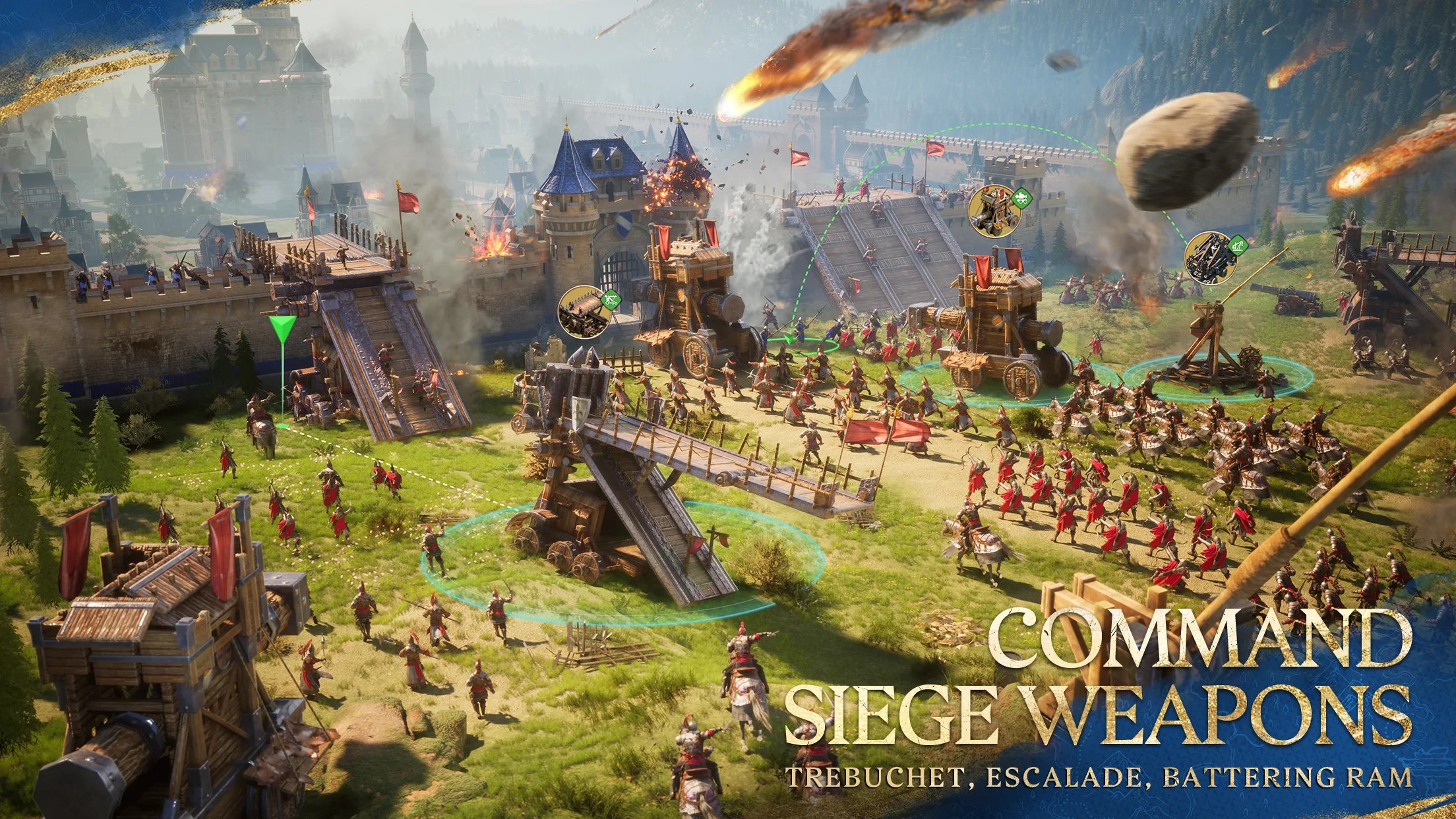
You can deploy up to five formations simultaneously, mixing siege units like battering rams and trebuchets with frontline infantry and cavalry. Free directional pathing gives you real tactical flexibility, but dragging orders across stacked unit groups inevitably creates misclicks.
- Targeting precision: Tap individual unit portraits instead of picking through a crowded dogpile on the field.
- Path corrections: Re-route marches mid-transit by issuing fresh destination points to dodge flanking maneuvers.
- Siege pacing: Battering rams and trebuchets drastically slow march speed; keep slower engines trailing safely behind your vanguard.
If rebuilding shattered squads or waiting on military tech timers holds up your field testing, purchasing Age of Empires Mobile Empire Coins supplies the speed-up currency needed to accelerate troop training and get your formations back into the fight.
Optimizing Keybinds on Emulators
Running the mobile client inside an Android emulator solves the screen-smudge problem, but uncalibrated virtual controls will ruin your camera speed.
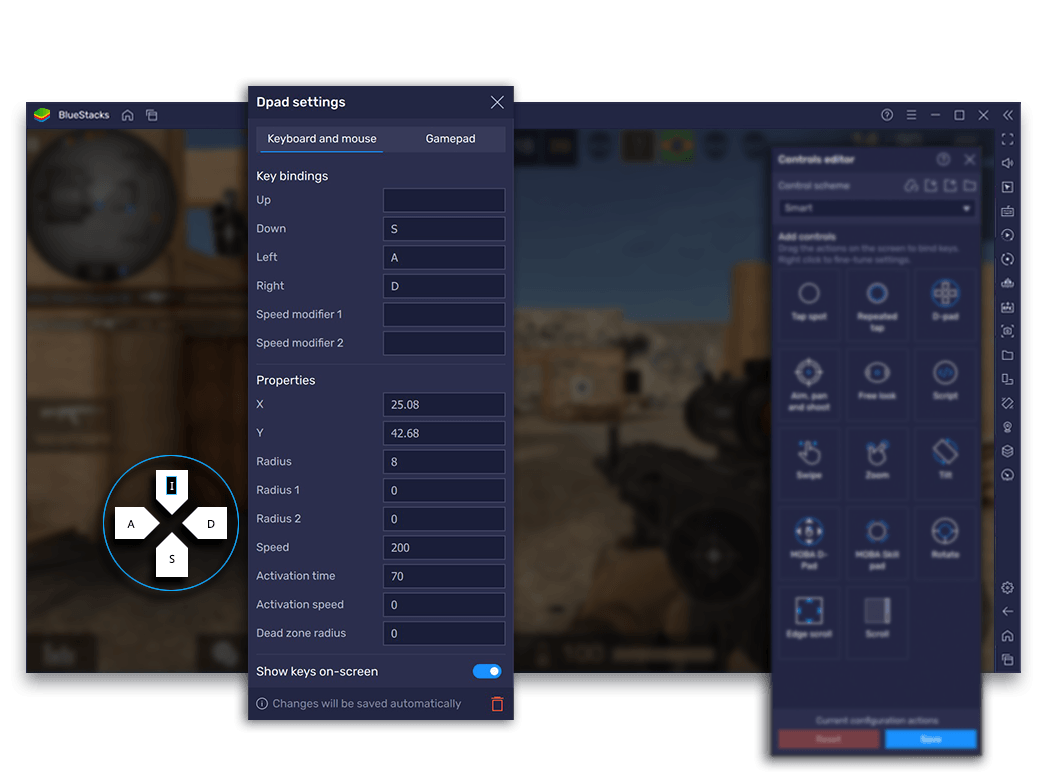
Per the BlueStacks control documentation, tune these mouse settings inside the advanced keymapping editor to match desktop RTS expectations:
- Base Mouse Sensitivity: Defaults to 1, mirroring standard Windows cursor movement.
- Sensitivity Ratio Y: Sets vertical tracking relative to horizontal pans. Bumping this to 2 doubles your vertical speed, letting you scroll north-south territory much faster.
- Windows Pointer Precision: For uniform dragging across the map, BlueStacks recommends unchecking "Enhanced pointer precision" in Windows Control Panel Pointer Options. Cutting mouse acceleration ensures drag distances stay consistent every single time.
Map dedicated keys like WASD to screen-pan zones so you never have to manually drag the camera while micro-managing a heated skirmish.
Migrating Touch Progress to PC Edition
If you want true desktop controls without fiddling with third-party emulator keymaps, grab the official PC release on Steam or the Microsoft Store. Keep in mind there has been conflicting timeline reporting across the community: while an official announcement from Age of Empires News listed the 4K PC Edition as available immediately, other release reports indicated an early 2026 window. Regardless of when your local storefront serves the download, you must bind your mobile profile first if you want to keep your progress.
Here is how to carry your city over:
- Launch Age of Empires Mobile on your mobile device.
- Tap the Gear icon in Settings and select Account.
- Choose Bind Account to link your profile to a supported service (Xbox/Microsoft, Apple, Google, or Facebook).
- Install Age of Empires Mobile: PC Edition via Steam or the Microsoft Store.
- Sign in using the exact same login provider to load your Player ID, city level, and resources.
Once loaded, the game swaps out touch taps for native mouse clicks and keyboard shortcuts without resetting a single building upgrade.
Troubleshooting Common Control Issues
When camera dragging hitches or your march commands go missing, work through this fix list.
| Issue | Root Cause | Fix Procedure | Source Documentation |
|---|---|---|---|
| Choppy map scrolling on phone | High graphic overhead causing input stutter | Open Settings (Gear icon) > Graphics and lower fidelity presets to stabilize framerates. | Infoek Hardware Report |
| Uneven mouse movement on PC emulator | Mouse acceleration or skewed axis values | Set Mouse Sensitivity to 1, adjust Sensitivity Ratio Y (e.g., value of 2), and disable Windows Pointer Precision. | BlueStacks Controls Guide |
| Account progress missing on PC Edition | Game launched before profile link | Go to mobile Settings > Account > Bind Account; verify ID under Governor Account, then log in on PC with matching credentials. | Age of Empires Official News |
Bottom line for your setup: on mobile, drop visual overhead so frame drops do not swallow your movement orders; on desktop, bind your credentials through mobile Settings first and lock down mouse acceleration before staging your next rally.
Follow ArcTopup for more Age of Empires Mobile Empire Coins news~






Comments