
To fix stutter and stabilize ping in Super Sus on Android, cap your display refresh rate to 60 FPS on 120 Hz displays, disable Android Battery Saver to restore CPU clock rates, and switch your router connection to a 5 GHz Wi-Fi band. These adjustments keep hardware thermals below Android's THERMAL_STATUS_SEVERE (status code 0x00000003) throttling threshold while cutting background packet congestion and radio interference during high-stress moments like emergency meetings.
Nothing ruins a clean impostor play quite like your screen hitching right as you vent, or lagging out during an emergency meeting vote. Frame drops and network desync in Super Sus usually stem from two unglamorous culprits: thermal clock-clamping on your chipset and packet collision across crowded wireless channels.
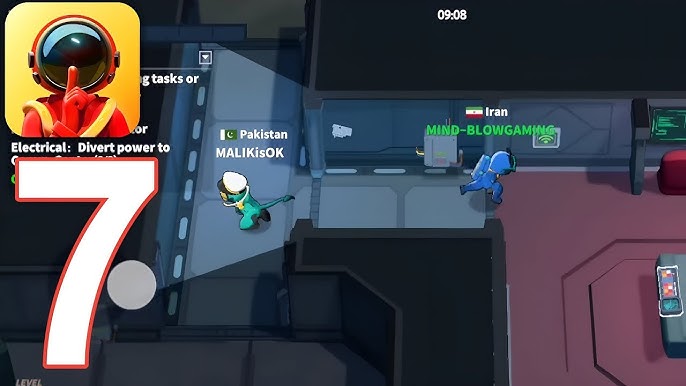
Stop thermal throttling: Why 60 FPS beats 120 Hz
Pushing unconstrained 90 Hz or 120 Hz display outputs on a mobile SoC produces fast thermal buildup. When your device reaches critical skin temperature, the Android OS triggers its internal mitigation framework. According to the Android Open Source Project thermal documentation, reaching THERMAL_STATUS_SEVERE (code 0x00000003) forces the system to clamp component clock frequencies to lower surface heat. The direct side effect is immediate display jank and audio jitter.
According to open-source performance tuning documentation by DCX-neo on GitHub, placing a 60 fps cap on a 120 Hz phone remains the most reliable no-root method to cut heat and stutter over extended sessions. Rendering fewer frames directly relieves GPU draw load, preventing the chipset from ever hitting that severe thermal tripwire.
Here's a trap to avoid: generic guides often tell players to toggle "Force 4x MSAA" inside Developer Options. Do not touch it. Forcing 4x multisample anti-aliasing forces your GPU to redraw pixel edges with heavy overhead, burning through battery and accelerating the exact thermal throttling you are trying to prevent.

Weekly Card
 Weekly CardUSD 0.66Buy Now
100 Golden Stars
100 Golden StarsUSD 0.66Buy Now310 Golden Stars
310 Golden StarsUSD 1.97Buy Now520 Golden Stars
520 Golden StarsUSD 3.29Buy NowSuper Pass
Super PassUSD 3.29Buy Now1060 Golden Stars
1060 Golden StarsUSD 6.64Buy NowSuper Pass Bundle
Super Pass BundleUSD 6.64Buy NowMonthly Card
Monthly CardUSD 7.16Buy NowSuper VIP Card
Super VIP CardUSD 7.99Buy Now2180 Golden Stars
2180 Golden StarsUSD 13.64Buy Now5600 Golden Stars
5600 Golden StarsUSD 34.99Buy Now
Android system adjustments: Developer options and battery modes
Before touching in-game sliders, clean up how your Android operating system distributes hardware power.
First, turn off Android's built-in Battery Saver. Research from Technastic's Android gaming guide shows that Battery Saver aggressively limits CPU clock rates, dims displays, and suspends background processing. While great for stretching battery life at work, it cripples frame timing during real-time multiplayer titles.
Next, dive into Developer Options and locate Disable HW overlays. By default, Android balances screen compositing across multiple hardware components. Enabling "Disable HW overlays" commands the system to handle all rendering passes strictly through the GPU. As noted by Technastic, this offloads UI compositing directly to the graphics processor, reducing graphical glitches and interface stutter at the cost of slight additional GPU draw.
| Device Brand | OEM Gaming Tool Location | Optimization Mechanism | Interface Reference | Source |
|---|---|---|---|---|
| Samsung Galaxy | Advanced Features > Game Booster | Suppresses background tasks, optimizes touch responsiveness | 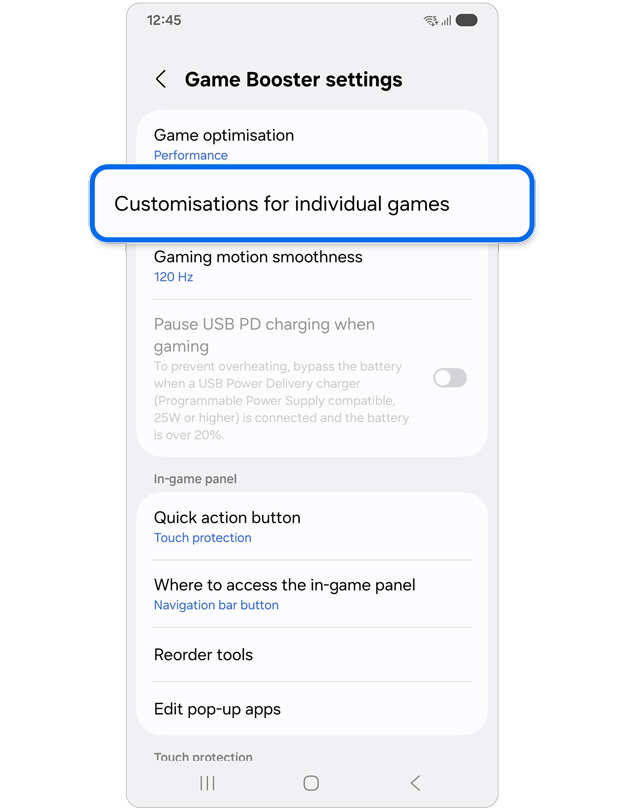 | Technastic |
| Xiaomi / Poco | Security App > Game Turbo | Prioritizes CPU allocation, cuts idle app radio access | 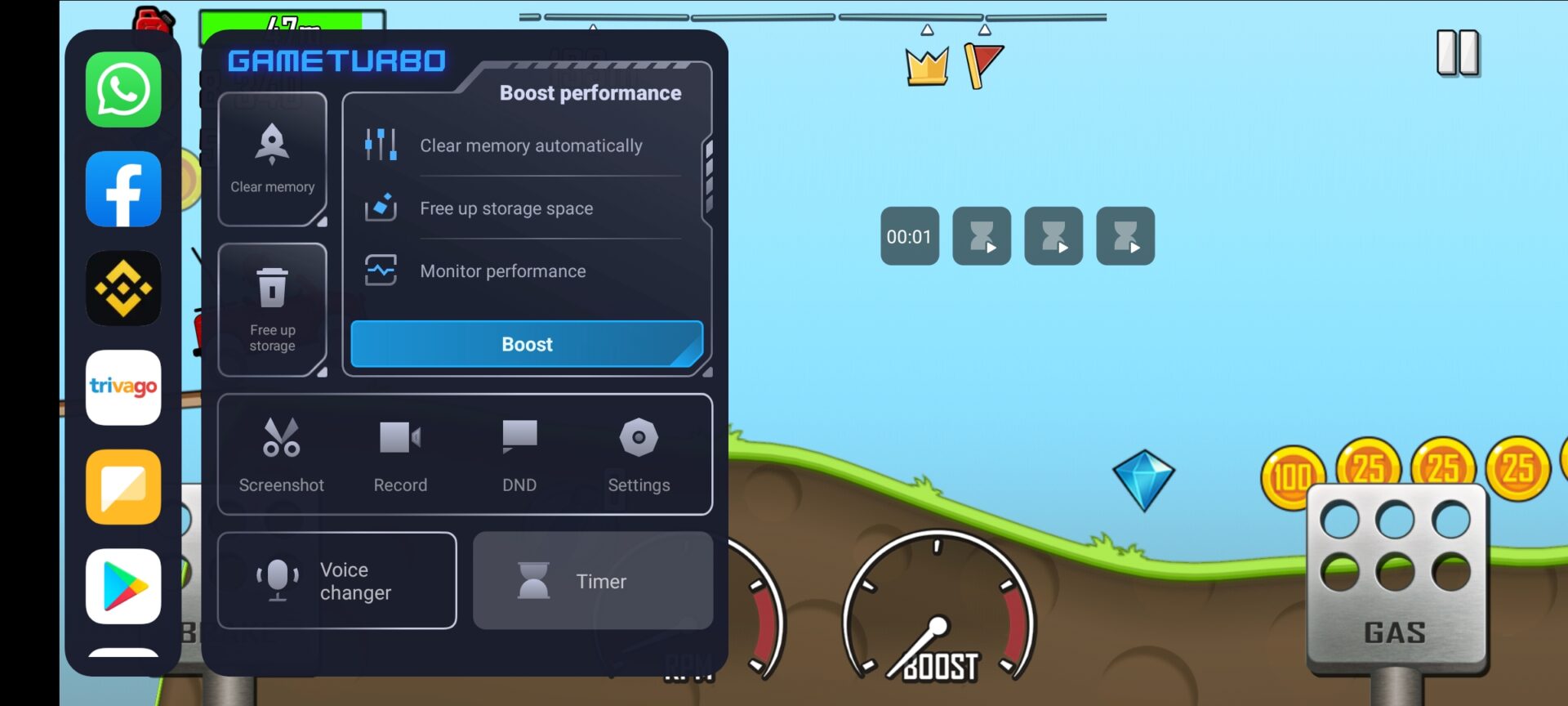 | Technastic |
| OnePlus / OxygenOS | Utilities > Gaming Mode | Locks network packets to foreground, minimizes latency | 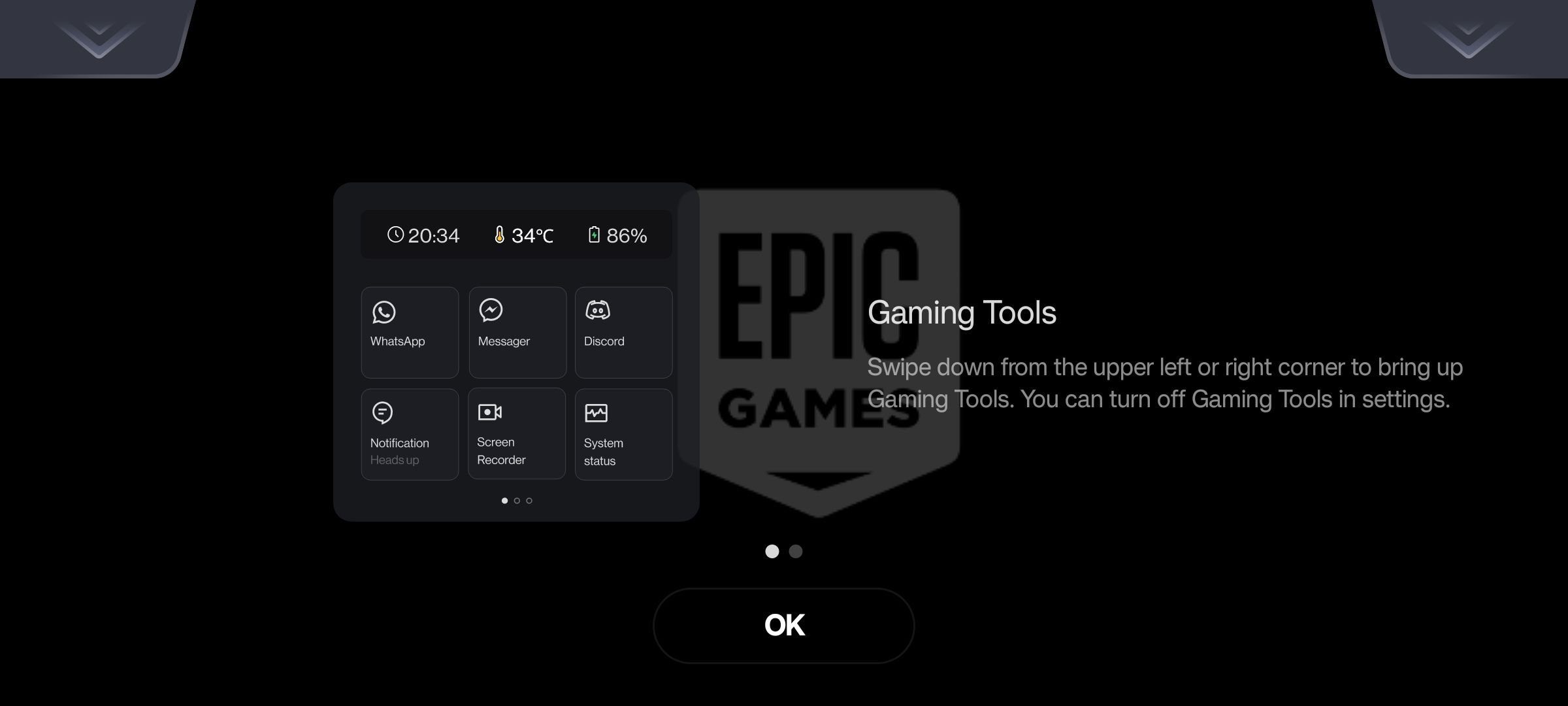 | Technastic |
| Nothing Phone | System > Game Mode | Directs memory priority and limits background interrupts | 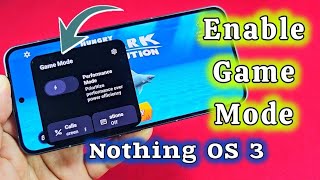 | Technastic |
OEM Game Modes provide automated resource scheduling. When enabled, they isolate the game process, assign network priority to foreground packets, and tune touch digitizer polling rates.
Step-by-step: In-game graphics settings for 60 FPS
Locking in a smooth experience requires lowering the internal render workload so emergency meetings and crowded spaceship corridors render consistently.
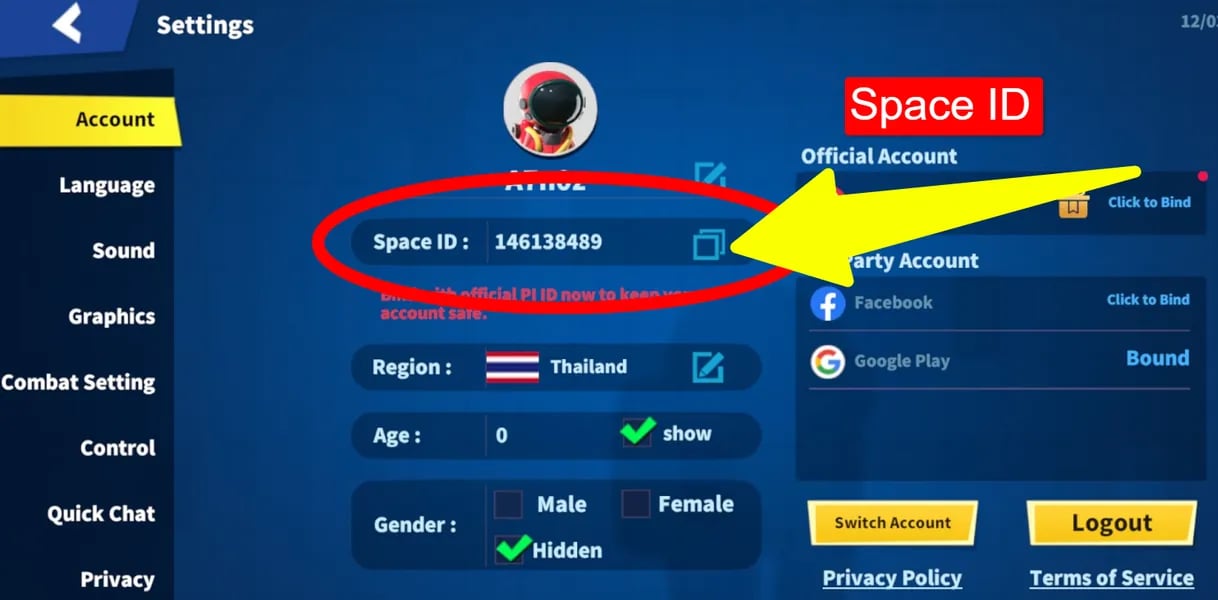
- Open Super Sus and tap the gear icon in the lobby to access the Settings menu.
- Locate the Display / Graphics tab.
- Drop your overall Graphics Preset from High or Ultra down to Smooth or Balanced.
- Set the Frame Rate slider strictly to 60 FPS (or High, avoiding uncapped 90/120 modes).
- Reduce post-processing visual effects and shadows to Low or Off to ease compute pressure.
Why scale down visual effects? Lower render scale and basic shadow maps give the GPU significantly fewer pixels to compute per frame. This preserves overhead for busy scenes, such as voting rounds where multiple animated character skins and chat overlays render simultaneously.
If you use cosmetic items, pets, and roles unlocked through Super SUS Top Up with Golden Stars, keeping standard graphics on Balanced ensures high-tier animations display cleanly without dropping frames.
Lower ping and stop desync in Super Sus
High latency and sudden teleportation across the spaceship usually indicate Wi-Fi channel crowding or local packet loss rather than bad game servers.
According to latency analysis by Symlex VPN, the common 2.4 GHz Wi-Fi frequency offers long physical broadcast range but suffers from heavy channel crowding caused by neighboring routers and household electronics. The 5 GHz frequency band provides non-overlapping channels and drastically lower jitter when your device operates within line-of-sight of the router.
| Diagnostic Step | Action | Diagnostic Mechanism | Source |
|---|---|---|---|
| Gateway Ping Check | Ping 192.168.1.1 via terminal or network tool | Isolates whether latency spikes come from local Wi-Fi interference or upstream ISP routes | Symlex VPN |
| Wi-Fi Frequency Shift | Switch connection from 2.4 GHz to 5 GHz SSID | Moves gaming traffic onto non-overlapping wireless channels with lower interference | Symlex VPN |
| Restrict Background Data | Toggle Android Data Saver on for non-gaming apps | Prevents idle social and sync apps from using bandwidth bursts during online play | Techloy |
Testing your local gateway ping reveals the root cause instantly. Running a ping test to your default gateway (typically 192.168.1.1) tests communication between your phone and your router.
Another source of latency spikes is silent background bandwidth hogging. Research by Techloy indicates that background data sync from idle applications continuously queries network connections. Activating Android Data Saver restricts idle apps from sending sudden upload bursts, preserving your router's bandwidth for incoming Super Sus positional packets.
What about gaming VPNs? Skip them. Marketing materials often claim VPN services eliminate ping spikes. The technical reality is that a VPN routes packets through an intermediary server and applies computational encryption. Unless your ISP suffers from defective regional routing, a VPN almost always adds latency hops and increases jitter.
Match-ready checklist
Before jumping into ranked lobbies, run through this quick sequence:
- Android Battery Saver switched off.
- Device connected to a 5 GHz Wi-Fi band.
- Game Mode profile active (Game Booster, Game Turbo, or OEM equivalent).
- Developer Options: "Disable HW overlays" toggled on.
- Super Sus frame rate pinned to 60 FPS with graphics set to Balanced or Smooth.
Dialing back frame rate ceilings and clearing wireless band clutter prevents thermal throttling codes like 0x00000003 from crashing your performance mid-match.
Follow ArcTopup for more Super SUS Top Up news~






Comments