
Resolving a Neverness to Everness account linking error requires connecting your client to a single Perfect World Games (PWG) master account, as Hotta Studio stores character saves, Annulith, and progression server-side rather than on local storage. If your character appears missing or your cross-save fails across PC, iOS, Android, or PS5, you have hit one of three friction points: launching Steam before authenticating (which binds your platform ID to a blank save), choosing a mismatched regional gateway (NA, EU, or Asia), or entering an email manually instead of using your initial third-party OAuth provider.
Unbinding an accidental blank profile and synchronizing your account across platforms takes five minutes once you know where the handoffs break. Here is how to fix each error without losing your Hethereau progress.
Why Cross-Save Fails in Neverness to Everness
Hotta Studio built Neverness to Everness with full cross-progression across PC launchers (the official client, Steam, Epic Games Store), mobile (iOS, Android), and PS5. However, there is no peer-to-peer cloud handoff between devices. Every save relies strictly on a central Perfect World Games master identity (nte.wiki).
If you play on mobile and want to shift to PC, simply logging into Steam does not automatically detect your character. Three primary disconnects break the chain:
- The Blank Profile Lockout: Booting the Steam client for the first time and hitting "Start Game" before entering existing credentials immediately binds your Steam ID to an empty, fresh save.
- Isolated Regional Server Silos: The game splits player databases across North America (NA), Europe (EU), and Asia. These regional servers operate in complete isolation; they share zero account or character data (Perfect World Games).
- Unbound OAuth Providers: Registering via a Google or Apple account does not automatically associate your raw email address for desktop logins. Typing that address manually into a PC login screen spins up a totally separate profile.
| Issue Type | Visual Interface | Root Cause | Sourced Resolution |
|---|---|---|---|
| Steam Launch Blank Account | 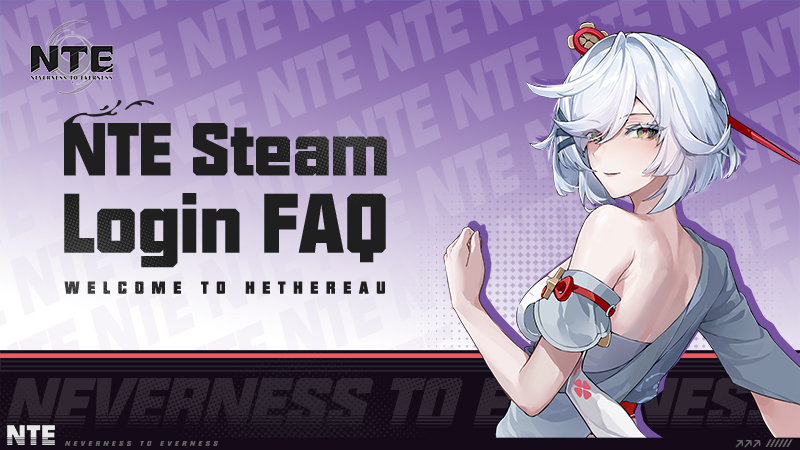 | Hitting "Start Game" before logging in binds Steam ID to a blank profile | Log into PWG portal, unbind Steam, and re-link your master account (nte.wiki) |
| Missing Characters on Title Screen | 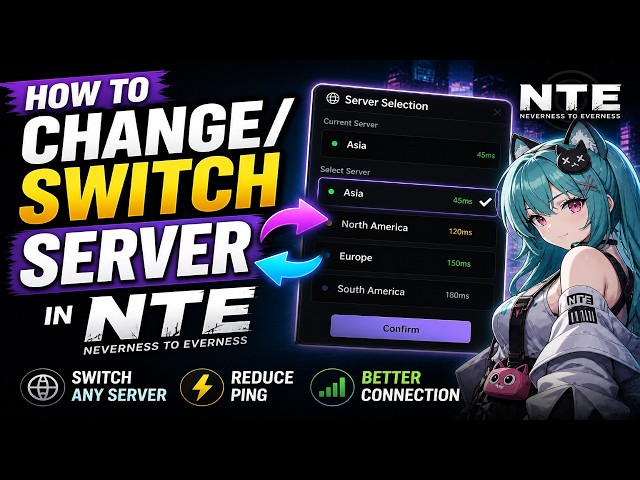 | Title screen default points to the wrong regional server gateway | Switch the server dropdown to match your original region (NA, EU, Asia) (Perfect World Games) |
| OAuth Login Mismatch | 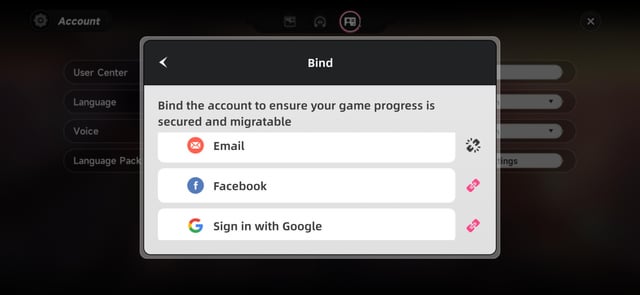 | Manually typing an email instead of authenticating through Google/Apple | Authenticate via original provider, then bind an official email in User Center (Kardz) |

All in One(60+300+980+1980+3280+6480)Riftcrystal
 All in One(60+300+980+1980+3280+6480)RiftcrystalUSD 131.70Buy Now
Riftcrystal Mining Permit
 Riftcrystal Mining PermitUSD 3.27Buy Now
6480Riftcrystal (First Top Up Get Double)
6480Riftcrystal (First Top Up Get Double)USD 65.54Buy Now3280Riftcrystal (First Top Up Get Double)
3280Riftcrystal (First Top Up Get Double)USD 32.76Buy Now1980Riftcrystal (First Top Up Get Double)
1980Riftcrystal (First Top Up Get Double)USD 19.66Buy Now980Riftcrystal (First Top Up Get Double)
980Riftcrystal (First Top Up Get Double)USD 9.82Buy Now300Riftcrystal (First Top Up Get Double)
300Riftcrystal (First Top Up Get Double)USD 3.27Buy Now60Riftcrystal (First Top Up Get Double)
60Riftcrystal (First Top Up Get Double)USD 0.65Buy Now
Step 1: Recover from a Steam Blank Profile Lockout
This is the most common pitfall for desktop players. If you rushed through the initial Steam launch screen and created a fresh character or accepted default prompts, your Steam account ID is now stuck to an empty profile.
Your original save is still safe on the server. You just cannot reach it from Steam until you manually sever that blank placeholder.
- Exit the game completely on your PC.
- Open your web browser and navigate to the official Perfect World Games account portal.
- Log in using the credentials of the accidental profile created via Steam (or authorize directly through Steam on the portal).
- Locate your linked third-party platforms in the account dashboard and unbind your Steam ID.
- Log out of the portal, log back in using your primary master PWG credentials, and link your Steam ID to that correct master account.
- Restart the game via Steam. Your main character profile will now load.
Step 2: Fix Regional Server Mismatches
If you log in and land straight on the opening character creator, your progress is not gone—you are almost certainly connected to the wrong gateway.
Neverness to Everness isolates character data by region (Perfect World Games). Characters created on the North American gateway cannot load on European or Asian servers. You can freely switch regions from the title screen at any time, but your progress stays locked to the server where it started—nothing migrates across regional lines.
Check the server gateway displayed on your main title screen. If you normally play on NA but your PC launcher defaulted to EU, click the server dropdown and select your original region. Once set correctly, your high-level anomaly investigator will reappear.
Step 3: Bind an Official Email in the User Center
Third-party authentication methods (Google, Apple ID, Facebook) run on independent authentication tokens. If you started your adventure on iOS using Apple ID or on Android using Google Play, entering that same email address manually on a standalone PC client will not pull your save. You must link an official email address directly through the in-game User Center (Kardz).
Follow these steps on the device that currently holds your active save:
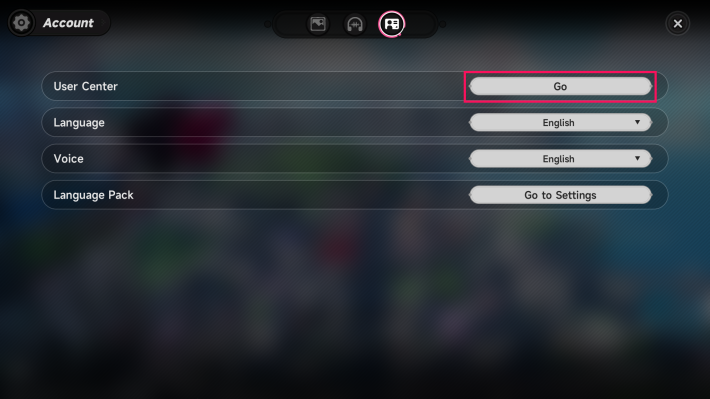
- Tap the menu icon in the upper right corner of your game interface.
- Open Settings.
- Select the Account Settings icon at the top of the menu screen.
- Click the Go button inside the User Center prompt.
- On the Account Center page, select Bind Account.
- Choose the first email option and enter your desired official email address and password.
- Verify the submission. Upon successful completion, the binding icon turns gray.
Once that binding icon is gray, you have a universal PWG master login. You can now use those credentials on any PC launcher, console, or alternate mobile device.
| Platform / Client | Linking Requirement | Data Saved Server-Side | Unbinding Mechanism |
|---|---|---|---|
| Steam | Master PWG account linked to Steam ID (nte.wiki) | Characters, Annulith, inventory, story | PWG account portal dashboard |
| Epic Games Store / Official PC Launcher | Direct PWG email login or bound third-party ID | Characters, Annulith, inventory, story | In-game User Center / PWG portal |
| iOS / Android | Third-party login or bound official email (Kardz) | Characters, Annulith, inventory, story | In-game User Center (Settings > Account) |
| PlayStation 5 | PSN account linked to master PWG identity (nte.wiki) | Characters, Annulith, inventory, story | PWG account portal dashboard |
Step 4: Device Session Limits and Multi-Account Restrictions
If you see a sudden "login failed" prompt while attempting to boot the game, check whether an active session is running elsewhere. Under Section 2.2 of the Neverness to Everness Terms of Service, Hotta Studio strictly enforces a policy of one active account per device at a time (Steam EULA).
Simultaneous multi-account logins on one device violate the terms and drop your active session. If the game hangs or rejects your handshake during cross-save setup, force-close the client on your phone or console before launching on PC.
Locating Your UID for Customer Support Escalation
When self-service unbinding fails or your credentials refuse to link, you will need to open an official support ticket. Hotta Studio requires your numeric User ID (UID) before technicians can touch your account.
You can find this identifier quickly inside the game interface:
- Open your main menu by clicking the P-Phone icon located in the upper corner of your screen.
- Open your Profile or Account Info tab.
- Locate your numeric UID displayed directly beneath your player name (ArcTopup Profile Guide).
Save this number somewhere accessible. Whether you are opening a recovery ticket or managing top-ups for Neverness to Everness Riftcrystals, support requires your UID to locate your profile on the backend.
If an error persists, escalate using the official support pathways provided by Perfect World Games (Perfect World Games Support):
- In-Game Ticket: Navigate to Settings > Support Center on your title or pause screen, submit a detailed ticket, and upload your client log files directly.
- Official Support Email: Send a message to
[email protected]. Include your numeric UID, your current server region, an exact description of the linking error, and relevant error screenshots.
| Verification Metric | Required Record | Sourced Location / Format |
|---|---|---|
| Player Identification | Numeric UID | Displayed under player name in P-Phone Profile tab (ArcTopup) |
| Account Binding Status | Grayed-out binding icon | In-game User Center via Settings > Account Settings (Kardz) |
| Device Concurrency Limit | 1 account per device | Section 2.2 hardware concurrency rule (Steam EULA) |
| Direct Escalation Route | Ticket with attached log files | In-game Support Center or [email protected] (Perfect World Games) |
Account Linking FAQs
Can I transfer my Neverness to Everness character data between different server regions?
No. Each regional server operates completely independently. Hotta Studio does not share game data across regional gateways, meaning you must stay on your original region (NA, EU, or Asia) to access your existing characters (Perfect World Games).
What should I do if my Steam account auto-linked to an empty character profile?
Log into the official Perfect World Games account portal in a web browser. Unbind your Steam account from the accidental blank profile, log in with your primary master PWG account, and re-link your Steam ID to that master profile (nte.wiki).
How do I find my numeric User ID (UID) if I need to submit an account linking ticket?
Open your in-game P-Phone menu by clicking the icon in the upper corner of your screen, open the Profile or Account Info tab, and copy the numeric UID displayed directly beneath your player name (ArcTopup Profile Guide).
Bind an official email inside the in-game User Center before you touch a second or third platform. Securing that central credential prevents Steam or Epic from assigning you a dead-end profile and keeps your Hethereau progress intact everywhere you play.
Follow ArcTopup for more Neverness to Everness news~






Comments