Learn how to link Super Sus account to Google on Android safely. Protect your guest progress, fix binding errors, and switch Google Play profiles easily.
Step-by-Step: How to Link Super Sus Account to Google on Android
Binding your active Super Sus session to a Google account takes less than two minutes. Doing it correctly ensures that your level, unlocked roles, and cosmetic inventory survive phone upgrades or accidental app uninstalls.
Follow these steps inside the game client on your Android device:
- Launch Super Sus on your Android phone and log in to your current guest profile or local session.
- Tap the Settings gear icon located in the upper-right corner of the main lobby screen.
- Select the User Center (or Account) tab from the left-hand navigation list.
- Locate the Google icon under the "Bind Account" section and tap Bind.
- An Android system overlay will display your active Google Accounts. Select the email address you want to attach to your profile.
- Grant the requested sign-in permissions when prompted by Google Play Services.
- Check the User Center screen once the overlay closes; the button next to Google should now display Linked or show your Google ID.
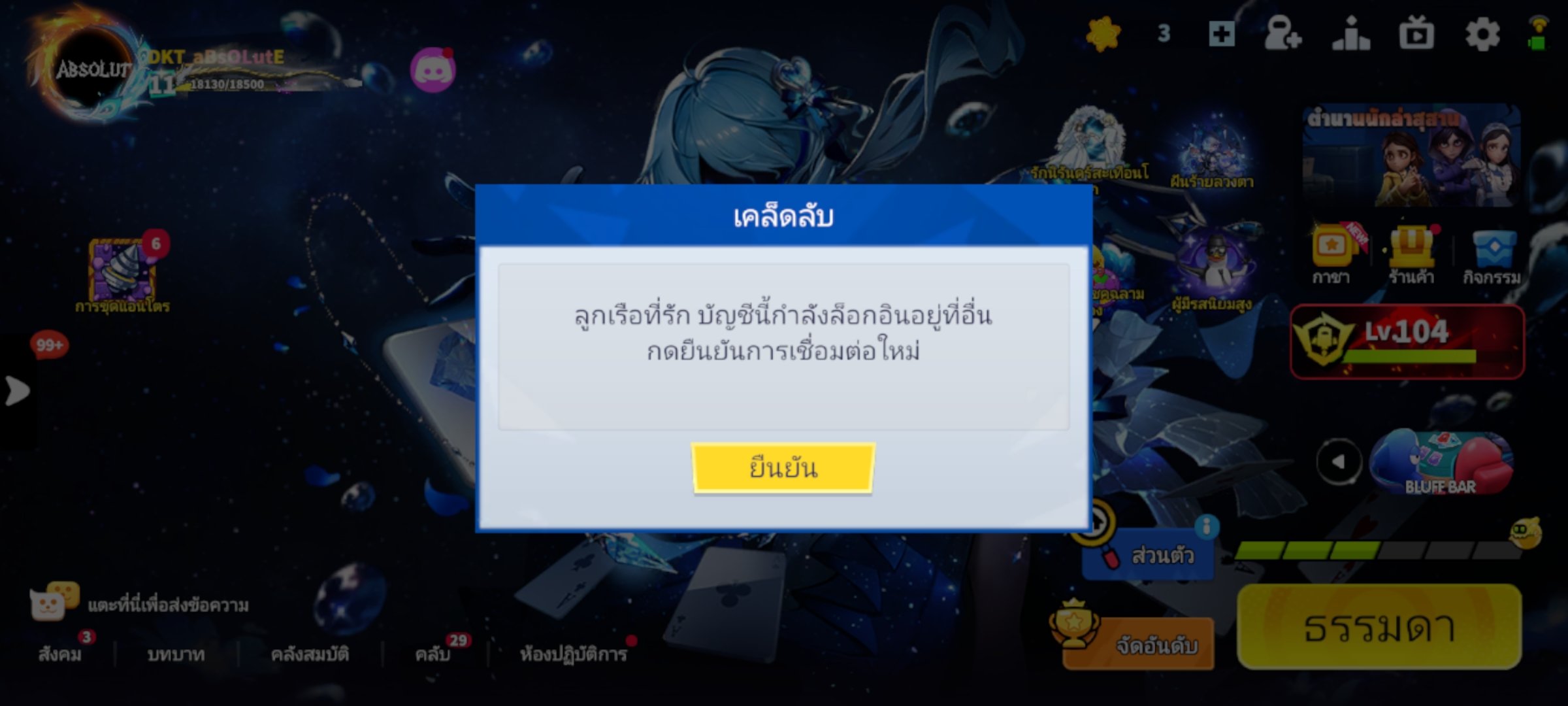
Do not hit "Switch Account" before you complete the binding process. Tapping switch while sitting on an unbound guest profile dumps your local save data and replaces it with whatever profile is attached to the selected email. Always bind first, switch second.

Weekly Card
 Weekly CardUSD 0.66Buy Now
100 Golden Stars
100 Golden StarsUSD 0.66Buy Now310 Golden Stars
310 Golden StarsUSD 1.97Buy Now520 Golden Stars
520 Golden StarsUSD 3.29Buy NowSuper Pass
Super PassUSD 3.29Buy Now1060 Golden Stars
1060 Golden StarsUSD 6.64Buy NowSuper Pass Bundle
Super Pass BundleUSD 6.64Buy NowMonthly Card
Monthly CardUSD 7.16Buy NowSuper VIP Card
Super VIP CardUSD 7.99Buy Now2180 Golden Stars
2180 Golden StarsUSD 13.64Buy Now5600 Golden Stars
5600 Golden StarsUSD 34.99Buy Now
Guest Accounts vs Cloud Saves: Why Local Storage Is a Trap
Guest accounts on Android are temporary cache files stored inside the application's local storage sandbox.
Android isolates application directories for security. If you run a storage cleaner, perform an OS update, or clear app cache to free up space, that local token gets erased. Once that file disappears, the game client treats your device as a new installation.
The table below compares data retention, cloud synchronization, and hardware transitions across profile formats on Android.
| Account Type | Data Storage Location | Loss Risk & Transfer Capability | Cloud Recovery |
|---|---|---|---|
| Guest Account (Local) | Device Storage Only | High risk of total loss on cache wipe, OS update, or uninstall | None (Requires manual developer support ticket) |
| Google Play Games Linked | Cloud Synced via Google Account | Safe; transfers across all Android devices instantly | Full sync backed by Google 2-Step Verification |
| Custom Email / Phone Binding | Cloud Synced via Developer Auth | Platform-agnostic migration across Android, iOS, and PC Steam | Full sync via direct login credentials |
Takeaway: Storing your game progress purely on local device memory leaves your account vulnerable to accidental wipes during standard Android maintenance routines.
If you purchase Super Sus Goldstars through verified top-up options, binding to Google ensures paid currencies stay tied to your account across reinstalls.
How to Connect Super Sus to Google Play Games and Manage Default Profiles
Connecting to Google integrates your player profile directly into Android's native gaming framework. Google Play Games manages authentication tokens, cloud syncs, and achievement tracking in the background.
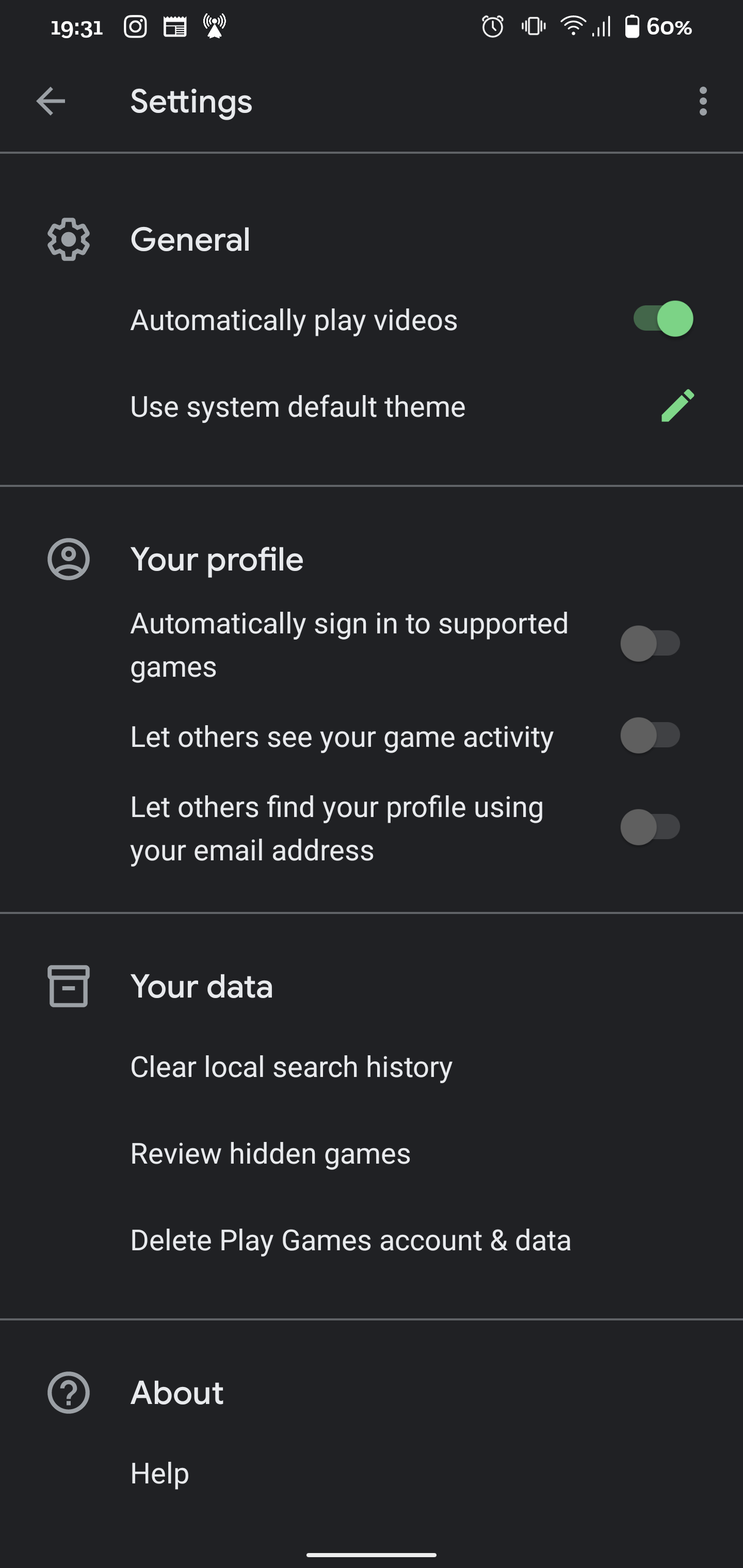
If your phone has multiple Google Accounts—such as a personal email and a work address—Android may default to the wrong address. You can set Super Sus to automatically log in with a specific Google identity or force the system to prompt you on boot.
Using the Quick Profile Switcher on Android
Android includes a direct shortcut for multi-account management:
- Locate the Super Sus app icon on your home screen or in your app drawer.
- Long-press the icon until the pop-up context menu appears.
- Tap Choose profile (or the Play Games profile switcher icon).
- Select the Google account you want associated with that specific game session.
Configuring System-Level Play Games Sign-In Settings
For permanent automation, adjust your device-level Google settings directly:
- Open your Android phone's Settings app.
- Scroll down and tap Google (or Google Services).
- Select All services and open Settings for Google apps.
- Tap Play Games, then select Sign in account.
- Scroll down to the "Change the account by game" section and find Super Sus.
- Tap Change next to Super Sus and choose your dedicated gaming email, or set it to Ask each time.
Setting this to "Ask each time" prevents accidental logins on the wrong account if you share your device with family members.
How to Switch Google Account in Super Sus Without Data Overwrites
Managing multiple Super Sus profiles on a single device requires OS-level adjustments rather than in-game toggles. Modern Android builds frequently delegate account handling to the operating system's native account manager.
Community documentation varies between references to PIProductions and Giant Interactive Entertainment depending on the publisher stamp on your regional build. Regardless of the label, account management rules remain bound to Google Play Services protocols.
Review the primary mechanisms for switching active Google identities in Super Sus along with their system requirements.
| Switching Mechanism | Navigation Path | Best Used For | Overwrite Protection |
|---|---|---|---|
| Quick Profile Switcher | Long-press Super Sus app icon > Choose profile | Fast profile swaps between multiple on-device Google accounts | High (Prompts profile selection before game launch) |
| Play Games Sign-in Menu | Android Settings > Google > Settings for Google apps > Play Games | Setting permanent per-game default accounts | High (Locks specific Google ID to the game build) |
| Ask Each Time Mode | Play Games Sign-in Menu > Change by game > Ask each time | Shared family tablets or multi-account testing | Maximum (Forces account confirmation every single boot) |
Takeaway: Utilizing Android system-level Play Games settings prevents accidental overwrites when managing multiple profiles on one device.
To move from your primary account to an alternate profile, close Super Sus completely. Change the active profile inside Android's Google Play Games settings first. Upon restart, the game client queries the newly selected Google ID rather than defaulting to your old cache.
Fixing Super Sus Link Account Errors on Android
Permission conflicts, corrupted cache files, and pre-existing bindings can trigger authentication errors during setup.
Here are the most common linking errors on Android and how to solve them:
1. "Account Already Bound to Another User"
This error occurs when the Google email you selected is already attached to an existing Super Sus account. You cannot merge two active profiles into one.
Fix: You must either log in to the old account and delete it, or choose a different, unused Google Account to bind your current progress.
2. Infinite Loading Screen or Google Play Services Timeout
If the Google pop-up spins indefinitely or fails to load, Google Play Services is stalling in the background.
Fix: 1. Exit Super Sus and open your phone's Settings. 2. Tap Apps > Google Play Services > Storage. 3. Tap Clear Cache (do not clear data unless necessary). 4. Repeat the cache clear for the Google Play Games app. 5. Restart your phone and attempt the in-game binding process again.
3. Network Authorization Failure
Google Cross-Account Protection requires a direct connection to verify OAuth security tokens.
Fix: Turn off VPNs, ad-blockers, or custom DNS profiles temporarily while linking your account. Once the binding token is established on the server, you can re-enable your network tools.
4. Sandbox Separation in Android Work or Guest Profiles
If you installed Super Sus inside an Android "Work Profile" or secondary OS guest space, the game cannot communicate with your primary user profile's Google Play Services.
Fix: Ensure Super Sus and Google Play Games are installed within the exact same Android user profile space.
Cross-Platform Sync: Moving Between Android, iOS, and Steam PC
Super Sus launched on mobile devices on November 25, 2021, and expanded to PC players via Steam on July 30, 2024. With a worldwide player base exceeding 300 million users, cross-platform flexibility is essential.

Cross-platform play requires understanding the boundaries of Google authentication:
- Android to Android: Direct synchronization. Log in with your linked Google Account on any Android device running Google Play Services, and your save syncs right away.
- Android to iOS or Steam PC: A Google Play Games login cannot be used directly inside Apple iOS or Windows Steam clients.
To move your save across different operating systems, open the User Center on your Android device and bind an additional method, such as an email address and custom password. This creates a developer login that works identically across Android, iOS, and PC.
If you play across platforms and want to buy cosmetics, pets, or costumes, checking the Super SUS top up page for your Goldstars gives you flexibility across devices once your core profile is cloud-saved.
Account Recovery Protocols: Retrieving Unlinked Guest Profiles
A lost guest profile cannot be restored through Google Play Games if it was never bound in the first place. You have to submit a recovery ticket to customer support.
When attempting to recover an unlinked guest profile, support teams require specific technical and transactional logs to verify ownership.
| Verification Parameter | Description & Example Data | Purpose in Recovery | | :--- | :--- | :--- | :--- | | Character Identifiers | Exact character name, in-game Space ID, and server region | Locates the dormant player record in server database | | Progression Metrics | Approximate account level, rank tier, and unlocked roles (e.g., Sheriff, Doctor) | Confirms gameplay history against database snapshots | | Transaction Receipts | Official transaction order numbers from premium currency orders | Irrefutable proof of financial ownership of the account | | Hardware Specifications | Original device model, manufacturer, and Android OS version | Matches local hardware telemetry logs generated during guest play |
Takeaway: Providing complete purchase receipts and hardware specifications significantly increases the likelihood of support successfully recovering an unlinked profile.
Manual recovery requires support agents to match your device logs against server backups. Binding your account to Google eliminates this delay entirely.
Securing Your Account and Premium Goldstars
Matches in Super Sus center on three rival factions—Spacecrew, Impostor, and Neutral—with specialized roles like Sheriff, Doctor, and Conjurer.
Whether you coordinate during emergency meetings using integrated voice audio, text chat, or competitive modes like Colosseum, Hide & Seek, and Squad matchmaking, your account carries real value.
Players also collect promotional gift codes by opening Settings > Gift Code to redeem case-sensitive voucher keys for bonuses. More importantly, players accumulate Goldstars, the game's premium currency.
Goldstars are used to acquire: - Exclusive character costumes and skins - Rare companion pets - Vibrant animated emotes - Role power-ups and cards
Linking your account to Google protects all of these assets behind Google's security stack. Enabling 2-Step Verification on your Google Account prevents unauthorized access to your game data. Google Cross-Account Protection also monitors for suspicious security events and keeps your connected gaming identities secure.
Bind your Google credentials before using the Super SUS Goldstar top-up portal to keep your skins and power-ups tied to your permanent account.
Frequently Asked Questions
Will linking my Super Sus account to Google erase my current guest progress?
No, linking an active guest session binds your existing local progress directly to the chosen Google account. You must initiate the bind from inside the game settings while logged into your guest profile to avoid overwriting it.
How do I link Super Sus to Google on my Android phone?
Open Super Sus, tap the Settings gear icon, find the User Center or Account tab, and select Google under the bind options. Choose your Google account from the Android pop-up and confirm permissions.
How do I switch between different Google accounts in Super Sus?
Navigate to your Android device Settings > Google > All services > Settings for Google apps > Play Games > Sign in account. Locate Super Sus and change the designated profile, or set it to "Ask each time" to pick on boot.
Can I transfer my Super Sus progress from Android to iOS or PC after linking to Google?
Yes, but you must bind an additional developer login, such as an email and password, inside the User Center. Google Play Games logins are native to Android and cannot authenticate on iOS or Steam PC.
What should I do if my Google Sign-In gives an error in Super Sus?
Clear the cache for Google Play Services and Google Play Games in your Android app settings. Ensure your network connection is stable, disable any active VPNs, and restart the game.
Can I recover a lost Super Sus guest account if I never linked it to Google?
You must contact official game support and provide your character name, server region, device hardware specs, and purchase receipts. Manual recovery is time-consuming and not guaranteed without account binding.
What is the difference between Google Play Games binding and custom email binding?
Google Play Games binding uses your Android Google identity for one-tap logins across Android devices. Custom email binding provides platform-agnostic credentials that allow you to log in across Android, iOS, and PC Steam.
The Final Verdict on Securing Your Super Sus Profile
Unlinked guest accounts remain vulnerable to routine phone maintenance and OS updates. A single storage cache wipe or dropped phone can instantly delete your unlocked roles, rank standing, and cosmetic items.
Binding your profile to Google takes only a few taps inside the User Center. It gives you instant cloud backups, fast device transfers, and Google 2-Step Verification security. Link your profile to Google today, set your Play Games preferences properly, and keep your progress safe.






Comments