Learn how to transfer Colorful Stage account to new phone hardware cleanly. Secure your Transfer ID, link cloud services, and fix sync errors easily.
Moving your rhythm game profile to a new handset should be straightforward, not stressful. Yet players regularly face blank title screens after tapping the wrong button or assuming the cloud handled everything in the background. Without generated credentials, you risk losing your cards, rank progress, and unlocked songs.
Treat migration like a mandatory system backup. Below is the step-by-step breakdown for setting up your credentials, linking services, and recovering an unlinked profile.
Core Migration Methods: Transfer ID vs Cloud Linking
Two methods move your save data: an in-game Transfer ID paired with a custom password, or an OS-level account link (Apple Game Center or Google Play Games).
Set up both. An OS link fails if you swap between iPhone and Android down the line. A dedicated Transfer ID works across all operating systems without platform locks.
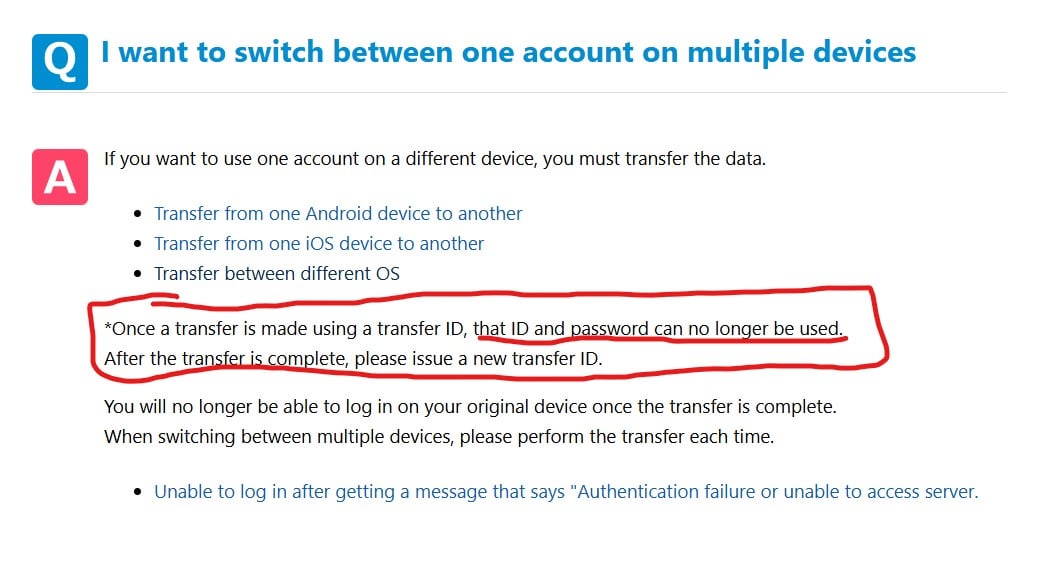
Here is how the options compare:
- Transfer ID & Password: An alphanumeric code tied to your profile. Works across both iOS and Android.
- OS-Level Cloud Links: Syncs via Game Center or Google Play Games for quick transfers between devices on the same platform.
- Cross-Platform Account Services: External authentication relying on email verification codes.


Setting Up Your Transfer ID and Password Step-by-Step
Manual Transfer IDs are the most reliable safeguard. Even when platform services suffer authentication outages, your custom password and ID pull save data directly from the servers.
Open the client on your current device. Tap the menu icon in the upper corner of the screen, then select Data Transfer.
- Select the manual Transfer ID option.
- Enter a password that meets the character requirements, then re-enter it to confirm.
- Generate your alphanumeric Transfer ID.
- Screenshot the screen and store the ID and password in a secure password manager.
Do not share these credentials. Anyone with this ID and password pair can load your account. Transfer credentials do not expire over time—they remain valid until you issue a new set or overwrite them.
Below are the core technical specifications and credential formats used during mobile game account data migrations:
| Credential Type | Format / Expiration Standard | Functional Purpose |
|---|---|---|
| Confirmation Code | 6 digits / 60-minute expiry | Sent via email from system domain to verify identity during setup |
| Player Account Identifier | 9 digits | Public player ID; cannot be used alone as a login credential |
| Dedicated Transfer ID | Alphanumeric string | Unique identifier paired with password for direct device migration |
Takeaway: Your public 9-digit player number only identifies your profile to friends; you must generate an official Transfer ID and password to actually move data between devices.
Cloud Account Linking on iOS and Android
OS-level linking offers one-tap migration if you stay within the same ecosystem. You link colorful stage to game center on iOS devices or connect through Google Play Games on Android.
Note that fresh accounts cannot link immediately. You must finish the tutorial before the transfer options appear in the settings menu.
Linking on iOS (Game Center)
Sign in to your Apple ID under iOS Settings > Game Center. Launch the game, open the Data Transfer menu, and select Link to Game Center. Confirm the prompt showing your Game Center handle.
Linking on Android (Google Play Games)
Install and update Google Play Games. Open the in-game transfer menu, choose Google Play, and select your target Google account. Accept the permissions prompt.
If you ever need extra resources after restoring your profile, you can replenish your stock through arctopup to get back on track for active banners.
Step-by-Step Process to Restore Data on Your New Device
Once your credentials exist, setting up the new phone takes two minutes. Do not play through the tutorial on the new device hoping to link later—starting a new game session risks desyncing your profile.
Follow these steps on your new handset:
- Install the game from your platform app store.
- Open the app and stop at the initial title screen.
- Tap the Menu button in the top-right corner before touching the screen to start.
- Select Data Transfer.
- Choose Transfer with Transfer ID or Transfer with OS Cloud.
- Enter your credentials or complete the cloud login.
- Verify your Player Name, Rank, and 9-digit Player ID on the confirmation screen.
- Confirm and let the client download patch data.
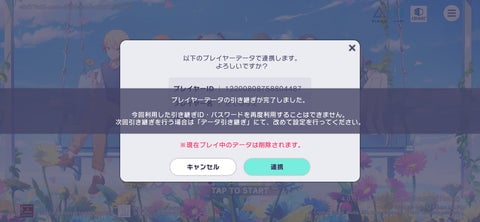
Your credentials stay active after loading. Keep your old installation intact until you verify that all cards, high scores, and items are present.
Cross-Platform Differences Between Android, iOS, and PC
Swapping between matching operating systems is simple. Switching across OS ecosystems—such as moving from iPhone to Android—carries specific rules.
When you transfer colorful stage from android to ios, your cards, event badges, character ranks, and story progress carry over. However, platform-specific cloud links do not bridge across operating systems. Game Center cannot authenticate on an Android device.
Here is a detailed breakdown of how features and data transfer behave across major platforms:
| Feature / Asset Type | iOS to iOS | Android to Android | Cross-Platform (iOS <-> Android) |
|---|---|---|---|
| Card Inventory & Ranks | Fully Transferred | Fully Transferred | Fully Transferred |
| Game Center Sync | Supported | Not Applicable | Unsupported |
| Google Play Games Sync | Not Applicable | Supported | Unsupported |
| Transfer ID / Password | Fully Supported | Fully Supported | Fully Supported |
| Persistent Link Status | Retained Post-Transfer | Retained Post-Transfer | Retained Post-Transfer |
Takeaway: Cross-platform moves require using an alphanumeric Transfer ID rather than OS-specific cloud sync tools.
If you plan to switch operating systems permanently, make sure to check the Hatsune Miku: Colorful Stage! top-up page for current pack availability on your new device environment.
Troubleshooting Link Failures and Transfer Errors
Authentication errors usually occur during major game updates or unstable connections. If you run into a project sekai account transfer failed fix requirement, troubleshoot step by step.
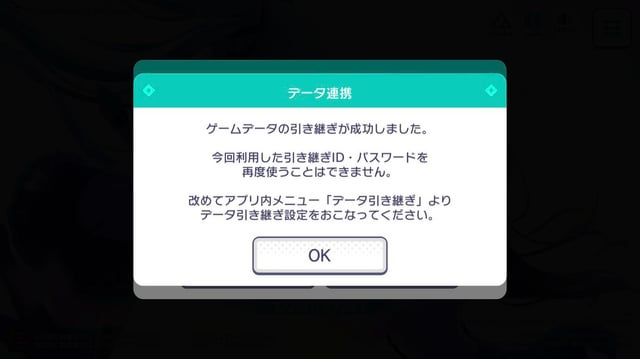
Most failures come down to mistyped passwords, mismatched accounts, or timed-out server requests:
- Check Password Case Sensitivity: Both Transfer ID and password are case-sensitive. Check for trailing spaces added by mobile auto-fill.
- Verify Cloud Account: For a colorful stage link to google play error, confirm that Google Play Games is logged into the original email used during setup.
- Check Spam Filters: If using email authentication, verify that your spam filter is not blocking domain messages.
- Watch Code Expiration: Confirmation codes expire after 60 minutes. Request a replacement if your code timed out.
- Switch Network: Mobile carriers can interrupt game API requests. Switch to a stable Wi-Fi connection and retry.
- Clear Application Cache: On Android, go to Settings > Apps > Game > Storage > Clear Cache (never Clear Data) to clear corrupted tokens.
Use this error resolution matrix to pinpoint specific transfer errors quickly:
| Issue / Error Symptom | Probable Cause | Immediate Corrective Action |
|---|---|---|
| "Account Not Found" Error | Typo in Transfer ID string | Re-check characters; distinguish between zero ('0') and letter ('O') |
| Cloud Link Failed | Wrong Google/Apple ID logged in | Switch OS account in device settings before launching game |
| Auth Code Did Not Arrive | Domain blocked / Spam filter | Check spam folder; whitelist sender domain; wait 5 minutes before resending |
| Confirmation Code Expired | Exceeded 60-minute window | Request a new 6-digit code and submit immediately |
| Blank Screen on Transfer Menu | Incomplete initial game data | Progress past initial tutorial stages to unlock cloud features |
Takeaway: Most transfer errors stem from auto-fill keyboard spaces or mismatched OS accounts rather than corrupted game servers.
Emergency Account Recovery When You Lack Device Access
If your old phone broke or was reset before generating a Transfer ID, you cannot log in directly with a 9-digit player number. Recovery through customer support is still possible.
Download the app on your new device. From the title screen, open the Help menu and select Contact Us to submit a Player Data Recovery Inquiry.
Support requires proof of account ownership:
- 9-digit Player ID.
- Account registration date and primary hardware model.
- In-game name and exact Rank.
- High-rarity cards in your active formations.
- Purchase receipts or transaction IDs.
If you have an external web ID account, you can submit and track your inquiry via the official portal. Once support verifies your ownership details, they will email you a one-time recovery code.
If you need to rebuild your item inventory after recovering an account, you can secure your items at arctopup with prompt digital delivery.
FAQ
Do account data transfer settings expire after setup?
No. Transfer settings remain active permanently until manually replaced or overwritten.
How long is the transfer registration confirmation code valid?
Confirmation codes expire 60 minutes after generation.
Can you use an in-game Duelist ID to log into a new device?
No. A 9-digit player identifier is a public ID, not a login credential. Moving save data requires an issued Transfer ID and password or linked cloud account.
Are account transfer settings erased after completing a transfer?
No. Transfer credentials remain active and reusable for subsequent device migrations.
How do you recover an account if device access is lost without transfer settings?
Install the client on a new device, tap Contact Us in the title menu, and submit a recovery inquiry with account details and purchase receipts.
What should you check if the transfer verification email does not arrive?
Check spam and junk folders, confirm your email address spelling, and ensure system verification emails are not blocked by provider filters.
Final Take on Device Migrations
Set up your manual Transfer ID and password today, even if your phone upgrade is months away. Storing your credentials in a password manager takes under a minute and ensures that a lost phone or corrupted update will not erase your rhythm game progress.






Comments