Fix Watcher of Realms crashes on loading screen Android devices face. Clear bad cache, repair Android WebView, and free up memory so your game launches cleanly.
Watcher of Realms is a tactical fantasy RPG developed by Skystone Games set in the land of Tya. Getting dumped back to your home screen while the title card flashes stops you before reaching the tavern or battle menus. The game validates assets in real time during startup. When it abruptly closes or freezes, the cause usually traces to three culprits: corrupted local patch caches, memory exhaustion during 3D asset initialization, or a broken Android System WebView component.
Some official store listings note over 170 heroes across 10 factions, while US client 1.5.82.748.1 logs over 200 heroes. Unpackaging these high-definition models and animation rigs at launch puts immediate pressure on device RAM and storage controllers. If memory runs out or hits an unreadable data block, the app crashes instantly.
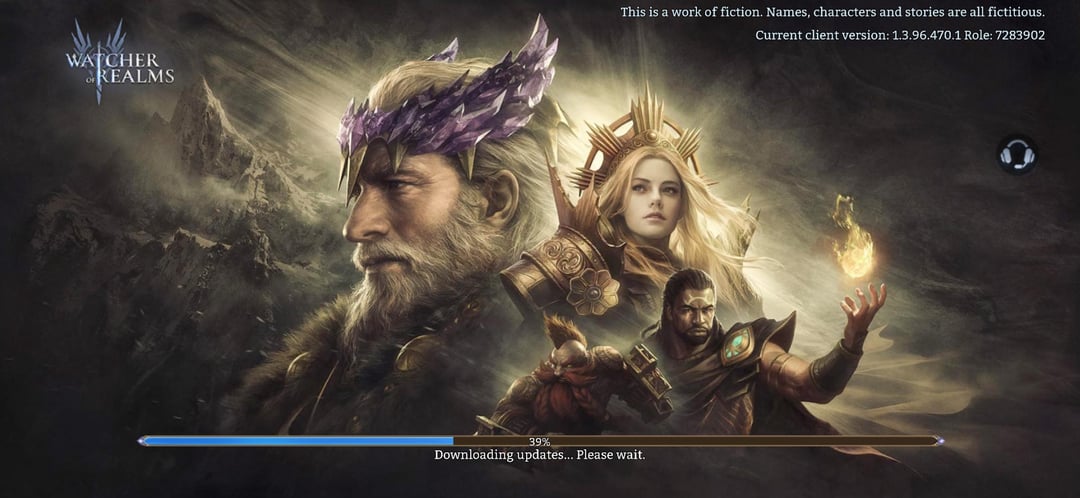
Why Watcher of Realms Freezes and Closes on Startup
The boot sequence is not a static splash screen. The engine contacts login servers, checks patch manifests, verifies local OBB files, unpacks shaders, and initializes web authentication layers. A failure in any single step terminates the entire execution thread.
The table below outlines the primary failure points that cause Android boot crashes and the immediate action needed to stabilize the client.
| Failure Point | Primary Cause | Immediate Remediation |
|---|---|---|
| Android System WebView Conflict | Corrupt web rendering module | Revert WebView updates or update via Play Store |
| Corrupted Asset Cache | Interrupted patch download | Clear application storage and temporary cache |
| Out-Of-Memory (OOM) Crash | Low system RAM (<4GB) | Terminate background tasks and reboot phone |
| Storage Starvation | Less than 10% disk space free | Free up at least 5GB of internal storage space |
| Missing OBB / Permission Error | Restricted storage permissions | Grant storage access or reset app preferences |
Takeaway: Boot crashes rarely stem from server downtime; they almost always indicate a local memory bottleneck, a blocked file permission, or a broken rendering module.


Quick Diagnostic Checks Before Changing Deep Settings
Run through basic diagnostic checks before altering system packages or wiping data. These simple steps resolve many startup freezes without touching custom settings.
- Verify your active network route: When syncing player profiles, a momentary packet drop triggers API timeouts that exit the app. Toggle airplane mode on for ten seconds, turn it off, and test the game on both 5GHz Wi-Fi and mobile data.
- Check total available internal storage: Watcher of Realms requires temporary disk overhead to decompress assets. If your phone has less than 10% free storage remaining, Android terminates asset extraction routines.
- Perform a clean hardware restart: Do not just cycle the screen off and on. Use the power menu to trigger a full system reboot, clearing stale background processes from volatile memory.
- Disconnect external screen overlays: Screen recorders, overlay crosshairs, and floating performance monitors hook into the graphics pipeline and can crash the loading screen.
If the game continues to crash during resource verification, move directly into component-level fixes.
Step 1: Repairing Android System WebView and Google Chrome
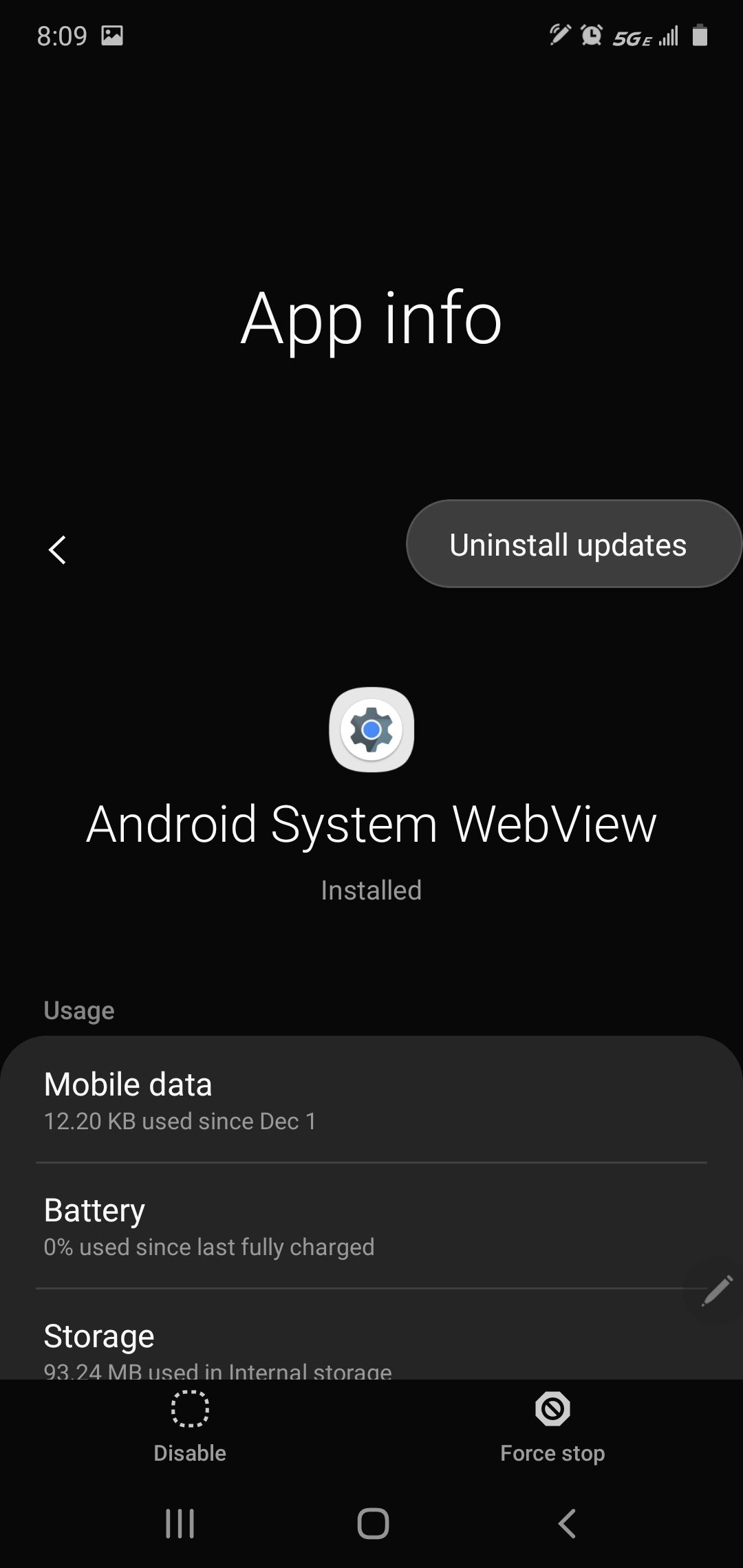
Android System WebView handles in-app web content, including authentication portals, event notices, and news pop-ups. When Google distributes a faulty build—such as the 89.0.4389.105 incident that crashed apps across Android—games relying on internal web views close instantly upon launch.
Troubleshooting advice often splits on this issue. If a recent system update triggered the crash, rolling back WebView to the factory build provides the most direct fix. If the device has not been updated in months, updating WebView via the Play Store is the proper solution.
How to Roll Back Android System WebView Updates
- Open device Settings.
- Tap Apps (or Application Manager).
- Select the three-dot menu in the upper-right corner and choose Show system apps.
- Scroll down and tap Android System WebView.
- Tap the three dots in the top corner and select Uninstall updates.
- Confirm the prompt to restore the factory version, then restart the device.
Addressing Google Chrome Architecture Dependencies
On modern Android builds, WebView shares core libraries with Google Chrome. If repairing WebView does not resolve the startup crash, update Google Chrome in the Google Play Store. Alternatively, go to Settings > Apps > Chrome, tap Force Stop, and clear Chrome's cache to clear stale rendering hooks.
Step 2: Clearing Cache and App Data to Purge Corrupt Assets
Watcher of Realms receives frequent micro-patches. An unstable Wi-Fi connection during download can write broken data blocks to storage. The client then hits a serialization error during boot and force-closes.
Running a watcher of realms clear cache android fix removes corrupt temporary files while preserving the core game installation.
How to Clear App Cache and Data
- Go to Settings > Apps > Watcher of Realms.
- Tap Storage & cache.
- Tap Clear cache, then launch the game.
- If the app still crashes, return to this menu and select Clear storage (or Clear data).
Settings -> Apps -> Watcher of Realms -> Storage & cache -> Clear Storage
Account safety note: Clearing storage removes local guest files and unauthenticated session tokens. As long as the account is bound to a Moonton ID, Google Play account, or social profile, all heroes, gear, and campaign progress remain safe on remote servers. Once the client launches smoothly, players can safely stock up on Watcher of Realms Gold through verified storefronts.
Step 3: Resolving Memory Exhaustion and OEM Background Killers
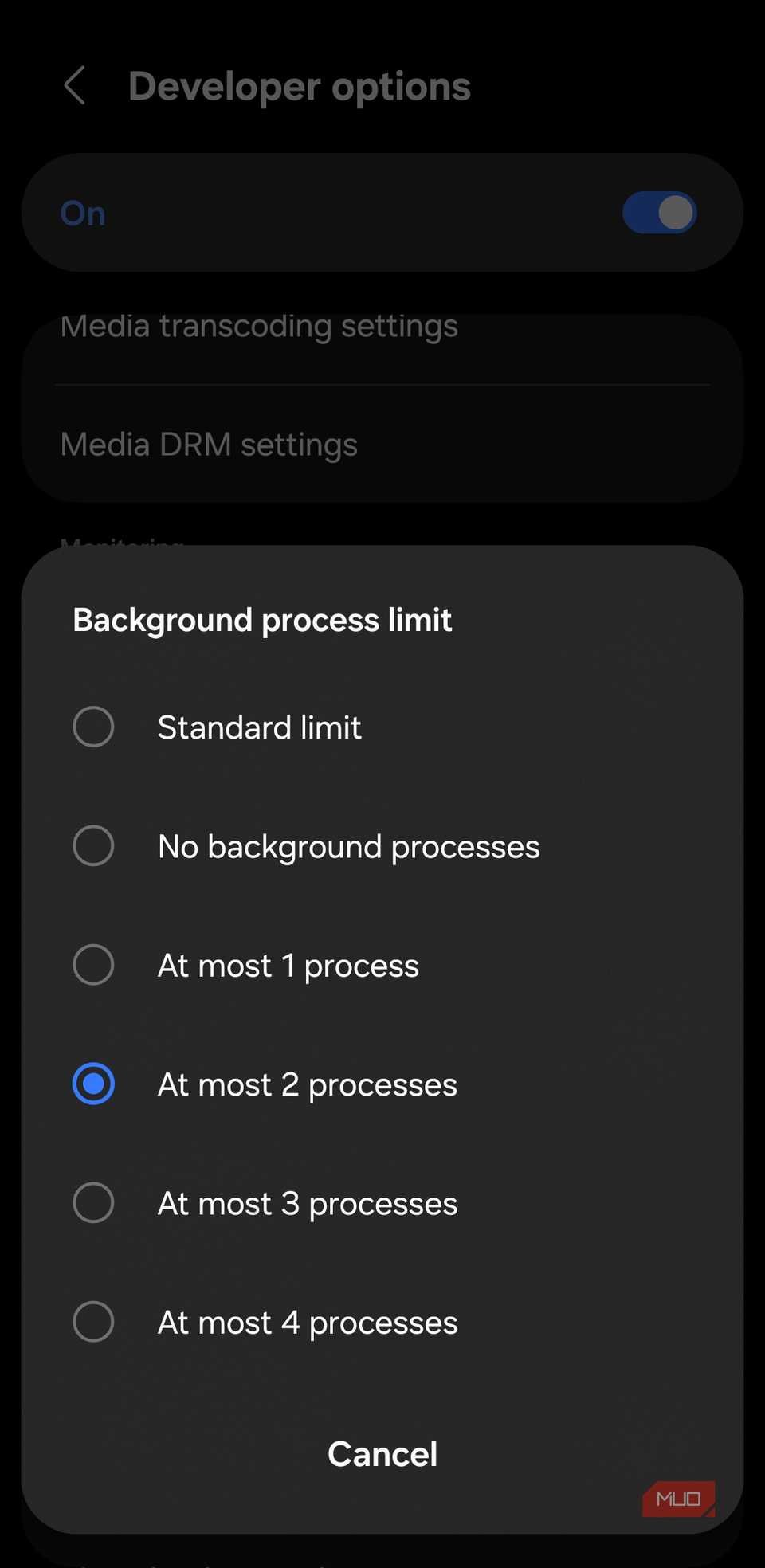
Watcher of Realms requires at least 4GB of physical RAM to render assets reliably. During initialization, the engine loads texture atlases, skeletons, and audio banks for multiple hero classes at once. On devices with 4GB to 6GB total RAM, background apps push the operating system into an Out-Of-Memory (OOM) state, causing Android's low-memory killer to terminate the process.
Custom Android skins—including Xiaomi's MIUI/HyperOS, OnePlus's OxygenOS, and Huawei's EMUI—use aggressive battery management. These background managers often flag the game's initial asset load as an anomalous background spike and terminate it before the main screen opens.
Low Device RAM + Heavy Background Tasks -> OS Memory Exhaustion -> App Closes Silently
Disabling Battery Optimization for Stable Launches
- Go to Settings > Apps > Watcher of Realms.
- Tap Battery or App battery usage.
- Switch the setting from Optimized or Restricted to Unrestricted.
- On MIUI/HyperOS devices, open Battery saver settings in the app info page and select No restrictions.
Close all active background apps from the recent apps switcher before opening Watcher of Realms to maximize available physical RAM.
Step 4: Fixing Storage Permissions, OBB Files, and App Preferences
A freeze on watcher of realms stuck on verifying resources indicates a broken path between the APK and expansion OBB files in your Android storage directory. Without read permissions, the verification step hangs at 0% or 100% before dropping back to the launcher.
Re-Enabling Permissions
- Open Settings > Apps > Watcher of Realms.
- Tap Permissions.
- Verify that Storage (or Files and media) is set to Allow access to media only or Allow management of all files.
Resetting App Preferences
If permissions are active but the client still fails to read directories or establish network sockets, reset global app preferences. This clears disabled components, background data blocks, and permission conflicts across Android without deleting personal files.
- Open Settings > System > Reset options (or Apps > Three dots menu).
- Select Reset app preferences.
- Confirm the selection and restart your phone.
Step 5: Advanced System Partition Cache and Safe Mode Diagnostics
Persistent startup freezes can stem from system-level file conflicts outside the app container. Android stores operating system build data in a dedicated cache partition. When stale pointers linger after an OS update, 3D titles crash during GPU shader compilation.
Wiping the Android Cache Partition
- Power down the device completely.
- Hold the Power Button + Volume Up Button (or Power + Volume Down depending on OEM) until the recovery screen appears.
- Use the physical volume buttons to highlight Wipe cache partition.
- Press the Power Button to execute.
- Select Reboot system now.
Note: Wiping the cache partition does not erase personal data, photos, or apps; it only clears temporary operating system build files.
Diagnosing App Conflicts with Safe Mode
To check whether a third-party ad blocker, VPN, or background service is terminating the game, boot Android into Safe Mode. Safe Mode isolates non-essential background processes.
- Press and hold the Power Button until the power menu appears.
- Long-press Power Off or Restart until the Reboot to safe mode prompt appears.
- Tap OK.
- Once the phone boots into Safe Mode, confirm network access and test launching the game.
Isolating system-level conflicts ensures your device runs raids and summons stably when you purchase cheap Watcher of Realms Gold packs.
Step 6: Performing a Clean Reinstall for Broken Patches
Patch serialization tables can corrupt completely during watcher of realms crashing after update 2026 releases. When delta updates fail to overwrite existing data blocks, the client enters a broken hybrid state and crashes while searching for missing file paths.
A clean reinstallation generates a fresh file directory directly from Google Play servers.
Clean Reinstallation Workflow
- Open Settings > Apps > Watcher of Realms.
- Tap Clear data, then tap Uninstall.
- Open a file manager and verify that
Android/data/com.sg.worsis deleted. - Restart the device.
- Open Google Play Store, search for Watcher of Realms, and reinstall the client.
- Connect to high-speed Wi-Fi to download the full asset package.
Keep the app open on screen throughout the resource download. Do not switch apps or allow the screen to lock until the download reaches 100%.
Platform Comparison: Crash Vulnerabilities Across Systems
Watcher of Realms operates across multiple platforms, each managing memory and background execution differently. Android devices deal with aggressive OEM killers and WebView updates, PC emulators face virtualization bottlenecks, and iOS relies on strict memory ceilings.
The table below contrasts the stability profiles and typical failure modes between Android, PC Emulators, and iOS.
| Platform | Common Crash Trigger | Memory Sensitivity | Primary Troubleshooting Vector |
|---|---|---|---|
| Android Mobile | WebView conflict / Corrupt patch cache | High (Needs 4GB+ RAM) | Clear app cache / Roll back WebView updates |
| PC Emulation (Android) | Hyper-V conflict / Outdated GPU drivers | Medium (Allocated 4GB-8GB) | Switch graphics engine (DirectX/Vulkan) / Allocate 4+ CPU cores |
| Apple iOS | Device RAM ceiling on older hardware | Extreme (Aggressive jetsam kill) | Hard reset device / Offload unneeded apps |
Takeaway: Android provides direct troubleshooting control through modular cache and system component rollbacks, whereas other platforms rely on engine virtualization or strict OS-level memory pruning.
Recommended System Specifications for Stability
To avoid crash loops during major content updates, ensure your hardware meets the necessary specifications.
The table below details the minimum and recommended system requirements for running the Android client smoothly.
| Hardware / Software Component | Minimum Requirement | Recommended Specification |
|---|---|---|
| Operating System | Android 7.0 or higher | Android 12.0 or higher |
| System RAM | 4GB Physical RAM | 6GB - 8GB Physical RAM |
| Free Storage Overhead | 5GB Free Space (or 10% disk capacity) | 10GB+ High-Speed UFS Storage |
| Android System WebView | Factory Base Version | Latest Stable Build (Fully Patched) |
| Battery Management | Balanced / Standard Mode | Unrestricted / Performance Mode |
Takeaway: Maintaining at least 5GB of free storage and 4GB of physical RAM ensures that high-resolution hero textures uncompress cleanly without triggering an out-of-memory crash.
With stable baseline specs in place, you can purchase Watcher of Realms Gold safely to fund character promotions and gear upgrades.
FAQ
Why does Watcher of Realms crash on the loading screen on Android?
It is usually caused by corrupted local patch cache files, an Out-Of-Memory (OOM) exception on devices with low RAM, or outdated Android System WebView components failing during splash screen initialization. Freeing storage space and clearing application cache resolves the vast majority of these startup crashes.
How do I fix the Android System WebView crash issue?
Open your device Settings, go to Apps, enable system apps, select Android System WebView, and tap 'Uninstall updates' from the top menu. Alternatively, open the Google Play Store and update both Android System WebView and Google Chrome to their latest stable builds.
Will clearing the app data delete my Watcher of Realms account progress?
No, clearing app data will not delete your account progress as long as your profile is bound to your Moonton account, Google Play Games, or social media login. The game client will simply require you to log back into your account after downloading fresh configuration files.
How much free storage should I keep on my Android device for Watcher of Realms?
You should maintain at least 5GB of free space or roughly 10% of your total device storage capacity. The client requires this unallocated space to unpack character textures, sound files, and map assets during the loading sequence.
Can battery saver settings cause Watcher of Realms to crash?
Yes, aggressive OEM battery management software on skins like MIUI, HyperOS, or OxygenOS often terminates the game process while it decompresses large background assets. Setting the app's battery permission to 'Unrestricted' prevents the operating system from killing it during launch.
What should I do if the loading screen freezes at 100% or fails verification?
If the progress bar freezes during resource verification, toggle your phone between Wi-Fi and mobile data to clear API network timeouts. If the freeze persists, force stop the application, clear the app cache in your system settings, and reboot your device.
Final Verdict on Android Loading Screen Stability
Fixing Watcher of Realms crashes on Android comes down to isolating bottlenecks. In most cases, crashes stem from device memory constraints, low disk space, or a conflicted Android System WebView build rather than server downtime. Start by clearing the app cache and ensuring 5GB of free storage. If the game crashes the instant the splash screen appears, roll back WebView updates. Once resolved, the client boots cleanly into Tya without unexpected home-screen crashes.






Comments