
To configure Steam gift card notification settings without game-disrupting chimes, go to Steam > Settings > Notifications on the desktop client, change Show Notification Toasts… to your preferred visibility (such as When I'm not in-game or Anytime), and turn off Play Sound. Incoming gifts and digital vouchers will quietly trigger the green pending alert on the desktop top-right bell icon and push notifications to the bottom navigation bar on the Steam Mobile app.
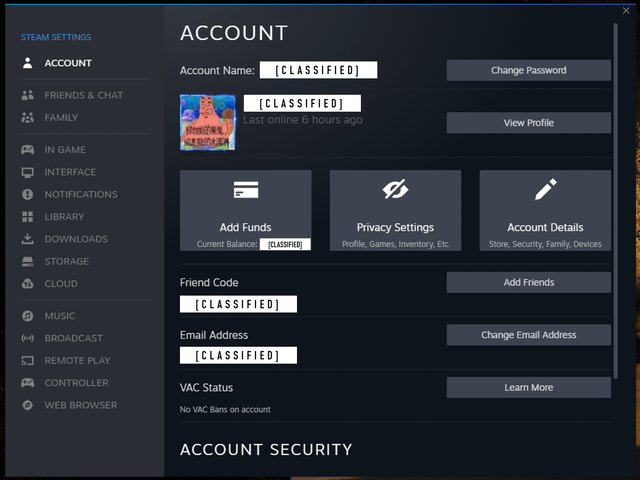
Notification paths across Steam platforms
Steam handles gift vouchers and community balance alerts through separate client interfaces on desktop and mobile. While direct gifts sent inside Steam carry a 30-day acceptance countdown before being automatically refunded to the buyer, digital gift card PIN codes never expire. Managing how and where those alerts surface lets you catch incoming funds immediately without getting startled in the middle of a match.
| Platform | Verification Interface Path | Dedicated Alert Indicator | Image | Source |
|---|---|---|---|---|
| Desktop Client | Steam > Settings > Notifications | Top-right bell icon displays a green pending gift alert badge |  | WikiHow Guide & Recharge Guide |
| Mobile App | Bottom navigation bar bell tab | Tap the pending gift alert banner directly to review |  | Recharge Guide |
| In-Game Overlay | Steam > Settings > In Game | In-game overlay popups (can be disabled entirely) | 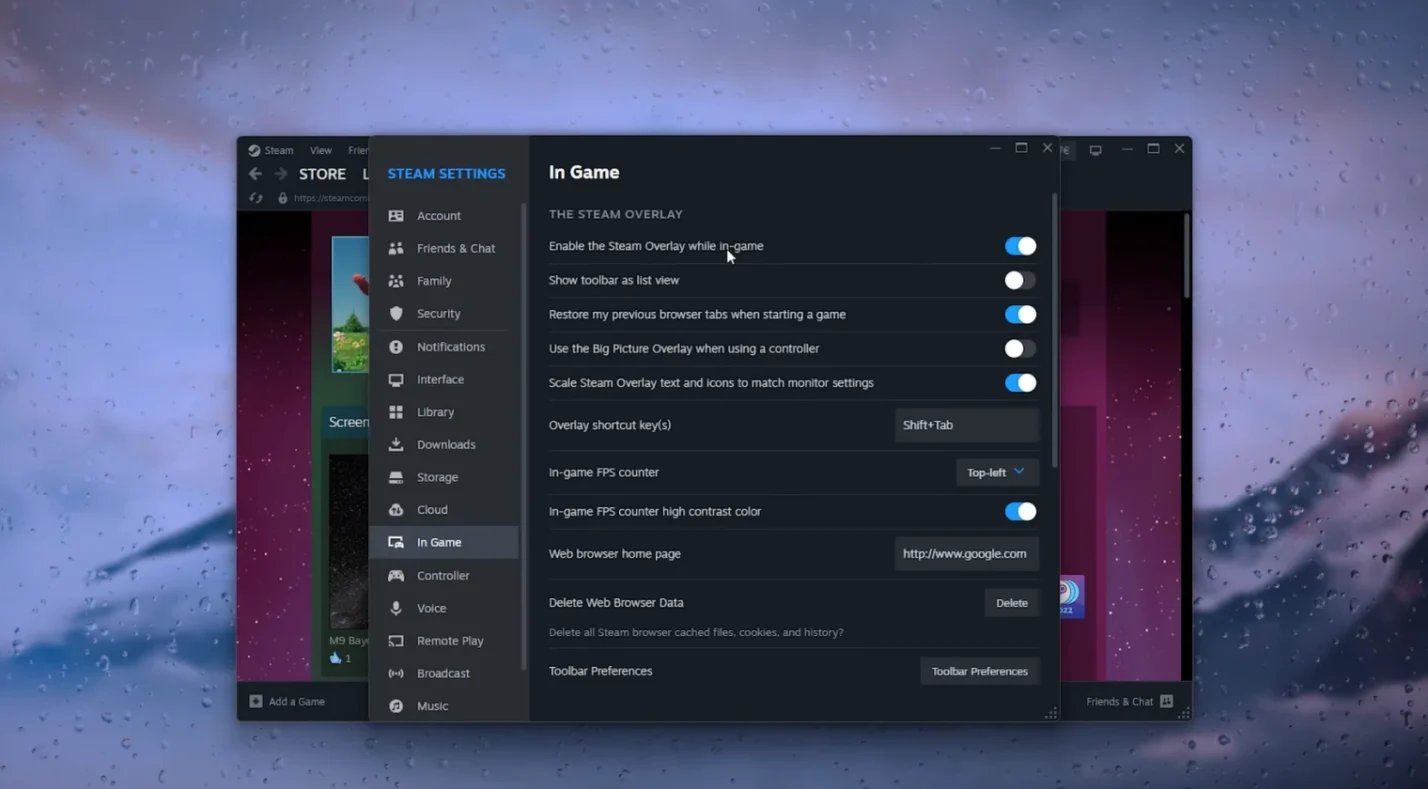 | WikiHow Guide |
Configuring desktop notifications and audio
Unwanted sound effects during competitive matches are frustrating. Steam separates visual banners from sound effects, letting you tailor both independently.
- Launch the Steam desktop client.
- Click Steam in the top-left menu bar and select Settings.
- In the left-hand navigation pane, select Notifications.
- Click the dropdown menu next to Show Notification Toasts….
- Select When I'm not in-game if you want zero screen clutter during matches, or Anytime if you want silent corner banners while playing.
- Toggle off Play Sound.
Turning off Play Sound stops the default Steam ping while leaving visual alerts intact under your top-right bell icon. When someone sends you a gift, the bell badge turns green to indicate a pending item waiting for your review. Clicking that alert lets you read the custom note, check the sender's username, and claim the item.
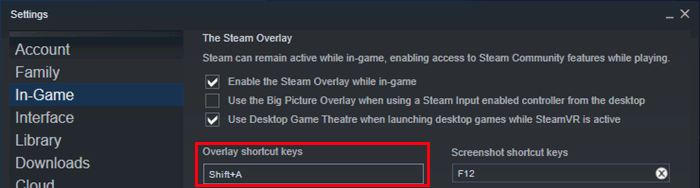
Managing the in-game overlay for silent gift alerts
If visual popups pull your focus during gameplay, adjust the overlay settings directly. This stops visual banners from stealing screen space while keeping code entry functional.
- Open Steam desktop and click Steam > Settings.
- Select In Game from the settings sidebar.
- Locate the option Enable the Steam Overlay while in-game.
- Toggle this setting off if you want complete visual isolation from alerts while playing.
When the overlay is toggled off, pending gift alerts remain queued under your desktop client's bell icon. You will not see them until you minimize or exit your game session.
Mobile push notices for digital cards
On smartphones, Steam pushes alerts through the Steam Mobile app for iOS and Android. When someone delivers a digital item or wallet transfer, an alert registers on the bell icon along the bottom navigation bar.
Tapping that bottom bell opens your notification center. From there, you can tap the pending gift alert to accept it directly into your library without needing to boot up your PC.
If you prefer manual code entry over automated gift transfers, you can top up your balance by purchasing a Steam Gift Card and entering the voucher code manually. Digital cards provide direct credit to your Steam Wallet, unlocking PC games, DLC, in-game items, soundtracks, and Community Market listings without requiring live sender-to-recipient friend pairing.
Recommended toggle profiles: competitive vs. active trading
Different playstyles call for distinct alert setups. A competitive player cannot afford audio disruptions, whereas a user coordinating community marketplace trades or waiting on a digital voucher needs immediate visual pings.
| Setting / Profile | Stealth Focus (Zero In-Game Distraction) | Active Trading & Gift Monitoring | Documented Path |
|---|---|---|---|
| Show Notification Toasts | Set to When I'm not in-game or Never | Set to Anytime | Steam > Settings > Notifications |
| Play Sound | Off | On (or Off for silent toasts) | Steam > Settings > Notifications |
| Steam Overlay In-Game | Disabled | Enabled | Steam > Settings > In Game |
| Mobile App Bell Check | Passive check after match | Active push alert tracking on bottom bar | Steam Mobile navigation bar |
Reference: Settings paths confirmed via WikiHow and Recharge.
If you choose the Stealth Focus profile, incoming gift cards and wallet deliveries will not flash across your screen or make a sound. The notification waits safely under your bell icons on desktop and mobile.
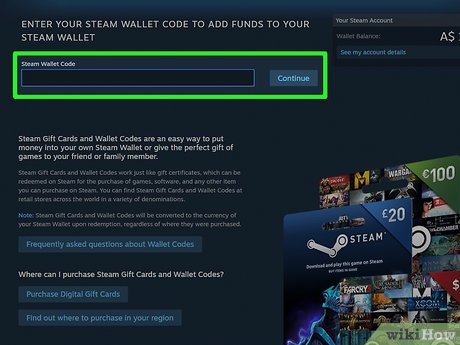
Where to redeem and track your Steam wallet balance
Direct digital platform gifts and alphanumeric voucher codes follow different technical rules. Platform gifts sent between Steam users require manual acceptance within 30 days. If that 30-day window expires without acceptance, Steam cancels the order and automatically issues a full refund to the buyer.
In contrast, digital gift card PIN codes do not expire. You can redeem a prepaid code immediately or save it for seasonal events without worrying about a 30-day refund window. Redeeming a Steam Gift Card of $5.00 USD or higher also lifts the restricted status on new accounts, satisfying Valve's $5.00 minimum spend rule to unlock friend invites, group chats, and the Steam Community Market.
| Redemption Method | Exact Menu Navigation Path | Verification Display Area | Source |
|---|---|---|---|
| Desktop Client | Games > Redeem a Steam Wallet Code | Top-right header next to your account username | ArcTopup Steam Card Reference |
| Web Browser | store.steampowered.com/account/redeemwalletcode | Main redemption box with instant account balance update | ArcTopup Steam Card Reference |
| Mobile App | Profile > Account Details > Add funds | Wallet balance dropdown menu on iOS and Android | ArcTopup Steam Card Reference |
Discrepancies in gifting requirements
Platform policies for sending digital gifts show documented differences across sources. Coverage by Polygon indicated that recipients could be gifted games using just their email address without existing on the sender's friends list.
If friend list limits prevent a direct transfer, entering a purchased voucher code bypasses social limits entirely. You can redeem it directly through the paths outlined above without managing friend list duration requirements.
Frequently asked questions
How can I check if a Steam gift or digital card notification was received on mobile?
Open the Steam mobile app and tap the bell icon on the bottom navigation bar to review all pending alerts, including direct gift deliveries, as noted by Recharge.
How do I silence notification sounds on desktop without losing popup banners while playing?
Go to Steam > Settings > Notifications on desktop, set notification toasts to Anytime, and toggle off Play Sound according to WikiHow.
Do Steam digital gift card codes expire if I do not redeem them right away?
No. As documented by ArcTopup, Steam Wallet codes and digital gift card PIN codes do not expire. However, direct game gifts sent within the Steam client expire and are refunded to the purchaser after 30 days if left unaccepted.






Comments