
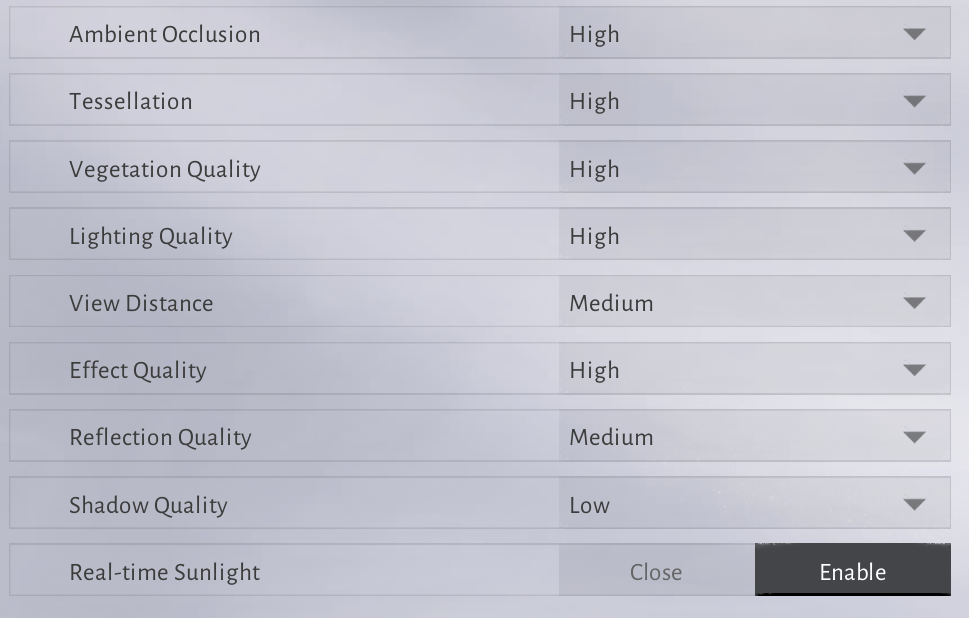
To achieve stable 60+ FPS and eliminate visual smearing during combat in Where Winds Meet, switch your display mode to Fullscreen, turn off Motion Blur and Depth of Field, lower Volumetric Clouds and Effect Quality to Low, and set Vegetation Quality to Medium. Dropping Vegetation Quality alone yields a 9% to 15% frame rate increase by reducing foliage draw distance, while disabling Screen Space Reflections via Low Reflection Quality recovers another 10% to 12% on mid-range GPUs according to PC Optimized Settings. Capping your global frame rate to your monitor refresh rate is also mandatory to stop uncapped menu renders from driving GPU hotspot temperatures past 90°C.
Recommended Graphics Configuration Profile
The Messiah Engine used in Where Winds Meet relies heavily on compute shaders for outdoor environments. Applying this baseline profile balances open-world scenic depth against the twitch response needed for melee encounters.
| Setting | Recommended Value | Performance and Visual Impact |
|---|---|---|
| Display Mode | Fullscreen | Bypasses the Windows Desktop Window Manager compositor to reduce input delay and micro-stutters (Hone.gg). |
| Motion Blur & Depth of Field | Off | Removes camera smearing and preserves sharp visual cues during rapid attacks and parries (Shutter Groove). |
| Vegetation Quality | Medium or Low | Saves 9% to 15% GPU overhead by pruning distant grass overdraw and geometry LOD (PC Optimized Settings). |
| Volumetric Clouds | Low or Off | Cuts ray-marching compute shader loads, granting the largest single outdoor FPS boost (Hone.gg). |
| Effect Quality | Low | Limits particle volume and sword trails during multi-target battles (Overgear). |
| Reflection Quality | Medium or Low | Disabling SSR recovers 10% to 12% FPS on mid-range and budget graphics cards (PC Optimized Settings). |
| Super Resolution (DLSS / FSR) | Quality Mode | Renders at 67% native resolution with temporal reconstruction for smoother frame pacing (Hone.gg). |
| Frame Rate Limit | Monitor Refresh Rate | Prevents uncapped rendering in UI menus from causing GPU hotspot spikes past 90°C (Hone.gg). |

60 Echo Beads
 60 Echo BeadsUSD 0.80Buy Now
180 Echo Beads
180 Echo BeadsUSD 2.38Buy NowMonthly Pass
Monthly PassUSD 3.98Buy Now300+30 Echo Beads
300+30 Echo BeadsUSD 3.98Buy Now600+68 Echo Beads
600+68 Echo BeadsUSD 7.97Buy NowElite Battle Pass
Elite Battle PassUSD 7.97Buy Now900+115 Echo Beads
900+115 Echo BeadsUSD 12.04Buy NowPremium Battle Pass
Premium Battle PassUSD 15.93Buy Now1800+268 Echo Beads
1800+268 Echo BeadsUSD 24.08Buy Now3000+458 Echo Beads
3000+458 Echo BeadsUSD 39.81Buy Now6000+1200 Echo Beads
6000+1200 Echo BeadsUSD 80.29Buy Now12000 Echo Beads
12000 Echo BeadsUSD 160.59Buy Now
Dialing in Heavy GPU Hitters: Clouds, Foliage, and Reflections
Two outdoor settings consume the bulk of GPU processing time: Volumetric Clouds and Vegetation Quality.
Volumetric cloud rendering relies on ray-marching compute shaders that heavily load the graphics pipeline, as documented by Hone.gg. Dropping Volumetric Clouds to Low or Off delivers the largest single frame rate gain in the display settings. Because clouds sit high overhead, lowering their detail does not compromise combat clarity on the ground.
Vegetation Quality controls both the level of detail (LOD) and the maximum draw distance of environmental grass. Testing by PC Optimized Settings confirms that setting this slider to high produces severe pixel overdraw in rolling fields, costing between 10% and 15% in raw frame rate. Selecting Medium or Low preserves grass density right around your character while trimming foliage further away, securing a reliable 9% to 15% performance uplift.
Reflection Quality dictates the sample resolution of screen space reflections (SSR). Setting this slider to Medium lowers ray-marching sampling rates, while Low disables SSR entirely. Dropping reflections to Low frees up 10% to 12% in rendering cost, providing necessary headroom for entry-level and mid-range GPUs without muddying wet surfaces.
Optimizing Combat Readability and Particle Effects
Fast martial arts combat requires immediate visual feedback to execute deflections, dodges, and parries. Post-processing effects often get in the way.
Motion Blur and Depth of Field apply radial smearing whenever the camera tracks an acrobatic leap or weapon swing. According to Shutter Groove, disabling both options removes the artificial softness that obscures weapon swing arcs and enemy attack flashes. The resulting image remains crisp during sudden camera shifts.
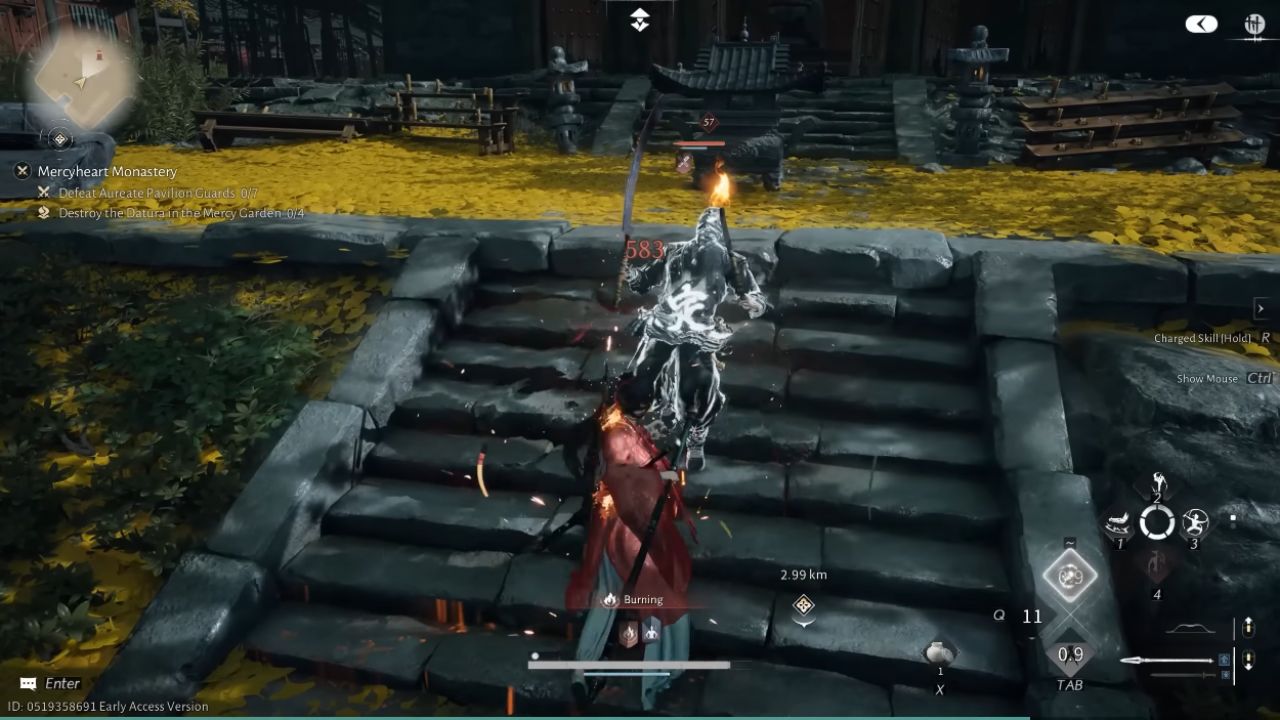
High-tier martial arts skills unleash dense alpha-blended particles and lighting bursts during multi-target encounters and boss encounters. As noted by Overgear, these effects trigger sharp frame drops in crowded arenas. Setting Effect Quality to Low strips back particle density, stabilizing frame pacing while preserving the flash cues needed to time parries.
Keeping particle density low also ensures that cosmetic weapon effects acquired with Echo Beads remain sharp and legible during multi-player skirmishes rather than bogging down frame pacing.
Overcoming the 100 FPS Engine CPU Bottleneck
Where Winds Meet encounters a distinct CPU barrier. Engine analysis by PC Optimized Settings reveals that even upper mid-range processors hit an execution ceiling around 100 FPS. Because of this CPU overhead, running the game natively at 1080p and 1440p produces almost identical performance, offering only a 13% speed increase over 4K UHD.
To break past this barrier on high-refresh displays:
- Select DirectX 12 in the display configuration.
- Enable DLSS or FSR set to Quality mode, which reconstructs the final image from a 67% base resolution.
- Turn on DLSS Frame Generation if running a compatible RTX GPU, which bypasses the CPU bottleneck to deliver frame rate increases up to 90%.
Without Frame Generation, tuning down graphics sliders will stabilize your minimum frame times, but will not push average frame rates past the ~100 FPS engine ceiling.
Fixing Stuttering, Memory Swapping, and Menu Overheating
Most stuttering and frame pacing spikes in Where Winds Meet trace back to two distinct bottlenecks: window compositor overhead and memory saturation.
Running the client in Borderless Windowed mode forces frames through the Windows Desktop Window Manager (DWM). Switching to exclusive Fullscreen grants the game direct hardware access to your monitor, stabilizing frame pacing and lowering input lag (Hone.gg).

During open-world travel, stutter spikes are aggravated by DirectX 12 runtime shader compilation and asset streaming. As reported by Hone.gg, Where Winds Meet demands roughly 32GB of system RAM to stream uncompressed open-world assets smoothly. Systems running 16GB RAM or less frequently encounter hard freezes as the OS swaps asset pools onto the disk page file. Clearing corrupt GPU shader caches and setting a dedicated page file on a solid-state drive mitigates these freezes.
Login screens, character creation, and loading menus render completely uncapped. High-end GPUs draw maximum wattage to push thousands of frames per second on these static interfaces, driving hotspot temperatures past 90°C and triggering thermal throttling or shutdowns (Hone.gg). Setting a global frame rate cap matching your monitor refresh rate through NVIDIA Control Panel or AMD Software: Adrenalin Edition eliminates these dangerous thermal spikes.
Frequently Asked Questions
Why does Where Winds Meet experience micro-stutters during combat and exploration?
Stutters happen when DirectX 12 compiles shaders in real time as new visual effects appear, combined with high asset streaming demands that overload PCs equipped with 16GB of RAM or less (Hone.gg).
Which graphics API should I choose?
DirectX 12 is mandatory if you plan to use temporal upscaling like DLSS, Intel XeSS, or DLSS 3 Frame Generation. DirectX 11 remains available as a fallback for older graphics cards that struggle with modern driver overhead (Hone.gg).
Can I fix performance by editing Engine.ini or GameUserSettings.ini?
No. Where Winds Meet runs on NetEase's custom proprietary Messiah Engine rather than Unreal Engine. Standard Unreal Engine .ini console variables and configuration tweaks do not work (Hone.gg).
How do I stop my GPU from overheating on loading and login screens?
Lock your maximum frame rate at the driver level to match your monitor refresh rate. This stops the client from generating thousands of frames during simple menu scenes, keeping GPU hotspot temperatures below 90°C (Hone.gg).






Comments