
To resolve the where winds meet failed to initialize graphics device error, force your operating system to execute the game on your dedicated graphics card rather than an integrated processor, verify that your GPU supports DirectX 12 feature levels (12_0 or higher) via dxdiag, and bypass the launcher by booting directly from the executable in your installation folder. This crash occurs when the game client calls DirectX 12 display adapters that either lack supported feature levels or get misrouted through low-power integrated graphics on dual-GPU setups.
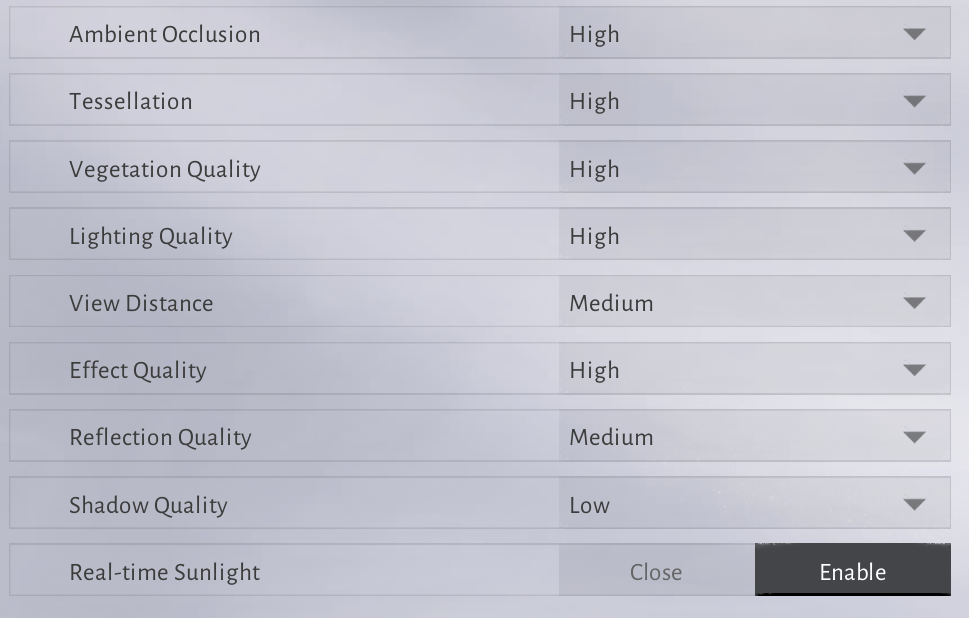
Verify DirectX 12 Feature Levels in dxdiag
Where Winds Meet mandates DirectX 12 API communication. If your graphics card or driver environment cannot establish an active D3D12 device, the client halts on boot with a graphics initialization or black screen launch error.
You can diagnose your hardware's exact API support using the built-in Windows DirectX Diagnostic Tool according to Driver Easy's DirectX guide:
- Press Windows Key + R, type
dxdiag, and press Enter. - Select the Display tab (or Display 1 / Display 2 if multiple monitors or dual GPUs are present).
- Locate the Drivers section on the right side and inspect the Feature Levels list.
- Check the highest value displayed: - 12_2 or 12_Ultimate: Full modern DirectX 12 support required by newer graphical pipelines. - 12_0 or 12_1: Standard DirectX 12 support suitable for baseline game execution. - 11_1 or lower: Incompatible with the game. The graphics hardware cannot execute modern DirectX 12 instructions.
Outdated graphics drivers or older Windows 10/11 operating system builds can also block DirectX 12 capability reporting. Updating your GPU drivers cleanly prevents these API handoff failures.

60 Echo Beads
 60 Echo BeadsUSD 0.80Buy Now
180 Echo Beads
180 Echo BeadsUSD 2.38Buy NowMonthly Pass
Monthly PassUSD 3.98Buy Now300+30 Echo Beads
300+30 Echo BeadsUSD 3.98Buy Now600+68 Echo Beads
600+68 Echo BeadsUSD 7.97Buy NowElite Battle Pass
Elite Battle PassUSD 7.97Buy Now900+115 Echo Beads
900+115 Echo BeadsUSD 12.04Buy NowPremium Battle Pass
Premium Battle PassUSD 15.93Buy Now1800+268 Echo Beads
1800+268 Echo BeadsUSD 24.08Buy Now3000+458 Echo Beads
3000+458 Echo BeadsUSD 39.81Buy Now6000+1200 Echo Beads
6000+1200 Echo BeadsUSD 80.29Buy Now12000 Echo Beads
12000 Echo BeadsUSD 160.59Buy Now
Force Dedicated GPU in Windows Graphics Settings
Gaming laptops and desktop CPUs with integrated graphics frequently suffer from a launcher graphics card not detected bug. Windows often defaults background processes or unrecognized launchers to the power-saving integrated chip (such as Intel UHD or AMD Vega) instead of routing the workload to your discrete GPU. XDA Developers' discrete GPU guide outlines how to manually assign the high-power card.
Follow these steps to lock the game executable to your discrete card:
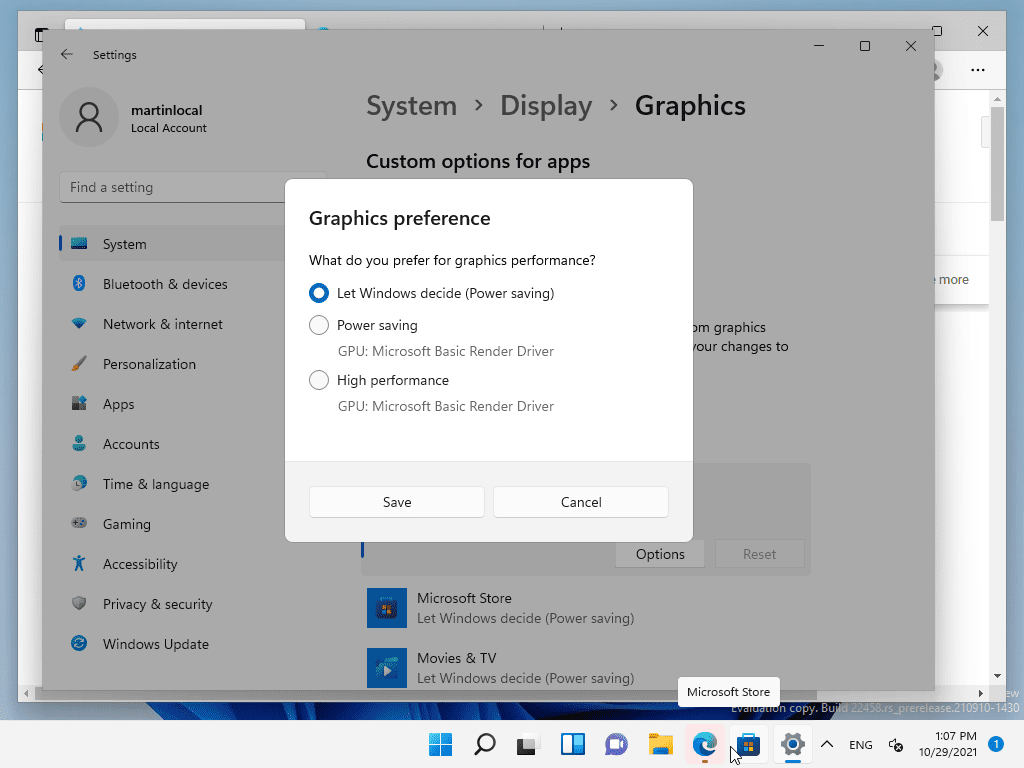
- Open the Windows Settings menu and select System.
- Click on Display, then scroll down to click Graphics.
- Under Custom options for apps, choose Desktop app and click Browse.
- Navigate to the Where Winds Meet installation directory and select the main game executable (
.exe). - Once the game appears in the list, select it and choose Options.
- Switch the graphics preference from Let Windows decide to High Performance, identifying your dedicated AMD, Intel ARC, or Nvidia card.
- Click Save and close Settings.
Set the Discrete GPU in Nvidia Control Panel
If you use an Nvidia graphics card, assign the primary GPU at the driver level to prevent a startup D3D12 crash loop before the title screen loads. XDA Developers' GPU guide details the program management workflow:
- Right-click an empty area on your desktop and select Nvidia Control Panel.
- Expand the 3D Settings tree on the left and choose Manage 3D Settings.
- Open the Program Settings tab in the main window.
- Click Add to locate and select the Where Winds Meet executable. If it does not appear in the recent list, browse to the installation directory.
- In the dropdown labeled Select the preferred graphics processor for this program, select High-performance NVIDIA processor.
- Click Apply in the bottom-right corner to save your changes.
Bypass an Unresponsive Launcher
Startup crashes often stem from communication breakdowns between the standalone game launcher and the main rendering engine. According to the official Where Winds Meet Launch Install Guide, an unresponsive launcher or startup hang can be resolved by launching the game directly.
Open your file explorer, find the root game installation folder, and double-click the primary .exe file rather than starting the game through the desktop launcher shortcut. If the launcher still freezes or fails to detect patches afterward, reinstalling the launcher installer directly from the official website restores missing bootstrap files.
Once the client boots cleanly, players progressing through the Ten Kingdoms era can browse Where Winds Meet Top Up options to acquire Echo Beads for outfits, battle passes, and weapon cosmetics.
System Requirements and GPU Architecture Limits
Hardware that falls below base performance levels risks an immediate crash on startup or a persistent black screen during engine initialization.
| Specification Level | OS Version | CPU | GPU | RAM | Storage |
|---|---|---|---|---|---|
| Minimum Specs | Windows 10/11 (x64) | Intel i7-4770K / AMD Ryzen 5 2400G | Nvidia GTX 750 Ti / AMD RX 550 / Intel ARC A380 | 8GB | 60GB HDD space |
| Recommended Specs | Windows 10/11 (x64) | Intel i7-10700 / AMD Ryzen 7 3700X | Nvidia RTX 2070 SUPER / AMD RX 6700 XT / Intel ARC A750 | 32GB | 100GB SSD space |
(Source: Official Where Winds Meet Launch Install Guide)
For laptop hardware, official guidelines state a minimum threshold of an AMD Ryzen 7 5800HS processor paired with an Nvidia MX450 GPU or equivalent.
The DirectX 11 vs. DirectX 12 Legacy GPU Discrepancy
There is a documented contradiction across technical sources regarding legacy graphics card support. The official installation guide lists older entry cards like the Nvidia GTX 750 Ti as meeting minimum specifications. However, secondary technical reports on GFuel's system breakdown emphasize that Where Winds Meet strictly requires DirectX 12 architecture, asserting that older DirectX 11-limited hardware—specifically the Nvidia GTX 700 series and AMD R9 200 series—cannot execute the client.
If you are running an older graphics card and encounter the graphics initialization failure despite updating drivers, run dxdiag as shown above. If your Feature Levels stop at 11_1 or 11_0, your physical hardware cannot initialize the DirectX 12 environment required by the game engine.
Frequently Asked Questions
Can I run Where Winds Meet with a DirectX 11 graphics card?
No. The game client requires DirectX 12 functionality. Cards that only support DirectX 11 feature levels cannot initialize the render engine, which triggers an immediate startup crash.
Why does my game show a black screen immediately after clicking play?
Black screens on launch commonly occur when system memory falls below the 8GB baseline, the GPU fails to meet minimum feature requirements, or Windows assigns the rendering thread to an integrated display adapter instead of a dedicated graphics card.
Does reinstalling the launcher delete game files?
Reinstalling only the launcher client repairs damaged bootstrapper and update files without wiping your core game assets if you point the installer back to the existing directory.






Comments