Instant CarX Street Top Up: Gold, Silver, and Passes
CarX Street drops drivers into the open-world streets of Sunset City, where competitive street racing, club battles, and precision drifting demand peak vehicle performance. Upgrading your car collection, performing complete engine swaps, fitting custom turbochargers, and acquiring top-tier sports cars require significant in-game currency. A direct CarX Street top up provides the resources you need to build competitive drift builds and sprint setups without grinding low-payout delivery missions.
ArcTopup provides direct account crediting using your unique CarX ID. You receive your Gold, Silver, or special passes directly in your game profile without sharing your login credentials.
In-Game Currencies Explained: Gold vs. Silver
CarX Street utilizes a dual-currency economic system where each currency serves distinct progression and tuning roles:
- Gold (Premium Currency): Gold purchases elite tier vehicles, premium houses with expanded garage slots, instant part deliveries, and specialized styling packages. Gold is also required for major mechanical overhaul resets and exclusive cosmetic rims, neon kits, and custom body modifications.
- Silver (Standard In-Game Cash): Silver pays for standard car maintenance, routine fuel stops, suspension tuning, brake adjustments, and standard race entry fees across Sunset City districts.
- Street Pass & Premium Bundles: Seasonal passes and special offers supply bonus Gold, Silver, visual customization points, and exclusive car blueprints upon completing racing objectives.
CarX Street Pass and Gold Packs Overview (2026)
Selecting the right package depends on your garage goals in Sunset City. Below is a breakdown of the standard currency packs and their primary in-game utilities:
| Package Type | In-Game Utility | Fulfillment Method |
|---|---|---|
| CarX Street Gold Packs | Buying top-tier cars, houses, exclusive body kits, and premium engine parts | Direct UID Automated Top-Up |
| Silver Cash Bundles | Upgrading suspension, buying standard performance parts, and race entries | Direct UID Automated Top-Up |
| Street Pass / Premium Pass | Seasonal reward tracks, exclusive blueprints, and bonus boost items | Direct UID Automated Top-Up |
| Special Vehicle Packs | Instant access to fully pre-tuned street and drift cars | Direct UID Automated Top-Up |
Note: Exact bundle pricing and live currency amounts appear directly on the ArcTopup checkout selection menu.
How to Find Your CarX ID in CarX Street
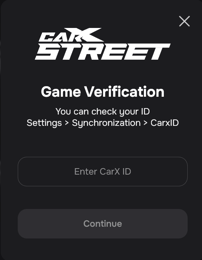
To ensure your recharge reaches your profile accurately, locate your numeric CarX ID inside the game app. Follow these visual steps:
- Launch CarX Street on your mobile device (iOS or Android).
- From the main garage screen, tap the Profile / Settings icon located in the upper-left corner of the display.
- Open the Account / Profile tab.
- Locate your CarX ID displayed below your racer name.
- Tap the copy icon next to the ID string or write it down carefully.
Double-check the copied numeric ID before placing your order to prevent fulfillment delays.
Step-by-Step Guide to Top Up CarX Street on ArcTopup
Recharging your CarX Street account on ArcTopup takes only a few simple steps:
- Select Your Item: Choose the amount of CarX Street Gold, Silver, or pass bundle you wish to purchase from the product catalog.
- Enter Your CarX ID: Paste your numeric CarX ID into the designated player input field.
- Select Payment Method: Pick your preferred payment option on the live checkout screen.
- Review and Confirm: Verify that your CarX ID is accurate and proceed with payment.
- Receive Your Currency: Once payment confirmation processes, open CarX Street. Your purchased Gold or bundle will reflect automatically in your account balance.
Why ArcTopup ID-Only Top-Up is Safer Than Account Sharing
Many peer-to-peer marketplaces require buyers to hand over personal Apple ID, Google Play, or social media login details so an unknown third-party seller can log into the buyer's account. This practice creates severe security vulnerabilities, including:
- Account theft and unauthorized credential modifications.
- Breaches of personal data stored within linked mobile accounts.
- Risk of account suspension or bans due to suspicious multi-region logins.
- Long delays while waiting for marketplace sellers to log in and fulfill orders through manual chat queues.
ArcTopup eliminates these risks through an ID-only fulfillment process. You only provide your public CarX ID. We never ask for your password, verification codes, or personal account access. Your purchase is processed directly to your game profile through automated direct crediting, keeping your account entirely under your control.
Accepted Payment Methods and Delivery Process
ArcTopup supports a broad range of global and regional payment channels, including credit cards, debit cards, digital wallets, and localized payment gateways. All transactions run through encrypted payment processors to safeguard your financial details.
Prices are displayed transparently at checkout in your local currency without hidden surcharges. Once your transaction finishes, our automated processing system routes the ordered currency directly to the CarX ID specified during checkout.
CarX Street Recharge Troubleshooting and Support
If your balance does not update immediately after completing payment, review these troubleshooting steps:
- Restart the Game App: Completely close the CarX Street application from your background tasks and relaunch it. This forces the game client to refresh its balance with the game servers.
- Check Network Connection: Ensure your mobile device has a stable Wi-Fi or cellular data connection so the client can pull the latest server data.
- Verify Your CarX ID Entry: Check your ArcTopup order confirmation receipt to confirm the CarX ID entered matches your in-game profile ID.
- Contact ArcTopup Support: If your currency has not arrived after a short server sync window, contact ArcTopup customer support with your Order ID and CarX ID for prompt verification and assistance.
Frequently Asked Questions
How to top up in CarX Street using CarX ID?
Select the desired CarX Street Gold or pass pack on ArcTopup, input your numeric CarX ID in the player field, choose your payment method, and complete the purchase. The items credit directly to your game profile.
Where can I find my CarX ID in CarX Street?
Open CarX Street, tap the Profile/Settings icon in the top-left corner of the garage screen, and view your Account tab. Your numeric CarX ID is listed directly beneath your driver nickname.
Do I need to provide my CarX Street password to top up?
No. ArcTopup never asks for your password, Apple ID, Google account, or social login credentials. You only need to provide your CarX ID for a direct top-up.
How long does it take for CarX Street Gold to arrive after payment?
Under normal operating conditions, our direct top-up system credits the Gold to your account shortly after payment confirmation. Relaunching the game helps display the updated balance immediately.
What is the difference between Gold and Silver in CarX Street?
Gold is the premium currency used for exclusive sports cars, properties, rapid part upgrades, and premium styling options. Silver is the standard currency used for regular vehicle maintenance, fuel, and standard race entrance fees.
What should I do if my CarX Street top-up is delayed?
First, restart your CarX Street game client to sync with the server. If the balance remains unchanged, verify the CarX ID on your order receipt and reach out to ArcTopup support with your order details.
Can I top up CarX Street for both iOS and Android accounts?
Yes. As long as you have a valid numeric CarX ID from your CarX Street game profile, you can top up whether you play on an iOS or Android device.
Current packages and prices
Current base prices exclude Tax. Tax, payment fees and coupon adjustments are shown at checkout.
| Package | Price |
|---|---|
| $10,000 Cash | USD 0.88 |
| 7-Day Premium | USD 0.88 |
| 15 Gold | USD 1.47 |
| Starter Pack #1 | USD 1.48 |
| $50,000 Cash | USD 2.99 |
| 30-Day Premium | USD 3.17 |
| 500 Event Points | USD 3.17 |
| Mountain Drive Pack | USD 3.46 |
| 40 Gold | USD 3.98 |
| Sunset Speedway Pack | USD 3.98 |
| $120,000 Cash | USD 4.46 |
| Pro Pack #2 | USD 6.37 |
| Street Pass | USD 6.37 |
| Mountain Drive Ultimate | USD 6.97 |
| $300,000 Cash | USD 8.14 |
| 1,500 Event Points | USD 8.14 |
| 90-Day Premium | USD 8.14 |
| 90 Gold | USD 8.14 |
| Sunset Speedway Ultimate | USD 8.14 |
| Elite Pack #3 | USD 11.05 |
| 2,800 Event Points | USD 11.64 |
| 4,000 Event Points | USD 15.06 |
| $800,000 Cash | USD 15.15 |
| 250 Gold | USD 15.15 |
| 180-Day Premium | USD 16.32 |
| Legendary Pack #4 | USD 23.33 |
| $2,500,000 Cash | USD 40.34 |
| 750 Gold | USD 40.34 |
| 1,800 Gold | USD 81.26 |